tencent cloud

Tencent Cloud EdgeOne

Release Notes and Announcements
Release Notes
Security Announcement
Announcements
Product Introduction
Overview
Strengths
Use Cases
Comparison Between EdgeOne and CDN Products
Use Limits
Purchase Guide
Description of Trial Plan Experience Benefits
Free Plan Guide
Billing Overview
Billing Items
Subscriptions
Renewals
Instructions for overdue and refunds
Comparison of EdgeOne Plans
About "clean traffic" billing instructions
DDoS Protection Capacity Description
Getting Started
Choose business scenario
Quick access to website security acceleration
Quick deploying a website with Pages
Domain Service&Origin Configuration
Domain Service
HTTPS Certificate
Origin Configuration
Site Acceleration
Overview
Access Control
Smart Acceleration
Cache Configuration
File Optimization
Network Optimization
URL Rewrite
Modifying Header
Modify the response content
Rule Engine
Image&Video Processing
Speed limit for single connection download
DDoS & Web Protection
Overview
DDoS Protection
Web Protection
Bot Management
API Discovery(Beta)
Edge Functions
Overview
Getting Started
Operation Guide
Runtime APIs
Sample Functions
Best Practices
Pages
L4 Proxy
Overview
Creating an L4 Proxy Instance
Modifying an L4 Proxy Instance
Disabling or Deleting an L4 Proxy Instance
Batch Configuring Forwarding Rules
Obtaining Real Client IPs
Data Analysis&Log Service
Log Service
Data Analysis
Alarm Service
Site and Billing Management
Billing Management
Site Management
Version Management
General Policy
General Reference
Configuration Syntax
Request and Response Actions
Country/region and Corresponding Codes
Terraform
Overview
Installing and Configuring Terraform
Practical Tutorial
EdgeOne Skill User Guide
Automatic Warm-up/Cache Purge
Resource Abuse/hotlinking Protection Practical
HTTPS Related Practices
Acceleration Optimization
Scheduling Traffic
Data Analysis and Alerting
Log Platform Integration Practices
Configuring Origin Servers for Cloud Object Storage (Such As COS)
CORS Response Configuration
API Documentation
History
Introduction
API Category
Making API Requests
Site APIs
Acceleration Domain Management APIs
Site Acceleration Configuration APIs
Edge Function APIs
Alias Domain APIs
Security Configuration APIs
Layer 4 Application Proxy APIs
Content Management APIs
Data Analysis APIs
Log Service APIs
Billing APIs
Certificate APIs
Origin Protection APIs
Load Balancing APIs
Diagnostic Tool APIs
Custom Response Page APIs
API Security APIs
DNS Record APIs
Content Identifier APIs
Legacy APIs
Ownership APIs
Image and Video Processing APIs
Multi-Channel Security Gateway APIs
Version Management APIs
Data Types
Error Codes
FAQs
Product Features FAQs
DNS Record FAQs
Domain Configuration FAQs
Site Acceleration FAQs
Data and Log FAQs
Security Protection-related Queries
Origin Configuration FAQs
Troubleshooting
Reference for Abnormal Status Codes
Troubleshooting Guide for EdgeOne 4XX/5XX Status Codes
520/524 Status Code Troubleshooting Guide
521/522 Status Code Troubleshooting Guide
Tool Guide
Agreements
Service Level Agreement
Origin Protection Enablement Conditions of Use
TEO Policy
Privacy Policy
Data Processing And Security Agreement
Contact Us
Glossary
DocumentationTencent Cloud EdgeOneTerraformInstalling and Configuring Terraform

Installing and Configuring Terraform

Focus Mode
Font Size
Last updated: 2024-01-25 11:20:13
This document describes how to install and configure Terraform.

Step 1. Install Terraform

1. Go to Terraform official website and use the command line to install Terraform directly or download the binary installation file.
2. Unzip the file and configure the global path. Skip this step if you use the command line.
Linux and macOS
Windows
1. Run the following command to unzip the file. Replace 1.x.x with the actual version number of Terraform to be installed.
unzip terraform_1.x.x_linux_amd64.zip
2. Run the following command to add the current directory to the ~/.profile file.
echo $"export PATH=\\$PATH:$(pwd)" >> ~/.bash_profile
3. Run the following command to make the global path configuration take effect.
source ~/.bash_profile
1. On the desktop, right-click the This PC icon and select Properties in the pop-up menu.
2. In the pop-up window, click Advanced system settings.
3. In the System Properties window that pops up, click Environment Variables.
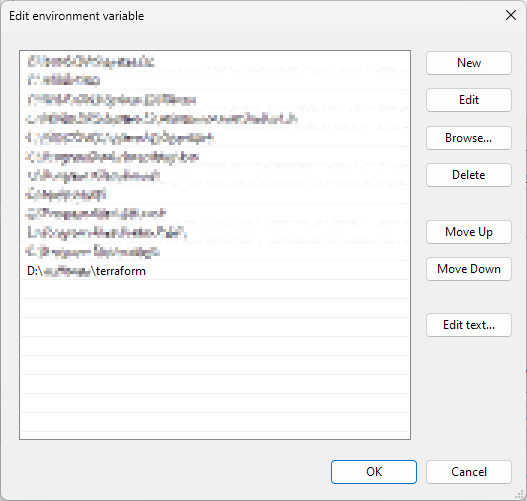
4. In System variables, add the absolute path of terraform.exe to Path as shown below: This document uses Windows 10 as an example, and terraform.exe is located in D:\\xxxx\\terraform.

5. Click OK.
3. Run the following command to check whether the installation is successful.
terraform -version
If the following information is returned (the version number may be different), the installation is successful:
> Terraform v1.0.10
> on darwin_amd64
> Your version of Terraform is out of date! The latest version
> is 1.1.0. You can update by downloading from https://www.terraform.io/downloads.html

Step 2. Configure security credentials

Before using Terraform for the first time, go to the TencentCloud API Key page to apply for SecretId and SecretKey. If you already have them, go to step 3.
1. Log in to the CAM console and select Access Key > Manage API Key on the left sidebar.
2. On the Manage API Key page, click Create Key to create a pair of SecretId/SecretKey.


3. You can authenticate in two ways:
Authentication by environment variable
Authentication by Static Credential
Add the following content to the environment variable configuration: Replace <your-secret-id> and <your-secret-key> with SecretId and SecretKey obtained in the Get credentials step.
export TENCENTCLOUD_SECRET_ID=<your-secret-id>
export TENCENTCLOUD_SECRET_KEY=<your-secret-key>
Create a provider.tf file in the user directory and enter the following content: Replace <your-secret-id> and <your-secret-key> with SecretId and SecretKey obtained in the Get credentials step.
provider "tencentcloud" {
secret_id = "<your-secret-id>"
secret_key = "<your-secret-key>"
}
4. At this point, you have installed Terraform and configured the environment variable. You can now proceed to create a site through Terraform.

Help and Support

Was this page helpful?

Help us improve! Rate your documentation experience in 5 mins.

Feedback