Data classification and grading is a core governance module of data security posture management, providing capability support for business scenarios such as compliant inventory of data assets, sensitive data control, and dedicated protection of critical data.
Related Documentation
|
|
| Enable data identification for the target database asset. The system will automatically scan sensitive data based on the classification and grading template. |
|
| View the classification and grading distribution, sensitive data details, and statistics information after data identification scanning. |
Classification and Grading Management | | When built-in templates cannot meet business requirements, you can customize data classification and grading systems. |
| | Replace the currently used classification and grading template in different business scenarios. |
| | Quickly create a template based on an existing one and reuse its classification and grading configurations. |
| | Define specific sensitive data types in classification and grading identification, such as ID card numbers and mobile phone numbers. |
Enabling Data Identification
2. On the Instance List tab, select the target database asset, and click Data Identification in the operation column.
3. In the data identification configuration window, select Immediate Identification or Cycle Recongnition. If you select Cycle Recongnition, configure the identification frequency, such as daily, weekly, or monthly, and specify the identification cycle. After the configuration is complete, click Confirm.
4. After successful identification, the database asset table details will be automatically refreshed, and data asset content tags will be added.
Viewing Classification and Grading Results
1. On the Instance List tab page, locate the target database asset, and click its Instance ID.
2. On the instance details page, click the Data Identification tab.
3. On the Data Identification tab page, the classification and grading details under the current classification and grading template will be displayed. Click Data Name or Table Name to view the classification and grading identification results for specific databases, tables, and fields.
Creating a Classification and Grading Template
A classification and grading template is a standardized data classification and grading standard generated by configuring the relationships among classifications, grades, and data items. It serves as the unified standard for data classification and grading identification.
2. On the DSAduit page, click Classification and Grading Management to open the Classification and Grading Management panel.
3. On the Classification and Grading tab, click Create Template.
4. In the Create Template window that appears, configure the basic template information:
|
Template Name | Customize the template name. It cannot exceed 64 characters. |
Description | Description of the classification and grading template. It cannot exceed 200 characters. |
Grading Scheme | Used to associate corresponding classification grades with data items during template configuration. You can only select from existing classification schemes. If no classification scheme meets your requirements, click Create a grading scheme to quickly create one. |
5. Click Confirm to successfully create the classification and grading template.
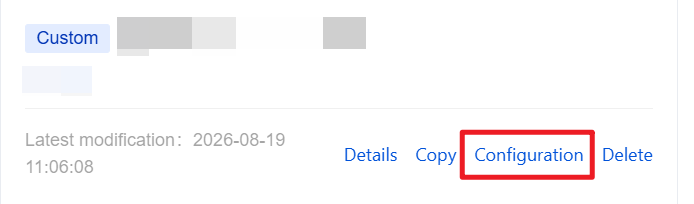
6. After creation, on the Classification and Grading tab, select the template you created and click Configuration to configure the classification and grading template.
Note:
System built-in templates are configured by the system by default, while custom templates can be configured manually.
7. On the template configuration page, click the "+" button to add the required classifications.
8. After the classification is added successfully, select the target classification and click Add Data Item.
9. In the Add Data Item window that appears, select the data items to associate with the classification and configure a grade for each data item.
10. Repeat the above steps as needed to add multiple classifications and data items to the template. You can then complete the creation of a classification and grading template.
Switching Classification and Grading Templates
Templates in the application are globally applicable. You can switch templates to select a classification and grading template that meets your requirements.
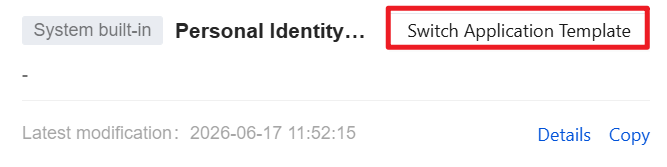
1. On the Classification and Grading tab, select the template you want to apply and click Switch Application Template in the upper-right corner.
2. In the confirmation window, click Confirm to switch successfully.
Note:
The change takes effect immediately after a switch is performed and only affects new data identification results, while historical scan data records are retained.
Copying a Classification and Grading Template
You can quickly create a template by copying an existing one and then make modifications based on the copied template.
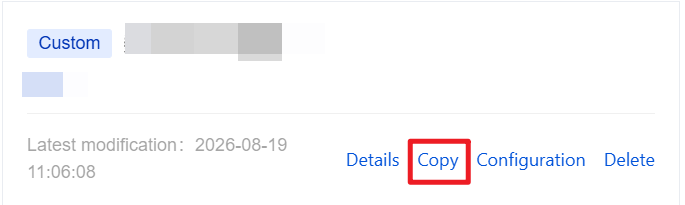
1. On the Classification and Grading tab, select the template you want to apply and click Copy.
2. In the Copy Template window, enter the template name and description, and click Confirm to copy the template successfully.
Note:
System built-in templates cannot be edited or deleted. To make adjustments based on a built-in template, use the copy feature to create a duplicate and then modify it.
Creating a Data Item
A data item is the smallest rule unit used to identify sensitive data. It determines the sensitive attributes of fields through matching logic such as keywords and regular expressions, and serves as the core rule basis for automated scanning and identification of sensitive data. The system has 797 built-in data items and also allows you to create custom ones.
2. On the DSAduit page, click Classification and Grading Management to open the Classification and Grading Management panel.
3. In the Classification and Grading Management window, click the Data Items tab.
4. On the Data Items tab, click Create Data Item.
5. On the Create Data Item page, configure the required data item settings and click Confirm to create it successfully.
|
Basic Information | Data Item Name | The data item name is the identifier of a category-data item and is used to uniquely identify each data item in the system. |
| Description | The data item description provides details about the identified data item and helps users better understand its purpose, function, and expected effect. |
| Enabled State | Indicates whether this data item takes effect when a classification and grading task is executed. |
Rule Configuration | Match Logic | AND: All conditions must be met for successful identification. OR: Identification succeeds as long as one of the conditions is met. |
| Recognition Object | Recognition object refers to the object on which data recognition is performed. You can configure multiple features of the recognition object at the same time, such as field names and content. |
| Recognition Method | You can freely select the desired recognition method (match / mismatch). |
| Recognition Logic | Keyword: Keyword matching is a matching mode that identifies data by searching for specific keywords in the data. Once these keywords are found in the data, the data will be marked and classified and graded. Regex: Regex matching uses regular expressions to define complex matching patterns. Matching with regular expressions improves matching accuracy and flexibility. |
| Ignore Case | If Ignore Case is enabled, letter case is not distinguished during matching. |
| Full-text Match | Full-text matching compares the data to be identified with the recognition content to check for exact consistency. If the data is exactly the same as the recognition content, it will be marked and then classified and graded. |
6. After the configuration is complete, click Test to verify the configured identification rules.