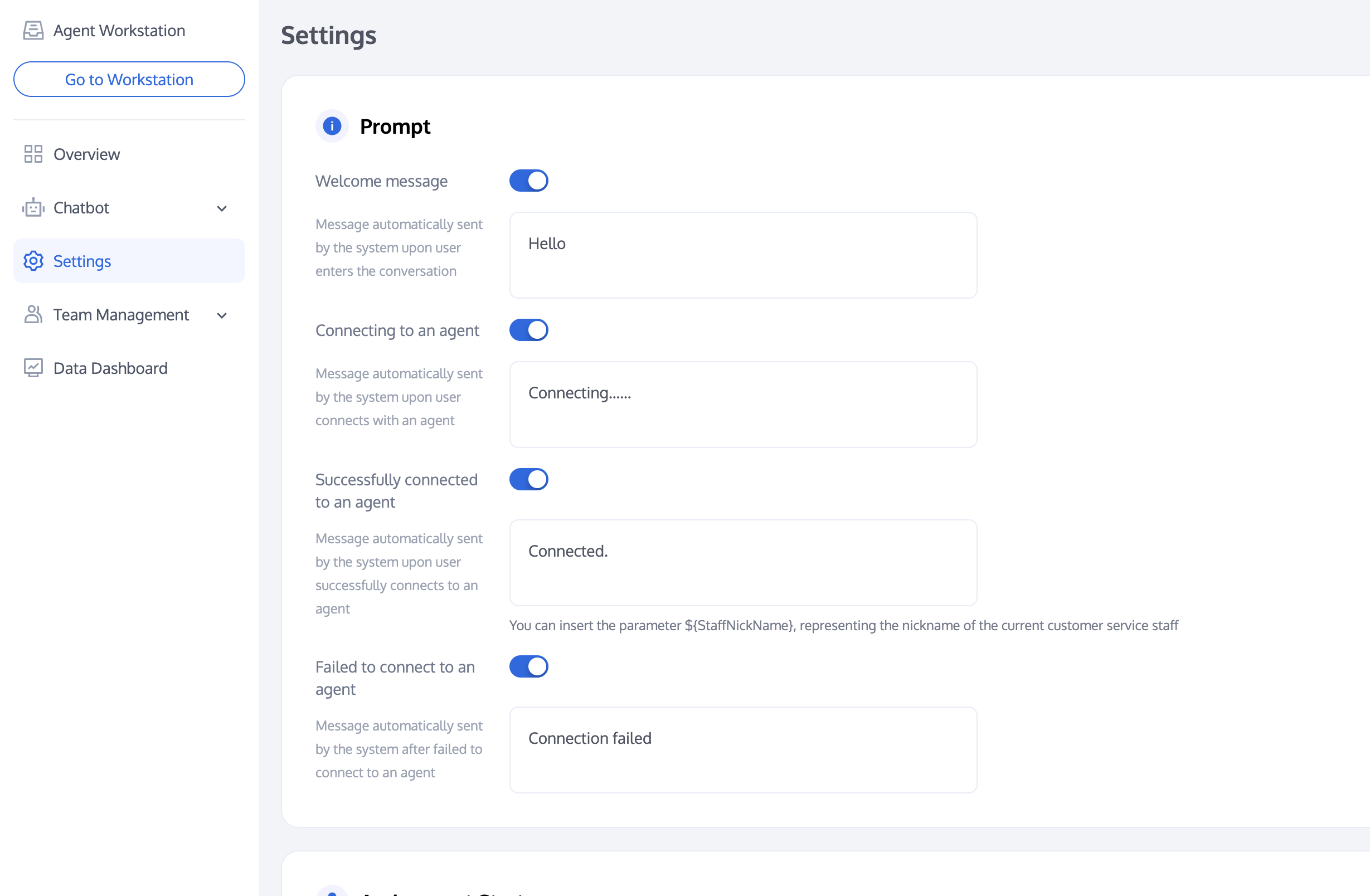
Access the Management Panel, and click 'Settings' in the left navigation bar to enter the Session Settings page.
Conversation Prompts
Desk can send specific prompts based on your needs in different scenarios.
Prompt
Description
Welcome Message
After a user enters a conversation, the system automatically sends the first welcome message.
Connecting to an agent
After a user requests to connect to an agent, the system automatically sends a prompt.
Successfully connected to an agent
After a user successfully transfers to an agent, the system automatically sends a prompt.
Failed to connect to an agent
After a user fails to transfer to an agent, the system automatically sends a prompt.
Assignment Strategy
Desk offers multiple options that allow you to quickly assign users to the appropriate agent team based on customized assignment strategies.
Strategy
Explanation
Assign Automatically
The default system strategy is 'Assigning Automatically', where the system assigns users to the agent who has not handled a conversation for the longest time.
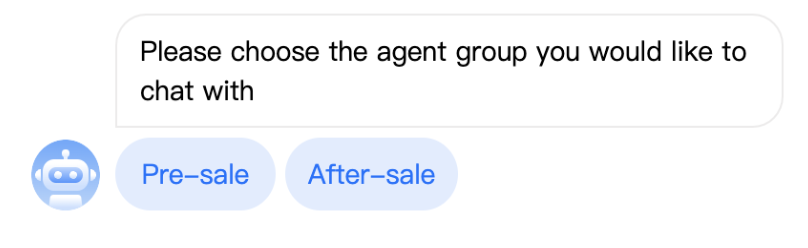
Assign by User's Choice
The option for users to choose a group is not available by default. To enable the group feature, please refer to Group Management.
After enabling the group feature, you can the strategy. Under this strategy, the system assigns users to the group of their choice.
Assigned by Webhook
Assigned by Webhook
If you require more advanced assignment logic, you can use the strategy 'Assigned by Webhook'. After configuring a callback URL, user access requests are forwarded to your server, which then assigns them to the specified group or agent. For specific usage, refer to the Business server allocation callback.
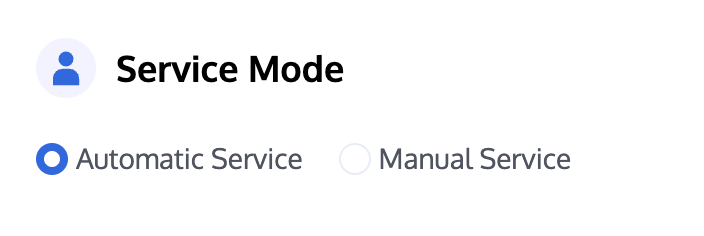
Service Mode
Desk offers the functionality to set agent service modes.
Automatic Service: When this service mode is selected, agents will automatically handle user inquiries when available.
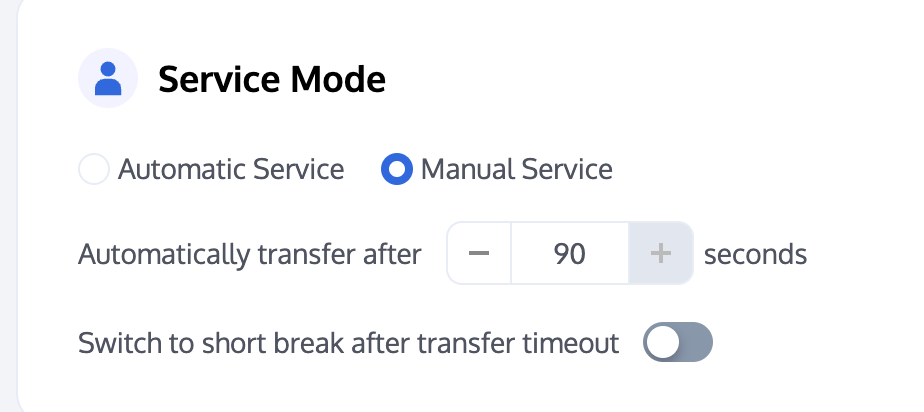
Manual Service: When this service mode is selected, only when agents clicks "Access", will the available agents start handling user inquiries.
After enabling manual service, if customer service exceeds the set time without clicking access, the user will be automatically transferred to another agent.
After enabling "Switch to short break after transfer timeout", if the conversation assigned to customer service is not attended to after the set time, the agent's status is automatically set to break.
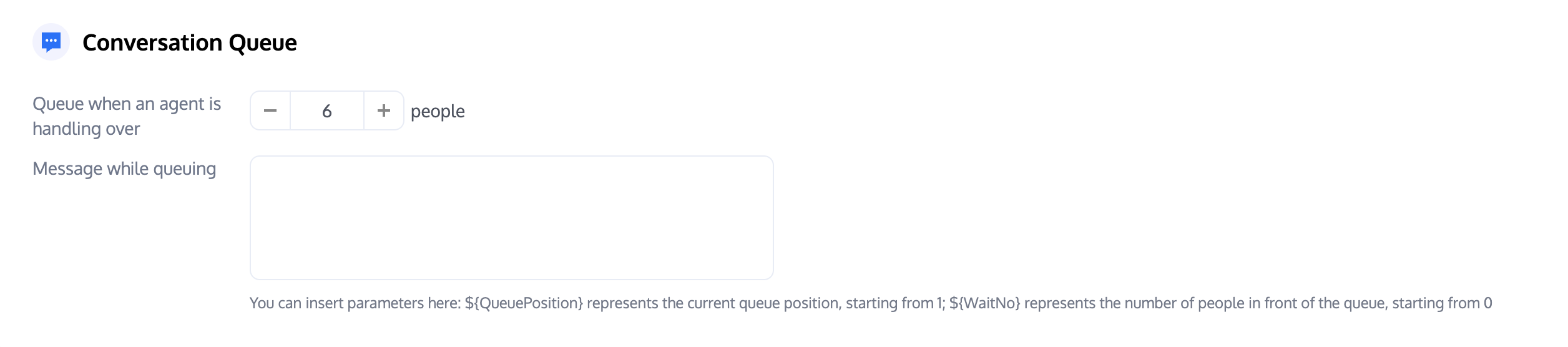
Conversation Queue
Desk allows you to customize the queuing logic and the prompts during queuing.
Maximum Concurrent Sessions per Agent: Set the maximum number of users a single agent can handle at the same time.
Queuing Prompts: During user queuing, the system automatically sends preset prompts. Use parameters such as $QueuePosition (current queuing position) and $WaitNo (number of people waiting in front) to provide real-time information to users.
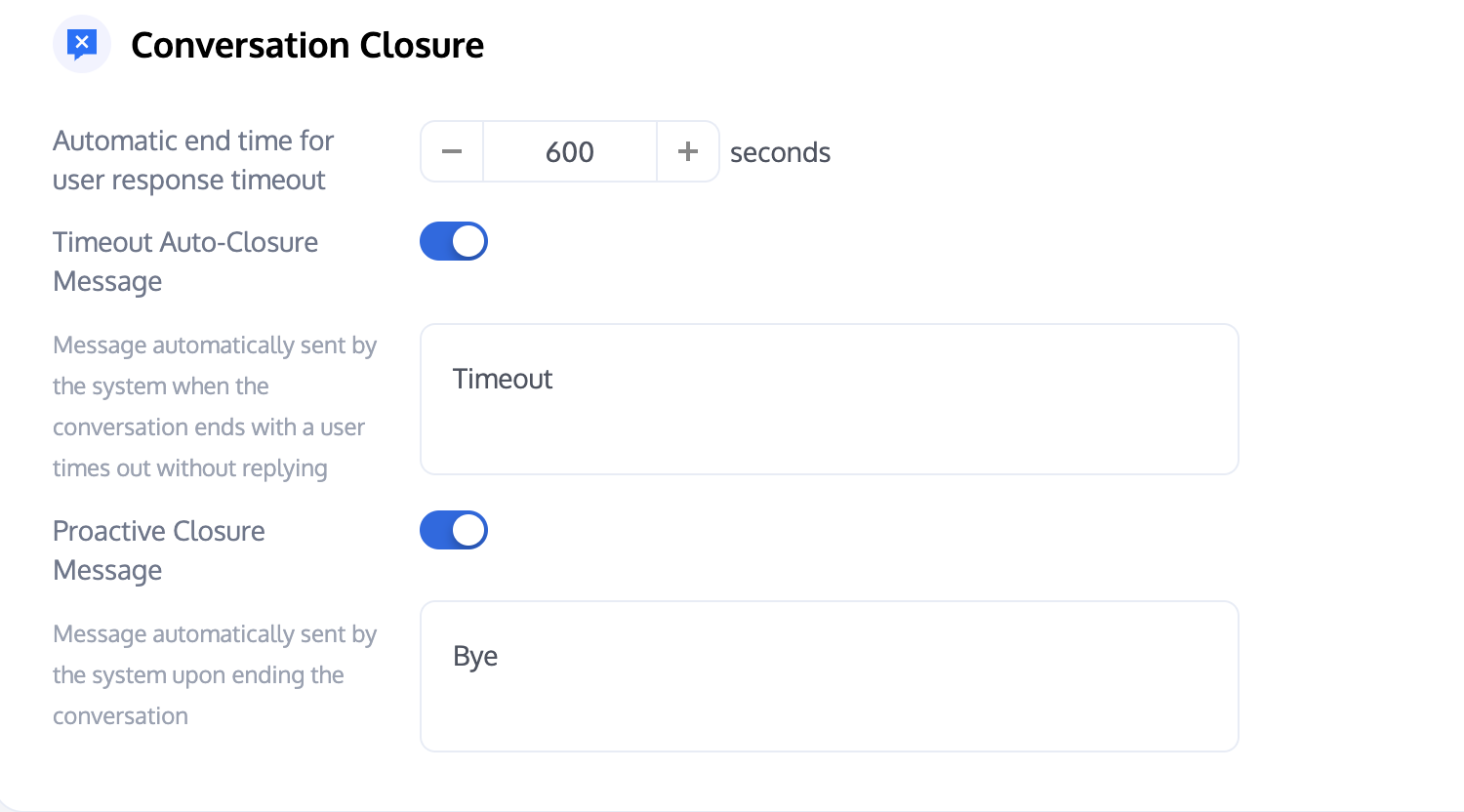
Conversation Closure
Desk offers flexible configurations for conversation closure.
Automatic end time for user response timeout: If the user does not respond within the set time, the conversation automatically closes.
Timeout Auto-Closure Message: Once enabled, if the user does not respond on time, the system automatically sends a preset prompt.
Proactive Closure Message: Once enabled, after a conversation is actively ended by the user or customer service, the system automatically sends a preset prompt.
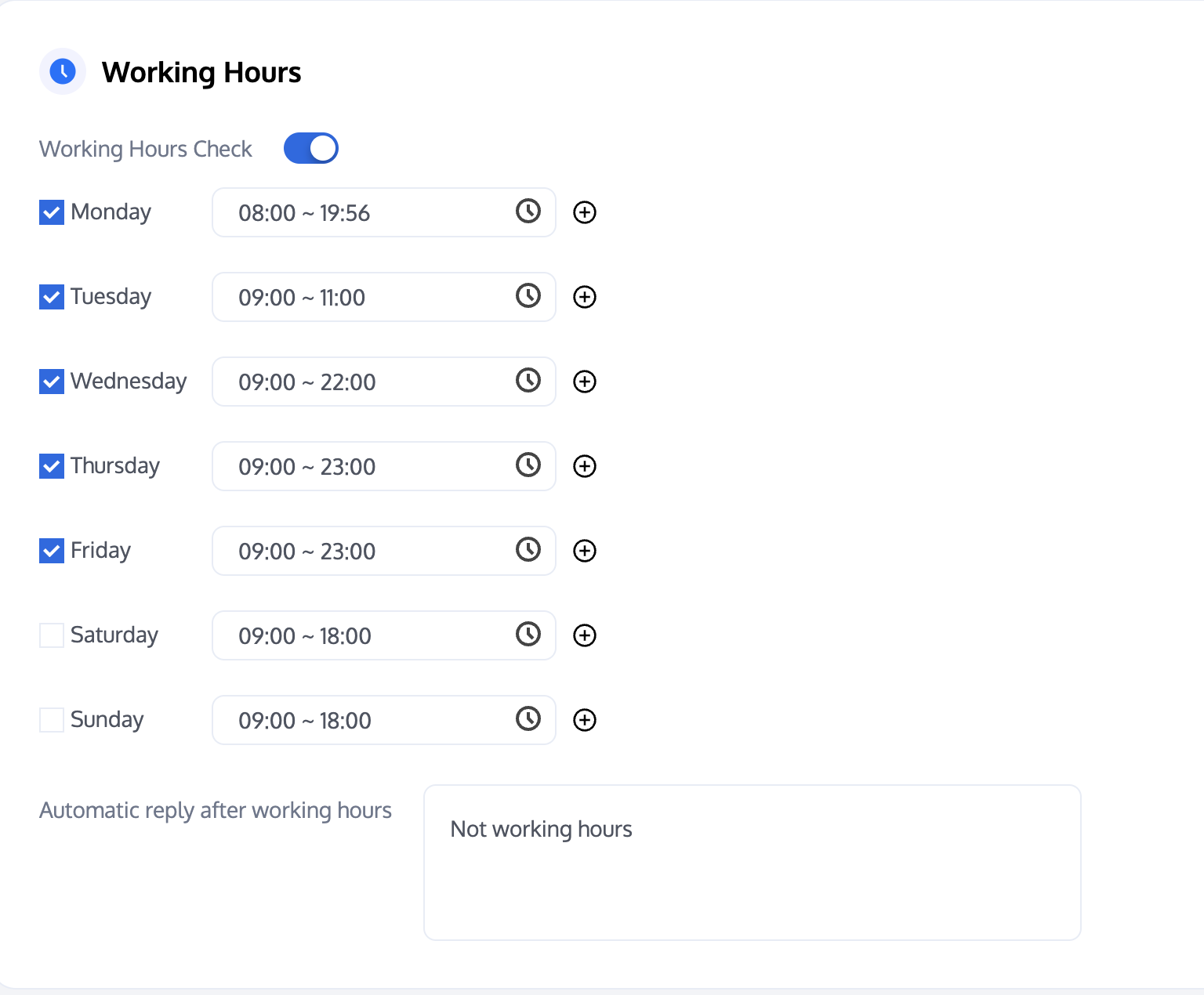
Working Hours
Desk allows you to customize the working hours for agents.
Working Hours Check: Once this feature is enabled, you can customize the working dates and times for customer service; otherwise, the working hours check is not enabled by default.
Automatic reply after working hours: Prompt sent to users during non-working hours.
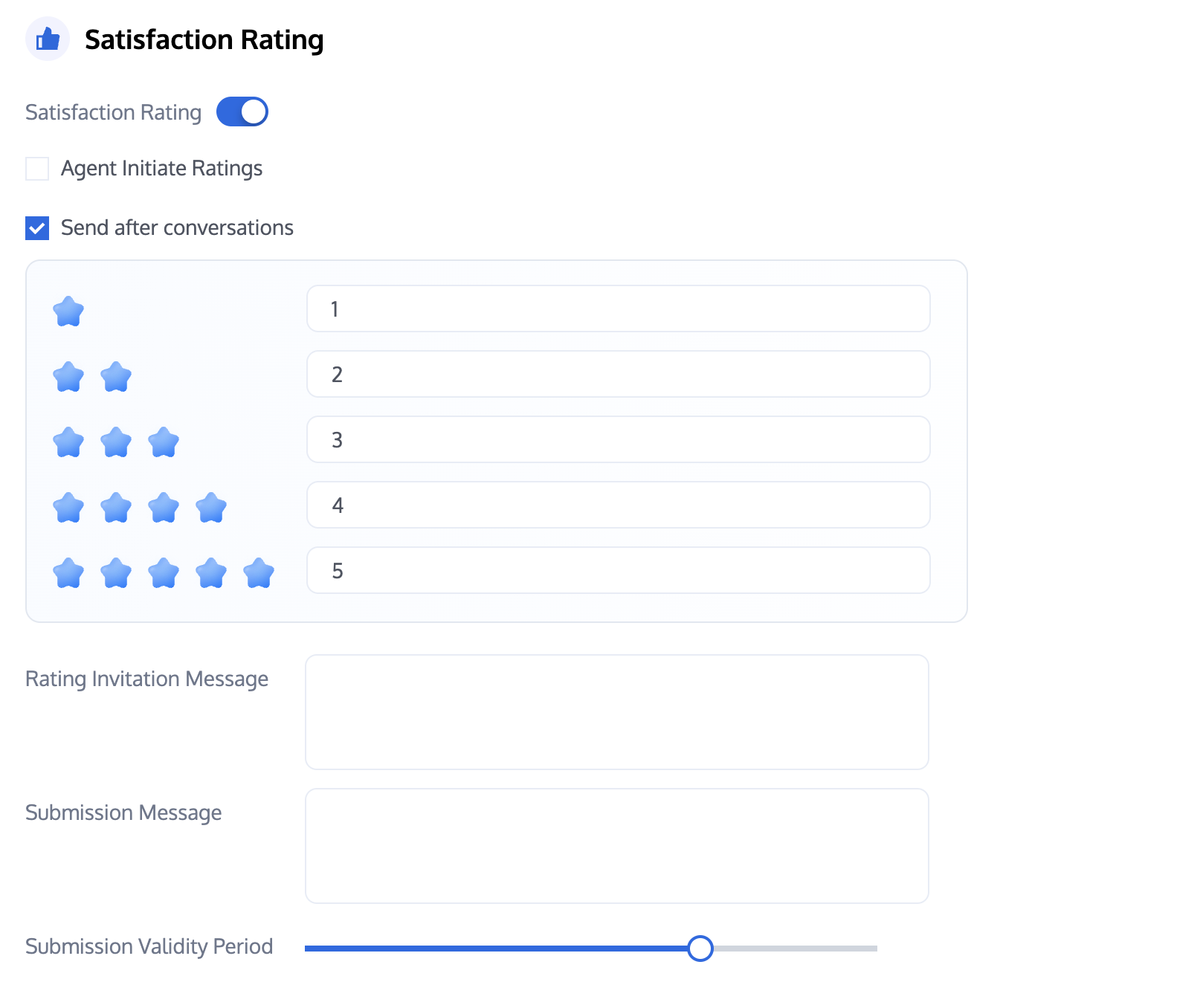
Satisfaction Ratings
Desk offers various satisfaction rating features:
Agent Initiate Ratings: Once this feature is enabled, customer service personnel can actively invite users to rate.
Send after conversation ends: Once enabled, agents automatically send a custom satisfaction rating card after the conversation ends.
Rating Invitation Message: Customize the rating invitation prompt for agents.
Rating Submission Message: Customize the prompt sent by customer service personnel after a user submits a rating.
Submission Validity Period: Customize the validity period for user rating submissions.