tencent cloud

Chat

News and Announcements
Release Notes
Announcements
Product Introduction
Overview
Basic Concepts
Scenarios
Features
Account System
User Profile and Relationship Chain
Message Management
Group Related
Official Account
Audio/Video Call
Use Limits
Purchase Guide
Billing Overview
Pricing
Purchase Instructions
Renewal Guide
Service Suspension Explanation
Refund Policy
Development Guidelines
Demo Zone
Activate Service
Free Demos
Quick Run
Download
SDK and Demo Source Code
Update Log
Chat Interaction (UI Included)
TUIKit Introduction
Getting Started
Full-feature Integration
Single-function Integration
Build with AI
Build Basic Interfaces
More Features
Customizing Appearance
Internationalization
Push Service
Overview
Noun explanation
Activate the Service
Quick Start
Manufacturer Channel
Statistics
Troubleshooting Tool
Client APIs
REST API
Push Callback
Advanced Features
Release Notes
Error Codes
FAQS
Desk
Overview
Quick Start
Integration Guide
Admin Operation Manual
Agent Manual
More Practices
Live Streaming Setup Guide
AI Chatbot
Super Large Entertainment and Collaboration Community
Discord Implementation Guide
How to Integrate Chat into Games
WhatsApp Channel-style Official Account Integration Solution
Send Red Packet
Firewall Restrictions
No UI Integration
Quick Start
SDK Integration
Initialization
Login and Logout
Message
Conversation
Group
Community Topic
User Profile and Relationship Chain
Offline Push
Cloud Search
Local Search
Official Channel Management
Client APIs
JavaScript
Android
iOS & macOS
Swift
Flutter
Electron
Unity
React Native
C APIs
C++
Server APIs
Secure authentication with UserSig
RESTful APIs
Webhooks
Console Guide
New Console Introduction
Creating and Upgrading an Application
Basic Configuration
Feature Configuration
Account Management
Group Management
Official Channel Management
Webhook Configuration
Usage
Viewing Guide for Resource Packages
Real-Time Monitor
Auxiliary Development Tools
Access Management
Advanced Features
FAQs
uni-app FAQs
Purchase
SDK
Account Authentication
User Profile and Relationship Chain
Message
Group
Audio-Video Group
Nickname and Profile Photo
Security Compliance Certification
Service Level Agreement
Security Compliance Certification
Chat Policies
Privacy Policy
Data Privacy and Security Agreement
Migration
Migration Solutions
Migration Solutions Lite
Error Codes
Contact Us

Basic Configuration

PDF
Focus Mode
Font Size
Last updated: 2026-02-11 17:45:34
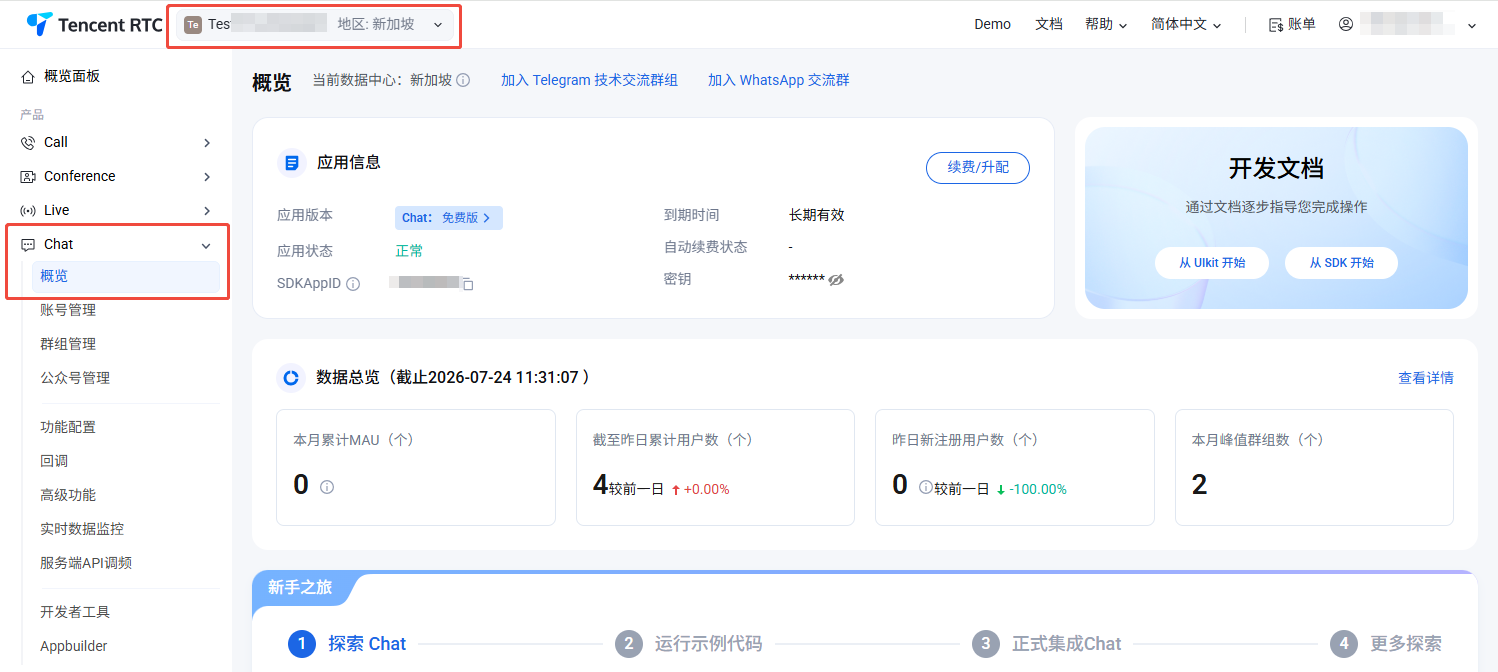
Log in to the Console > Chat Product Details Page, and select the target application at the top. On the page, you can manage the basic configuration of the app based on your business needs.


Application Package Information

Upgrade Package

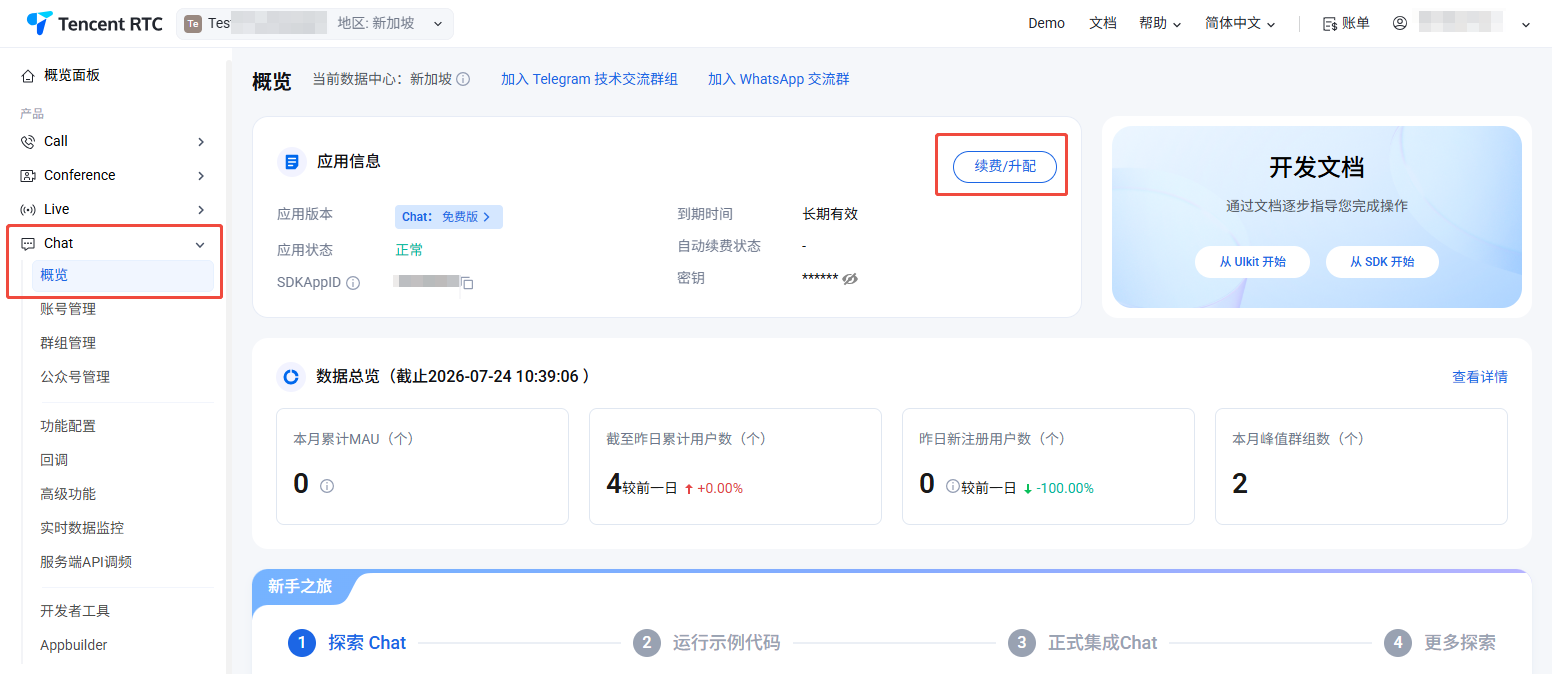
On the Chat product detail page, you can see the current business package information of the application. Click Basic information in the Renewal/Upgrade section to upgrade the business package version or configuration. For details, see Upgrading an Application.


Disabling/Deleting an Application

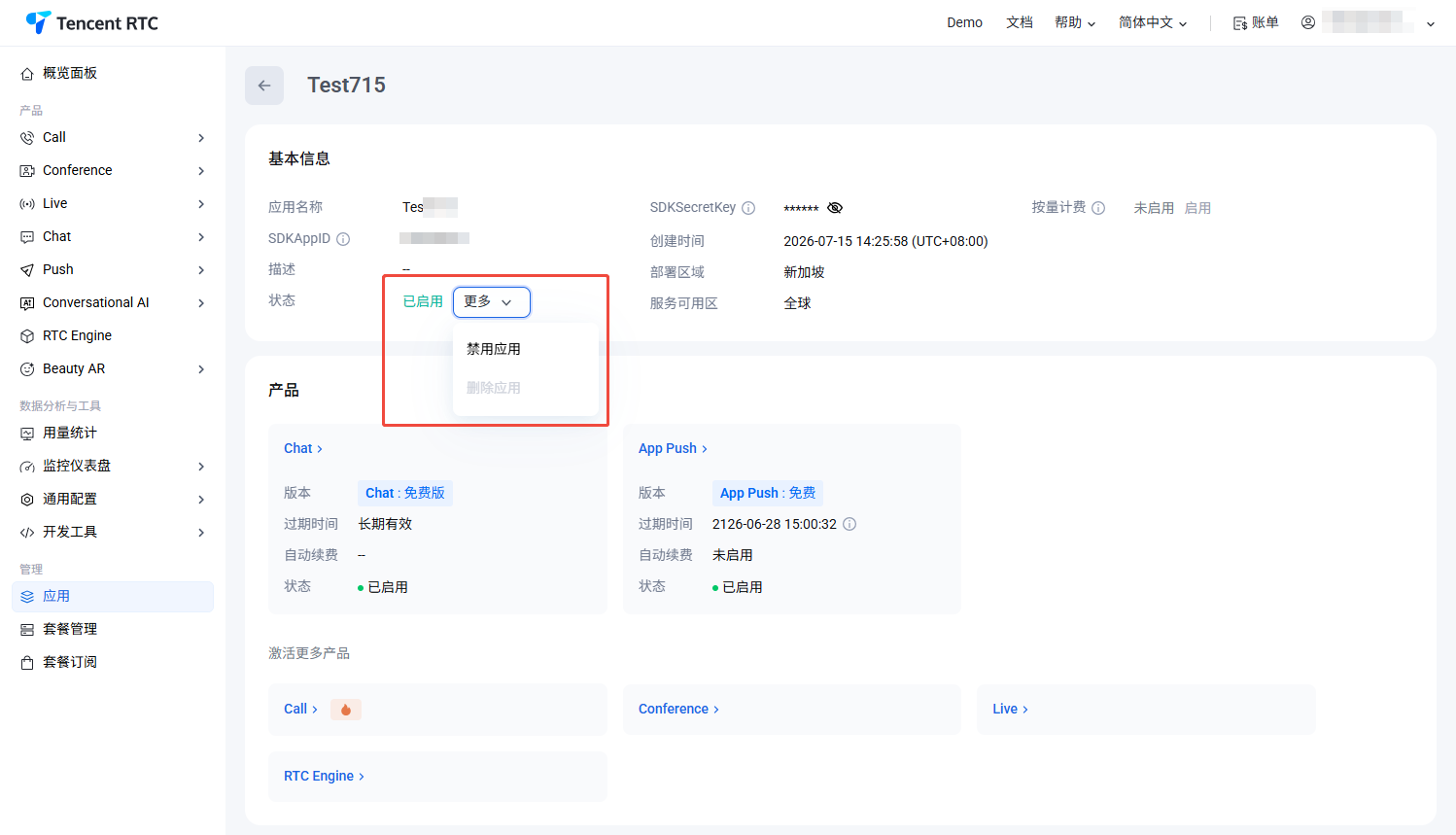
Disable/Delete this application in Application Management.
Important Note: Disable or Delete Applications
Status Update Latency: After manually disabling, re-enabling, or deleting an application, it takes 3–5 minutes for the changes to take effect across the system.
Billing During Update: During this 3–5 minute window, new users may still enter rooms, and usage will be billed as usual.
Once disabled or deleted, new entries are blocked, but billing continues for users already in rooms. Use the Dismiss Room API to force-close active rooms.
Global Impact: Disabling or deleting an application affects all associated services, including Call, Conference, RTC Engine, Live, and Chat. All services will become unavailable.
Applications in a Enabled state cannot be deleted directly. You must disable the application first before performing a deletion.
Cloud Recording Assets: Disabling an application will not automatically delete your cloud recording files. Please manage these files via the COS or VOD console.

Trial Edition Application

Support manual deactivation: In the Basic Information section, click Disable on the right of Status, then click Confirm in the pop-up deactivation reminder dialog box to disable.
Support manual deletion: In the Basic Information section, click Delete on the right of Status, then click Confirm in the pop-up confirmation dialog box to delete.

Standard Edition, Pro Edition, Pro Edition Plus, Enterprise Edition Applications

Automatically changes to disabled status after 24 hours in arrears. If you need to delete, please contact us to delete this application.
Automatically changes to disabled status after refund. If you need to delete, please contact us to delete this application.
Note:
Disable the application before deleting it.
Deleting or deactivating the application will stop ALL subservices.


Extending Trial Edition Valid Period

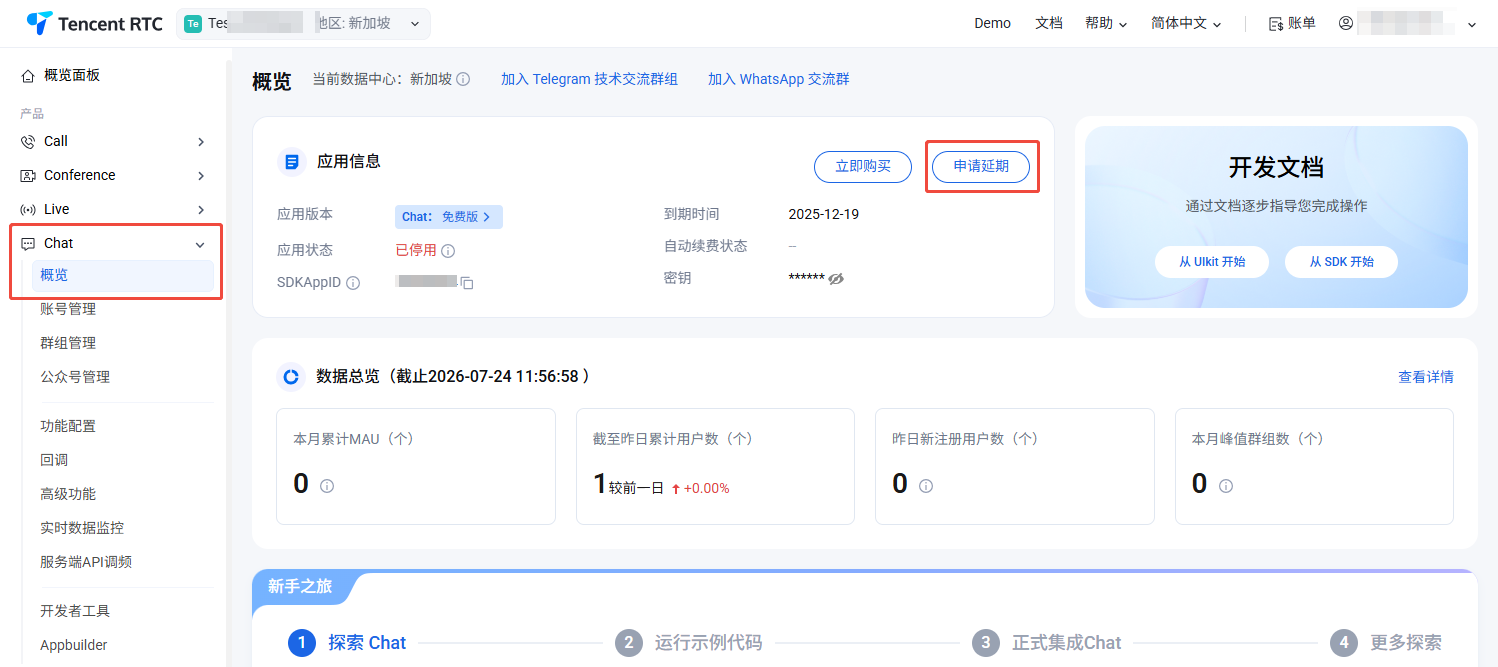
When the application package is Trial Edition and exceeds a one-month valid period, the application will be suspended upon expiration. To continue using Trial Edition for test development, you can apply for extension for in the console for this application.
1. Go to console > Chat App Details Page, select the target application at the top, and enter the Overview page of this application.


2. Click Basic Information and then Apply for Extension.
3. Click Confirm to complete the application for extending the Trial Edition valid period by one month.

Configure Application Information

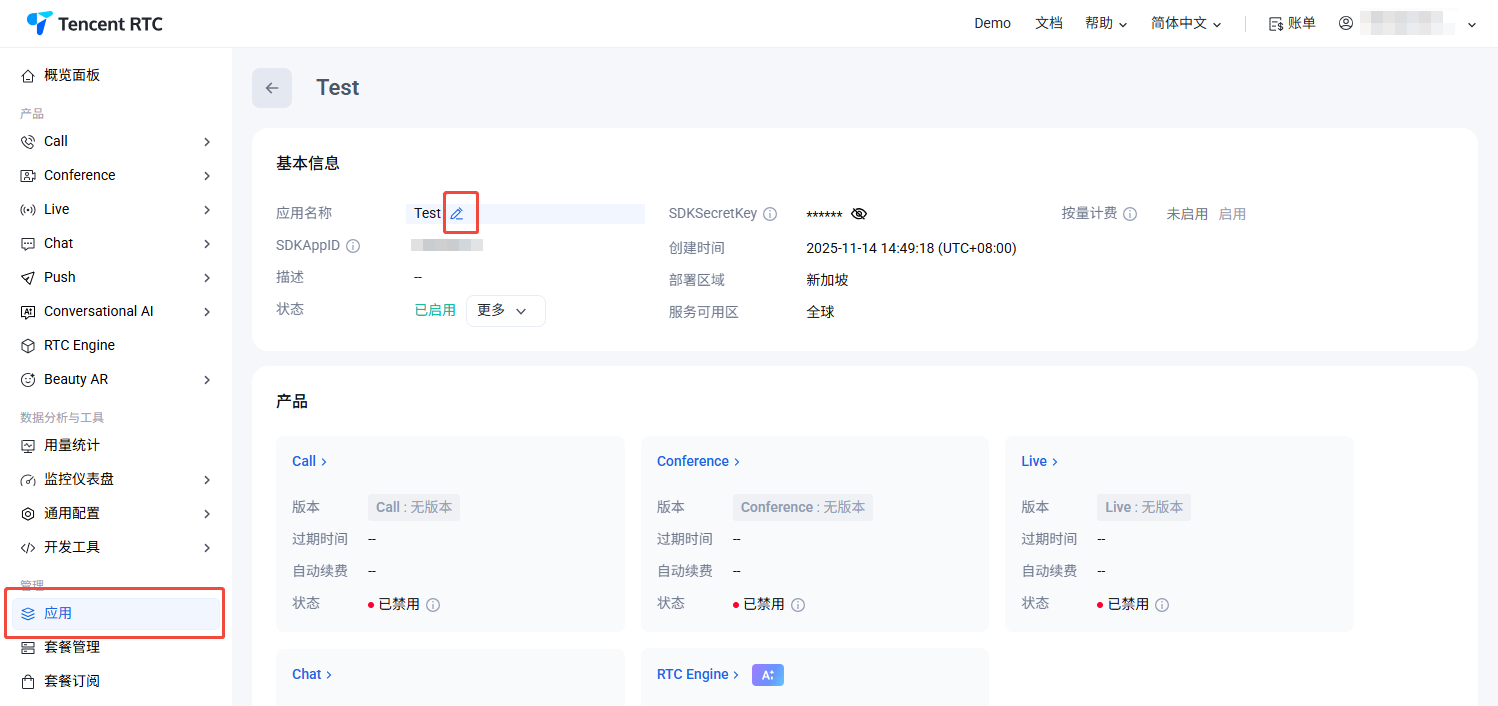
In the Basic Information section, you can edit the basic information of the application, including Application Name and Description.


Editing Basic Information

1. Click Edit on the right of Basic Info to edit the app settings.
2. You can modify the application name and description.
3. Click Save.

Configuring Basic Information

In the Basic Information section, you can obtain the key of this application.


Obtaining a key

Key information is sensitive. Keep it secret to prevent leakage. By default, apps (SDKAppIDs) created before August 15, 2019 use the ECDSA-SHA256 signature algorithm that uses a public key and a private key. You can choose to update to the HMAC-SHA256 signature algorithm.
1. Click SDKSecretKey on the right to view your SDKSecretKey.
2. Click Copy to copy and store the key information. The key can be used to generate UserSig. For detailed operations, see Generating UserSig.

Managing Offline Push Certificates

Adding an offline push certificate

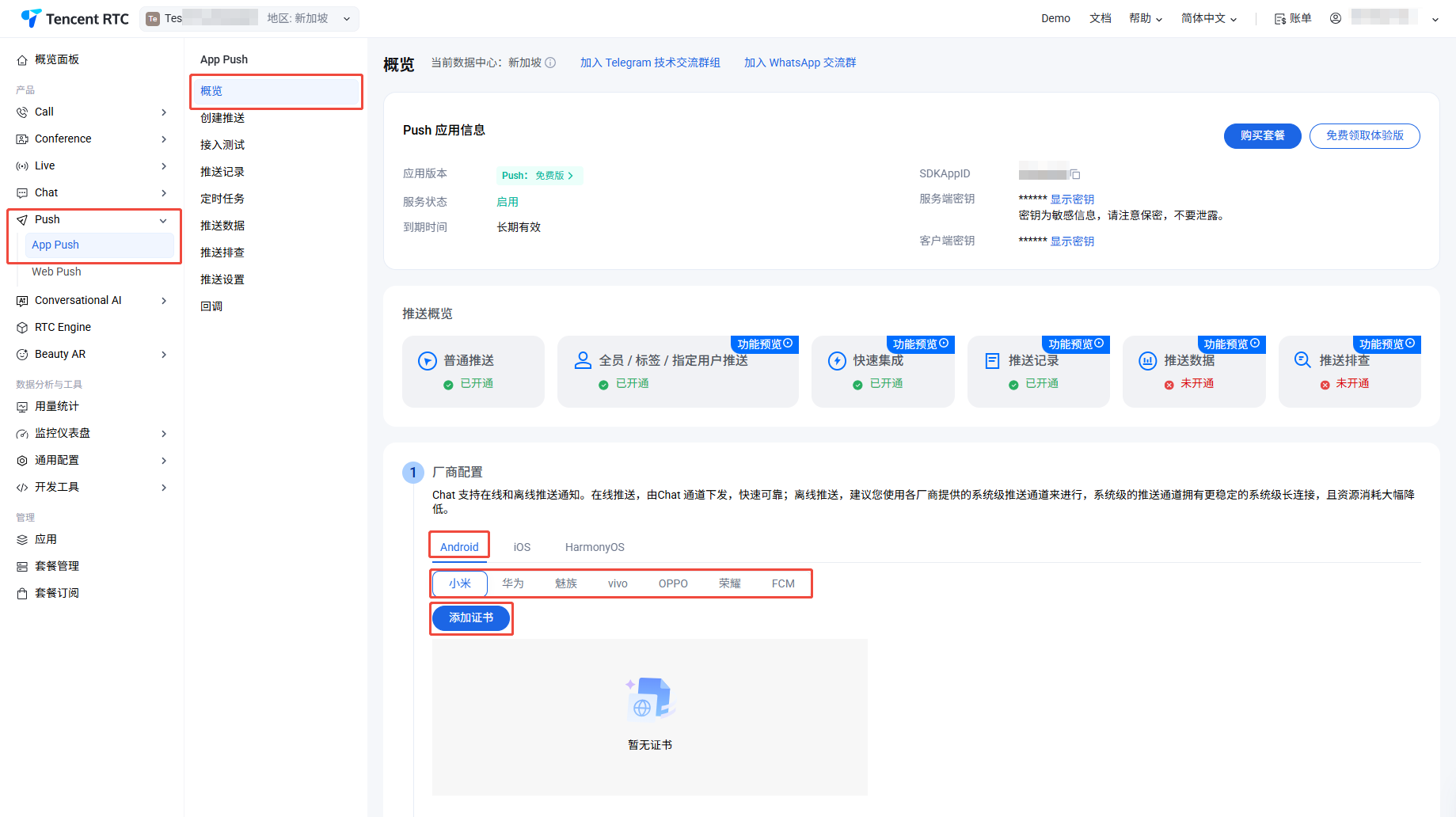
Adding an Android certificate

1. Visit Console > Chat > Push > Access Setting, under the Android tab, select target platform, and click Add Certificate.


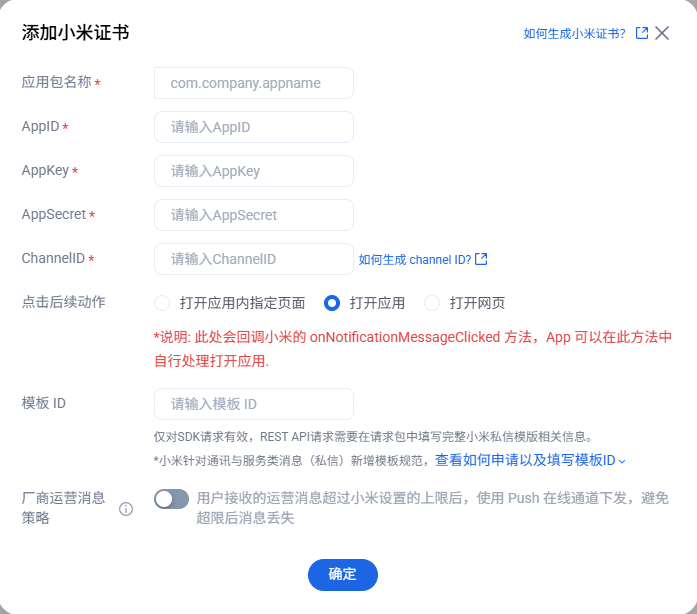
2. In the pop-up Add Certificate dialog box, fill in relevant parameters.


3. Click Confirm to save the configuration.

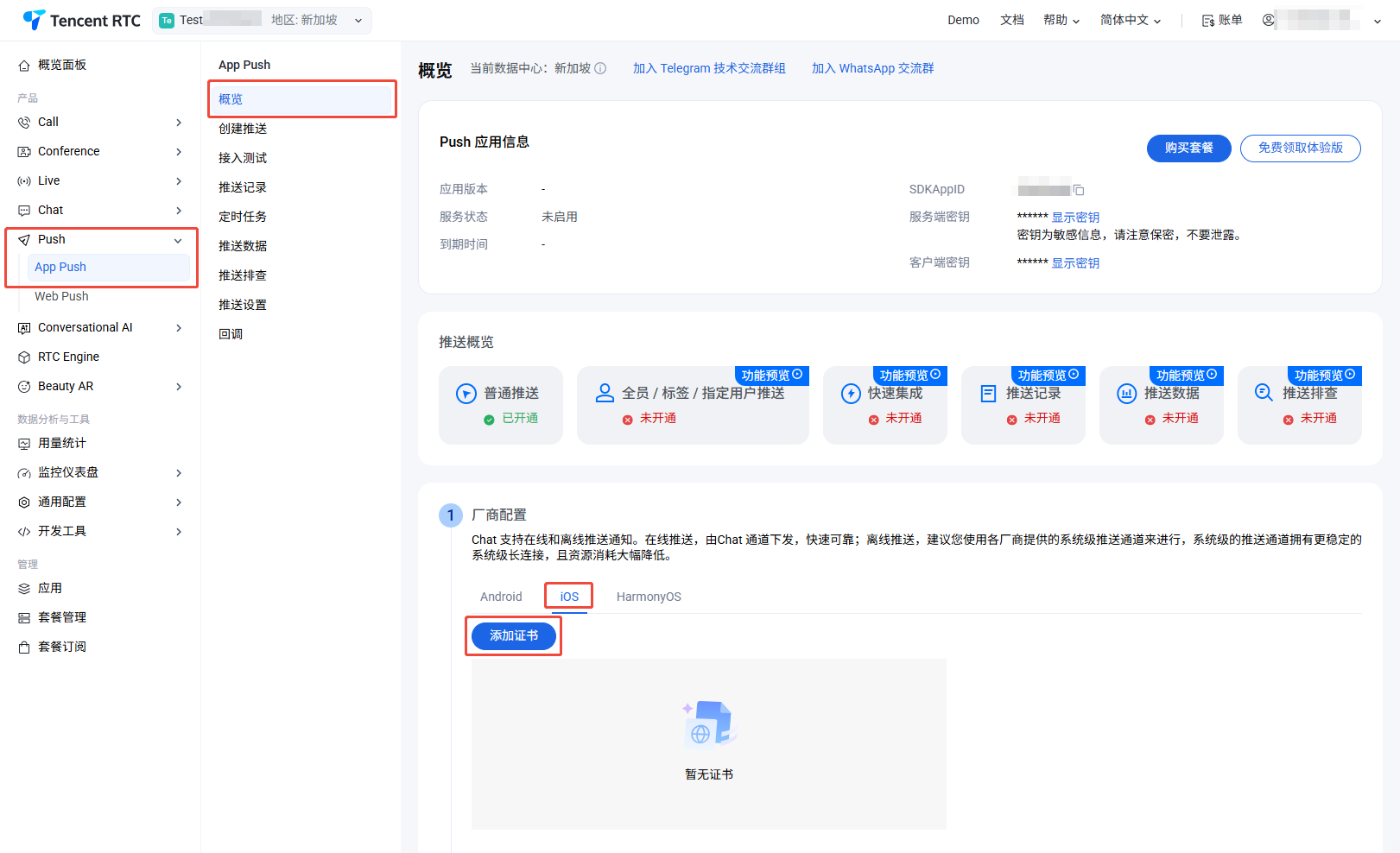
Adding iOS Certificate

1. Visit Console > Chat > Push > Access Setting, under the iOS tab, click Add Certificate.


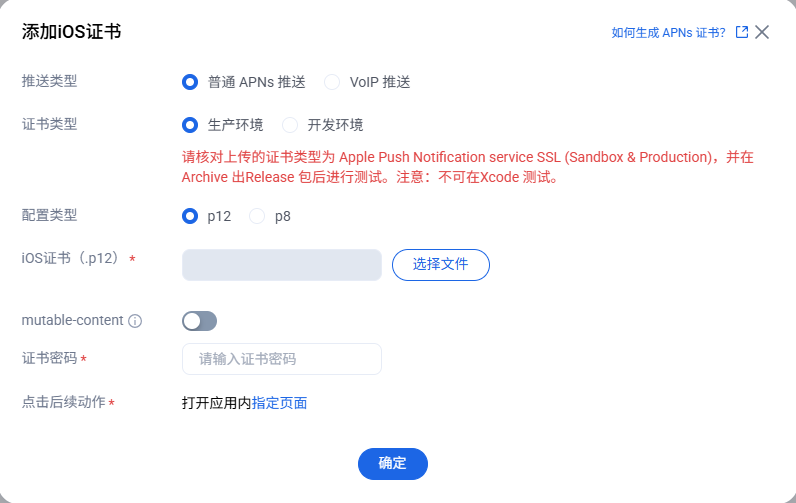
2. In the pop-up Add Certificate dialog box, fill in relevant parameters.


3. Click Confirm to save the configuration.

Editing an offline push certificate

1. Visit Console > Chat > Push > Access Setting, click Edit in the existing certificate section.
2. In the dialog box that pops up, modify the parameters as needed and click Confirm to save the configuration.

Deleting an offline push certificate

Note:
Once the certificate is deleted, push messages are no longer delivered. Deleted certificates cannot be restored. Proceed with caution.
1. Visit Console > Chat > Push > Access Setting, click Delete in the existing certificate section.
2. In the pop-up confirm deletion dialog box, click Confirm.


Help and Support

Was this page helpful?

Help us improve! Rate your documentation experience in 5 mins.

Feedback