This article will guide you to create and use Push Certificates and Description Files, provided you have a Developer Account and Develop/Distribute Certificates.
1. APNs Push Certificate Configuration
Before integrating the TIMPush component, you need to apply for an APNs push certificate from Apple, and then upload the push certificate to the Chat console. After that, you can follow the quick access steps for integration.
Apple currently offers two mainstream types of certificates for vendor configuration: p12 certificates and p8 certificates. Each has its advantages and disadvantages, so you can choose one based on your needs.
| Certificate Type | Validity and Management | Security | Dynamic Island |
P12 Certificate | A P12 certificate is a binary file that contains a public key and a private key, used for certificate-based authentication. It bundles the public key certificate and private key into one file with an extension of .p12 or .pfx. | A P12 certificate typically has a validity period of one year and needs to be regenerated and redeployed upon expiration. Each application requires a separate P12 certificate to handle push notifications. | Certificates: A P12 Certificate uses certificate-based authentication and requires storing the private key on the Server. This may increase security risks as the private key could potentially be accessed by unauthorized users. | Not supported |
P8 Certificate | A P8 Certificate is an Auth Key used for token-based authentication. It is a text file containing the private key, with an extension of .p8. | A P8 Certificate does not have an expiration date, so you don’t need to worry about certificate expiration. Additionally, using a P8 Certificate simplifies Certificate Management, as you can use one P8 Certificate to provide Push Notification Service for multiple applications. | A P8 Certificate uses token-based authentication, meaning your Server periodically generates a JSON Web Token (JWT) to establish a connection with APNs. This method is more secure as it does not require storing the private key on the Server. | Support Dynamic Island push |
Method 1: Use p12 certificate (traditional APNs push certificate)
Step 1: Apply for an APNs certificate
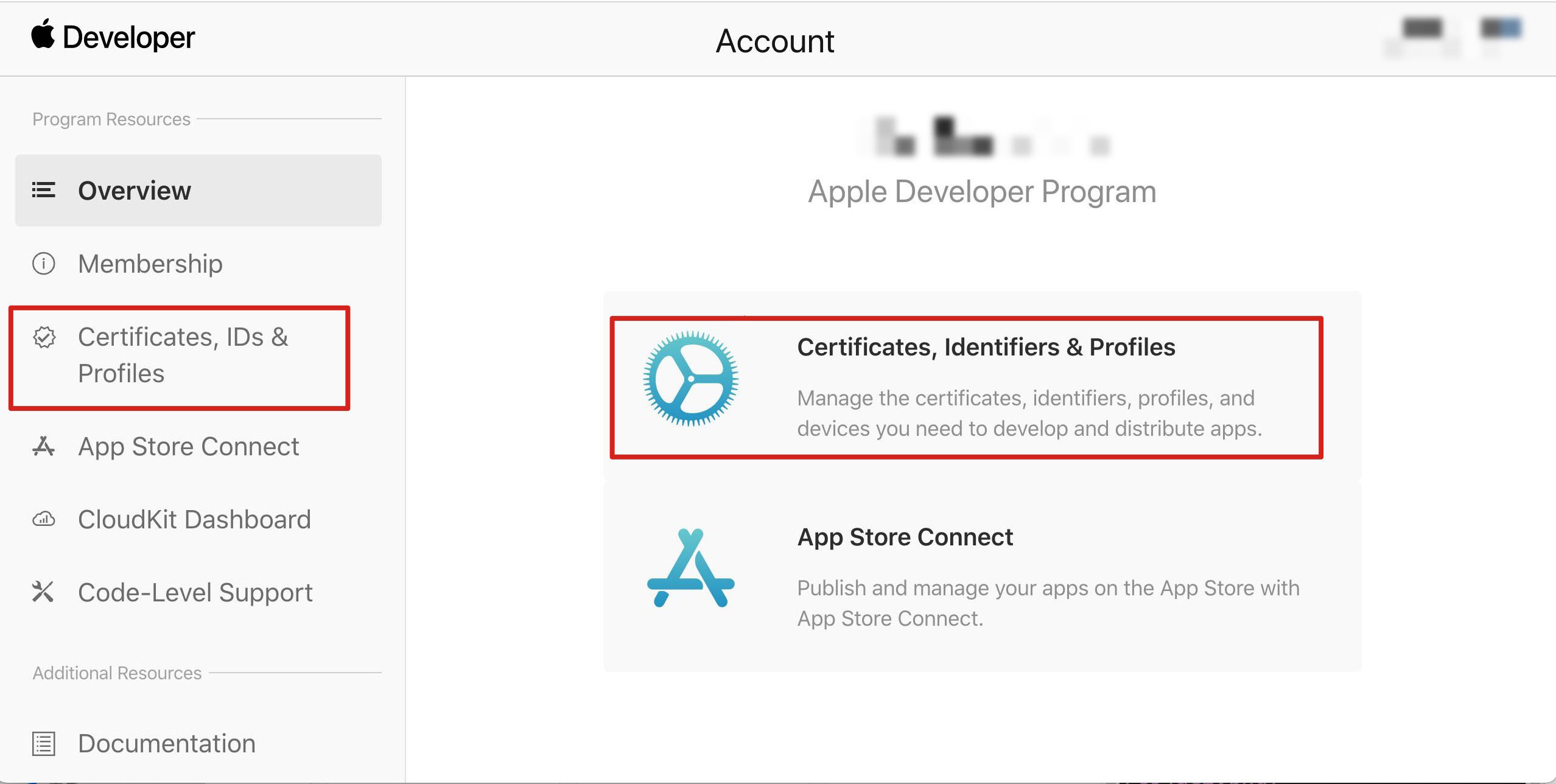
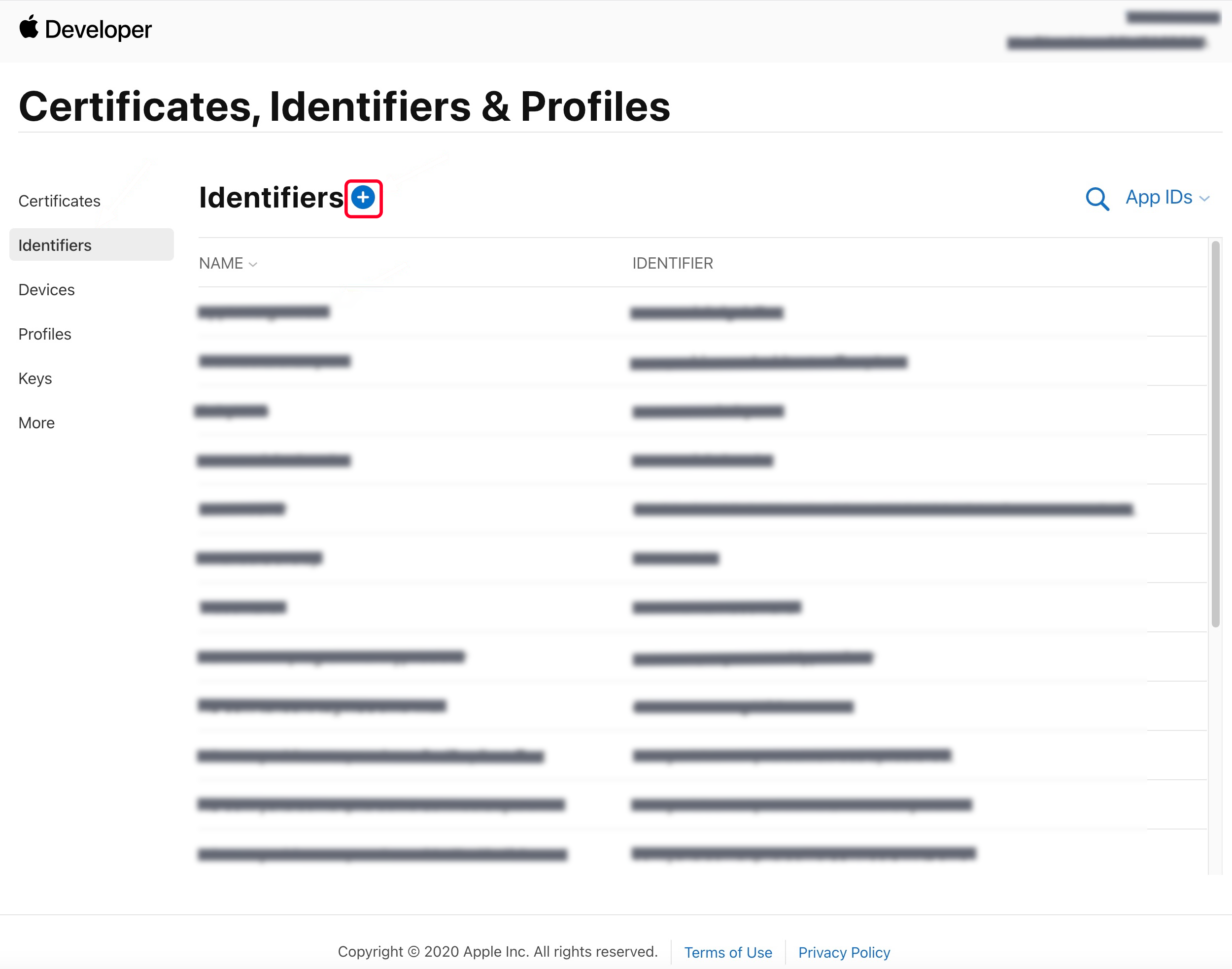
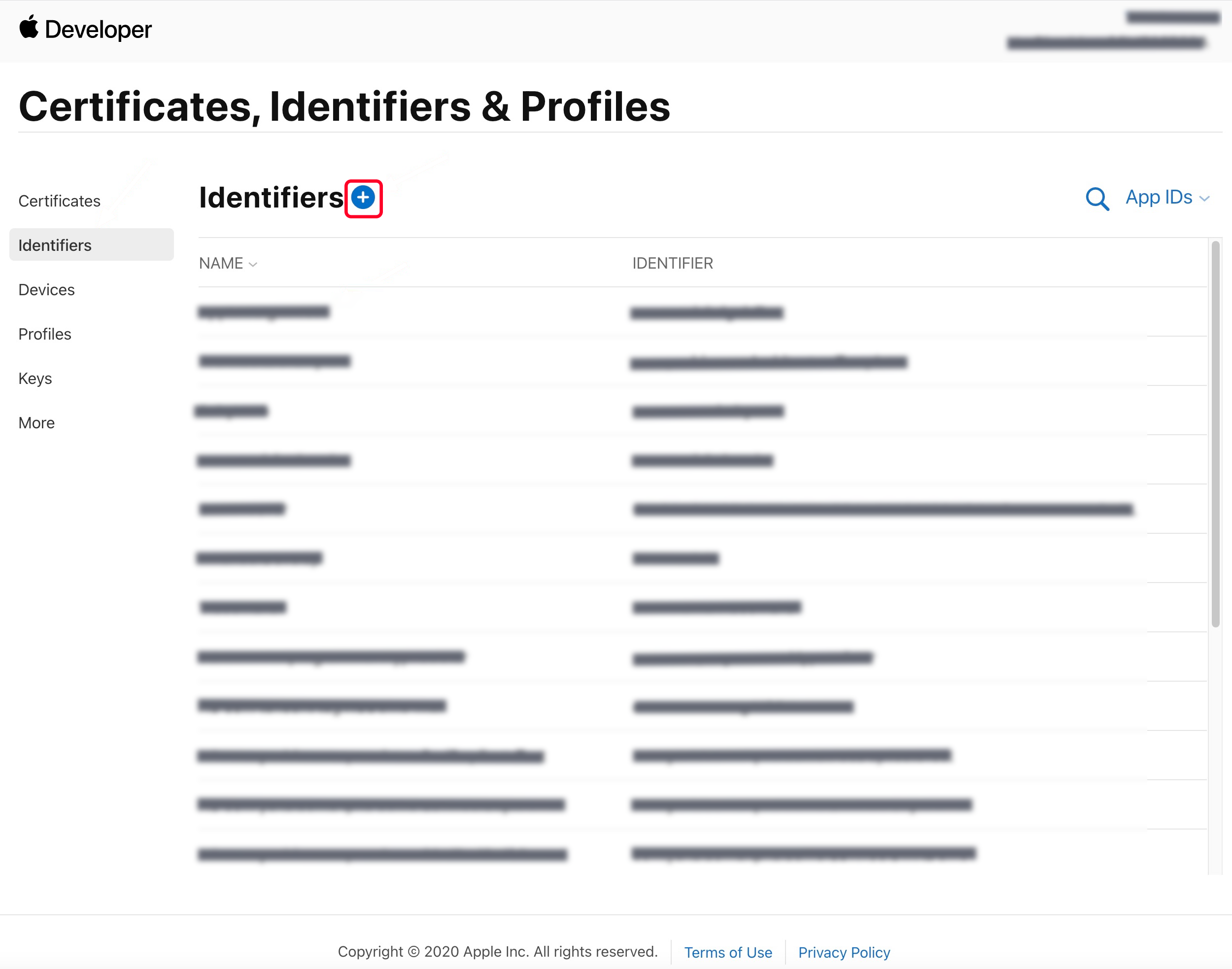
1. Log in to Apple Developer Center website, click Certificates, Identifiers & Profiles or the sidebar's Certificates, IDs & Profiles, to enter Certificates, IDS & Profiles page. 2. Click Identifiers on the right-side +.
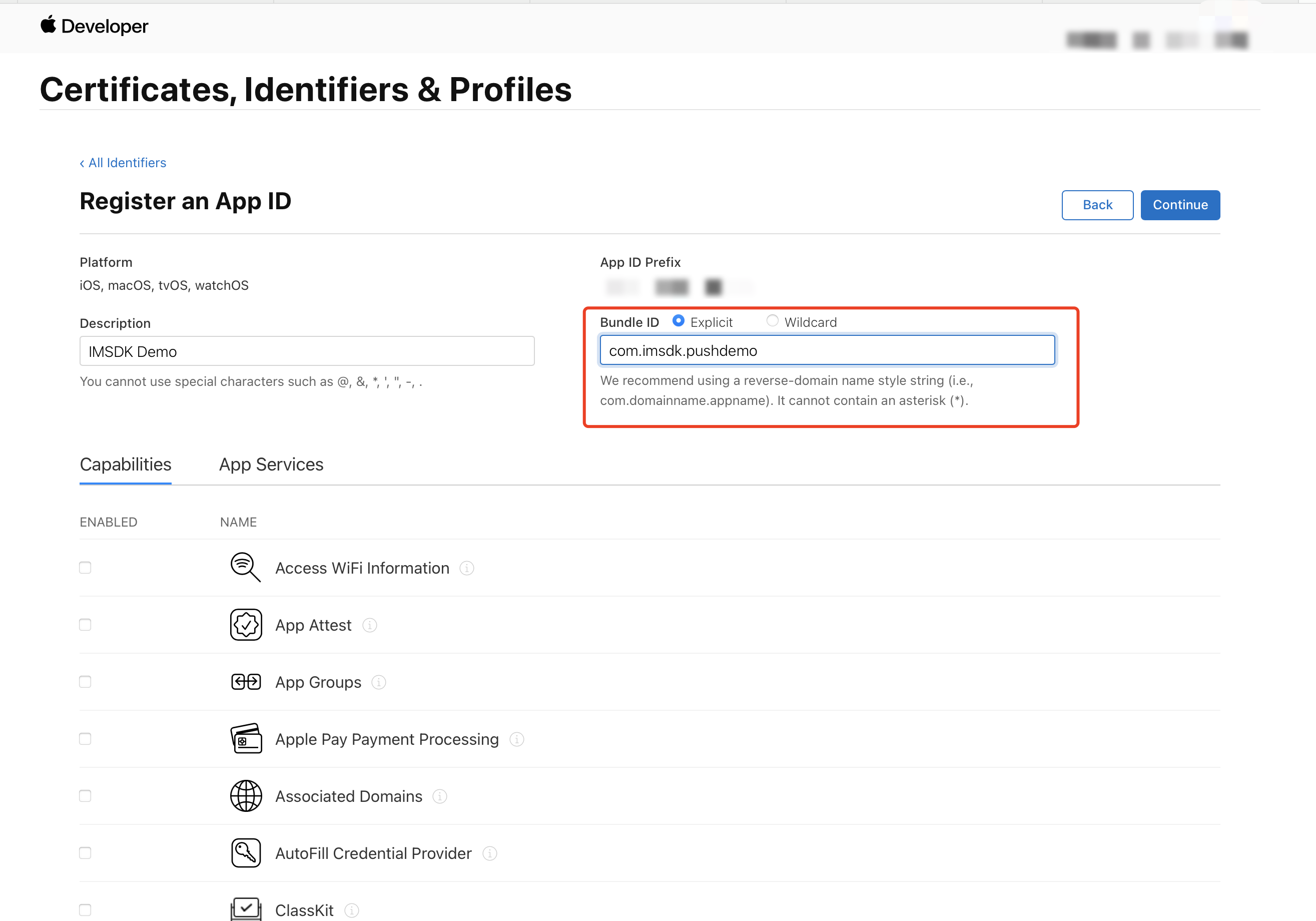
3. You can follow the steps below to create a new AppID, or add a Push Notification service to your existing AppID .
Note:
Your App's Bundle ID cannot use a wildcard *, otherwise, remote push service will not be available.
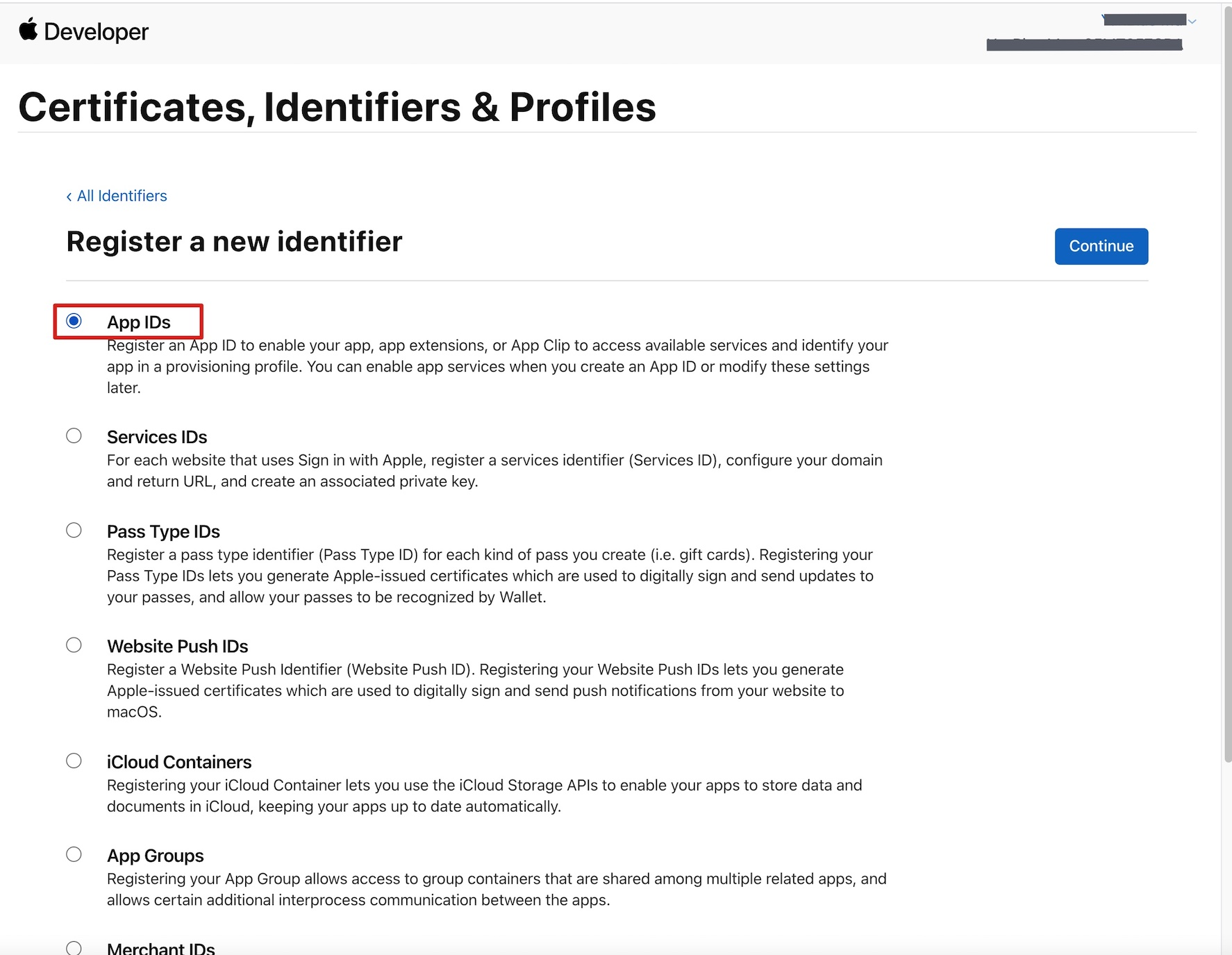
4. Select App IDs, click Continue to proceed with Next .
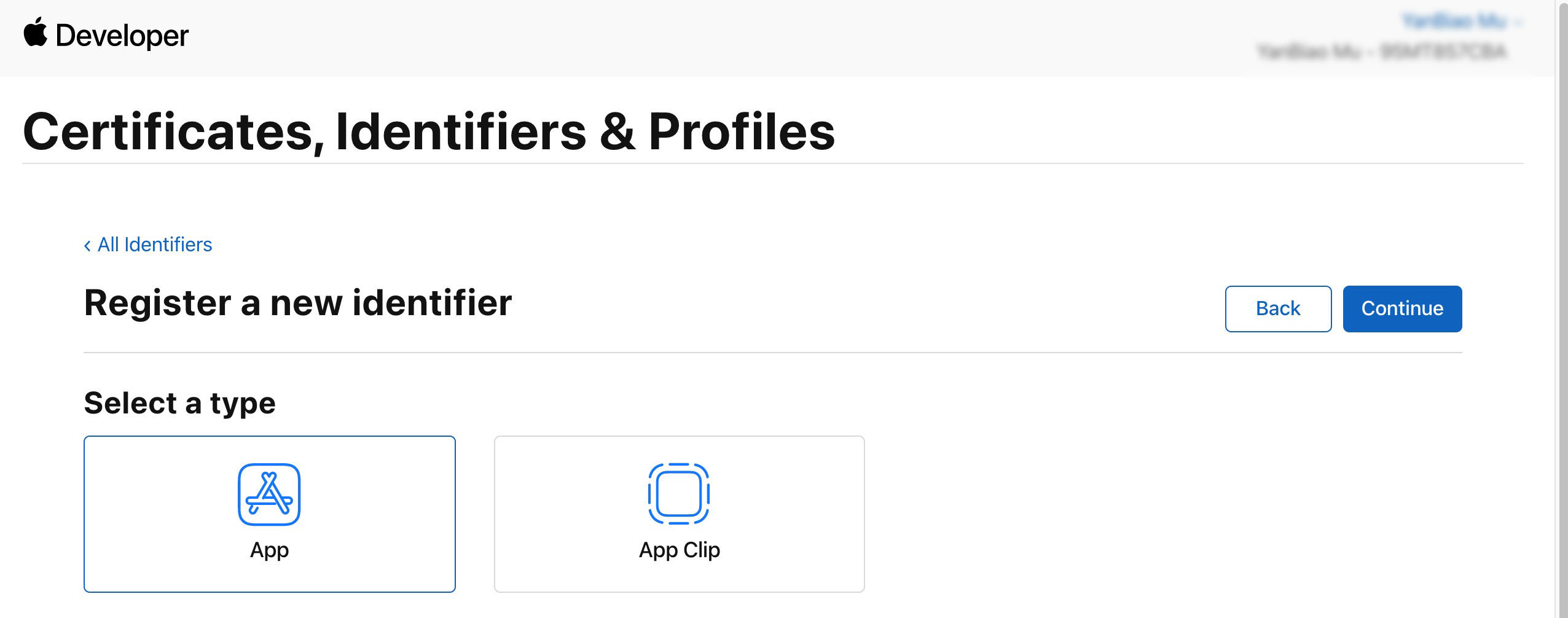
5. Choose App, click Continue to proceed with Next .
6. Configure Bundle ID and other information, click Continue to proceed with Next .
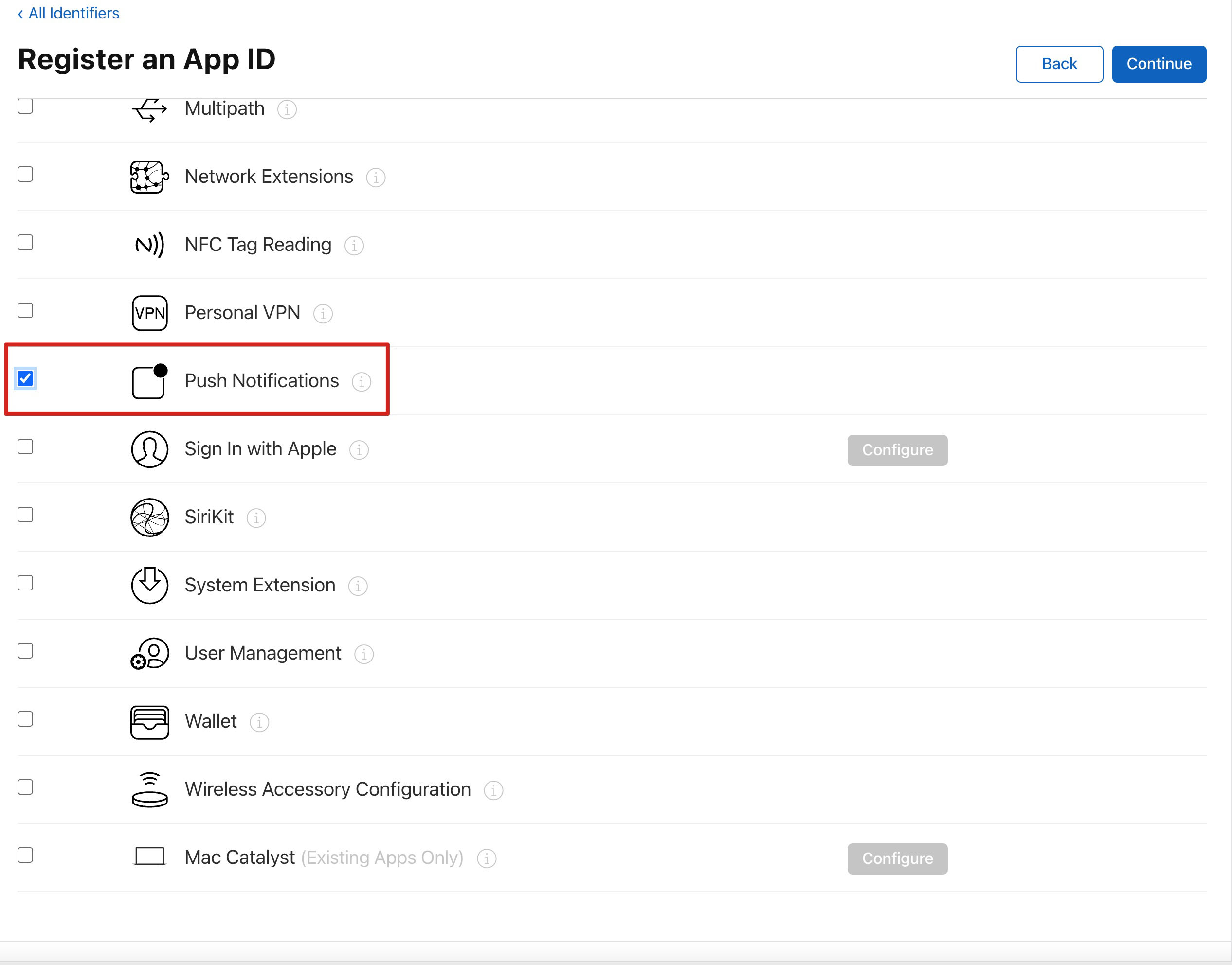
7. Select Push Notifications to activate remote push service.
Generating Certificate
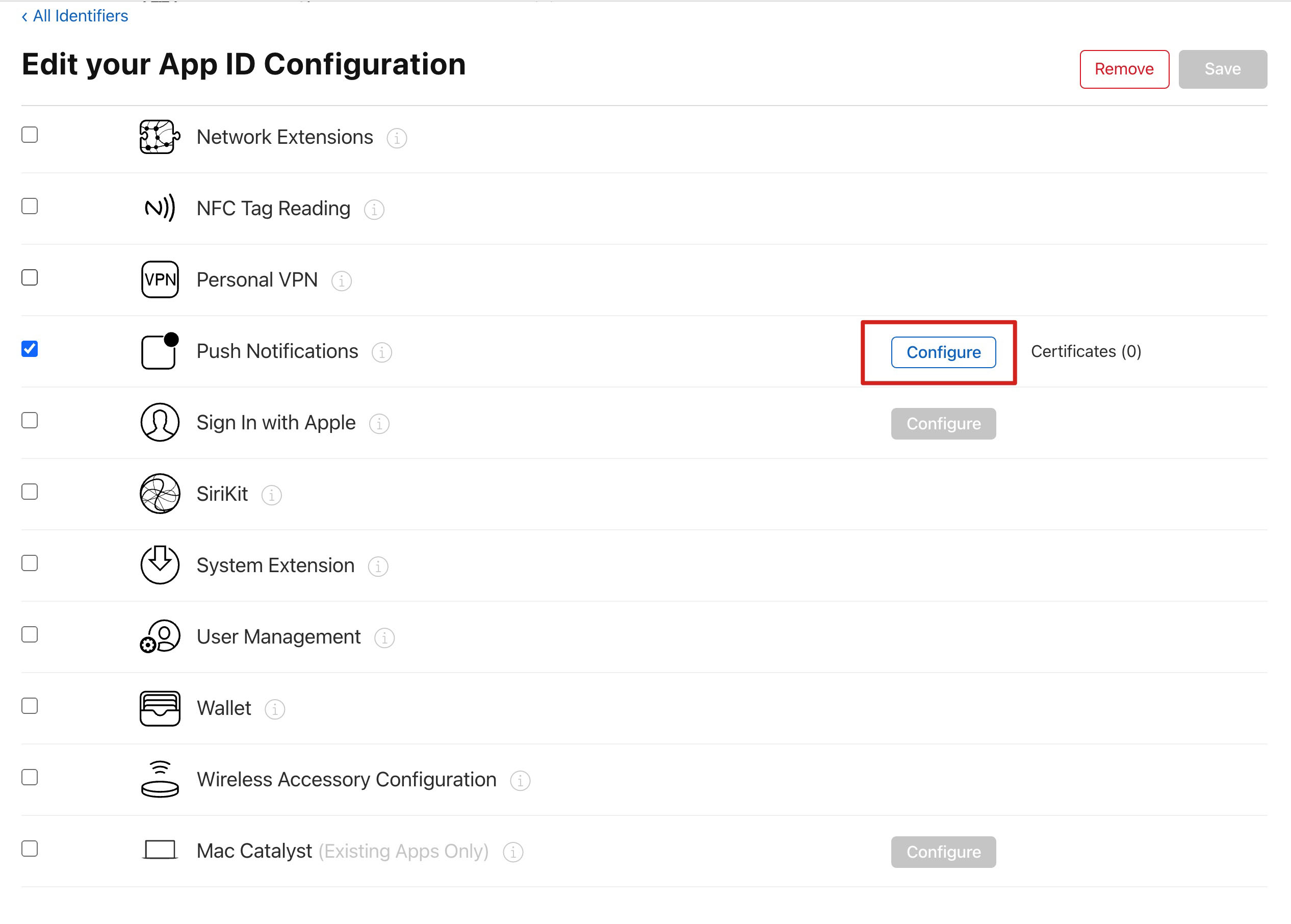
1. Select your AppID, choose Configure.
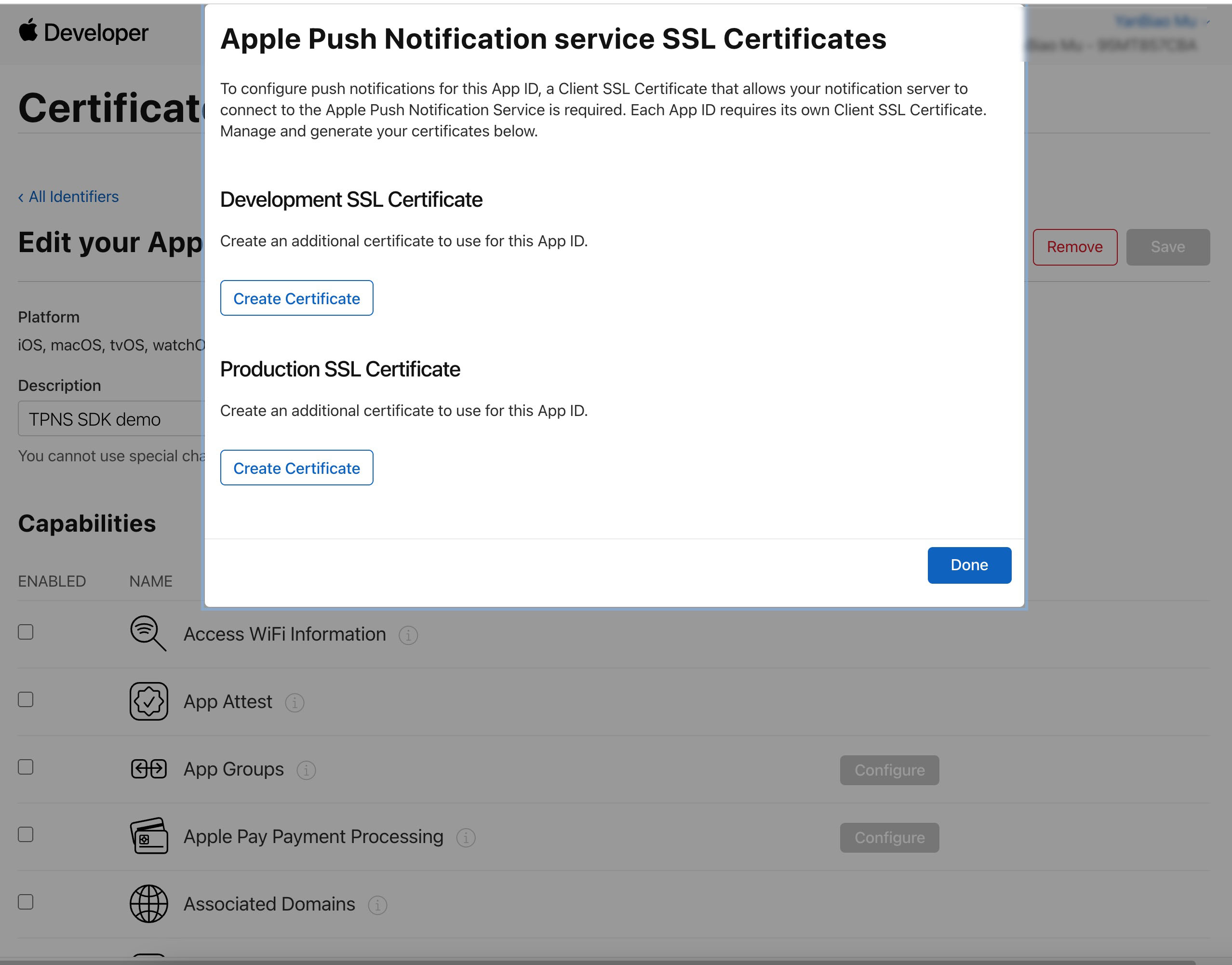
2. You can see in the Apple Push Notification service SSL Certificates window, there are two SSL Certificate, one for the development environment (Development) and the other for the production environment (Production) remote push certificate, as shown below:
3. First
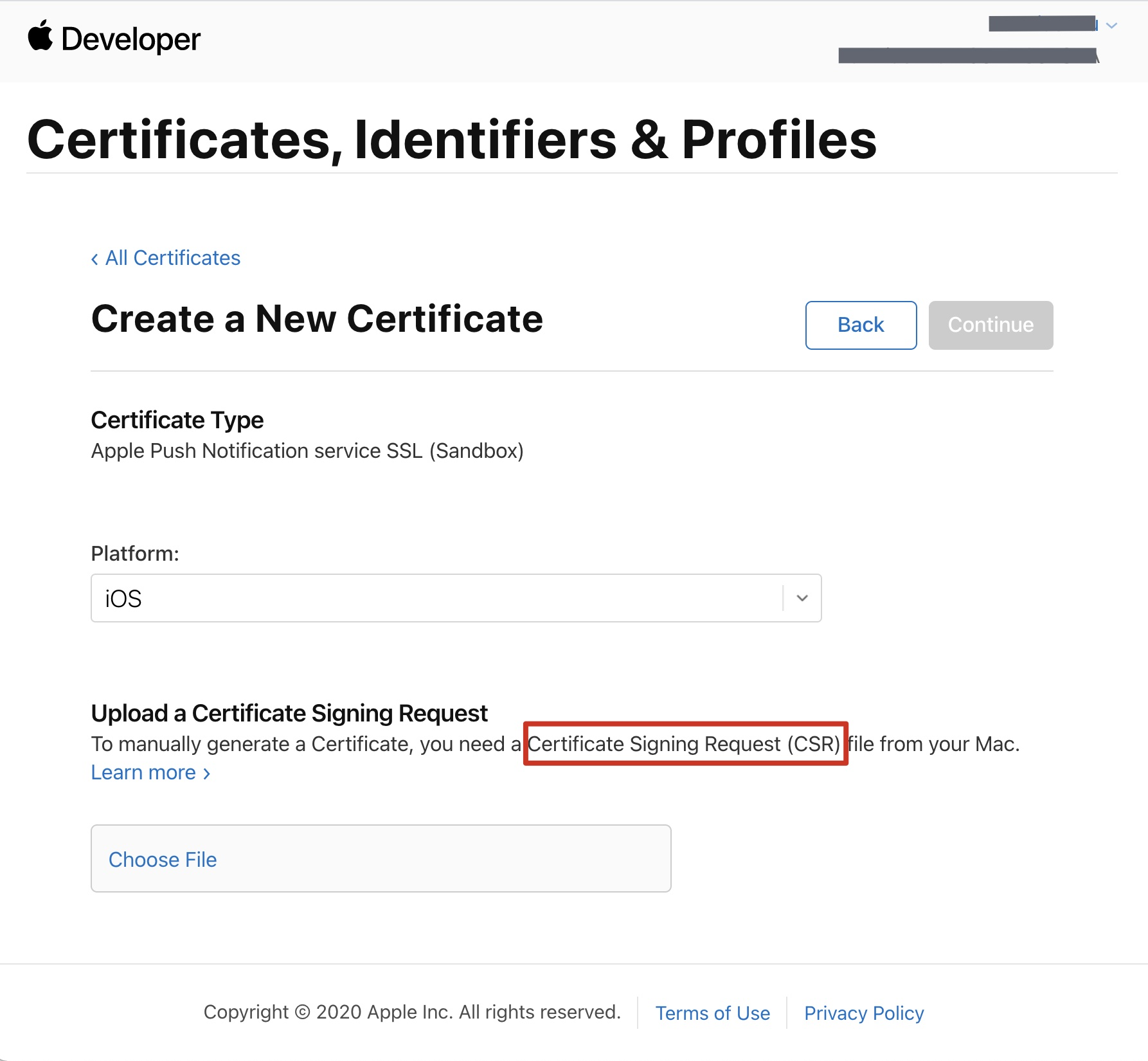
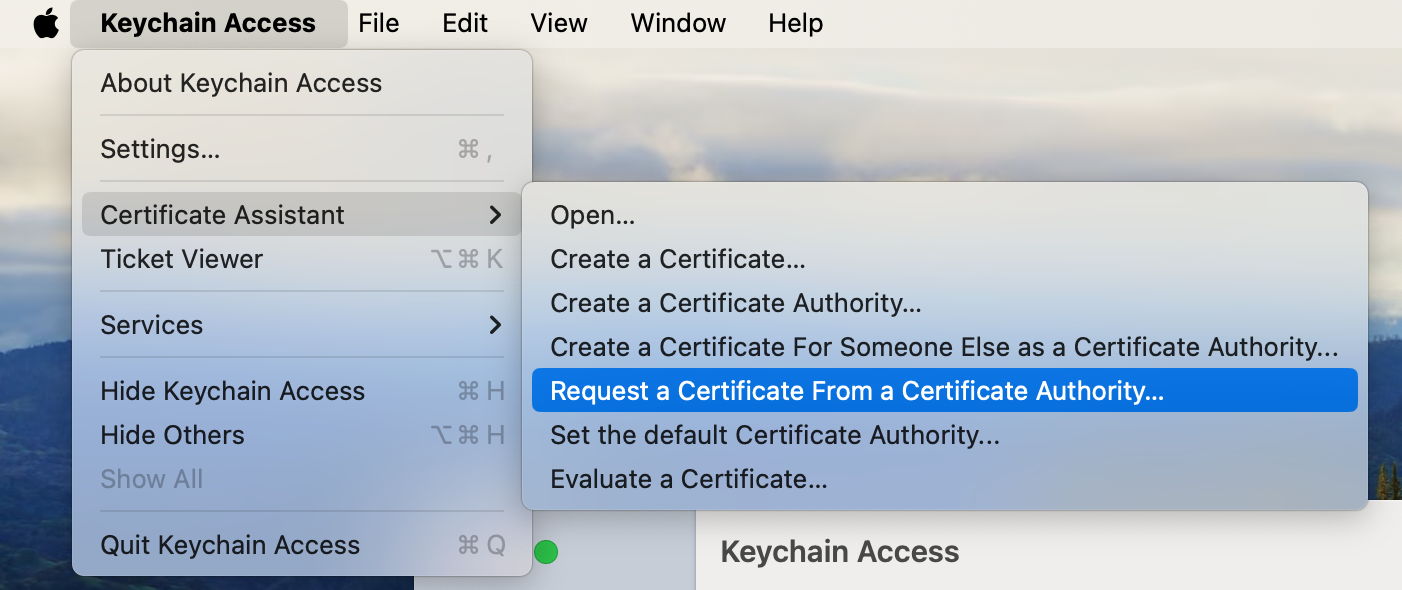
, we choose the Development Create Certificate; the system will prompt us that a Certificate Signing Request (CSR) is required. 4. Open Keychain Access on your Mac, in the menu, select Keychain Access > Certificate Assistant > Request a Certificate From a Certificate Authority (Keychain Access - Certificate Assistant - Request a Certificate From a Certificate Authority).
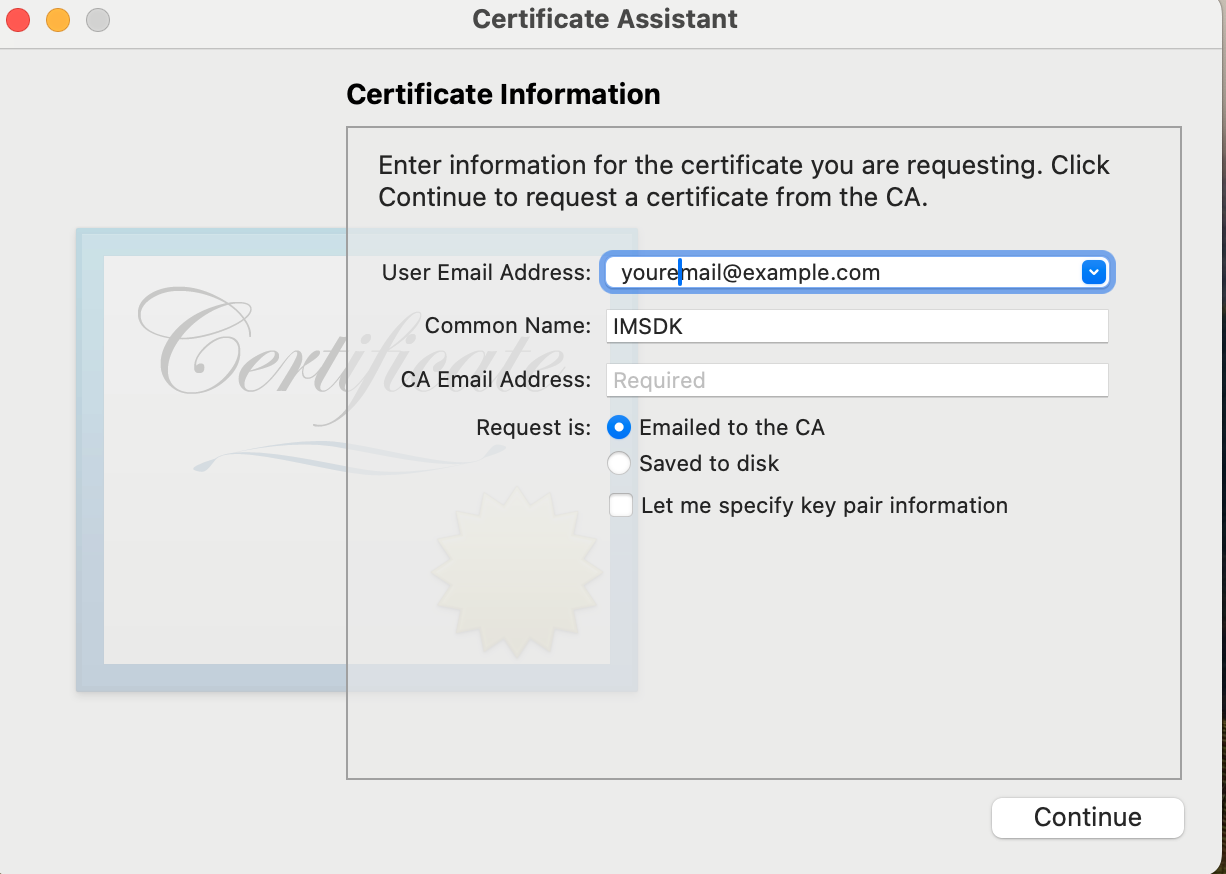
5. Enter the user's Email address (your email), Common Name (your name or company name), select Save to disk, click continue, and the system will generate a *.certSigningRequest file.
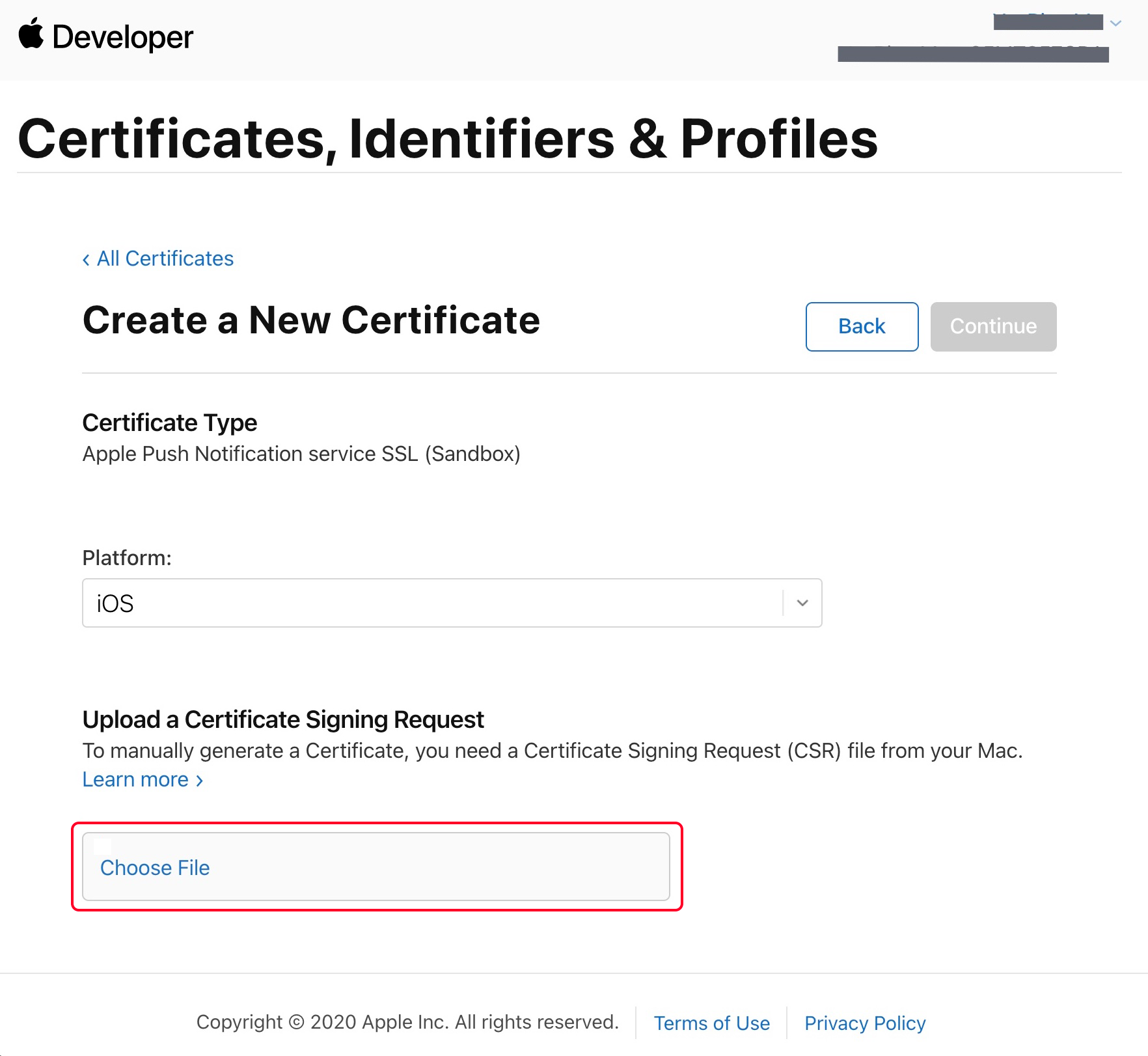
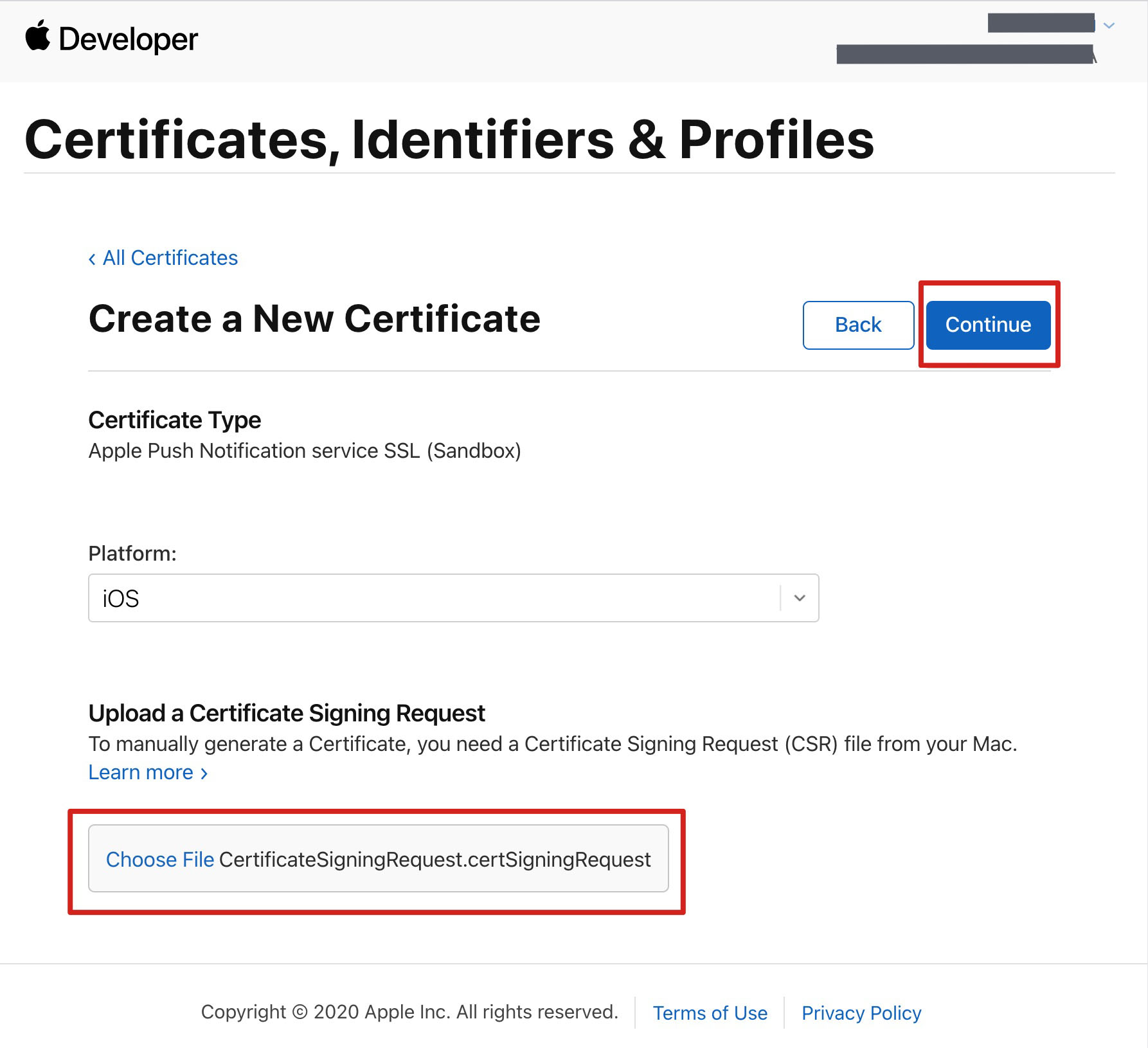
6. Return to the page on the Apple Developer website you were just at in step 3 of the above instructions, click Choose File to upload the *.certSigningRequest file.
7. Click Continue to generate the push certificate.
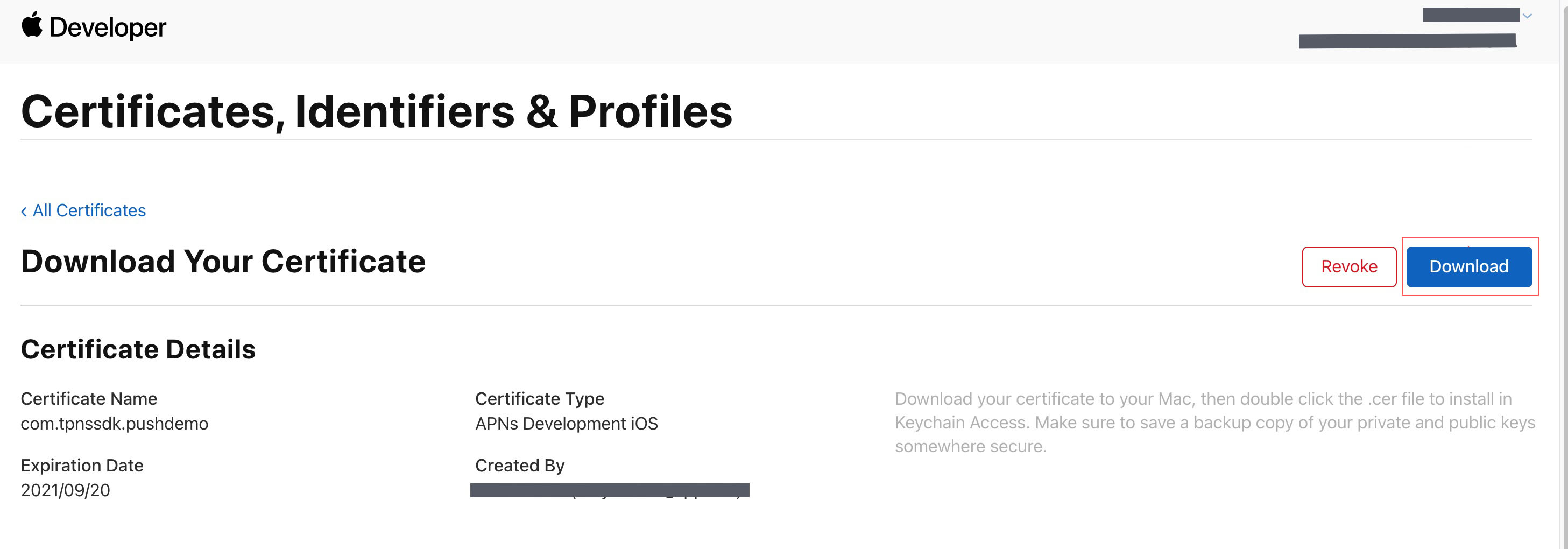
8. Click Download to download the Development SSL Certificate to your local machine.
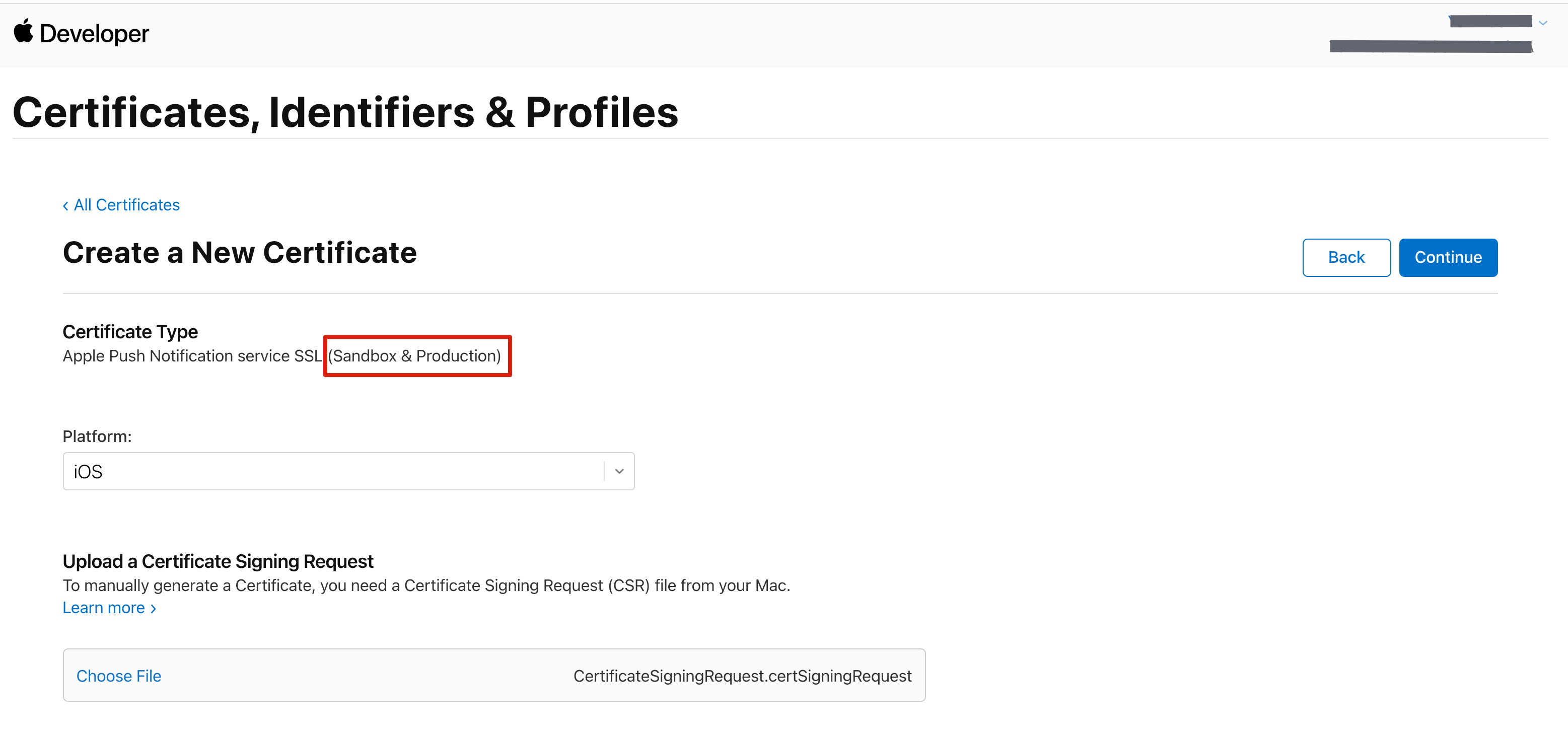
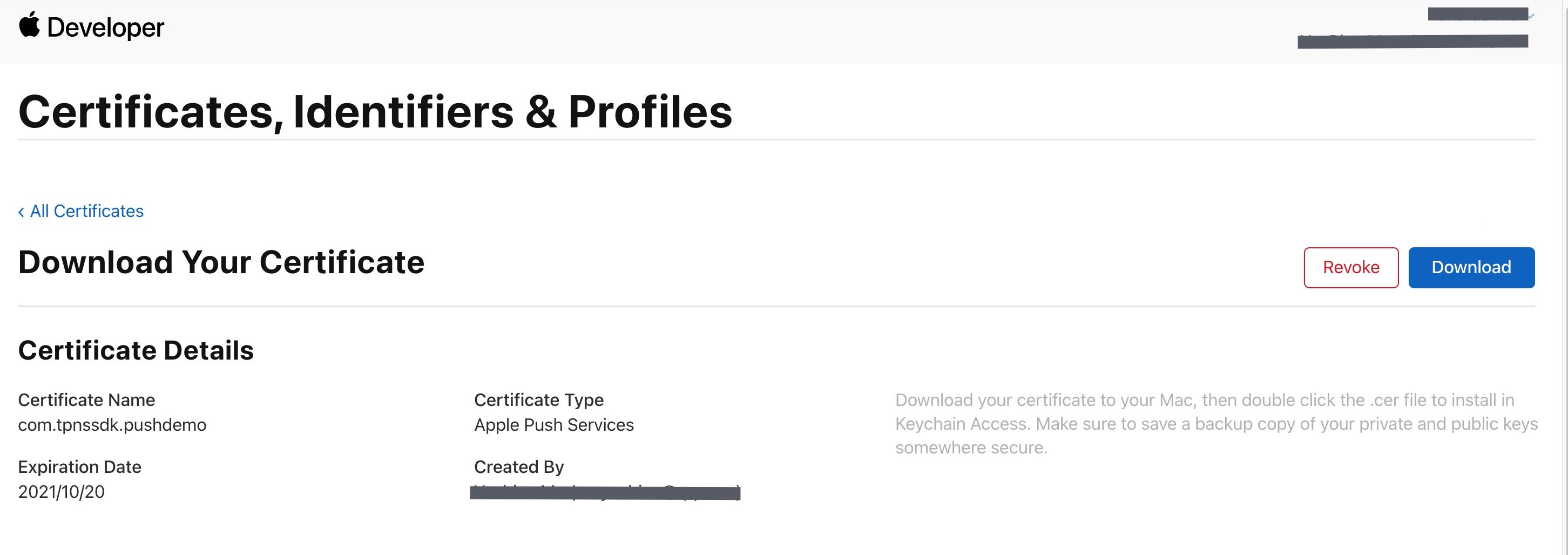
9. Follow the steps 1 - 8 above again to download the Production SSL Certificate to your local machine.
Note:
Actually, this certificate is a Sandbox and Production merged certificate that applies to both the development and production environments.
10. Double-click the downloaded SSL Certificate for the development and production environments. The system will import it into the keychain.
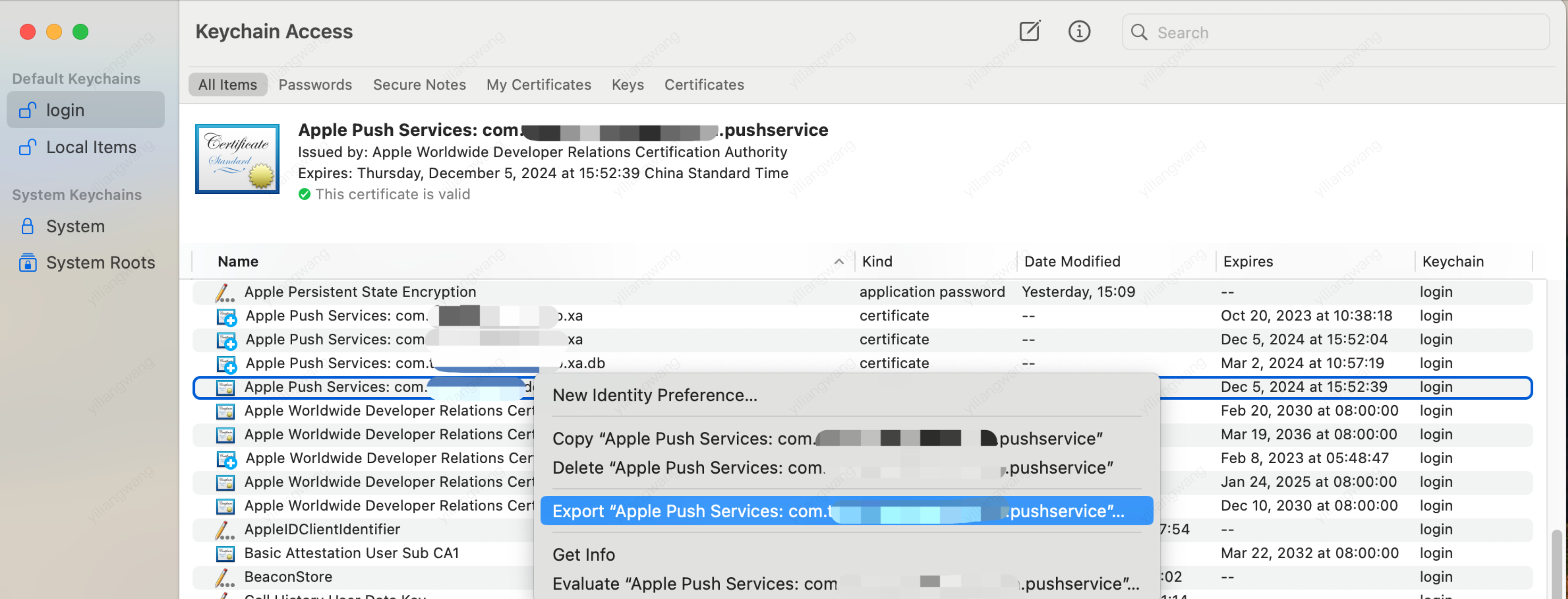
11. Open the Keychain Access app, go to log in to > My Certificates, right-click to export the recently created development environment (Apple Development IOS Push Service) and production environment (Apple Push Services) p12 files.
Note:
When saving the .p12 file, be sure to set a password. Step 2: Upload the certificate to the console.
Step 2: Upload the p12 certificate to the Chat console
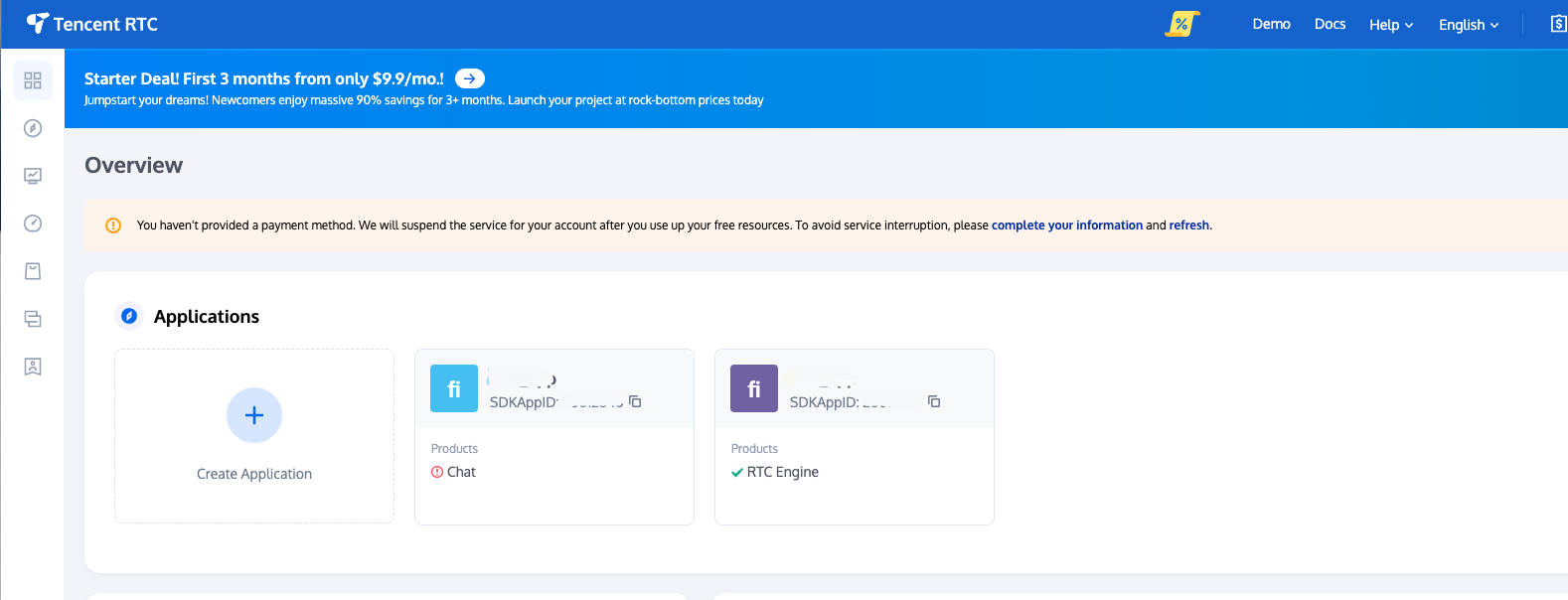
2. Click the target Applications card to go to the basic configuration page of the app.
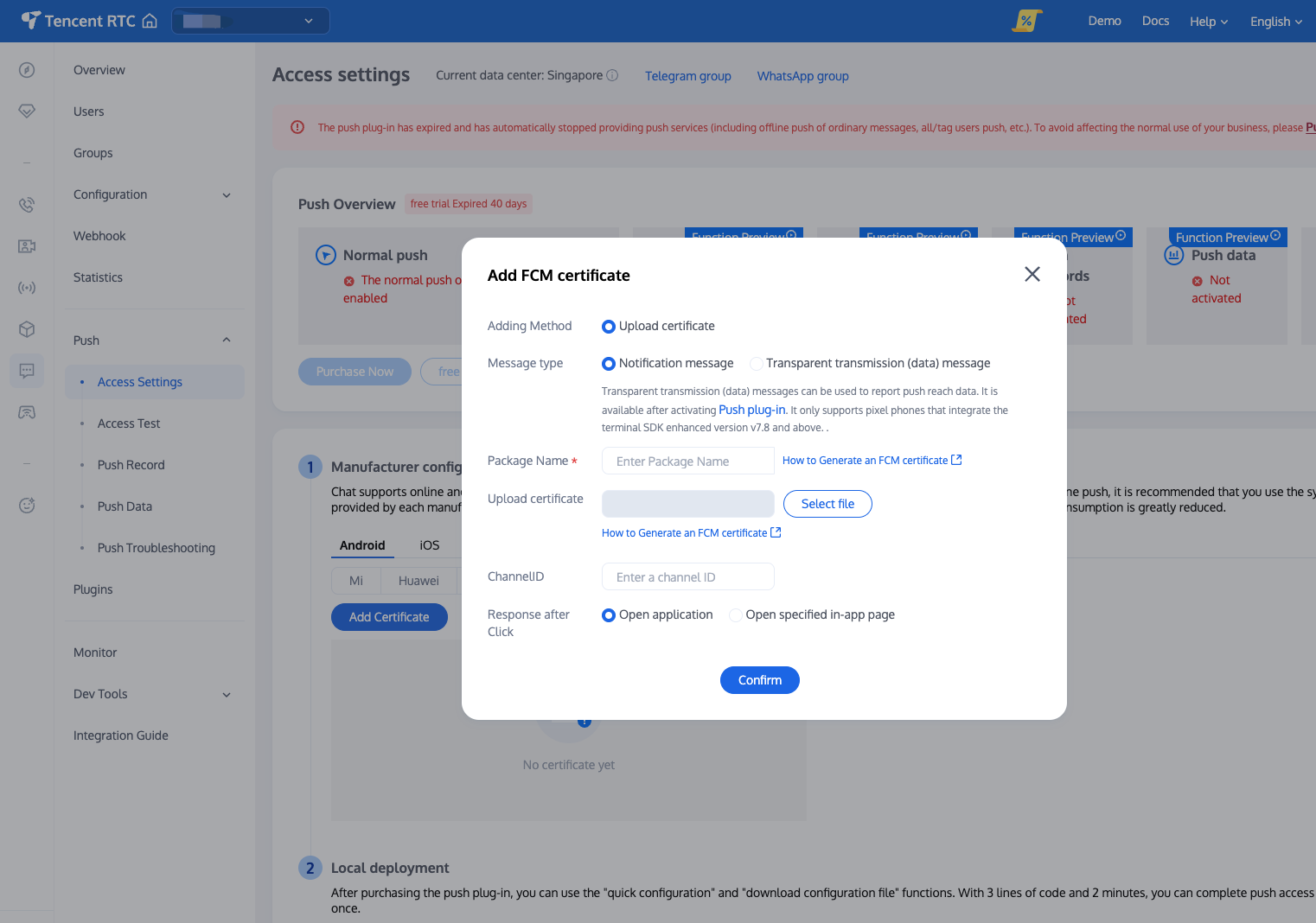
3. click iOS native offline push settings on the right, click Add Certificate.
4. Select the certificate type, upload the iOS certificate (p12), set the certificate password, and click Confirm.
Note:
When uploading the push certificate, make sure that the Bundle ID matches the Bundle ID of your main app.
We recommend naming the uploaded certificate in English (special characters such as brackets are not allowed).
You need to set a password for the uploaded certificate. Without a password, push notifications cannot be received.
For an app published on App Store, the environment of the certificate must be the production environment. Otherwise, push notifications cannot be received.
The uploaded .p12 certificate must be your own authentic and valid certificate.
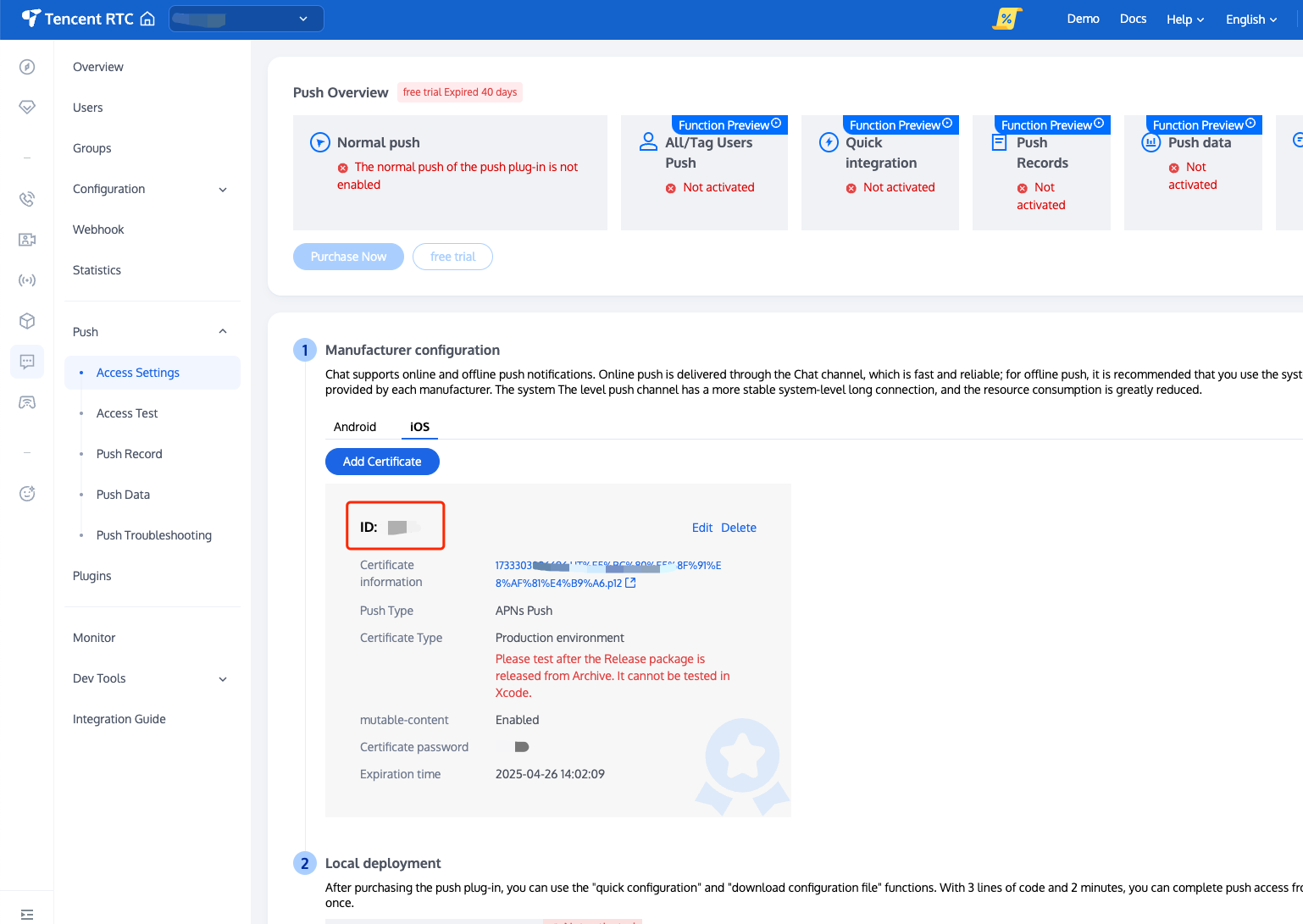
5. After the push certificate information is generated, record the certificate ID.
Method 2: Use a p8 certificate (supports Dynamic Island Push)
p8 Certificate: A p8 certificate does not have an expiration date, so you don't need to worry about certificate expiration. Additionally, using a p8 certificate can simplify certificate management since you can use a single p8 certificate to provide push notification services for multiple applications. Moreover, p8 certificate supports Dynamic Island push.
Step 1: Apply for an APNs certificate
1. Go to Certificates, Identifiers & Profiles: click on Account in the top right corner of the page, then select Certificates, Identifiers & Profiles from the drop-down menu.
2. Create a new App ID: click on Identifiers in the left menu, then click on the + on the right to create a new App ID. Fill in the relevant information and click on Continue.
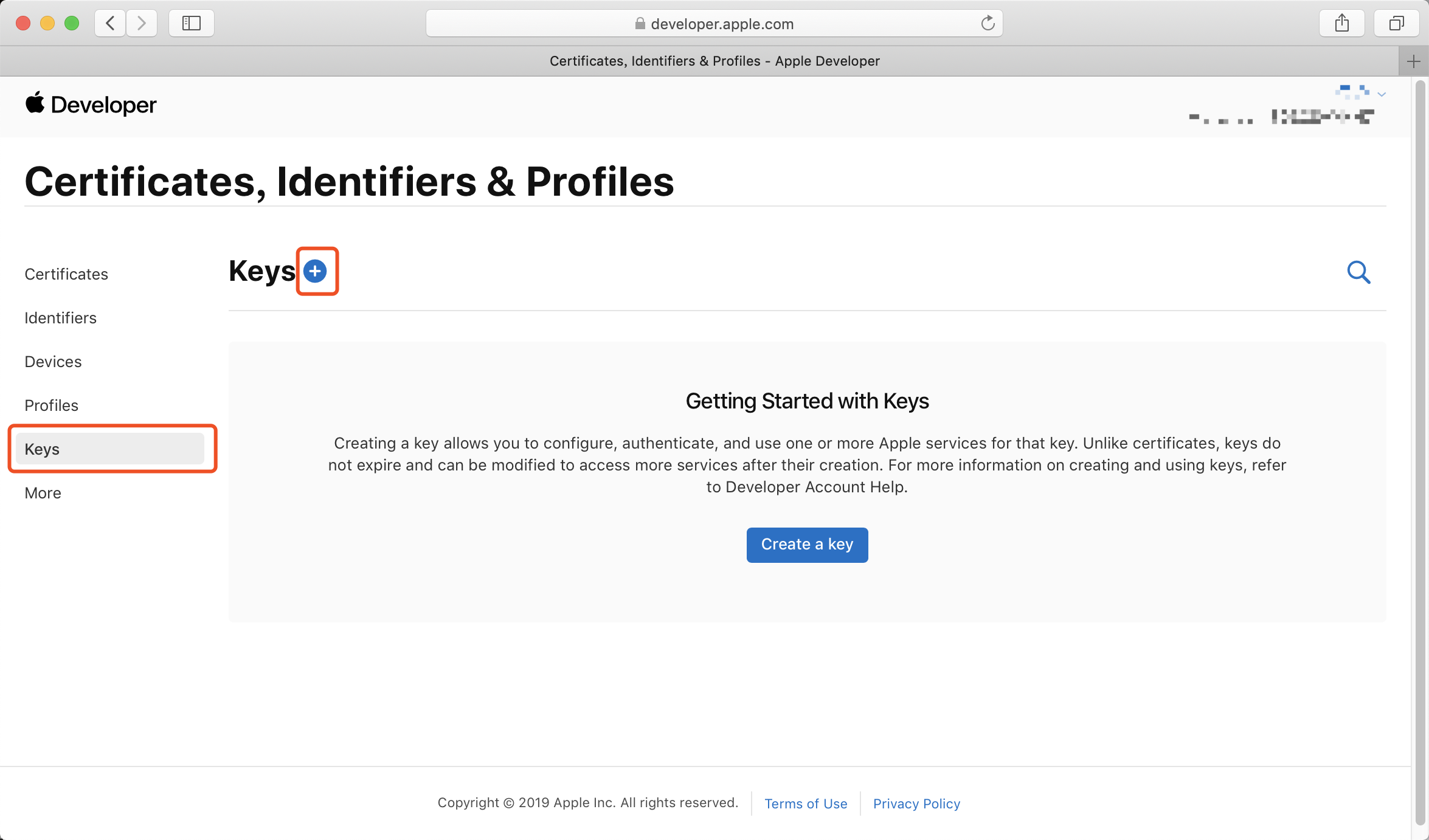
3. Create a new key: In the left menu, click on Keys, then click the + on the right to create a new key. Enter the name of the key, and then check the Apple Push Notifications service (APNs), click on Continue.
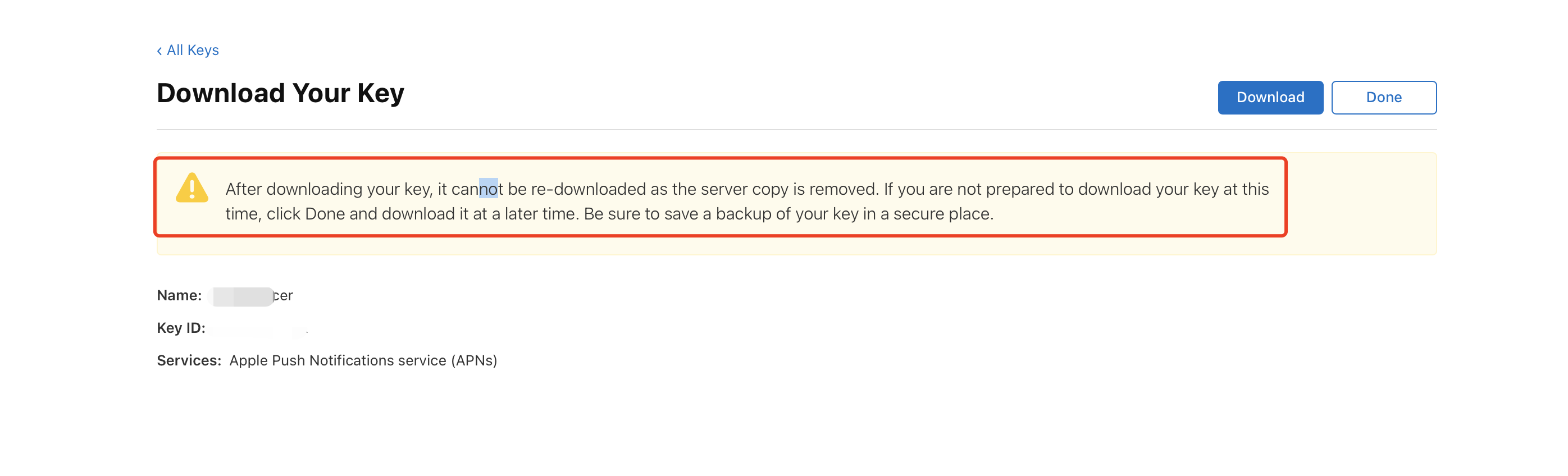
Confirm and generate the key: On the confirmation page, verify your key information, then click on Register. Next, you will see a page prompting you to download the key. Click on Download to save the generated .p8 file to your computer.
Note:
The p8 certificate can only be downloaded once, so please keep it safe.
Please keep the downloaded p8 file safe, as you will not be able to download it again. You can use this P8 certificate to configure your iOS application to receive push notifications.
Step 2: Upload the p8 certificate to the Chat console
2. Click the target app card to go to the basic configuration page of the app.
3. Click iOS native offline push settings on the right, click Add Certificate.
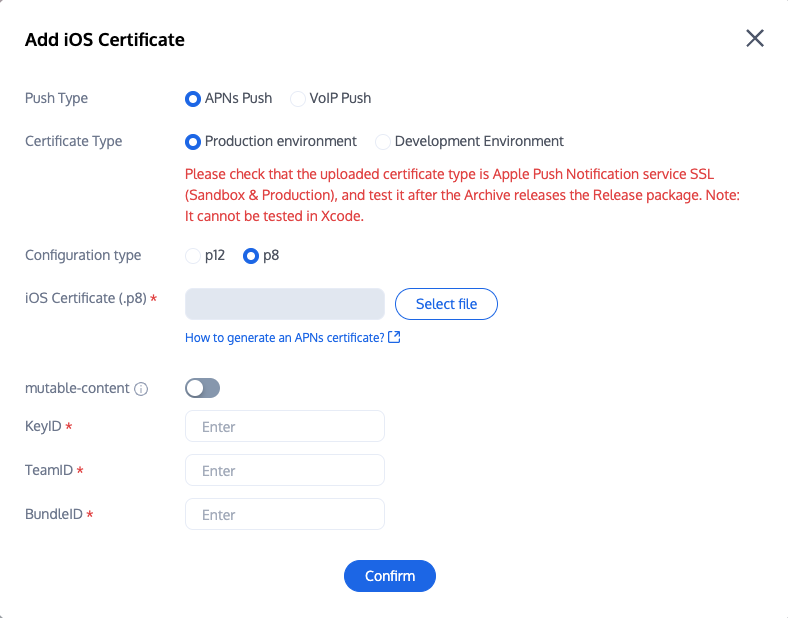
4. Select .p8 certificate
5. Select the production environment and the development environment each to upload a file (You need to prepare the same materials, only the backend assigns the APNs push environment for you)
Note:
KeyID: This is the unique identifier for your APNs Auth Key. When you create a new APNs Auth Key in the Apple Developer Center, the system generates a Key ID for you. You can find it in the "Certificates, Identifiers & Profiles" section under "Keys".
TeamID: This is the unique identifier for your developer account. You can find it on the account details page in the Apple Developer Center. Click "Membership" in the top right corner, and you will find your Team ID in the "Membership Details" section.
BundleID: This is the unique identifier for your application, also known as the Application ID. You can find it in the "Certificates, Identifiers & Profiles" section of the Apple Developer Center. Select "Identifiers," then find the corresponding Bundle ID in your application list.
1. Create a Description File
Step 1: Create an App ID
1. Log in to Apple Developer Center:
2. Create an App ID:
In the "Certificates, Identifiers & Profiles" section, select "Identifiers".
Click the "+" button to create a new App ID.
Select "App IDs" and click "Continue".
Enter your App ID name and Bundle ID (e.g., com.yourcompany.yourapp).
Ensure to select the appropriate features (e.g., Push Notifications, App Groups, etc.), then click "Continue" and confirm.
Step 2: Create an App ID for the Service Extension (optional)
Repeat the above steps to create a new App ID for your Service Extension.
The Bundle ID is usually the main application’s Bundle ID followed by the extension identifier, e.g., com.yourcompany.yourapp.extension.
Step 3: Create a Description File
1. Create a Description File:
In the "Certificates, Identifiers & Profiles" section, select "Profiles".
Click the "+" button to create a new Description File.
Select "iOS App Development" or "App Store" (based on your needs), then click "Continue".
Select the App ID you just created (the main application’s App ID), then click "Continue".
Select your development certificate and device (if it's a development description file), then click "Continue".
Enter the name of the description file, then click "Generate".
2. Create a Description File for the Service Extension (optional):
Repeat the above steps to create a new Description File for your Service Extension, ensuring you select the corresponding App ID.
Step 4: Download and install the Description File
1. Download Description File:
After creating the description file, click the "Download" button to download the Description File.
2. Install Description File:
Double-click the downloaded Description File. It will automatically install in Xcode.
1. Add push permissions in Xcode
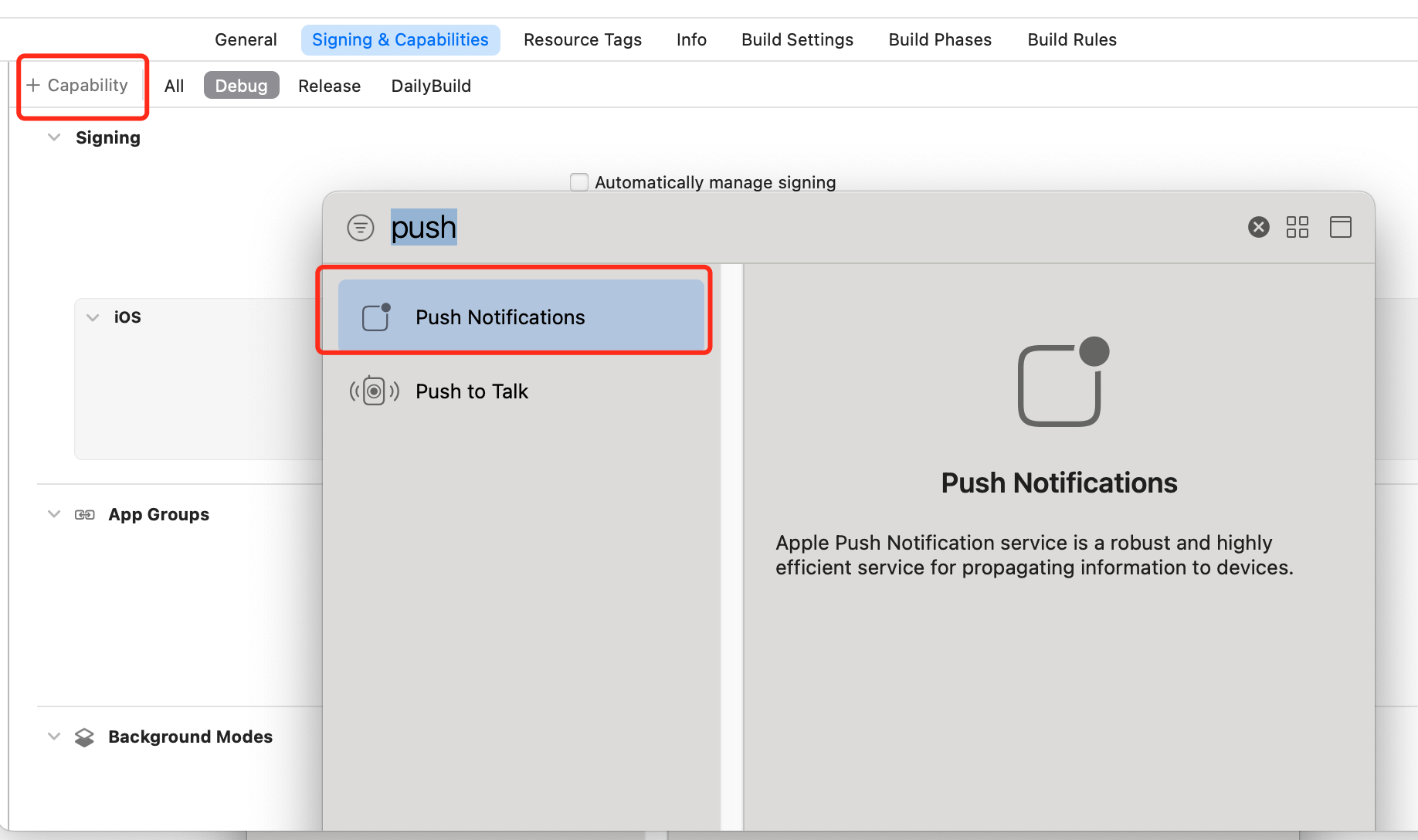
To add push permissions to the app, enable the push notification feature in the Xcode project.
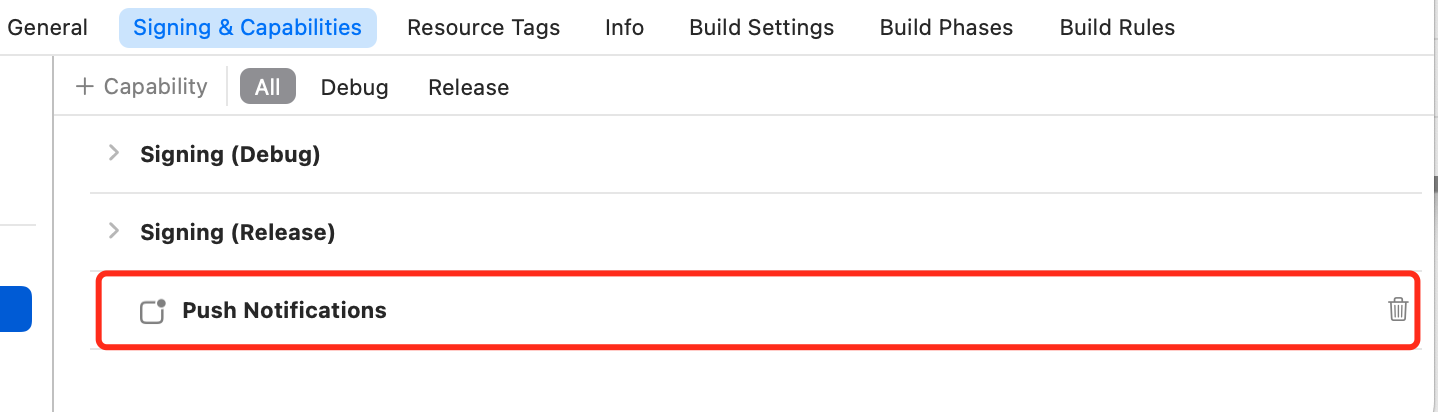
Open Xcode project, navigate to the Project > Target > Capabilities page, click the plus button in the red box, and then select and add Push Notifications .
The result after adding is shown in the red box in the figure.
Four, generate App GroupID (optional)
When you need to use the TIMPush component to calculate the Push Arrival Rate, it is recommended to configure the TIMPushAppGroupID, then follow the quick access instructions to use it.
App GroupID identifies the shared App Group between the Main App and Extension, which needs to be configured in the App Groups capability of the Main App's Capability.
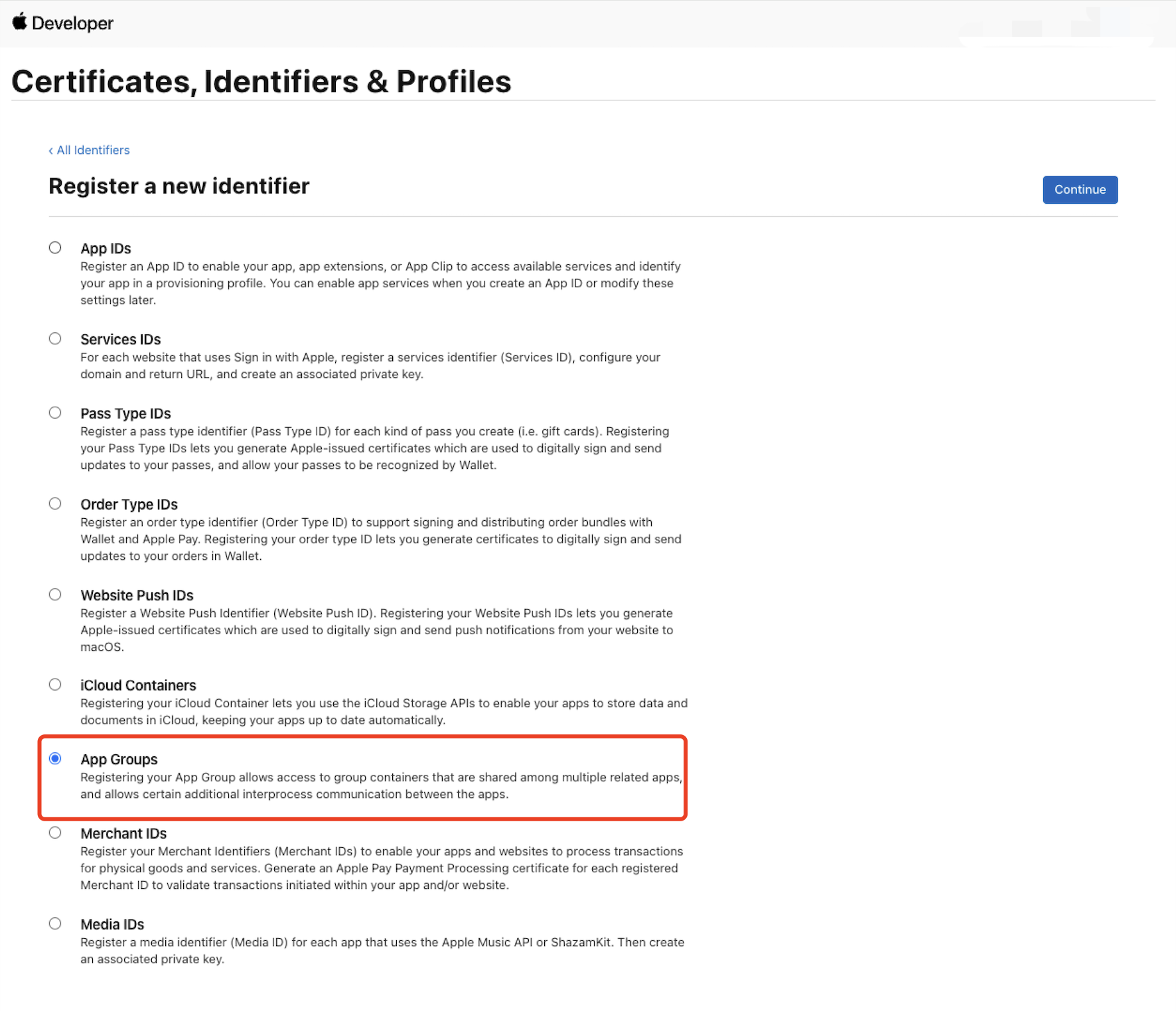
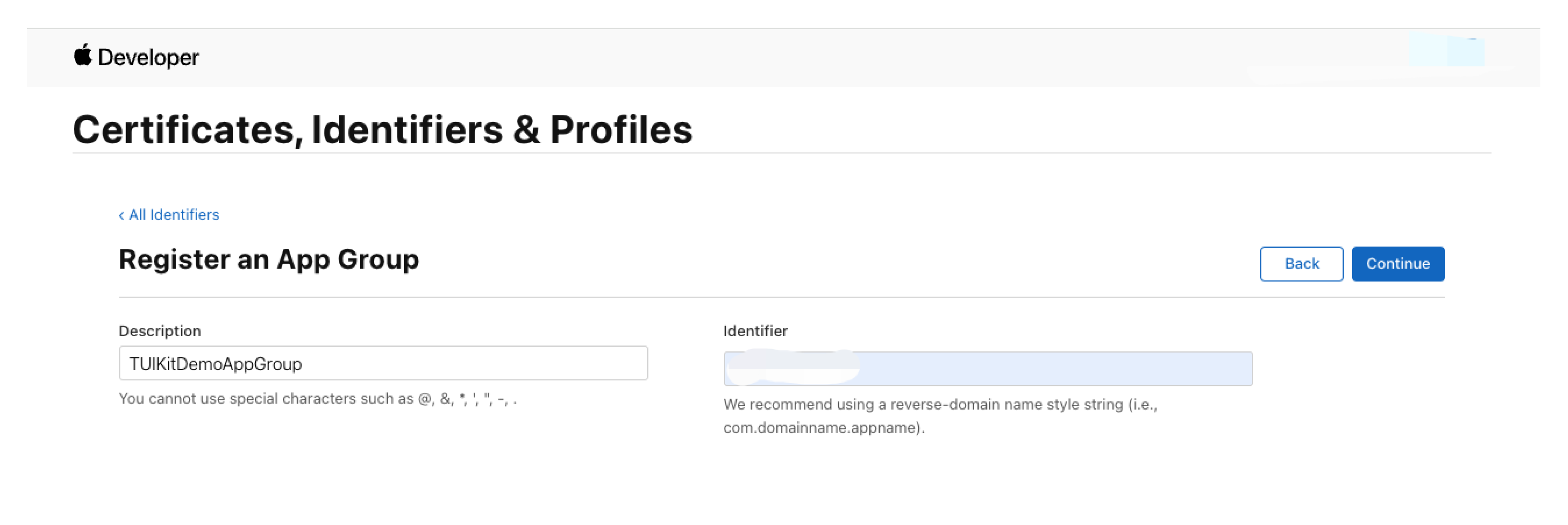
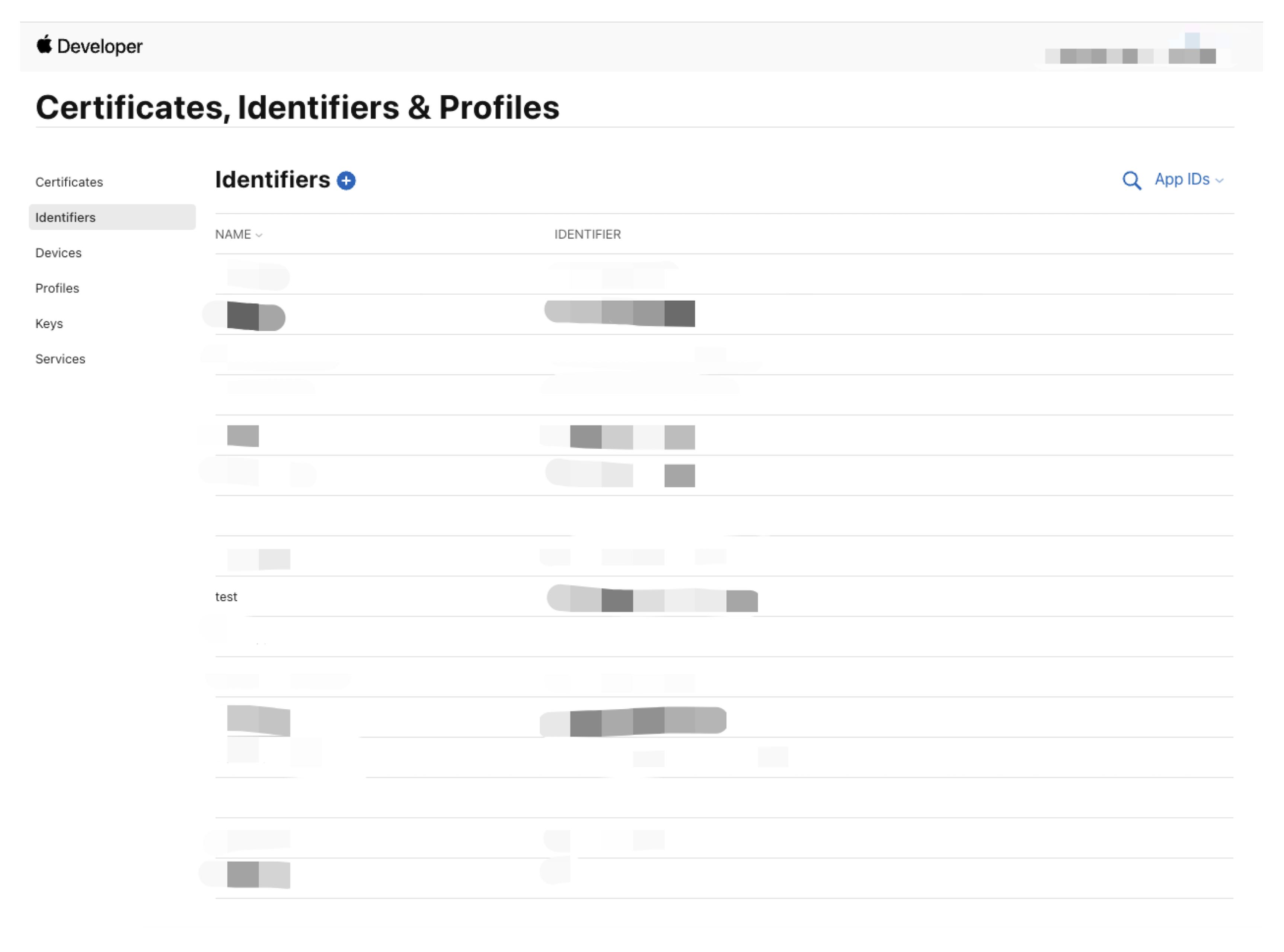
Step 1: log in to the Apple Developer Center website, go to [identifiers] -> [App Groups] to create AppGroups.
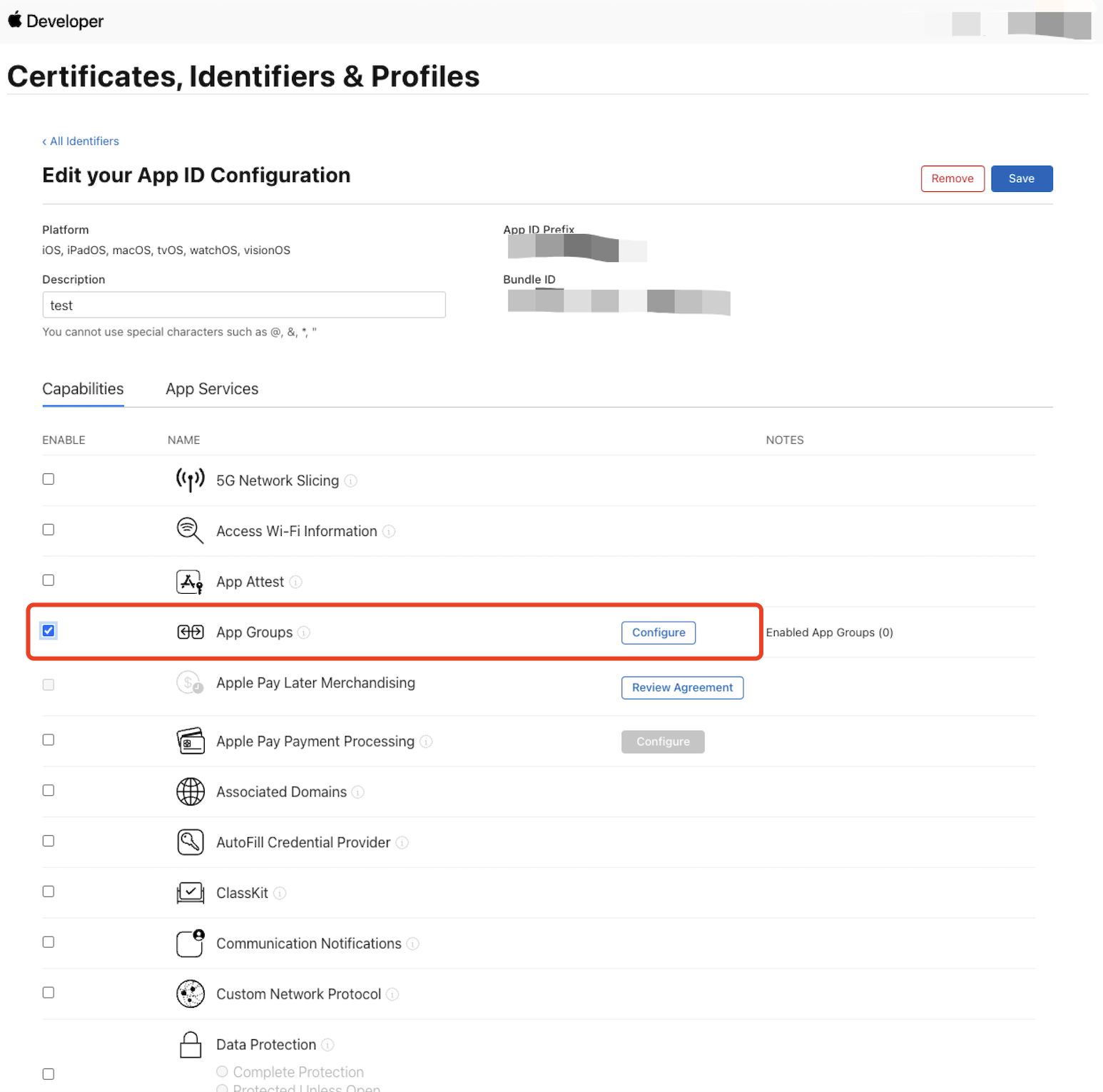
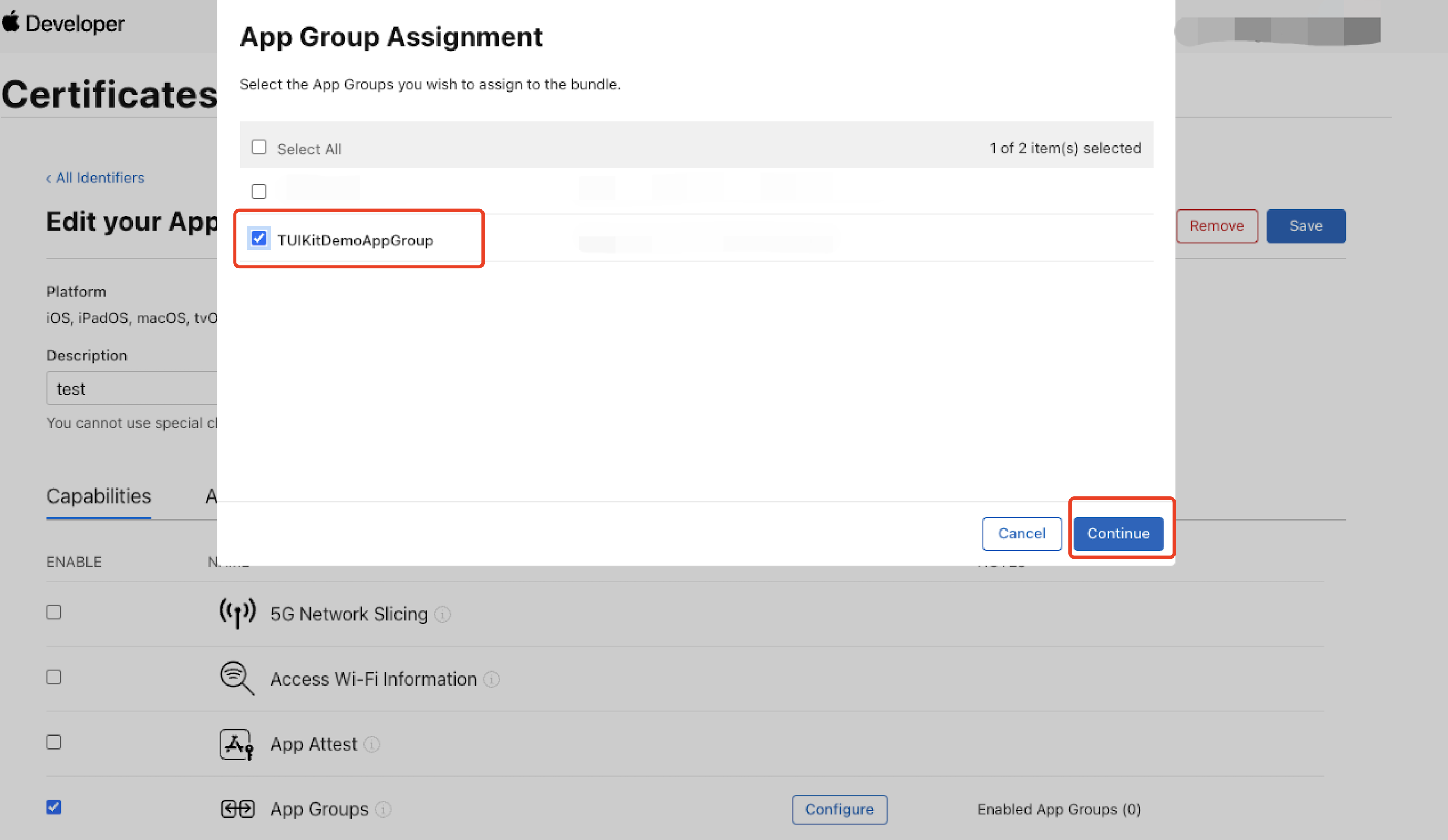
Step 2: bind the AppID of the application you want to use to the AppGroups.
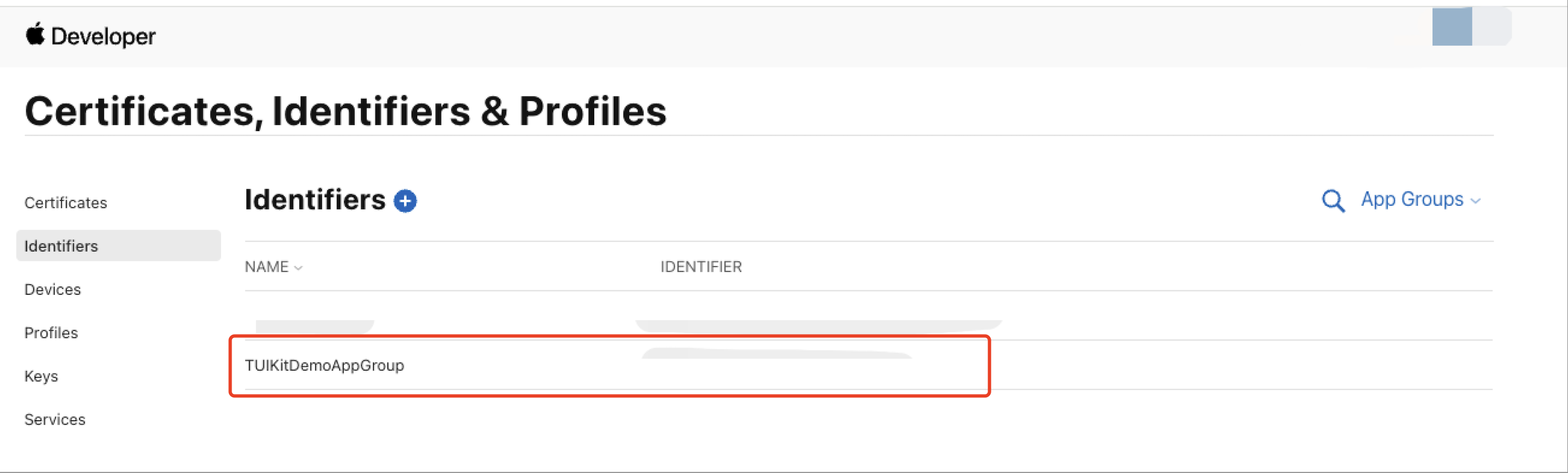
Step 3: obtain your TIMPushAppGroupID.
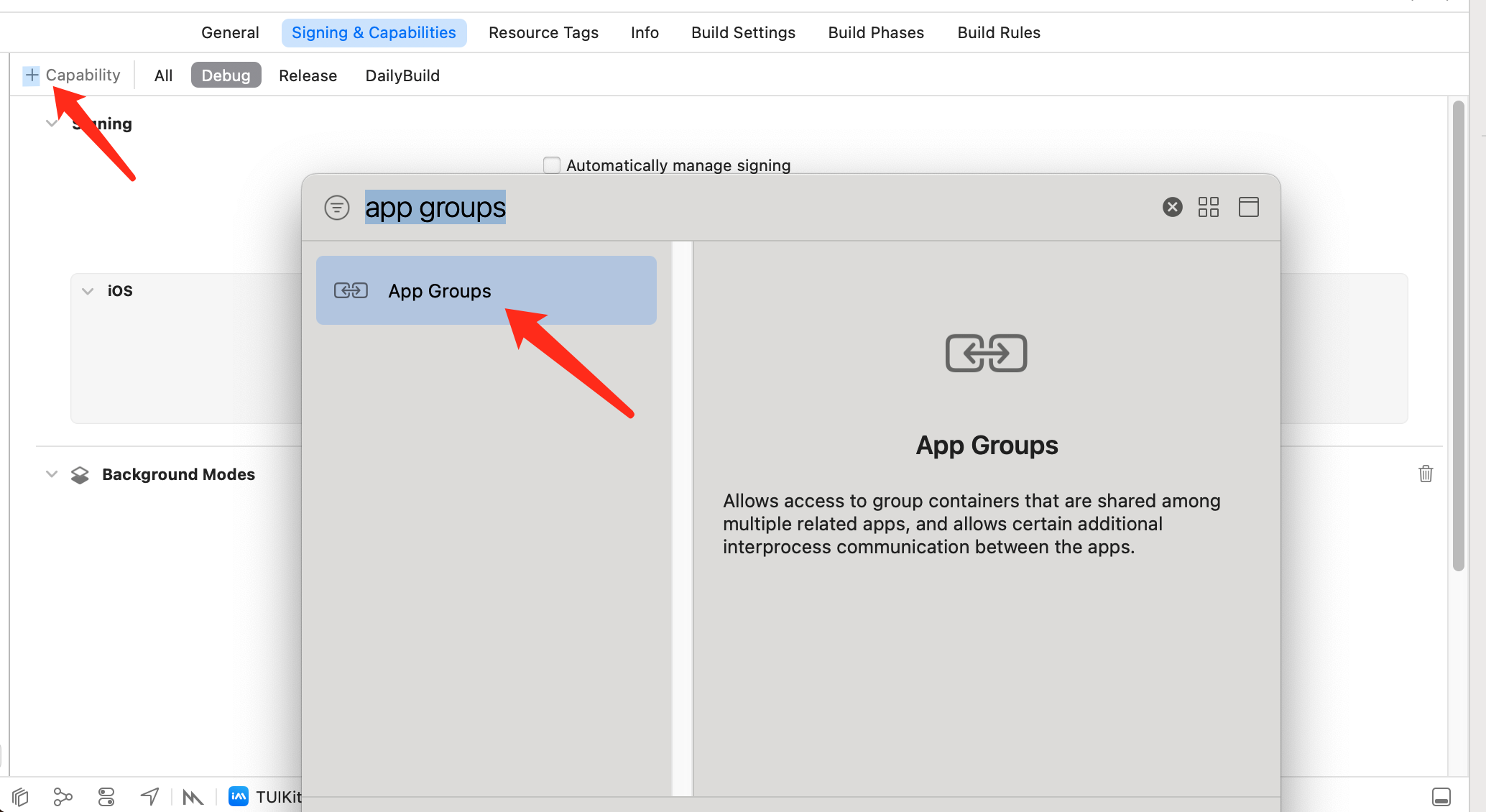
Step 4: configure TIMPushAppGroupID in Xcode.
Open Xcode project, go to Project > Target > Capabilities page, click the plus button in the red box, and then select and add App Groups.
Enter the GroupID configured in step 3, such as group.com.tencent.im.pushkey:
Appendix: Developer Account, Certificate Type, and Description File
Apple Developer Account:
Creating iOS certificates and profiles requires a paid Apple account. There are three types of Apple developer accounts: Individual developer, Company developer, and Enterprise developer, each with different purposes.
Individual developer and Company developer accounts cost $99 per year, while Enterprise developer accounts cost $299 per year.
Enterprise developers are generally used by large enterprises when developing internal applications and cannot be published on the App Store.
Please ensure you already have an Individual developer or Company developer account.
Certificate Introduction:
Certificates come in various types and serve different purposes. Here are the classifications of iOS certificates:
Certificate Type | Differences |
Developer Certificate (Developer Certificate) | Used for signing and debugging applications during the development phase. The developer certificate is issued by the Apple Developer Center and requires the use of Xcode or other development tools for application and management. |
Distribution Certificate (Distribution Certificate) | Used to distribute applications to other users or upload them to the App Store for review. The distribution certificate is issued by the Apple Developer Center and requires the use of Xcode or other development tools for application and management. |
Push Certificate (Push Certificate) | Used to implement APNs remote push feature, allowing the application to receive push notifications from the server. The push certificate is issued by the Apple Developer Center and requires the use of Xcode or other development tools for application and management. |
Enterprise Certificate (Enterprise Certificate) | Used to distribute applications to internal employees or customers. The enterprise certificate is issued by the Apple Developer Center and requires the use of Xcode or other development tools for application and management. |
Description File Introduction:
Provisioning Profiles are also divided into two types: Development and Distribution. The configuration file includes certificates, App ID, and devices.
The file extension is .mobileprovision. It plays a role in configuration and validation within the developer account system and is necessary for real device debugging and packaging for release.
Description File(Provisioning Profile) | Function |
Development | A Provisioning Profile corresponds to one App ID (Bundle ID) The Provisioning Profile determines which key pair (public key/private key) Xcode uses to sign the application, and it will be embedded into the .ipa package when the application is packaged. The Provisioning Profile packages all this information together, making it convenient for us to use when debugging and packaging the application for release. This way, just selecting different Provisioning Profile files in different situations will suffice. Provisioning Profiles are also divided into Development and Distribution types, with a validity period similar to Certificates. The Development version of the Provisioning Profile is used for development and debugging, while the Distribution version is mainly used for submitting to the App Store for review, and does not specify devices for development testing. |
Distribution |
|