tencent cloud

Tencent Push Notification Service

Release Notes
Announcements
Features
SDK for Android
SDK for iOS
SDK for macOS
Product Introduction
Overview
Strengths
Use Cases
Global Deployment
Purchase Guide
Billing Overview
Purchase Directions
Billing Modes
Free Trial
Payment Overdue
Getting Started
Creating Products and Applications
Quick Integration with Android
Quick Integration with iOS
Creating a Push Task
Querying Push Records
Guidelines for Push Testing Methods
Product Restrictions
Operation Guide
Push Management
Advanced Push Features
Practical Tutorial
iOS Badge Feature Practice
API Documentation
Overview
API Overview
Call Method
Push APIs
Tag APIs
Account APIs
Statistics APIs
User Attribute APIs
Server-Side Error Codes
Server SDKs
API (Java)
SDK Documentation
Android Integration Guide
iOS Integration Guide
Client Integration Plugin
macOS Integration Guide
Users and Permissions
Quick Configuration
Advanced Custom Configuration
Resource Tag
Service Agreement
Service Level Agreement
FAQs
iOS
Android
Flutter
Others
Tencent Push Notification Service Policy
Privacy Policy
Data Processing and Security Agreement
Developer Agreement
Contact Us
Glossary

Purchase Directions

PDF
Focus Mode
Font Size
Last updated: 2024-01-16 17:28:37

Operation Scenarios

Once the application is created, you can purchase the Tencent Push Notification Service service, which currently supports the pay-as-you-go billing mode:
In pay-as-you-go billing mode, you only need to pay for the actually used resources on a daily basis, which is suitable for scenarios where the business volume changes frequently.
For the pricing of this billing mode, please see Pricing Overview. The following describes how to enable this mode at the official website.

Directions

Enabling pay-as-you-go (postpaid) billing

1. Log in to the Tencent Push Notification Service Console and select Product Management on the left sidebar.
2. Go to the product list page, select the application for which to purchase the service, and click Buy Now.
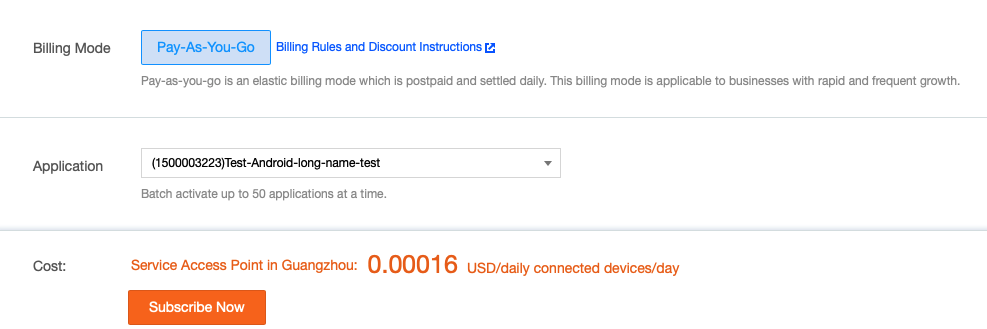
3. On the Tencent Push Notification Service purchase page, select the Pay-As-You-Go billing mode, specify the target application, or click the drop-down list to select multiple target applications, confirm that everything is correct, and click Enable Now.


4. The service will take effect immediately after the pay-as-you-go billing mode is successfully enabled. When the Service Details corresponding to the application on the Product Management page displays Pay-As-You-Go, the mode is successfully enabled.
Help and Support

Was this page helpful?

Help us improve! Rate your documentation experience in 5 mins.

Feedback