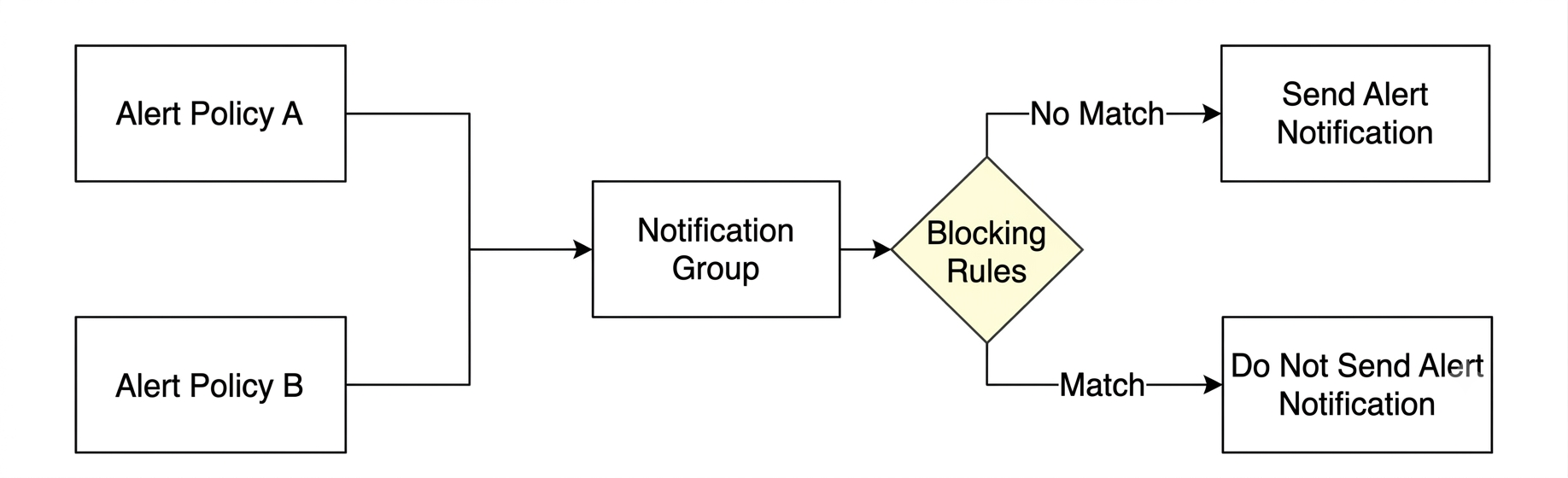
When a system becomes abnormal, alarms are often generated continuously. For issues already under processing, you can block the alarms for a period of time to avoid being disturbed. Furthermore, planned system changes may also generate some expected alarms, which can be blocked in advance.
CLS provides two alarm blocking methods:
Temporary alarm blocking: When an alarm notification is received, you can block the alarm directly for a period of time (15 minutes to 12 hours). The method is convenient to operate and suitable for temporarily blocking alarms under processing.
Scheduled alarm blocking: You can create alarm blocking rules in advance in the console. This method enables batch operation and is suitable for blocking some expected alarms in advance before system changes.
Alarm blocking rules belong to Notification Group. When multiple alarm policies use the same notification channel group, you can block multiple alarm policies in batches in this notification channel group.
Operation Steps
Temporary Alarm Blocking
Note:
Currently, notifications via WeChat are not supported.
You need to enable the Alarm Operation Without Login feature in the Notification Group. This allows you to directly block/claim related alarms in the alarm notification without logging into the Tencent Cloud console.
1. Text channels such as SMS, email, WeCom, and DingTalk:
1.1 You receive alarm notifications through channels such as SMS, email, WeCom, and DingTalk.
1.2 Click Silence Alarm or Detailed Report (and then click Suppress Alarm at the bottom) in the notification to go to the alarm silencing configuration page, and view or fill in the following information:
Notification group: notification group used by the current alarm policy, which cannot be modified. Multiple groups may be configured.
Silencing time range: Supports 15 minutes, 30 minutes, 1 hour, 2 hours, 8 hours, and 12 hours. Only one option can be selected.
Suppression rule: It is automatically generated and only silences the alarm policy, alarm level, monitored object, and alarm group (if the Group-based Triggering feature is enabled) corresponding to the current alarm. Modifications are not supported.
Operator: current operator name (required).
Suppression Reason: reason for silencing the alarm (required).
2. Phone channel:
2.1 Answer the call.
2.2 Press 2 during the call to silence the alarm for 30 minutes.
2. In the left sidebar, click Monitoring Alarm > Notification Group to go to the notification group management page.
3. Click the Notification Group Name/ID that requires configuration of a blocking rule in the list to go to the notification group details page.
4. Click the Alarm Blocking Rule tag at the top to go to the alarm blocking rule management Page.
5. Click Add Rule, and fill in the following information in the pop-up dialog box:
Blocking period: time period for blocking alarms.
Blocking rules:
All notifications: Block all alarms using this notification channel group.
Notifications satisfying the following rules: Only block alarms that meet custom rules, for example, all reminder-level alarms. For supported rule details, see Rule Details.
Blocking reason: reason for blocking the alarm (required).
Viewing Created Blocking Rules
Regardless of the methods used to create the blocking rule, you can view and manage the blocking rules in the console.
2. In the left sidebar, choose Monitoring Alarm > Notification Group to go to the notification group management page.
3. Click the Notification Group Name/ID that requires configuration of a blocking rule in the list to go to the notification group details page.
4. Click the Alarm Blocking Rule tag at the top to go to the alarm blocking rule management Page.
5. Rules in different states support the following operations:
Active: You can copy and expire the rule. After you click Expire, the rule will no longer be effective.
Expired: You can copy and view the rule. Manual deletion is not supported. The system can save up to 1000 invalid blocking rules and automatically delete old rules after exceeding this limit.
Inactive: You can edit, copy, and delete the rule.
Rule Details
When creating a blocking rule through the console or API, you can define the blocking rule according to the following fields and comparison methods:
Field
Comparison Method
Compared Value
API Parameter Example (Rule)
Level
In: belong to
NotIn: not belong to
1: information
0: alarm
2: critical
(multiple values supported)
Example meaning: The alarm severity does not belong to a reminder.
{
"Type":"Condition",
"Value":"Level",
"Children":[{
"Value":"NotIn",
"Type":"Compare"
},{
"Value":"[1]",
"Type":"Value"
}]
}
AlarmID
In: belong to
NotIn: not belong to
Alarm policy
(multiple values supported)
Example meaning: The alarm policy belongs to alarm-4ddebe88-xxxx-4d8c-acce-6a8613e24cbf and alarm-12a93b68-xxxx-4a42-bcf3-843690fc0793.