Identity Management User Login
Baixar
Modo Foco
Tamanho da Fonte
Overview
When Identity Management users log in to the user portal, they can view accounts they have permissions to access and access corresponding resources as CAM roles or CAM users.
Directions
Step 1: Obtain the Login Portal URL
1. The Identity Management administrator goes to TCO > Identity Management.
2. On the left sidebar, click Identity Management Overview.
3. On the right side of the overview page, view or copy User Login URL.
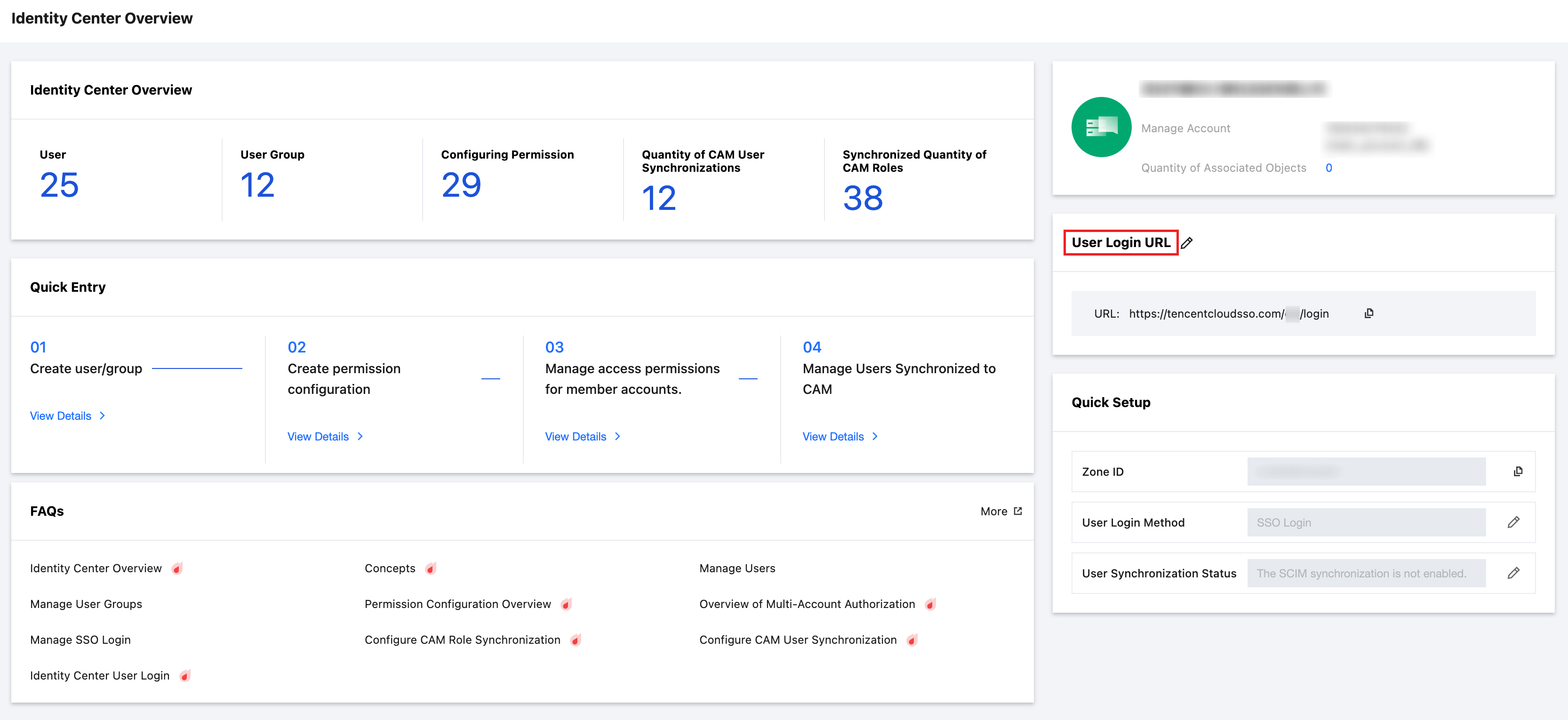
Step 2: Log In to the Identity Management User Portal
1. Identity Management users click to access User Login URL.
2. Log in to the Identity Management user portal according to the configured login method.
username and password login
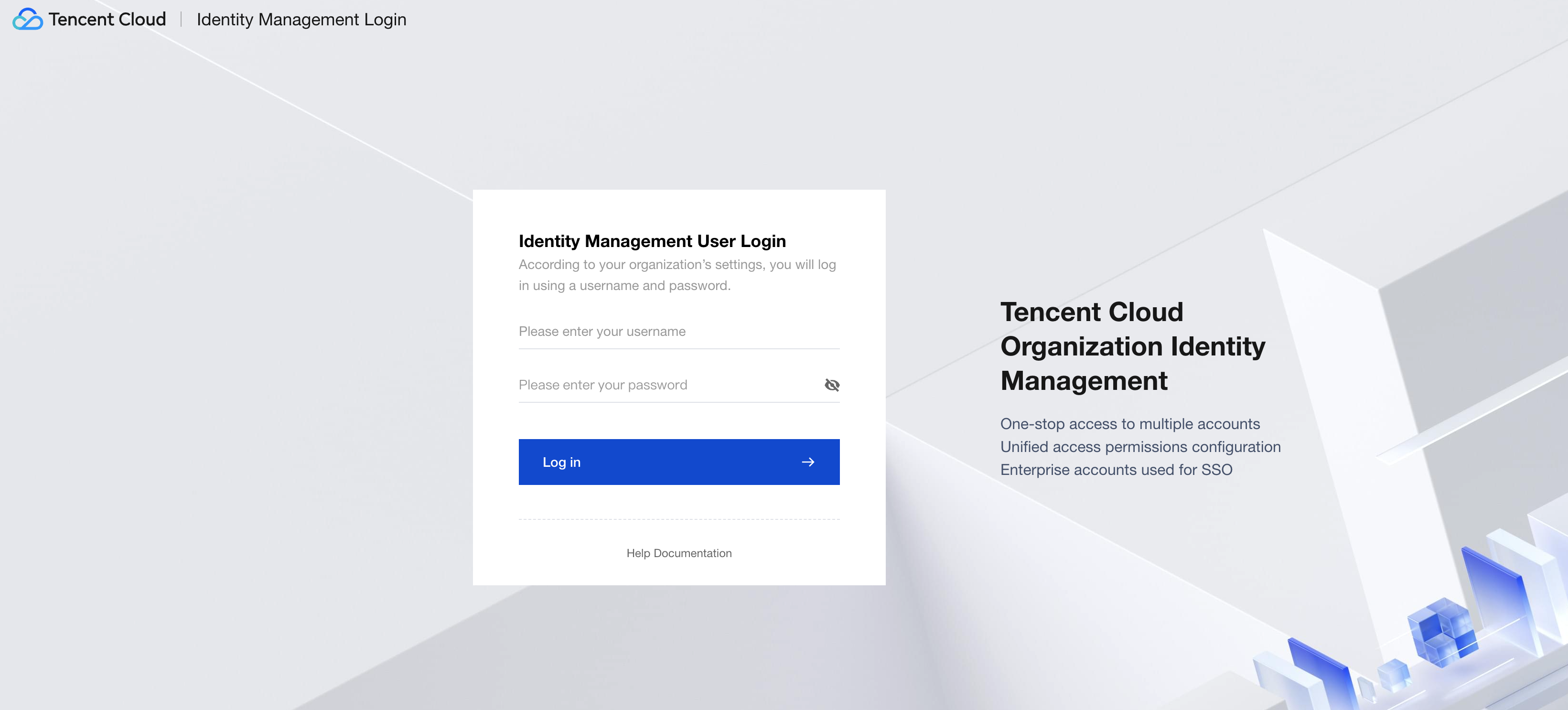
Input the Identity Management ter username and password, then click Log in. If you need to change the password, see Resetting User Password.
MFA is enabled by default. Users need to complete MFA verification. For details, see Adding an MFA Device.
If it is the first time to log in to the user portal, you need to add an MFA device.
If the MFA device is already bound, enter the verification code obtained from the mobile device and click Verify.
SSO login
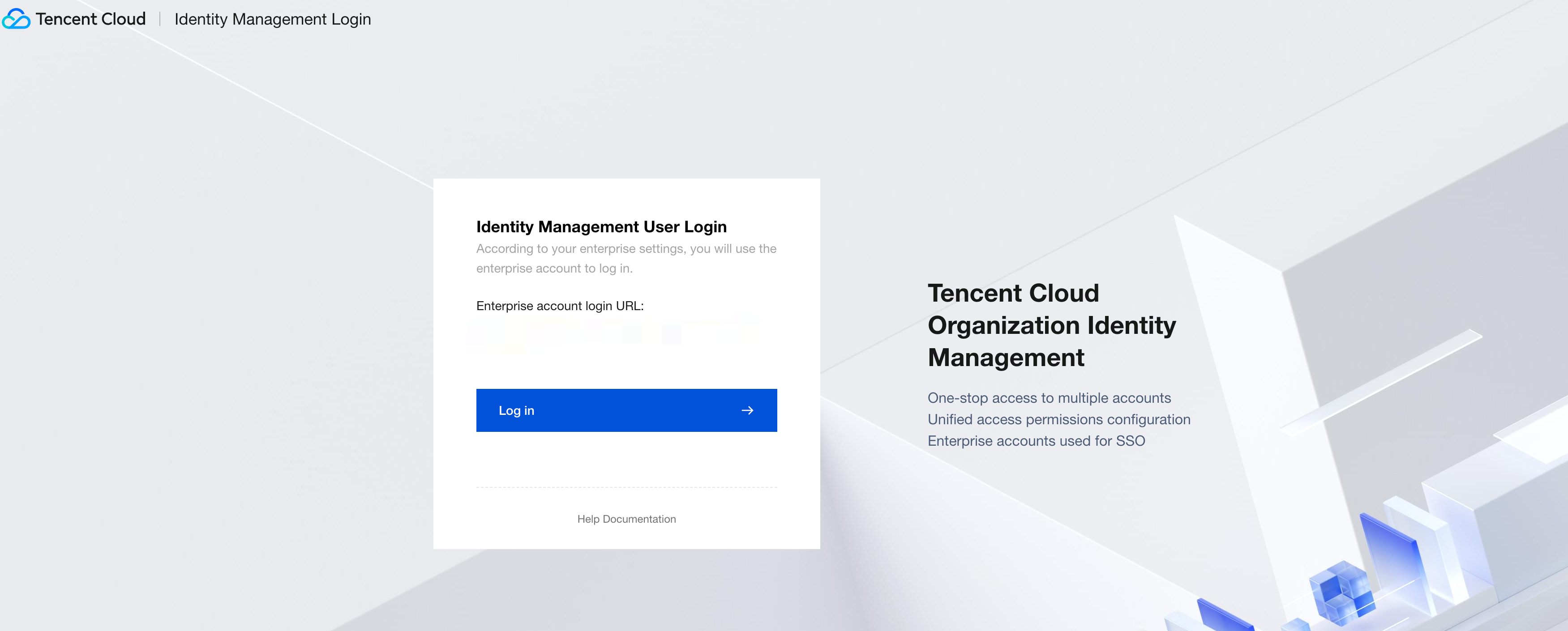
On the SSO login page, click Log in, and the system will automatically redirect to the enterprise IdP login page.
Log in with the enterprise IdP username and password.
Step 3: Access Accounts
Login as CAM role
For cloud services that support CAM roles and have access permissions configured in the Identity Management, you can access account resources using a CAM role. This method applies to most cloud services. For configuration methods, see Configuring CAM Role Synchronization.
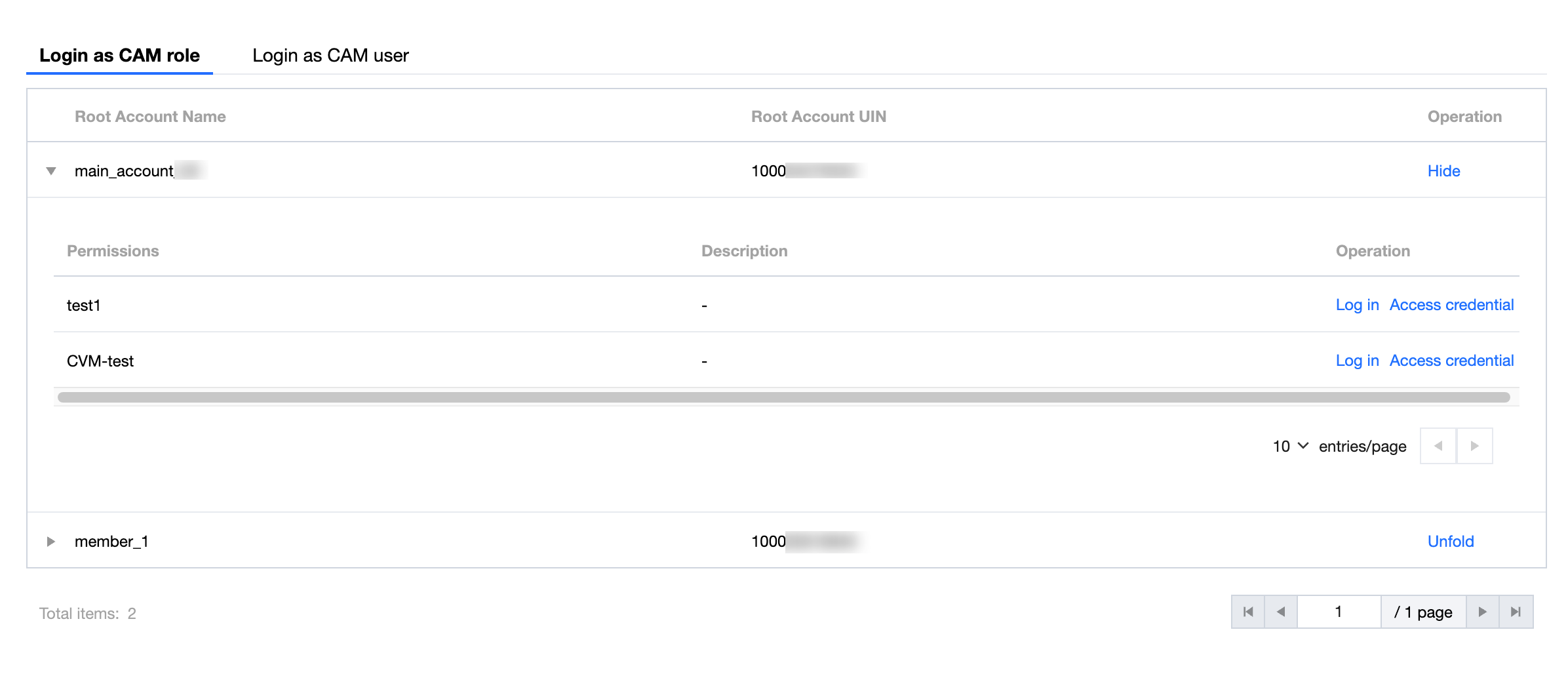
1. On the Login as CAM role tab, click the target account Operation column Unfold.
Note:
If the list is empty, it means you do not have access to any accounts.
When you have access to multiple accounts, you can flexibly choose the account you want to access on this page.
2. Click Log In in the Operation column of the target permission, to role identity enter the target account.
Note:
When you have access to multiple accounts, you can flexibly choose the account you want to access on this page.
Login as CAM user
For cloud services that do not support CAM roles and have CAM user synchronization configured in the Identity Management, you can access account resources as a CAM user. For configuration methods, see Configuring CAM User Synchronization.
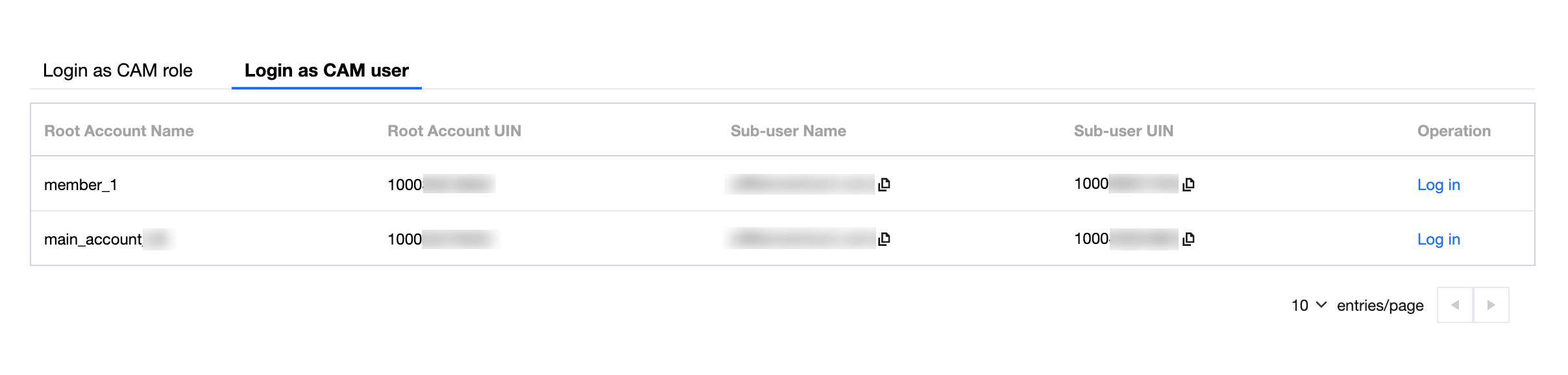
On the Login as CAM user tab, click Log In in the Operation column of the target account.
Note:
If the list is empty, it means you do not have access to any accounts.
When you have access to multiple accounts, you can flexibly choose the account you want to access on this page.
Ajuda e Suporte
Esta página foi útil?
Você também pode entrar em contato com a Equipe de vendas ou Enviar um tíquete em caso de ajuda.
comentários