Cloud Recording
다운로드
포커스 모드
폰트 크기
This document introduces the cloud recording feature of the Conference SDK. The Conference SDK offers built-in mixed-stream recording for meeting rooms, so that you do not have to set up your own backend or call the TRTC Cloud API. After configuring recording file storage in the console, you can record meetings in two ways: enable Global Auto-Recording for automatic room recording, or allow the host or administrator to start recording with a single click during the meeting. If the default features do not meet your business requirements, see TRTC Cloud Recording for custom integration.
Prerequisites
Before using Conference SDK cloud recording, complete the following steps:
1. Purchase a Conference SDK package that includes cloud recording and obtain your SDKAppID.
2. Enable file storage for recordings. Recording files can be stored in Video on Demand (VOD), Object Storage (COS), or AWS S3. Activate one of these services in the corresponding product console and record the storage details.
3. On the Real-Time Communication Console Configuration Page, select your target application at the top and click Configure.
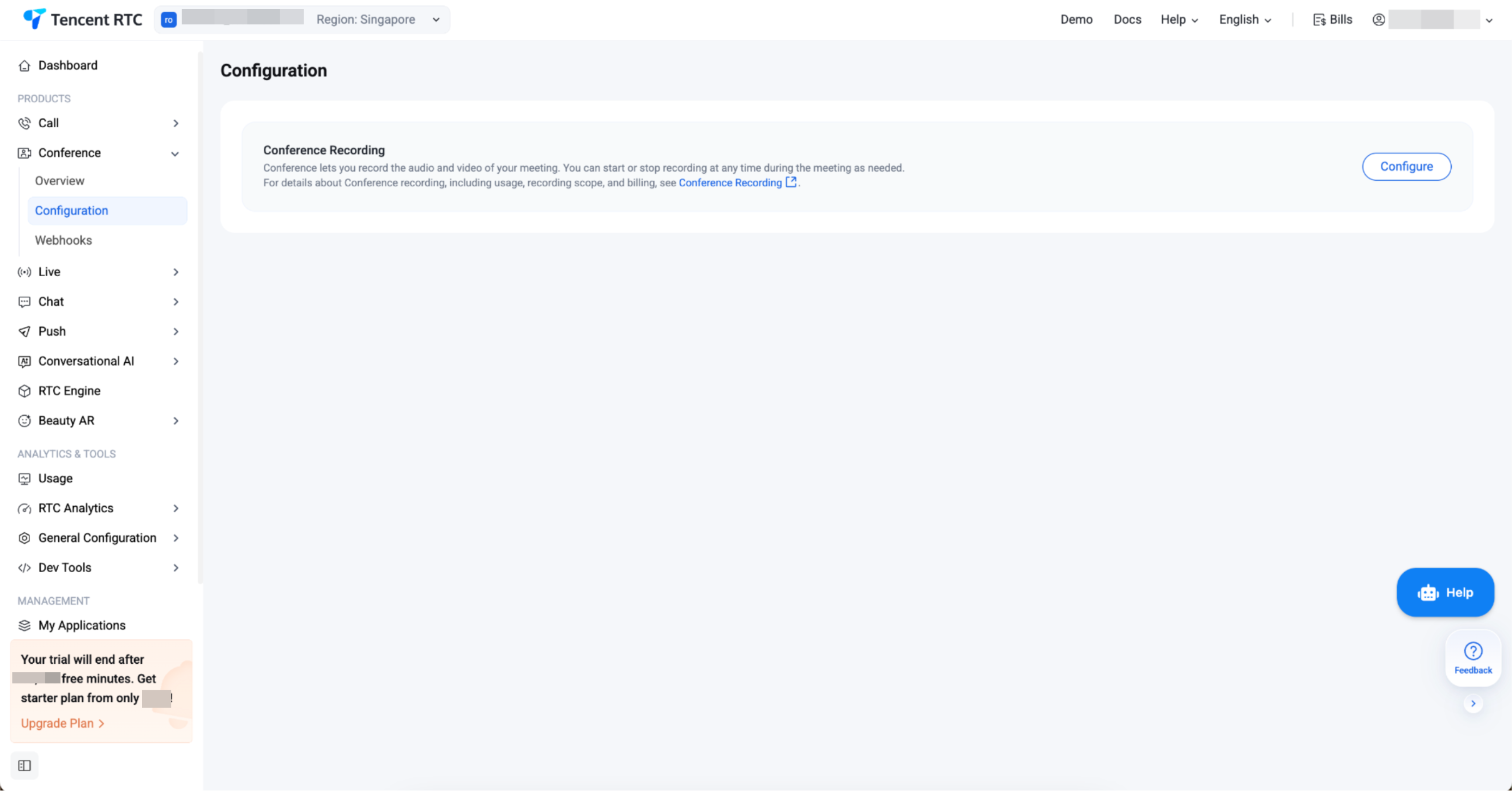
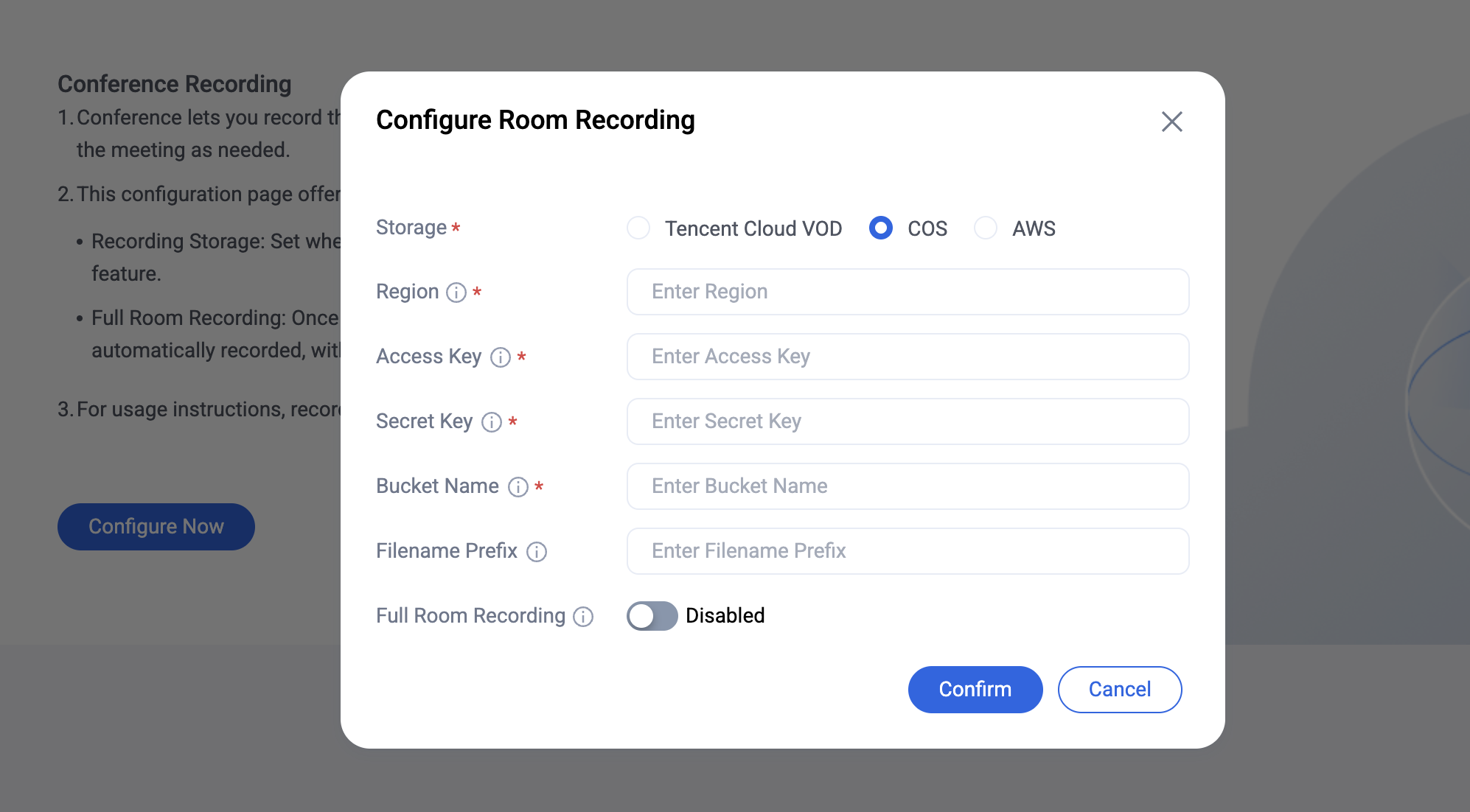
On the recording configuration page, enter the following information based on your chosen storage method:
Store to VOD: Account UIN and VOD Application AppID.
Store to COS: Bucket name, Region, AccessKey (SecretId), and SecretKey.
Store to AWS S3: Bucket name, Region (example:
ap-southeast-1), AWS Access Key ID, and AWS Secret Access Key.4. To enable automatic room recording, turn on Global Auto-Recording on the same configuration page and set up the recording template according to your business requirements.
Note:
After storage configuration is complete, you can start recording with a single click in the Conference SDK. Global Auto-Recording is optional and follows the same recording file rules as in-meeting one-click recording.
Feature Overview
Conference SDK provides a managed cloud recording solution, with authentication and recording task management handled by the SDK backend. Once storage is configured, you can start mixed-stream recording for meeting rooms. The recording status (start/stop) is synchronized in real time to all participants.
Conference SDK supports two ways to initiate recording:
Initiation Method | Description | Applicable Scenarios |
Global Auto-Recording | When enabled in the console, rooms created via Conference SDK automatically start mixed-stream recording. Recording stops automatically when the room ends or is idle for too long. | All rooms require recording; no manual operation needed during meetings. |
In-Meeting One-Click Recording | Host or administrator starts/stops recording via client API or integrated UI component during the meeting. | Choose whether to record based on actual meeting needs. |
Note:
Global Auto-Recording, In-Meeting One-Click Recording, and TRTC Cloud Recording can be used simultaneously, but this will generate multiple recording files and incur additional fees. If you do not need multiple recording outputs, enable only one recording will do.
Recording Effects
Conference SDK room recording uses mixed-stream recording by default, combining all published audio/video streams in the room into a single recording file. The rules for Global Auto-Recording and In-Meeting One-Click Recording are consistent. The recording includes:
Audio: Voices of all participants in the room.
Video: All camera feeds or screen sharing streams.
The recording layout automatically adjusts based on meeting status, and the recording task does not restart when the layout changes:
Meeting Status | Mixed-stream Layout | Max Number of Video Streams |
No screen sharing or whiteboard | Automatically adjusts each video size; all streams are equal size | Up to 25 video streams |
Screen sharing or whiteboard present | Screen sharing or whiteboard appears in the big image area on the left; other video streams are vertically stacked on the right | Up to 1 screen sharing/whiteboard and 16 video streams |
Audio only | - | - |
Note:
If there is no audio/video uplink during recording (all participants have their cameras, microphones, and screen sharing turned off), a recording file will still be generated, but it will contain no video or audio.
Retrieving Recording Files
After recording ends, files are stored in your configured VOD, COS, or AWS S3. Retrieve them as follows:
If stored in VOD, go to Real-Time Communication Console > Media Management to view recorded files.
If stored in COS or AWS S3, check the corresponding bucket.
Differences from TRTC Cloud Recording
Conference SDK room recording and TRTC Cloud Recording both use the same TRTC recording service. Conference SDK presets mixed-stream recording parameters for conference scenarios. If you need to specify subscribed hosts, customize mixed-stream layouts, or control recording start/stop from the server, use TRTC Cloud Recording for custom integration. The main differences are:
Comparison Item | Conference SDK Room Recording | TRTC Cloud Recording |
Recording Scope | Applies to rooms created via Conference SDK under the current SDKAppID. | Applies to all TRTC rooms under the current SDKAppID (including rooms created by other SDKs or directly via TRTC SDK). |
Initiation Method | Enable Global Auto-Recording in the console, or host/administrator triggers start/stop recording via client API or integrated UI component during the meeting. | |
Recording File | Default is mixed-stream recording, outputs a single mixed-stream file; layout automatically switches based on presence of screen sharing or whiteboard. | Supports single-stream or mixed-stream recording, with custom layouts and subscription lists. |
Integration Cost | Configure storage address in the console; no backend integration required. | Requires integration of REST API and callbacks. |
Task Management | Managed by SDK; TaskId is not exposed. | Query task status via DescribeCloudRecording (requires TaskId); multiple independent tasks can be started in the same room. |
Note:
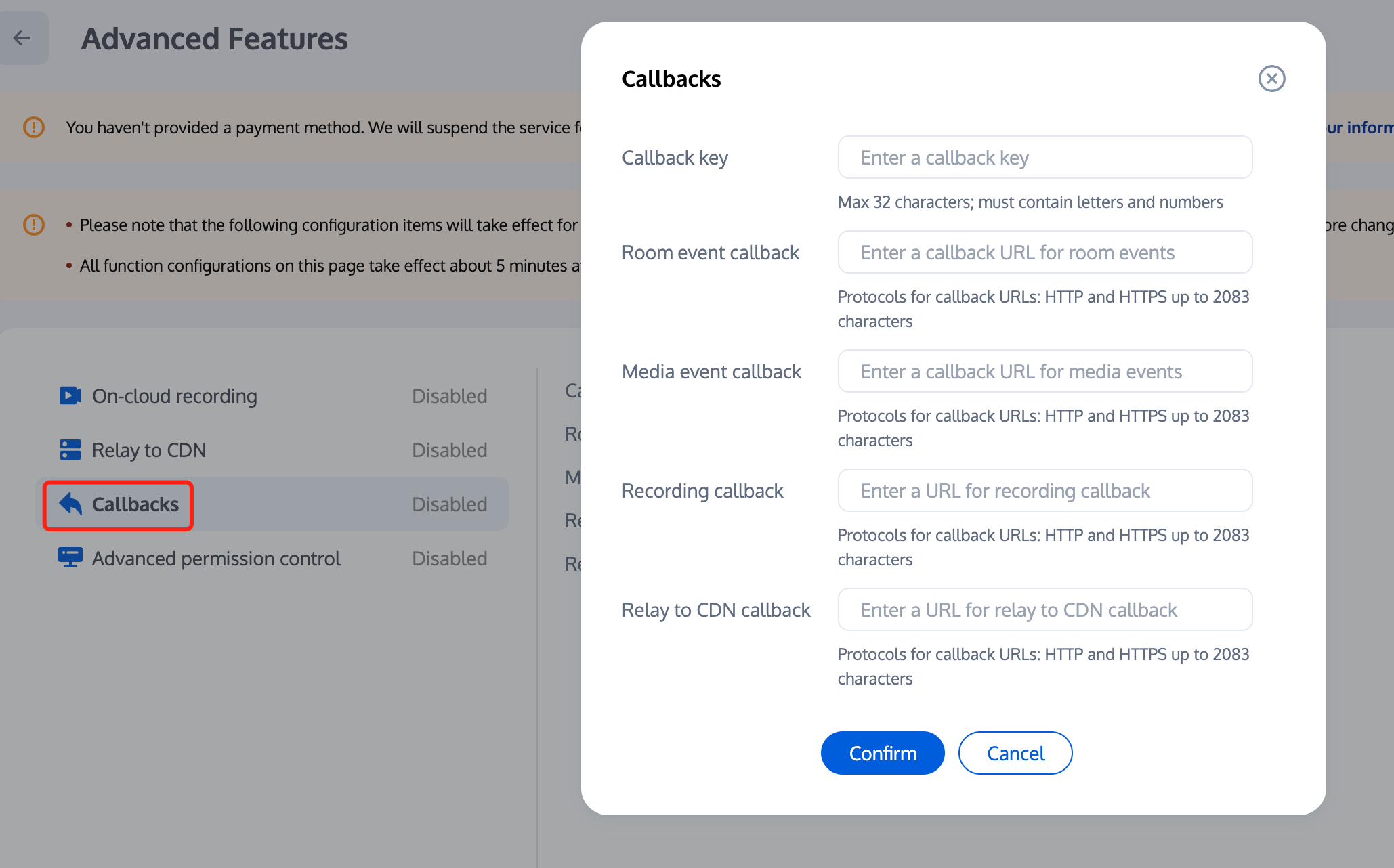
When using TRTC Cloud Recording, you can configure a callback URL in the console to receive recording callback events. For details, please see Recording Callback Description.
FAQs
Using Multiple Recording Methods
Yes. Global Auto-Recording, In-Meeting One-Click Recording, and TRTC Cloud Recording can all be used simultaneously, but this will generate multiple recording files and incur additional fees. Global Auto-Recording and In-Meeting One-Click Recording are both part of Conference SDK room recording, while TRTC Cloud Recording is a separate solution. Their management channels are independent. If you do not need multiple recording outputs, use only one initiation method.
Troubleshooting "Recording configuration does not exist or is not enabled" Error
This error means the backend recording configuration is incomplete. Troubleshoot as follows:
1. Confirm that VOD, COS, or AWS S3 storage configuration is completed in the console and all storage information is correct.
2. Confirm that the cloud recording feature is enabled on the Advanced Features configuration page.
3. After completing the configuration, re-enter the room and try again. If the error persists, contact technical support and provide your SDKAppID.
Troubleshooting Missing Recording Files
Troubleshoot as follows:
1. Check for audio/video uplink during recording: If all participants had their cameras, microphones, and screen sharing turned off, a recording file will still be generated, but it will contain no video or audio.
2. Verify storage configuration: Ensure the VOD Application AppID and Account UIN, or COS/AWS S3 Bucket, Region, AccessKey, and SecretKey are correctly filled in the console.
3. Check recording method: If multiple recording methods were enabled, there will be multiple recording files in storage.
Using TRTC Server APIs to Query or Control Conference SDK Recording Tasks
No. Conference SDK recording tasks are fully managed by the SDK backend and do not expose TRTC TaskId. You cannot query or control them via
CreateCloudRecording, DescribeCloudRecording, or other TRTC server APIs. If you need to control recording via server APIs, see TRTC Cloud Recording for custom integration. Using both methods simultaneously will generate multiple recording files and incur additional fees.피드백