COS Cloud Insight
다운로드
포커스 모드
폰트 크기
COS Cloud Insight
Features
Provide the out-of-the-box bucket access analysis dashboard.
Unify the entry for COS bucket access log retrieval and analysis.
Enable COS access log collection in batches.
Prerequisites
Creating a COS bucket is completed.
Directions
Enabling Bucket Access Log Collection
Step 1: Go to the COS Product Page
1. Log in to the Cloud Log Service console.
2. In the left sidebar, click Cloud Insight to go to the Cloud Insight page, and then click COS.
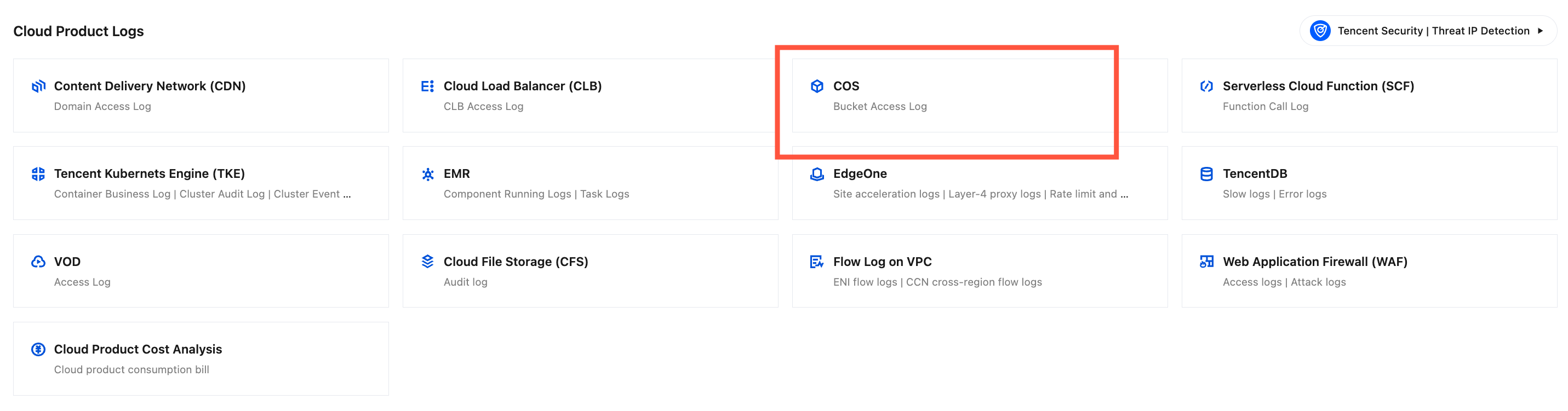
Step 2: Enabling COS Access Log Collection
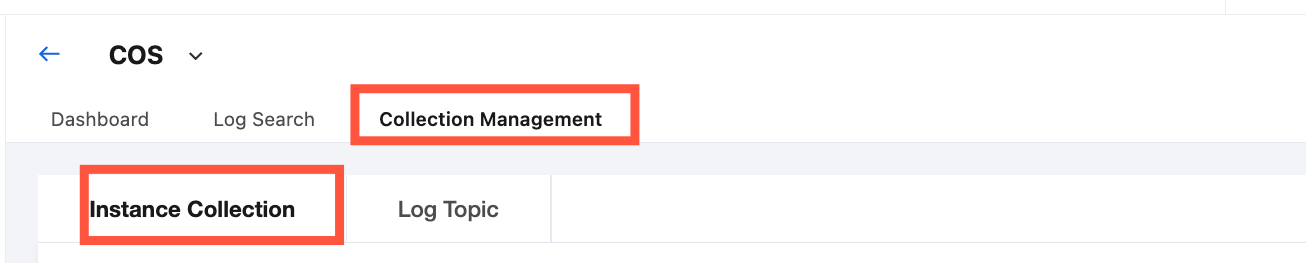
1. In COS, choose Collection Management > Instance Collection.
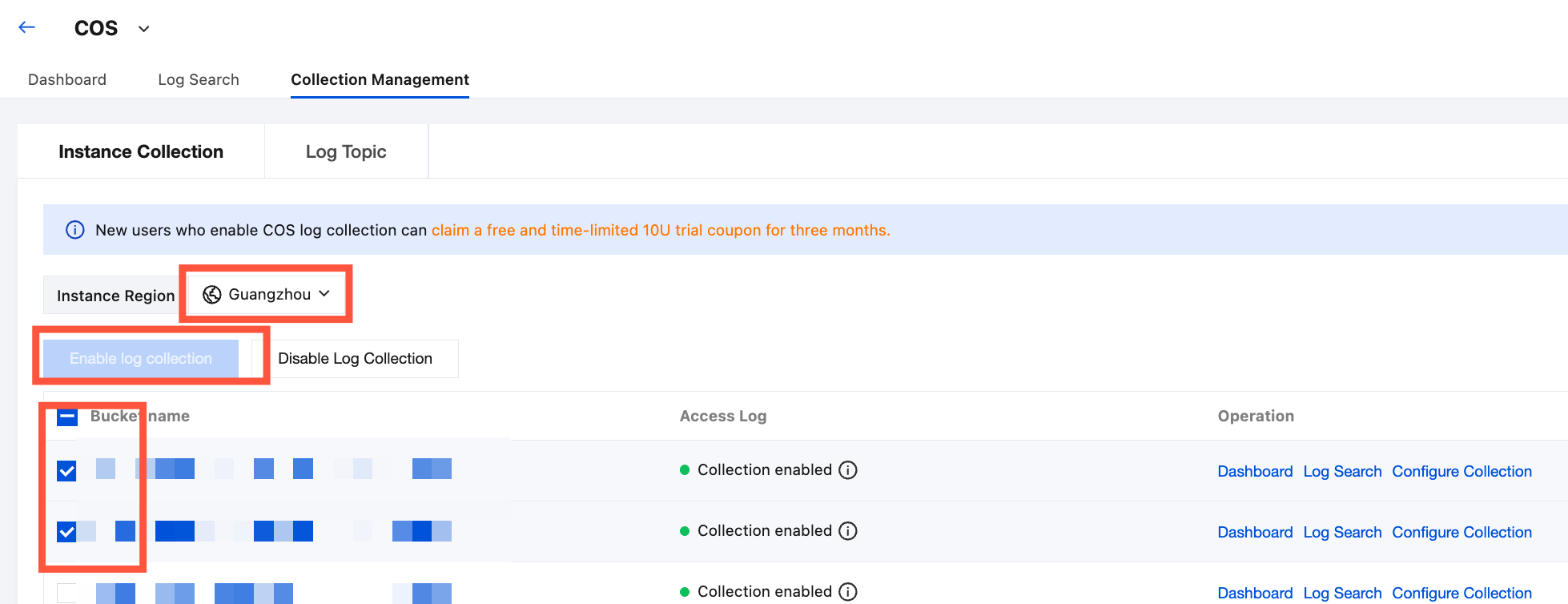
2. Select the region of the target bucket, locate and select one or more target bucket instances in the bucket list, and then click Enable log collection.
3. In the Enable Log Collection pop-up window, click Confirm to start collecting access logs for the target bucket.
Note:
The target log topic and log set are by default COS object storage dedicated log topics and log sets. The log topic name is cos-log-store, and the log set named is cos-log-ap-${bucket region}-${UIN}.
Viewing the Bucket Access Analysis Dashboard
1. After enabling bucket access log collection, in the top tab bar, select Dashboard.
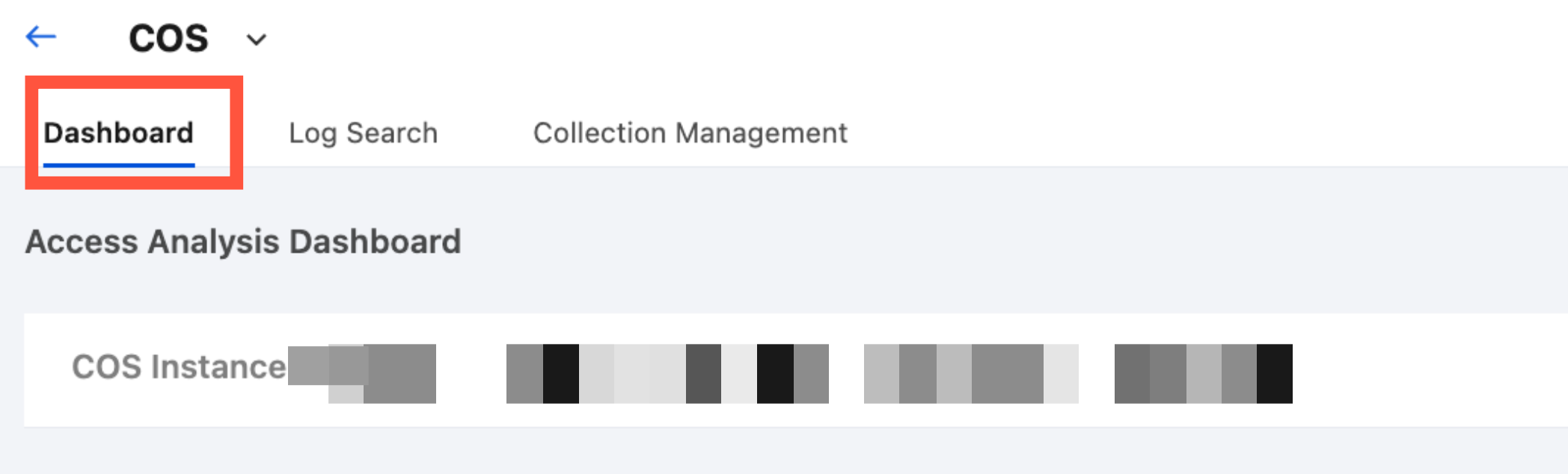
2. In the bucket drop-down list, select the target bucket for which access log collection is enabled.
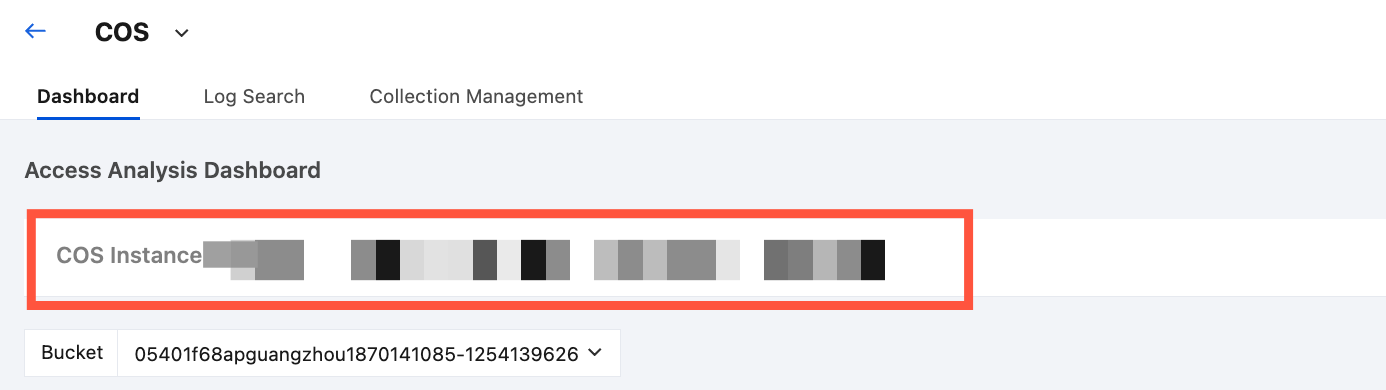
3. After selecting a bucket, you can view the bucket access analysis dashboard related to the selected bucket.
Retrieving and Analyzing Bucket Access Logs
1. After enabling bucket access log collection, select Log Search in the top tab bar.

2. Select the region of the target bucket, and then in the bucket drop-down list, select the target bucket for which access log collection is enabled.
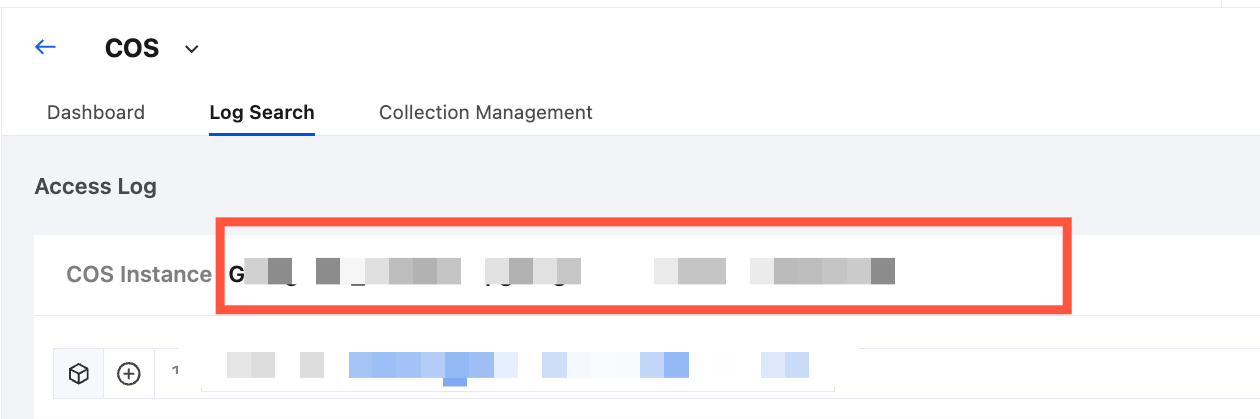
3. After selecting a bucket, you can retrieve and analyze the bucket access logs related to the selected bucket.
Disabling Bucket Access Log Collection
1. In COS, choose Collection Management > Instance Collection.
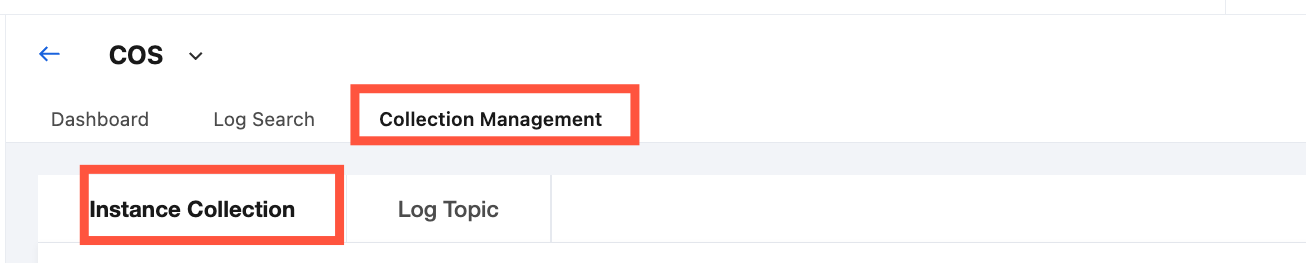
2. Select the region of the target bucket, locate and select the bucket for which you need to disable log collection in the bucket list, and then click Disable Log Collection.
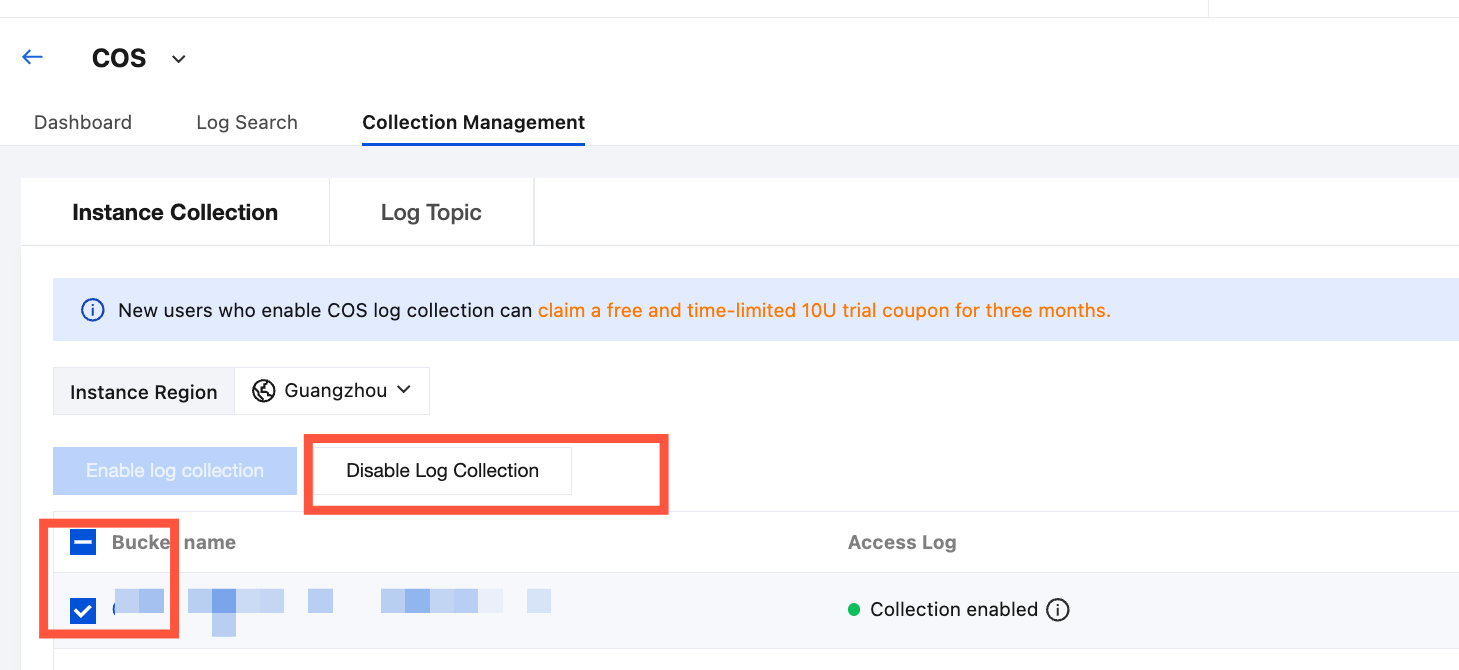
3. In the Disable Collection pop-up window, select Disable, and then click Confirm to disable log collection for the selected bucket.
Note:
Disabling log collection only means that newly generated logs will no longer be collected. Existing logs that have already been collected will continue to be stored in the log topic until they expire, during which storage fees will continue to be incurred. If you do not wish to continue storing these logs, see the following steps. (Note: In the COS scenario, logs from all instances are delivered to the same default storage topic. Deleting this storage topic will delete all data. Please delete with caution.)
1. Choose Collection Management > Log Topic, locate the target topic, and click Delete.
2. Click Next. After the secondary confirmation is performed, click Delete.
피드백