API Key Management
다운로드
포커스 모드
폰트 크기
An API Key is a long-term valid credential for accessing the TokenHub service of the large model service platform. On the API Key Management page, you can create, edit, enable/disable, and delete API Keys, and configure fine-grained access scopes for each.
Note:
An API Key is designed to be long-term valid. Include it in the request header when making requests, securely store it, and update it periodically. Do not share or expose it in public environments to prevent unauthorized access, which could lead to security risks or financial loss.
The default quota for API Keys that can be created for a single root account is 50. If you require more, submit a ticket to request an increase.
API Key list
Field | Description |
Name | Custom API Key name. |
Description | Custom API Key description for easy identification of its purpose. |
Key | The credential for calling TokenHub services. It is displayed in a masked format (first 5 digits + *** + last 4 digits) and supports one-click copying of the complete API Key. |
Status | Enable/Disable. You can toggle the enable/disable status of the API Key using the status switch. When the API Key is disabled, all API requests using the disabled API Key will be rejected. |
Key ID | The identifier corresponding to the Key for cost allocation bill queries. For details, see Billing Allocation. |
Access Scope | Select All (can access all models and services). Range (can only access selected models/services). |
Quota Limit | Limits the usage of the API Key and is disabled by default. If the usage exceeds the upper limit you configured within the period, subsequent calls will fail. |
Creation Time | API Key initial creation time. |
Actions | Edit: Modify the access scope of the API Key and associated models/services. Delete: Permanently delete the API Key, which requires secondary confirmation. After deletion, all requests using this API Key will fail immediately. |
Create a Key
1. Go to the API Key Management page.
2. After a region is selected at the top of the page, click Create a Key.
3. Configure in the Create a Key dialog:
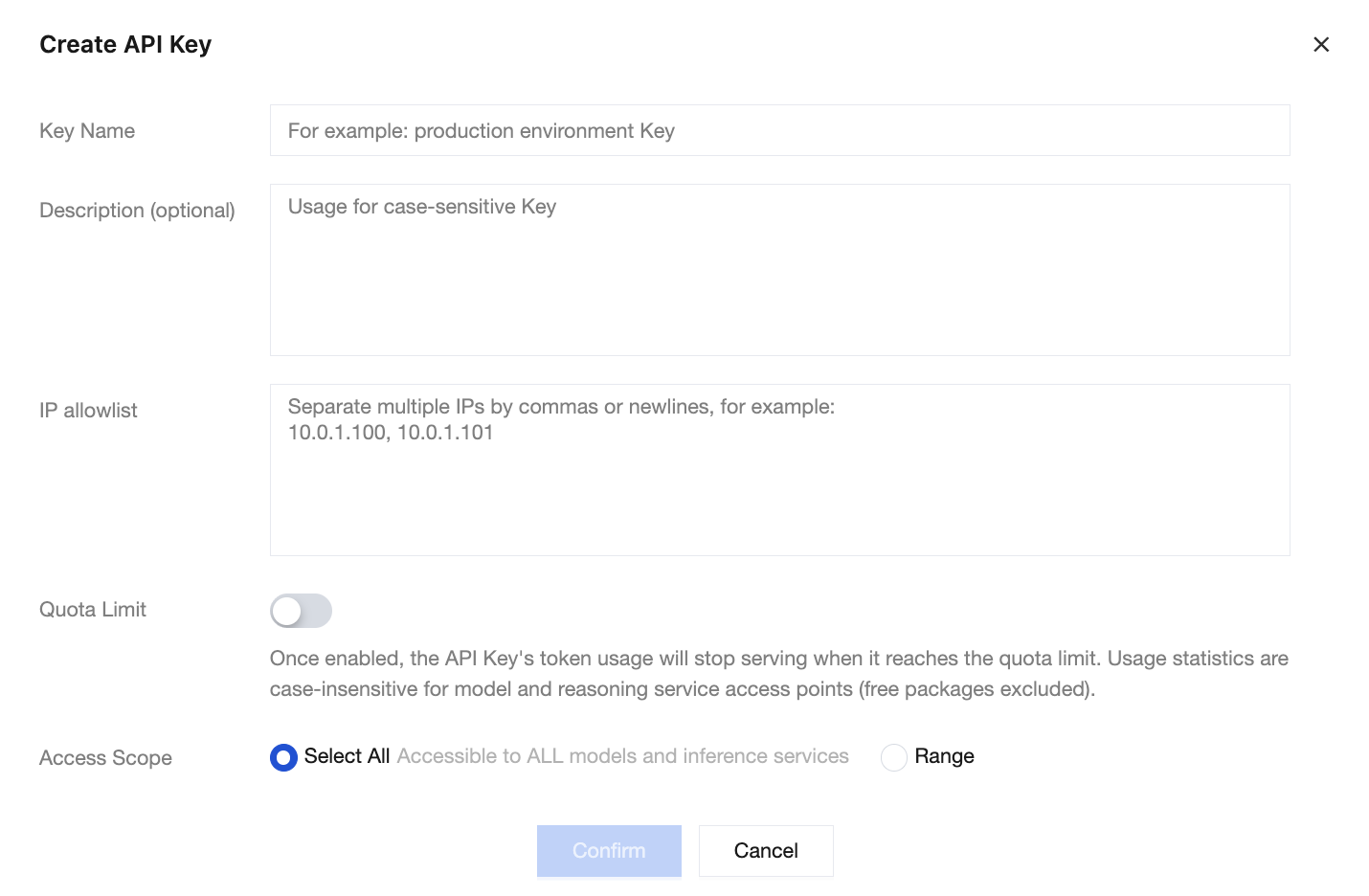
Key Name: For example, "Production Environment-Text Service", "Test Key".
Description (Optional): Set a description for the API Key to facilitate identifying its purpose and distinguishing the purpose of API Keys.
IP address Allowlist: Set the IP address range allowed to access this Key. IP address network segments are supported, with a maximum of 50 entries allowed.
Quota Limit: When the quota limit is enabled, service is stopped if the token usage of this API Key reaches the quota limit. Usage statistics do not differentiate between models and inference service endpoints (free packages are excluded).
Quota Policy: Supports three quota cycles: daily/monthly/total. After you switch the quota policy (for example, from daily to monthly) or modify the monthly effective date, historical usage is cleared and re-accumulated according to the new rules.
Effective Scope: Based on the policy cycle configuration you selected.
Daily: Usage is counted by calendar day and reset at 00:00 each day to restart accumulation.
Monthly: Usage is counted based on the selected effective date and automatically reset at the end of the cycle. For example, if the 3rd of each month is selected, usage is counted from 00:00 on the 3rd of the current month to 23:59 on the 2nd of the following month.
Total Quota: After the total quota is enabled, usage is continuously accumulated and is not automatically reset.
Quota Limit: The unit is tokens.
Access Scope:
Select All: Can access all models and inference services under your account.
Range: You can select accessible models and/or inference services on the left and right sides of the Access Scope area to implement access scope control.
4. Click Confirm to complete the creation.
After creation is completed, you must copy and securely store the API Key, as it will be used in subsequent API call processes.
Note:
The API Key name and API Key value cannot be modified after creation.
Edit API Key
1. Go to the API Key Management page.
2. Select the region to which the target API Key belongs at the top of the page to locate the API Key.
3. In the Actions column to the right of the API Key, click Edit.
4. You can modify the API Key description or access scope in the Edit API Key dialog box.
Note:
After the new specified scope is switched to, the previously selected access scope will become void, and the scope after this switch will take precedence.
5. Click Confirm to save the changes.
Delete API Key
Note:
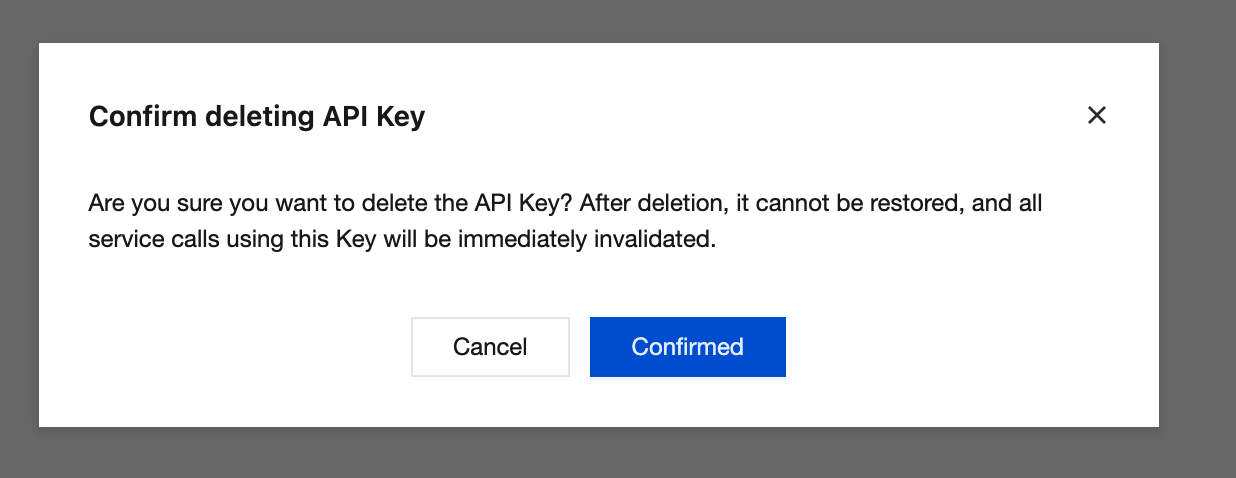
Once an API Key is deleted, it cannot be recovered. All service calls using this API Key will immediately become invalid. Deletion will trigger account identity verification. Please be aware.
1. Go to the API Key Management page.
2. Select the region to which the target API Key belongs at the top of the page to locate the API Key.
3. In the Actions column to the right of the API Key, click Delete.
4. In the Confirm deleting API Key dialog box, after verifying the deletion information is correct, click Confirmed to complete the deletion.
Usage Recommendations
Recommendation | Description |
Assign API Keys by Purpose | Create separate API Keys for different applications or environments (development/test/production). |
Principle of Least Privilege | Use specified scope to restrict API Key to only access the required models and services. |
Rotate API Keys promptly | Regularly rotate API Keys to reduce the risk of leakage. |
Disable unused API Keys | API Keys no longer in use should be promptly disabled or deleted. |
Securely store API Keys | Save the API Key to a secure location immediately after creation. |
피드백