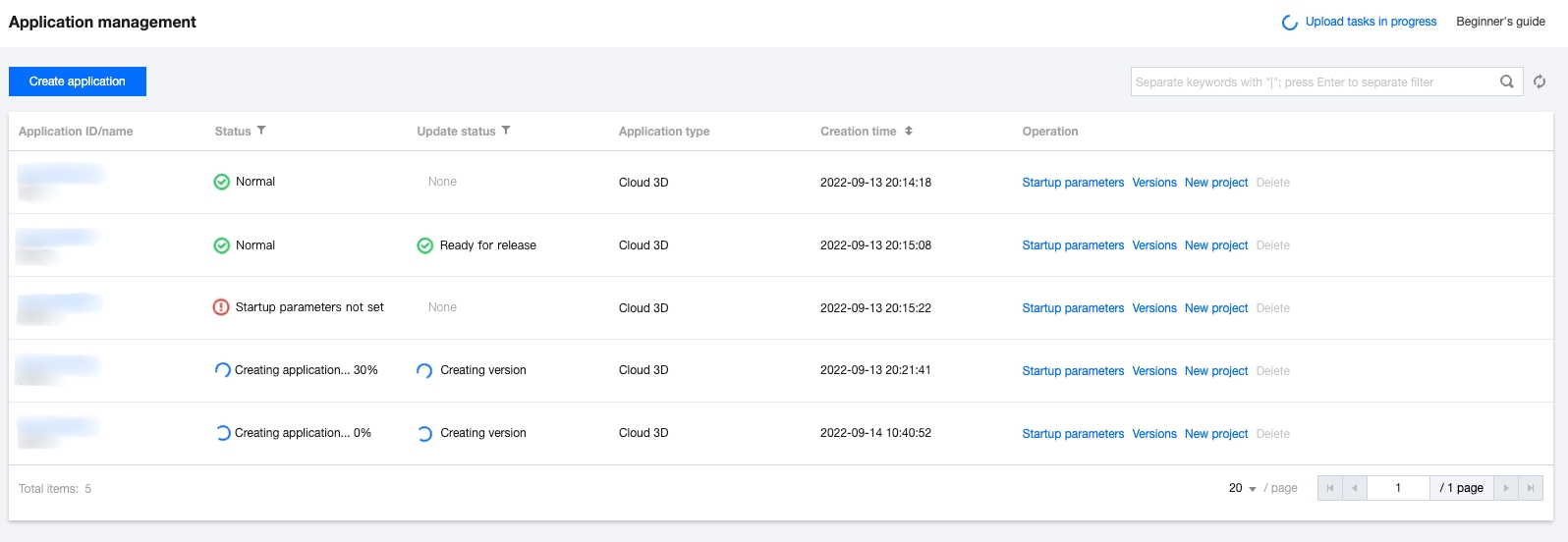
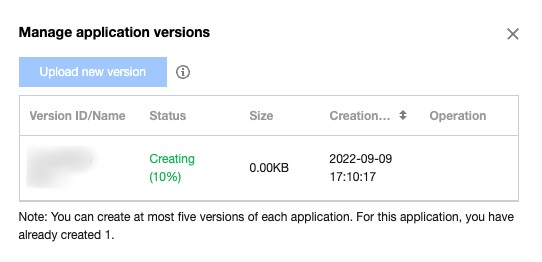
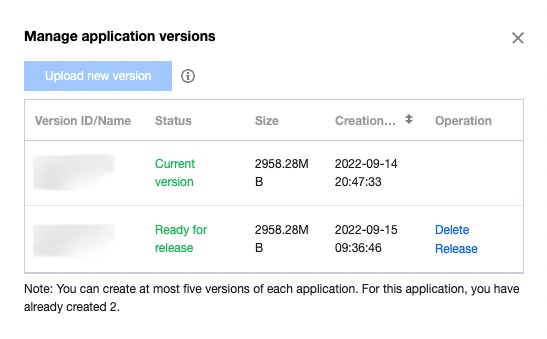
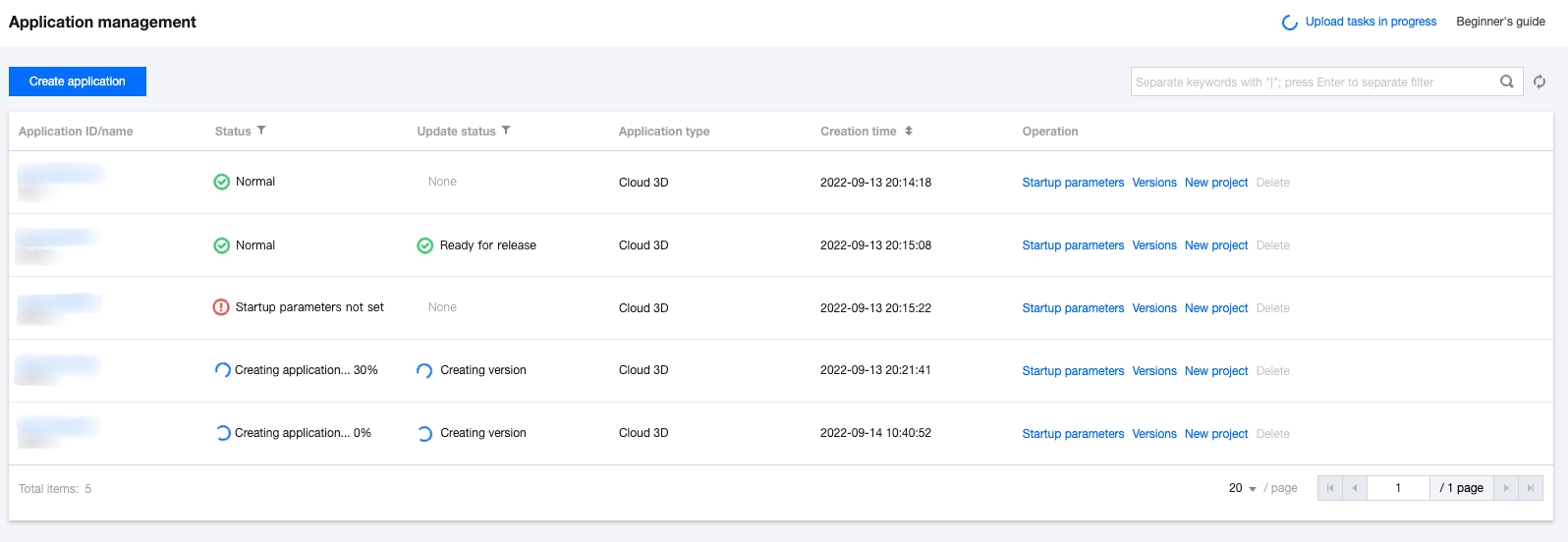
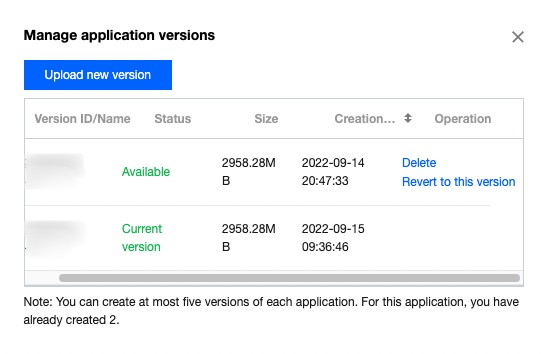
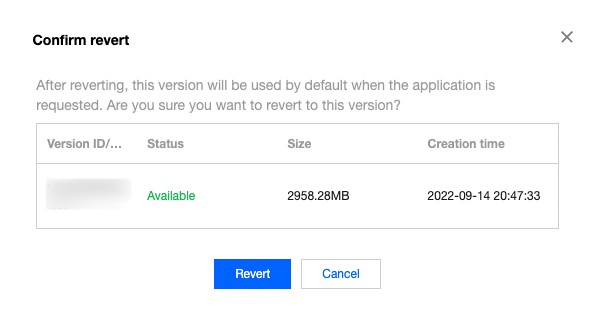
CAR offers version management capabilities. Under the same application ID, you can maintain up to five versions and perform operations such as new version upload and release as well as version rollback.
Application version Update
Note:
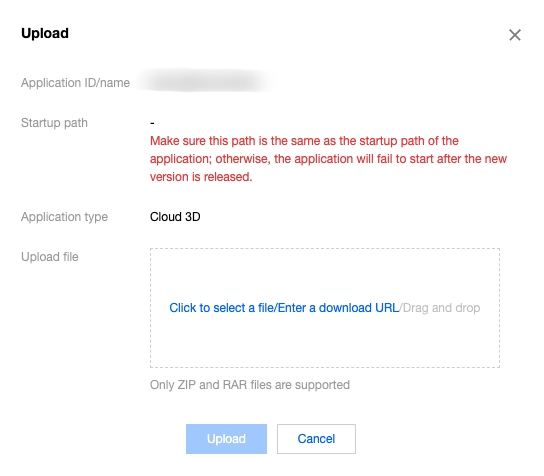
During application update, make sure that the application startup path is the same as that of the original application package; otherwise, you need to modify the startup parameter configuration. The URL must be a URL that can be accessed and trigger download directly. Download URLs of cloud disks or other URLs requiring verification are not supported.
2. Click Application management on the left sidebar and click Versions on the Application management page.
3. In the Manage application versions pop-up window, click Upload new version.
4. Select an upload method. You can select a file, drag a file, or enter a URL to upload a file.
5. After submission, the application version will be created immediately. You can view the upload progress in Manage application versions.
6. After the creation, you can test the new version in the business environment based on the version ID. After the test is completed, click Release.
Application version Rollback
Note:
During version rollback, make sure that the startup paths of different versions are the same; otherwise, the application will be unavailable during version switch as the startup parameter configuration doesn't match the version startup path.