Identity Management and Keycloak Single Sign-On Example
다운로드
포커스 모드
폰트 크기
마지막 업데이트 시간: 2026-07-17 14:50:59
AI 번역
This document offers examples of single sign-on (SSO login) between Keycloak and the Identity Management.
Note:
This document uses Keycloak 26.3.4 as an example.
Preparations
Before configuring SSO login, you need to complete user creation: create a same-name user in the Identity Management. Upon creation, the username in the Identity Management must be consistent with the username in Keycloak. For detailed operations, please refer to User Management.
Configuration in Identity Management
Step 1: Enable SSO Login
1. Log in to Tencent Cloud Organization > Identity Management > User Management > Settings page.
2. In the SSO login area, click
, then click to enable in the popup window to enable SSO login.
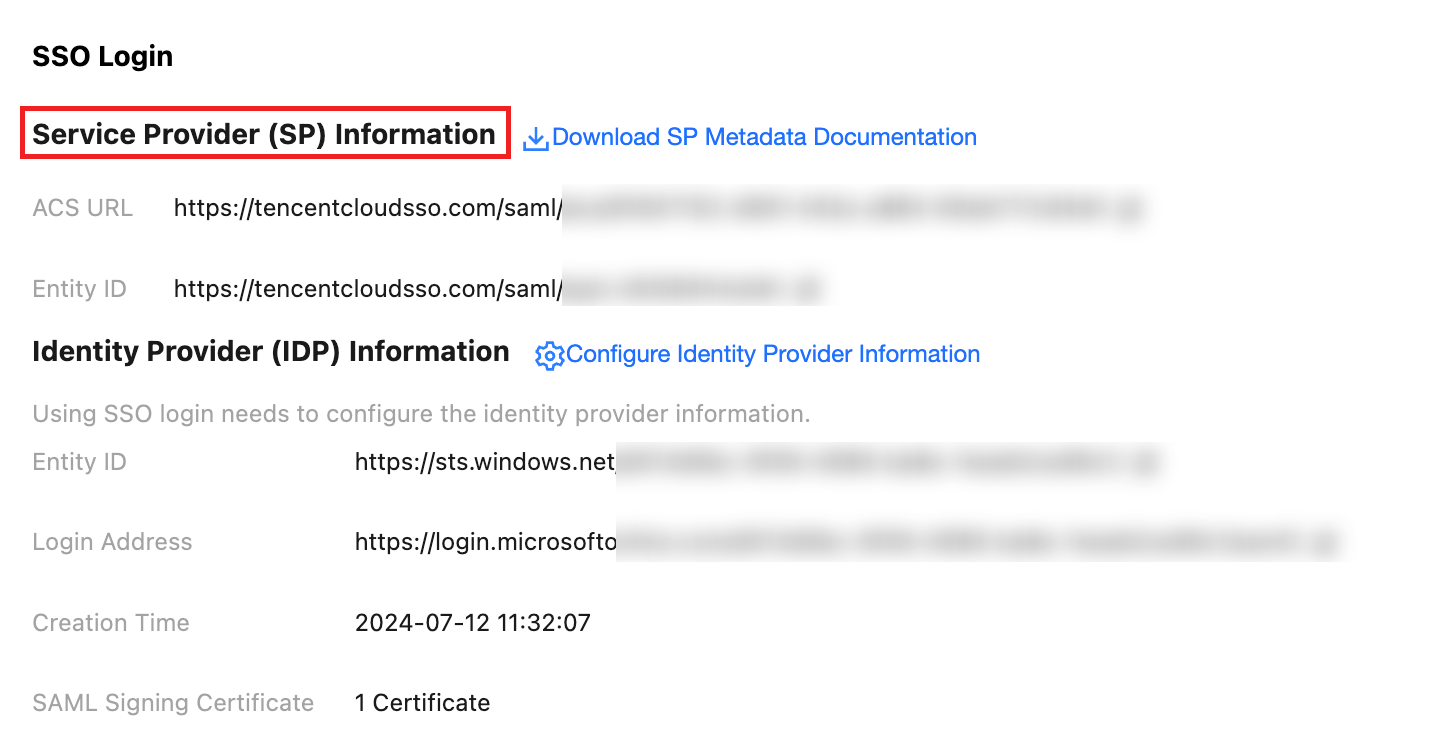
Step 2: Copy Service Provider (SP) Info
In the SP Information section, view and copy the ACS URL and Entity ID for manual configuration of the external IdP.
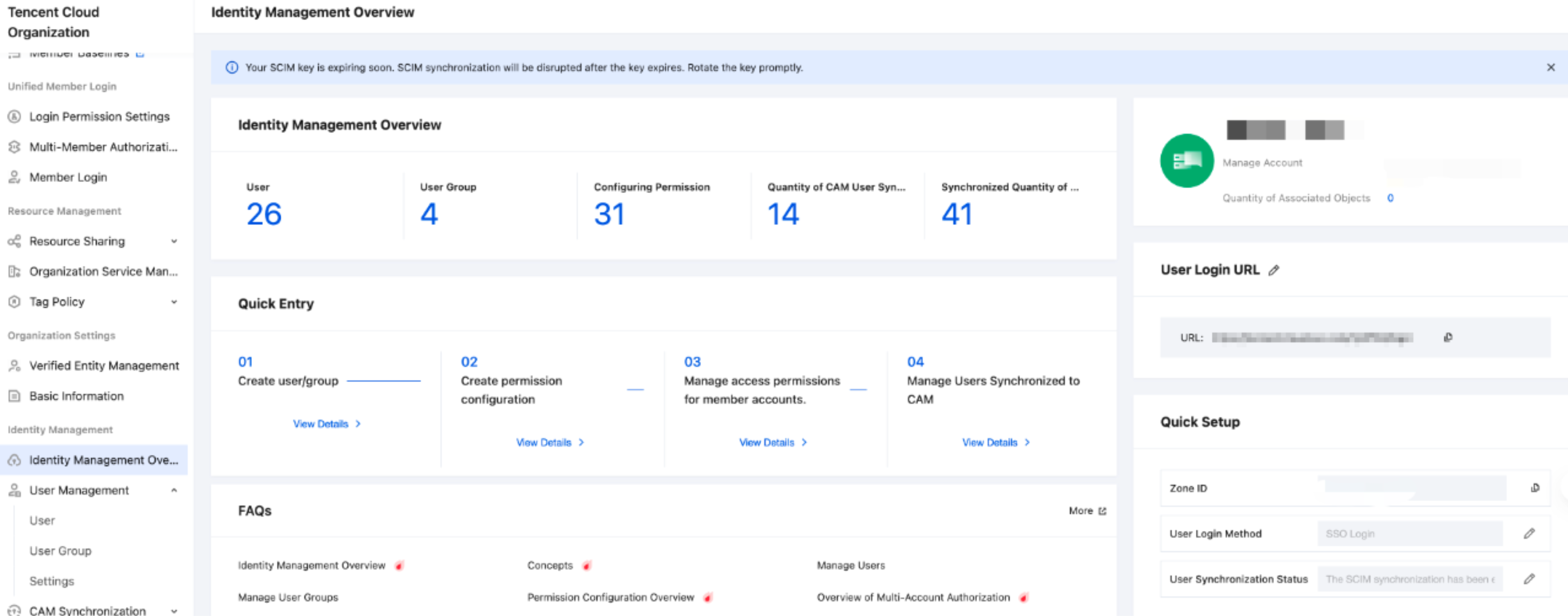
Step 3: Get User Login URL
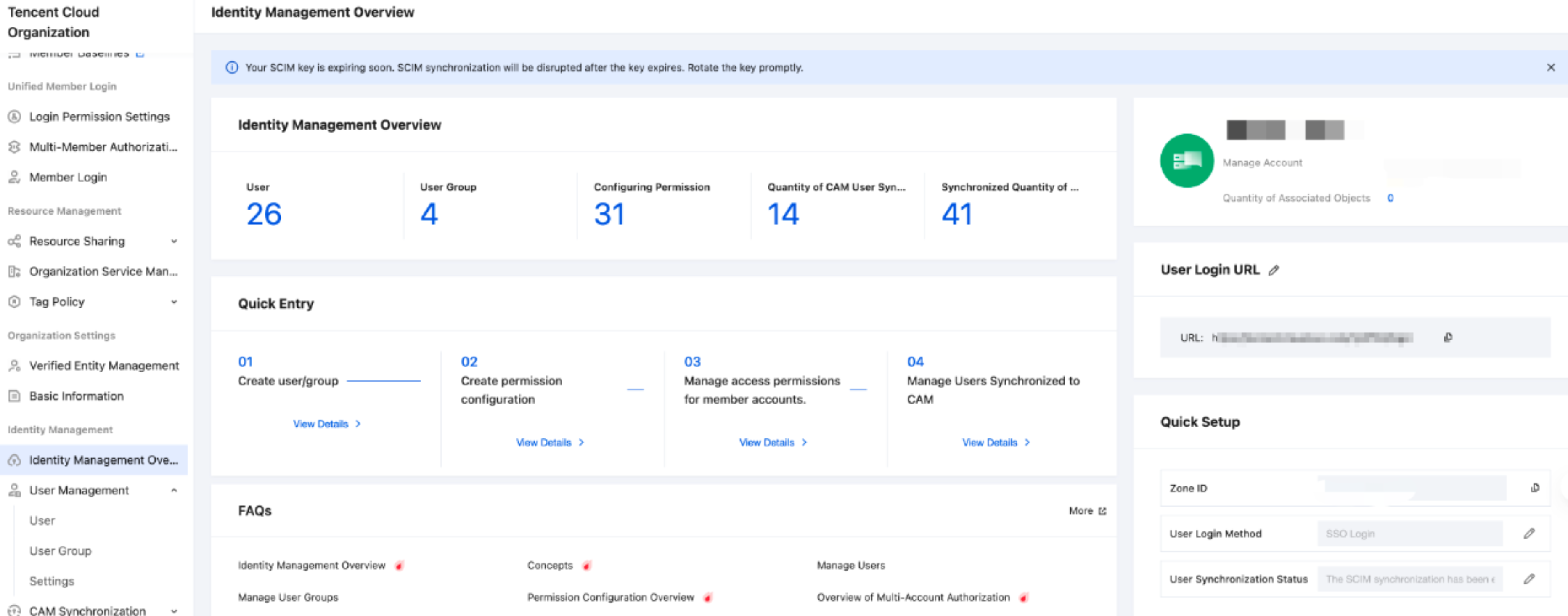
On the Cloud Organization > Identity Management Overview webpage, view and copy the User Login URL for manual configuration of the external IdP.
Configuring in Keycloak
Step 1: Create a Client in Keycloak
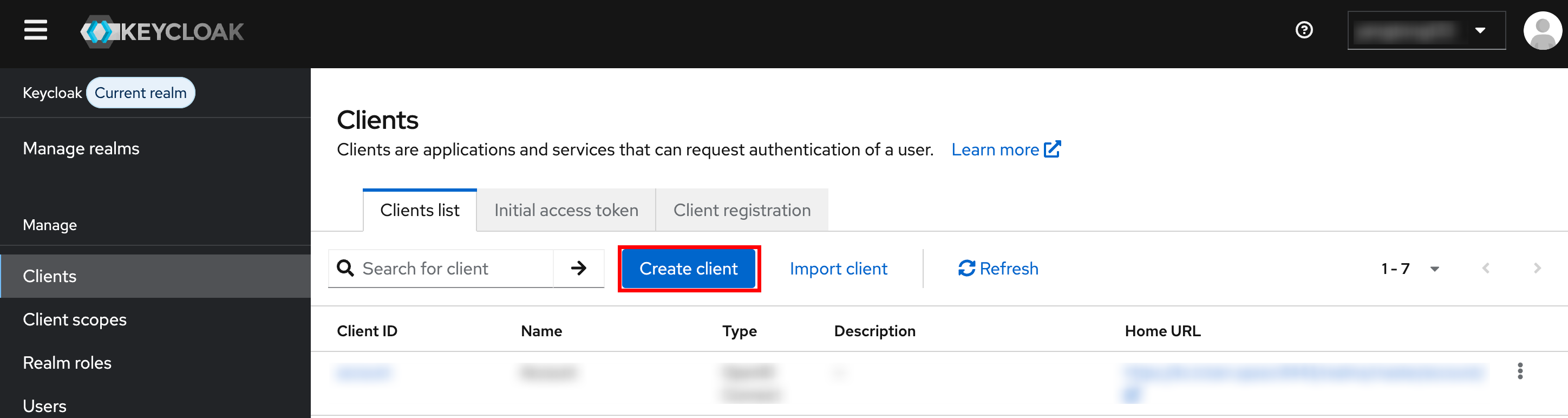
1. Log in to Keycloak as an administrator, go to the Manage > Clients page, click Create client, and proceed to the configuration page.
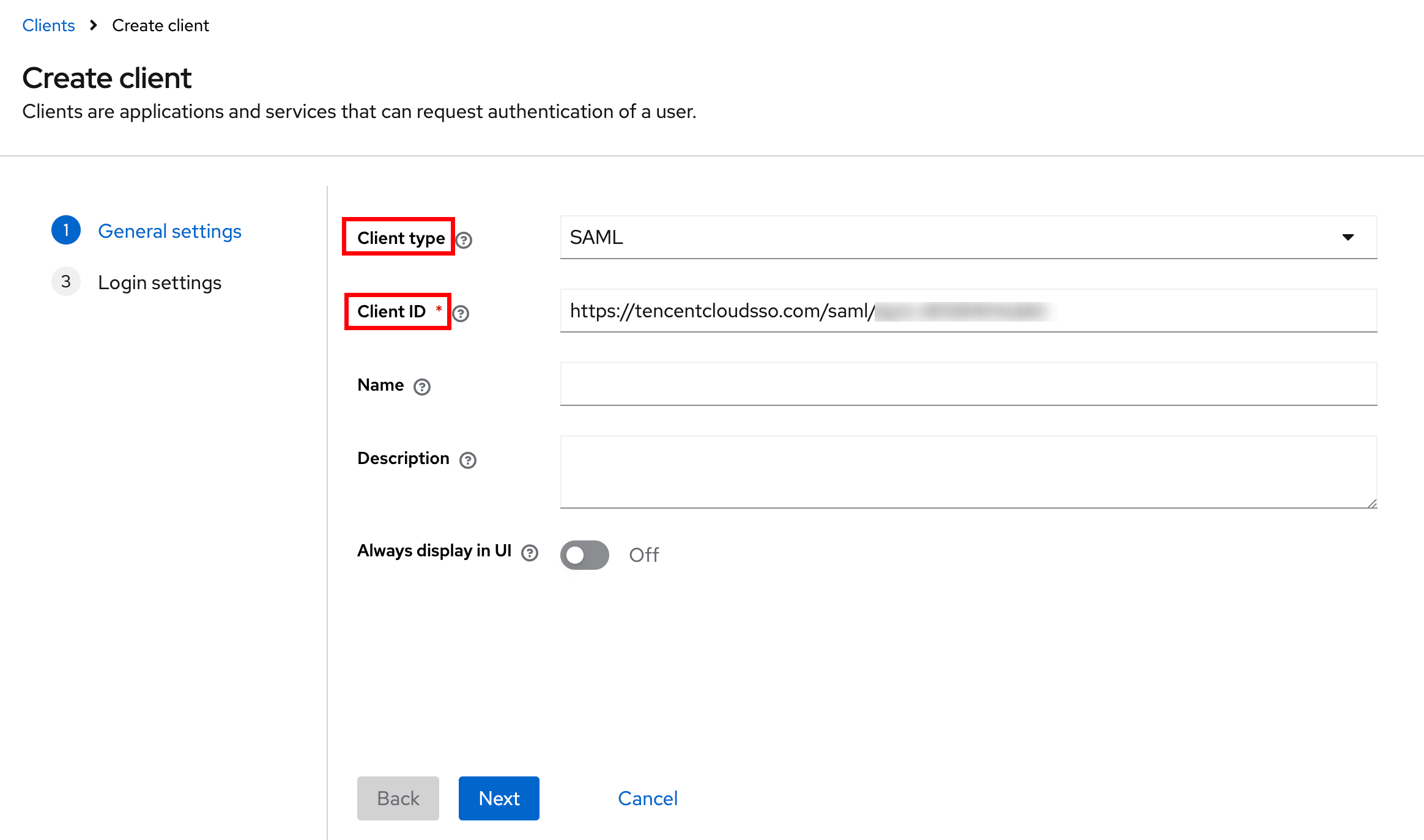
2. On the General settings page, select SAML for Client type, enter the Entity ID obtained from the Identity Management in step 2 for Client ID, and click Next.
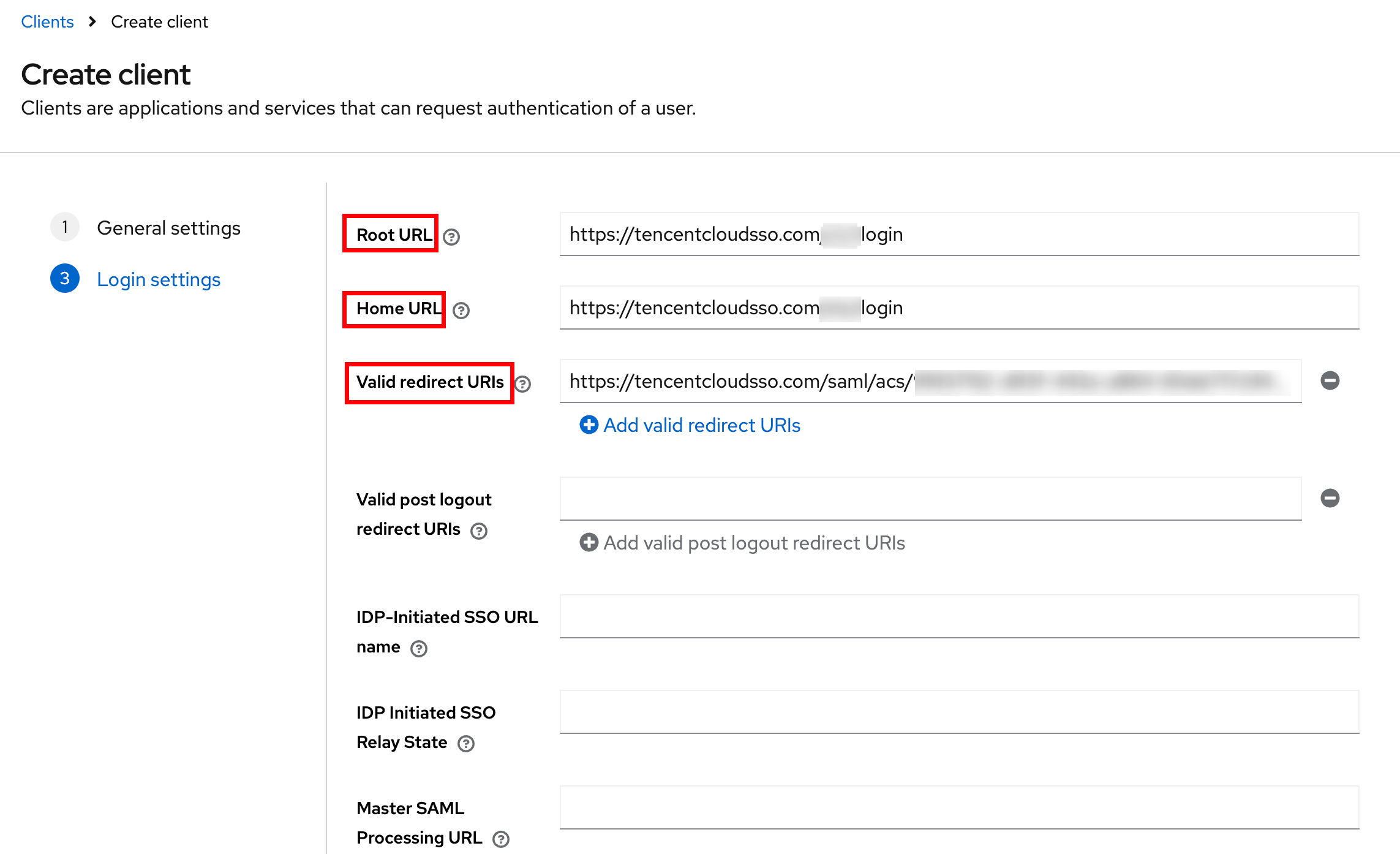
3. On the Login settings page, fill in the following information, click Save to complete the configuration in Keycloak.
Root URL and Home URL fill in the User Login URL obtained from the Identity Management in step 3.
Valid redirect URIs fill in the ACS URL obtained in step 2.
Step 2: Download Metadata Document in Keycloak
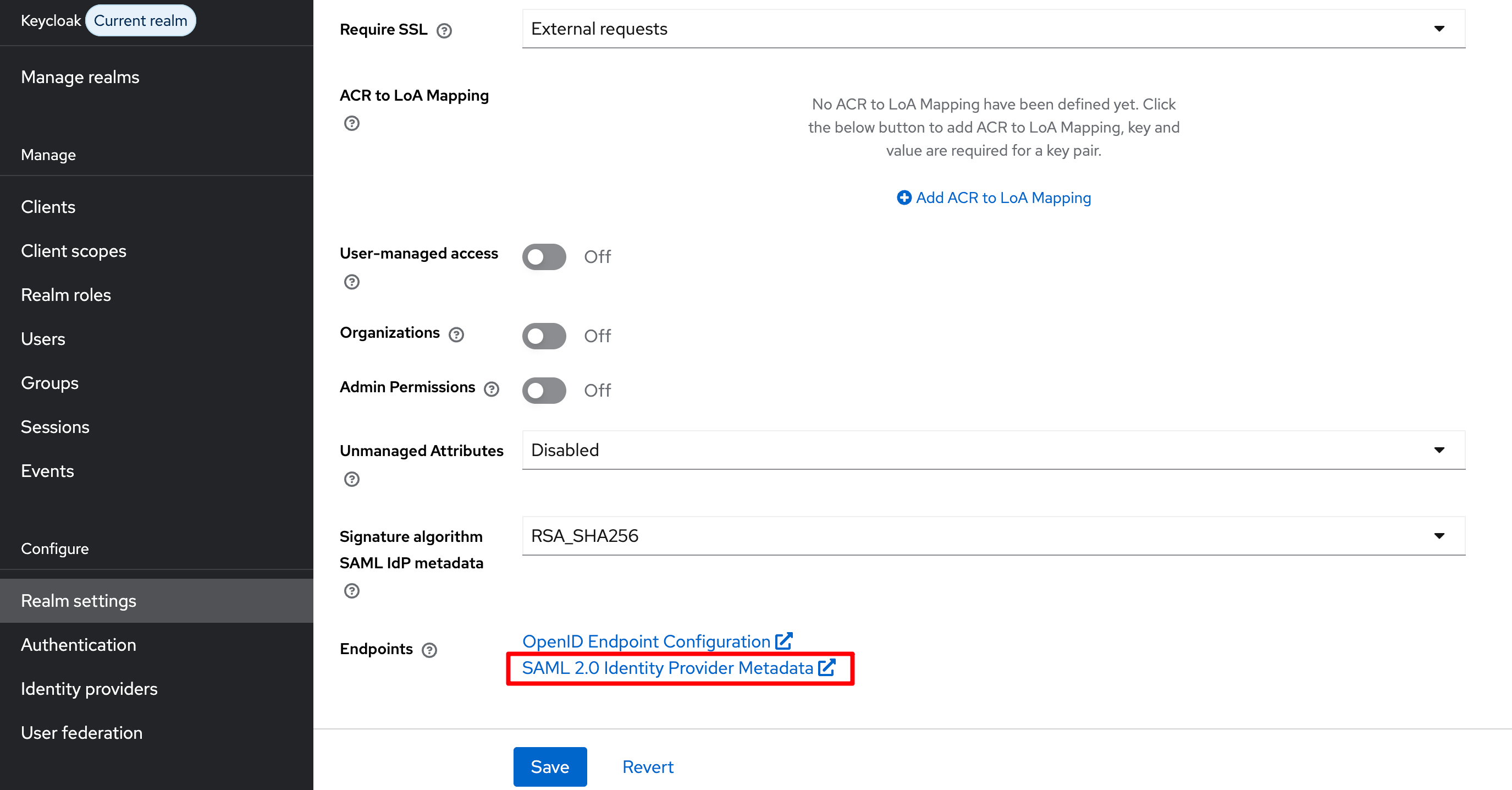
1. On the Configure > Realm settings page, open the SAML 2.0 Identity Provider Metadata link from the webpage.
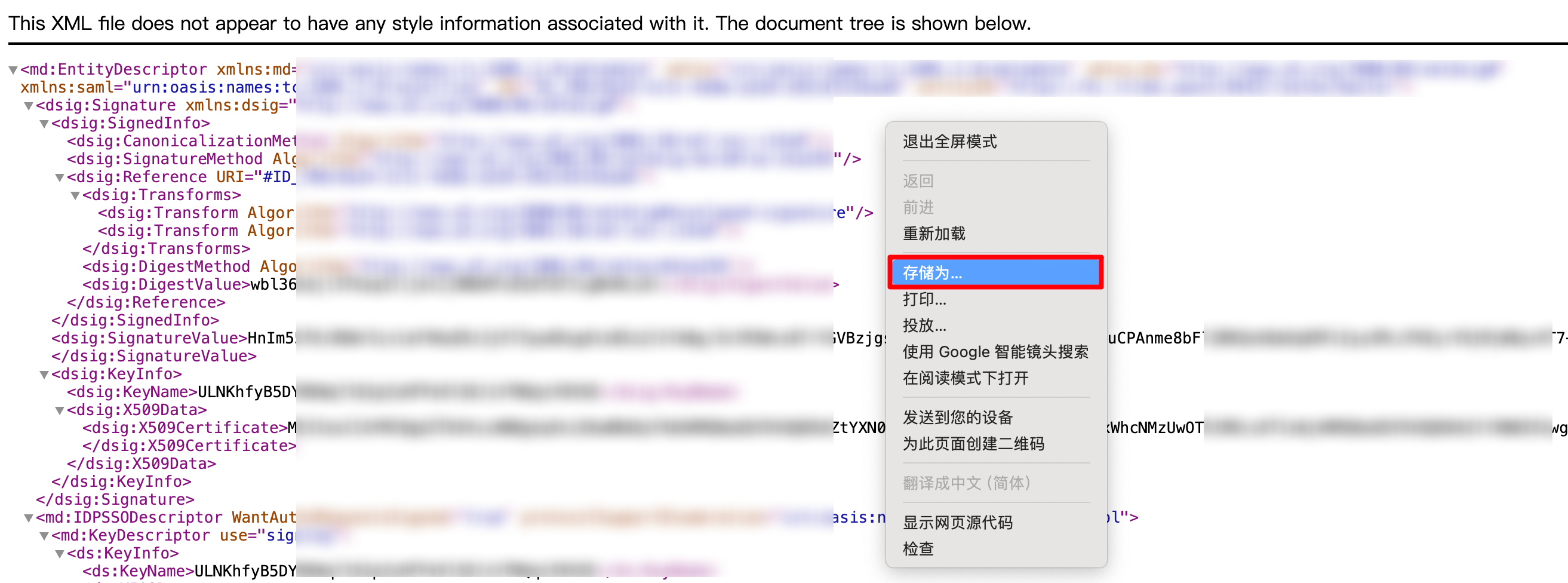
2. In the opened web page, right-click Save as to store it as a local file, obtaining the metadata XML document.
Note: Do not copy-paste web page data and save it, as the format is incompatible.
Step 3: Upload Federation Metadata XML in Identity Management
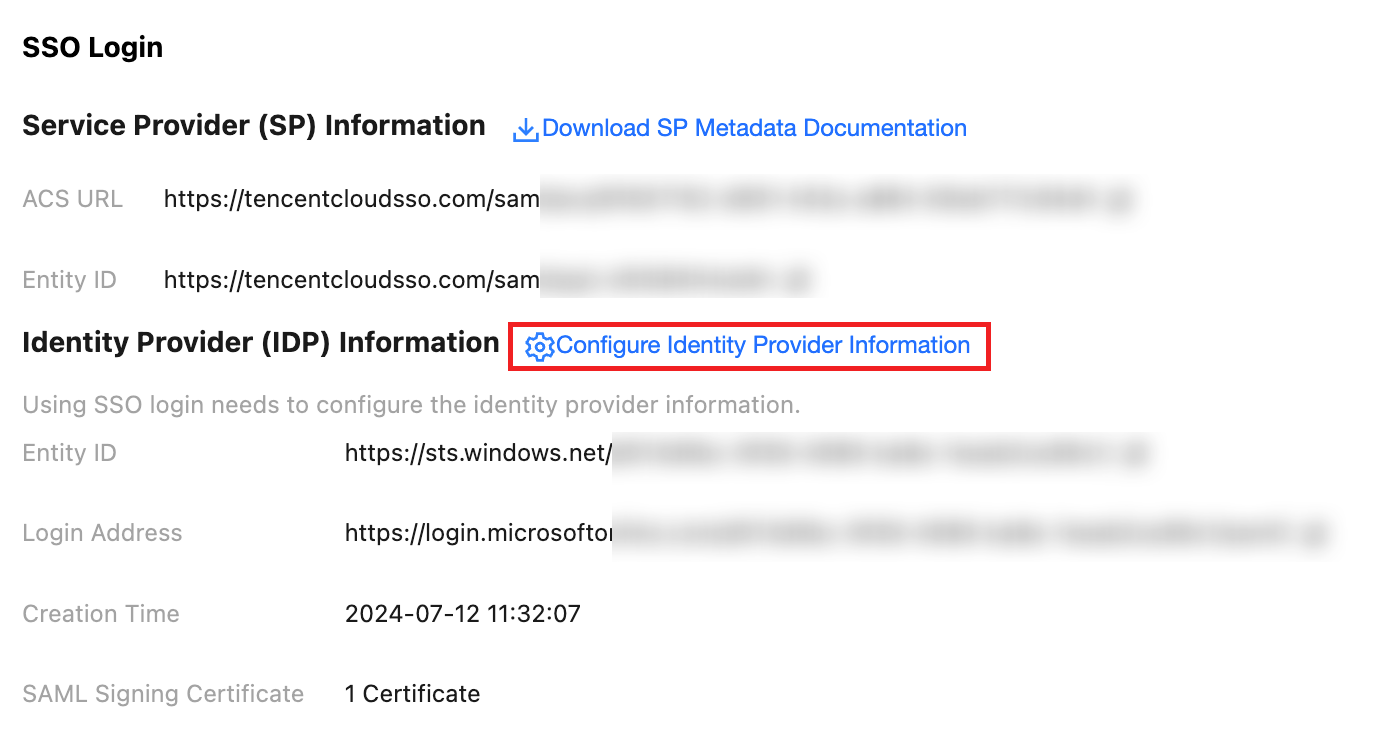
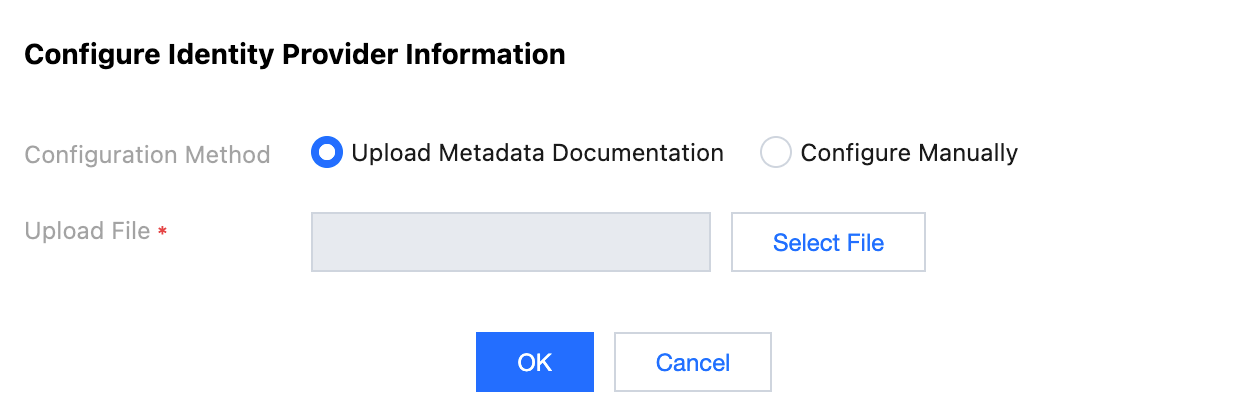
1. In Organization Account Management > Identity Management >Settings>SSO Login, in the Identity Provider (IDP) Information section, click Configure Identity Provider Information.
2. Click Select File, upload the metadata XML document downloaded from Keycloak to complete the configuration.
Result Verification
After completing the SSO login configuration, you can initiate SSO login from Tencent Cloud.
Premise: In the Identity Management, you need to create a user with the same name as Keycloak. Enter Organization Account Management > Center Management > User to create it.
Login Process:
1. Identity Management administrators enter Organization Account Management > Identity Management > Identity Management Overview page, and view and copy the User Login URL on the right.
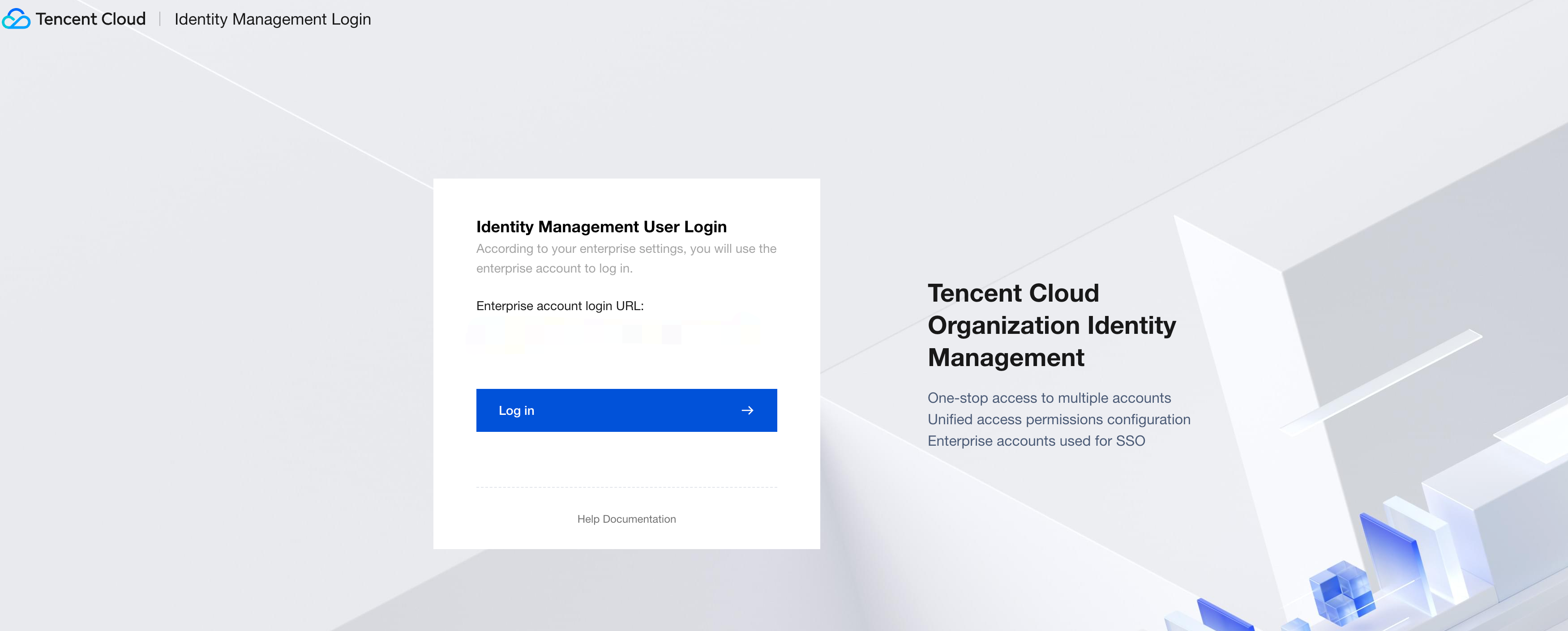
2. Click to access the User Login URL, then click Login.
3. Redirect to the Keycloak login page, select an account and log in with password.
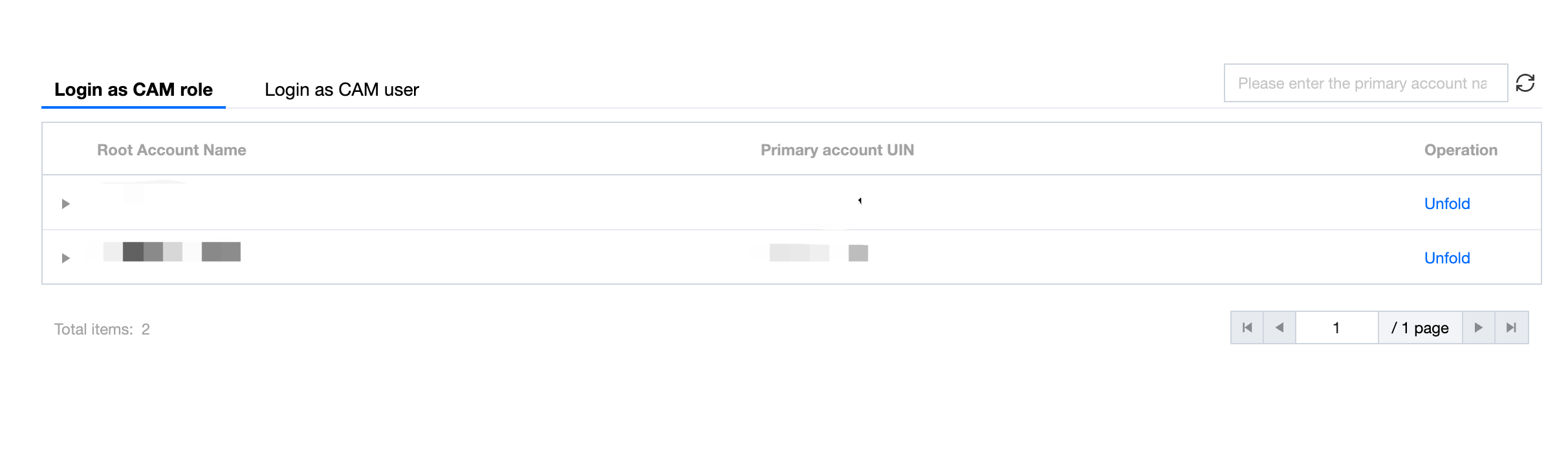
4. Login successful, enter the Identity Management account list page.