Console Webhook Configuration
Download
フォーカスモード
フォントサイズ
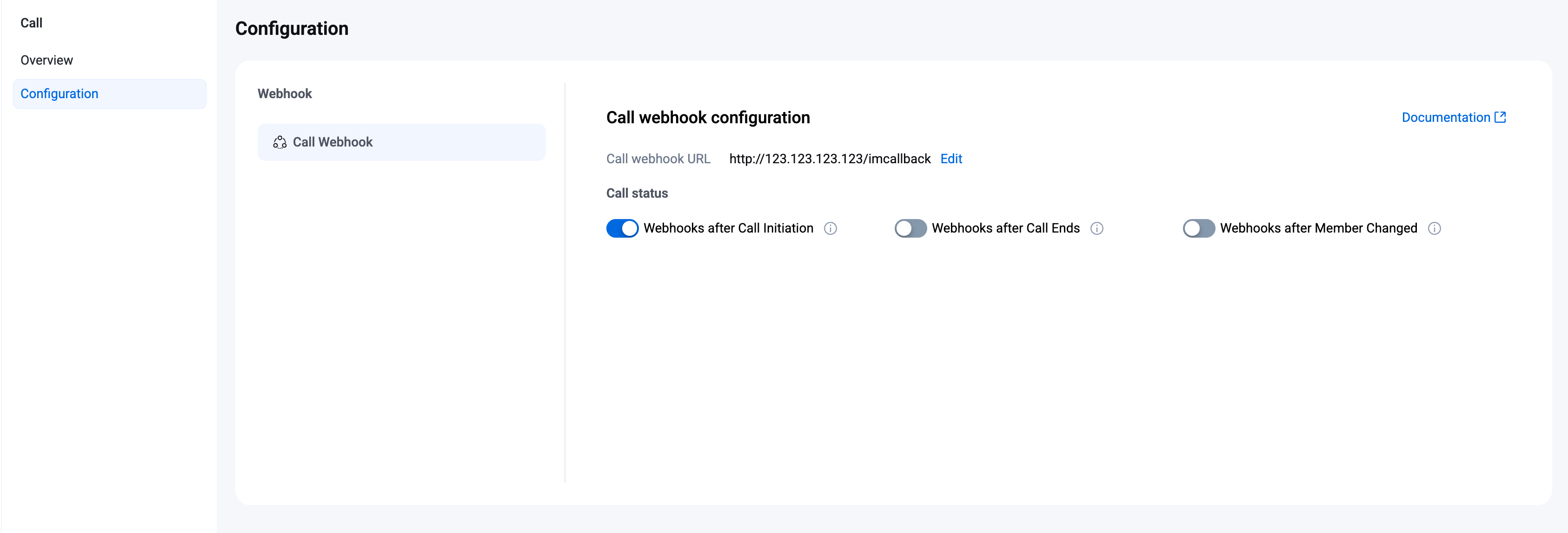
Log in to the TencentRTC Call console, select the target application to enter the application management page. In the left navigation bar, choose Call > Configuration > Call Webhook. You can configure the webhook URL and enable the webhooks based on your actual business needs.
Configure Webhook URL
1. On the Call Webhook page, edit the webhook URL in the Call webhook configuration area.
2. In the pop-up Call webhook configuration dialog box, enter the webhook URL.
Note:
The new callback URL takes effect after 2 minutes of successful modification.
The callback URL must start with
http:// or https://.If you have not applied for a domain name, you can directly configure an IP, such as
http://123.123.123.123/imcallback.Only can be used English letters (a-z, case-insensitive), numbers (0-9), and "-" (hyphen in English, i.e., middle hyphen).
Do not use spaces or special characters, such as !, $, &, ?.
"-" cannot appear consecutively, be registered individually, or be placed at the beginning and ending.
Domain name length not exceeding 63 characters.
The callback URL in IM includes port 80/443 by default. When replacing the callback URL, port adjustment is involved. Avoid mutually prefixed ports before and after replacement, such as changing
https://xxx:443 to https://xxx:4433 or https://xxx to https://xxx:4433.3. Click Confirm to save the configuration.
Configure Webhook
On the Call webhook page, you can directly enable/disable the webhook switch in the Call webhook configuration area.
フィードバック