SCF クラウドプロダクトセンター
ダウンロード
フォーカスモード
フォントサイズ
SCFクラウド製品センターは、SCF呼び出しログのワンストップな収集・検索分析を提供し、クラウド関数の呼び出し分析の可観測性を迅速に構築することを支援します。
機能特性
統一されたSCF呼び出しログの検索・分析入口。
SCF呼び出しログ収集を一括で有効にします。
前提条件
SCFクラウド関数を作成しました。
操作手順
SCF呼び出しログ収集を有効にする
ステップ1:SCF クラウドプロダクトに入る
1. CLSコンソールにログインします。
2. 左側のナビゲーションバーでクラウド製品センターを選択し、クラウド製品センターページに入ります。
3. クラウド製品ログでSCFを選択してクリックします。
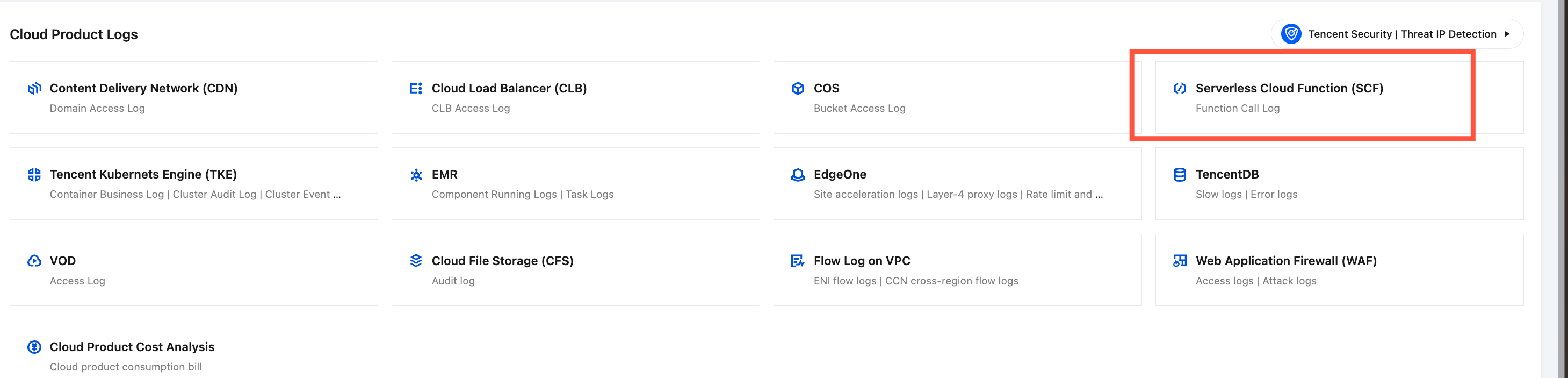
ステップ2:有効にするインスタンスを選択すると、選択したインスタンスに関連するCLB負荷分散アクセス分析ダッシュボードを表示できます。
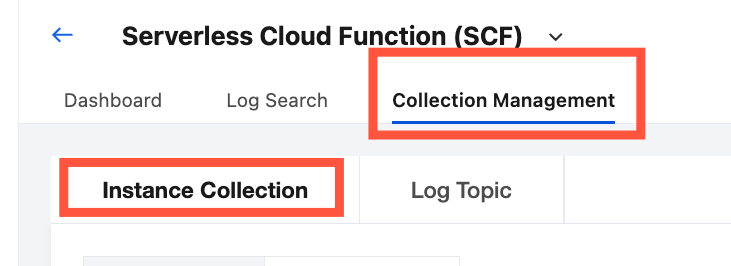
1. SCFで、アクセス管理 > インスタンスアクセスを選択します。
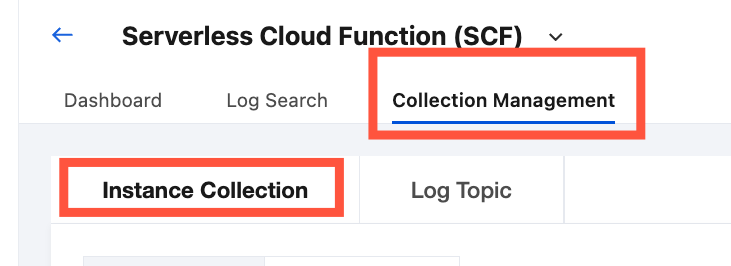
2. 対象SCFの所在地域を選択し、SCFリストで1つまたは複数の対象SCFを見つけてチェックを入れます。
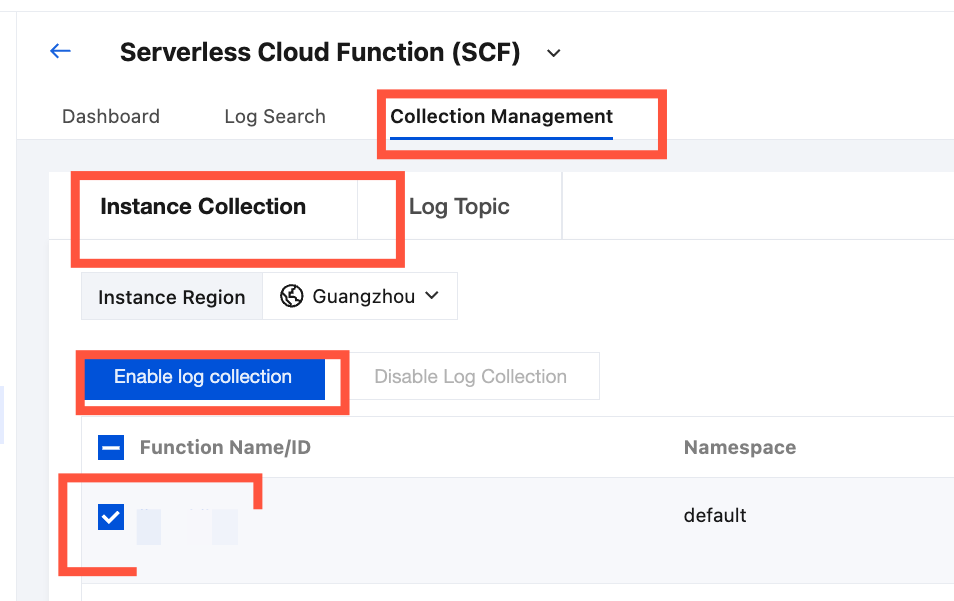
3. ログ収集を有効にするをクリックします。
4. ログ収集を有効にするポップアップで、ターゲットログトピックを選択または作成し、確認をクリックすると、ターゲットSCFの呼び出しログ収集を有効にできます。
説明:
ターゲットログトピックとログセットは、デフォルトでSCF専用のログトピックとログセットになります。ログトピック名はSCF_logtopic_${自動生成される一意の識別子}、ログセット名はSCF_logset_${自動生成される一意の識別子}です。
CLBアクセス分析ダッシュボードの確認
1. アクセスログ収集を有効にした後、上部のタブバーでダッシュボードを選択します。SCFインスタンスのドロップダウンリストで、アクセスログ配信を有効にしたインスタンスを選択します。
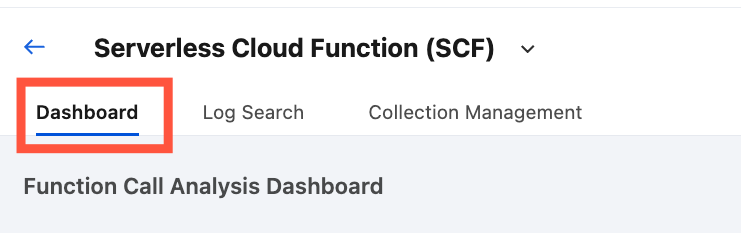
2. インスタンスを選択すると、選択したインスタンスに関連するアクセス分析ダッシュボードを表示できます。
SCF呼び出しログの検索分析
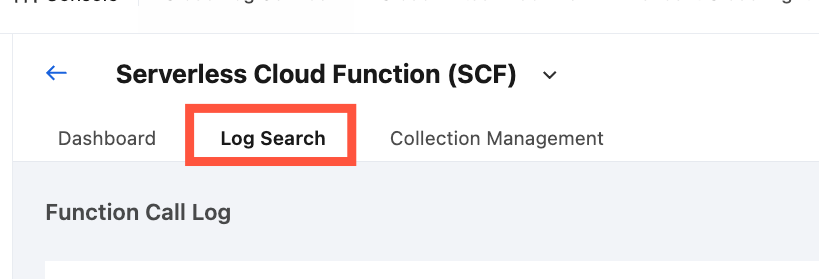
1. SCF呼び出しログ収集を有効にした後、上部のタブバーでログ検索を選択します。
2. SCFドロップダウンリストで、アクセスログ配信が有効になっている対象SCFを選択します。
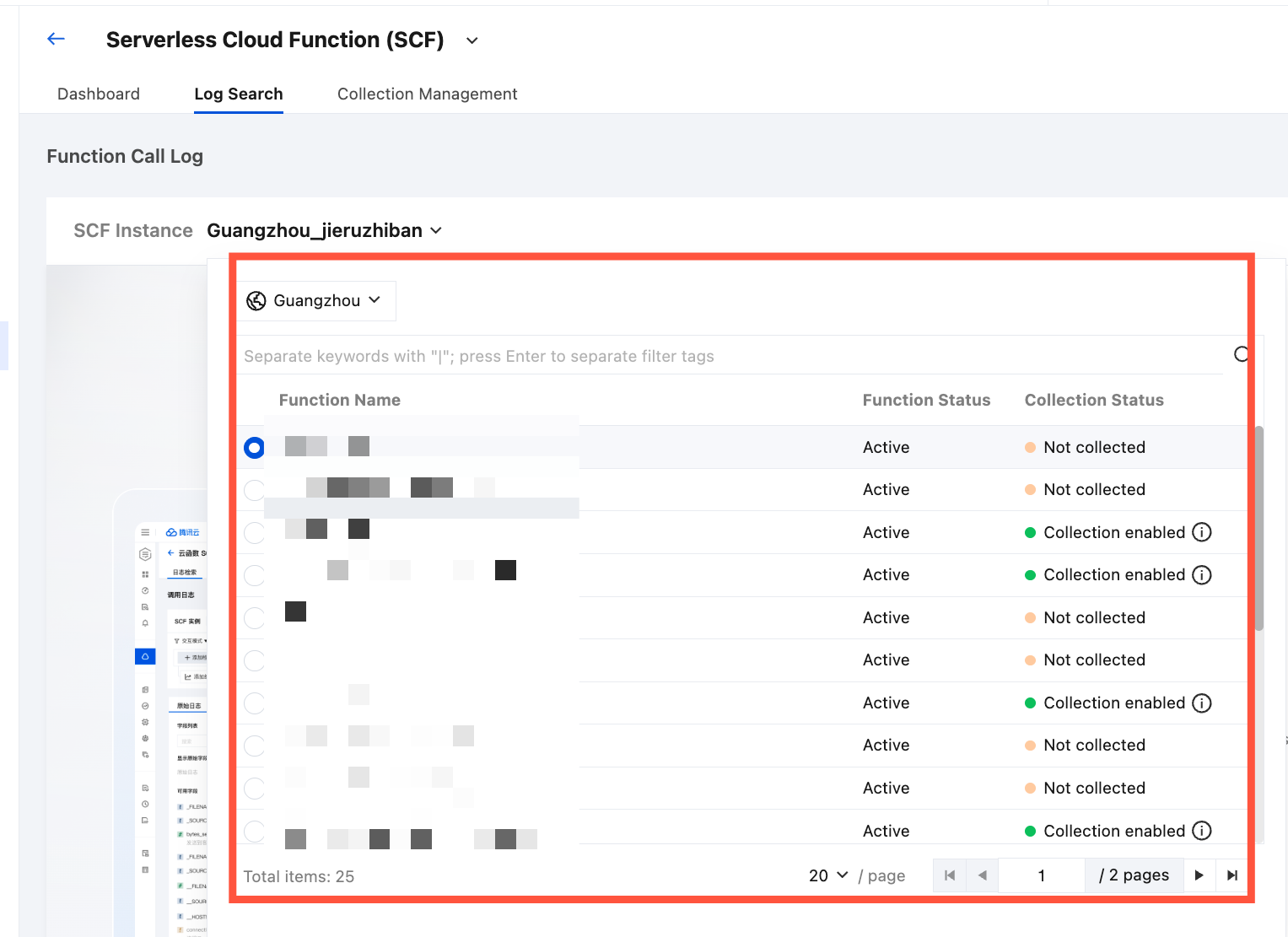
3. SCFを選択すると、選択したSCFに関連する関数呼び出しログを検索および分析できます。
SCF呼び出しログ収集を無効にする
1. SCFで、アクセス管理 > インスタンスアクセスを選択します。
2. SCFリストでログ収集を無効にするSCFを選択し、ログ収集を無効にするをクリックします。
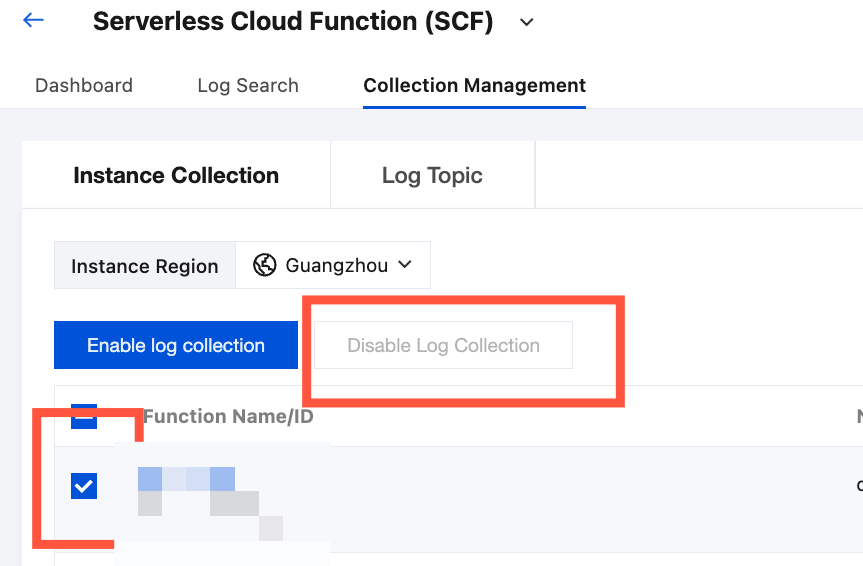
3. 収集を無効にするポップアップで、再度無効にすることを確認し、確認をクリックすると、選択したSCFのログ収集を無効にできます。
注意:
ログ収集を無効にしても、新規ログの収集が停止されるだけです。既存の収集済みログは、ログトピックに保存され続け、有効期限が切れるまで保持されます。その間、ストレージ費用が発生し続けます。継続的な保存を希望しない場合は、以下の手順を参照してログトピックを削除してください。(注意:SCFシナリオでは、すべてのインスタンスのログは同じデフォルトのストレージトピックに配信されます。このストレージトピックを削除すると、すべてのデータが削除されます。慎重に削除してください。)
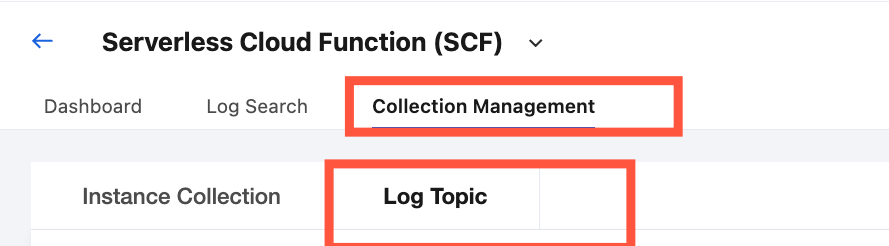
1. アクセス管理 > ログトピックを選択し、対象トピックを見つけて削除をクリックしてください。
2. 次へをクリックし、二次確認を行った後、削除をクリックします。
フィードバック