You can configure alarm rules for monitoring metrics to prevent your system operations from being disrupted when these metrics reach a certain value. When monitoring data meets the configured conditions, the system can check it automatically and send alarm notifications to the admin. This allows you to stay on top of business exceptions and solve them quickly.
Prerequisites
You have activated Tencent Cloud Observability Platform (TCOP).
The database instance is in Running status.
You have collected the information of the recipients of alarm notifications, such as email address and phone number.
Billing Details
TCOP allows you to configure alarm policies to monitor the key metrics of instances and offers a free trial.
2. Above the Instance List on the right, select the region.
3. In the instance list, find the target instance.
4. In the row of the target instance, enter the Create Alarm Policy page of TCOP in any of the following ways:
Click in the
column and click Configure Alarms in the top-right corner of the instance monitoring dashboard.
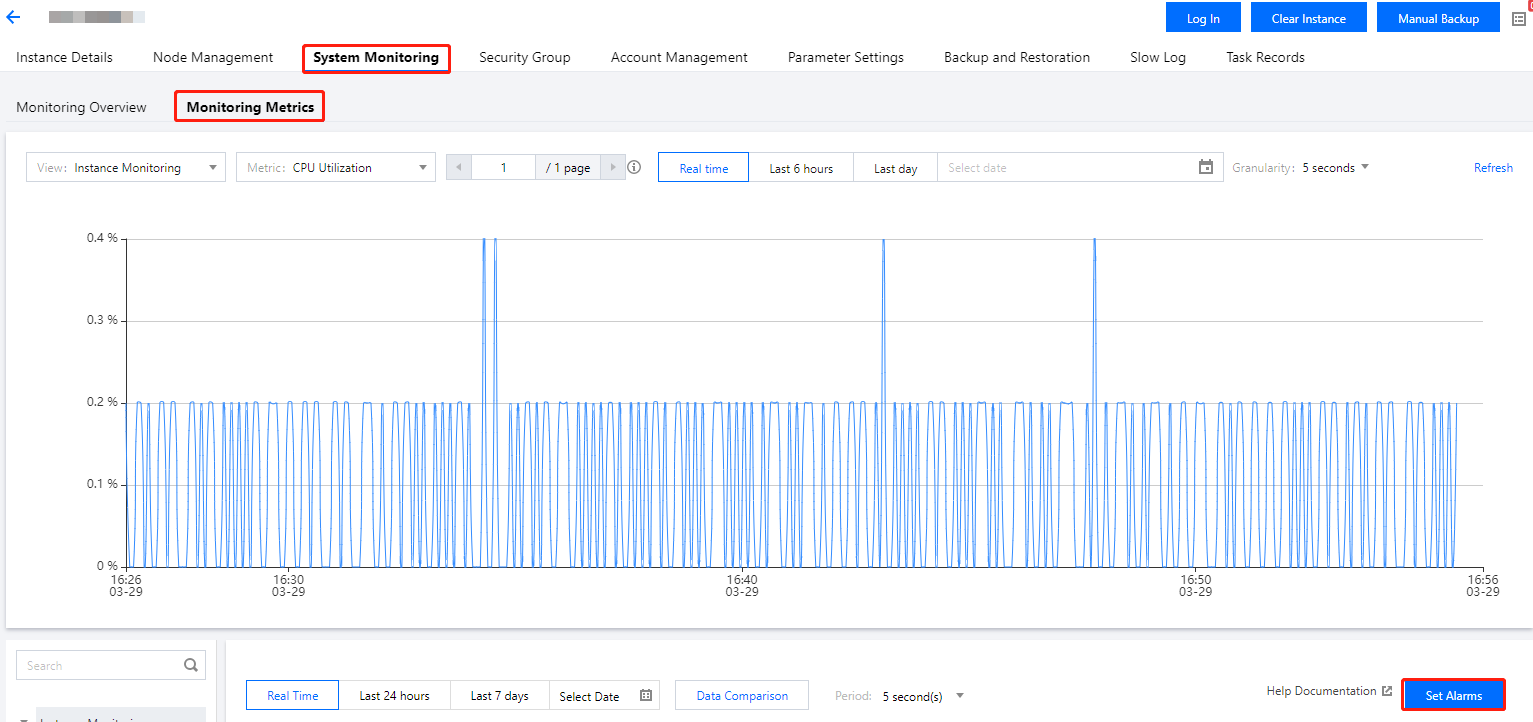
Click the Instance ID in blue to enter the Instance Details page. Then, click the System Monitoring tab, select the Monitoring Metrics tab, and click Set Alarms.
5. On the Create Alarm Policy page, configure the policy as shown below. For more information on the basic concepts of alarm policy, see Creating Alarm Policy.
Parameter
Description
Policy Name
Customize the alarm policy name for easier identification.
Remarks
Briefly describe the alarm policy for easier identification.
Instance: Aggregates data from all Proxy and Redis nodes within the instance using multiple algorithms, providing you with macro-level monitoring and alarms at the global dimension of the instance.
Proxy/Redis Node: Configure alarms at the node-type dimension, supporting batch selection of instances to monitor and aggregating monitoring data from nodes of the same type.
Proxy/Redis Node (dim): Configure alarms at the individual node ID dimension, allowing precise monitoring of each specific Proxy or Redis node to identify performance anomalies at the node level. The specific Proxy node IDs and Redis node IDs can be retrieved via the DescribeInstanceNodeInfo API.
Memcached edition: Cloud Database / Redis / Memcached: for monitoring and alarm configuration of Memcached-compatible instances in Tencent Cloud Redis.
Project
Specify a project for the alarm policy. You can quickly locate all alarm policies of a project in the alarm policy list.
Alarm Object
If you select Instance ID, the alarm policy will be bound to the specified database instance.
If you select Instance Group, the alarm policy will be bound to the specified database instance group. For more information on how to create an instance group, see Instance Group.
If you select All Objects, the alarm policy will be bound to all instances the current account has permission on.
If you select Tag, the alarm policy will be bound to all instances associated with the current tag key and tag value.
Trigger Condition
If you select Select Template, you can select a template file in the drop-down list, and alarms will be reported based on the trigger conditions preset in the template. For specific configurations, see Configuring Trigger Condition Template. If you select Configure manually, you need to configure the threshold for triggering an alarm for each metric in the Metric Alarm section below.
Threshold Type in the Metric Alarm section: If you select Static, you can manually set a fixed threshold, and alarms will be triggered when the threshold is reached. If you select Dynamic, exceptions will be determined based on the dynamic threshold boundaries calculated by machine learning algorithms.
Notification templates can be either system-preset or user-defined. A maximum of three notification templates can be bound to each alarm policy. For details, see Notification Template.
6. After confirming that the configuration is correct, click Complete. For more information on alarms, see Overview.
2. On the Alarm History tab on the right, you can filter alarms for cloud databases based on time periods or alarm information. For details, see Viewing Alarm History.
(Optional) Filter the time range for viewing alarm history. Quick filters include Today, Yesterday, Last 7 days, and Last 30 days. You can also set a custom time range. Alarm history for up to the past six months is available.
(Optional) You can enter alarm target information in the search box in the upper-right corner to search for corresponding historical records, such as: alarm name, alarm content, or alarm target.
(Optional) You can also click Filter to search for matching alarm history records based on policy name, alarm content, user information, monitor type, or policy type.