2. On the Instances page, enter the details page of the target instance.
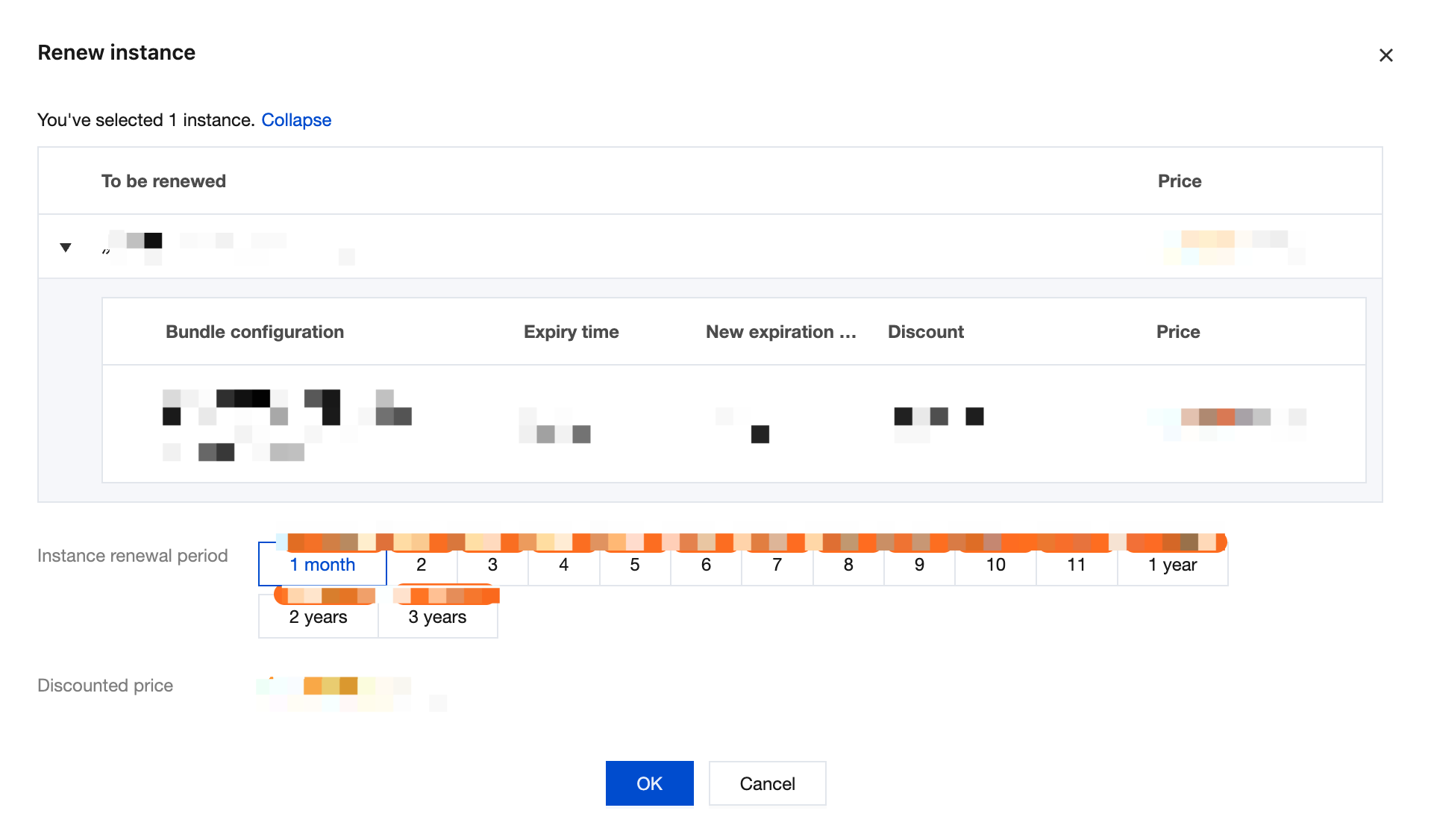
3. In the Billing Information module, select Renew, and in the Renew Instance window that appears, select the renewal period (in calendar months). The following figure shows the process:
Note:
If a data disk is attached to the instance, this operation will also renew the CBS disk. You can also select Also renew the attached data disks (recommended) to synchronize the expiration time of the instance and CBS disks.
4. After selecting OK to go to the renewal order payment page, click Submit Order, and complete the payment as prompted on the page.
2. Click Billing Center in the top-right corner to go to the billing center, and then click the Order Management > Renewal Management tab in the left sidebar.
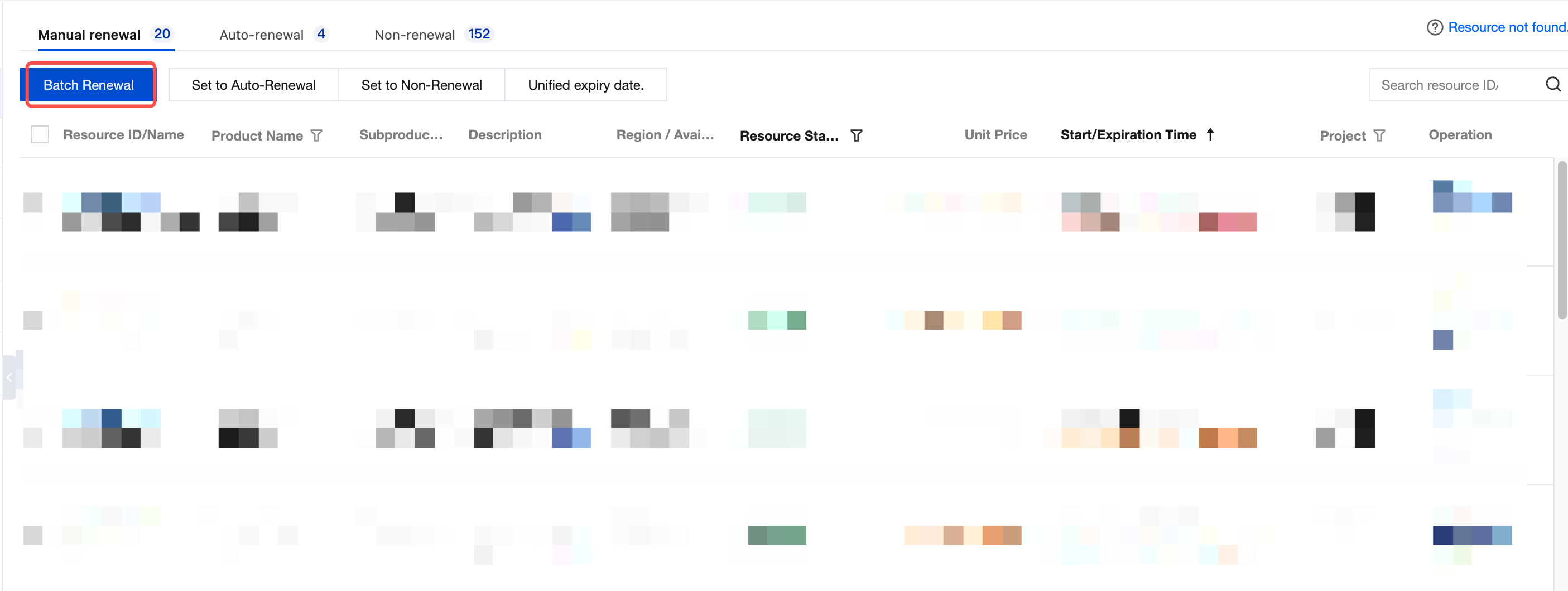
3. On the Renewal Management page, select the instances to be renewed and click Batch Renewal above the list, as shown in the following figure:
4. In the Batch Renewal pop-up window, select the renewal period, click OK, and make the payment for the renewal order.
Renewing a Single Instance
1. On the Instances page, find the target instance.
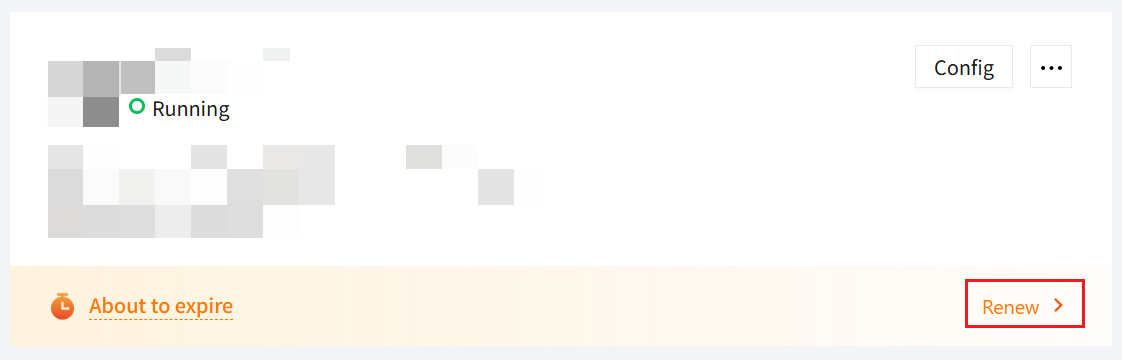
2. On the instance card in the server list, select Renew in the lower-right corner, as shown in the following figure:
3. In the Renew Instance window that appears, select the renewal period and click OK to complete the renewal.
2. Move the mouse to Billing Center in the top-right corner, and click Order Management > Renewal Management in the dropdown menu.
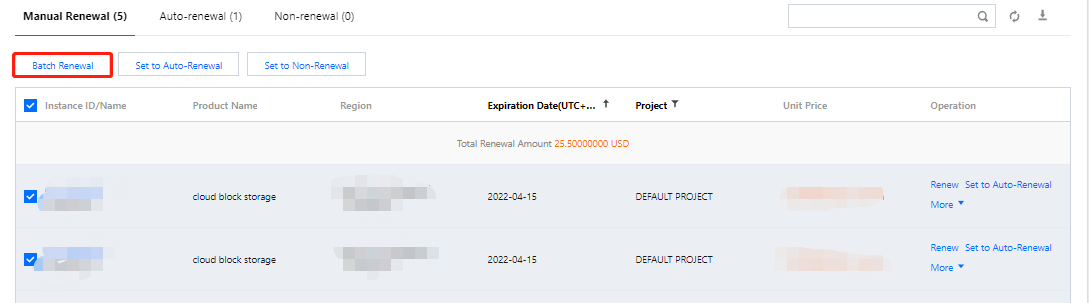
3. On the Renewal Management page, select the instances to be renewed and click Batch Renewal above the list, as shown in the following figure:
4. In the Batch Renewal window that appears, select the renewal period, click OK, and complete the renewal payment.
Automatic Renewal
Note:
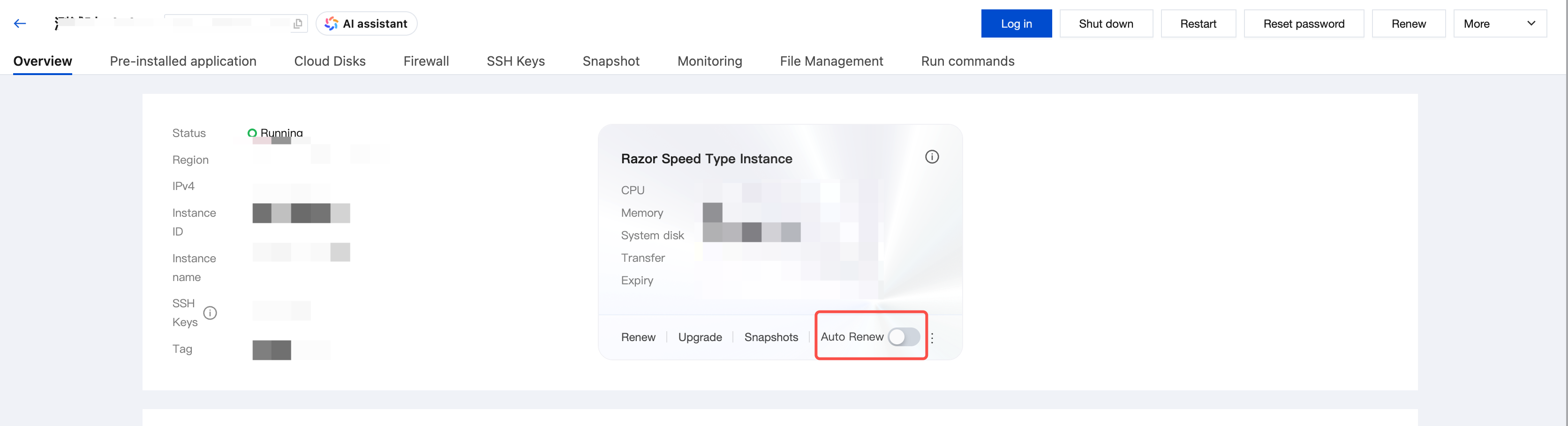
You can select Renew the instance automatically on a monthly basis if the account balance is sufficient when purchasing an instance to enable the auto-renewal feature for the instance. After the instance is created, you can refer to the following steps to modify its existing auto-renewal configuration.
Choose the appropriate operation steps based on your actual needs:
2. Move the mouse to Billing Center in the top-right corner, and click Renewal in the dropdown menu.
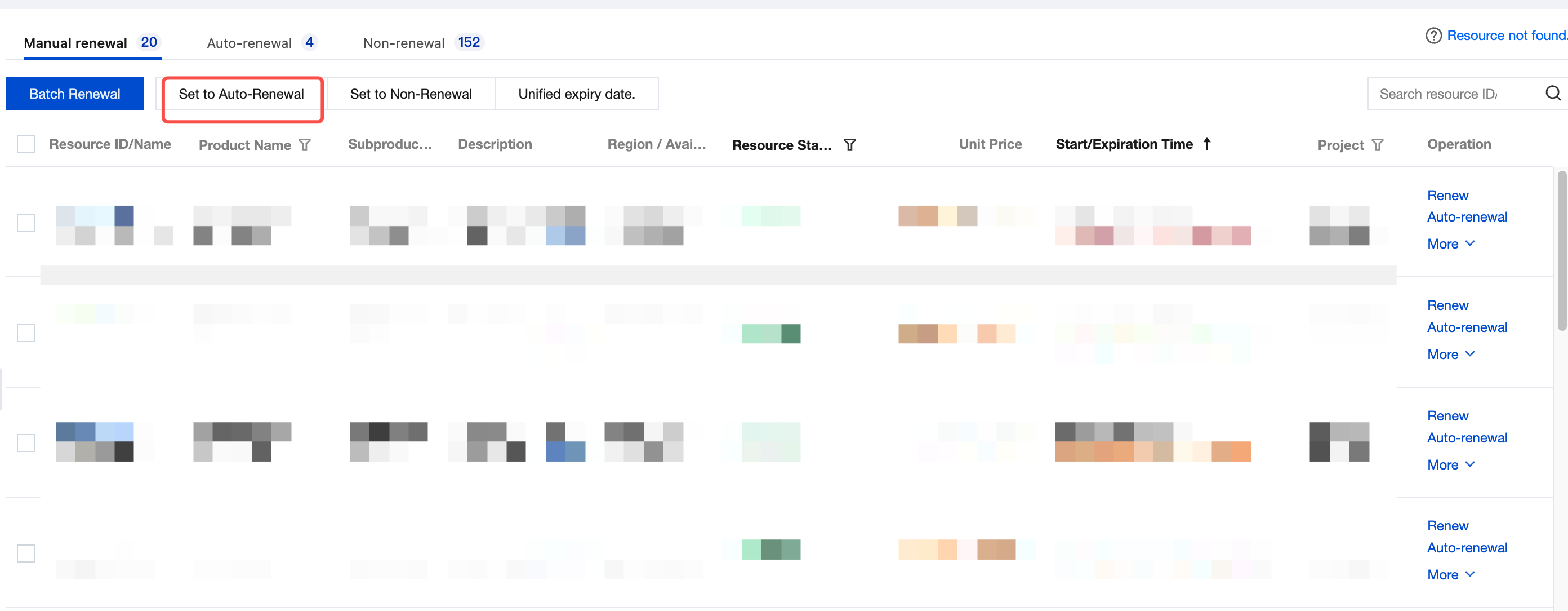
3. On the Renewal Management page, select the instances for which you want to set auto-renewal, and click Set Auto-Renewal above the list, as shown in the following figure:
4. In the Set Auto-Renewal window that appears, click OK.
Attention:
After auto-renewal is enabled, the system will automatically renew the instance on a monthly basis on the expiration date. The deduction order is as follows:
1.The account balance is deducted first.
2.If the account balance is insufficient, the signed credit/debit card under your account will be deducted.
If the instance expires today, renew it manually.
If you manually renew the instance before the expiration date, Tencent Cloud will automatically renew it based on the latest expiration date.