tencent cloud

Tencent Cloud Lighthouse

Connecting to a Linux Instance via VNC

PDF
フォーカスモード
フォントサイズ
最終更新日: 2022-05-12 12:24:11

Overview

VNC login allows for remote login of Lighthouse instances by using a web browser. If the remote login client is not available and all the other login methods failed, you can log in to an instance via VNC to check the instance status and perform basic management operations.

Usage Limits

VNC does not support copy and paste, and file upload or download.
Use a mainstream browser, such as Chrome, Firefox, and IE 10 or later.
Only one user can log in to an instance by using VNC at a time.

Prerequisites

You must have the admin account and password for logging in to a Linux instance remotely.
Note:
Make sure you’ve set the login password. For more information, see Resetting Password.

Directions

1. Log in to the Lighthouse console.
2. Find the target instance and enter its details page.
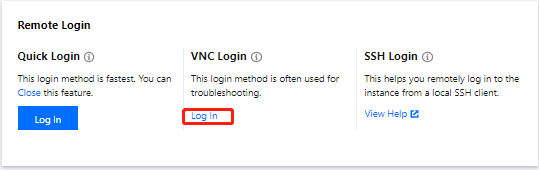
3. Select Remote login and click Log in under VNC Login.


4. In the pop-up window, enter the username after login and press Enter.
5. Enter the password after Password and press Enter. The entered password is invisible by default.

Once logged in, you can see the information of the instance on the left of the command prompt.
Note:
Click Send remote command in the top-left corner and select the command you want.


ヘルプとサポート

この記事はお役に立ちましたか?

フィードバック