Customer Cost Allocation Tags
ダウンロード
フォーカスモード
フォントサイズ
Overview
A cost allocation tag is a cost allocation tool provided by Tencent Cloud: after a tag key is set as a cost allocation tag, the tag key is displayed as a column in the bill, and each bill record displays the corresponding tag value under that column. This enables statistical analysis of cloud resource costs by custom dimensions such as department, project, or business line, and can be applied to modules such as billing, cost analysis, and budget management.
After a cost allocation tag is set, it affects data for the current month and future months. The tag key will be displayed in the current month's bill data column on T+1, while bills for historical months are not affected.
Prerequisites
Refer to the following document Creating Tags and Binding Resources to create a tag and bind the tag to resources.
Setting Cost Allocation Tags
1. Log in to the Tencent Cloud distribution end customer account and go to the Billing Center.
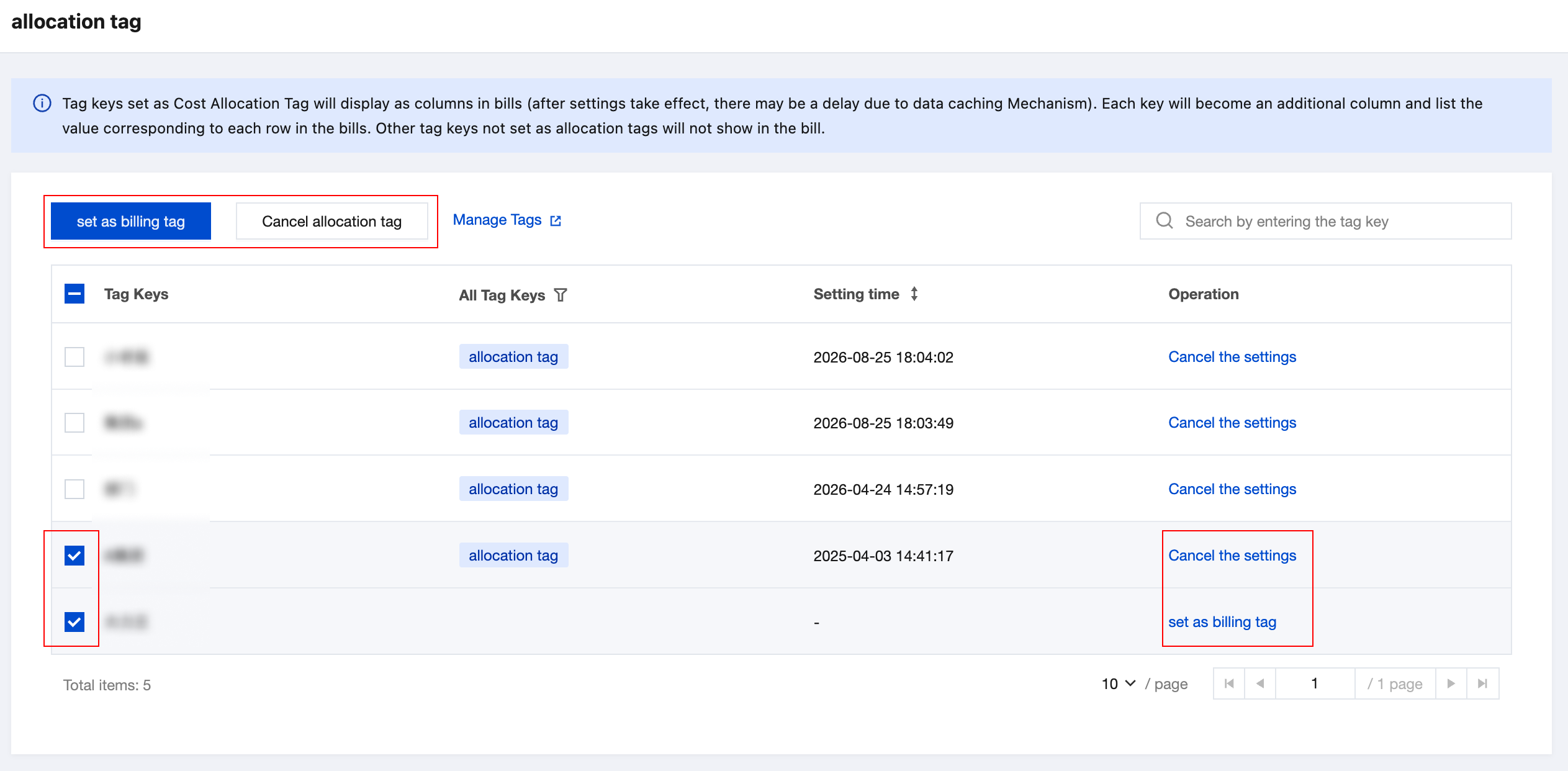
2. Click Bills > Cost Allocation Tags in the left menu to go to the cost allocation tags page. This page displays all created tags. If a tag has been set as a cost allocation tag, it is displayed as Allocation Tag in the Tag Key Type column.
3. You can click the Set as billing Tag button on the right side of each row to set that tag as a cost allocation tag, or select multiple tags by using the checkboxes on the left side of each row and click the Set as billing Tag button above the table to set them in batches. You can also Cancel Allocation Tag.
Note:
It is recommended to set the tag key to a general category description and the tag value to a specific item under that category. For example, set the tag key to "Department" and the corresponding tag value to "R&D, Design, Finance".
Viewing Cost Allocation Tags
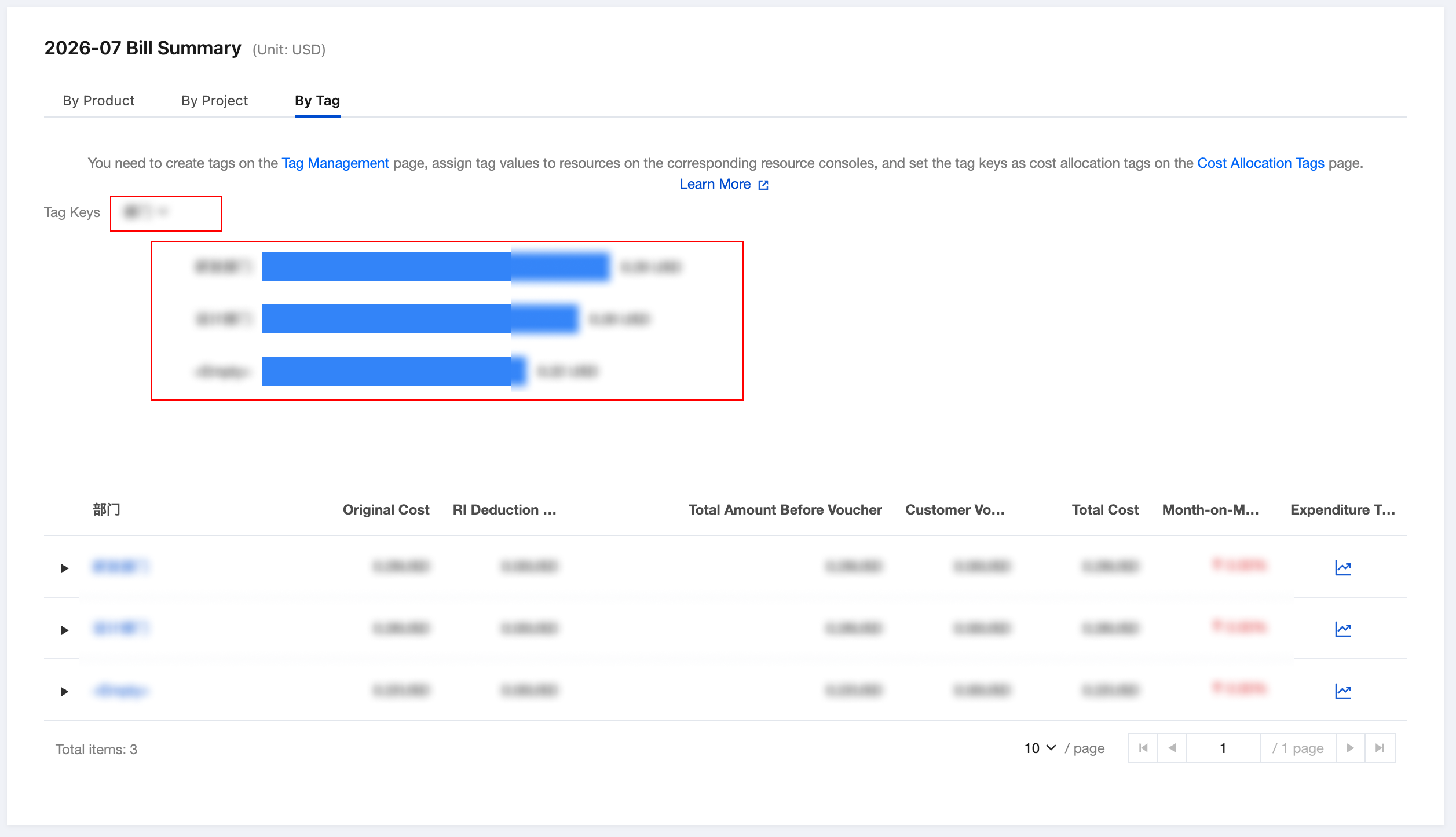
Log in to the Billing Center, go to the Bill Overview page, and switch to the Summarize by Tag tab to query the aggregated cost amount of each tag value under different tag keys.
You can click the Tag Keys dropdown menu to switch between different tag keys. Each bar in the bar chart represents a different tag value under the selected tag key. Costs generated by resources that have not been assigned a tag value are attributed to the <Empty> value.
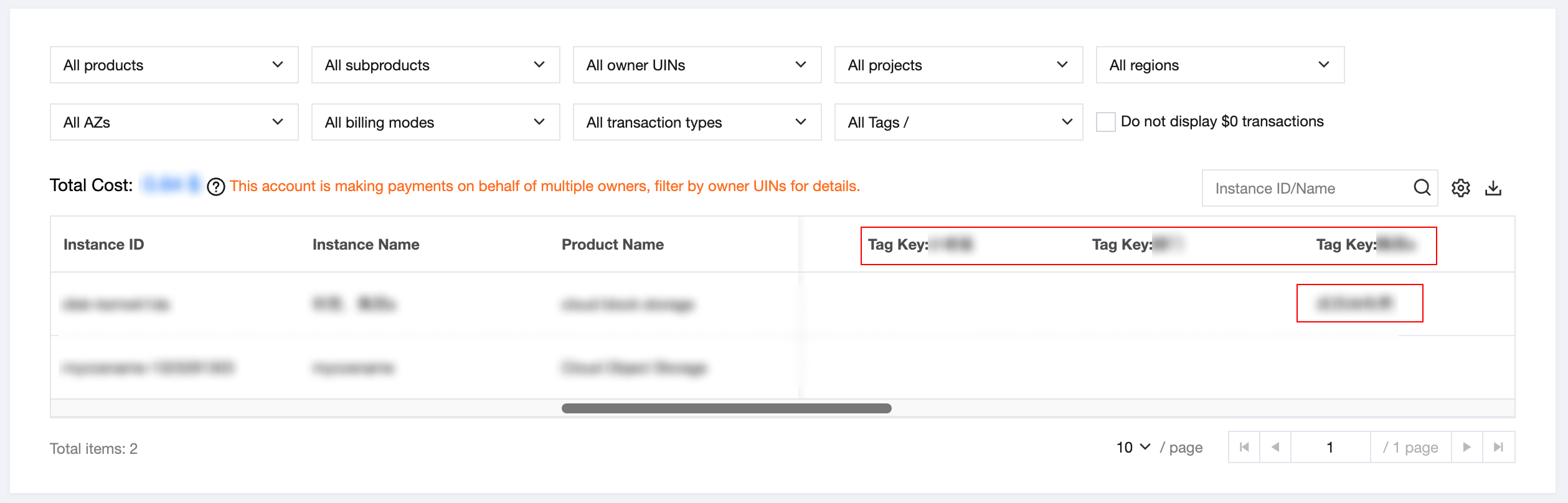
Log in to the Billing Center and go to the Bill Details page. You can view the cost allocation tag column in the data table on both the Bill by Instance and Bill Details tabs. If a resource in a row has been assigned a tag value, that tag value is displayed in the corresponding resource row under this column.
Note:
The downloaded CSV bill file will also contain tag data.
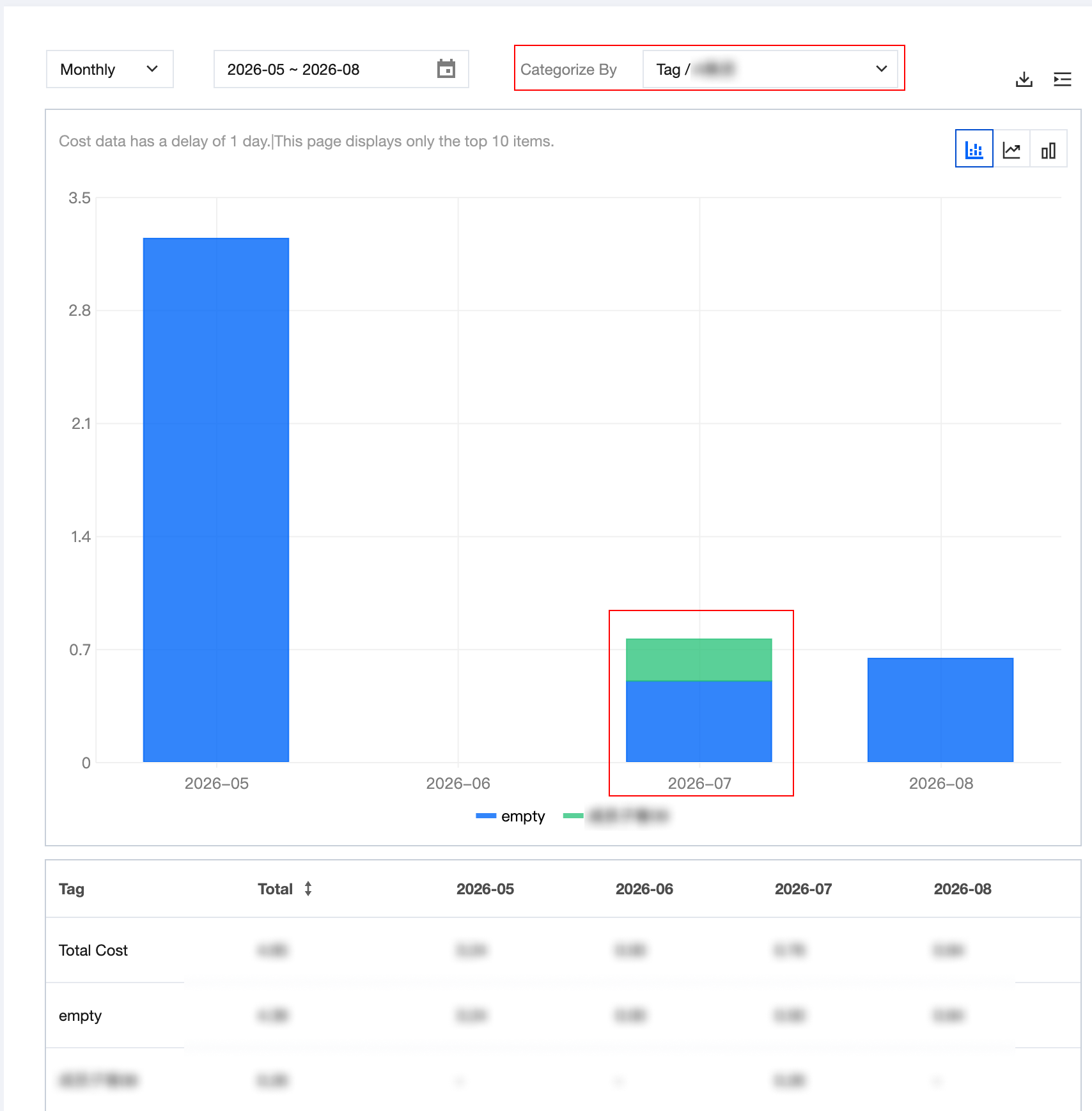
Log in to the Billing Center, go to the Cost Explorer page, and click the Category By dropdown menu to select a tag key. The cost data is then aggregated by different tag values under that tag key and displayed in a stacked bar chart. Costs generated by resources that have not been assigned a tag value are attributed to the <empty> value.
Organization Cost Allocation Tags
After setting the same tag key as the members and setting it as a cost allocation tag, the admin can view this tag in the admin's bill. The operation steps are as follows:
1. Members purchase resources and assign the Tag Key: Squad and Tag Value: Finance to the resources.
2. The admin creates a tag with Tag Key: Squad and Tag Value: (any value), and sets this tag as a cost allocation tag. This tag does not need to be bound to resources.
3. The admin can see a column for Tag Key: Squad in the bill on the next day, with the value of this column being Finance, and the Owner UIN of the resource being the UIN of the corresponding member.
フィードバック