Customer Product Scope Configuration
Download
フォーカスモード
フォントサイズ
This document describes how resellers can configure the product range available for end customers to purchase in the Partner Center console, including the usage of basic policies, second-level reseller policies, and designated end customer policies.
Target audience
This document applies to distributors and single-tier resellers who have enabled the Customer Purchase Product Management feature. In the following text, the term "reseller" is used uniformly for description.
Prerequisites
You have obtained the reseller/distributor identity, and your account is in normal status.
This feature is currently in a limited release phase and requires you to be added to an allowlist before use. If the Customer Purchase Product Management menu is not displayed in the left sidebar of the console, it indicates that this feature has not been enabled. Please contact your channel manager to apply for activation.
Feature Overview
Resellers can control the product range available for their end customers to purchase by configuring purchase policies. For distributors, the system supports three levels of policies, listed in descending order of priority as follows:
Priority | Policy Type | Effective Scope | Applicable Reseller |
High | Specified End Customer Purchase Policy. | Specified end customer account IDs. | Distributors, single-tier resellers. |
Medium | Second-Level Reseller Purchase Policy. | Specified second-level resellers and all their end customers. | Distributors (invisible to single-tier resellers). |
Low | Basic Purchase Policy. | All end customers under the reseller (direct and indirect end customers). | Distributors, single-tier resellers. |
Policy Matching Rules:
The system matches policies in the order of "designated end customer > second-level reseller > basic". Once a match is found, the policy at that level takes effect, and no further matching is performed.
Within the same product dimension, the priority of "prohibit purchase" is higher than that of "allow purchase". This means that if a product is listed in the "Prohibit Purchase" list of any matching policy, the end customer will be unable to purchase that product.
Note:
The actual purchasable product range for an end customer = (The product range allowed for the end customer to purchase) - (The product range prohibited for the end customer to purchase).
Basic Policy Description:
When no basic purchase policy is configured, all end customers can purchase all official website products by default.
Once the "Products Allowed for End Customers to Purchase" scope is configured in the basic policy, all end customers can only purchase products within that scope.
Operation Steps
Configuring Basic Purchase Policies
The basic purchase policy applies to all end customers under the reseller and serves as the global fallback policy.
1. Log in to the Tencent Cloud website using your reseller root account, and then go to the Partner Center console.
2. In the left sidebar, choose Customer Product Management > Basic Purchase Configuration.
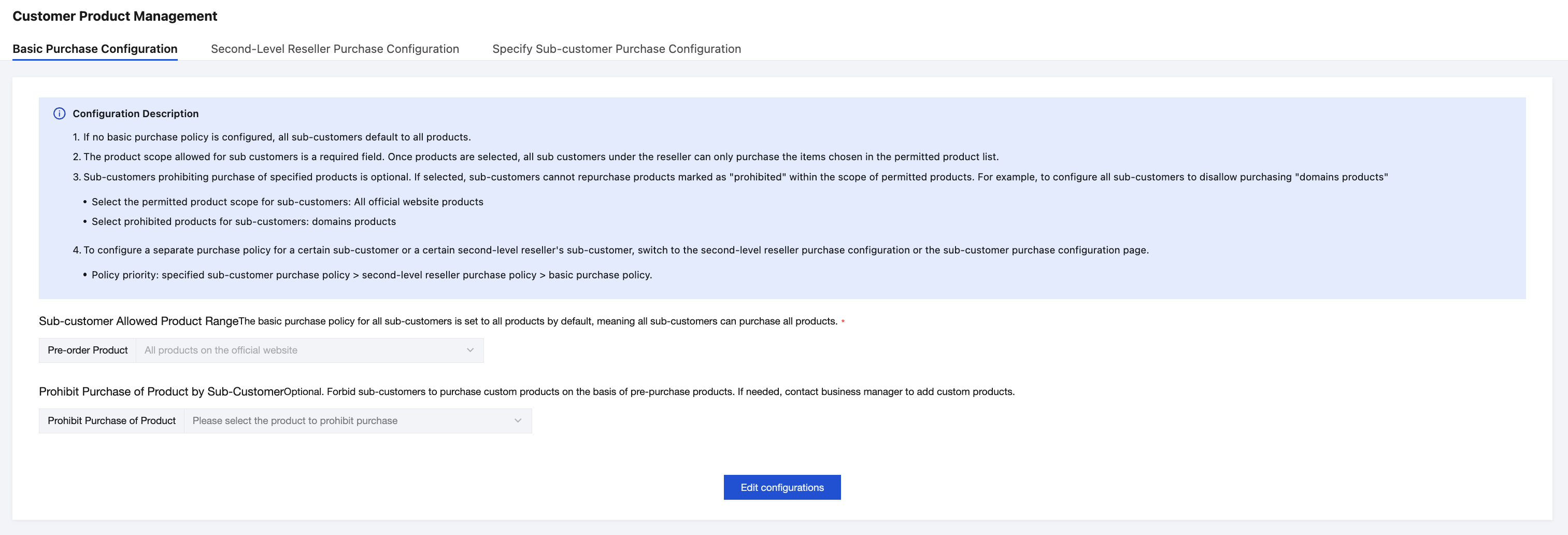
3. In the "Products Allowed for End Customers to Purchase" scope, select the products that end customers are allowed to purchase.
The selectable scope includes: all official website products, policy products, and custom products that resellers can apply to display by contacting their business manager.
This configuration is mandatory.
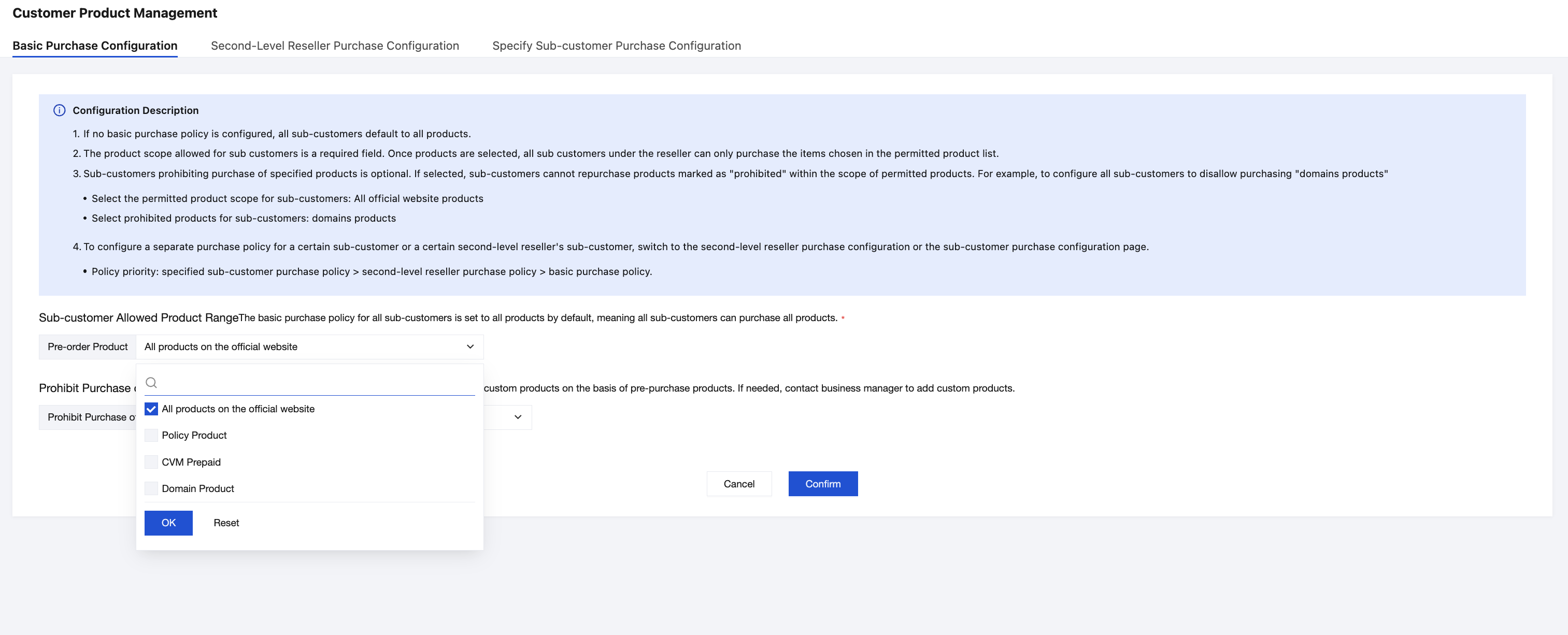
4. In the "Products Prohibited for End Customers to Purchase" scope, select the products to be prohibited. This configuration is optional and further restricts purchases only within the "Allowed to Purchase" scope.
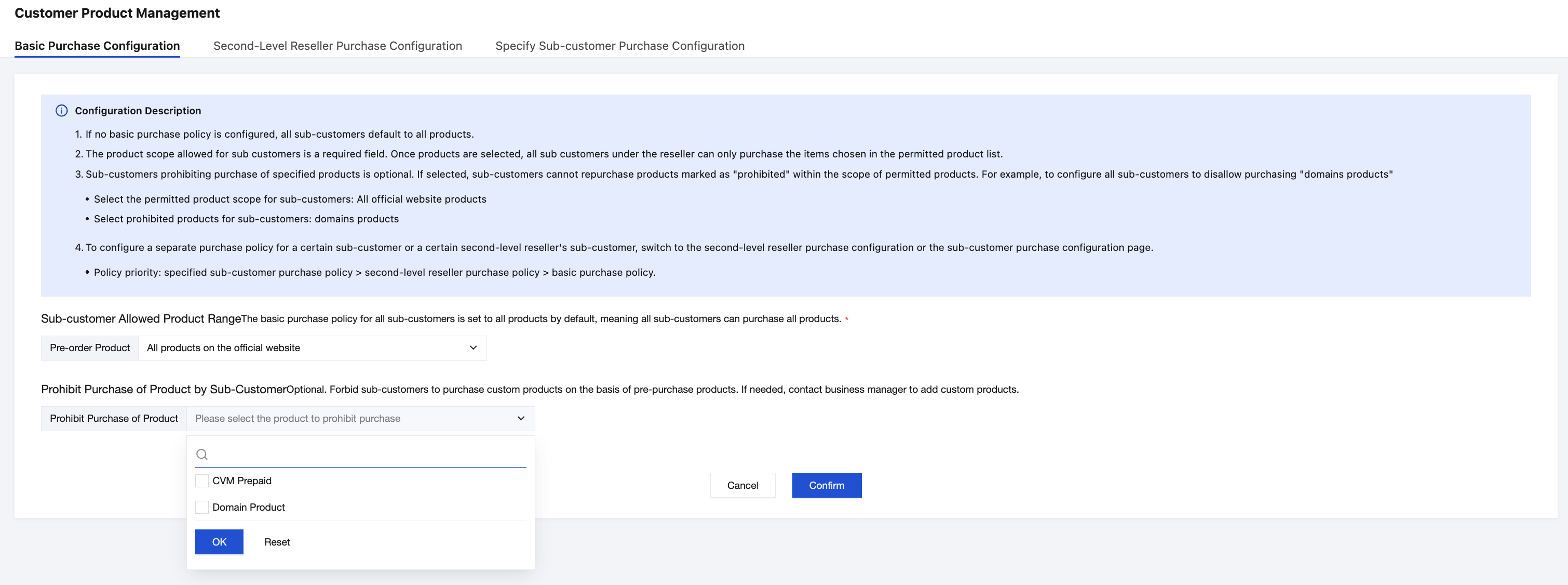
5. Click Confirm. The policy takes effect in real time after it is saved.
Configuring Purchase Policies for Second-Level Resellers
A distributor can uniformly configure the purchase policy for all end customers under one or more specific second-level resellers.
Attention:
Scope: This feature is only available to distributors. Single-tier resellers cannot view this Tab.
Creating a new policy
1. Log in to the Tencent Cloud website using your reseller root account, and then go to the Partner Center console.
2. In the left sidebar, choose Customer Product Management > Second-level Reseller Purchase Configuration.
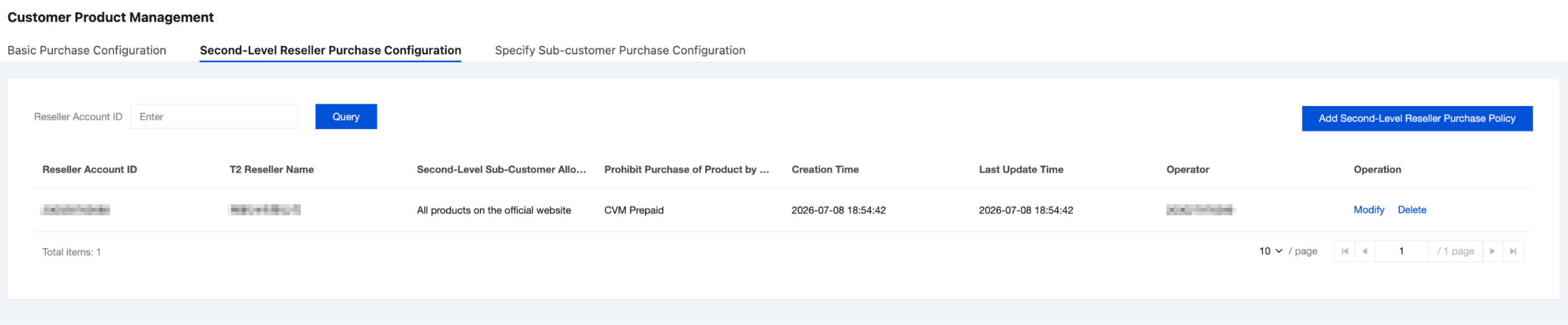
3. Click Add Second-level Reseller Purchase Policy.
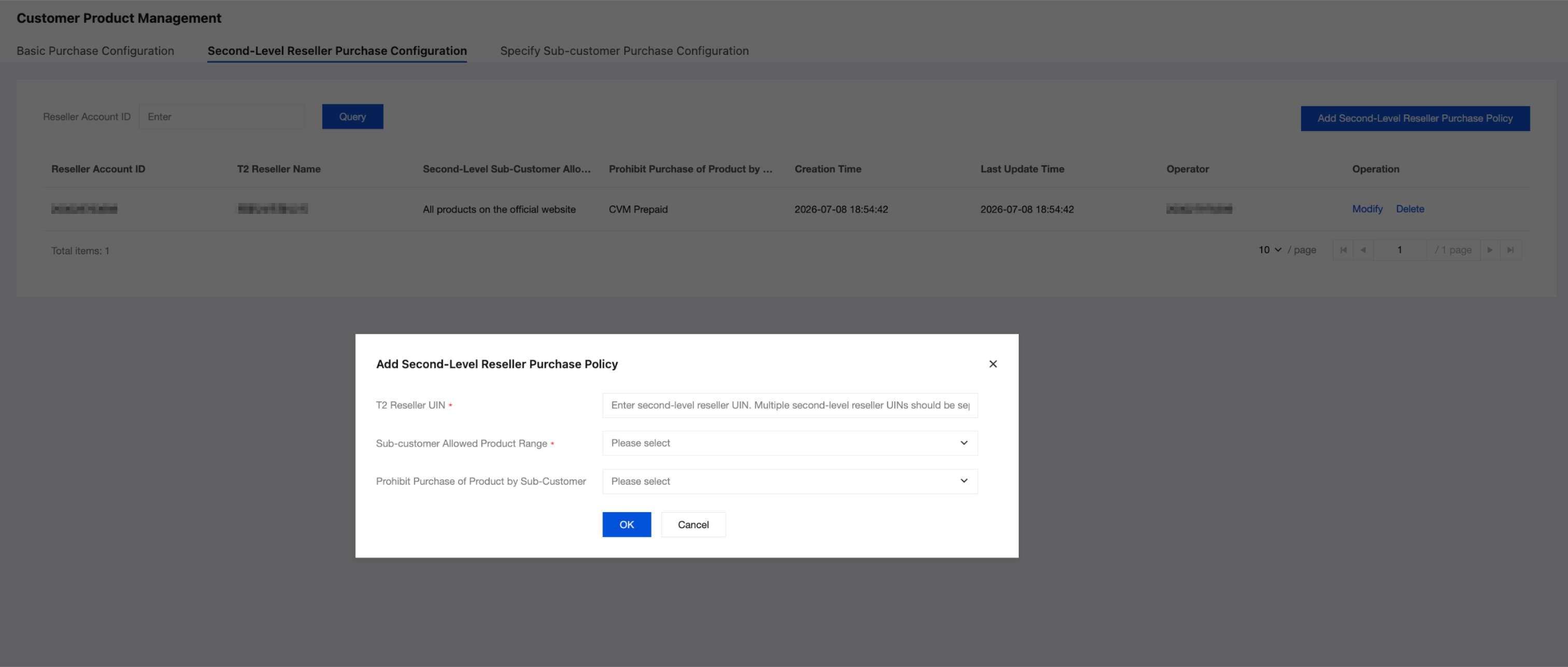
4. After filling in the information in the pop-up window, click OK. The policy takes effect in real time after it is saved.
Modifying a Policy
1. In the policy list, locate the target record and click Modify in the Operation column.
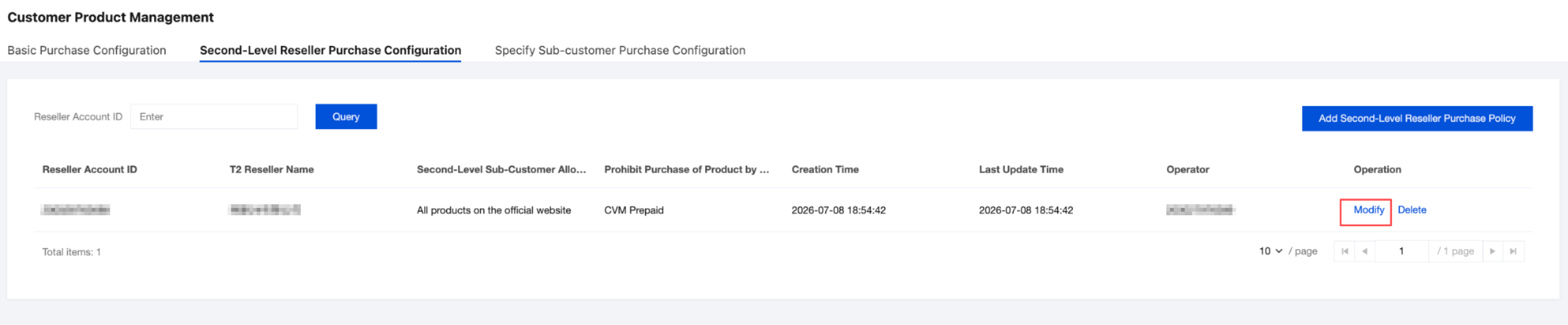
2. In the pop-up window, modify the product scopes for "Allowed to Purchase" and "Prohibited from Purchase".
Attention:
The second-level reseller account ID cannot be modified. To change the associated second-level reseller, delete the original policy and then create a new one.
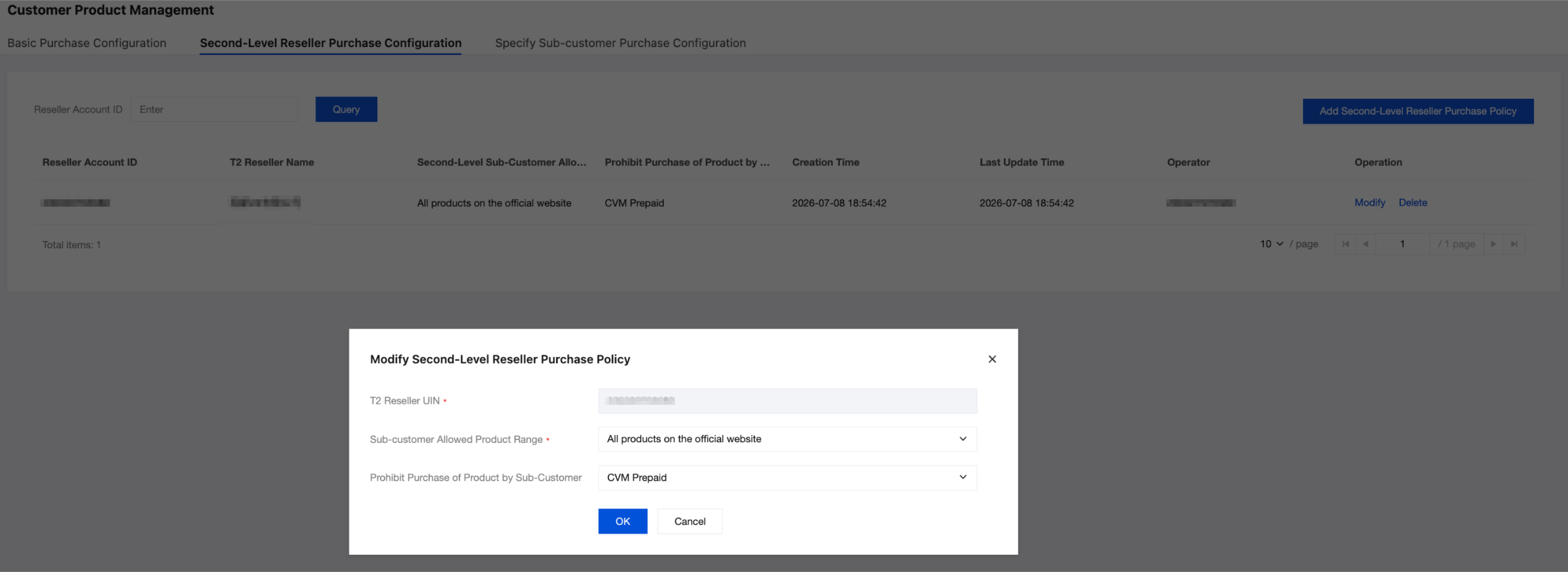
3. Click OK.
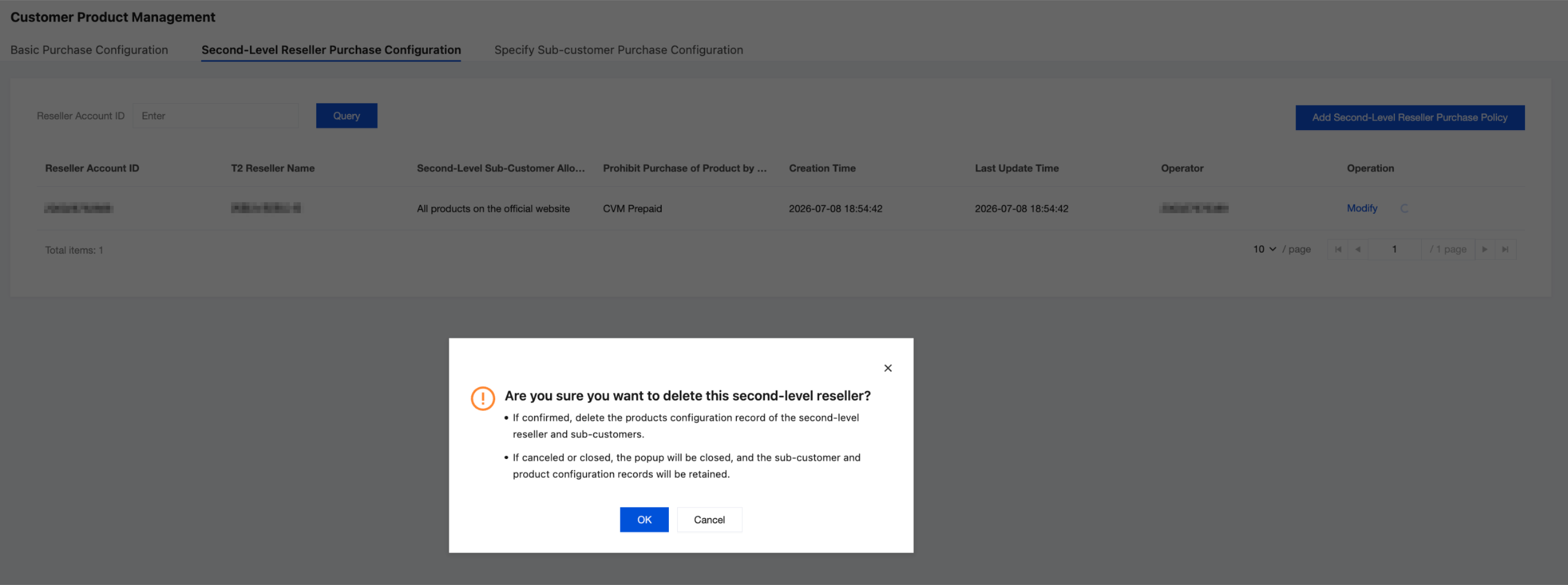
Deleting the Policy
1. In the policy list, locate the target record and click Delete in the Operation column.
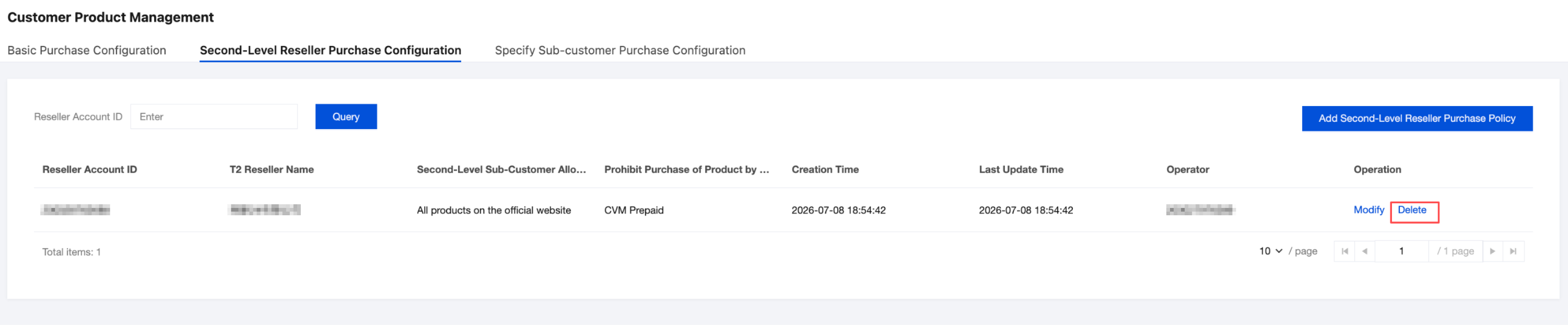
2. In the pop-up confirmation window, click OK to delete the policy records for this second-level reseller and its end customers.
Attention:
The delete operation cannot be undone. Please confirm that everything is correct before proceeding.
Configuring Purchase Policies for Specified End Customers
Resellers can configure differentiated purchase policies for a single end customer or multiple end customers. If you are a distributor, you can configure purchase policies for direct end customers and indirect end customers.
Creating a new policy
1. Log in to the Tencent Cloud website using your reseller root account, and then go to the Partner Center console.
2. In the left sidebar, choose Customer Product Management > Specify Sub-Customer Purchase Configuration.
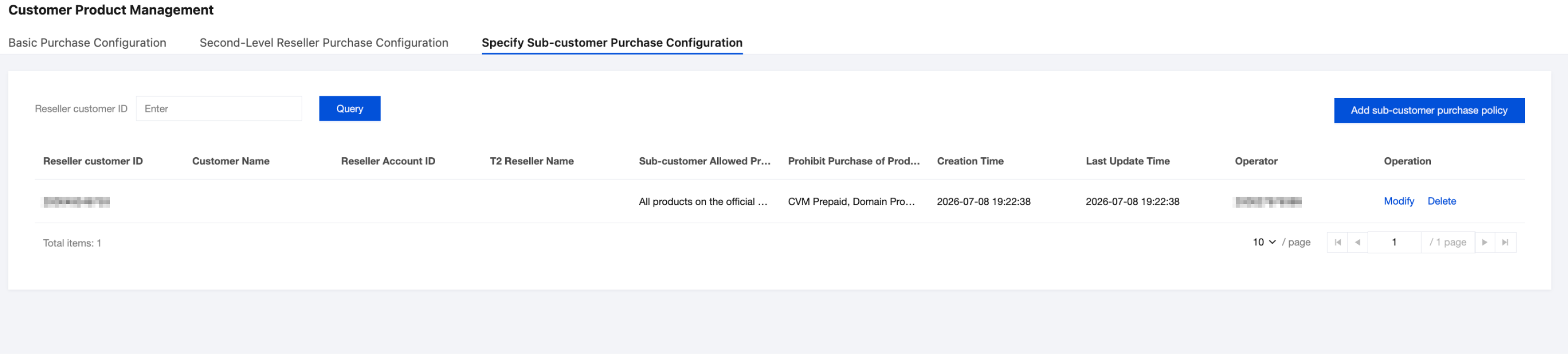
3. Click Add Sub-Customer Purchase Policy.
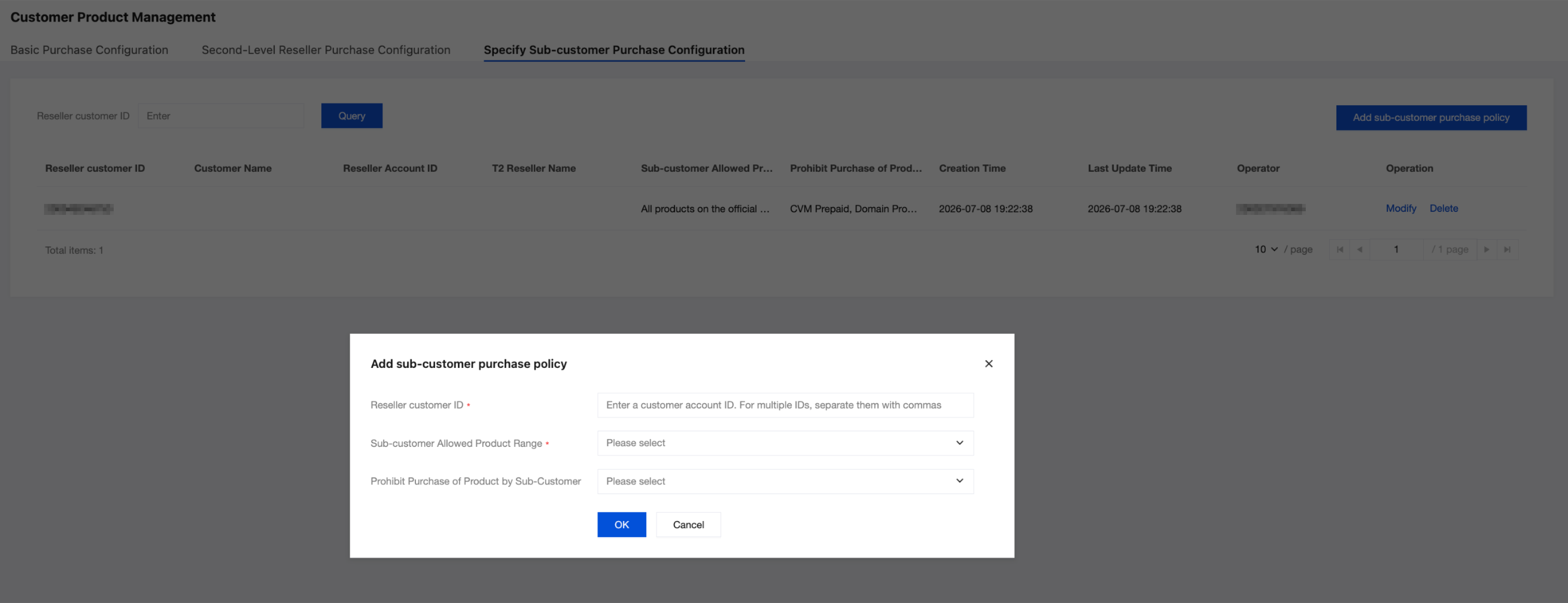
4. In the pop-up window, enter the following information:
Configuration Item | Description |
End Customer Account ID | Required. Enter the end customer account ID. Batch input is supported. Separate multiple account IDs with English commas. |
Permitted Product Scope for End Customers | Required. Select multiple products that the end customer is allowed to purchase. When you select a website product, you cannot select other products. When you select a policy product, you cannot select a website product. |
Products Prohibited for End Customers | Optional. Select multiple products to be prohibited from purchase. |
5. Click OK. The policy takes effect in real time after it is saved.
Modifying a Policy
1. In the policy list, locate the target record and click Modify in the Operation column.
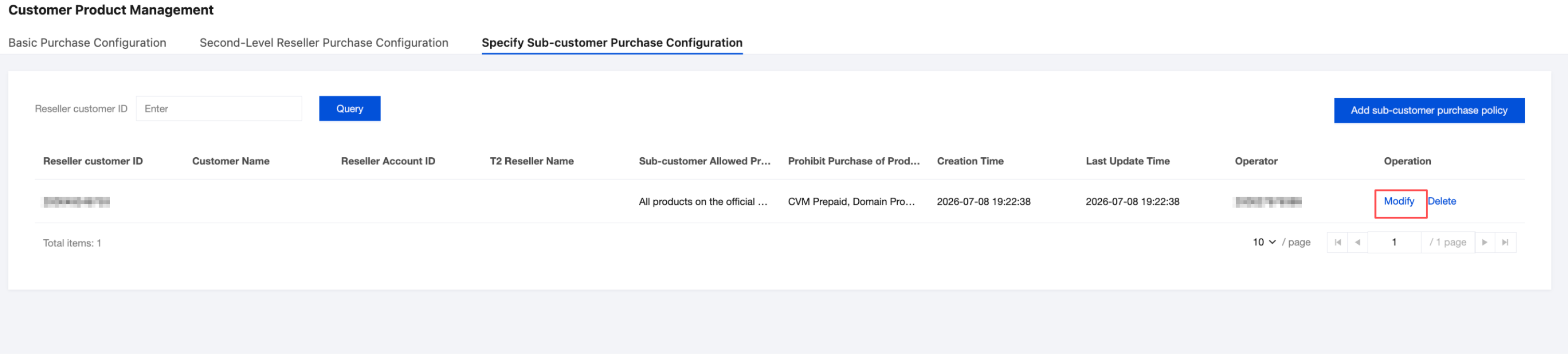
2. In the pop-up window, modify the product scopes for "Allowed to Purchase" and "Prohibited from Purchase".
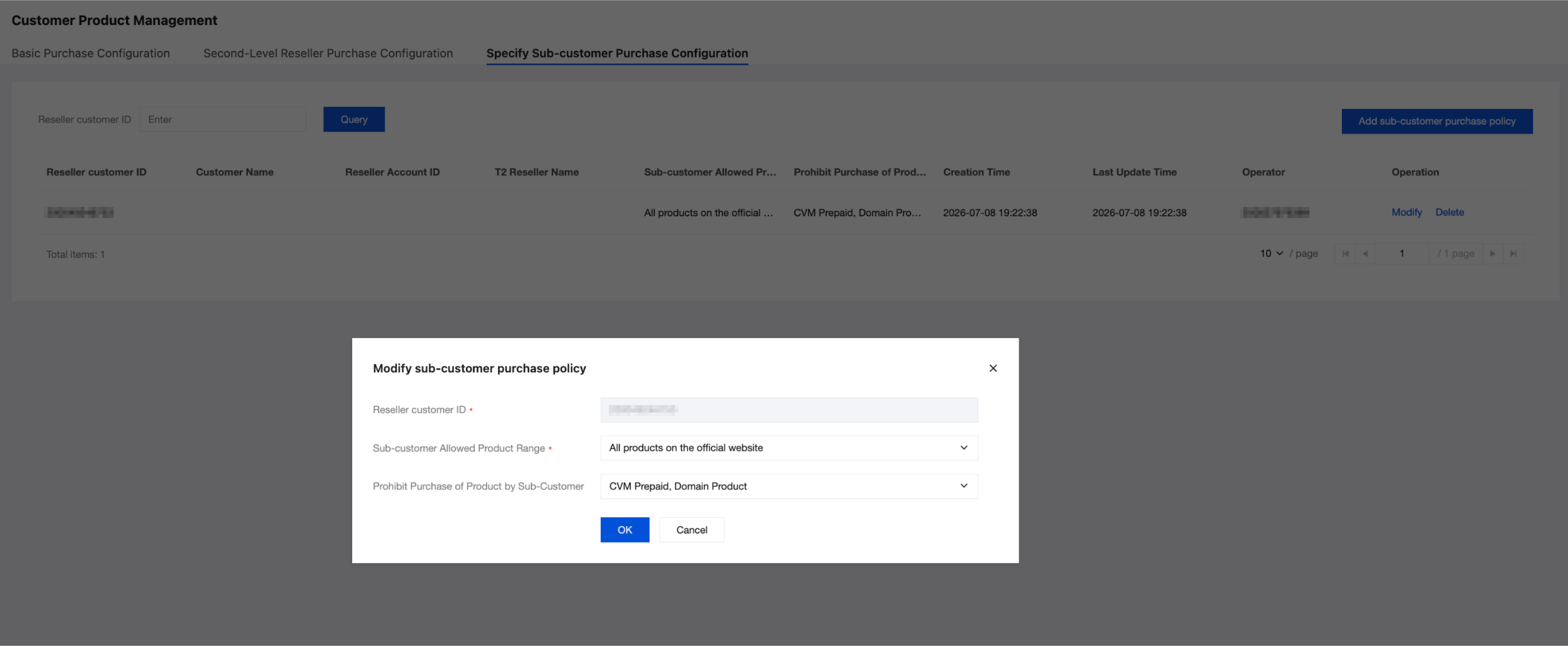
Attention:
The end customer account ID cannot be modified. To change the associated end customer, delete the original policy and then create a new one.
3. Click OK.
Deleting the Policy
1. In the policy list, locate the target record and click Delete in the Operation column.
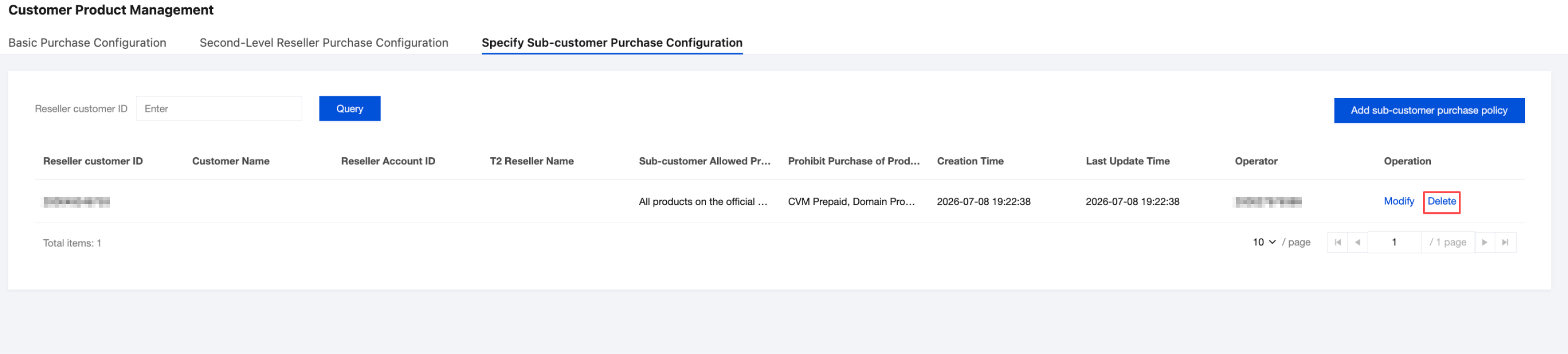
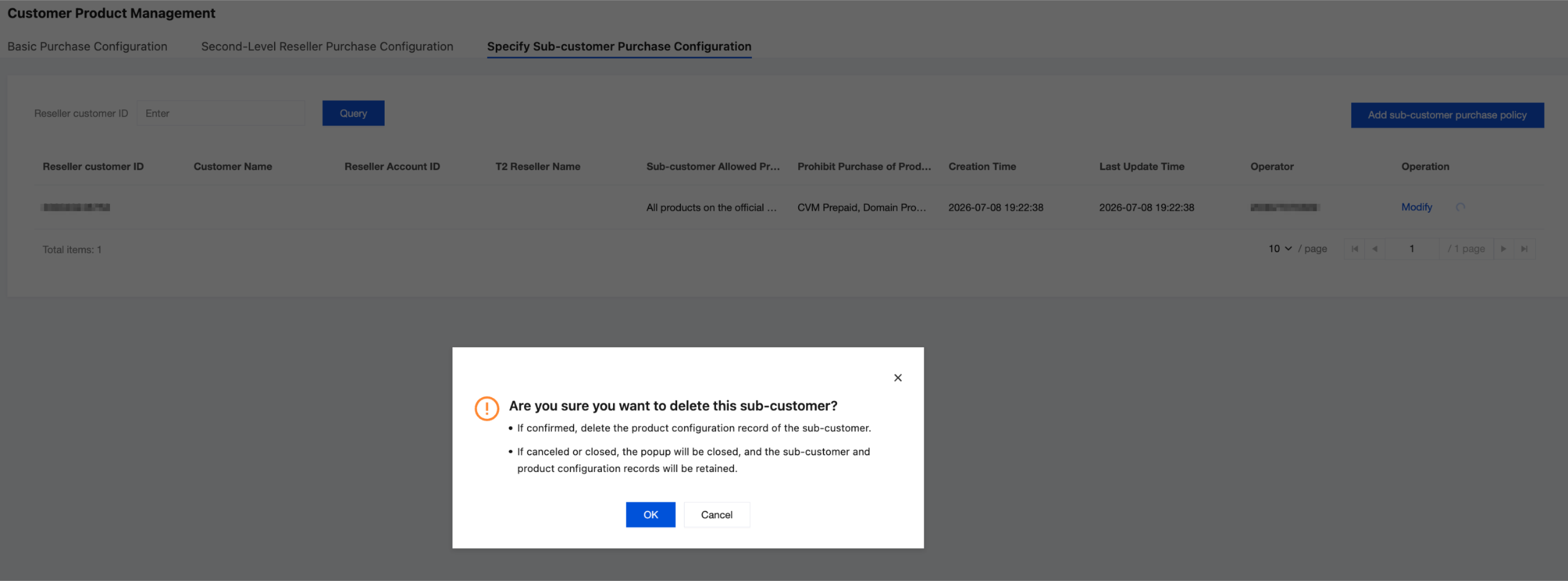
2. In the pop-up confirmation window, click OK to delete the product configuration records for this end customer.
Attention:
The delete operation cannot be undone. Please confirm that everything is correct before proceeding.
Priority Matching Example
Suppose a distributor has configured the following three policies simultaneously:
Basic Policy: Allows the purchase of "policy products + CVM prepaid".
Second-Level Reseller Policy (T2-A): Allows the purchase of "policy products".
Specified End Customer Policy (Direct End Customer a): Allows the purchase of "all official website products".
The actual purchasable scope for direct end customer a is all official website products, as determined by the Specified End Customer Policy. For other end customers under T2-A that are not individually assigned a policy, the actual purchasable scope is policy products, as determined by the Second-Level Reseller Policy. Other end customers or second-level end customers (excluding those under T2-A) can purchase policy products and CVM prepaid products, as determined by the Basic Policy.
Priority Purchase Restriction Example
Suppose the purchase policy for specified end customer a is:
Allows the purchase of: all official website products.
Prohibits the purchase of: Domains products.
Then, this end customer can purchase all official website products except for Domains products.
フィードバック