SSL (Secure Sockets Layer) authentication is used to establish a secure connection between a client and a cloud database server. After SSL Encryption is enabled, the server enables a security certificate. Users can obtain (download) the corresponding CA certificate and configure it on the client. When a client connects to the database, it activates a security protocol and establishes an encrypted channel between the client and the database server. This encrypts data during transmission, effectively preventing data from being intercepted, tampered with, or eavesdropped on, thereby ensuring the security of data transmission.
Note:
The Memcached edition of the storage engine does not support SSL Encryption.
Billing Details
Enabling SSL Encryption incurs no charges. You can use it free of charge.
Precautions
Enabling SSL Encryption secures data access and transmission, but it may slightly affect instance performance. We recommend enabling SSL Encryption only when encryption is required.
After SSL Encryption is enabled, password-free access is not supported.
If you enable and then disable the SSL Encryption feature, client programs that rely on encrypted connections will be unable to connect normally. Please adjust your business configurations in advance.
When you enable SSL Encryption, the certificate is bound only to the selected connection address by default. Connecting with other addresses will cause an error.
The validity period of SSL Certificates is 20 years. Currently, handling scenarios where certificates expire is not supported.
Version and Architecture Requirements
SSL Encryption has requirements for the compatible instance version and proxy version. The details are as follows.
New Instance: Compatible versions 4.0 and above all support enabling SSL Encryption directly.
Existing Instance:
If the compatible version is 2.8, you must first upgrade it to version 4.0 or above to enable SSL Encryption. For specific operations, see version upgrade.
When the compatible version is 4.0 or above, you must upgrade the proxy version to 5.6.0 for support. For specific operations, see proxy upgrade.
SSL Encryption is supported in both the standard architecture and the cluster architecture.
Certificate Binding Address Details
When you enable SSL Encryption, you must select a connection address as the certificate binding address. During certificate issuance, this address is written into the certificate's server address field (SAN). When a client initiates an SSL connection, it verifies whether the actual connection address matches the certificate binding address. If the two do not match, the TLS handshake fails and the connection is rejected. Please select the connection address that the client actually uses as the certificate binding address.
Connection Address Type
Display Condition
Description
Private Network Address (Recommended)
Always displayed
The default connection address of the instance, displayed with priority and selected by default.
Public network address
Displayed when the instance has public network access enabled.
Suitable for clients that connect via the public network. If you need to establish an SSL Encryption connection over the public network, select the public network address.
No Address Binding
Available only for allowlisted services
The certificate is not bound to a specific address, allowing SSL connections using any address to be compatible with existing instance scenarios.
Prerequisites
The instance status is Running, and no other tasks are being executed.
The current period is a business off-peak time, or the client already has an automatic reconnection mechanism.
Directions
Step 1: Enable SSL Encryption and Select a Connection Address
3. In the instance list, click the target instance's Instance ID to go to the instance details page.
4. Select the SSL Encryption tab. If the page prompts that a version upgrade is required, click version upgrade and wait for the upgrade to complete.
5. To the right of SSL Encryption Status, click
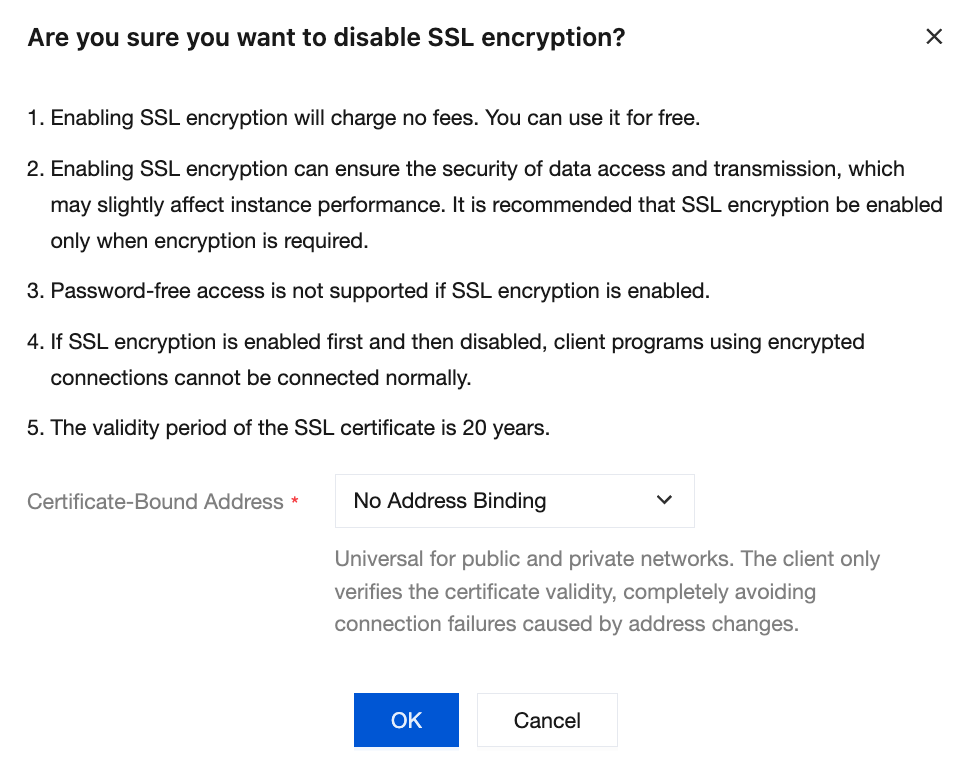
. The Are you sure you want to Are you sure you want to disable ssl encryption? dialog box appears.
6. In the Certificate-Bound Address drop-down list, select the encrypted connection address for certificate binding.
7. Click OK. The SSL Encryption Status is displayed as Updating SSL status. Wait until the status is displayed as Enabled, which indicates that SSL Encryption has been enabled. The following figure shows the process.Certificate-Bound Address: displays the encrypted connection address currently bound to the certificate. This address is the same as the one selected during the enabling process. Click Copy to copy this address.
Step 2: View the Status and Download the Certificate
1. In the SSL Encryption Settings area, click Download CA Certificate to obtain the CA certificate.
After SSL Encryption is enabled, the connection address bound to the certificate cannot be directly modified. To change the binding address, follow the procedure below: first disable SSL Encryption, then re-enable it and select a new encrypted connection address. For the operation to disable SSL Encryption, see Step 5 below.
Step 5: Disable SSL Encryption
1. On the SSL Encryption tab, click
to the right of SSL Encryption Status. The Confirm Disabling SSL Encryption dialog box appears.
2. After confirming the prompt information, click OK.
Note:
After SSL Encryption is disabled, the previously bound encrypted connection address information becomes invalid, and client programs that rely on encrypted connections will be unable to connect normally. When you re-enable SSL Encryption after disabling it, you can select a new encrypted connection address.
Impact of Network Replacement and Access Address Change
The SSL certificate of an instance is bound to a specific encrypted connection address. Changing the network or the access address (VIP) may cause the originally bound address to become invalid. Before performing the following operations, confirm the impact of SSL Encryption.
Changing the Network: After you switch an instance to another VPC or subnet, the original private network address will change. If the SSL certificate is bound to the affected private network address, the originally bound certificate address will become invalid after the change is completed, and clients that use SSL Encryption connections will be unable to connect. After the network change is completed, disable and then re-enable SSL Encryption, and select a new encrypted connection address. For the operation to change the network, see Changing the Network.
Changing the Access Address (VIP): After you manually change the VIP of an instance, the originally bound address also becomes invalid. You need to re-enable SSL Encryption and select a new encrypted connection address.
Attention:
Before changing the network or the access address, if SSL Encryption is enabled for the instance and the currently bound address is affected, evaluate the impact on your business in advance and reissue the certificate after the change is completed. Otherwise, clients that use SSL Encryption connections will be unable to connect normally.
Related APIs
API Name
Functional Description
API Documentation Link
OpenSSL
Enabling SSL Encryption and supporting the specification of an encrypted connection address.
How to Handle Client Connection Failures After SSL Encryption is enabled?
Confirm that the connection address actually used by the client matches the encrypted connection address bound to the certificate. You can view the encrypted connection address currently bound to the certificate at Certificate Binding Address on the SSL Encryption tab. If the two do not match, disable SSL Encryption and then re-enable it, and select a connection address that matches the client's.
How to Change the Encrypted Connection Address Bound to a Certificate?
The certificate binding address cannot be directly modified. First disable SSL Encryption, then re-enable it and select a new encrypted connection address from the drop-down list.
How to Restore SSL Encryption Connection After Network Replacement?
Changing the network causes the original private network address to change, and the originally bound certificate address becomes invalid as a result. After the network change is completed, disable and then re-enable SSL Encryption, and select the new connection address to reissue the certificate.