Publishing IDC IP Ranges to CCN
Unduh
Mode fokus
Ukuran font
When a CCN is associated with a Direct Connect gateway, you must configure a routing policy for the CCN with the Direct Connect gateway as the next hop and the IDC CIDR block as the destination to enable network communication. There are two methods to configure CCN routing policies: custom manual entry (static) and automatic propagation and learning (BGP). For details, see Routing Overview. This document describes how to publish CIDR blocks from a Direct Connect gateway to a CCN.
Note:
The number of routes advertised from a Direct Connect gateway to a CCN is less than or equal to 100. To increase the quota, submit a ticket.
Background Information
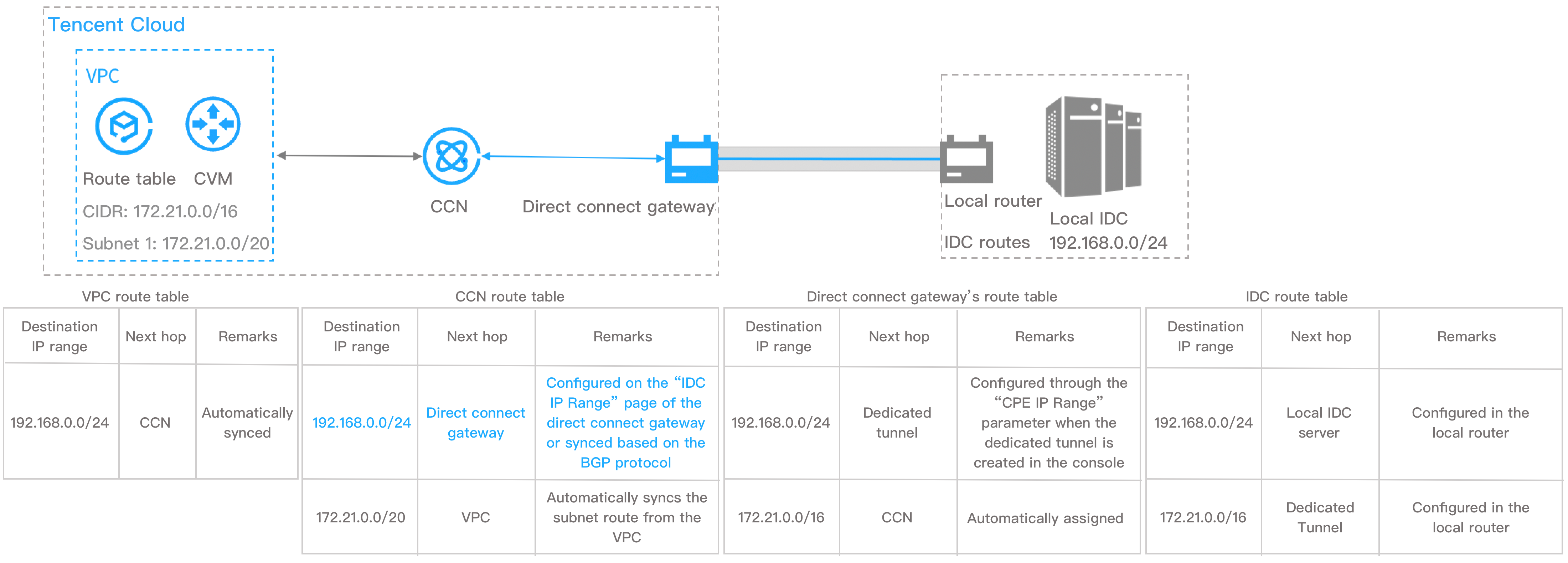
In the dedicated network architecture shown in the figure below, the on-premises IDC communicates with the Tencent Cloud VPC by associating with a CCN Direct Connect gateway and the CCN. The destination CIDR block for traffic from the cloud VPC to the IDC is
192.168.0.0/24. After you configure the IDC CIDR block on the Direct Connect gateway, a routing policy with the Direct Connect gateway as the next hop and 192.168.0.0/24 as the destination CIDR block is added to the CCN routing table, enabling route propagation.Note:
If you configure multiple IDC CIDR blocks on a Direct Connect gateway, the CCN performs route forwarding based on the longest prefix match principle. For details, see CCN Routing Overview.
Prerequisites
You have created a CCN-type Direct Connect gateway. For details, see Create a Direct Connect Gateway.
Operation Steps
1. Log in to the Direct Connect console, and click Direct Connect Gateway in the left sidebar.
2. On the Direct Connect gateway page, select the region and VPC, and then click the target instance ID in the Direct Connect gateway list.
3. On the Direct Connect gateway details page, click the Publish CIDR Block tab.
A published CIDR block (that is, an IDC CIDR block) on a Direct Connect gateway refers to a route advertised from the Direct Connect gateway to a CCN. After the CCN receives this route, it automatically adds a route with this Direct Connect gateway as the next hop and the IDC CIDR block as the destination.
4. (Optional) Associate with a CCN.
If you did not specify a CCN instance when creating the Direct Connect gateway, click Associate with CCN. Then, in the dialog box that appears, select the CCN instance to associate with and click OK.

After you successfully add a CCN instance, the CCN icon shows that it is associated and turns green, and the dashed line between the Direct Connect gateway and the CCN becomes solid. This indicates that the Direct Connect gateway and the CCN are interconnected.
5. Create a dedicated tunnel.
6. A dedicated tunnel is a logical partition of a physical connection's network link, providing a network link between your IDC and Tencent Cloud.
7. Under the dedicated tunnel icon connected to the Direct Connect gateway, click Create Dedicated Tunnel. You are automatically redirected to the dedicated tunnel creation page, where you can configure the dedicated tunnel information.

For details on creating a dedicated tunnel, see Apply for a Dedicated Tunnel.
After you successfully create a dedicated tunnel, the dedicated tunnel icon shows that it is created and turns green, and the dashed line between the Direct Connect gateway and the CCN becomes solid. This means that a dedicated tunnel has been configured for the Direct Connect gateway.
8. Publish IDC CIDR blocks to CCN.
9. After you publish IDC CIDR blocks to a CCN, the Direct Connect gateway can learn CCN routes. Whether the CCN learns Direct Connect gateway routes is determined by the IDC CIDR block publishing method.
Custom mode: In this user-configured mode, the CCN learns the specified Direct Connect gateway routes.
Automatic propagation mode: This is the BGP mode, where the CCN automatically obtains gateway routes from the dedicated tunnel, but this depends on the dedicated tunnel's publishing time.
That is, the original static/manual configuration mode.
1. (Optional) In the Publishing Rules area, select a CCN instance.
2. You can perform this step when the current Direct Connect gateway is not associated with a CCN or when you need to change the associated CCN.
Note:
The publishing method is automatically filled by the system. The default method is Custom. If you need the Automatic Propagation method, submit a ticket.
3. On the CIDR Block Details page, click New in the Custom tab, fill in the CIDR block information to be sent to the CCN, and then click Save.
After you click Save, the Direct Connect gateway sends the configured IDC CIDR blocks to the CCN.
Note:
The number of published IDC CIDR blocks must be less than or equal to 100. If you need to exceed this limit, submit a ticket.
In custom mode, the Direct Connect gateway supports all-zero routes.
1. (Optional) In the Publishing Rules area, select a CCN instance.
2. You can perform this step when the current Direct Connect gateway is not associated with a CCN or when you need to change the associated CCN.
Note:
After you enable this feature, the system selects Automatic Propagation. If you have custom usage scenarios, select Custom to configure them.
Only one of the two modes, Custom or Automatic Propagation, can be enabled.
3. Configure IDC CIDR blocks.
In Automatic Propagation mode, the Direct Connect gateway automatically learns IDC CIDR block information, and no manual configuration is required.
Note:
The update time has a one-minute delay. If the current IDC CIDR blocks are updated, manually refresh the page.
The two methods for sending the gateway's IDC CIDR blocks to CCN support switching between each other.
To switch from Custom to Automatic Propagation
you need to submit a ticket to enable the Automatic Propagation publishing feature.
After you switch from Custom mode to Automatic Propagation mode, the custom IDC CIDR block information that has been published to the CCN is withdrawn. The Direct Connect gateway automatically learns the IDC CIDR block information and propagates it to the CCN.
Switching from Automatic Propagation to Custom
After switching from Automatic Propagation mode to Custom mode, you need to configure the CIDR blocks to be published on the Custom tab of the CIDR Block Details page.
10. View the published IDC CIDR blocks.
You can view the published IDC CIDR block information in the CIDR block list in the CIDR Block Details area.
Bantuan dan Dukungan
Apakah halaman ini membantu?
Anda juga dapat Menghubungi Penjualan atau Mengirimkan Tiket untuk meminta bantuan.
masukan