Querying General Messages
Unduh
Mode fokus
Ukuran font
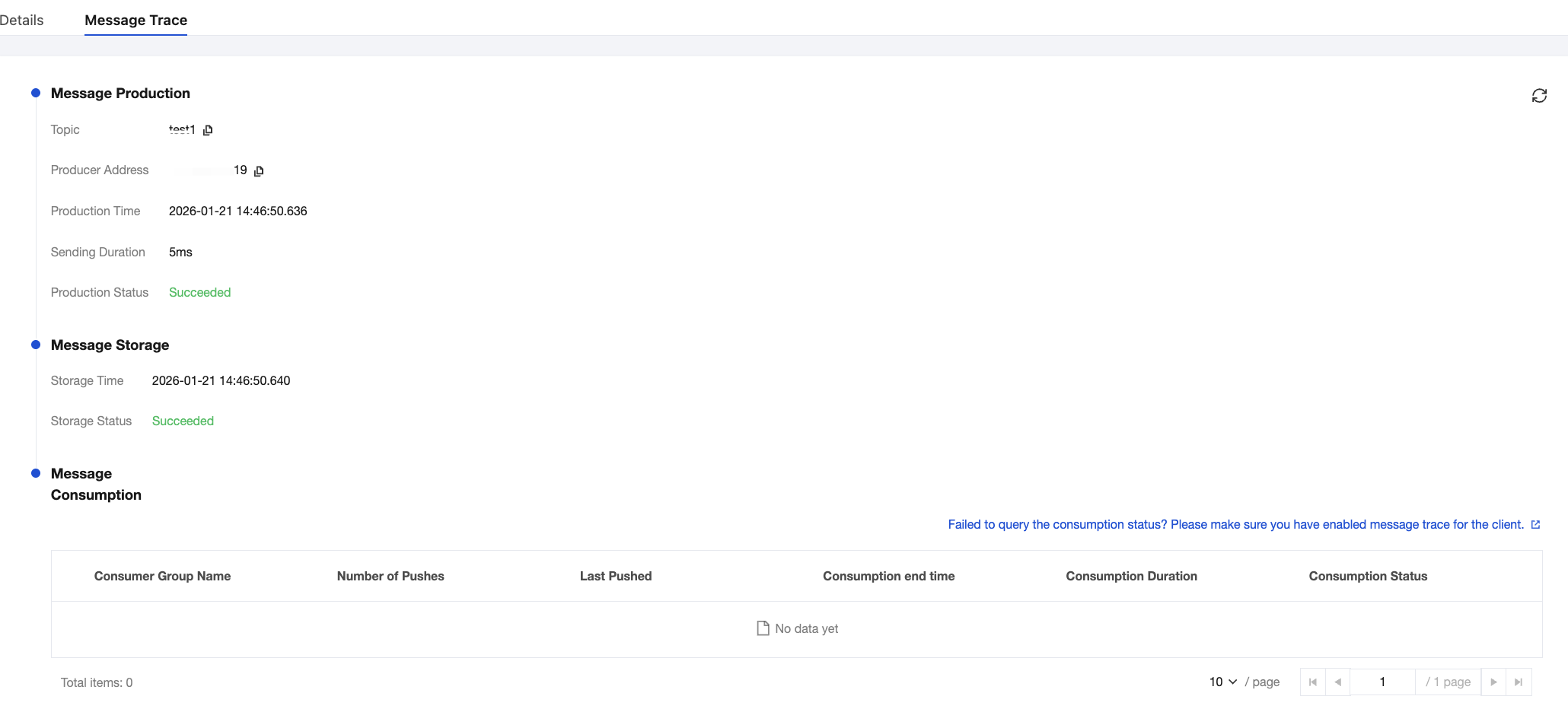
When a message is sent from a producer to the TDMQ for RocketMQ server and then consumed by a consumer, TDMQ for RocketMQ will record the entire transfer process of this message and display it as a message trace in the console.
The message trace records the entire process of a message from the producer to the TDMQ for RocketMQ server and finally to the consumer, including the consumed time (accurate to microseconds), execution result, producer's IP address, and consumer's IP address in each phase.
If you use a gRPC client of 5.0 or later versions for message production and consumption, you do not need to enable the message trace feature separately on the client.
If you use a client of 4.x or a remoting client of 5.0 or later versions, you need to enable the message trace feature on the client. The specific example for enabling the message trace feature on the client is as follows:
DefaultMQProducer producer = new DefaultMQProducer(namespace, groupName,// Access control list (ACL) permissions.new AclClientRPCHook(new SessionCredentials(AK, SK)), true, null);
// Instantiate a consumer.DefaultMQPushConsumer pushConsumer = new DefaultMQPushConsumer(NAMESPACE,groupName,new AclClientRPCHook(new SessionCredentials(AK, SK)),new AllocateMessageQueueAveragely(), true, null);
DefaultLitePullConsumer pullConsumer = new DefaultLitePullConsumer(NAMESPACE,groupName,new AclClientRPCHook(new SessionCredentials(AK, SK)));// Set the NameServer address.pullConsumer.setNamesrvAddr(NAMESERVER);pullConsumer.setConsumeFromWhere(ConsumeFromWhere.CONSUME_FROM_LAST_OFFSET);pullConsumer.setAutoCommit(false);pullConsumer.setEnableMsgTrace(true);pullConsumer.setCustomizedTraceTopic(null);
package com.lazycece.sbac.rocketmq.messagemodel;import lombok.extern.slf4j.Slf4j;import org.apache.rocketmq.spring.annotation.MessageModel;import org.apache.rocketmq.spring.annotation.RocketMQMessageListener;import org.apache.rocketmq.spring.core.RocketMQListener;import org.springframework.stereotype.Component;/*** @author lazycece* @date 2019/8/21*/@Slf4j@Componentpublic class MessageModelConsumer {@Component@RocketMQMessageListener(topic = "topic-message-model",consumerGroup = "message-model-consumer-group",enableMsgTrace = true,messageModel = MessageModel.CLUSTERING)public class ConsumerOne implements RocketMQListener<String> {@Overridepublic void onMessage(String message) {log.info("ConsumerOne: {}", message);}}}
Scenarios
To perform the following operations, you can use the message query feature in the TDMQ for RocketMQ console. You can view the content, parameters, and traces of a specific message by time dimension or by message ID, message key, or message tag found in the logs.
View the specific content and parameters of a message.
Check the IP address of the producer from which a message was sent, whether the message was sent successfully, and the time when the message arrived at the server.
Check whether a message has been persisted.
Check the consumers who have consumed a message, whether the consumption was successful, and the specific time when the message was consumed.
Check the processing latency of message queues for related messages when performance analysis of the distributed system is required.
Querying Messages
1. Log in to the RocketMQ console. In the left sidebar, click Message Query > General Query.
2. On the Comprehensive Query page, select a region and enter the query conditions according to the prompts.
Cluster: Select the cluster where the topic to be queried is located.
Topic: Select the topic to be queried.
Time Range: Select the time range for the query. Supported options include the last 100 messages (by default, the latest 100 messages are displayed in chronological order), last 30 minutes, last 1 hour, last 6 hours, last 24 hours, last 3 days, and a custom time range.
Query Method: The message query feature supports the following query methods.
Query all: This method is suitable for querying all messages.
By message ID: This method is an exact query, which is fast and provides precise matching.
By message key: This method is a fuzzy query, suitable for scenarios where you have not recorded the message ID but have set a message key. A maximum of 64 query results are displayed. You can precisely locate the messages you need by refining the query time.
Query by message tag: This method is a fuzzy query, suitable for scenarios where you have not recorded the message ID but have set a message tag. A maximum of 64 query results are displayed. You can precisely locate the messages you need by refining the query time.
3. Click Query. The list at the bottom of the page displays all query results with pagination.
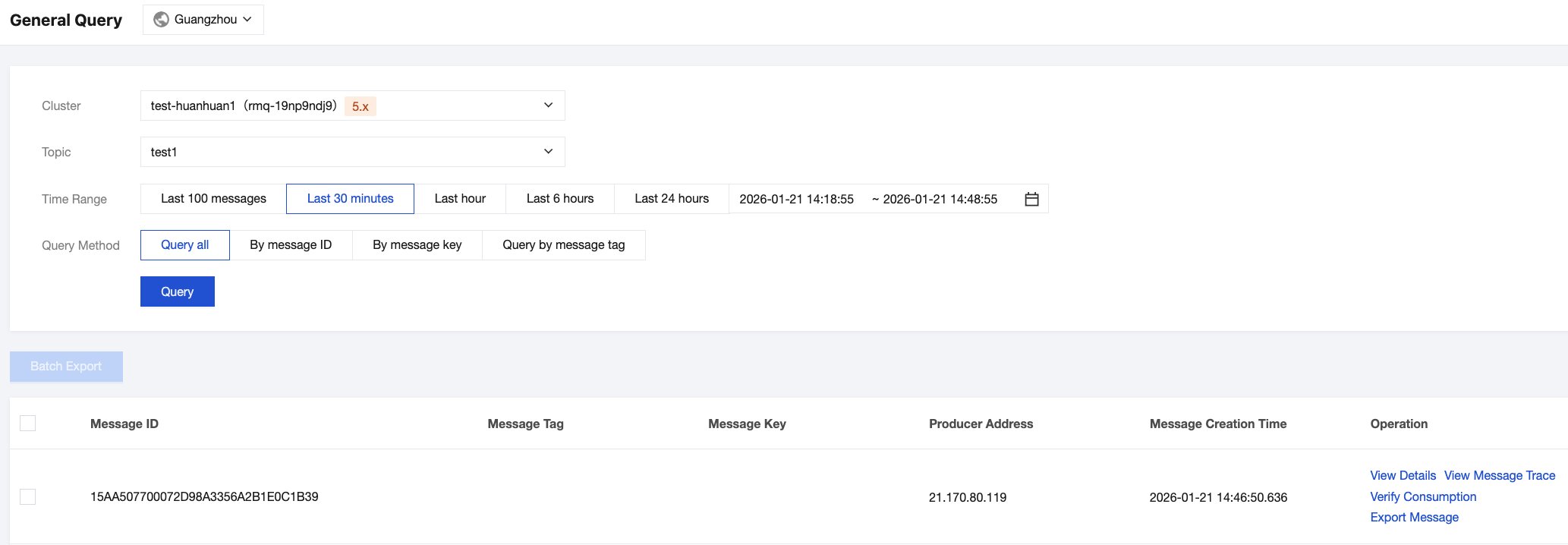
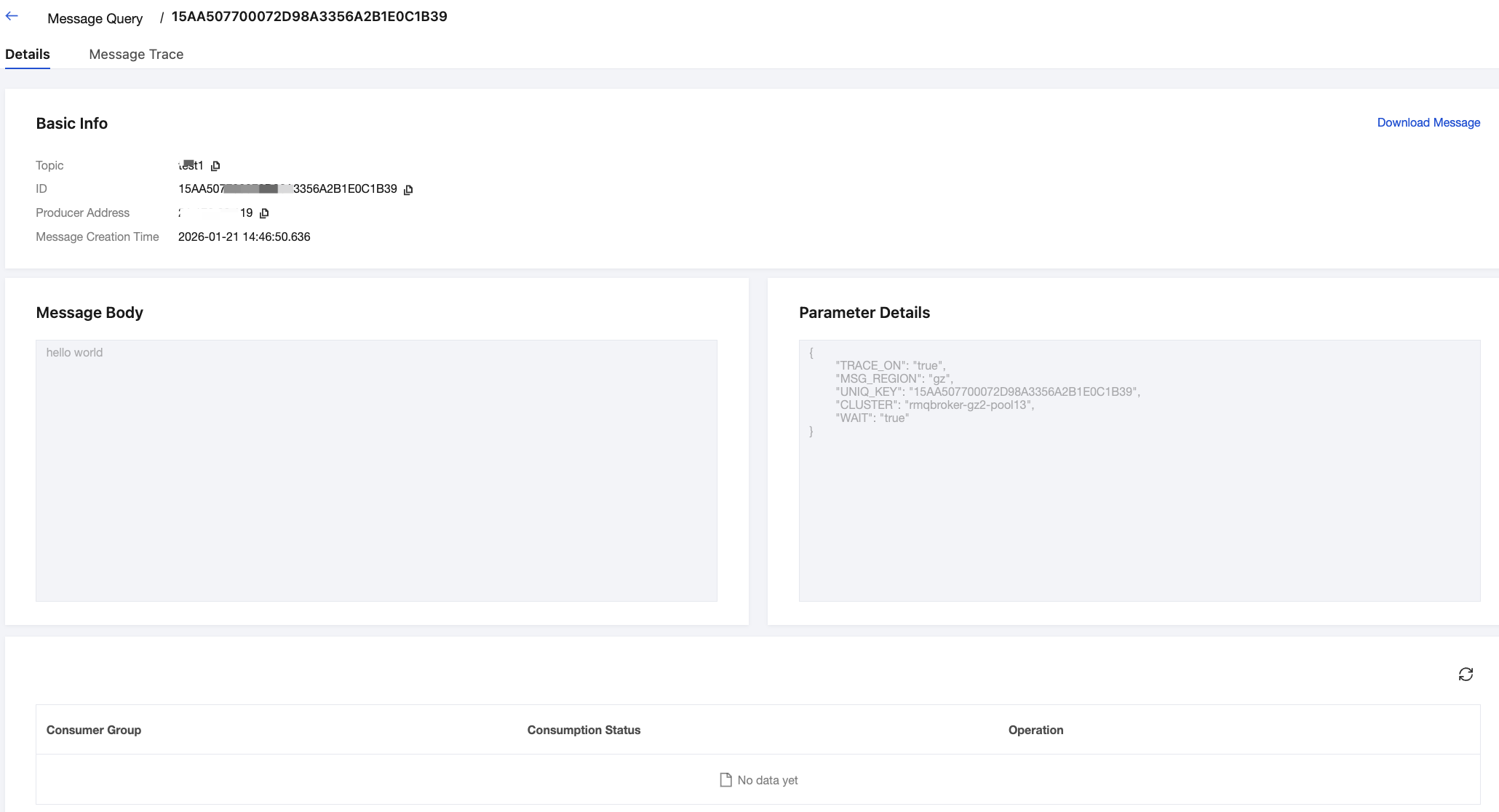
4. Locate the message for which you want to view the content or parameters. Click Details in the operation column to view the message's basic information, content (message body), detailed parameters, and consumption status.
In the Consumption Status module, you can view the group that consumes the message and the consumption status. You can also perform the following operations in the operation column:
Send Again: Resend the message to the specified client. If the message has been consumed successfully, resending it may cause duplicate consumption.
Exception Diagnosis: If consumption is abnormal, you can view the exception diagnosis information.
5. Click View Message Trace in the operation column, or click Message Trace on the Tab bar in the details page to view the message tracing for that message. For detailed descriptions, see Message Tracing Query Result Description.
Consumption Verification
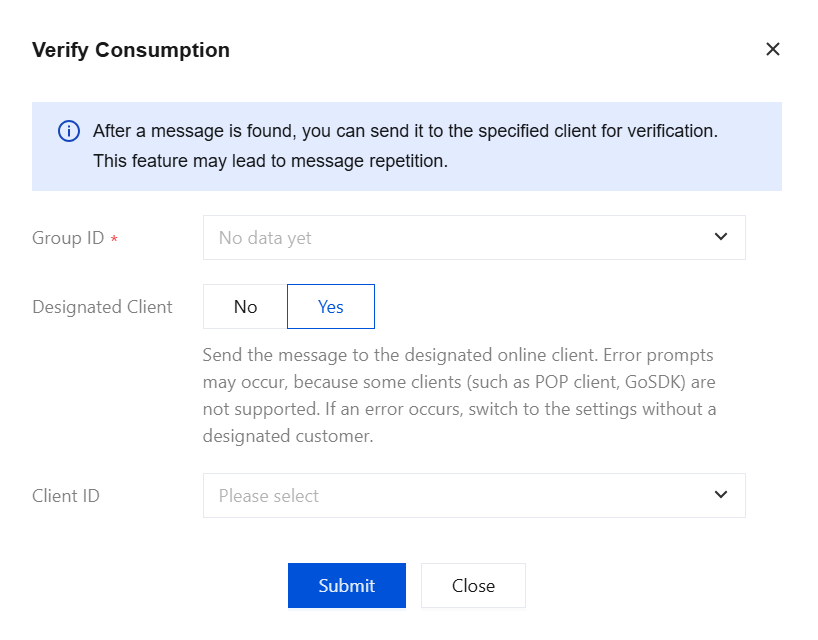
After querying a specific message, you can click Verify Consumption in the operation column to send that message to a specified client for verification. This feature may cause message duplication.
Note:
The consumption verification feature is only used to verify whether the consumption logic of the client functions properly. It does not affect normal message receiving. Information, including the message consumption status, will not be changed after consumption verification.
The consumption verification feature currently does not support sending messages to clients such as Python and C++. If sending a verification message fails, you can switch the "Specified Client" option to "No". The message will then be randomly sent to a client under the Group.
After querying a specific message, you can click Export Message in the operation column to export information such as the message body, message Tag, message Key, message production time, and consumption attributes of that message.
You can also select the messages to be exported and then click Batch Export, in the upper-left corner to export the selected messages in batches.
Downloading Messages
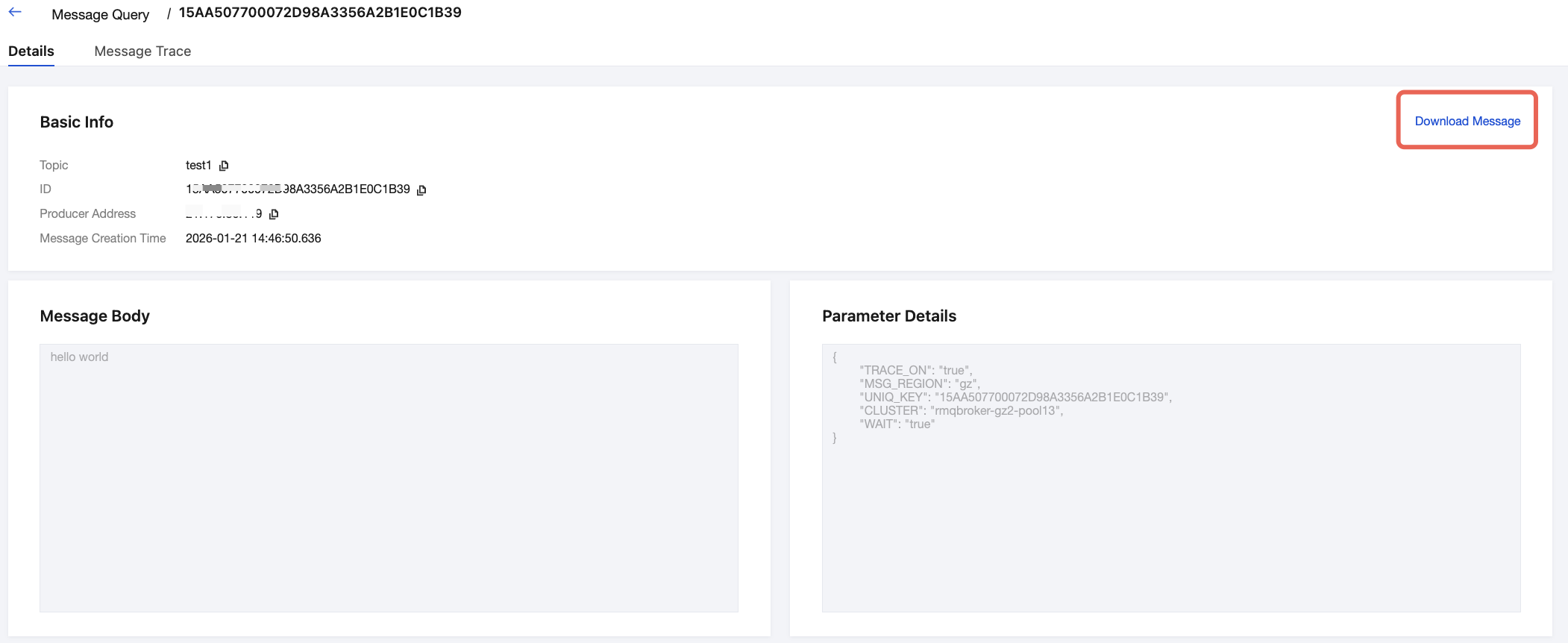
On the message details page, you can click the Download Message button in the upper-right corner to save the message body and message headers of a single message to a local directory.
Bantuan dan Dukungan
Apakah halaman ini membantu?
Anda juga dapat Menghubungi Penjualan atau Mengirimkan Tiket untuk meminta bantuan.
masukan