Risk
Unduh
Mode fokus
Ukuran font
The database risk monitoring module focuses on behaviors that have not triggered risks but pose long-term security hazards. It covers core scenarios such as permission compliance remediation, attack surface hardening, and account security optimization, reducing the probability of security incidents.
Policy Name | Policy Content | Remediation Suggestion |
Excessive operation permission scope | Calculate the permission utilization based on the permissions used by the account over the past 7 days (used permissions / granted permissions), and trigger a risk when it is less than the configured ratio. | |
Exposing public network access entry | A risk is triggered when a database instance enables a public network address. |
Risk List
1. Log in to the TDSQL-C for MySQL console and click Data Security Audit in the left sidebar.
2. On the DSAudit page, click the Risky tag.

3. On the Risk page, data security risks that have triggered risk policies are displayed, including Risky Name/Type, Threat Level, Instance ID/Name, Database Account, Detection Time, and Processing Status.
Risk Details
On the Risk tag page, locate the target risk and click its name to view the risk details.
Risk Handling
Marking as Ignored
Mark the status of risk items with overly broad operation permissions to eliminate interference in risk statistics.
Note:
If the risk handling status is marked as ignored, the risk will not be included in risk statistics.
1. On the Risk tag page, you can handle target risks individually or in batches:
Individual handling: Click Mark as Ignored in the operation column of the risk named Excessive Operational Permissions Scope.
Batch handling: On the Risk page, select the risk named Excessive Operational Permissions Scope and click Mark as Ignored above the list.
2. In the confirmation dialog, click Confirm to mark the risk as ignored.
Adding Allowlists
1. On the Risk tag page, click Add to Allowlist in the operation column of the risk named Excessive Operational Permissions Scope.

2. In the Add to Allowlist window, review the allowlist policy content. After confirming that it is correct, click Confirm to add the policy information triggered by the risk to the allowlist.
Note:
After the risk allowlist policy rule takes effect, the behavior no longer triggers risks.
Marking as Resolved
Update the status of risks for which emergency response has been completed to close the handling loop.
1. On the Risk tag page, select one or more target risks and click Tag Disposal.
2. In the confirmation window, review the risk information. After confirming that it is correct, click OK to mark the risk as handled.
Note:
After the risk handling status is marked as handled, the risk will not be included in risk statistics.
One-Click Handling
For different risk items, you can perform risk handling operations through one-click handling.
On the Risk tag page, select the target risk and click One-click Handle in the operation column. You can handle risks using the preset handling operations provided by the system.
Risk Policy Configuration
1. Log in to the TDSQL-C for MySQL console and click Data Security Audit in the left sidebar.
2. On the database risk monitoring page, click Policy Management in the upper-right corner.

3. In the policy management window, click the Risk Policy tag.
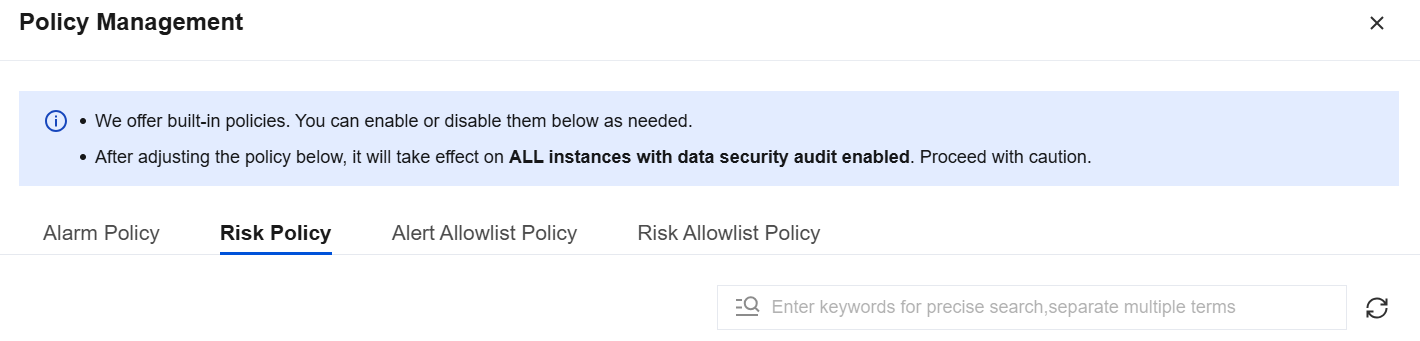
4. On the Risk Policy tag page, all built-in preset risk policies are displayed. You can enable/disable risk policies, adjust threat levels, and modify policy content on this tag page.
Enabling/Disabling Risk Policies
On the Risk Policy tag page, select the target risk policy and click the toggle in the policy switch column to enable or disable the risk policy.

Editing Risk Policies
1. On the Risk Policy tag page, select the target risk policy and click Edit in the operation column.
2. In the Edit Policy window, you can modify the threat level and policy content, excluding service accounts.
Bantuan dan Dukungan
Apakah halaman ini membantu?
Anda juga dapat Menghubungi Penjualan atau Mengirimkan Tiket untuk meminta bantuan.
masukan