Version Upgrade
Download
Mode fokus
Ukuran font
Elastic MapReduce provides a version upgrade feature for some open-source engines. You can upgrade the components via the console without performing migration, to be able use the features from higher versions of the community.
Currently, the version upgrade is supported for StarRocks.
Note:
Currently, the version upgrade feature is in the gray release phase, and it is not visible by default in the console. If you need to use this feature, submit a ticket to contact us so we can assist you in evaluating its suitability for your use.
Feature Usage Guidelines
To minimize any unexpected impact on your services, read the following guidelines carefully before using this feature:
It is recommended to perform upgrades during off-peak hours. The version upgrade function uses a rolling upgrade method by default, which sequentially upgrades nodes based on service roles. However, this process may still cause import or query tasks on the upgrading nodes to fail.
During the upgrade process, operations such as scaling and node configuration changes cannot be performed. If your cluster is configured with Auto Scaling, pause the scaling rules or schedule the upgrade outside of automatic scaling periods.
If your cluster has undergone manual backend changes to the components to be upgraded (such as through cluster scripts for upgrading or package replacement), confirm the compatibility of this feature with Tencent Cloud's technical staff. If there are scaling bootstrap scripts from previous backend changes, ensure to update these scripts after a successful upgrade to prevent service anomalies due to version inconsistencies after scaling.
If you need to perform multiple version upgrades within a short time frame, make sure to thoroughly monitor and validate the stability and consistency of the services and tasks after each upgrade before proceeding to the next one.
Version upgrades come with multi-level rollback functionality to safeguard against issues. If your service experiences abnormalities after an upgrade, promptly submit a ticket to contact us. We will assist you to try to resolve service anomalies in the new version first and evaluate the necessity of activating rollback features. After a successful upgrade and stable operation, do not execute rollbacks to avoid metadata and data inconsistencies between high and low versions that can arise after writing to the higher version.
Note:
StarRocks service encompasses both metadata and storage, and the product offers a three-level rollback feature for software versions, metadata, and data. In the event that the initial rollback does not promptly restore the service, further rollbacks can be performed to continue the recovery process:
You can back up the data during the upgrade (only supported when all internal table storage media are CBS) to restore the data to the pre-upgrade state if neither software version nor metadata rollback can promptly restore the service. To ensure the consistency of metadata and data, when you choose to back up the data during an upgrade, the StarRocks service will undergo a brief maintenance downtime.
If you choose to roll back the metadata and data, all the changed metadata and data related to the upgrade will be lost. Please proceed with caution. If service issues persist after rolling back the software version, contact us first to try to resolve the issues in the current version.
Version Upgrade
1. Log in to the EMR console, and in the cluster list, click on the corresponding cluster ID/name to enter the cluster details page.
2. On the cluster details page, select Cluster Service and click Action > Version Upgrade at the top right corner of the corresponding component card parge.
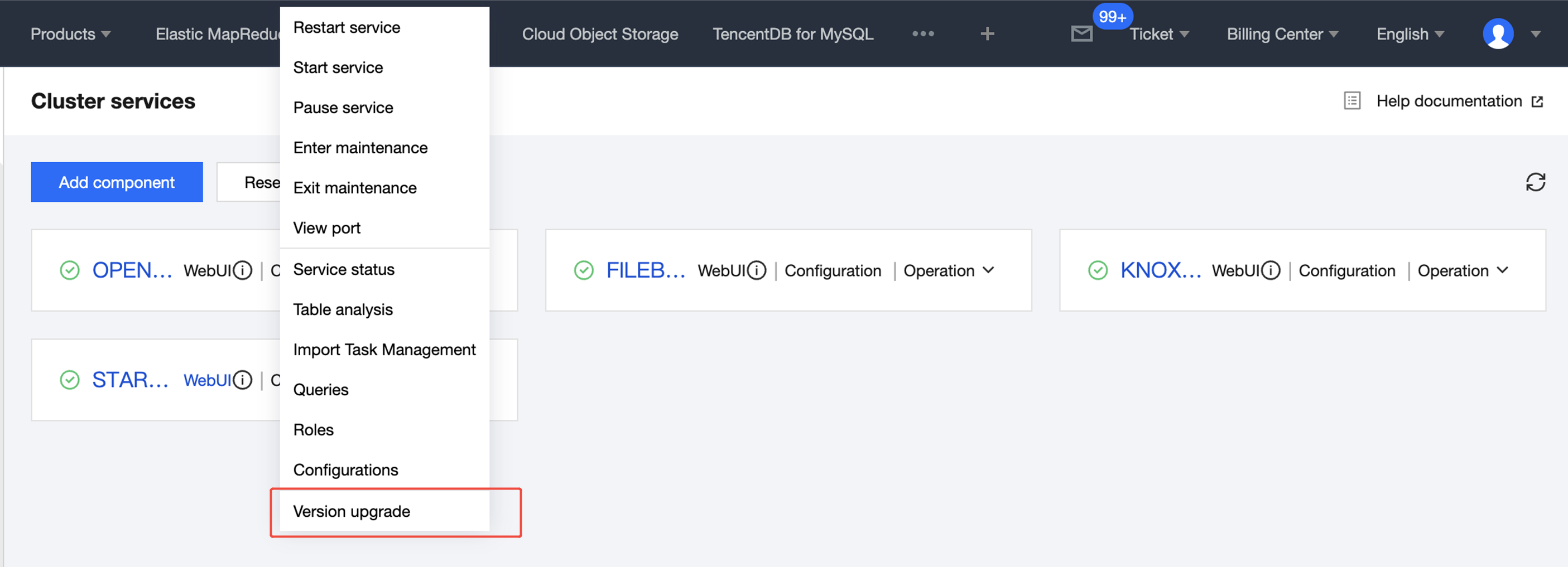
3. EMR will check your upgrade environment. After a successful check, click Continue to enter the Configuration Upgrade page.
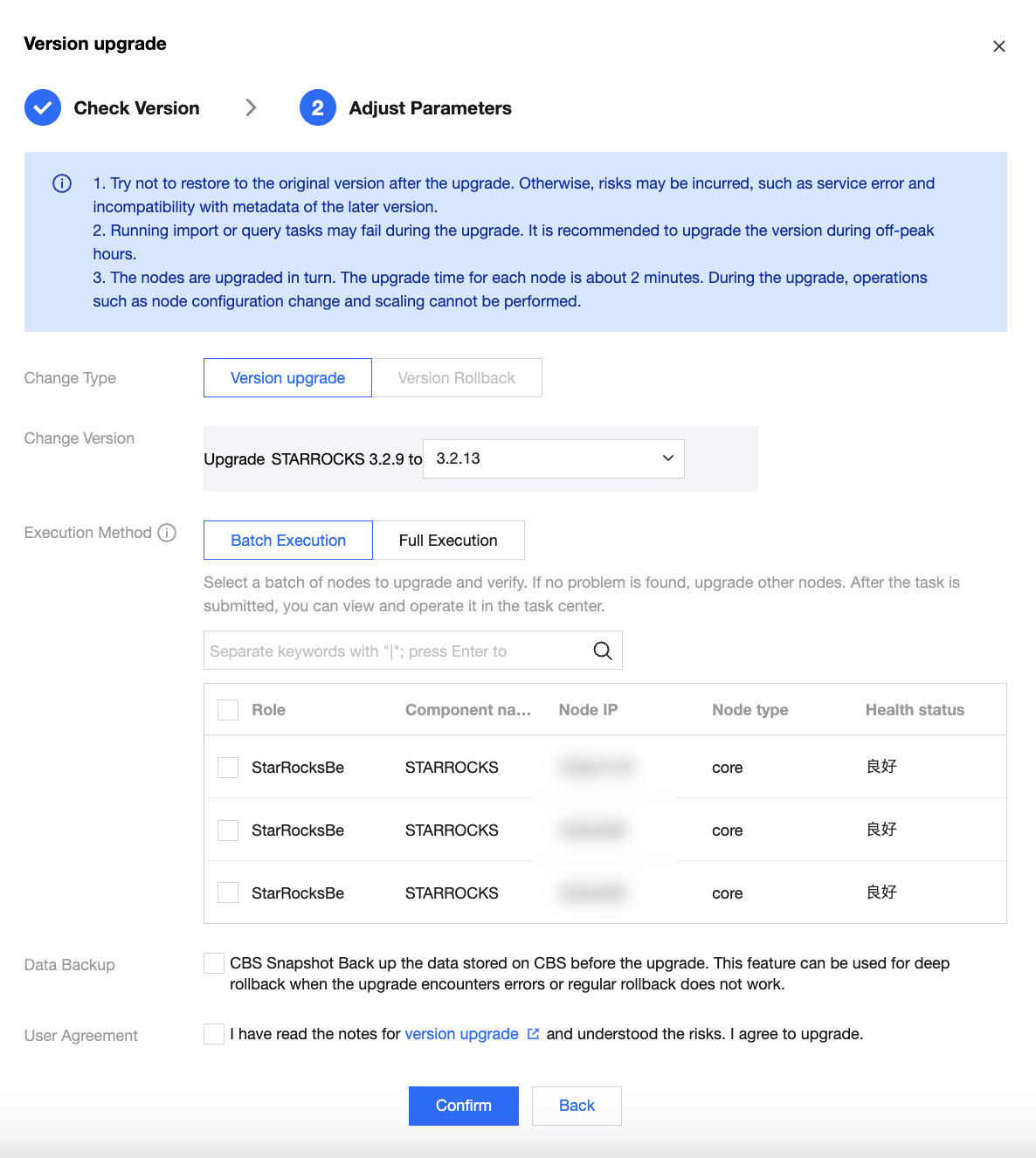
Field Name | Description |
Adjustment Type | The default is Version Upgrade. |
Adjustment Version | Select the target version to upgrade. |
Execution Method | 1. Batch execution: You can choose to upgrade a portion of the nodes first for the service-providing node verification. After successful verification, you can proceed with upgrading the remaining nodes. 2. Full Execution: Upgrade all nodes sequentially without the option to pause. This method is recommended only for new clusters or clusters running non-critical services. Note: After the initial batch of nodes has been successfully upgraded in a batch execution, you shall go to the Task Center to manually operate and either continue the upgrade or cancel it. If you choose to cancel, the software versions on the already upgraded nodes will be rolled back to their pre-upgrade versions. |
Data Backup | Currently, this applies only to the StarRocks component, and it is visible only in scenarios where all service data is stored on CBS. Service data is backed up via CBS snapshots. This backup method can be used for version rollback or metadata rollback when timely recovery of services is not possible. CBS snapshot fees will be incurred, and snapshots are retained by default for 7 days. For billing information, see CBS Pricing Overview. If needed, you can delete snapshots in advance via the CBS console. Note: To ensure the consistency of metadata and data backups, StarRocks will experience a brief downtime during data backup. |
4. Go to the Task Center to check the upgrade progress. If you choose the batch upgrade method, after the first batch of nodes is upgraded, you will need to manually operate to continue the upgrade or cancel it. Once the task is successfully executed, you can view the upgraded component versions through the console.
Version Rollback
Note:
The version rollback feature is not enabled by default. If needed, submit a ticket to contact us. We will assist you in evaluating and activating it.
1. Log in to the EMR console, and in the cluster list, click on the corresponding cluster ID/name to enter the cluster details page.
2. On the cluster details page, select Cluster Service and click Action > Version Upgrade at the top right corner of the corresponding component card page.
3. EMR will check your upgrade environment. After a successful check, click Continue to enter the Configuration Upgrade page, and select Version Rollback in Adjustment Type.
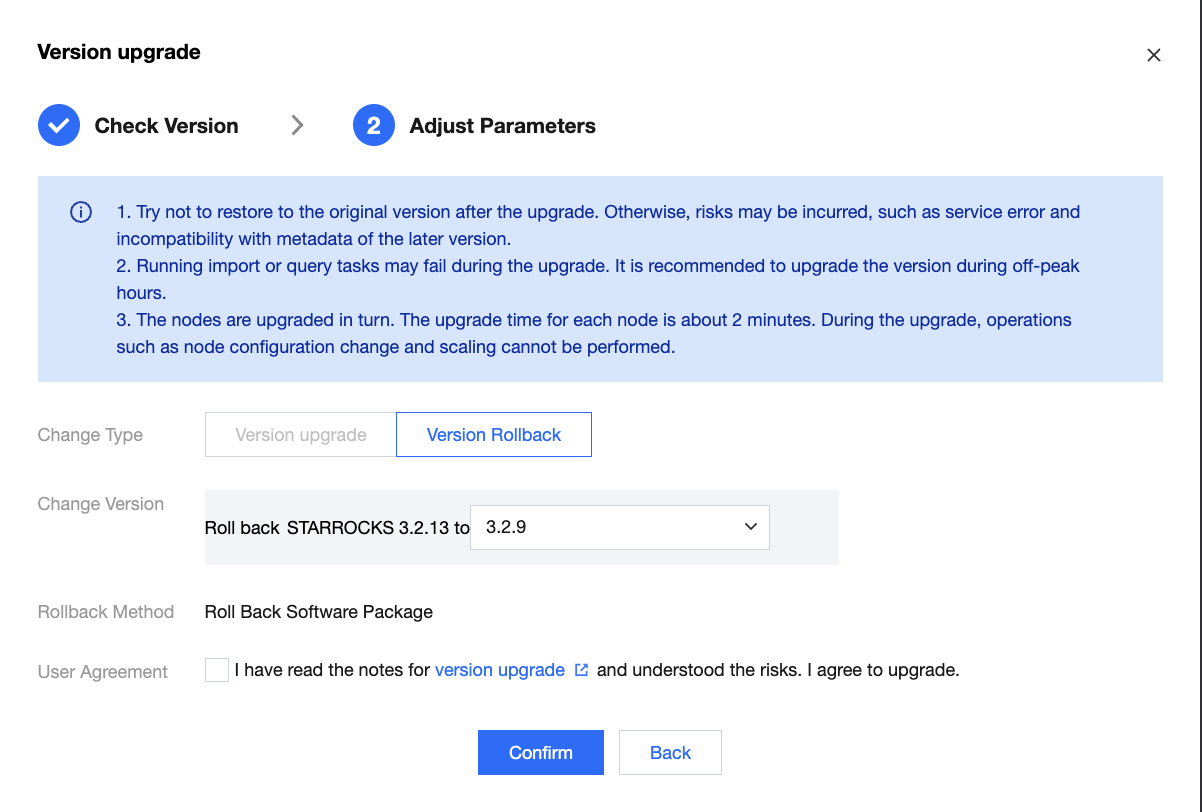
Field Name | Description |
Adjustment Type | Select Version Rollback here. |
Adjustment Version | Select the target version to roll back. |
Rollback Method | 1. Roll back package: Roll back the software version of the service to the target version. 2. Roll back metadata Meta directory: If the service has not been recovered after the software rollback, you can continue to roll back the metadata based on the current version, reverting the service metadata to its pre-upgrade state. 3. Roll back CBS snapshot: If data backup was selected before the upgrade and the service has not been recovered after the software and metadata rollback, you can continue to roll back the data based on the current version, reverting the service data to its pre-upgrade state. Note: The rollback of "Metadata Meta Directory" and "CBS Snapshots" is only available in the upgrade scenario for the StarRocks component. Rolling back these elements will revert the service's metadata and data to their pre-upgrade states, resulting in the loss of any metadata and data changes made after the upgrade. Please proceed with caution. |
4. Go to the Task Center to check the rollback progress. After the task is successfully executed, you can view the rolled back component version via the console.
Bantuan dan Dukungan
Apakah halaman ini membantu?
Anda juga dapat Menghubungi Penjualan atau Mengirimkan Tiket untuk meminta bantuan.
masukan