This document will introduce TUIRoomKit conference control in detail, helping you to better master the operation of TUIRoomKit functions before and during the meeting. Through this document, you can make full use of TUIRoomKit’s features to achieve high-quality audio and video conferences.
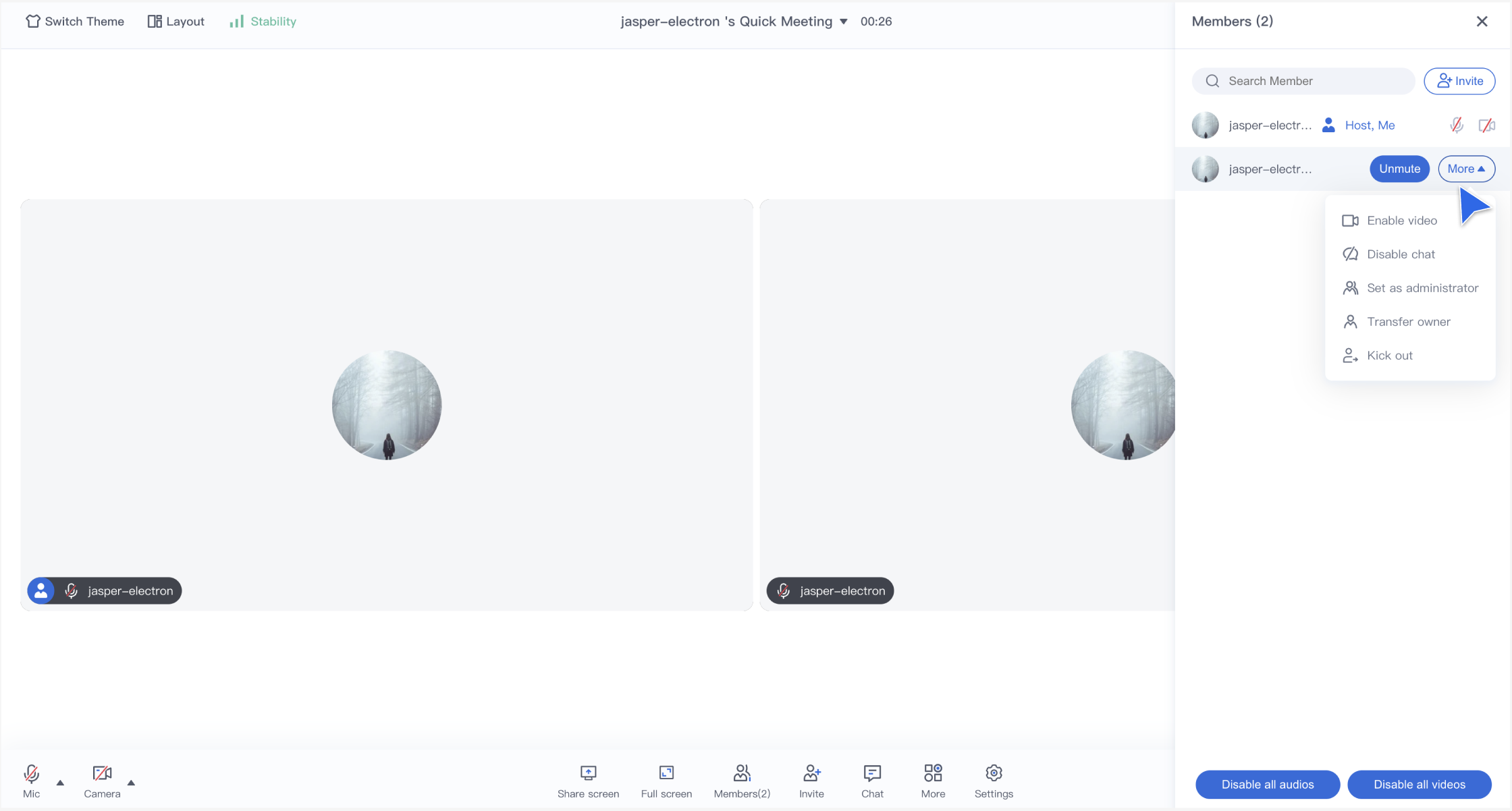
After a user creates and enters a room on Weband Electron, the owner or administrator can select any ordinary member in the member list popped up on the right side by clicking the Members button on the toolbar at the bottom to perform the meeting control operations such as Disable chat, Set as administrator, etc., and can also perform the meeting control operations such as Disable all audios in the room.
Pre-meeting control
When creating and joining a room, you need to create and enter the room with pre-set parameters related to the meeting to ensure that the meeting runs smoothly through the relevant features of TUIRoomKit pre-meeting control.
import { conference } from '@tencentcloud/roomkit-web-vue3';
conference.start('123456', {
roomName: 'TestRoom',
isSeatEnabled: false,
isOpenCamera: false,
isOpenMicrophone: false,
});
|
isSeatEnable | bool | Whether to open the room for on-stage speaking (default false) |
isOpenCamera | bool | Whether to enable the camera (default true) |
isOpenMicrophone | bool | Whether to turn on the microphone (default true) |
Note:
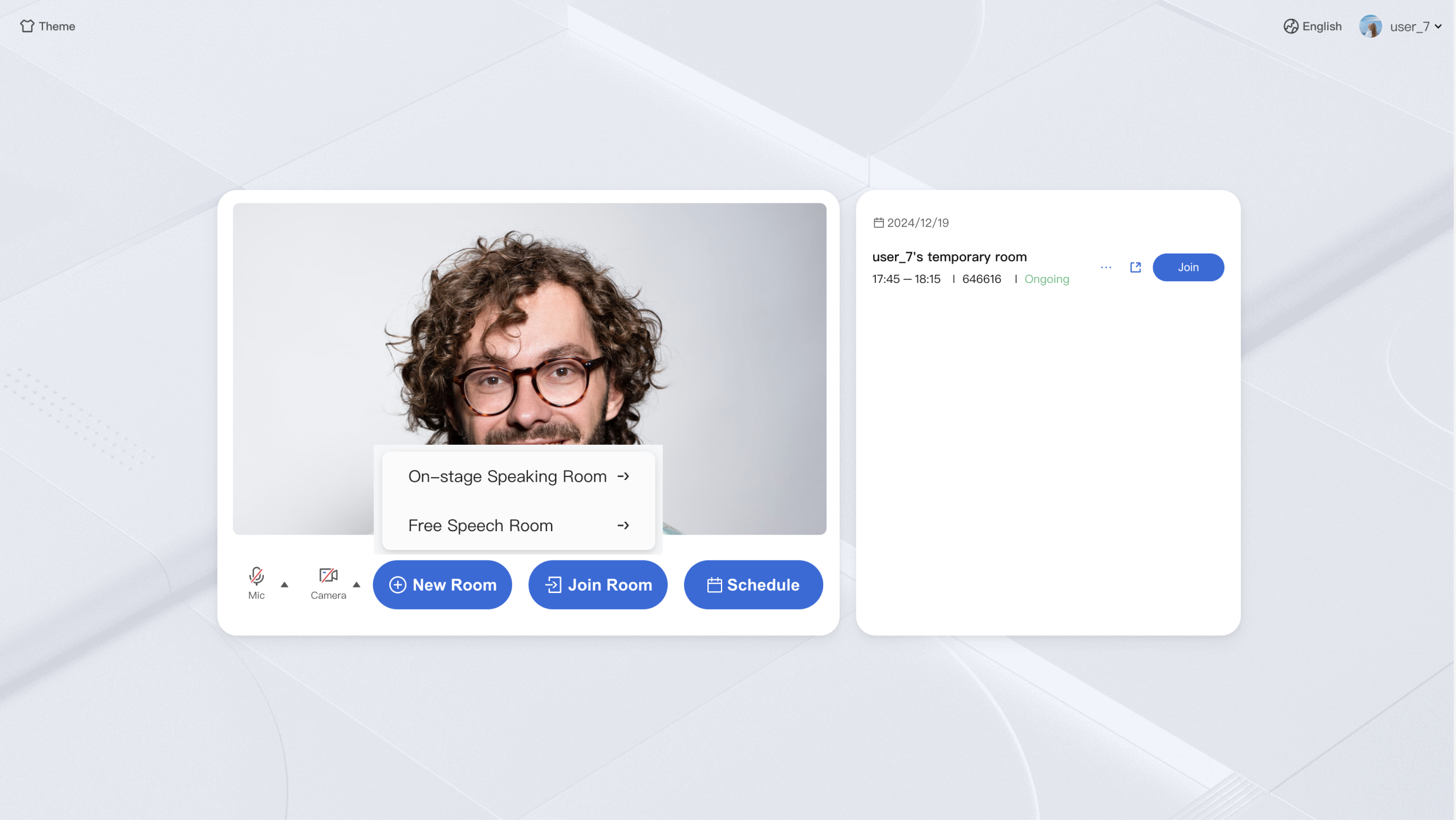
The above is an introduction to creating rooms and adding room parameters in the above code. For example, depending on the value of the parameter isSeatEnable, you can create a free speech room and a stage speech room, in which the two types of rooms will have different features of the control and operable functions:
Free Speech Room: Ordinary users can speak freely and switch on and off the microphone and camera.
On-stage Speaking Room: Only on-stage users are free to switch the microphone and camera on or off, and ordinary audience members can apply to become on-stage users by raising their hands.
in-session control
Management of the Free Speech Room
When the room type is Free Speech Room, the room owner or administrator can manage all members of the club in Members > In Member List.
The host or administrator can select any member for individual control: unmute/mute them, as well as click more to request video on/off, ban/unban, set as administrator, forward to the host, kick out of the room, and more.
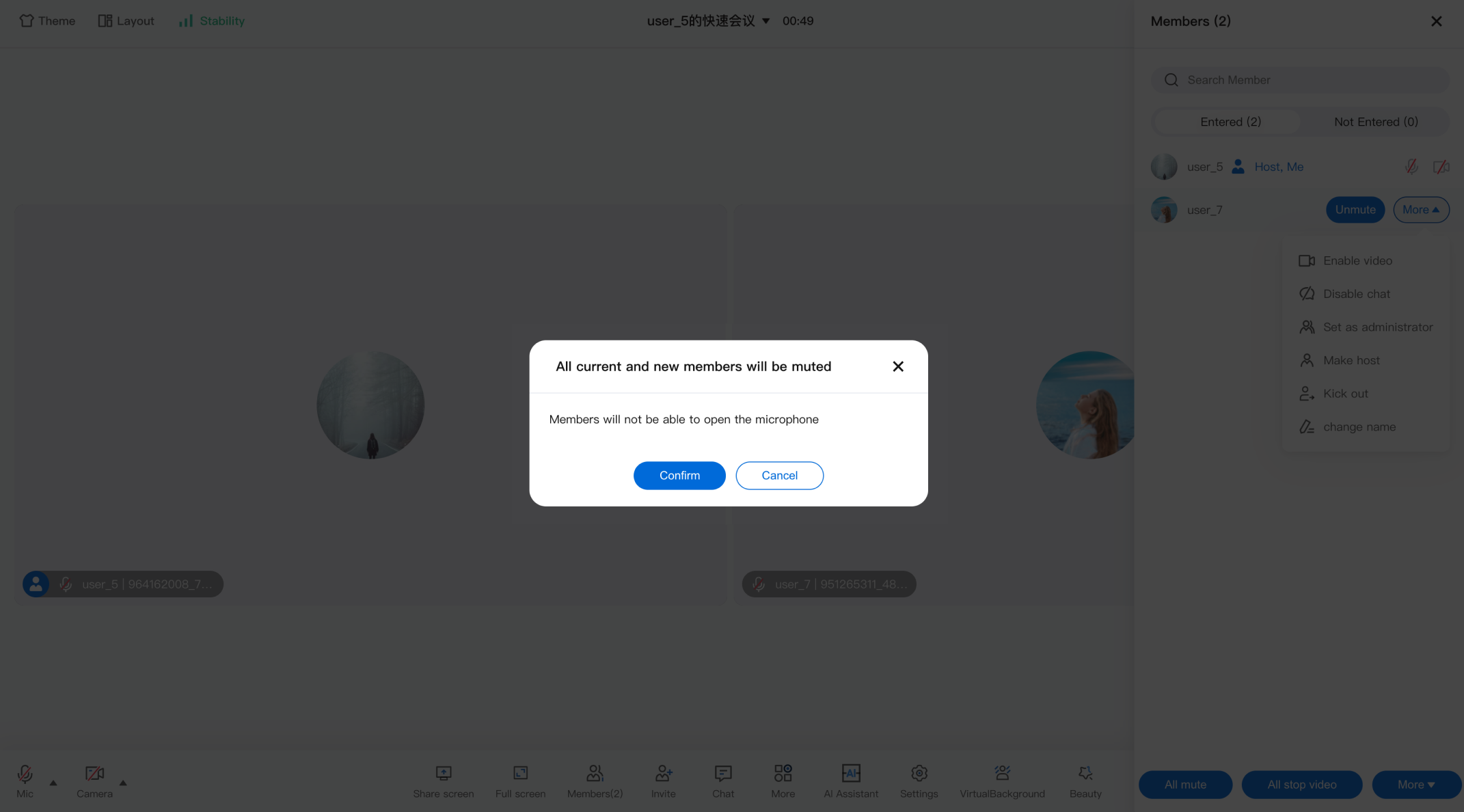
The host or administrator can control all members of the room: mute/unmute all or ban/unban all.
Management podium room
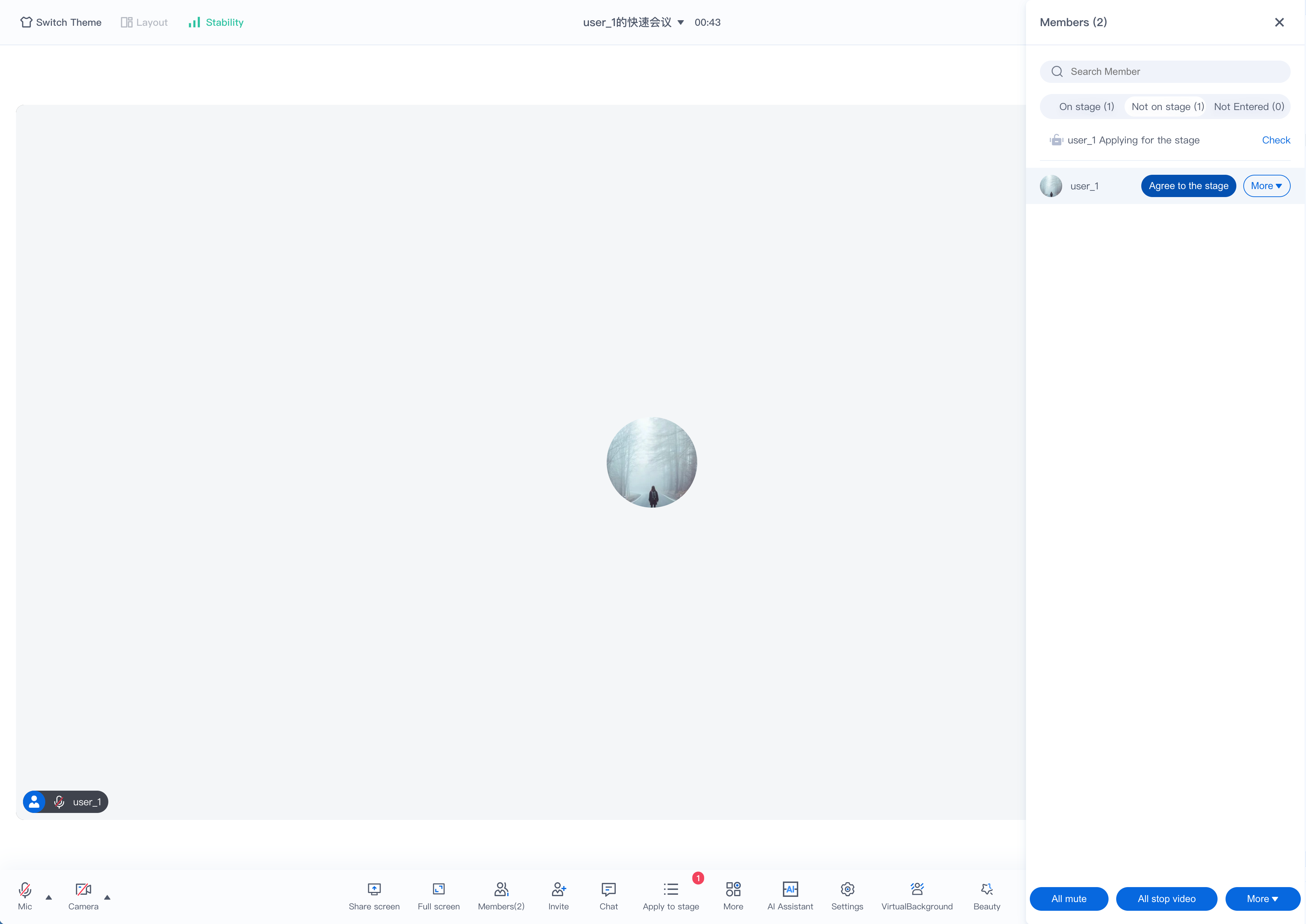
When the room type is Speaker Room, the room owner or administrator can manage the on-stage status of the selected members in the On-stage request, in addition to managing the members of the meeting in the Members > Members list.
Moderators or administrators can select any ordinary member for individual control: in addition to unmute/mute, turn on video/turn off video, ban/unban, set as administrator, transfer to moderator, and kick out of the room contained in the free speech room, the invitation to go on stage, agree to go on stage/refuse to go on stage, and get off the stage, etc., which are unique to the room of the speaker on stage, are also available.
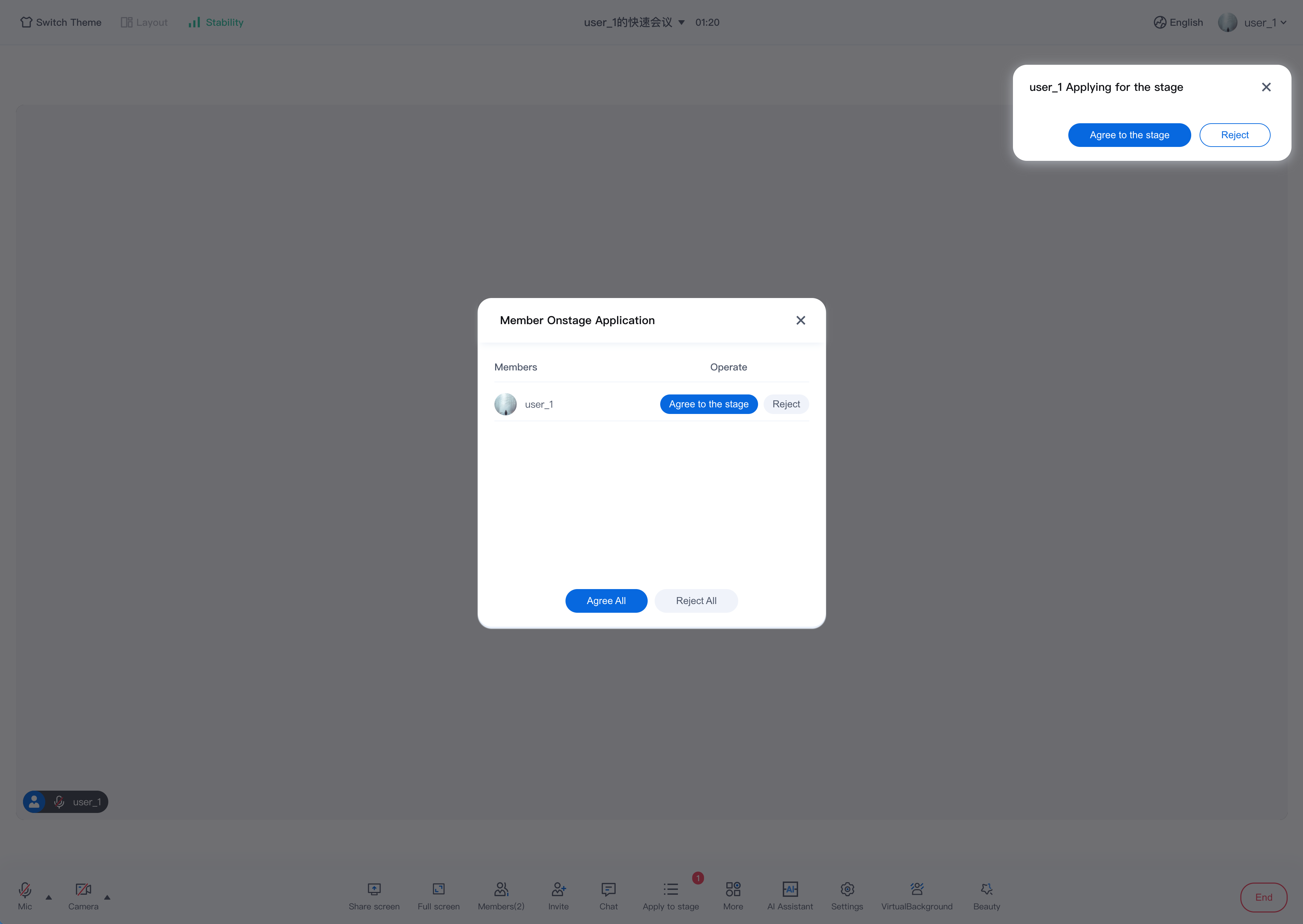
The host or administrator can manage the status of the members in the room who have Apply to stage: they can agree or reject the selected members in the on-stage application, or Agree all or Reject all the members who have applied for on-stage application.