tencent cloud

Tencent Real-Time Communication

Release Notes and Announcements
Release Notes
Recent Product Announcement
TRTC Live (TUILiveKit) Product Launch Announcement
TRTC Conference Official Editions Launched
The commercial version of Conference is coming soon
Terms and Conditions Applicable to $9.9 Starter Package
Rules for the "First Subscription $100 Discount" Promotion
Announcement on the Start of Beta Testing for Multi-person Audio and Video Conference
TRTC Call Official Editions Launched
License Required for Video Playback in New Version of LiteAV SDK
TRTC to Offer Monthly Packages
Product Introduction
Overview
Concepts
Features
Strengths
Use Cases
Performance Statistics
Tencent RTC Quickplay: Experience Ultimate Real-Time Audio and Video Interaction!
Purchase Guide
Billing Overview
Free Minutes
Monthly subscription
Pay-as-you-go
TRTC Overdue and Suspension Policy
FAQs
Refund Instructions
User Tutorial
Free Demo
Call
Overview
Activate the Service
Run Demo
Integration
Offline Call Push
Conversational Chat
On-Cloud Recording
AI Noise Reduction
UI Customization
Calls integration to Chat
Additional Features
No UI Integration
Server APIs
Client APIs
Solution
ErrorCode
Release Notes
FAQs
Conference
Overview(TUIRoomKit)
Activate the Service (TUIRoomKit)
Run Demo(TUIRoomKit)
Integration(TUIRoomKit)
Screen Sharing (TUIRoomKit)
Schedule a meeting (TUIRoomKit)
In-meeting Call (TUIRoomKit)
UI Customization(TUIRoomKit)
Virtual Background (TUIRoomKit)
Conference Control (TUIRoomKit)
Cloud Recording (TUIRoomKit)
AI Noise Reduction (TUIRoomKit)
In-Conference Chat (TUIRoomKit)
Robot Streaming (TUIRoomKit)
Enhanced Features (TUIRoomKit)
Client APIs (TUIRoomKit)
Server APIs (TUIRoomKit)
FAQs (TUIRoomKit)
Error Code (TUIRoomKit)
SDK Update Log (TUIRoomKit)
Live
Billing of Video Live Component
Overview
Activating the Service (TUILiveKit)
Run Demo
No UI Integration
UI Customization
Live Broadcast Monitoring
Video Live Streaming
Voice Chat Room
Advanced Features
Client APIs
Server APIs
Error Codes
Release Notes
FAQs
RTC Engine
Activate Service
SDK Download
API Examples
Usage Guidelines
API Reference Manual
Advanced Features
AI Integration
Overview
Configure MCP Server
Install Skills
Integration Guide
FAQ
RTC RESTFUL API
History
Introduction
API Category
Room Management APIs
Stream mixing and relay APIs
On-cloud recording APIs
Data Monitoring APIs
Pull stream Relay Related interface
Web Record APIs
AI Service APIs
Cloud Slicing APIs
Cloud Moderation APIs
Making API Requests
Call Quality Monitoring APIs
Usage Statistics APIs
Data Types
Appendix
Error Codes
Console Guide
Application Management
Package Management
Usage Statistics
Monitoring Dashboard
Development Assistance
Solution
Real-Time Chorus
FAQs
Migration Guide
Billing
Features
UserSig
Firewall Restrictions
How to Downsize Installation Package
Android and iOS
Web
Flutter
Electron
TRTCCalling for Web
Audio and Video Quality
Others
Legacy Documentation
RTC RoomEngine SDK(Old)
Integrating TUIRoom (Web)
Integrating TUIRoom (Android)
Integrating TUIRoom (iOS)
Integrating TUIRoom (Flutter)
Integrating TUIRoom (Electron)
TUIRoom APIs
On-Cloud Recording and Playback (Old)
RTC Analytics Monthly Packages (Previous Version)
Protocols and Policies
Compliance
Security White Paper
Notes on Information Security
Service Level Agreement
Apple Privacy Policy: PrivacyInfo.xcprivacy
TRTC Policy
Privacy Policy
Data Processing And Security Agreement
Glossary

iOS

PDF
Focus Mode
Font Size
Last updated: 2025-11-28 09:13:08
This document describes how to rapidly integrate the TUICallKit component. You can complete the following key steps within 10 minutes and obtain a complete audio and video call interface.


Preparations

Environment Requirements

iOS system version requirements:iOS 13.0 and above.
Development tool version requirements:Xcode 13.0 and above,Xcode 15 and above may encounter Sandbox errors. Please refer to [Sandbox Issue Solutions] for fixes.
Dependency management tool requirements:CocoaPods environment setup
Device requirements: Apple mobile devices such as iPhone and iPad with iOS 13.0 or later (ensure the app can be properly installed and run).

Service Activation

Please refer to the Service Activation documentation to obtain your SDKAppID and SDKSecretKey. These credentials will be required in the subsequent Login steps.

Implementation

Step 1.Importing Components

1. Add Pod dependency:
If the project has an existing Podfile file.
Add the pod 'TUICallKit_Swift' dependency in your project's Podfile file. For example:
target 'YourProjectTarget' do
pod 'TUICallKit_Swift'

end
If the project has no Podfile file.
Enter your .xcodeproj directory in the terminal, then execute the pod init command to create a Podfile file. After creation, add the pod 'TUICallKit_Swift' dependency in your Podfile file. For example:
// 1
cd /Users/yourusername/Projects/YourProject

// 2
pod init

// 3 In the generated Podfile file
target 'YourProjectTarget' do
pod 'TUICallKit_Swift'

end
2. Install components:
Enter the directory where the Podfile file is located in the terminal, then run the following command to install components.
pod update

Step 2.Project Configuration

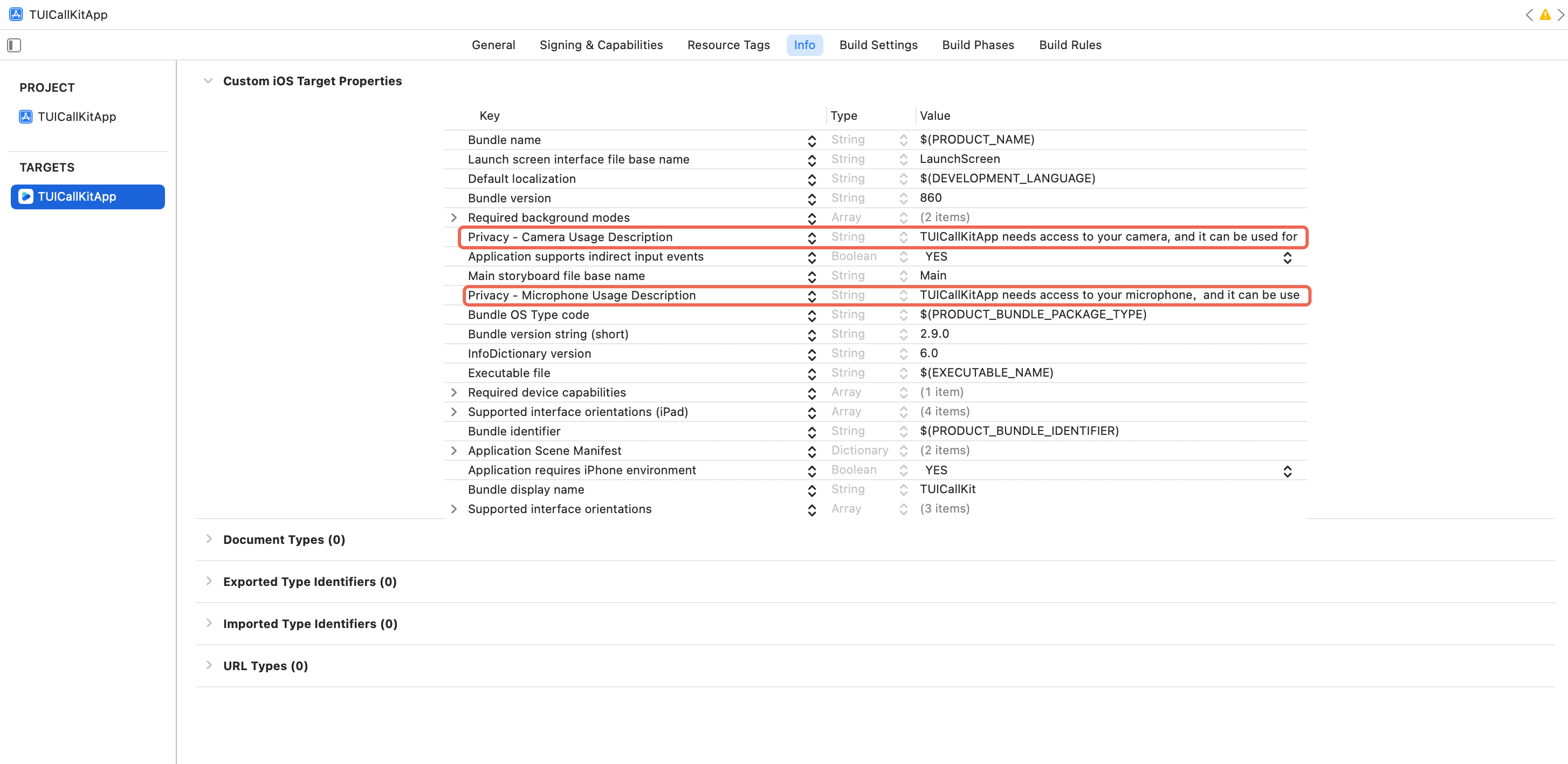
To ensure the audio and video features function correctly, your application needs to request access to the microphone and camera. Please add the following two privacy usage descriptions to your project's Info.plist file,these descriptions will be displayed to the user when the system initially prompts for permission.
<key>NSCameraUsageDescription</key>
<string>TUICallKitApp needs access to your camera, and it can be used for functions such as Video Call, Group Video Call.</string>
<key>NSMicrophoneUsageDescription</key>
<string>TUICallKitApp needs access to your microphone,and it can be used for functions such as Audio Call, Group Audio Call, Video Call, Group Video Call.</string>


Step 3.Login

Add the following code in your project. It enables logging in to the TUI component by calling relevant APIs in TUICore. This step is critical. Only after logging in successfully can you use the features provided by TUICallKit properly.
login
iOS (Swift)
iOS (Objective-C)
import TUICore
import TUICallKit_Swift


func application(_ application: UIApplication, didFinishLaunchingWithOptions launchOptions: [UIApplication.LaunchOptionsKey: Any]?) -> Bool {
let userID = "denny" // Please replace with your UserId
let sdkAppID: Int32 = 0 // Please replace it with the SDKAppID obtained from the console.
let secretKey = "****" // Please replace it with the SecretKey obtained from the console.


let userSig = GenerateTestUserSig.genTestUserSig(userID: userID, sdkAppID: sdkAppID, secretKey: secretKey)


TUILogin.login(sdkAppID, userID: userID, userSig: userSig) {
print("login success")
} fail: { code, message in
print("login failed, code: \\(code), error: \\(message ?? "nil")")
}


return true
}
#import <TUICore/TUILogin.h>
#import <TUICallKit_Swift/TUICallKit_Swift-Swift.h>

- (BOOL)application:(UIApplication *)application didFinishLaunchingWithOptions:(NSDictionary *)launchOptions {
NSString *userID = @"denny"; // Please replace with your UserID
int sdkAppID = 0; // Please replace it with the SDKAppID obtained from the console.
NSString *secretKey = @"****"; // Please replace it with the SecretKey obtained from the console.


NSString *userSig = [GenerateTestUserSig genTestUserSigWithUserID:userID sdkAppID:sdkAppID secretKey:secretKey];


[TUILogin login:sdkAppID
userID:userID
userSig:userSig
succ:^{
NSLog(@"login success");
} fail:^(int code, NSString * _Nullable msg) {
NSLog(@"login failed, code: %d, error: %@", code, msg);
}];
return YES;
}
Parameter
Type
Description
userId
String
only allow a combination of uppercase and lowercase letters (a-z A-Z), numbers (0-9), underline and hyphen
sdkAppId
int
The unique ID assigned to your application when you Tencent Real-Time Communication (TRTC) Console.
secretKey
String
The SDKSecretKey of the audio and video application created in the Tencent Real-Time Communication (TRTC) Console.
userSig
String
A security signature used for user login authentication, confirming user authenticity and preventing malicious attacks from stealing your cloud service usage rights.
Note:
Development environment: If you are in the local development and debugging stage, you can adopt the local GenerateTestUserSig.genTestSig function to generate userSig. In this method, the secretKey is very easy to decompile and reverse. Once your key is leaked, attackers can steal your Tencent Cloud traffic.
Production environment: If your project is ready to go live, implement server-side generation of UserSig via the server.

Step 4.Set Nickname and Avatar [Optional]

After a successful login, you can call the setSelfInfo function to set your nickname and avatar. The set nickname and avatar will be displayed on the caller/callee interface.
setSelfInfo
iOS (Swift)
iOS (Objective-C)
import TUICallKit_Swift

TUICallKit.createInstance().setSelfInfo(nickname: "jack", avatar: "https:/****/user_avatar.png") {
} fail: { code, message in
}
#import <TUICore/TUILogin.h>
#import <TUICallKit_Swift/TUICallKit_Swift-Swift.h>

NSString *nickname = @"jack";
NSString *avatar = @"https:/****/user_avatar.png";
[[TUICallKit createInstance] setSelfInfo:nickname avatar:avatar callback:nil];
Parameter
Type
Description
nickname
String
Target user's nickname
avatar
String
Target user's avatar

Step 5.Initiating a Call

The caller initiates a call by invoking the calls function and specifying the media type (voice or video) and the callee's User ID list (userIdList). The calls interface supports both one-to-one and group calls. A one-to-one call is initiated when the userIDList contains only a single User ID; a group call is initiated when it contains multiple User IDs.
Note: The calls interface cannot be written in the viewDidLoad method; it should be called in the button's click event or other user interaction response methods.
calls
iOS (Swift)
iOS (Objective-C)
import TUICallKit_Swift

// Trigger single-person voice call
TUICallKit.createInstance().calls(userIdList: ["mike"], callMediaType: .audio, params: nil) {
} fail: { code, message in
}
#import <TUICallKit_Swift/TUICallKit_Swift-Swift.h>
#import <RTCRoomEngine/TUICallEngine.h>

[[TUICallKit createInstance] calls:@[@"mike"] callMediaType:TUICallMediaTypeAudio params:NULL succ:^{
} fail:^(int code, NSString * _Nullable errMsg) {
}];
Parameter
Type
Description
userIdList
[String]
Target user ID list
mediaType
Media type of the call, such as video call, voice call
params
Call extension parameters, such as room number, call invitation timeout, offline push custom content

Step 6.Answering a Call

Once the callee successfully logs in, the caller can initiate a call, and the callee will receive the call invitation, accompanied by a ringtone and vibration.

More Features

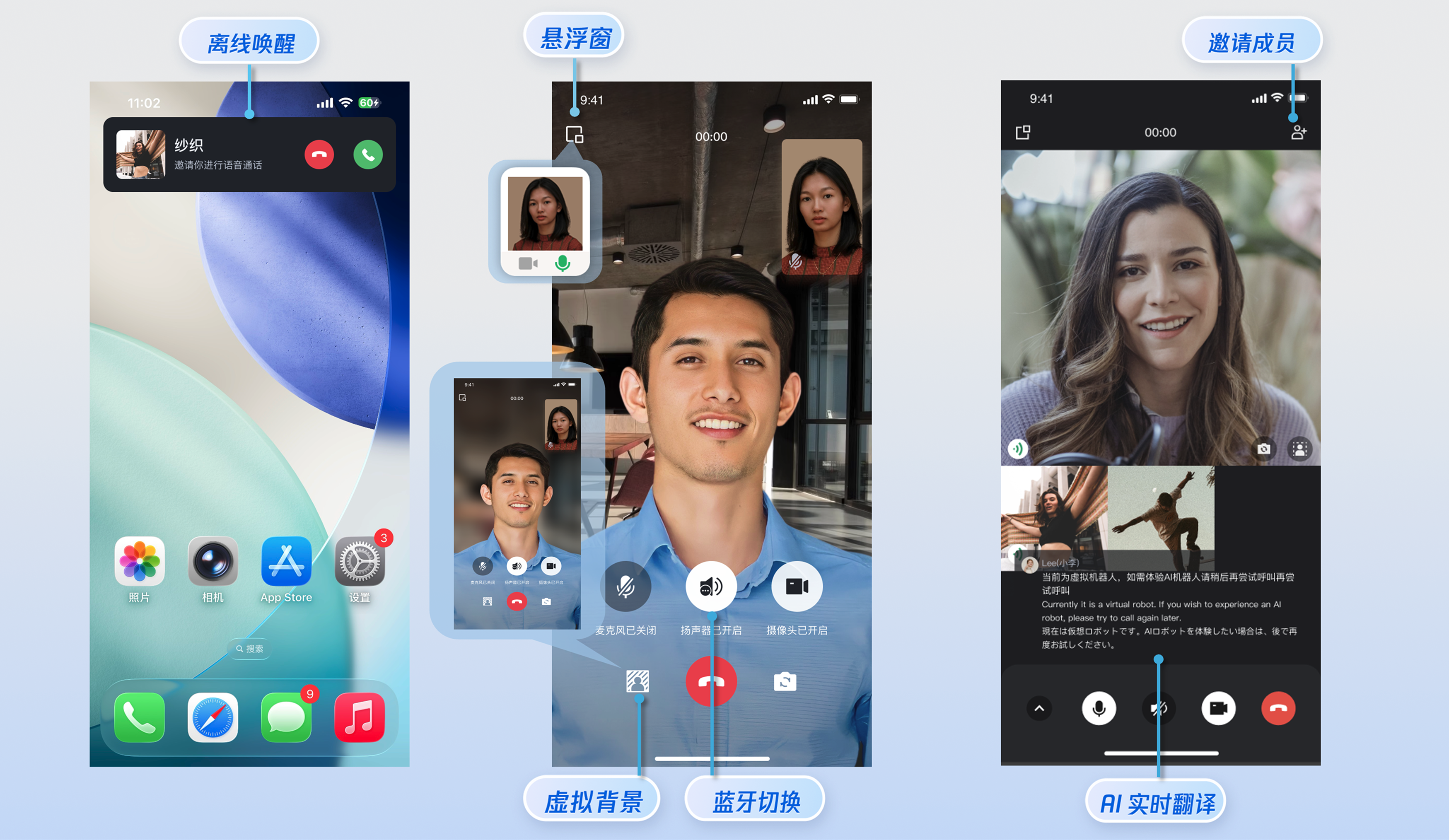
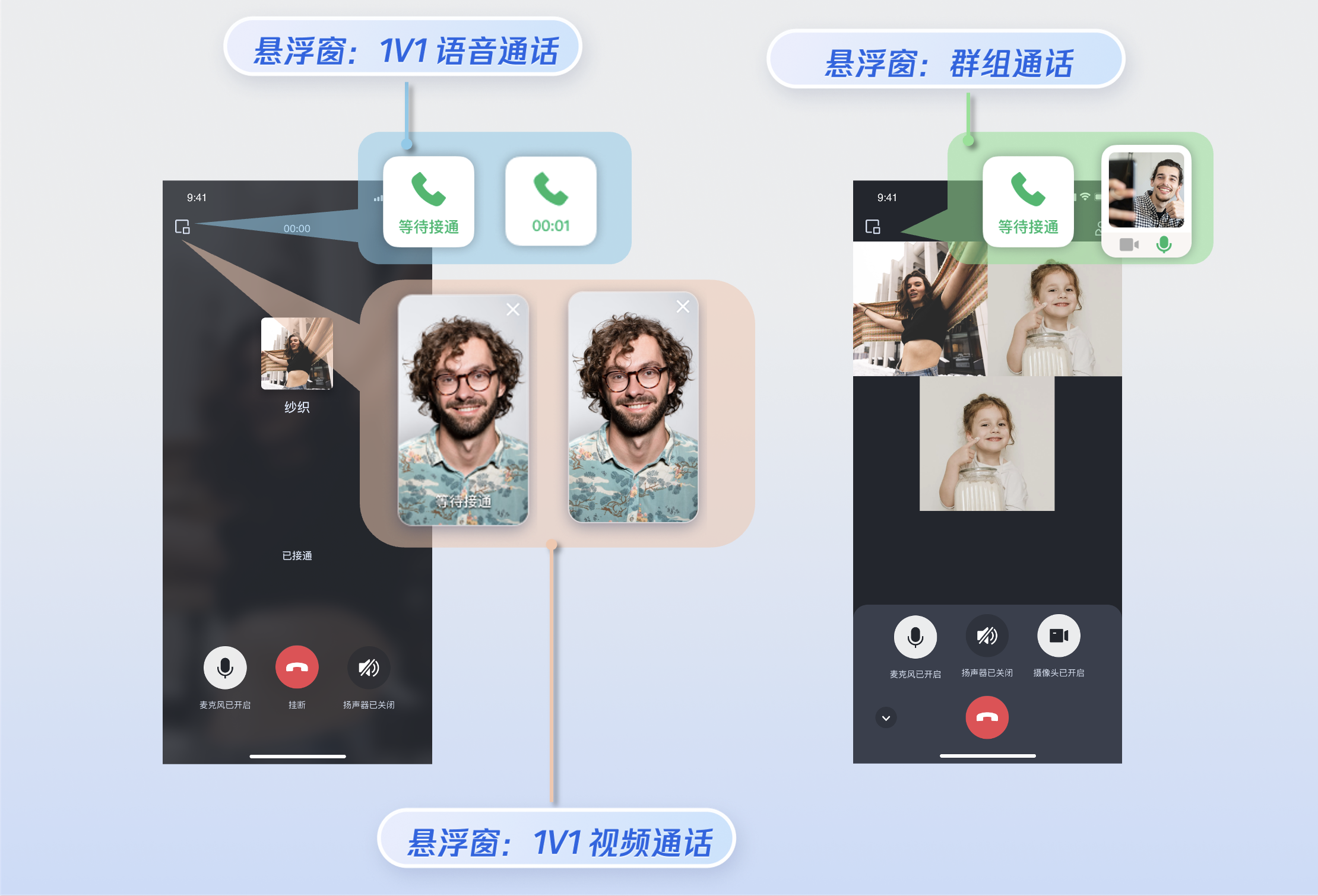
Enabling Floating Window

You can enable/disable the floating window feature by calling enableFloatWindow. This feature should be enabled when initializing the TUICallKit component, with the default status being Off (false).

enableFloatWindow
iOS (Swift)
iOS (Objective-C)
import TUICallKit_Swift

TUICallKit.createInstance().enableFloatWindow(enable: true)
[[TUICallKit createInstance] enableFloatWindow:YES];
Details: false by default, the floating window button in the top-left corner of the call interface is hidden. Set to true to display the button and enable the feature.

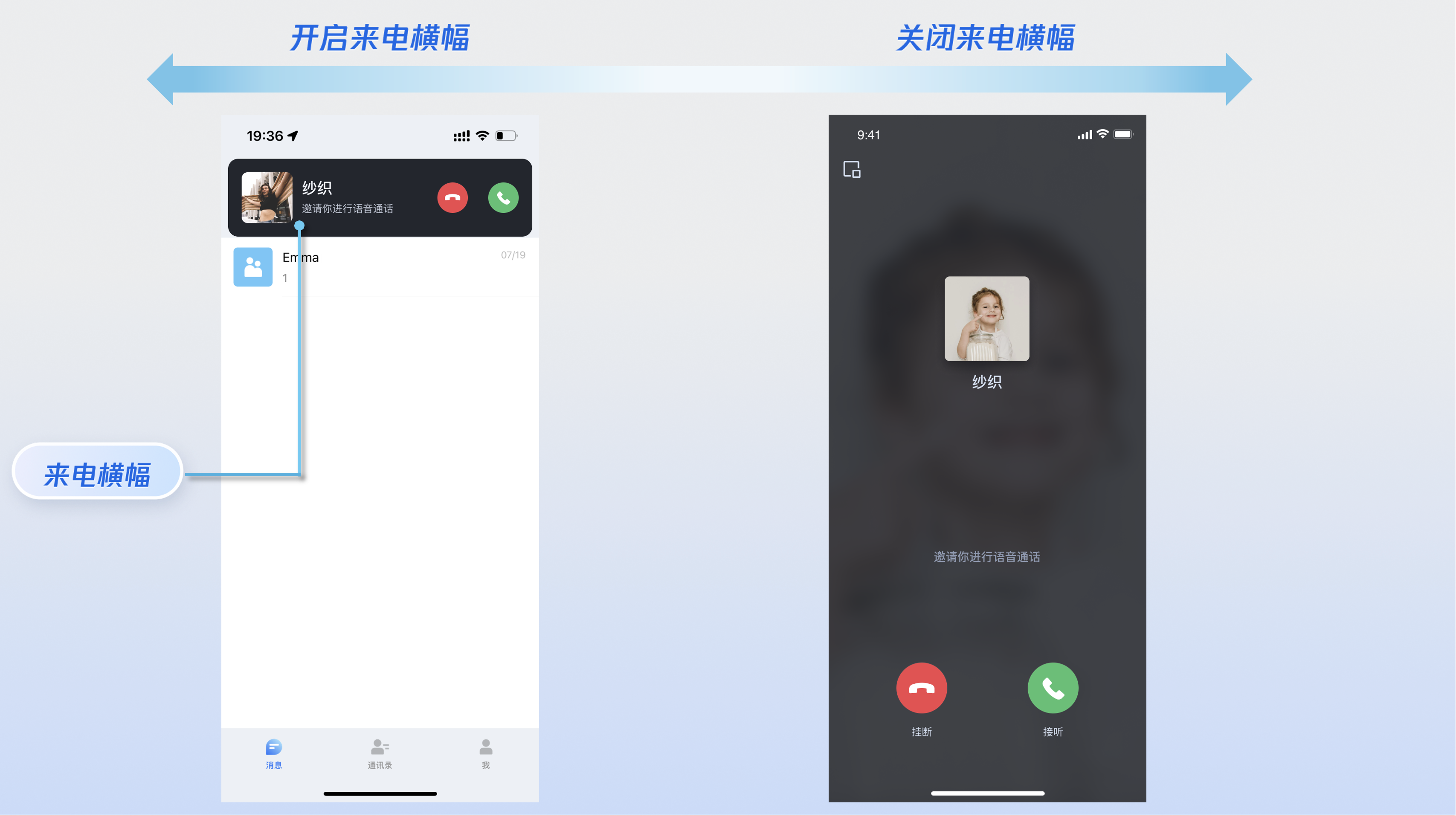
Enabling Banner

You can enable or disable the incoming call banner functionality by calling the enableIncomingBanner API: by default (disabled), the callee will immediately display the full-screen call interface upon receiving an invitation, while enabling it will show a notification banner first, followed by launching the full-screen call interface as required.

enbalecomingBanner
iOS (Swift)
iOS (Objective-C)
import TUICallKit_Swift

TUICallKit.createInstance().enableIncomingBanner(enable: true)
[[TUICallKit createInstance] enableIncomingBanner:YES];
Details: Default false. When the callee receives an invitation, the full-screen call waiting interface pops up by default. When enabled, a banner is shown first, then the full-screen call interface is pulled up as needed.

Multi-Person Calling

When the caller uses the calls method to initiate a call, if the list of called users exceeds one person, it is automatically recognized as a multi-person call. Other members can then join this multi-person call using the join method.
Initiating a Multi-person Call: When the calls method is used to initiate a call, if the callee User ID list (userIdList) contains more than one user, it will be automatically deemed a multi-person call.
calls
iOS (Swift)
iOS (Objective-C)
import TUICallKit_Swift

TUICallKit.createInstance().calls(userIdList: ["mike", "tate"], callMediaType: .audio, params: nil) {
} fail: { code, message in
}
#import <TUICallKit_Swift/TUICallKit_Swift-Swift.h>
#import <RTCRoomEngine/TUICallEngine.h>

[[TUICallKit createInstance] calls:@[@"mike", @"tate"] callMediaType:TUICallMediaTypeAudio params:NULL succ:^{
} fail:^(int code, NSString * _Nullable errMsg) {
}];
Parameter
Type
Description
userIdList
[String]
Target user ID list
mediaType
Media type of the call, such as video call, voice call
params
Call extension parameters, such as room number, call invitation timeout, offline push custom content
Joining a Multi-person Call: You can use the join method to enter the specified multi-person call.
join
iOS (Swift)
iOS (Objective-C)
import TUICallKit_Swift

TUICallKit.createInstance().join(callId: "")
[[TUICallKit createInstance] joinWithCallId: @"***"];
Parameter
Type
Description
callId
String
The unique ID for this call.

Language Settings

Supported Languages: We currently support Simplified Chinese, Traditional Chinese, English, Japanese, and Arabic.
Switching Languages: By default, the language of TUICallKit is consistent with the mobile operating system's language setting. To switch the language, you can use the TUIGlobalization.setPreferredLanguage method.
setLanguage
iOS (Swift)
import TUICore

func steLanguage() {
TUIGlobalization.setPreferredLanguage("en")
}
Parameter
Type
Description
language
String
"zh-Hans": Simplified Chinese.
"zh-Hant": Traditional Chinese.
"en": English.
"ar" : Arabic.
Note:
If you need to set up other languages, please contact us at info_rtc@tencent.com for assistance.

Ringtone Setting

You can configure the default ringtone, incoming call silent mode, and offline push ringtone using the following methods:
Method 1: If you include the TUICallKit component via source code, you can set the default ringtone by replacing the corresponding resource files (the ringtone played when initiating a call and the ringtone played when receiving a call) .
Method 2: Use the setCallingBell interface to set the incoming call ringtone received by the callee.
setCallingBell
iOS (Swift)
iOS (Objective-C)
import TUICallKit_Swift

TUICallKit.createInstance().setCallingBell(filePath: "***/callingBell.mp3")
[[TUICallKit createInstance] setCallingBell:@"***/callingBell.mp3"];
Details: Only local file paths can be imported here. You must ensure that the file directory is accessible to the application. The ringtone setting is bound to the device; therefore, replacing the user will not affect the ringtone. To restore the default ringtone, simply pass an empty filePath.
Parameter
Type
Description
filePath
String
Ringtone file path
Incoming call silent mode: You can set mute mode through enableMuteMode.
enableMuteMode
iOS (Swift)
iOS (Objective-C)
import TUICallKit_Swift

TUICallKit.createInstance().enableMuteMode(enable: true)
[TUICallKit createInstance] enableMuteMode: YES];
Details: When turned on, incoming call requests will not trigger ring.
Custom offline push ringtone:
TUIOfflinePushInfo Parameter configuration description
iOS (Swift)
iOS (Objective-C)
import TUICallKit_Swift

let params = TUICallParams()
let pushInfo: TUIOfflinePushInfo = TUIOfflinePushInfo()
pushInfo.title = "TUICallKit"
pushInfo.desc = "TUICallKit.have.new.invitation"
pushInfo.iOSPushType = .apns
pushInfo.ignoreIOSBadge = false
pushInfo.iOSSound = "phone_ringing.mp3"
pushInfo.androidSound = "phone_ringing"
// OPPO must set ChannelID to receive push message, this channelID needs to be consistent with that in the console
pushInfo.androidOPPOChannelID = "tuikit"
// FCM channel ID, you need to change PrivateConstants.java and set "fcmPushChannelId"
pushInfo.androidFCMChannelID = "fcm_push_channel"
// VIVO message type: 0-push message, 1-system message (high delivery rate)
pushInfo.androidVIVOClassification = 1
// HuaWei message type: https://developer.HuaWei.com/consumer/cn/doc/development/HMSCore-Guides/message-classification-0000001149358835
pushInfo.androidHuaWeiCategory = "IM"
params.userData = "User Data"
params.timeout = 30
params.offlinePushInfo = pushInfo
TUICallKit.createInstance().call(userId: "123456", callMediaType: .audio, params: params) {

} fail: {
code, message in
}
[TUICallKit createInstance] call:@"mike's id" params:[self getCallParams] callMediaType:TUICallMediaTypeVideo];

- (TUICallParams *)getCallParams {
TUIOfflinePushInfo *offlinePushInfo = [self createOfflinePushInfo];
TUICallParams *callParams = [TUICallParams new];
callParams.offlinePushInfo = offlinePushInfo;
callParams.timeout = 30;
return callParams;
}

+ (TUIOfflinePushInfo *)createOfflinePushInfo {
TUIOfflinePushInfo *pushInfo = [TUIOfflinePushInfo new];
pushInfo.title = @"";
pushInfo.desc = TUICallingLocalize(@"TUICallKit.have.new.invitation");
pushInfo.iOSPushType = TUICallIOSOfflinePushTypeAPNs;
pushInfo.ignoreIOSBadge = NO;
pushInfo.iOSSound = @"phone_ringing.mp3";
pushInfo.AndroidSound = @"phone_ringing";
// OPPO must set ChannelID to receive push message, this channelID needs to be consistent with that in the console
pushInfo.AndroidOPPOChannelID = @"tuikit";
// FCM channel ID, you need to change PrivateConstants.java and set "fcmPushChannelId"
pushInfo.AndroidFCMChannelID = @"fcm_push_channel";
// VIVO message type: 0-push message, 1-system message (high delivery rate)
pushInfo.AndroidVIVOClassification = 1;
message type: https://developer.HuaWei.com/consumer/cn/doc/development/HMSCore-Guides/message-classification-0000001149358835
pushInfo.AndroidHuaWeiCategory = @"IM";
return pushInfo;
}
Details: VoIP push does not support custom push ringtones. APNs push allows setting the iOSSound field in the offlinePushInfo of params when calling the call interface during a phone call. iOSSound should be passed with the audio filename.
Note:
Offline Push Sound settings (only applicable to iOS). To customize iOSSound, first link the voice file to the Xcode project, then set the audio filename (with extension) to iOSSound.
Ringtone duration should be less than 30s.

Customizing Your UI

Replace Icon Button

You can directly replace the icons under the Resources\\Assets.xcassets folder to ensure the icon color and style remain consistent across the entire App. Below lists the basic feature buttons. You can replace the corresponding icons to fit your own business scenario.

FAQs

Due to business needs, we need the TUICallKit source code. However, every time we update the pod, it's overwritten, resulting in loss. How can we fix this?
1. You can fork the TUICallKit repository to your GitHub/Gitee account.
2. Reference it in your project using the local pod method. The sample code is as follows:

pod 'TUICallKit_Swift', :path=>"your TUICallKit_Swift.podspec path"
Does TUICallKit support running in the background?
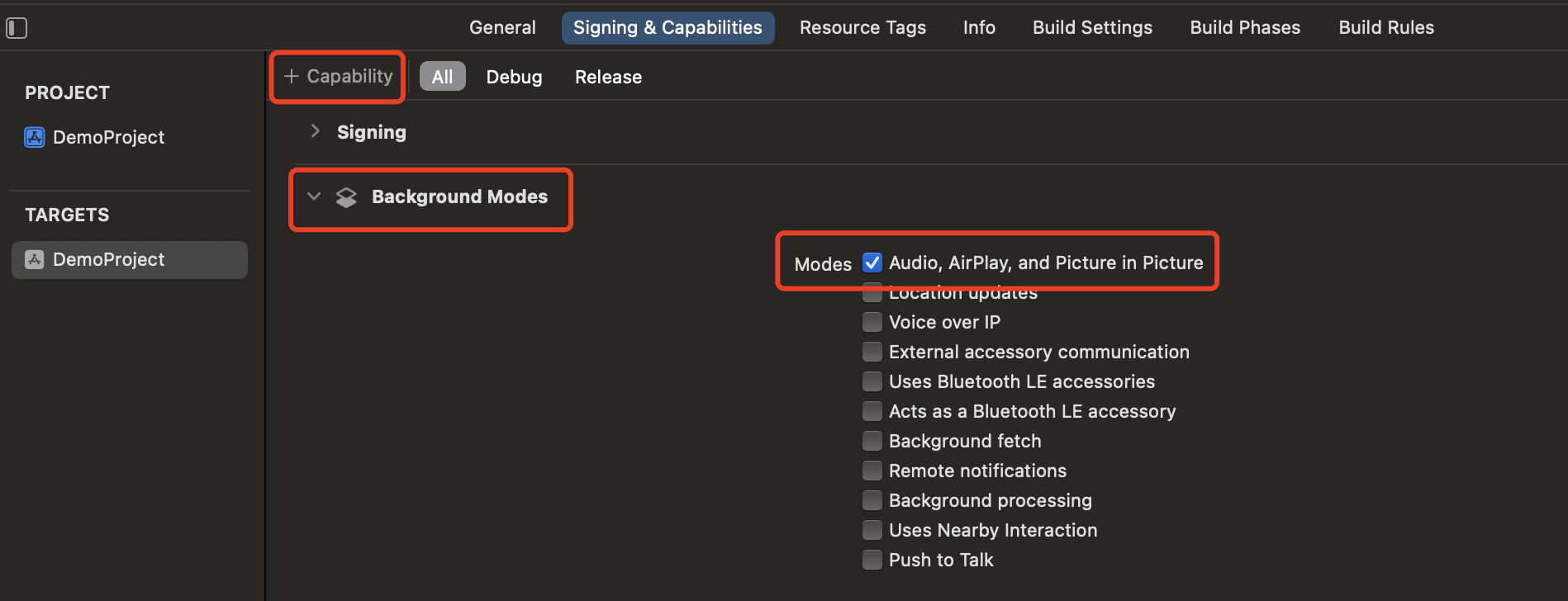
Yes, if you need relevant functions to continue running when the application enters the background, select the current engineering project, go to the Capabilities tab, and under the Background Modes section, check Audio, AirPlay, and Picture in Picture, as shown below:


If you encounter problems during integration and use, see FAQs.

Contact Us

If you have any suggestions or feedback, please contact info_rtc@tencent.com.


Help and Support

Was this page helpful?

Help us improve! Rate your documentation experience in 5 mins.

Feedback