tencent cloud

Global Application Acceleration Platform

Release Notes
Product Introduction
Overview
Instance Type Comparison
Product Features
Application Scenarios
Product Specification Limit
Purchase Guide
Billing Overview
Payment Overdue
Quick Start
Getting Started with Global Accelerator
Getting Started with Global Accelerator 2.0
Operation Guide
GAAP
Global Accelerator 2.0
Quota Description
GAAP
Global Accelerator 2.0
API Documentation
History
Introduction
API Category
Rule APIs
Connection Group APIs
Making API Requests
Origin Server APIs
Listener APIs
Connection APIs
Certificate APIs
Other APIs
Data Types
Error Codes
Agreement
GAAP Service Level Agreement
Data Processing And Security Agreement
Privacy Policy
FAQs
Contact Us
Glossary

Origin Server Management

PDF
Focus Mode
Font Size
Last updated: 2024-10-14 16:50:58

Adding an Origin Server

Log in to the GAAP console. On the "Origin Server Management" page, click Add to add information about all the servers that need access acceleration. You can enter the origin server IP or domain name, and separate multiple origin servers by the Enter key. The origin server IP supports IPv4 and IPv6 addresses.


Deleting an Origin Server

Log in to the GAAP console. On the Origin Server Management page, select the origin server you want to remove, and click Delete.
Note:
If the origin server to be removed is bound to the existing connection, unbind them before deletion.


Modifying the Name

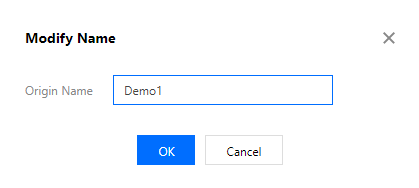
1. Log in to the GAAP console. On the Origin Server Management page, click the edit icon on the right of the origin server name to modify it.


2. In the pop-up dialog, enter a new name and click OK.


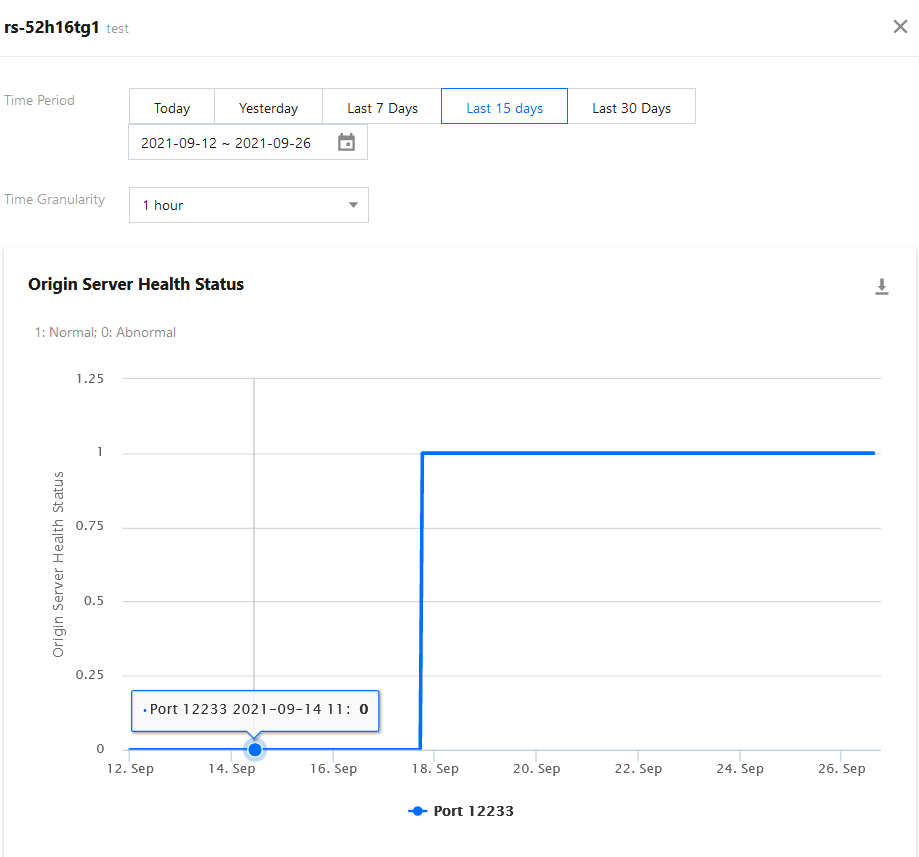
Viewing the Health Status

1. Log in to the GAAP console. On the Origin Server Management page, click the icon on the right of the origin server that is healthy.
Note:
This feature is unavailable if the origin server is not bound to a listener.

2. On the pop-up window in the top right corner, you can view the health status of the origin server during different periods and granularities. 1 indicates the origin server is normal while 0 means it is abnormal.


Editing the Tag

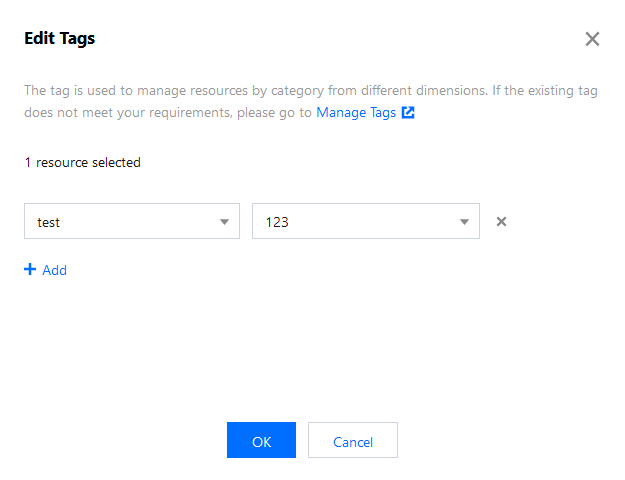
1. Log in to the GAAP console. On the Origin Server Management page, click Edit Tag on the right of the origin server.

2. Select tags to categorize and manage origin servers in multiple dimensions. Click OK.


Help and Support

Was this page helpful?

Help us improve! Rate your documentation experience in 5 mins.

Feedback