Overview
This document describes how to use the audio moderation feature in the console to check audio content for pornographic, illegal, and advertising information.
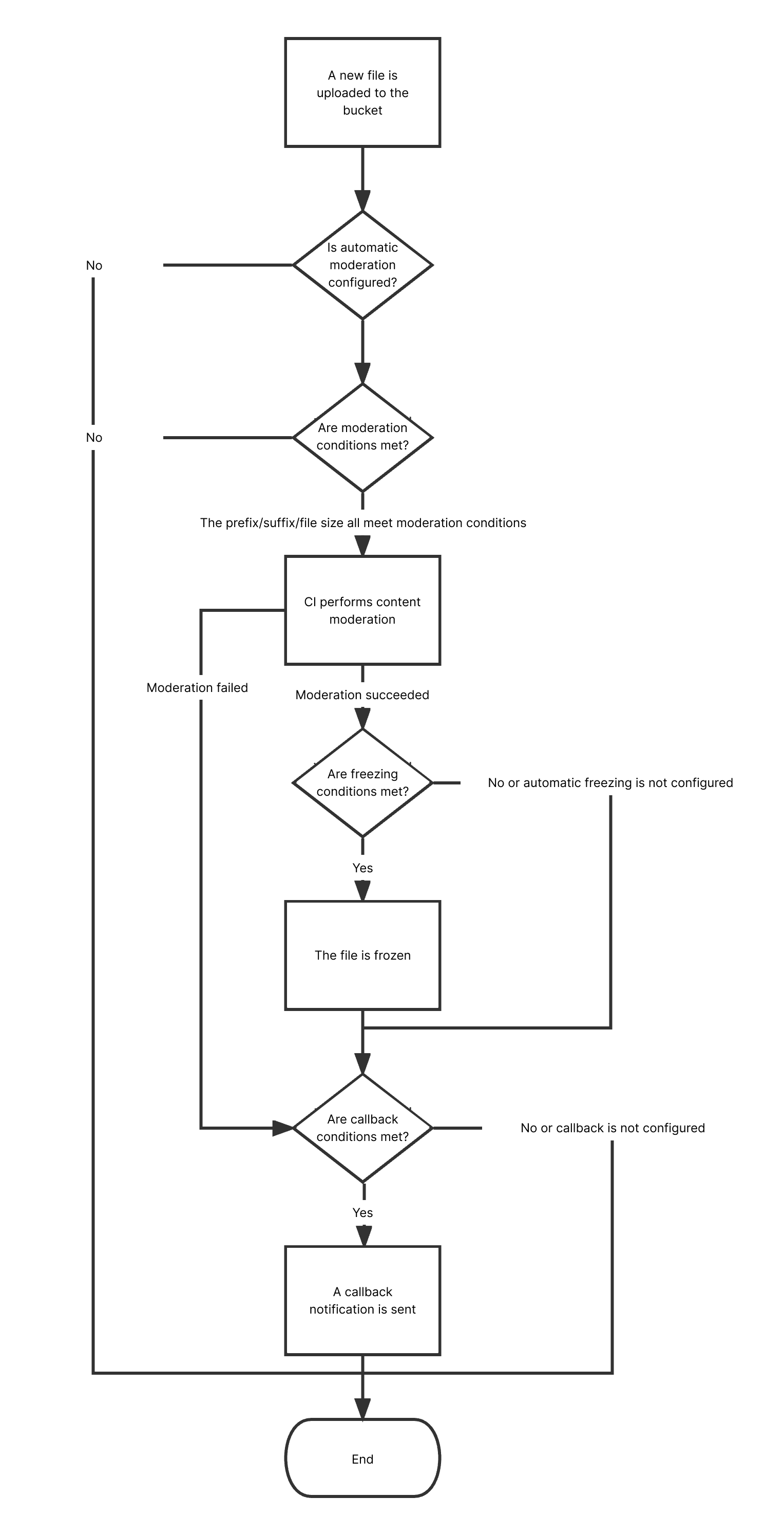
After you configure automatic audio moderation, new audios uploaded to a bucket will be automatically moderated, and the identified non-compliant content can be automatically blocked (by denying public read access to the content).
You can also moderate existing audios stored in COS. For more information, see Audio Moderation. Note:
Audio moderation is billed by CI.
Supported audio formats: MP3, WAV, AAC, FLAC, AMR, 3GP, M4A, WMA, OGG, APE.
Supported audio bitrate: 128–256 Kbps.
Supported audio size: < 600 MB.
Maximum duration: 3 hours.
Audio moderation can recognize Mandarin and English.
Flowchart
Directions
1. Log in to the COS console. On the Bucket List page, click the target bucket to enter the bucket details page. 2. On the left sidebar, select Sensitive Content Moderation > Automatic Moderation Configuration and click Audio Moderation.
3. Click Add Automatic Audio Moderation Configuration and set the following configuration items:
Moderation Scope: Select the scope of audio files to be moderated, which can be the entire bucket, a specific directory, or a specific file prefix.
Moderation Suffix: The following audio formats can be moderated: MP3, WAV, AAC, FLAC, AMR, 3GP, M4A, WMA, OGG, and APE. You can select multiple formats.
Moderation Policy: Select a moderation policy. You can create different policies for refined moderation. If no policies have been configured, the default policy will be used. Moderation scene options include Pornographic, Illegal, and Advertisement, and you can select one or multiple options. For detailed directions on how to configure a moderation policy, see Setting Moderation Policy. Moderation Scene: It displays the scene that you configure in the moderation policy. You can select the target scene as needed.
File block configuration: You can enable this service to authorize CI to perform automatic or human moderation and block the identified non-compliant files by denying public read access to them. After enabling this service, you need to select the block type and score range of audios to be blocked.
Block mode: The following two block modes are supported:
Change the file ACL to private read: Doing so actually blocks the file. Then, a 403 status code will be returned when the file is accessed again, indicating that access is denied. For more information on file permissions, see ACL. Transfer the file to the backup directory: Doing so actually blocks the file. Then, a 404 status code will be returned when the file is accessed again, indicating that the file does not exist. The backup directory is automatically generated by the backend at audit_freeze_backup/increment_audit in the current bucket.
Block Type: You can select a block type and mechanism. Machine moderation and block is selected by default. If you select Human moderation and block, Tencent Cloud security team will review suspiciously sensitive audios identified during machine moderation. You can select the audio score range for blocking (by specifying an integer between 60 and 100; the greater the score, the more sensitive the audio).
Callback: After callback is enabled, you will receive moderation results. You need to select the moderation type and callback content and set the callback URL. For more information, see Callback Content. 4. After completing the configuration, click Save. Audios uploaded subsequently will be moderated.
Callback Content
If you enable callback, after audio moderation is completed, the system will send the following callback message to the callback URL:
{
"code":0,
"message":"success",
"data":{
"url":"",
"result":1,
"forbidden_status":1,
"trace_id":"",
"porn_info":{
"hit_flag":1,
"score":91,
"label":""
},
"ads_info":{
"hit_flag":0,
"score":0,
"label":""
}
}
}
|
| Block status. Valid values: 0 (normal); 1 (blocked). | | |
| Porn detection information, including moderation result, score, and detailed tags. | | |
| Ad detection information, including moderation result, score, and detailed tags. | | |
| Recognition result for reference. Valid values: 0 (normal), 1 (sensitive), 2 (suspiciously sensitive). | | |
| jobid of the submitted moderation job.
| | |
| The URL of the uploaded resource, including the domain name. | | |
The moderation information (porn_info and ads_info) has the following sub-nodes:
|
| Whether the moderation type is hit. Valid values: 0 (miss), 1 (hit), and 2 (suspected). | | |
| | | |
| Moderation score. Valid value ranges: 0–60 (normal); 60–90 (suspiciously sensitive); 90–100 (sensitive). | | |
Notes
1. Audio moderation adopts a scoring mechanism, with a score between 0 and 100 returned for each audio.
2. The confirmed part refers to the audios that are confirmed to be normal or sensitive (with a score in the range of [0,60] or (90,100]). For such audios, no manual intervention is required.
3. The uncertain part refers to the audios that are suspected to be sensitive (with a score in the range of (60,90]). For such audios, human moderation is recommended.