tencent cloud

Video on Demand

Release Notes and Announcements
Release Notes
Announcements
Product Introduction
Overview
Product Features
Features
Strengths
Scenarios
Solutions
Professional Edition
Introduction to Video On Demand Professional Edition
Quick Start
Console Guide
Development Guide
Purchase Guide
Billing Overview
Billing Modes
Purchase Guide
Viewing Bills
Renewal
Overdue Policy
Refund Policy
Getting Started
Console Guide
Console Overview
Service Overview
Application Management
Media Management
Package Management
License Management
Real-Time Log Analysis
Practical Tutorial
Media Upload
Smart Cold Storage of VOD Media Asset Files
Video Processing
Distribution and Playback
How to Receive Event Notification
How to Migrate Files from Origin Server to VOD
Live Recording
How to Pull from Custom Origin Servers
How to Use EdgeOne to Distribute Content in VOD
Development Guide
Media Upload
Media Processing
Video AI
Event Notification
Video Playback
Media Encryption and Copyright Protection
Broadcast Channel
CAM
Media File Download
Subapplication System
Error Codes
Player SDK
Overview
Basic Concepts
Features
Free Demo
Free Trial License
Purchase Guide
SDK Download
Licenses
Player Guide
Integration (UI Included)
Integration (No UI)
Advanced Features
API Documentation
Player Adapter
Player SDK Policy
Server APIs
History
Introduction
API Category
Other APIs
Media Processing APIs
Parameter Template APIs
Task Management APIs
Media Upload APIs
Media Management APIs
Event Notification Relevant API
Media Categorization APIs
Domain Name Management APIs
Distribution APIs
AI-based Sample Management APIs
Region Management APIs
Data Statistics APIs
Carousel-Related APIs
Just In Time Transcode APIs
No longer recommended APIs
Making API Requests
AI-based image processing APIs
Task Flow APIs
Data Types
Error Codes
Video on Demand API 2024-07-18
FAQs
Mobile Playback
Fees
Video Upload
Video Publishing
Video Playback
Web Playback
Full Screen Playback
Statistics
Access Management
Cold Storage
Agreements
Service Level Agreement
VOD Policy
Privacy Policy
Data Processing And Security Agreement
Contact Us
Glossary
DocumentationVideo on DemandPlayer SDKPlayer GuideStage 2. Play back a transcoded video

Stage 2. Play back a transcoded video

PDF
Focus Mode
Font Size
Last updated: 2023-05-15 17:35:16

Overview

This document describes how to transcode a video and use the player to play the transcoded video. Before you go on, make sure you have read Stage 1. Play back a source video. You will be using the account registered and the video uploaded in stage 1.

Step 1. Encrypt a Video

1. In the VOD console, select Application Management on the left sidebar and select the target application. On the Media Assets > Video/Audio Management page, select the target video (file ID 387xxxxx8142975036), and click Transcoding.
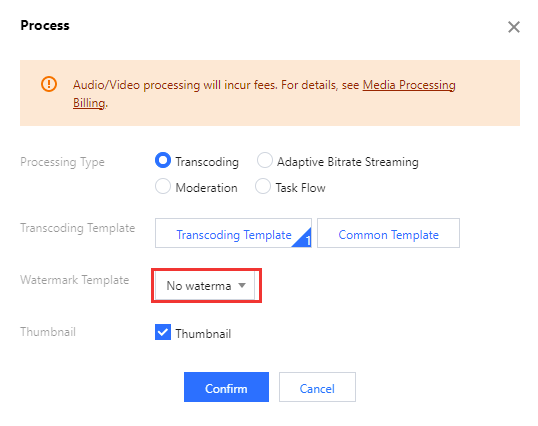
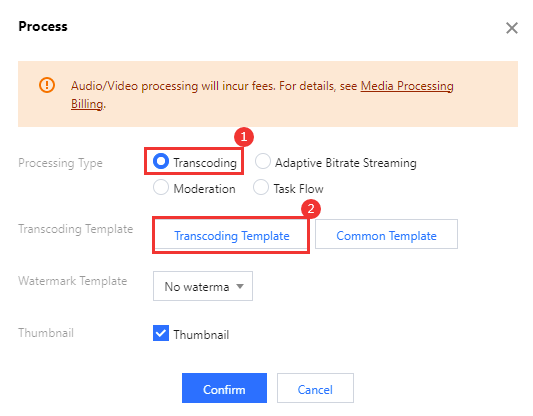
2. Complete the following settings:
2.1 Select Transcoding for Processing Type.
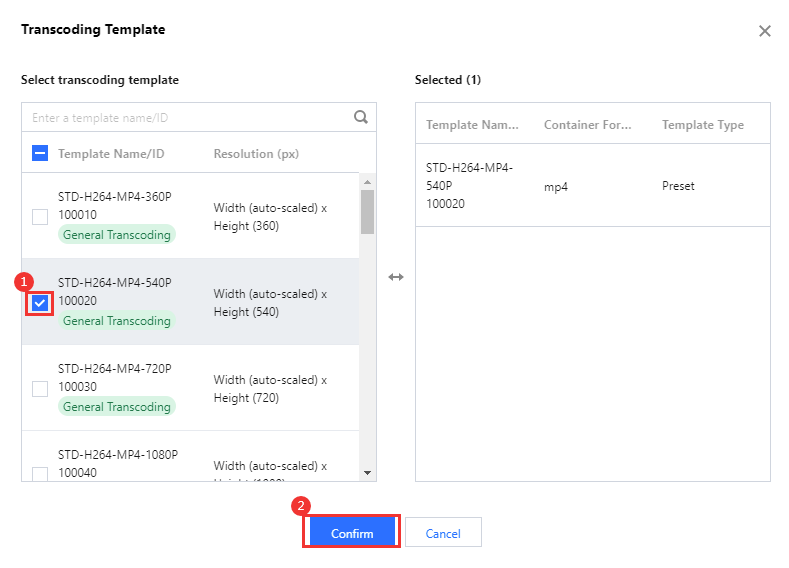
2.2 Click Select template to select a transcoding template.

2.3 In the window that pops up, select the template STD-H264-MP4-540P (ID: 100020).

2.4 Click Confirm to start the transcoding task.

3. Select Task Center on the left sidebar and find the transcoding task you started. If the status of the task has changed from "Processing" to "Completed", the video has been transcoded.

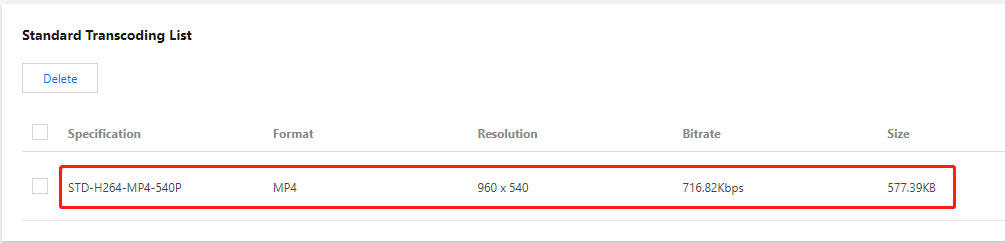
4. Return to the Media Assets > Video/Audio Management page, find your video, and click Manage on the right.

Under the Transcoding outputs tab, you will see the output of the transcoding task.


Step 2. Generate a Player Signature

In this step, you use the signature tool to quickly generate a player signature to play the video.
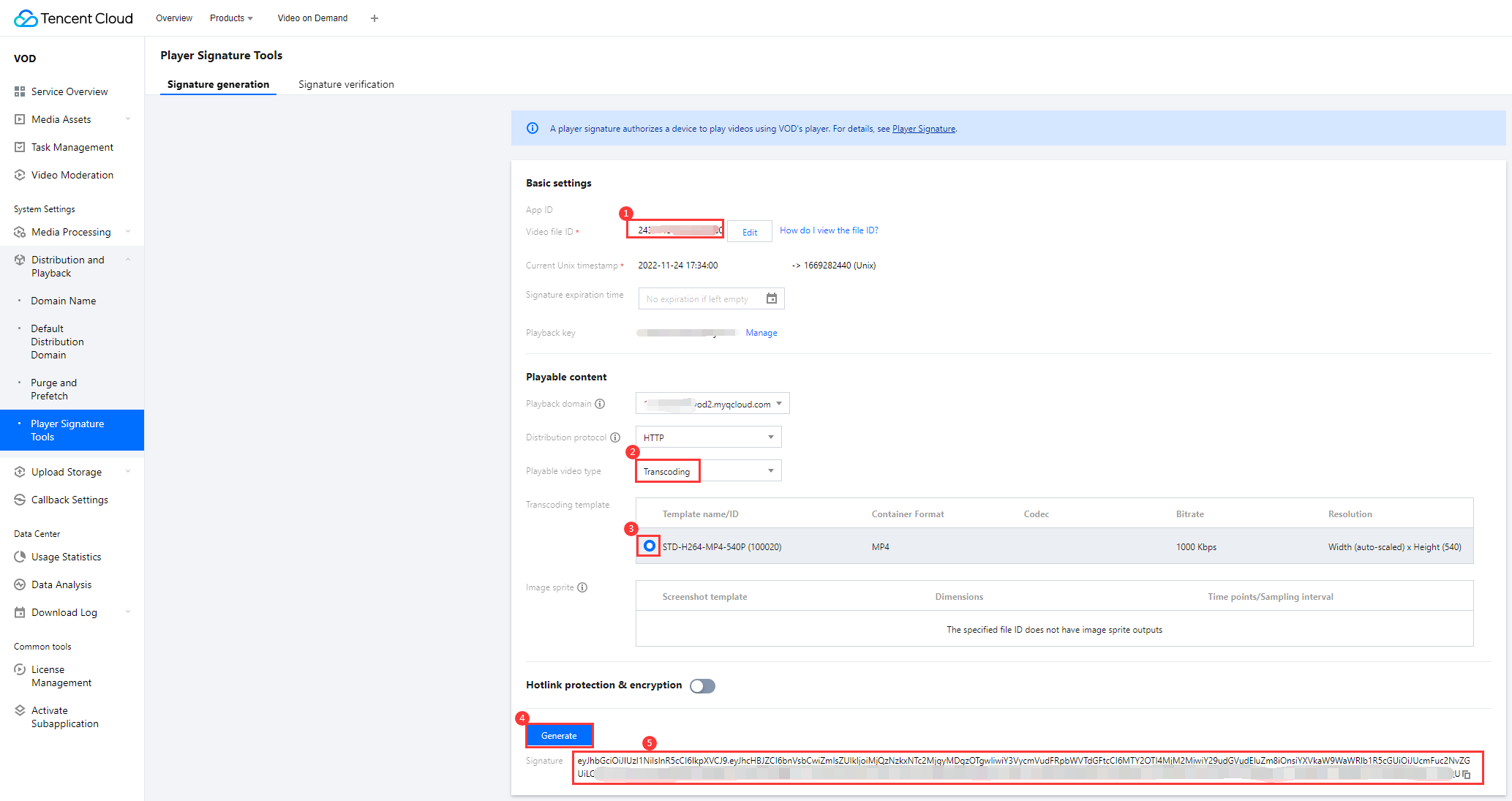
1. Select Distribution and Playback > Player Signature Tools on the left sidebar and complete the following settings:
Video file ID: Enter the file ID generated in Step 1 (387xxxxx8142975036).
Signature expiration time: Enter the player signature expiration time. If you leave it empty, the signature will never expire.
Playable video type: Select Transcoding.
Transcoding template: Select STD-H264-MP4-540P (100020).
2. Click Generate to get the signature string.


Step 3. Play the Video

After step 2, you have obtained the three parameters needed for video playback: appId, fileId and psign (player signature). The following describes how to play the video on the web.

Playback on the web

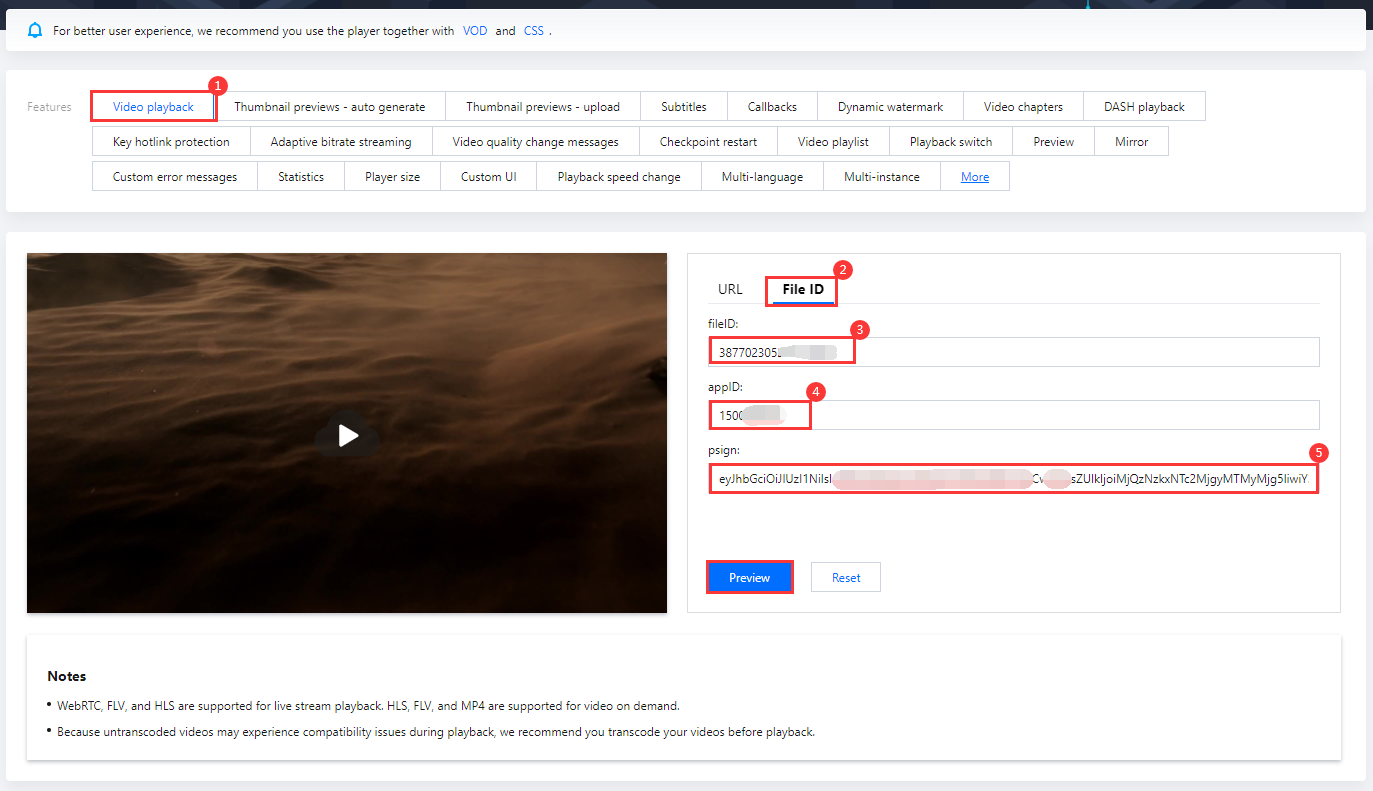
1. Open the web player demo.
Select Video playback.
Click the File ID tab.
fileID: Enter the same file ID in the previous step.
appID: Enter the ID of the VOD application to which the file belongs (which is also the App ID displayed on the signature generation page in the previous step).
psign: Enter the signature string generated in the previous step.
2. Click Preview to play the video.


Multi-platform player demos

After generating the player signature, you can use our player demos for web, Android, and iOS to play the video. For details, see the source code for the demos.

Summary

At this point, you have understood how to transcode a video and use the player to play it.
Help and Support

Was this page helpful?

Help us improve! Rate your documentation experience in 5 mins.

Feedback