tencent cloud

TencentDB for MySQL

Release Notes and Announcements
Release Notes
Product Announcements
User Tutorial
Product Introduction
Overview
Strengths
Use Cases
Database Architecture
Resource Isolation Policy
Economical Instance
Feature List
Database Instance
High Availability (Multi-AZ)
Regions and AZs
Service Regions and Service Providers
Kernel Features
Overview
Kernel Version Release Notes
Functionality Features
Performance Features
Security Features
Stability Features
TXRocks Engine
LibraDB Engine
Checking and Fixing Kernel Issues
Purchase Guide
Billing Overview
Selection Guide
Purchase Methods
Renewal
Payment Overdue
Refund
Pay-as-You-Go to Monthly Subscription
Instance Adjustment Fee
Backup Space Billing
Database Audit Billing Overview
Commercial Billing and Activity Description for Database Proxy
Description of the Database Proxy Billing Cycle
Viewing Bills
Getting Started
Overview
Creating MySQL Instance
Connecting to MySQL Instance
SQL Insight (Database Audit)
Overview
Viewing Audit Instance List
Enabling Audit Service
Viewing Audit Log
Log Shipping
Configuring Post-Event Alarms
Modifying Audit Rule
Modifying Audit Services
Disabling Audit Service
Audit Rule Template
SQL Audit Rule (Legacy)
Viewing Audit Task
Authorizing Sub-User to Use Database Audit
MySQL Cluster Edition
Introduction to TencentDB for MySQL Cluster Edition
Creating TencentDB for MySQL Cluster Edition Instance
Maintenance Management Instance
Viewing Instance Monitoring
Adjusting Instance Configuration
Operations for Other Features
Migrate or upgrade to TencentDB for MySQL Cluster Edition
Operation Guide
Use Limits
Operation Overview
Instance Management and Maintenance
Instance Upgrade
CPU Elastic Expansion
Read-Only/Disaster Recovery Instances
Database Proxy
Database Management Center (DMC)
Account Management
Parameter Configuration
Backup and Rollback
Data Migration
Network and Security
Monitoring and Alarms
Log Center
Read-Only Analysis Engine
Tag
Practical Tutorial
Using TencentDB for MySQL to Upgrade MySQL 5.7 to MySQL 8.0
Methods and Instructions for Upgrading from MySQL 5.6 to MySQL 5.7
Cybersecurity Classified Protection Practice for Database Audit of TencentDB for MySQL
Building All-Scenario High-Availability Architecture
Usage Specifications of TencentDB for MySQL
Configuring Automatic Application Reconnection
Impact of Modifying MySQL Source Instance Parameters
Limits on Automatic Conversion from MyISAM to InnoDB
Creating VPCs for TencentDB for MySQL
Enhancing Business Load Capacity with TencentDB for MySQL
Setting up 2-Region-3-DC Disaster Recovery Architecture
Improving TencentDB for MySQL Performance with Read/Write Separation
Migrating Data from InnoDB to RocksDB with DTS
Building LAMP Stack for Web Application
Building Drupal Website
Calling MySQL APIs in Python
The primary and secondary instances have inconsistent query data
White Paper
Performance White Paper
Security White Paper
Troubleshooting
Connections
Performance
Instance Data Sync Delay
Failure to Enable Case Insensitivity
Failure to Obtain slow_query_log_file via a Command
API Documentation
History
Introduction
API Category
Instance APIs
Making API Requests
Data Import APIs
Database Proxy APIs
Database Audit APIs
Security APIs
Task APIs
Backup APIs
Account APIs
Rollback APIs
Parameter APIs
Database APIs
Monitoring APIs
Log-related API
Data Types
Error Codes
FAQs
Related to Selection
Billing
Backup
Rollback
Connection and Login
Parameter Modifications
Instance Upgrade
Account Permissions
Performance and Memory
Ops
Data Migration
Features
Console Operations
Logs
Event
Database audit
Instance Switch Impact
API 2.0 to 3.0 Switch Guide
Service Agreement
Service Level Agreement
Terms of Service
Reference
Standards and Certifications
Contact Us
Glossary

Migrating Data Offline

PDF
Focus Mode
Font Size
Last updated: 2025-10-30 17:41:26
This document describes how to migrate data in the console or with the command line tool.

Data Migration Through Console

There are two modes for migrating data through the console: physical backup and logical backup. For more information, see the following documents:

Data Migration with Command Line Tool

1. Generate the SQL file to be imported with the MySQL command line tool "mysqldump" in the following way:
Note:
The data files exported using mysqldump must be compatible with the SQL specification of your purchased TencentDB for MySQL version. You can log in to the database and get the MySQL version information by running the select version(); command. The name of the generated SQL file can contain letters, digits, and underscores but not "test".
Make sure that the same source and target database versions, source and target database character sets, and mysqldump tool versions are used. You can specify the character set using the parameter --default-character-set.
If data import fails, it might be caused by a permission problem. You can generate the import file by setting the parameter --set-gtid-purged to OFF.
shell > mysqldump <options> <db_name> <tbl_name ...> > <bak_pathname>
<options>: It indicates export options or parameters. Commonly used options include -h, -u, and -p. A commonly used parameter is --default-character-set.
<db_name>: It indicates a database name and needs to be replaced with the actual database name.
<tbl_name>: It indicates a table name and needs to be replaced with the name of an actual table in the database.
<bak_pathname>: It indicates an export path name and needs to be replaced with the actual file generation path.
For more information on how to export data with mysqldump, see MySQL official documentation.
2. Import data to the target database with the MySQL command line tool as follows:
shell > mysql -h <hostname> -P <port> -u <username> -p < <bak_pathname>
<hostname>: It needs to be replaced with the name of the destination host for data recovery.
<port>: It needs to be replaced with the port of the destination host.
<username>: It needs to be replaced with the database username of the destination host.
<bak_pathname>: It needs to be replaced with the full path of the backup file.

Migrating data (Windows)

1. Use the Windows version of mysqldump to generate the SQL file to be imported. For more information, see the description in Data Migration with Command Line Tool.
2. Enter the command prompt and import the data into the target database with the MySQL command line tool.


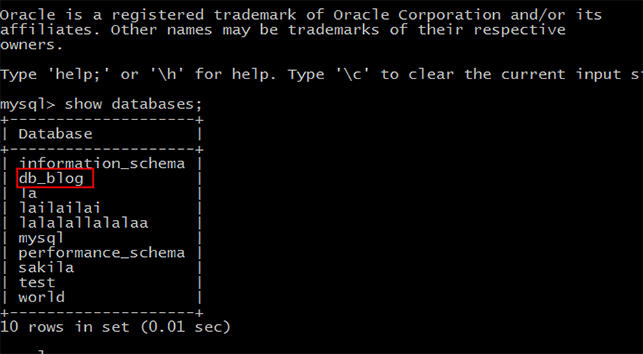
3. Log in to the target MySQL database, run the show databases; command, and you can see that the backup database has been imported into the target database.


Migrating data (Linux)

This document uses a Linux CVM instance as an example. For more information on how to access a database from a CVM instance, see Accessing MySQL Database.
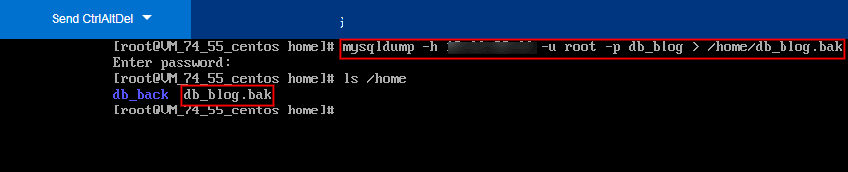
1. Log in to the CVM instance and generate the SQL file to be imported with the MySQL command line tool "mysqldump". Take the db_blog database in TencentDB as an example:


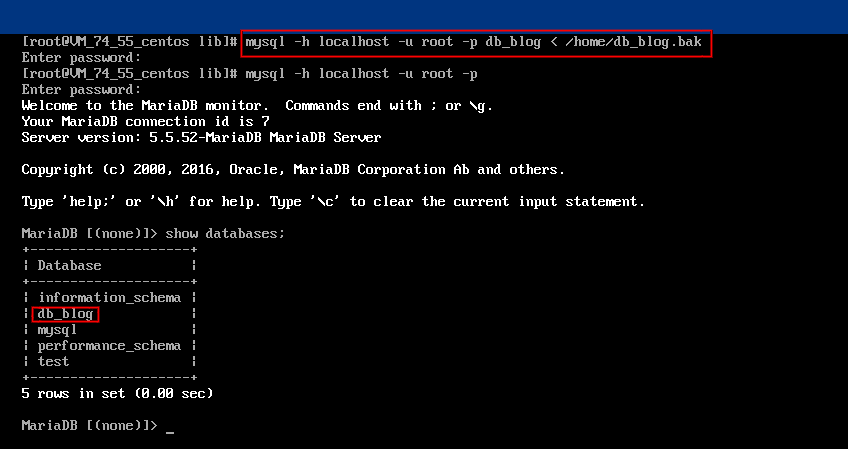
2. Use the MySQL command line tool to restore the data to the target database.
3. Log in to the target MySQL database, run the show databases; command, and you can see that the backup database has been imported into the target database.


Issues with Character Set of Imported Data Files

1. If no character set is specified during data file import into TencentDB, the one set by the database will be used.
2. Otherwise, the specified character set will be used.
3. If the specified character set is different from that of TencentDB, garbled text will be displayed.
For more information, see the character set description in Use Limits.

Hot Issues

The following error is reported when I use the data import feature: wait err=exit status 255, busi errmsg=import sql file failed, err=ERROR 1227 (42000) at line 24: Access denied. What should I do?

If a 42000 error is reported when you use the data import feature, it indicates that an access denial error occurred during SQL file import, which caused an SQL file import failure. The current user may have insufficient permissions. It is recommended to handle it in the following two ways:
Use the MySQL command line tool mysqldump to regenerate the SQL file to be imported, with the referenced parameter --set-gtid-purged set to OFF. Then, try importing the file again. For the command to generate the SQL file, see Data Migration with Command Line Tool.
Manually comment out related lines according to the error message to avoid permission problems during import. The example is as follows:
SET @MYSOLDUMP TEMP LOG BIN = COSESSION.SQL LOG BIN;
SET @@SESSION.SQL LOG BIN = 0;
-- GTID state at the beginning of the backup
SET @@GLOBAL.GTID PURGED=/*!80000 '+'*/

Help and Support

Was this page helpful?

Help us improve! Rate your documentation experience in 5 mins.

Feedback