Best Practices for Configuring Load Balancing Monitoring Alerts
Download
Focus Mode
Font Size
Last updated: 2026-01-14 14:22:24
AI-Translated
To enhance the monitoring system of Cloud Load Balancer (CLB), we have integrated the data collection and alarm capabilities of Tencent Cloud Observability Platform (TCOP) to create a unified early warning mechanism. This platform allows you to comprehensively monitor the resource usage, performance, and operational status of CLB, configure monitoring alarms for the required instances, and set alarm triggering rules for monitoring metrics and events. In the event of an exception in the monitoring metrics of the instances, you will receive an exception alarm notification promptly for you to respond and address the issue in a timely manner.
Application Scenario
You can create metric alarms for required instances, enabling CLB instances to promptly send alarm notifications to the concerned users when operational conditions reach a certain threshold. In this way, users can address potential emergencies more conveniently, thereby enhancing operational efficiency and reducing operational costs.
This document uses the standard type of public network CLB instances as examples to describe the process of configuring alarms for public network CLB instances that have been upgraded to the LCU-supported type. For LCU-supported type specifications, see LCU-supported Type Specifications.
Prerequisites
You have successfully created a CLB instance and configured the listener. For more information, see Getting Started.
You have successfully bound the real servers. For more information, see Binding Real Servers.
According to this instance, the target instance must have been upgraded to the LCU-supported type. For details, see Upgrade to a LCU-supported instances.
Concepts
Terminology
Definition
Alarm Policy
Comprised of policy name, policy type, alarm object, trigger condition, and notification template.
Policy Type
The alarm policy type serves to categorize policies and align them with specific cloud products. For example, selecting the CVM policy allows you to customize metric alarms for CPU usage, disk usage, and so on.
Trigger Condition
A trigger condition is a coherent statement made up of a metric, comparison operator, threshold, statistical period, and duration over N monitoring data points.
Monitoring Type
The monitoring types include Cloud Product Monitoring and RUM.
Notification Template
A notification template can be quickly integrated with multiple policies, suitable for various scenarios in which alarm notifications are received. For details, see Creating Notification Template.
Metric Introduction
The core metrics for determining whether an LCU-supported instance has exceeded its limit include ClientConcurConn, ClientNewConn, TotalReq, ClientOuttraffic, and ClientIntraffic. Therefore, it is important to pay attention to the usage alarm metrics of the preceding core metrics, as listed in the following table. For more alarm metrics description, see Alarming Metric Descriptions.
Dimension
Alarm Policy Type
Alarm Policy
Alarm Metrics
Metric Description
Instance
Public network CLB instances
Drop/usage monitoring
IntrafficVipRatio
The usage of bandwidth used by the client to access a CLB instance through a public network in the statistical period.
OuttrafficVipRatio
The usage of bandwidth used by a CLB instance to access the public network in the statistical period.
ConcurConnVipRatio
The usage that is obtained from comparing the number of concurrent connections from the client to the CLB with the upper limit of concurrent connection count performance of the LCU-supported type specification at a certain moment within the statistical period.
NewConnVipRatio
The usage that is obtained from comparing the number of new connections from the client to the CLB with the upper limit of new connection count performance of the LCU-supported type specification at a certain moment within the statistical period.
QPS Related Monitoring
QpsVipRatio
The usage that is obtained from comparing the QPS of a CLB to the capacity limit of QPS performance of the performance capacity specification at a specific point within the statistical period.
2. On the left sidebar, click Alarm Management > Alarm Configuration >Alarm Policy to access the management page.
3. Click Create Policy > Custom Alarm Policy and configure the following options.
3.1 Basic Information
Policy Name: Enter a policy name, up to 60 characters in length.
Remarks: Enter any remarks, up to a maximum of 100 characters.
Tag: Select the tag to which the policy belongs.
3.2 Configuring Alarm Rule
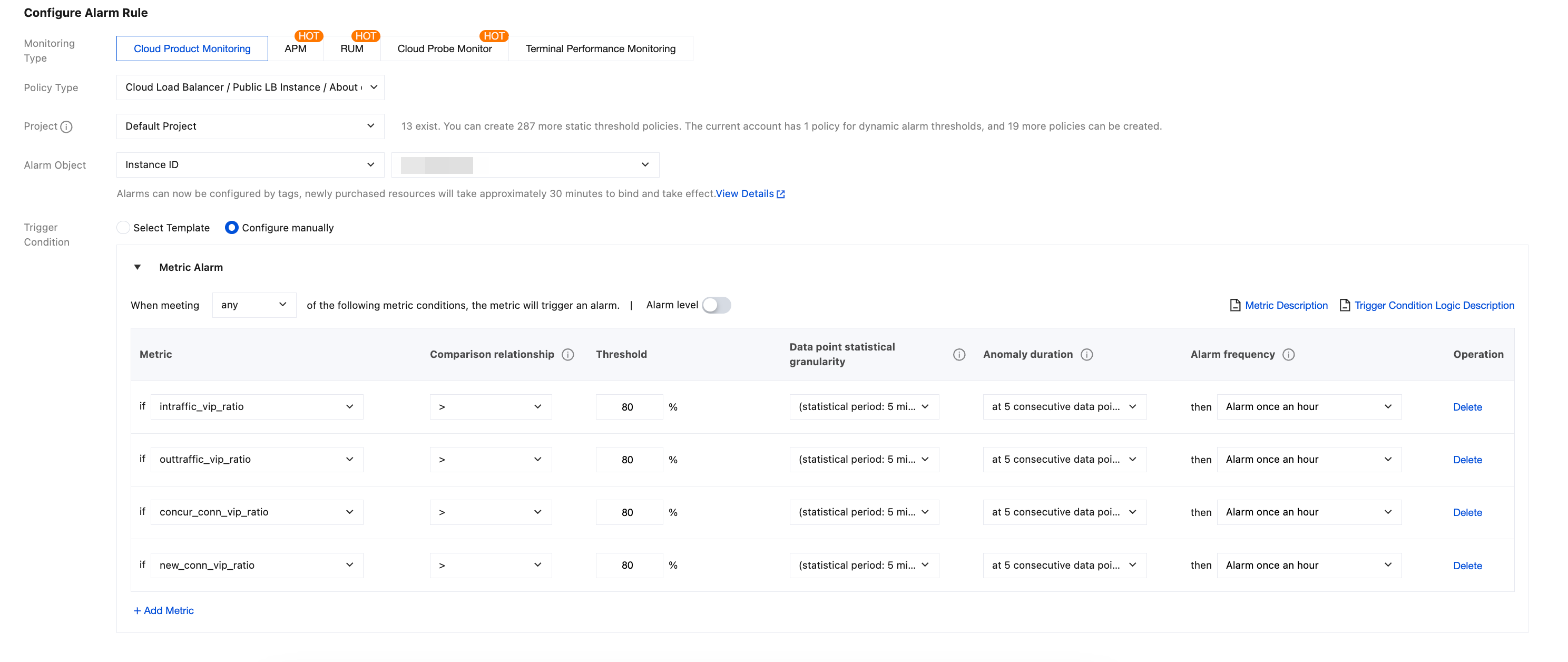
Monitoring Type: Choose Cloud Product Monitoring.
Policy Type: Choose CLB > Public CLB Instance > About drop/usage monitor.
Project: Select the project to which the policy belongs. The project is for categorization and permission management in alarm policies and is not tightly bound with the project of cloud product instances.
Alarm Object: Choose the target instance as the alarm object.
Trigger Condition: A semantic condition consisting of an alarm metric, comparison relationship, threshold, duration for N monitoring data points, and alarm frequency.
For example, if the alarm metric is set to IntrafficVipRatio, comparison to >, threshold to 80%, continuous monitoring data points to 5 data points and alarm frequency is set to Alarm once an hour, an alarm will be triggered when the inbound bandwidth usage of a CLB instance is greater than 80% for five consecutive times, with the alarm frequency set to trigger once every hour.
Options for configuration include IntrafficVipRatio, OuttrafficVipRatio, ConcurConnVipRatio, and NewConnVipRatio, as illustrated in the example below.
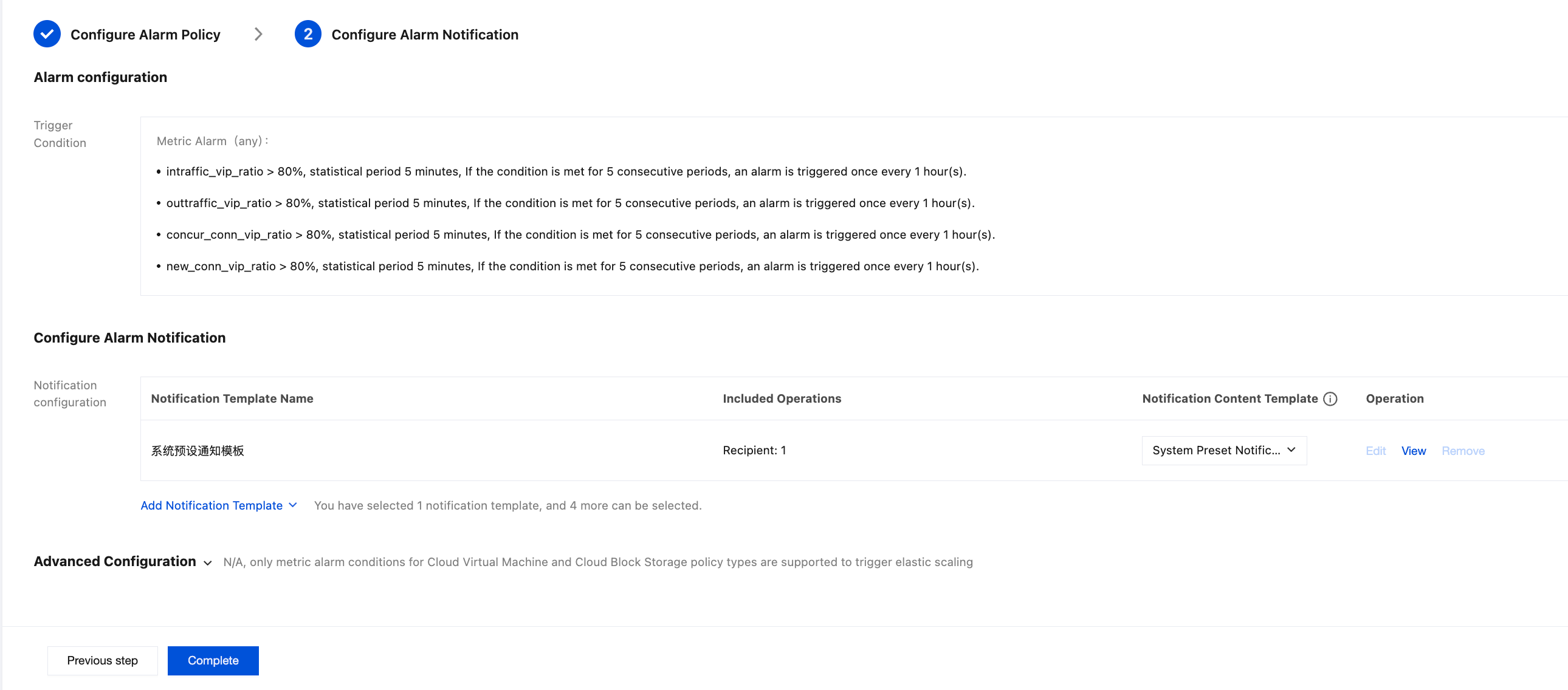
3.3 Configuring alarm notifications: Add a notification template, select an alarm recipient, notification cycle, and receiving channel. If a template has not been created, click Create Template. For detailed information, see Creating Notification Template.
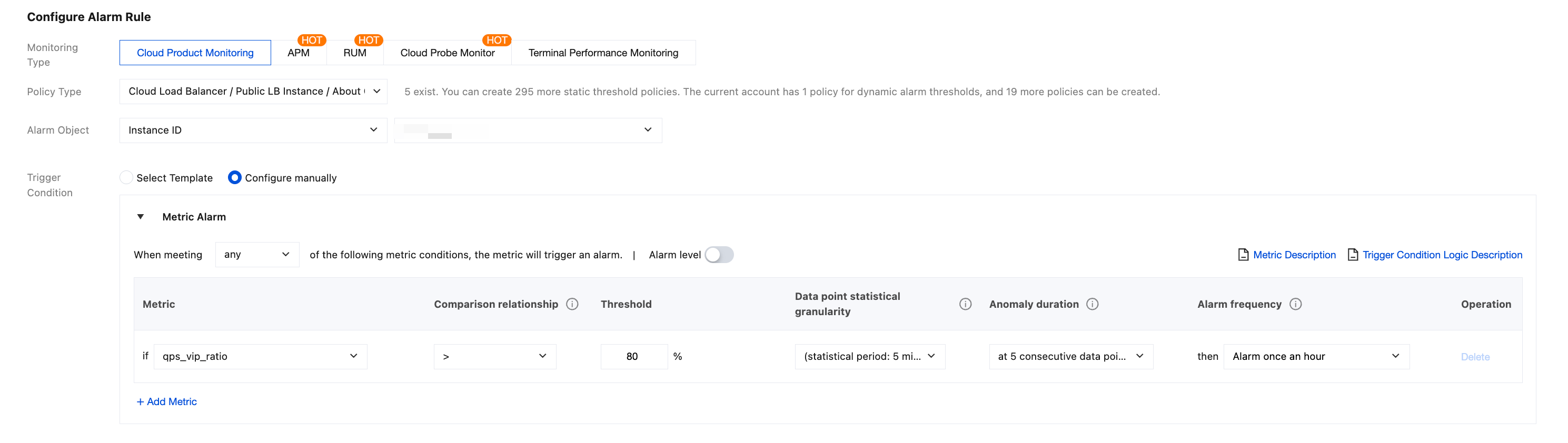
4. Click Done to complete the configuration of monitoring alarms for IntrafficVipRatio, OuttrafficVipRatio, ConcurConnVipRatio, and NewConnVipRatio. For creating QPS usage monitoring alarms, refer to the previous step of creating a new alarm policy, modify the policy type to CLB > Public CLB Instance > QPS Related Monitoring, and configure the following trigger conditions.
Solutions
If you receive the preceding alarms, there is an increase in your business volume and the specification limit of the current standard type is to be reached and your business demands can no longer be met. Please proceed to Adjusting Specification of LCU-supported CLBs to ensure that your business operations remain unaffected.