tencent cloud

Cloud Load Balancer

Release Notes and Announcements
CLB Release Notes
Product Announcements
Product Introduction
Overview
Strengths
Use Cases
Principles
Product Comparison
Use Limits
Service Regions and Service Providers
Purchase Guide
Billing Overview
Billing
CLB Resource Package
Purchase Methods
Payment Overdue
Product Attribute Selection
Getting Started
Getting Started with Domain Name-Based CLB
Getting Started with CLB
Getting Started with IPv6 CLB
Deploying Nginx on CentOS
Deploying Java Web on CentOS
Operation Guide
CLB Instance
CLB Listener
Real Server
Health Check
Certificate Management
Log Management
Monitoring and Alarm
Cloud Access Management
Classic CLB
Practical Tutorial
Deploy certificate to CLB (mutual authentication)
Enabling Gzip Compression & Testing
HTTPS Forwarding Configurations
Obtaining Real Client IPs
Best Practices for Configuring Load Balancing Monitoring Alerts
Implementing HA Across Multiple AZs
Load Balancing Algorithm Selection and Weight Configuration Examples
Configuring WAF protection for CLB listening domain names
Configure IAP to authenticate web access to the CLB domain and path
Configure IAP to authenticate programmatic access to CLB's domain and path
Ops Guide
Solution to Excessive Clients in TIME_WAIT Status
Load Balancer HTTPS Service Performance Test
Stress Testing FAQ
CLB Certificate Operation Permissions
Troubleshooting
UDP Health Check Exception
API Documentation
History
Introduction
API Category
Instance APIs
Listener APIs
Backend Service APIs
Target Group APIs
Redirection APIs
Other APIs
Classic CLB APIs
Load Balancing APIs
Making API Requests
Data Types
Error Codes
CLB API 2017
FAQs
Billing
CLB Configuration
Troubleshooting Health Check Issues
HTTPS
WS/WSS Protocol Support
HTTP/2 Protocol Support
Default Domain Name Blocking Prompt
Service Level Agreement
Contact Us
Glossary
DocumentationCloud Load BalancerOps GuideCLB Certificate Operation Permissions

CLB Certificate Operation Permissions

PDF
Focus Mode
Font Size
Last updated: 2024-01-04 14:39:00

Operation Scenarios

Since March 23, 2020, all certificate operations of CLB have been connected to Cloud Access Management (CAM) for authentication. Therefore, when a sub-user account performs CLB certificate operations, if "You are not authorized for this operation. Please contact your developer." is displayed, you can grant certificate permissions to the sub-user account as instructed below.

Prerequisites

The logged-in account needs to be the root account or a sub-user account with CAM permissions (i.e., associated with the QcloudCamFullAccess policy).
Note:
To check whether the sub-user account has CAM permissions, go to User List in the CAM Console, enter the details page of the sub-user, and check whether the QcloudCamFullAccess policy has been associated.
If the QcloudCamFullAccess policy is associated, but "No API permissions (message:GetReceiversOnAllType). Please contact your developer." is displayed when the sub-user performs certificate operations, they can ignore and proceed anyway.

Directions

Please grant certificate permissions in the following methods:

Method 1. Associate a custom policy

1. Log in to the CAM Console.
2. On the left sidebar, click Policies.
3. Click Create Custom Policy and select Create by Policy Syntax in the pop-up box.
4. On the "Select Template Policy" page, select Blank Template and click Next.
5. On the "Edit Policy" page, enter the policy name and enter the following policy content in the "Edit Policy Content" input box:
{
"version": "2.0",
"statement": [
{
"action": "name/ssl:*",
"resource": "qcs::ssl:::*",
"effect": "allow"
}
]
}
6. Then, click Done to return to the "Policy" list page.
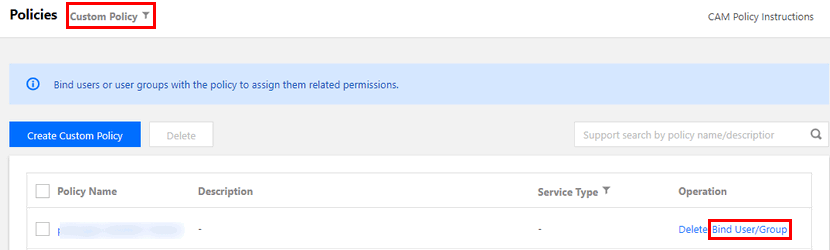
7. At the top of the "Policy" list page, select Custom Policy, find the row of the policy you just created in the list, and click Associate User/Group in the "Operation" column.

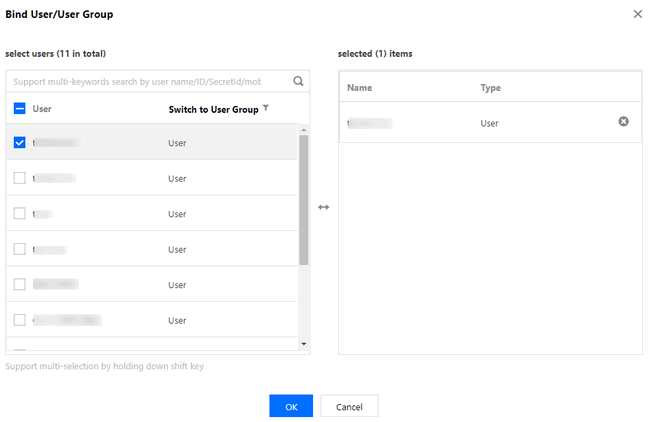
8. In the pop-up box, select the user to be authorized and click OK.


Method 2. Associate a preset policy

1. Log in to the CAM Console.
2. On the left sidebar, select User > User List to enter the "User List" page.
3. In the row of the sub-user to be authorized, click Authorize in the "Operation" bar.
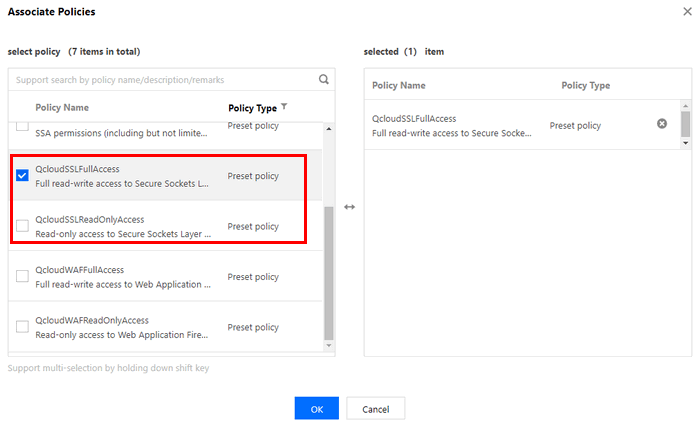
4. In the pop-up box, select QcloudSSLFullAccess or QcloudSSLReadOnlyAccess and click OK.


Help and Support

Was this page helpful?

Help us improve! Rate your documentation experience in 5 mins.

Feedback