This document describes how to deploy Nginx projects on CentOS and is suitable for new individual users of Tencent Cloud.
Software Version
The versions of software tools used in this document are as follows, which may be different from your software versions during actual operations.
Operating system: CentOS 7.5
Nginx: Nginx 1.16.1
Installing Nginx
1. After completing the purchase, click Log in on the CVM details page to log in to the CVM instance and then enter your username and password to set up an Nginx environment. For more information on how to create a CVM instance, please see Creating CVM Instances.
# Install Nginx
yum -y install nginx
# View Nginx version
nginx -v
# View Nginx installation directory
rpm -ql nginx
# Start Nginx
service nginx start
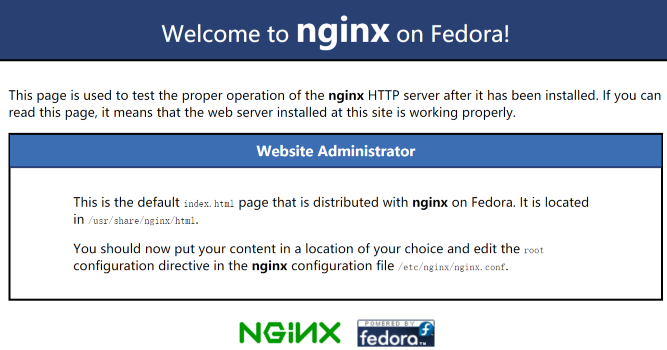
2. Access the public IP address of the CVM instance and if the following page appears, Nginx is successfully deployed:
3. The default root directory of Nginx is /usr/share/nginx/html. Modify the index.html static page in the html directory to mark the specialness of this page. Relevant operations are as follows:
3.1 Run the following command to enter the index.html static page in html:
vim /usr/share/nginx/html/index.html
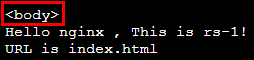
3.2 Press "i" to enter the editing mode and add the following in the <body></body> tag:
# You are recommended to enter directly under `<body>`
Hello nginx , This is rs-1!
URL is index.html
3.3 Press "Esc" and enter :wq to save the change.
4. CLB (formerly "Application CLB") can forward requests according to the real server path and deploy a static page in the /image path. Relevant operations are as follows:
4.1 Run the following commands to create and enter an image directory:
mkdir /usr/share/nginx/html/image
cd /usr/share/nginx/html/image
4.2 Run the following command to create an index.html static page in the image directory:
vim index.html
4.3 Press "i" to enter the editing mode and add the following in the page:
Hello nginx , This is rs-1!
URL is image/index.html
4.4 Press "Esc" and enter :wq to save the change.
Note:
The default port of Nginx is 80. To change the port, please modify the configuration file and restart Nginx.
Verifying the Nginx Service
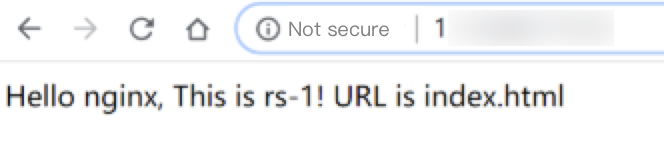
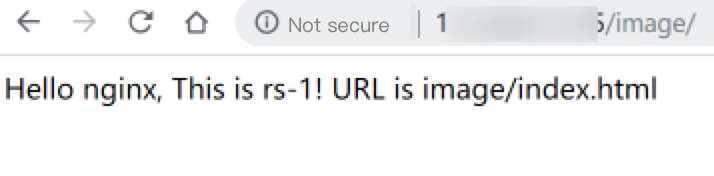
Access the public IP and path of your CVM instance. If the deployed static page is displayed, Nginx has been successfully deployed.