Instance launch template stores the required configuration information (except the instance password) for creating a CVM instance. You can use the specified instance launch template to quickly create an instance to improve the efficiency and user experience. This document describes how to create, manage, and use an instance launch template in the CVM console to quickly create an instance.
Instructions
After an instance launch template is created successfully, its configuration cannot be modified.
You can create one or multiple versions of an instance launch template and set different configurations for each version. You can also specify the default version and the default configuration of it will be used when you use the template to create an instance.
Directions
Creating and viewing instance template
1. Log in to the CVM console and select Launch Templates in the left navigation bar.
2. On the Instance launch template page, click Create template.
3. On the Instance Startup Template page, you can fill in the Template name and the Template description as needed. For the remaining configuration, please refer to Creating Instances via the Purchase Page.
4. In the Confirm configurations step, read and check I have read and agreeTencent Cloud Service Terms and Purchasing Channels, then click Create Now.
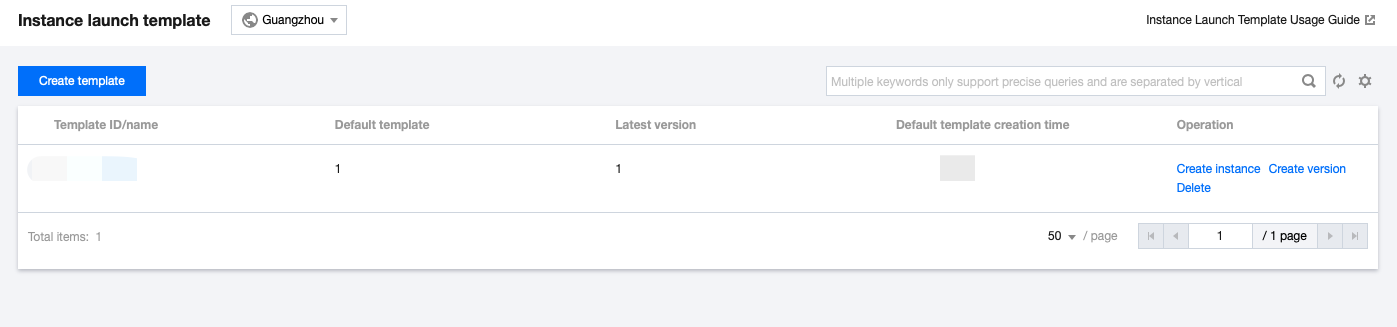
After successful creation, you can view the instance launch template in the console, which is shown below:
You can click the template ID to enter the template details page and view the specific information.
Creating instance launch template version
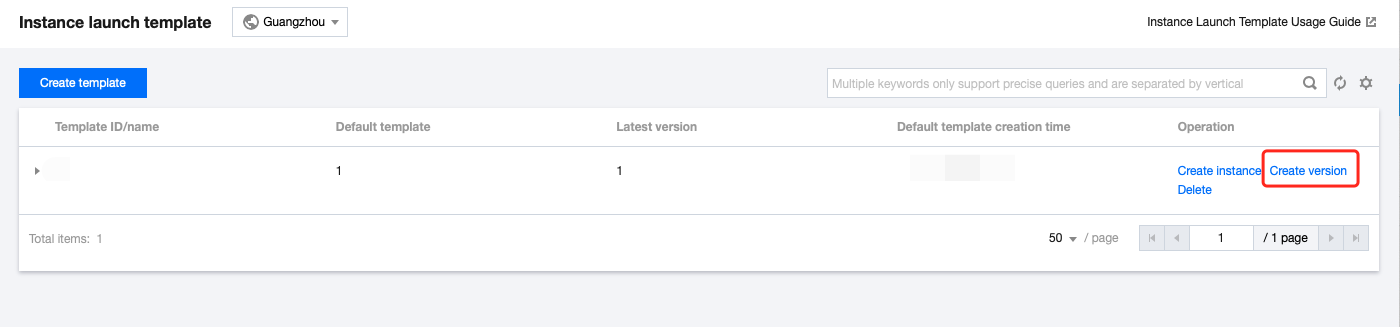
1. In the Instance launch templates page, click Create Version to create a new version for the needed templates on the right of the row, which is shown below:
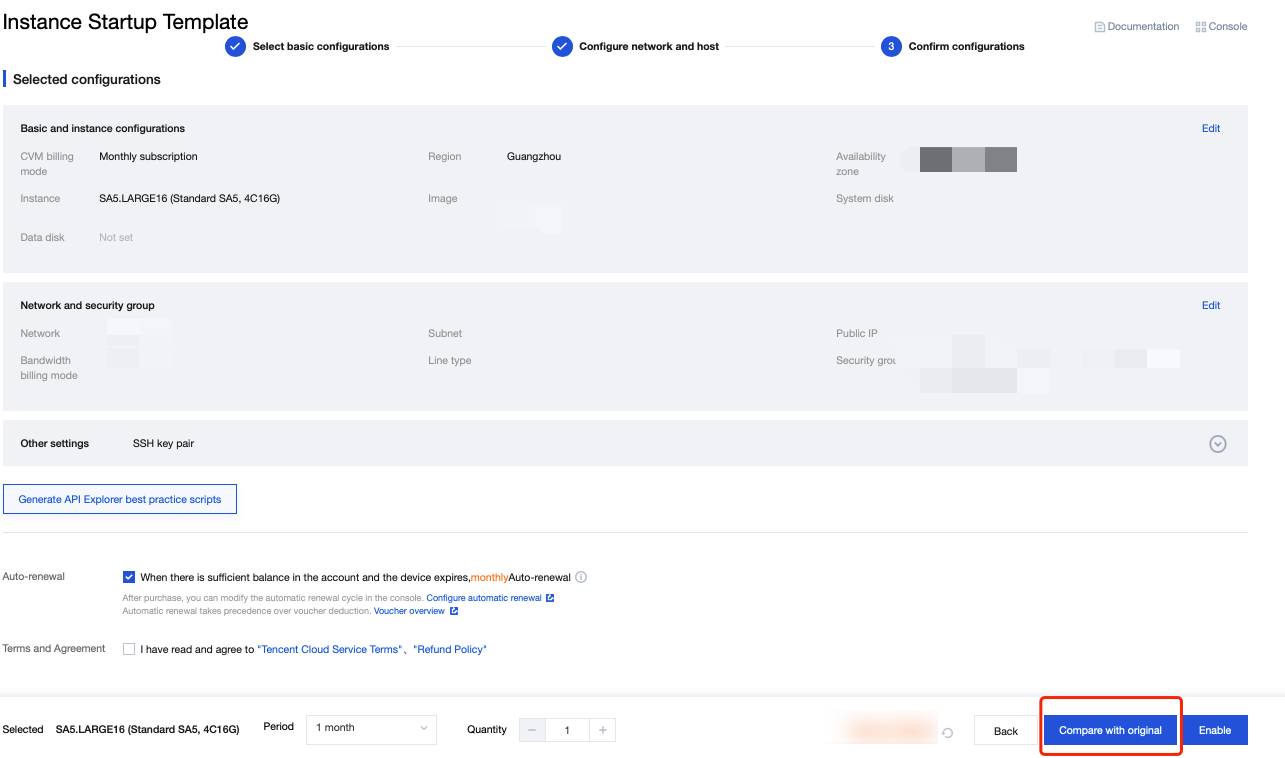
3. In the Confirm configurations step, read and check I have read and agreeTencent Cloud Service Terms and Purchasing Channels.
You can choose to Compare with original and confirm the differences between the new version and the original instance launch template in the pop-up Compare with original window, which is shown below:
4. After confirmation, click Create Now.
After successful creation, in the Instance Startup Template page, click
in front of the row where the template is located to view the version in the expanded list.
Specifying default instance launch template version
1. In the Instance launch template page, click
in front of the row where the template is located.
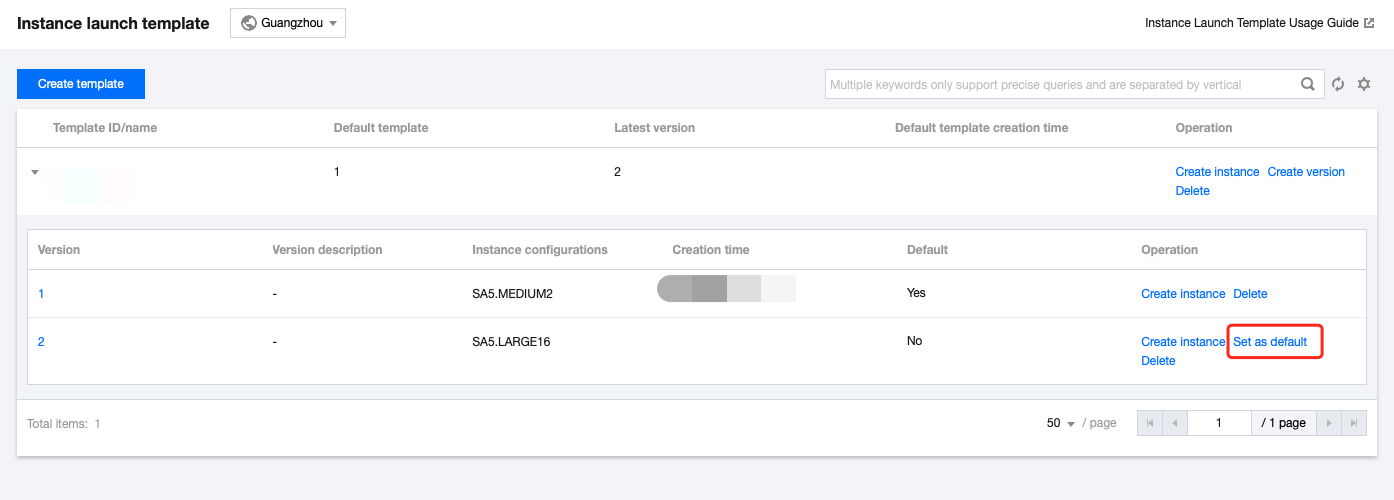
2. In the expanded list, click Set as default on the right of the version you need to set, which is shown below:
3. In the pop-up Set default template window, click OK.
Using an instance launch template to create an instance
1. In the Instance launch template page, select Create instance on the right of the row where the template is located.
Note:
The configuration of the default version of the instance launch template is used for creating a new instance. You can also click
in front of the row where the template is located in the expanded list, and select other versions to create an instance.
2. In the Confirm configurations step on the Cloud Virtual Machine (CVM) creation page, you can select Compare with original and confirm the differences between the instance and the instance launch template in the pop-up Compare with original window.
3. After confirming it, read and check I have read and agreeTencent Cloud Service Terms and Purchasing Channels, and click Activate.
Deleting instance launch template
1. In the Instance launch template page, select Delete on the right side row where the required instance launch template is located.