创建自定义镜像
下载
聚焦模式
字号
操作场景
除了使用腾讯云提供的公共镜像,您还可以创建自定义镜像。创建自定义镜像后,您可以在腾讯云控制台快速创建与该镜像相同配置的腾讯云云服务器实例。
注意事项
每个地域暂支持500个自定义镜像。正常情况下,创建的自定义镜像容量大小与实例磁盘大小一致。
若您的 Linux 实例具备数据盘,但您仅制作系统盘自定义镜像时,请确认
/etc/fstab 不包含数据盘配置,否则会导致使用该镜像创建的实例无法正常启动。制作过程需要持续十分钟或更长时间,具体时间与实例的数据大小有关,请提前做好相关准备,以防影响业务。
若您的 Windows 实例需入域且使用域账号,则在创建自定义镜像前,请执行 Sysprep 操作以确保在实例入域后 SID 唯一。详情请参见 通过 Sysprep 实现云服务器入域后 SID 唯一。
若您使用的是配置25Gbps 网卡的裸金属服务器(即机型的内网带宽值是25Gbps),暂不支持使用控制台及 API 创建自定义镜像。
操作步骤
关机实例(可选)
1. 登录 云服务器控制台,查看对应实例是否需进行关机。
注意:
2018年7月之后基于公共镜像创建的实例(系统盘为云硬盘),支持在线制作镜像(即实例不关机的情况下制作镜像)。除此情况外的实例,请先将实例关机后再进行镜像制作,以确保镜像与当前实例部署环境完全一致。
需要,则继续执行步骤。
不需要,请执行 制作自定义镜像 步骤。
2. 在实例的管理页面,根据实际使用的视图模式进行操作:
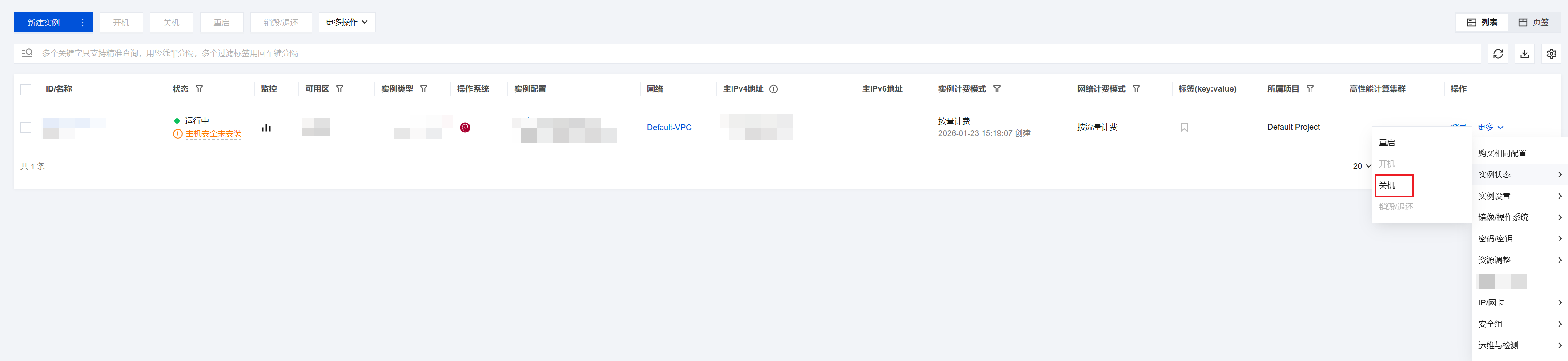
列表视图:选择实例所在行右侧的更多 > 实例状态 > 关机。如下图所示:
页签视图:选择实例详情页面中的关机。如下图所示:

制作自定义镜像
1. 在实例的管理页面,根据实际使用的视图模式进行操作:
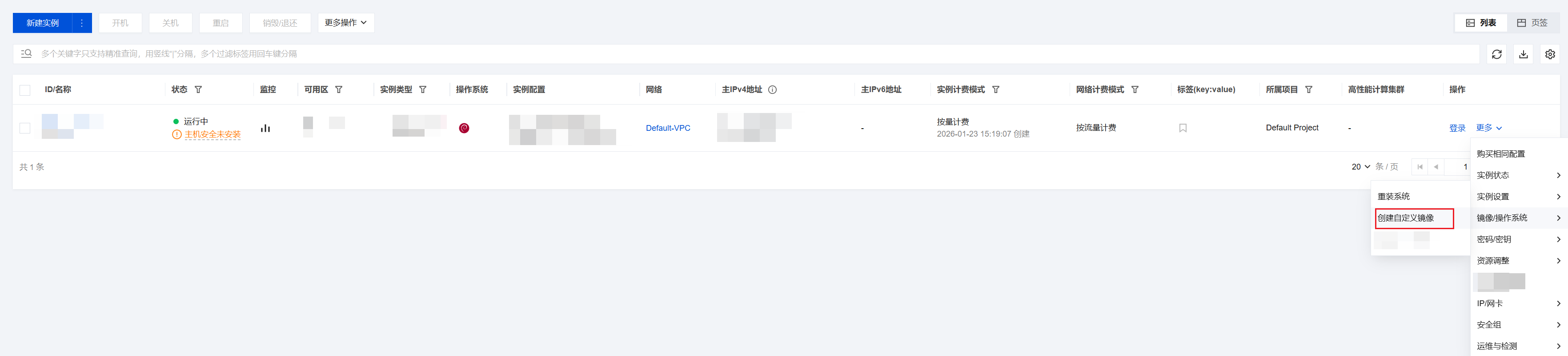
列表视图:选择更多 > 镜像/操作系统 > 创建自定义镜像。如下图所示:
页签视图:选择右上角的更多操作 > 镜像/操作系统 > 创建自定义镜像。如下图所示:

2. 在弹出的创建自定义镜像窗口中,参考以下信息进行配置:
镜像名称及镜像描述:自定义名称及描述。
标签:可按需增加标签,用于资源的分类、搜索和聚合。更多信息请参见 标签。
说明:
3. 单击创建镜像即可。
使用自定义镜像创建实例(可选)
待镜像完成创建后,在镜像列表中选择您创建的镜像,单击其所在行右侧的创建实例,即可购买与之前相同镜像的服务器。如下图所示:

创建自定义镜像
1. 登录 云服务器控制台,查看对应实例是否需进行关机。
注意:
2018年7月之后创建的实例(系统盘为云硬盘),支持在线制作镜像(即实例不关机的情况下制作镜像)。除此情况外的实例,请先将实例关机后再进行镜像制作,以确保镜像与当前实例部署环境完全一致。
需要,则关机实例。
不需要,请继续执行后续步骤。
2. 单击左侧导航栏中的 镜像,进入镜像页面,在列表上方选择创建自定义镜像。

3. 在弹出的创建自定义镜像窗口中,参考以下信息进行配置:
选择实例:选择该地域下需要创建自定义镜像的实例。
镜像名称及镜像描述:自定义名称及描述。
标签:可按需增加标签,用于资源的分类、搜索和聚合。更多信息请参见 标签。
当您的实例含数据盘时,默认创建系统盘+数据盘的整机镜像,您可以指定仅创建系统盘镜像。
4. 单击创建镜像即可。
之后您可以在镜像页面中查看镜像的创建进度。
使用自定义镜像创建实例(可选)
待镜像完成创建后,在镜像列表中选择您创建的镜像,单击其所在行右侧的创建实例,即可购买与之前相同镜像的服务器。如下图所示:

背景信息
Packer 是一款开源的、轻量级的自动化镜像构建工具。使用 JSON 格式或 HCL2(HashiCorp Configuration Language)的配置文件来定义镜像的构建过程,从而实现快速、可靠的镜像构建和部署。Packer 还能为测试和更新镜像带来使用便利,降低运维和管理镜像的时间成本。更多信息参见 Packer 官网。
前提条件
已创建子用户,并已具备云服务器及云 API 所有权限。
创建子用户请参见 新建子用户。
为子用户授予权限请参见 子用户权限设置,本文为子用户授予
QcloudCVMFullAccess、QcloudCVMFinanceAccess及 QcloudAPIFullAccess 预设策略。为子用户创建 SecretId 与 SecretKey,操作步骤请参见 子账号访问密钥管理。请记录并妥善保管。
注意:
可以使用主账号 SecretId 与 SecretKey,由于主账号对名下资源有完全控制权限,为了避免因访问密钥泄露带来的安全风险,不建议您使用主账号,请创建子账号。
操作步骤
安装 Packer
1. 运行以下命令,获取 Packer 安装包。
wget https://releases.hashicorp.com/packer/1.9.4/packer_1.9.4_linux_amd64.zip
2. 运行以下命令,解压 Packer 安装包。
unzip packer_1.9.4_linux_amd64.zip
3. 运行以下命令,安装 Packer 到环境变量目录
/usr/local/bin 。sudo mv packer /usr/local/bin
4. 运行以下命令查看 Packer 版本,从而验证是否安装成功。
packer -v
说明:
定义 Packer 模板
使用 Packer 创建自定义镜像,首先,需要定义 HCL 格式或者 JSON 格式的模板文件,其次,您需要在此文件中指定创建自定义镜像的 Builders(生成器)和 Provisioners(配置器),以及创建过程中使用的临时实例信息。
1. 运行以下命令,创建模板文件。
vim tencentcloud.pkr.hcl
vim tencentcloud.json
2. 按
i进入文件编辑模式,根据实际情况,编辑自定义镜像生成器配置器,以及实例信息。variable "secret_id" {type = stringdefault = env("TENCENTCLOUD_SECRET_ID")}variable "secret_key" {type = stringdefault = env("TENCENTCLOUD_SECRET_KEY")}source "tencentcloud-cvm" "basic" {secret_id = var.secret_idsecret_key = var.secret_keyregion = "ap-guangzhou"zone = "ap-guangzhou-6"instance_type = "SA3.MEDIUM2"disk_type = "CLOUD_PREMIUM"source_image_id = "img-9xqekomx"image_name = "packer-basic"ssh_username = "root"associate_public_ip_address = truerun_tags = {"packer" = "packer-test"}}build {sources = ["source.tencentcloud-cvm.basic"]provisioner "shell" {inline = ["sleep 30", "yum install redis.x86_64 -y"]}}
{"variables": {"secret_id": "{{env `TENCENTCLOUD_SECRET_ID`}}","secret_key": "{{env `TENCENTCLOUD_SECRET_KEY`}}"},"builders": [{"type": "tencentcloud-cvm","secret_id": "{{user `secret_id`}}","secret_key": "{{user `secret_key`}}","region":"ap-guangzhou","zone": "ap-guangzhou-6","instance_type": "SA3.MEDIUM2","disk_type": "CLOUD_PREMIUM","source_image_id": "img-9xqekomx","image_name": "packer-basic","ssh_username": "root","associate_public_ip_address": true,"run_tags": {"packer": "packer-test"}}],"provisioners": [{"type": "shell","inline": ["sleep 30", "yum install redis.x86_64 -y"]}]}
自定义各参数说明如下表所示:
参数 | 是否为必选 | 说明 |
secret_id | 是 | secret_id 推荐设置 TENCENTCLOUD_SECRET_ID环境变量。 |
secret_key | 是 | secret_key 推荐设置 TENCENTCLOUD_SECRET_KEY环境变量。 |
region | 是 | 地域。创建临时 CVM 所在地域,以及创建镜像所在的地域。 示例值: ap-guangzhou |
zone | 是 | 可用区。创建临时 CVM 所在可用区。 示例值: ap-guangzhou-6 |
instance_type | 是 | 实例机型。不同实例机型指定了不同的资源规格。 示例值: SA3.MEDIUM2 |
source_image_id | 是 | 基础镜像 ID,用于创建临时 CVM 镜像,可从公共镜像列表获取,或者通过接口 DescribeImages 查询获得。 示例值: img-9xqekomx |
image_name | 是 | 指定自定义镜像的名称。由字母、数字和-组成,不能超60个字符。 示例值: packer-basic |
image_description | 否 | 镜像描述。不能超过60个字符。 |
associate_public_ip_address | 否 | 是否为临时 CVM 开启公网 IP,默认 false。如果通过公网 IP 连接,请设置值为true |
force_poweroff | 否 | 当关闭临时 CVM 创建镜像时失败,是否强制关机创建镜像,默认为 false。 |
sysprep | 否 | 是否在创建 Windows 映像期间启用 Sysprep。 示例值: false |
image_copy_regions | 否 | 创建镜像后将复制到的区域。 示例值: ["ap-beijing"] |
image_share_accounts | 否 | 创建镜像后将共享的账户。 示例值: ["10002297xxxx"] |
skip_region_validation | 否 | 验证时不检查地域。 示例值: false |
internet_max_bandwidth_out | 否 | 启动的最大带宽(以 Mbps 为单位)。值可设置在 1 ~ 100 之间。 |
instance_name | 否 | 实例名称。 |
disk_type | 否 | |
disk_size | 否 | 系统磁盘大小。值范围(以 GB 为单位): LOCAL_BASIC: 50 Other: 50 ~ 1000(>50需要白名单) |
data_disks | 否 | |
vpc_id | 否 | 创建临时 CVM 所需 vpc_id。 |
vpc_name | 否 | 私有网络名称,创建 CVM 前创建 vpc 的名称,如果不输入给默认值,例如 packer-****。 |
cidr_block | 否 | 若未设置 vpc_id,则指定将创建的 VPC 的 CIDR 块。 示例值: false |
subnet_id | 否 | 创建临时 CVM 所需 subnet_id。 |
subnet_name | 否 | 子网名称,创建 CVM 前创建 Subnet 的名称,如果不输入给默认值,例如 packer-****。 |
subnet_cidr_block | 否 | 若未设置 subnet_id,则指定将创建的 Subnet 的 CIDR 块。 示例值: false |
security_group_id | 否 | 创建临时 CVM 所需的安全组 ID。 |
security_group_name | 否 | 安全组名称,未设定 security_group_id时,创建安全组时所需。 |
user_data | 否 | 用户数据。 |
user_data_file | 否 | 用户数据文件。 |
host_name | 否 | 主机名。 |
run_tags | 否 | 标签,用于创建临时 CVM 时指定实例标签,创建镜像不会使用。 |
数据磁盘详情
:参数 | 是否为必选 | 说明 |
disk_type | 是 | 数据磁盘的类型。 有效选择: CLOUD_BASIC、CLOUD_PREMIUM 和 CLOUD_SSD。 |
disk_size | 是 | 数据磁盘的大小。 |
disk_snapshot_id | 是 | 数据磁盘快照的 ID。 |
3. 按 Esc 键,并输入:wq 后按下回车键,保存并退出。
创建自定义镜像
1. 配置环境变量 SecretId 与 SecretKey。
export TENCENTCLOUD_SECRET_ID=xxxxexport TENCENTCLOUD_SECRET_KEY=xxxx
2. 执行以下命令,开始创建自定义镜像。
packer build tencentcloud.pkr.hcl
packer build tencentcloud.json
注意:
本操作会创建计费资源,请注意释放和清理。如 CVM 实例、公网 IP、镜像等(除镜像外,其他资源正常情况会自动清理)。
运行结果如下:
tencentcloud-cvm.basic: output will be in this color.==> tencentcloud-cvm.basic: Trying to check image name: packer-basic...tencentcloud-cvm.basic: Image name: useable==> tencentcloud-cvm.basic: Trying to check source image: img-9xqekomx...tencentcloud-cvm.basic: Image found: CentOS Stream 9 64bit==> tencentcloud-cvm.basic: Trying to create a new keypair: packer_656c7***...tencentcloud-cvm.basic: Keypair created: skey-2ekzd***==> tencentcloud-cvm.basic: Trying to create a new vpc...tencentcloud-cvm.basic: Vpc created: vpc-bm797***==> tencentcloud-cvm.basic: Trying to create a new subnet...tencentcloud-cvm.basic: Subnet created: subnet-74c4j***==> tencentcloud-cvm.basic: Trying to create a new securitygroup...tencentcloud-cvm.basic: Securitygroup created: sg-7kf8z***==> tencentcloud-cvm.basic: Trying to create securitygroup polices...tencentcloud-cvm.basic: Securitygroup polices created==> tencentcloud-cvm.basic: Trying to create a new instance...tencentcloud-cvm.basic: Waiting for instance readytencentcloud-cvm.basic: Instance created: ins-n6dp2***==> tencentcloud-cvm.basic: Using SSH communicator to connect: 1.14.***.***==> tencentcloud-cvm.basic: Waiting for SSH to become available...==> tencentcloud-cvm.basic: Connected to SSH!==> tencentcloud-cvm.basic: Provisioning with shell script: /var/folders/0_/xl3kk_6n79vbnpgj97******0000gn/T/packer-shell1288510462tencentcloud-cvm.basic: CentOS Stream 9 - AppStream 42 MB/s | 18 MB 00:00tencentcloud-cvm.basic: CentOS Stream 9 - BaseOS 31 MB/s | 7.9 MB 00:00tencentcloud-cvm.basic: Last metadata expiration check: 0:00:01 ago on Sun 03 Dec 2023 09:18:14 PM CST.tencentcloud-cvm.basic: Dependencies resolved.tencentcloud-cvm.basic: ================================================================================tencentcloud-cvm.basic: Package Architecture Version Repository Sizetencentcloud-cvm.basic: ================================================================================tencentcloud-cvm.basic: Installing:tencentcloud-cvm.basic: redis x86_64 6.2.7-1.el9 appstream 1.3 Mtencentcloud-cvm.basic:tencentcloud-cvm.basic: Transaction Summarytencentcloud-cvm.basic: ================================================================================tencentcloud-cvm.basic: Install 1 Packagetencentcloud-cvm.basic:tencentcloud-cvm.basic: Total download size: 1.3 Mtencentcloud-cvm.basic: Installed size: 4.7 Mtencentcloud-cvm.basic: Downloading Packages:tencentcloud-cvm.basic: redis-6.2.7-1.el9.x86_64.rpm 6.5 MB/s | 1.3 MB 00:00tencentcloud-cvm.basic: --------------------------------------------------------------------------------tencentcloud-cvm.basic: Total 6.5 MB/s | 1.3 MB 00:00tencentcloud-cvm.basic: Running transaction checktencentcloud-cvm.basic: Transaction check succeeded.tencentcloud-cvm.basic: Running transaction testtencentcloud-cvm.basic: Transaction test succeeded.tencentcloud-cvm.basic: Running transactiontencentcloud-cvm.basic: Preparing : 1/1tencentcloud-cvm.basic: Running scriptlet: redis-6.2.7-1.el9.x86_64 1/1tencentcloud-cvm.basic: Installing : redis-6.2.7-1.el9.x86_64 1/1tencentcloud-cvm.basic: Running scriptlet: redis-6.2.7-1.el9.x86_64 1/1tencentcloud-cvm.basic: Verifying : redis-6.2.7-1.el9.x86_64 1/1tencentcloud-cvm.basic:tencentcloud-cvm.basic: Installed:tencentcloud-cvm.basic: redis-6.2.7-1.el9.x86_64tencentcloud-cvm.basic:tencentcloud-cvm.basic: Complete!==> tencentcloud-cvm.basic: Trying to detach keypair: skey-2ekzdz0x...tencentcloud-cvm.basic: Waiting for keypair detachedtencentcloud-cvm.basic: Keypair detached==> tencentcloud-cvm.basic: Trying to create a new image: packer-basic...tencentcloud-cvm.basic: Waiting for image readytencentcloud-cvm.basic: Image created: img-pubkd***==> tencentcloud-cvm.basic: Cleaning up instance...==> tencentcloud-cvm.basic: Cleaning up securitygroup...==> tencentcloud-cvm.basic: Cleaning up subnet...==> tencentcloud-cvm.basic: Cleaning up vpc...==> tencentcloud-cvm.basic: Cleaning up keypair...Build 'tencentcloud-cvm.basic' finished after 3 minutes 38 seconds.==> Wait completed after 3 minutes 38 seconds==> Builds finished. The artifacts of successful builds are:--> tencentcloud-cvm.basic: Tencentcloud images(ap-guangzhou: img-pubkd***) were created.
3. 查看已创建的自定义镜像。
3.1 登录 云服务器控制台。
3.2 在左侧导航栏中,单击 镜像,进入镜像管理页面。
3.3 单击左上角的地域,即可在下拉框中查看所在地域的自定义镜像。

操作场景
此处介绍您如何在 Windows 客户端上,使用 Packer 工具通过 WinRM 连接方式创建自定义镜像。Packer 是 HashiCorp 推出的自动化镜像构建工具,可帮助您快速、一致地创建云服务器自定义镜像。
注意:
Windows 依赖 WinRM 建立网络连接,通过 WinRM 下发指令。由于 Windows 公共镜像默认没有完全启用 WinRM,因此需要借助 UserData 启用 WinRM,原本调用 RunInstances 接口时放在 UserData 里的业务代码则放在 provisioners 部分执行。
Packer 创建机器打包镜像时,并不会等 UserData 代码执行完成后再去执行 provisioners 模块,且 Packer 在 Windows 系统上强依赖 WinRM,而 sysprep 公共镜像没有完全启用 WinRM。
Packer 从1.9.0版本开始,Plugin 跟 Packer 主程序分开,需要单独安装 Plugin,否则会报
builder unknown,而1.9.0之前(例如1.8.7版本)的 Packer 自带 Plugin。前提条件
已创建子用户,并已具备云服务器及云 API 所有权限。
创建子用户请参见 新建子用户。
为子用户授予权限请参见 子用户权限设置,此处为子用户授予
QcloudCVMFullAccess、QcloudCVMFinanceAccess 及 QcloudAPIFullAccess 预设策略。已为子用户创建 SecretId 与 SecretKey,操作步骤请参见 子账号访问密钥管理。请记录并妥善保管。
注意:
可以使用主账号 SecretId 与 SecretKey,由于主账号对名下资源有完全控制权限,为了避免因访问密钥泄露带来的安全风险,不建议您使用主账号,请创建子账号。
请确保客户端(执行
packer.exe 命令的主机)与 Packer 打包机之间网络互通。建议在 config.json 中配置分配公网("associate_public_ip_address": true),或客户端为 config.json 指定的同一 VPC 内的其他云服务器,以保证内网互通。操作步骤
步骤一:安装 Packer
1. 下载 Packer。
2. 解压 Packer 安装包。此处以1.14.1版本为例,解压文件中包含
packer.exe。使用 CMD 命令行进入解压目录,执行以下命令完成 Packer 环境初始化。packer.exe plugins install github.com/hashicorp/tencentcloud
说明:
Packer 环境初始化需要从 GitHub 获取 Packer Plugin,中国大陆实例访问 GitHub 较慢,请耐心等待,如遇报错请重试或使用其他国家和地区主机。
步骤二:定义 Packer 模板
使用 Packer 创建自定义镜像,首先需要定义 JSON 格式或 HCL 格式的模板文件。您需要在模板文件中指定创建自定义镜像的 Builders(生成器)和 Provisioners(配置器),以及创建过程中使用的临时实例信息。
腾讯云完整的 Windows Packer 配置文件 config.json 内容如下:
{"builders": [{"type": "tencentcloud-cvm","secret_id": "您的secret_id","secret_key": "您的secret_key","region": "ap-shanghai","zone": "ap-shanghai-5","instance_type": "S5.MEDIUM4","source_image_id": "img-m07ny34j","disk_size": 40,"disk_type": "CLOUD_PREMIUM","vpc_id": "vpc-9yabaw4m","subnet_id": "subnet-ih08bvf9","communicator": "winrm","winrm_port": 5985,"winrm_username": "Administrator","winrm_password": "大写、小写、数字,组成的复杂密码","image_name": "test_Packer1","security_group_id": "sg-c65mz0li","packer_debug": true,"associate_public_ip_address": true,"run_tags": {"good": "luck"},"user_data_file": "winrm_enable_userdata.ps1"}],"provisioners": [{"type": "powershell","inline": ["mkdir C:\\\\test -force;wget http://windows-1251783334.cos.ap-shanghai.myqcloud.com/installChrome.ps1 -Outfile c:\\\\test\\\\packer.ps1;Start-Process powershell.exe -ArgumentList '-NoProfile -File c:\\\\test\\\\packer.ps1' -Wait;"]}]}
您需要根据实际情况,修改自定义镜像生成器配置器及实例信息,各参数说明如下:
参数 | 是否必选 | 说明 |
secret_id | 是 | 建议设置 TENCENTCLOUD_SECRET_ID 环境变量。 |
secret_key | 是 | 建议设置 TENCENTCLOUD_SECRET_KEY 环境变量。 |
region | 是 | 地域。创建临时 CVM 所在地域,以及创建镜像所在的地域。 示例值: ap-guangzhou |
zone | 是 | 可用区。创建临时 CVM 所在可用区。 示例值: ap-guangzhou-4 |
instance_type | 是 | 实例机型。不同实例机型指定了不同的资源规格。 示例值: S5.MEDIUM4 |
source_image_id | 是 | 示例值: img-m07ny34j |
image_name | 是 | 自定义镜像的名称。由字母、数字和 - 组成,不能超过60个字符。示例值: test_Packer1。 |
communicator | 是 | 指定 Packer 用于连接目标机器的方式,固定为 winrm,将通过 WinRM 连接与机器建立通信。 |
winrm_port | 是 | WinRM 连接的端口号,固定为 5985。 |
winrm_username | 是 | |
winrm_password | 是 | |
associate_public_ip_address | 否 | 是否为临时 CVM 开启公网 IP,默认 false。如果通过公网 IP 连接,请设置为 true。 |
disk_type | 否 | |
disk_size | 否 | 系统磁盘大小,以 GB 为单位,例如40GB,输入40。 |
vpc_id | 否 | 创建临时 CVM 所需的 VPC ID。 |
subnet_id | 否 | 创建临时 CVM 所需的子网 ID。 |
security_group_id | 否 | 创建临时 CVM 所需的安全组 ID。 |
user_data_file | 否 | 用户数据文件路径。 |
inline | 否 | 创建镜像前必要的业务逻辑。例如,可连接公网时自动安装 Chrome 浏览器。 |
步骤三:创建自定义镜像
1. 将
config.json 和 winrm_enable_userdata.ps1 与 Packer 主程序 packer.exe 放在同一目录下。2. 切换至对应目录后,执行以下命令:
packer.exe build config.json
说明:
3. 命令执行完成后,若输出结果中包含类似以下信息,则表示镜像创建成功:
==> tencentcloud-cvm: Waiting for image creating...==> tencentcloud-cvm: Image ID: img-xxxxxxBuild 'tencentcloud-cvm' finished after ...
常见问题
创建镜像时提示 Some builds didn't complete successfully and had errors: tencentcloud-cvm: Image name xxxx exists
使用
config.json 成功创建一次镜像后,重复使用时需要更新 image_name 值。创建镜像时一直显示 Waiting for WinRM become available...
请确认
config.json 中 winrm_password 与 winrm_enable_userdata.ps1 中的密码保持一致。winrm_enable_userdata.ps1 密码配置位置如下: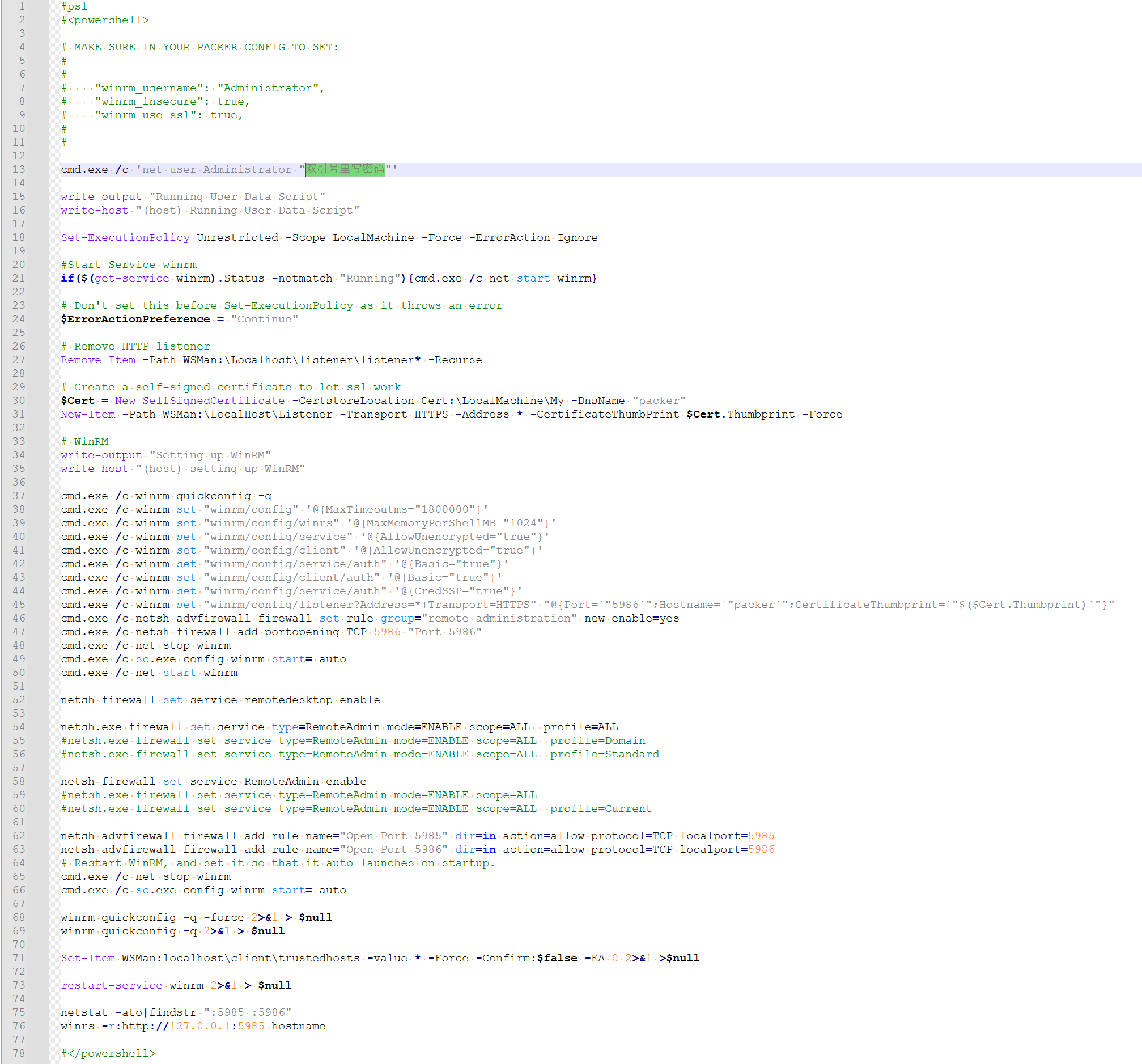
创建镜像时提示 Script exited with non-zero exit status: 16001.
可能由于安全软件的网络安全措施,影响 Packer 访问网络,导致打包超时。建议客户端尽量使用独立网络下的云服务器。
相关操作
查看各地域自定义镜像数量
在镜像资源较多、跨地域部署等场景下,一键查询各地域镜像数量可帮助您更高效地管理镜像资源。
1. 登录 云服务器控制台。
2. 在左侧导航栏中,单击 镜像,进入镜像管理页面。
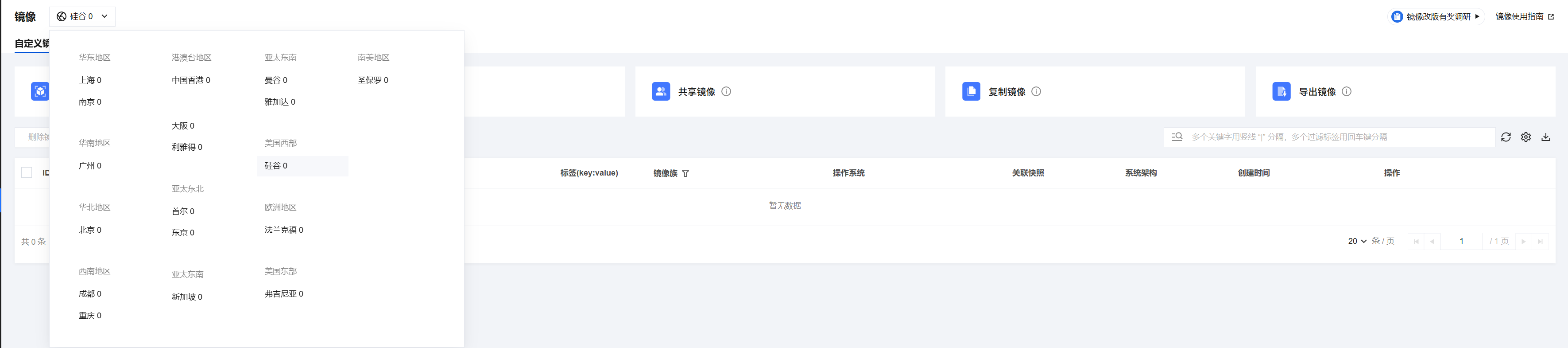
3. 单击左上角的地域,即可在下拉框中查看各地域的自定义镜像数量。
4. 切换至共享镜像管理页面,单击左上角的地域,即可在下拉框中查看各地域的共享镜像数量。
数据盘数据迁移
文档反馈