tencent cloud

Cloud Virtual Machine

Release Notes and Announcements
Release Notes
Public Image Release Notes
Official End of Support Plan for the Operating System
Announcements
Product Introduction
CVM Overview
Strengths
Basic Concepts
Regions and Zones
Tutorial
Service Regions and Service Providers
Billing
Billing Overview
Billing Modes
Billing Items
Billing Mode Conversion Overview
Purchasing Instances
Configuration Adjustment Billing Guide
Overdue Payments
Getting Started
Purchasing a Customized Linux Instance
Purchasing a Customized Windows Instance
User Guide
Operation Guide Overview
Use Limits
Instances
Spot Instances
Reserved Instances
Images
Storage
Backup and Restoration
Network
Security
Passwords/Keys
Monitoring and Alarms
Ops Management
Convenience Features
Migrating a Server
Online Migration
Migration Consultation
Troubleshooting
CVM Login Failures
Windows Instance Login Failures
Linux Instance Login Failures
Other Login Failures
Instance Running Failures
Linux Instance Memory Failures
Network Failures
Use Cases
Suggestions on CVM Model Selection
Environment Building
Website Building
Application Building
Visual GUI Building
Uploading Local Files to CVM
Network Performance Test
Other Practical Tutorials
API Documentation
History
Introduction
API Category
Making API Requests
Region APIs
Instance APIs
Cloud Hosting Cluster APIs
Image APIs
Instance Launch Template APIs
Placement Group APIs
Key APIs
Security Group APIs
Network APIs
Data Types
Error Codes
Security and Compliance
CAM
Network
FAQs
Regions and Zones
Billing
Instances
Storage
Images
Server Migration
Network
Security
Operating Systems
Ops and Monitoring
CAM
NTP Service
Scenarios
Agreements
CVM Service Level Agreements
Red Hat Enterprise Linux Image Service Agreement
Public IP Service Level Agreement
Glossary

Life Cycle

PDF
Focus Mode
Font Size
Last updated: 2025-12-31 18:30:58
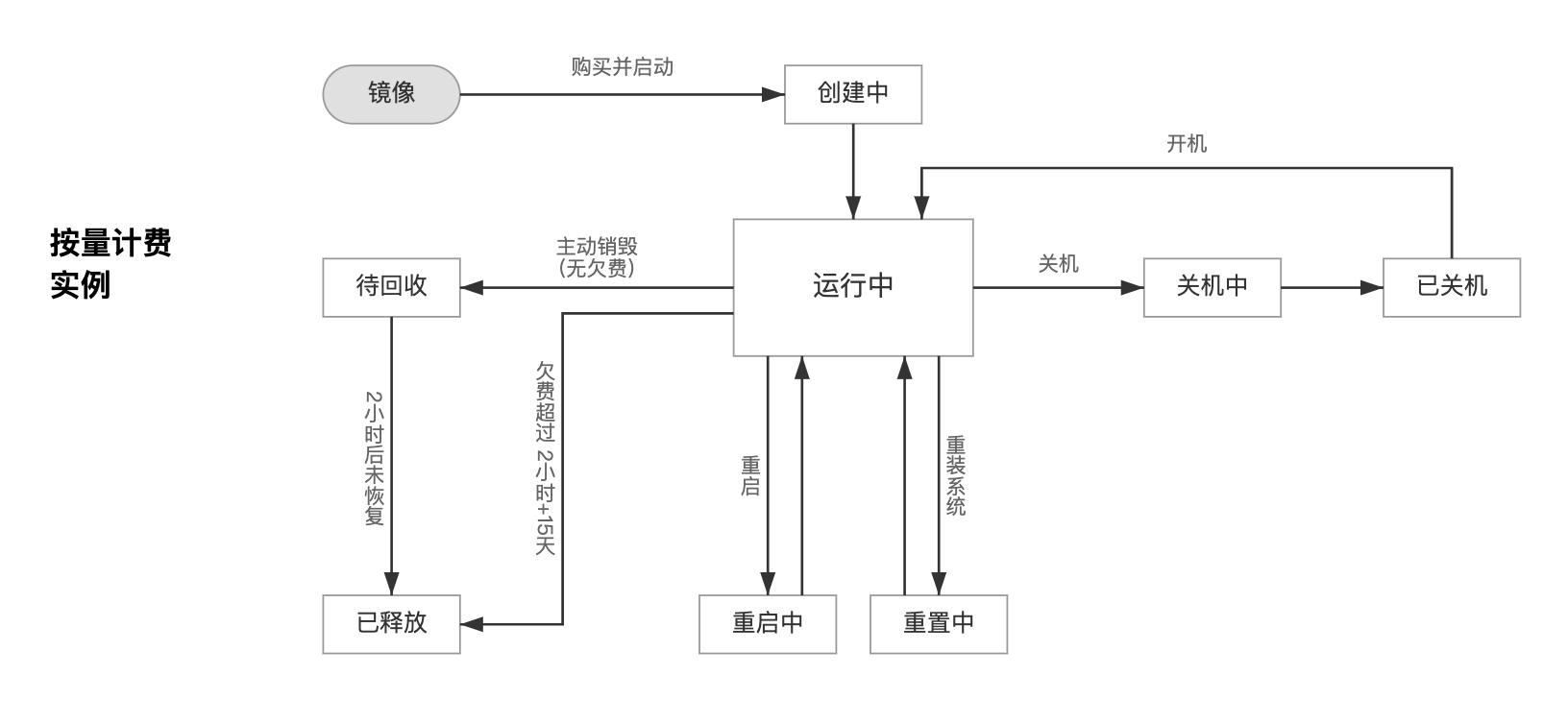
The lifecycle of a Tencent Cloud CVM instance refers to all statuses from the launch of the instance to its release. Properly managing the CVM instance in different statuses can ensure that applications running on the instance provide services economically and efficiently.
Instance Status
An instance has the following statuses:
Status Name
Status Attributes
Description
Creating
Intermediate status
The instance has been created but is not running yet.
Running
Steady status
The instance is running normally, and you can run your services on this instance.
Restarting
Intermediate status
A restart operation has been performed for the instance via the console or APIs, but the instance is not running yet. If this status lasts for a long time, there may be an exception.
Reinstalling
Intermediate status
The instance's system has been reinstalled or its disk has been reconfigured via the console or APIs, but the instance is not running yet.
Shutting Down
Intermediate status
A shutdown operation has been performed for the instance via the console or APIs, but the instance has not been shut down yet. If this status lasts for a long time, there may be an exception. We do not recommend forced shutdown.
Shutdown
Steady status
The instance has been shut down normally and cannot provide external services. Some instance attributes can only be modified when the instance is in shutdown status.
Terminating
Intermediate status
The instance has expired for 15 days or the user has performed the termination operation, but it has not completed yet.
Reclaimed
Steady status
Within 15 days of the instance being moved to the recycle bin, a pay-as-you-go instance has been manually terminated for less than 2 hours and put into the recycle bin. In this status, the instance does not provide external services.
Released
Steady status
The release operation has been completed. The original instance no longer exists, cannot provide services, and its data is completely cleared.
Instance Status Transition:


Launching an instance

After an instance is launched, it goes to the "Creating" status. For an instance in this status, its hardware specifications will be configured according to the specified instance type, and the system will launch the instance using the image specified at launch.
An instance goes to "Running" status after it is created. An instance in the running status can be connected to and accessed normally.
For more information about instance startup, see Creating an Instance, Logging In to a Windows Instance, and Logging In to a Linux instance.

Restarting an instance

We recommend you restart an instance via the Tencent Cloud Console or Tencent Cloud APIs instead of running the OS restart command in the instance.
After the restart operation is performed, the instance will enter the restarting status.
Restarting an instance is like restarting a computer. After restarted, the instance will retain its public IP address, private IP address and all data on its disk.
Depending on its configuration, restarting the instance normally takes dozens of seconds to several minutes.
For more information about how to restart an instance, see Restarting Instances.

Shutting down an instance

You can shut down the instance in the console or by using APIs.
Shutting down an instance is like shutting down a computer.
A shutdown instance no longer provides services, but the billing of the instance continues.
A shutdown instance is still visible in the console.
You need to shutdown an instance for some operations, such as adjusting hardware configurations and resetting the password.
The shutdown operation does not change the CVM's public IP, private IP, or any data on its disks.
For more information about shutting down an instance, see Shutting Down Instances.

Terminating and releasing an instance

If you no longer need an instance, you can terminate and release it in the console or by using APIs.
Manual termination: Pay-as-you-go instances are released after being moved to the recycle bin for two hours.
Auto termination due to expiry or overdue payment: Pay-as-you-go instances will be automatically terminated when the account balance drops below 0 for 2 hours and 15 days. Billing will continue for the first 2 hours, then the instance will shut down and no longer be billed. The overdue pay-as-you-go instance can be viewed on the instance list. You can continue to use the instance if you renew it within the specified time.
When an instance is terminated, its system disk and data disks specified at purchase will be released. However, cloud disks attached to the instance will not be affected. For more information on terminating an instance, see Terminating Instances.

Help and Support

Was this page helpful?

Help us improve! Rate your documentation experience in 5 mins.

Feedback