tencent cloud

Cloud Virtual Machine

Release Notes and Announcements
Release Notes
Public Image Release Notes
Official End of Support Plan for the Operating System
Announcements
Product Introduction
CVM Overview
Strengths
Basic Concepts
Regions and Zones
Tutorial
Service Regions and Service Providers
Billing
Billing Overview
Billing Modes
Billing Items
Billing Mode Conversion Overview
Purchasing Instances
Configuration Adjustment Billing Guide
Overdue Payments
Getting Started
Purchasing a Customized Linux Instance
Purchasing a Customized Windows Instance
User Guide
Operation Guide Overview
Use Limits
Instances
Spot Instances
Reserved Instances
Images
Storage
Backup and Restoration
Network
Security
Passwords/Keys
Monitoring and Alarms
Ops Management
Convenience Features
Migrating a Server
Online Migration
Migration Consultation
Troubleshooting
CVM Login Failures
Windows Instance Login Failures
Linux Instance Login Failures
Other Login Failures
Instance Running Failures
Linux Instance Memory Failures
Network Failures
Use Cases
Suggestions on CVM Model Selection
Environment Building
Website Building
Application Building
Visual GUI Building
Uploading Local Files to CVM
Network Performance Test
Other Practical Tutorials
API Documentation
History
Introduction
API Category
Making API Requests
Region APIs
Instance APIs
Cloud Hosting Cluster APIs
Image APIs
Instance Launch Template APIs
Placement Group APIs
Key APIs
Security Group APIs
Network APIs
Data Types
Error Codes
Security and Compliance
CAM
Network
FAQs
Regions and Zones
Billing
Instances
Storage
Images
Server Migration
Network
Security
Operating Systems
Ops and Monitoring
CAM
NTP Service
Scenarios
Agreements
CVM Service Level Agreements
Red Hat Enterprise Linux Image Service Agreement
Public IP Service Level Agreement
Glossary

Approach to Resolving Windows Login Failures

PDF
Focus Mode
Font Size
Last updated: 2025-09-08 16:42:02
This document describes the possible causes of Windows instance login failures and their troubleshooting methods.

Possible Cause

Common login failure reasons:

Using Self-Diagnosis Tool

Tencent Cloud provides a self-diagnosis tool to help you determine whether the failure is caused by common problems with the bandwidth, firewall, and security group configurations. 70% of faults can be located with this tool. You can locate the faults that may result in the login failure based on the detected causes.
1. Click Self-diagnose to open the self-diagnosis tool.
2. Select the target CVM instance as prompted and click Start Detection.
If you cannot troubleshoot with the diagnosis tool, we recommend you log in to the CVM instance via VNC and follow the instructions.

Troubleshooting

Logging in via VNC

If you cannot log in to a Windows instance through RDP or remote access software, you can log in through VNC for troubleshooting.
1. Log in to the CVM console.
2. On the Instances page, select the target instance and click Log in.


3. In the Standard Login | Windows Instance pop-up window, click Login via VNC.
Note:
If you forgot the password for the instance, you can reset it in the console. For more information, see Resetting Instance Password.
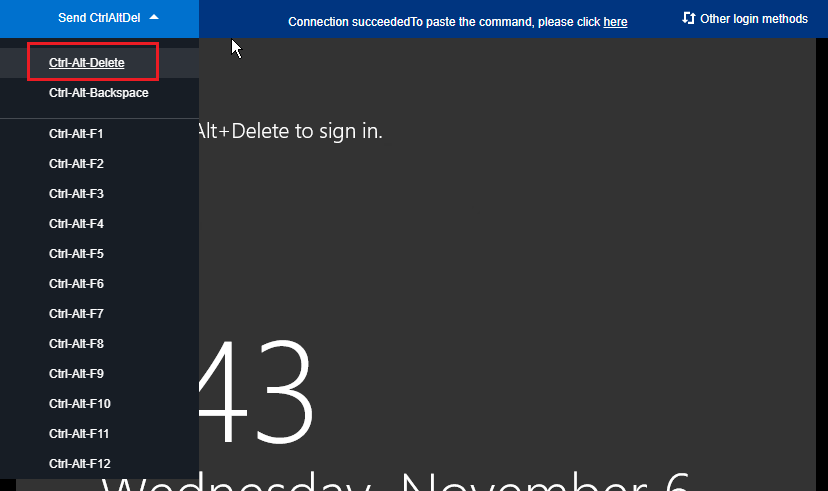
4. In the login pop-up window, click Ctrl-Alt-Delete from the top left list.


Login failure due to password issue

Problem: The login attempt failed because you forgot the password, entered an incorrect password, or failed to reset your password. Solution: Reset the password for this instance in the CVM console and restart the instance. For more information, see Resetting Instance Password.

High bandwidth utilization

Problem: The self-diagnosis tool shows that bandwidth utilization is too high. Procedure:
1. Log in to the instance by using VNC login.
2. Check the bandwidth utilization of the instance and perform troubleshooting accordingly. For details, see Login Failure Due to High Bandwidth Occupation.

High server load

Problem: The self-diagnosis tool or Tencent Cloud Observability Platform shows that server CPU workload is too high, and the system is unable to perform remote connection or access is slow. Possible cause: Viruses, trojans, third-party antivirus software, application exceptions, driver exceptions, and automatic updates of software on the backend may lead to high CPU utilization. Procedure:
1. Log in to the instance by using VNC login.
2. In Task manager, find the process with high load. For details, see Failed to log in to a Windows CVM due to high CPU and memory usage.

Improper remote port configuration

Problem: Failed to access the instance remotely, the remote access port is not the default port or has been modified, or port 3389 is not open. Diagnosis: Ping the public IP address of the instance to check network connectivity and run telnet to check whether the port is open. Procedure: See Remote Login Failure Due to Port Issues for the detailed procedure.

Improper security group rules

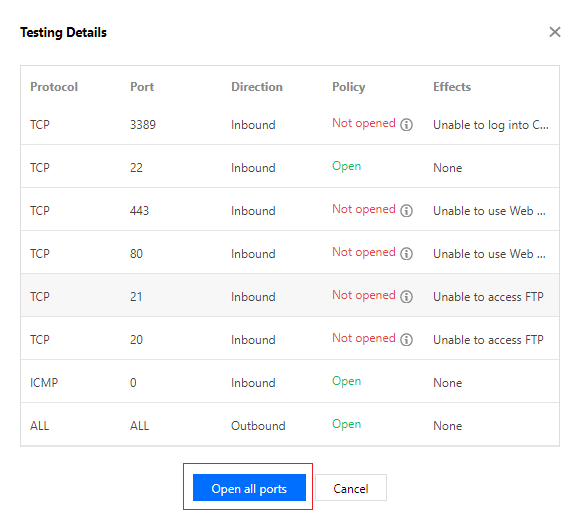
Problems: Security group rule configuration is improper, leading to login failures. Procedure: Troubleshoot with the Port Verification feature on the VPC console.
Note:
Open 3389 must be open for remote login.


To define a custom rule for the security group, see Adding Security Group Rules.

Login failure due to firewall or security software

Problem: The login attempt failed due to the CVM firewall or security software. Diagnosis: Log in to a Windows instance through VNC to check whether the login is blocked by the firewall policies or security software installed on the server.
Note:
This operation involves shutting down the CVM firewall. To perform it, check whether you have the corresponding permission.
Procedure: Shut down the firewall or the installed security software, and then try to access remotely again. For example, you can shut down the firewall of Windows Server 2016 as follows:
1. Log in to the instance by using VNC login.
2. On the desktop, click

and select Control Panel.
3. Click Windows Defender Firewall.
4. In the Windows Defender Firewall window, click Turn Windows Firewall on or off on the left to open Customize Settings.
5. Set Private network settings and Public network settings to Turn off Windows Firewall and click OK.
6. Restart the instance and try to access remotely again.

Identity verification error in access through remote desktop

Problem: When you tried to log in to a Windows instance through the remote desktop, the prompt stating "Authentication error. Invalid flag is provided to the function." or Authentication error. The required function is not supported. appears. Possible cause: Microsoft released a security update in March 2018. This update fixes a remote code execution vulnerability in the Credential Security Supporting Program (CredSSP) by correcting how CredSSP validates requests during the authentication process. Both the client and server need to be updated or the preceding error may occur. Procedure: Install the security update (recommended). For details, see An Authentication Error Occurred when You Tried to Log In to a Windows Instance Remotely.

Other Solutions

If you still cannot connect to the Windows instance, and submit a ticket for assistance.


Help and Support

Was this page helpful?

Help us improve! Rate your documentation experience in 5 mins.

Feedback