The Customer-Owned Gateway is a private deployment solution for the data plane of Multiple Network Acceleration (Tencent Cloud Jutong). The acceleration gateway (MPGW) is deployed in your data center or cloud, and the control plane is centrally managed by the Tencent Cloud public cloud controller.
This document describes the complete process for creating, registering, and managing a Customer-Owned Gateway in the Tencent Cloud console.
Basic Concepts
Before you begin, you need to understand the following two core concepts:
A cluster is a logical unit for deploying a Customer-Owned Gateway. It typically corresponds to the deployment in one of your IDC data centers or in one region. Each cluster has a unique public network entry IP address (CLB or VIP) and can contain multiple gateway instances.
A gateway instance is a single MPGW server within a cluster. Each instance independently holds an authentication credential (Token). The Token is displayed only once upon generation, so please store it securely.
Note:
The load balancer (MPLB) is not part of a gateway instance. You must install it yourself during deployment, and the console does not detect the MPLB.
Prerequisites
1. Activate Service
The Tencent Cloud Jutong service has been activated.
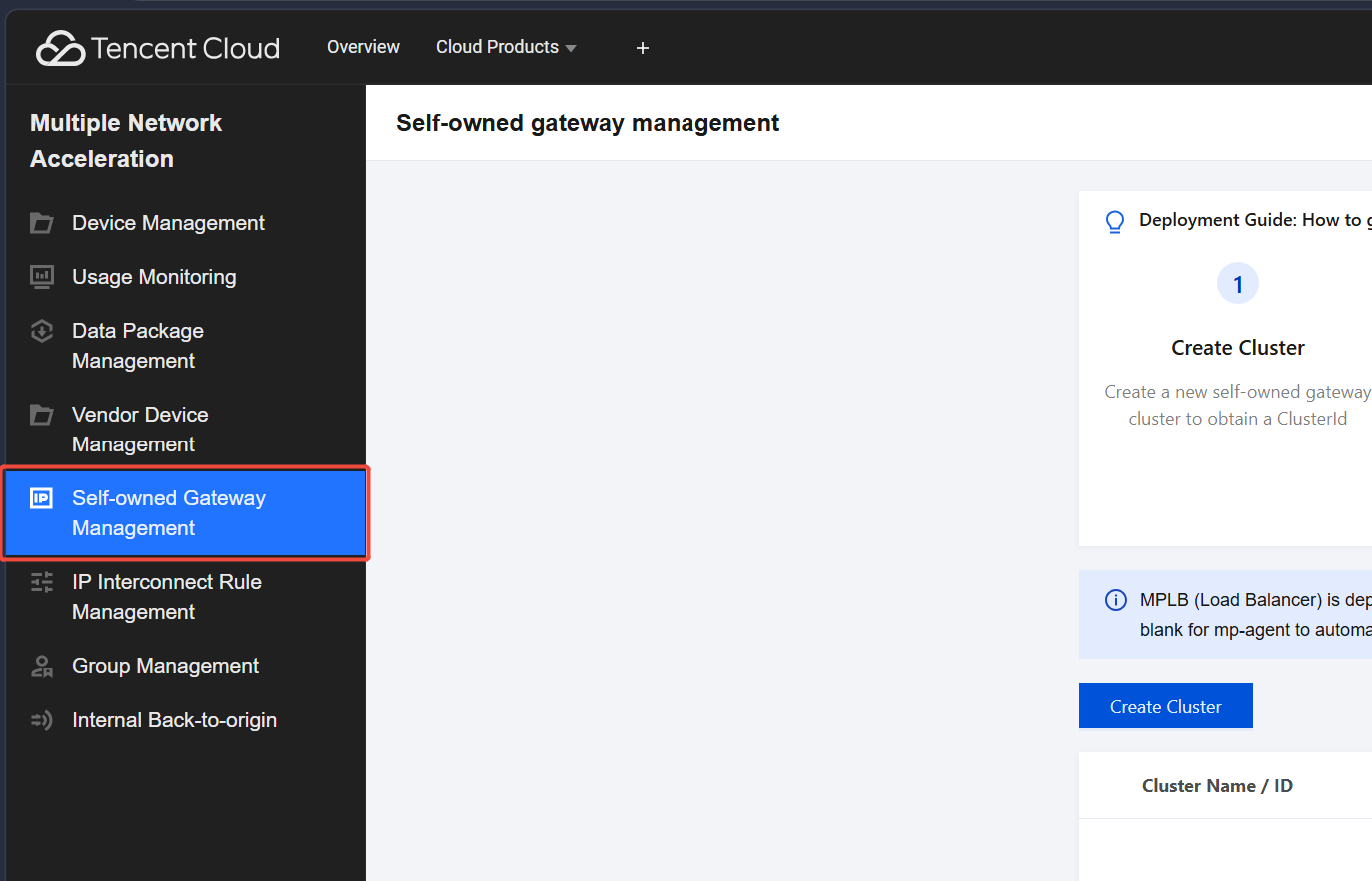
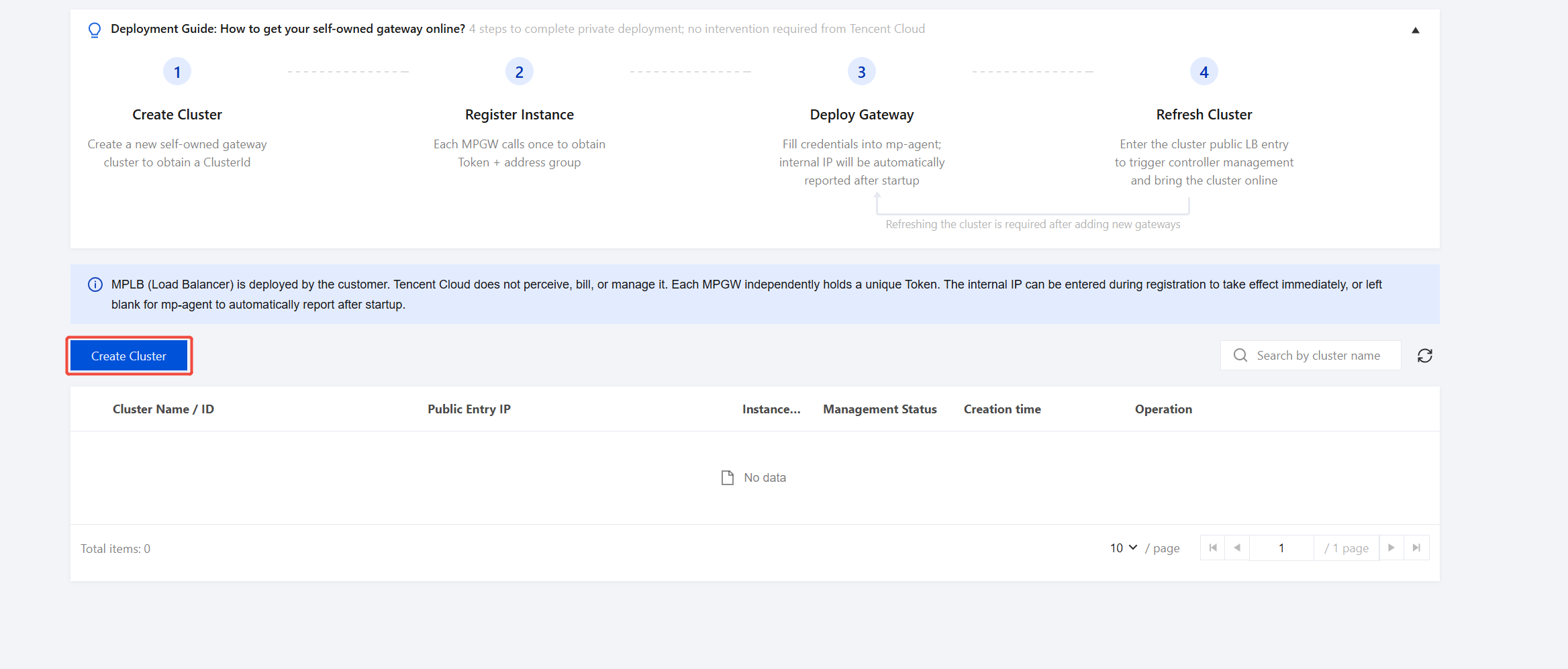
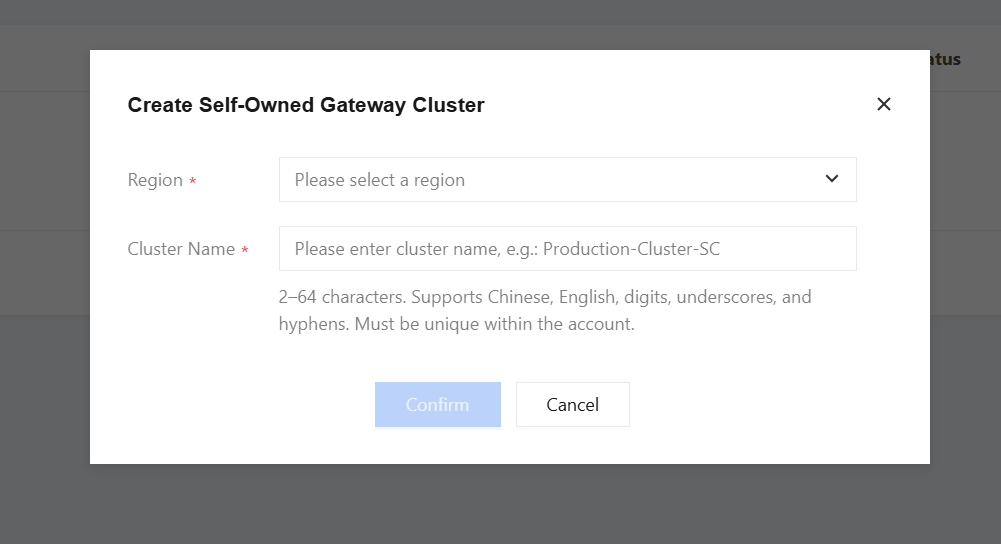
3. In the pop-up window, enter the region and a unique cluster name (unique within the same account), and then click Confirm.
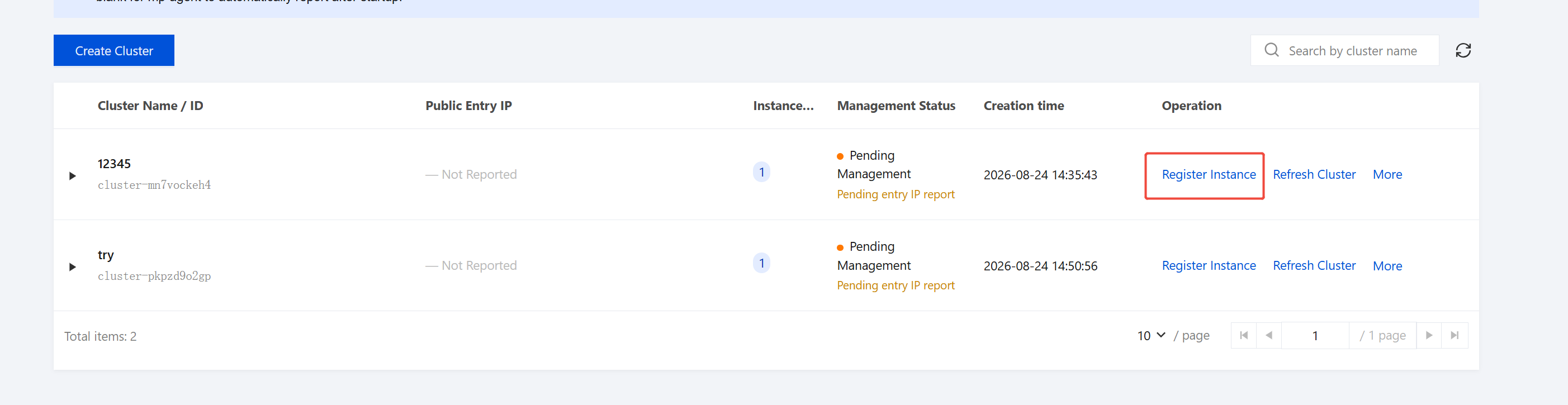
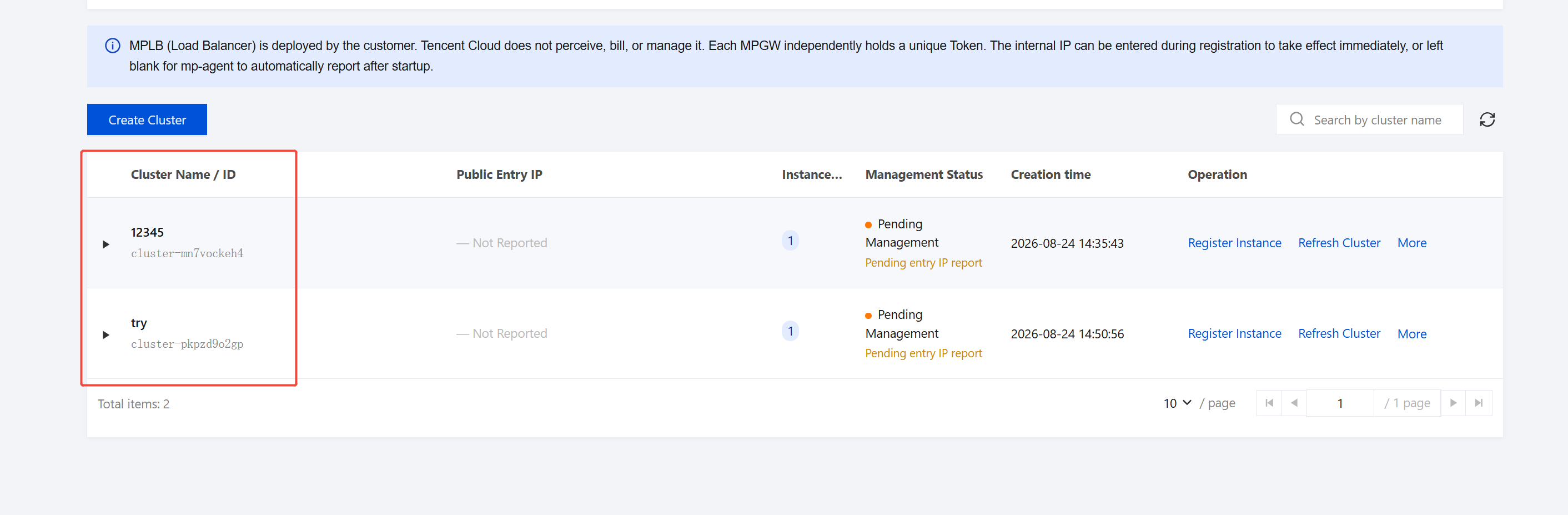
4. After successful creation, the cluster will appear in the list.
Step 2: Registering a Gateway Instance (Perform Once per MPGW)
After the cluster is created, you must register each MPGW server within the cluster individually to obtain its unique authentication credential.
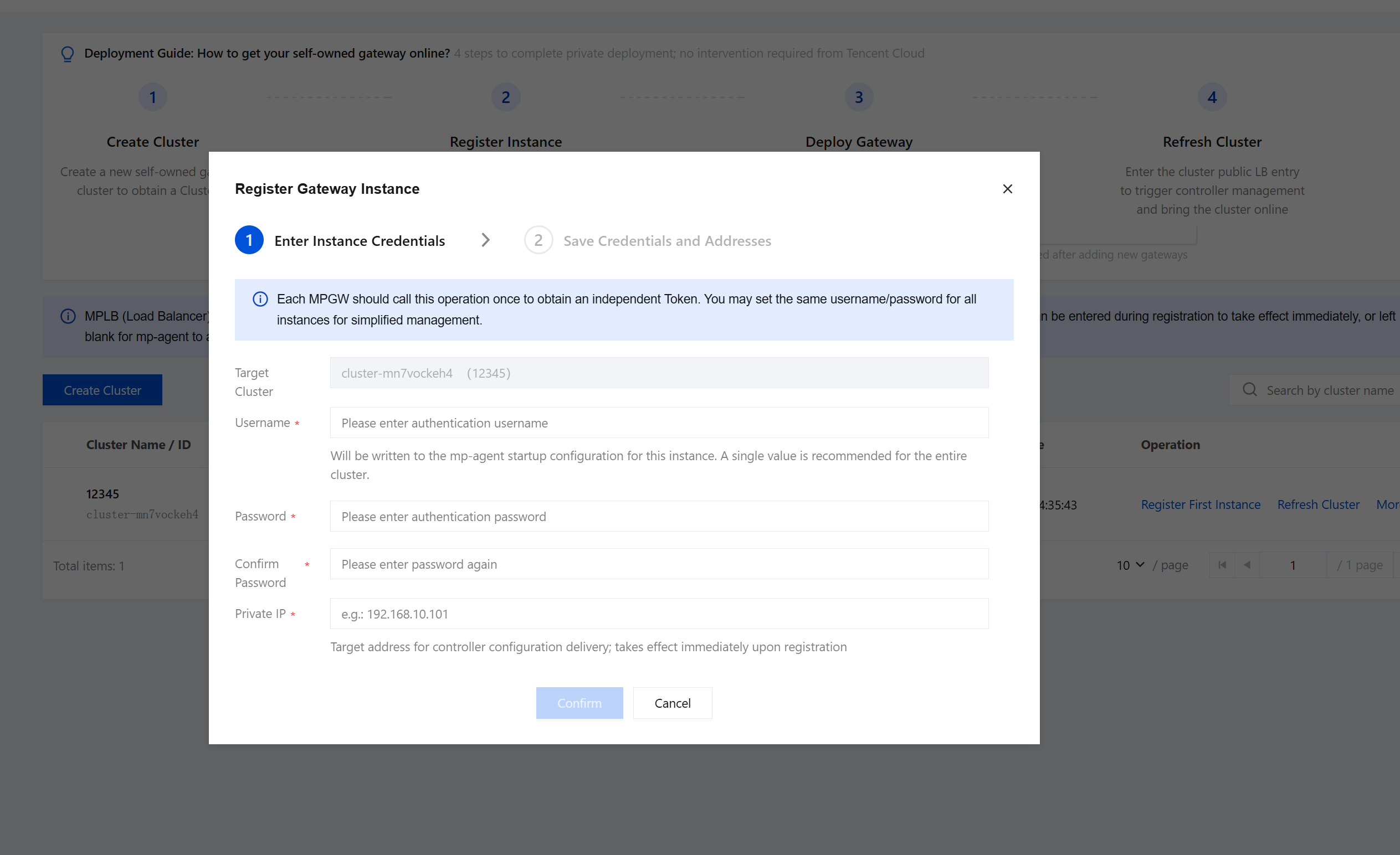
1. Locate the target cluster in the cluster list, and click Register Instance.
2. In the pop-up window, enter the following information and click Confirm.
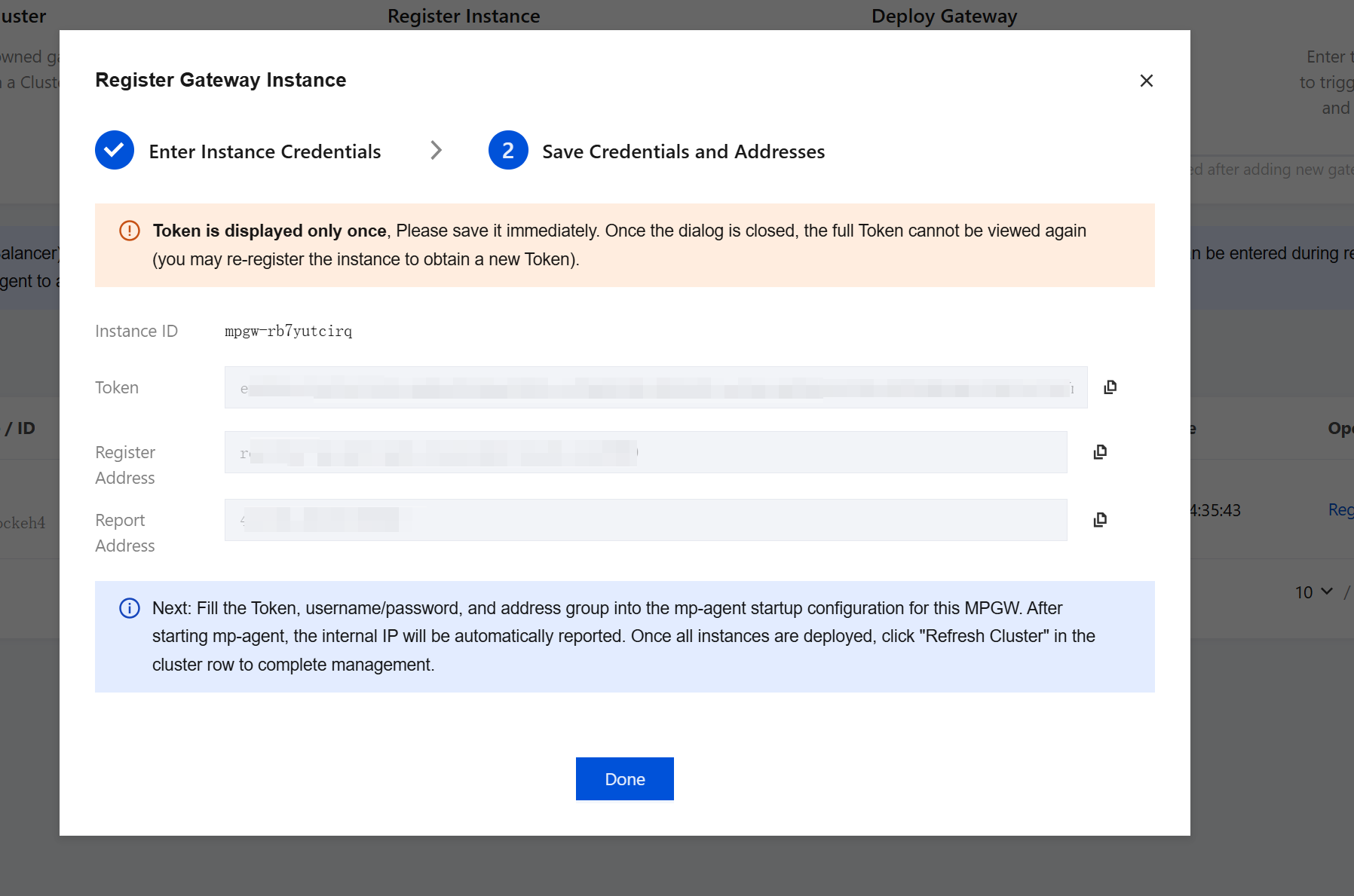
3. After successful registration, a pop-up window displays the credential information for that instance.
Attention:
The Token will not be displayed again. If it is lost, you must contact a Tencent Cloud engineer or delete the instance and re-register it to obtain a new Token.
4. Enter the credential information above into the mp-agent configuration file of that MPGW server to complete the software installation.
5. Repeat the preceding steps for each MPGW server in the cluster until all instances are registered and the installation is complete.
Step 3: Reporting the Cluster Entry IP address and Completing Management
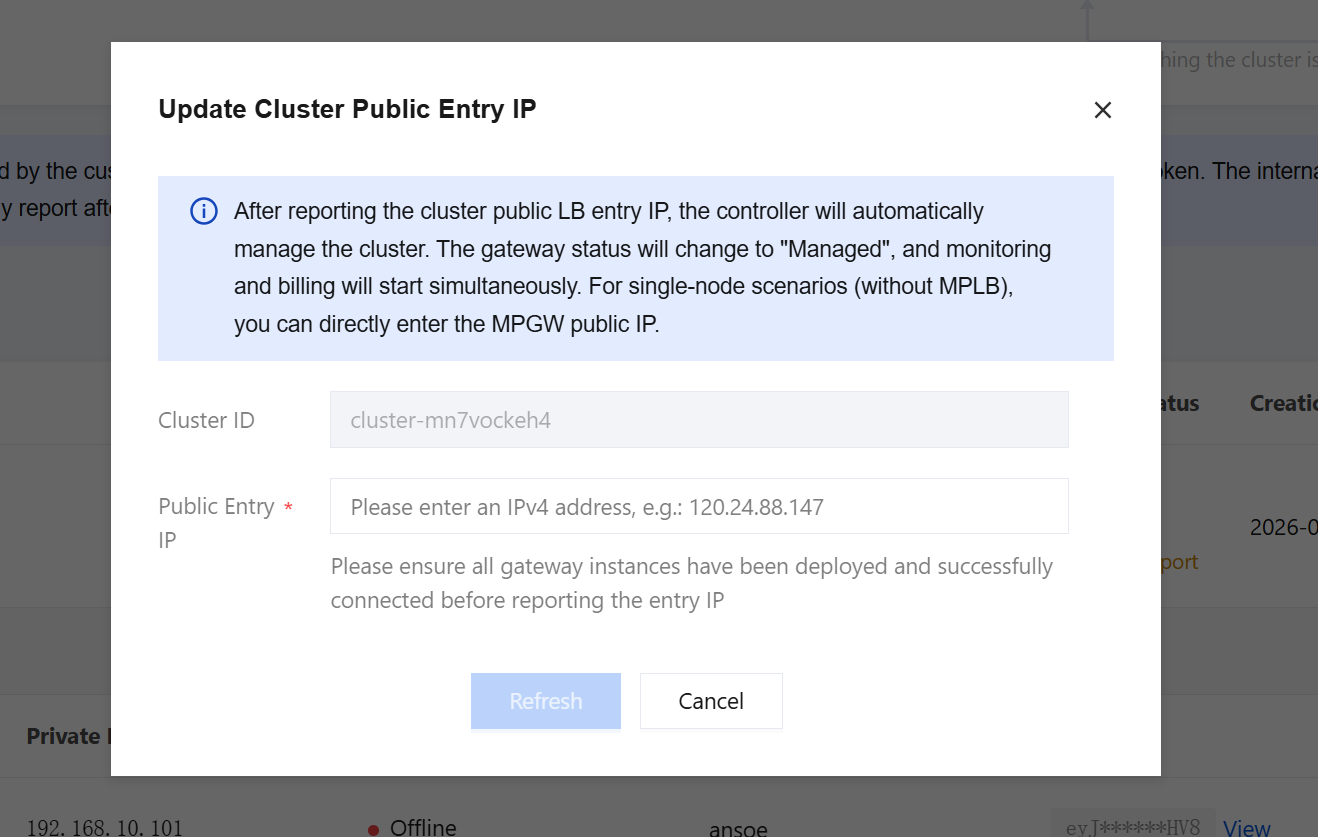
After all MPGW instances are registered, report the cluster's public network entry IP address on the console. The controller then completes the final onboarding based on this information.
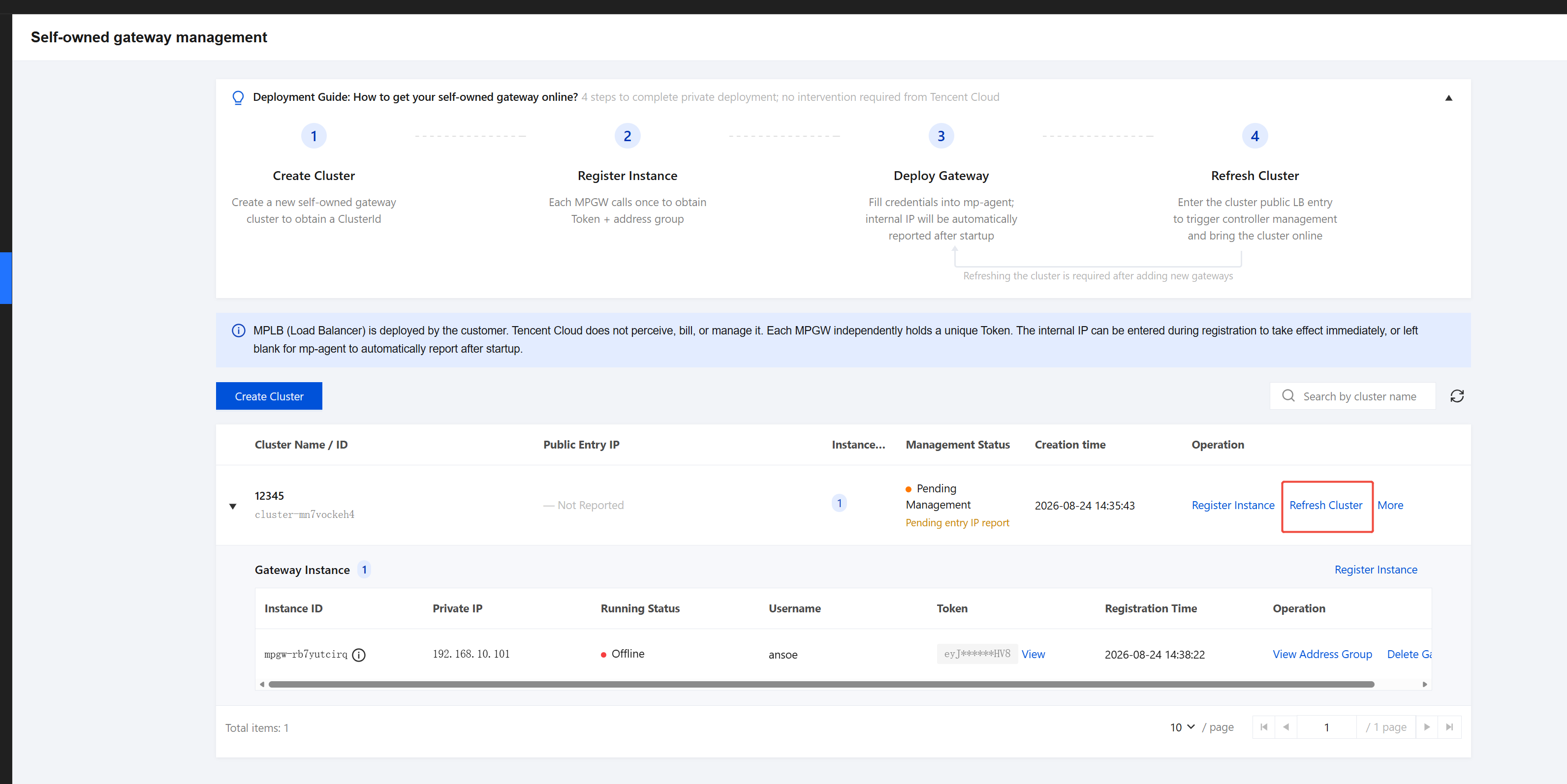
1. Locate the target cluster in the cluster list, and click Refresh Cluster.
2. Enter the public network entry IP address based on your deployment environment and click OK.
3. When the status of all instances under the cluster changes to Online, it indicates successful onboarding, and monitoring and billing are automatically started.
Cluster and Instance Management
Viewing Clusters and Instances
The cluster list displays the following information:
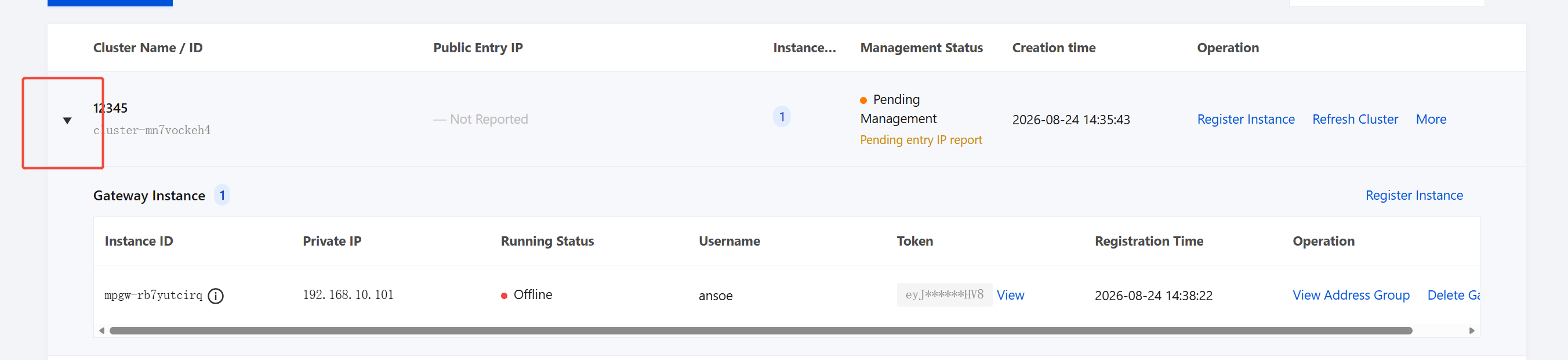
Expand the cluster to view detailed information (such as instance ID, private IP address, status, and scale) for all MPGW instances under that cluster.
Scaling Out (Adding MPGWs)
1. Deploy a new MPGW server (hardware and network requirements are the same as those specified in Prerequisites).
2. In the console, follow Step 2 for the new instance to obtain an independent Token and complete the deployment.
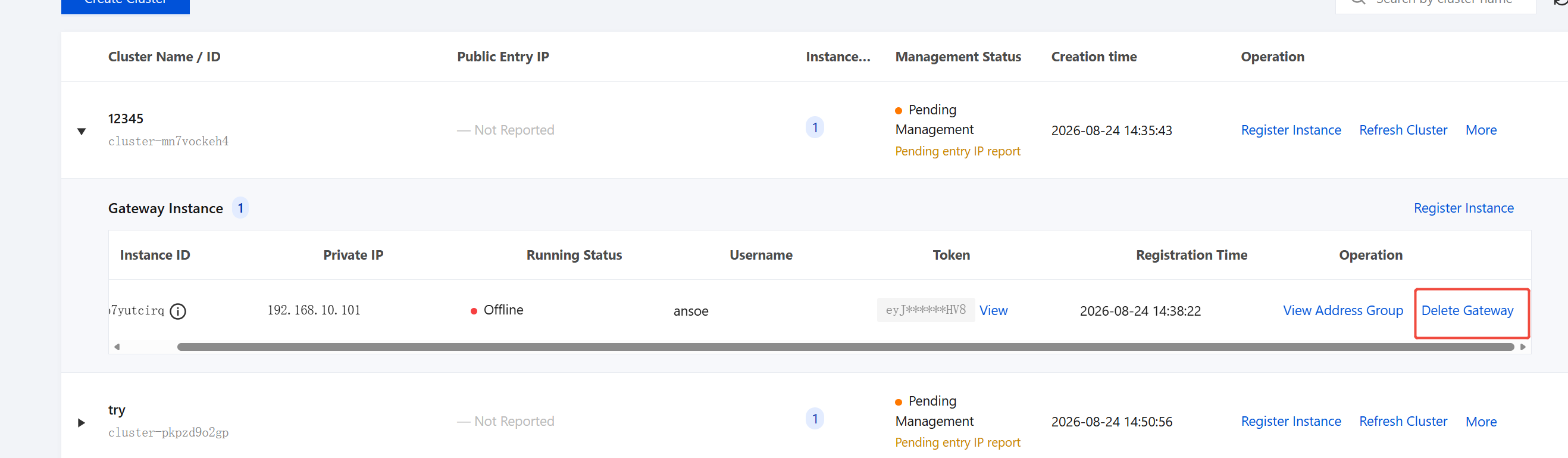
1. Expand the target cluster and locate the instance to be deleted.
2. Click Delete Gateway on the right side of the instance row.
3. In the deletion confirmation pop-up window, verify the information and confirm the deletion.
Attention:
This operation is irreversible. After deletion, the Token becomes invalid immediately, devices will be unable to connect through that instance, and the monthly bill will be settled as usual.
Deleting a Cluster
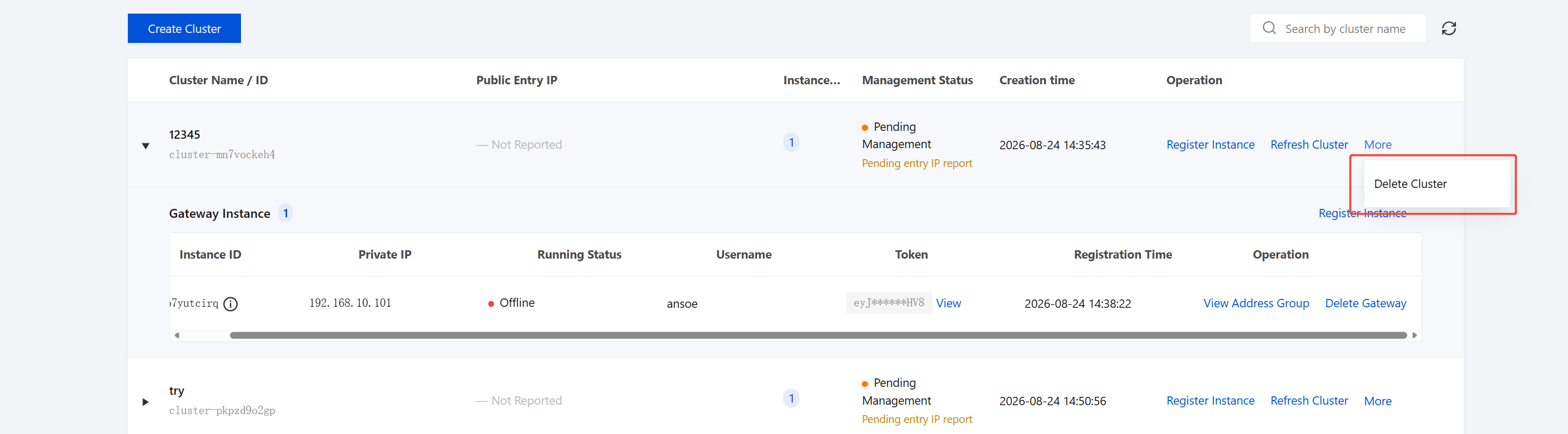
1. Locate the target cluster in the cluster list and click More - Delete Cluster.
2. In the deletion confirmation pop-up window, verify the information and confirm the deletion.
Attention:
This operation is irreversible. Deleting a cluster will also delete all instances under it, and all Tokens will become invalid immediately. Before performing this operation, ensure that all instances in the cluster have no active business traffic.