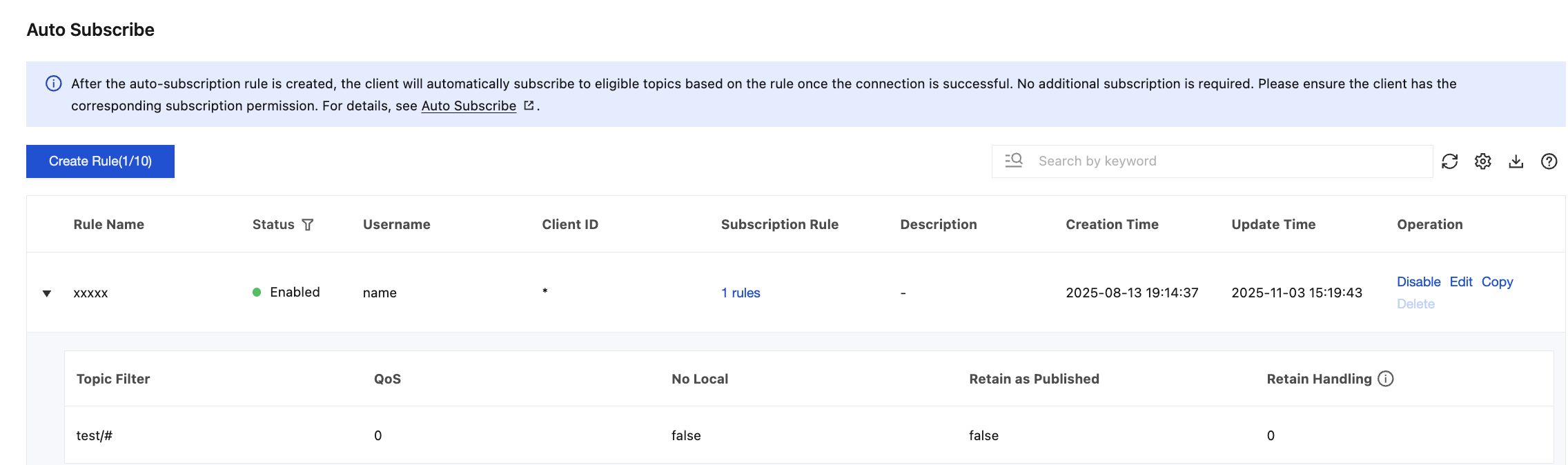
Auto Subscribe is an additional feature supported by MQTT beyond the standard protocol. It allows preset subscription relationships to be automatically established when a client connection is created, based on rules configured in the console, without requiring the client to initiate a subscription or send a SUBSCRIBE message. This feature applies to the following scenarios:
Centralize subscription management for IoT devices.
Simplify client-side code logic.
Ensure specified devices automatically subscribe to key business topics (such as command delivery channels) without the need to actively initiate subscriptions.
Restrictions and Limitations
The current feature is in grayscale. If the console prompt shows the current cluster has not enabled this feature, please submit a ticket to apply it. A single cluster supports creating a maximum of 10 Auto Subscribe rules.
Subscription Rule Description
Auto Subscribe rules take effect based on actual conditions during client connection. If a client is already online, it will not immediately subscribe to the corresponding topics when Auto Subscribe rules are configured for the client. In such cases, the rules only take effect the next time the client connects.
If a configuration conflict occurs (for example, when the same username selects inconsistent subscription options for the same topic filter), the most recently configured Auto Subscribe rules take effect. That is, rules will be overwritten in chronological order.
Subscriptions within Auto Subscribe rules are also counted toward the subscription quotas for both the cluster and individual client IDs. (For details, see Product Constraints and Usage Quota.) Please keep the number of Auto Subscribe rules under control to avoid overuse. When quota conflicts occur across multiple subscription scenarios, subscriptions are throttled according to the following priority: non-clean-session subscriptions (existing subscriptions) > Auto Subscribe rules > manual subscriptions newly added by clients. For example:
Scenario 1: Before Auto Subscribe rules are created, a client already has 28 subscriptions. After configuration, 5 topic filter subscriptions are added. When the client disconnects and reconnects, it begins subscribing to the new topic filters in order according to the Auto Subscribe rules. Upon subscribing to the 3rd topic filter, the client exceeds the per-client quota of 30. Subscriptions for the 3rd to 5th topic filters within the Auto Subscribe rules fail to take effect. On the client details page, you can view subscription failure events and their causes. For details, see Querying Client Events. Scenario 2: An online client already has 20 subscriptions. When 10 topic filter subscriptions are added from the Auto Subscribe rules, the quota of 30 is still not exceeded. However, when the client launches a new service and adds 1 more topic filter subscription, the quota is exceeded. As a result, the newly added subscription fails. On the client details page, you can view subscription failure events and their causes. For details, see Querying Client Events. Scenario 3: A client with Clean Session set to false already has 30 subscriptions. Later, an Auto Subscribe rule containing 10 topic filters is added. When the client reconnects before the session expires, it first restores its existing subscriptions, and those with the same topic filters are overwritten. Since the quota is exceeded when the client proceeds to subscribe to the new topic filters within the Auto Subscribe rule, any subscriptions beyond the quota fail. On the client details page, you can view subscription failure events and their causes. For details, see Querying Client Events. Prerequisites
Ensure that clients to which the Auto Subscribe rule applies have permission to CONNECT to the cluster, use the specified username for subscriptions, and SUBSCRIBE to the corresponding topics. Otherwise, the auto subscription will be denied by the permission policy. For details, see Configuring Data Plane Authorization. Operation Steps
Creating an Auto Subscribe Rule
2. In the left sidebar, choose Resource > Cluster, select a region, and click the ID of the target cluster to go to the cluster basic information page.
3. Select the Auto Subscribe tab, click Create Rule to create an Auto Subscribe rule, and fill in the following fields as required:
|
Rule Name | Yes | Enter the Auto Subscribe name according to the following rules: It cannot be empty, must be 3–64 characters long, and can contain only Chinese, letters, digits, hyphens・(-),・and・underscores・(_). | device_cmd_sub |
Rule Description | No | Fill in the rule remarks and description. | - |
Creation Method | - | Policy generator: visual configuration. JSON: Configure using JSON syntax. The input box validates JSON files and is suitable for scenarios with a large number of configuration items. | - |
Username | Yes | Enter a single username or expression. Wildcards and policy variables are supported. For details, see Expression Description. Please ensure that the current username has corresponding data plane permissions. | * |
Client ID | Yes | Enter a single resource expression. Wildcards and policy variables are supported. For details, see Expression Description. Please ensure that the current client has corresponding data plane permissions. | * |
Subscription Option | Yes | Supports up to 20 subscription topics. Topic Filter: the target topic filter for Auto Subscribe. QoS: 0/1/2. No Local: indicates whether the client receives messages published by itself. Retain as Published: indicates whether to preserve the original Retain flag when forwarding retained messages. Retain Handling: indicates whether to send retained messages when a subscription is established. | "topicFilter": "home/#", "qos": 0, "noLocal": 0, "retainAsPublished": 1, "retainHandling": 0 |
4. Click Submit to complete the rule creation.
5. After a rule is created, it is disabled by default. Click Enable in the Action column, and the rule will take effect.
Managing Auto Subscribe Rules
2. In the left sidebar, choose Resource > Cluster, select a region, and click the ID of the target cluster to go to the cluster basic information page.
3. Select the Auto Subscribe tab to manage Auto Subscribe rules in the Action column.
|
Editing | In the Action column, click Edit to edit an existing rule. |
Copying | In the Action column, click Copy to create a similar rule by modifying an existing one. |
Deleting | Only rules in the "Not Enabled" state can be deleted. Therefore, to delete a rule, you must first disable it before proceeding with deletion. |