tencent cloud

Business Intelligence

Relevant Agreements
Service Level Agreement
Kebijakan Privasi
Perjanjian Privasi dan Keamanan Data
DokumentasiBusiness Intelligence

Map Chart

Mode fokus
Ukuran font
Terakhir diperbarui: 2025-09-19 15:24:41
Tencent Cloud BI product includes map charts such as bubble maps, color maps, and point maps, mainly used to show data size and distribution range of objects via maps, with GIS map support.
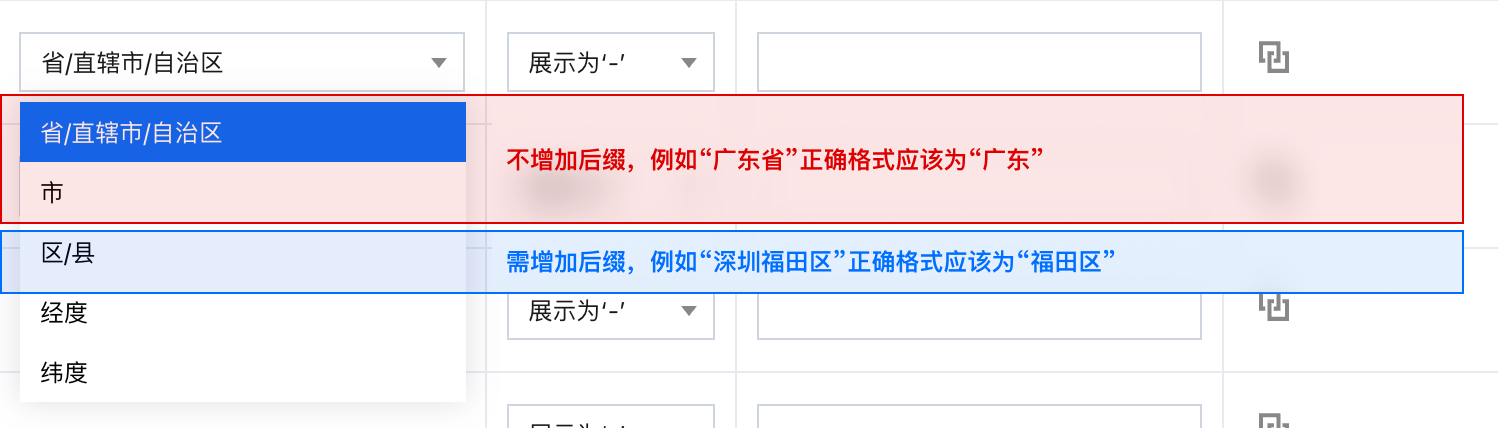
Note: When configuring map charts, you must first switch the field type of geographic information fields to geographic fields in the edit data table page. Among them, provinces/municipalities/autonomous regions/cities do not need suffixes like province, municipality, autonomous region, or city. The administrative division for districts/counties must correspond to complete zone names.


Bubble Map

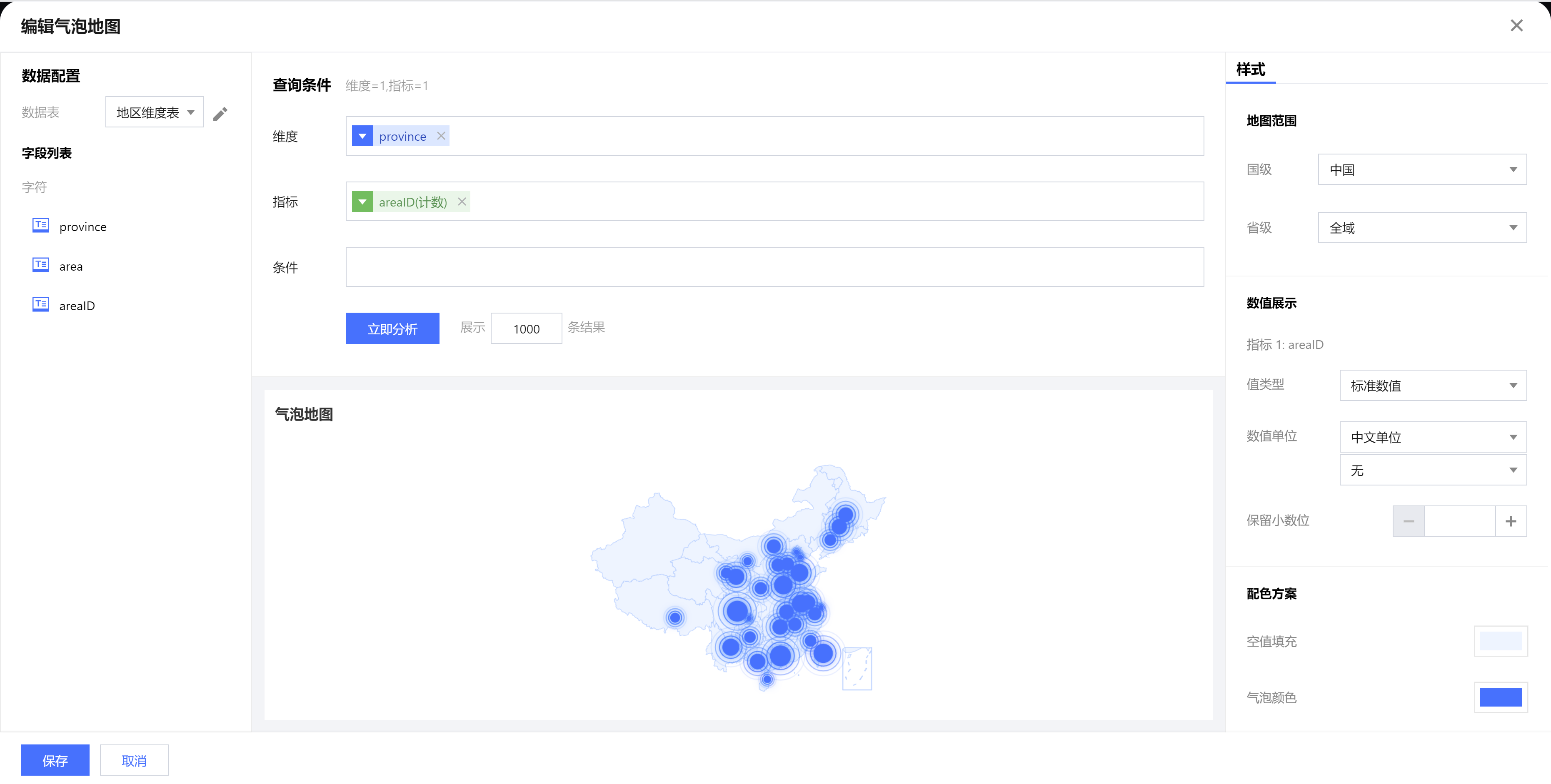
Bubble maps are mainly used to compare data size and differences between items through horizontal display. As shown in the figure below, it displays the number of cities in each province.


Query Condition Settings

Dimensionality & metric count requirement: dimension=1, metric=1. Conditional filtering can be performed by dragging and dropping time, character, or numeric value fields in the condition section. The immediate analysis button triggers the chart's data update display, and the maximum display of XX results (0-10000) can be set on the right.

Component Component Style

Bubble maps support the following style settings:
Set Classification
Setting Item
Setup Instructions
Map range
National Level
Select the national-level region on the map.
provincial
1. Select global and set the map range to the selected country's national regions.
2. Select the provincial region on the map.
municipal
1. Display this field only when "provincial" is selected for a specific provincial region.
2. Select global and set the map range to the selected province's entire region.
3. Select the municipal area on the map.
numeric display
value type
Set the type of numeric display, with three types to select:
1. Standard numerical value: for example, "1211", show as "1211"
2. Percentage: for example, "0.11", show "11%"
3. Thousands separator: for example, "1211", show as "1,211"
value unit
Set the unit of numeric display, with the following units to select:
1. None
2. 10,000: for example, "121112", show as "12.1112", the following units are analogous
3. million
4. tens of million
5. billion
6. one billion
7. billions of
decimal places retained
Set the number of decimal places. For example, "1211.2334" with 2 decimal places retained will show as "1211.23".
color scheme
Null value padding
Set the fill color for areas with null values on the map
bubble color
Set the bubble color for areas with numeric values on the map
hover color
Set the fill color for each region when hovering on the map
Boundary color
Set the boundary line color for each region on the map
Tag color
Set the font color of tags on the map
Title
Display
Enable/disable chart title display
Main title
Set the main title of the chart
horizontal position
Set the horizontal position of the title display, for example, select "center" if centered.
vertical position
Set the vertical position of the title display, for example, select "bottom" if you want the title to show at the bottom.
Tag
Display
Enable/disable chart tag display
place name
Set tag whether to display place name. Normally, turning on tag display will enable place name display simultaneously.
Numerical value
Set tag whether to display numerical value. Normally, turning on tag display will enable place name display simultaneously.


Color map

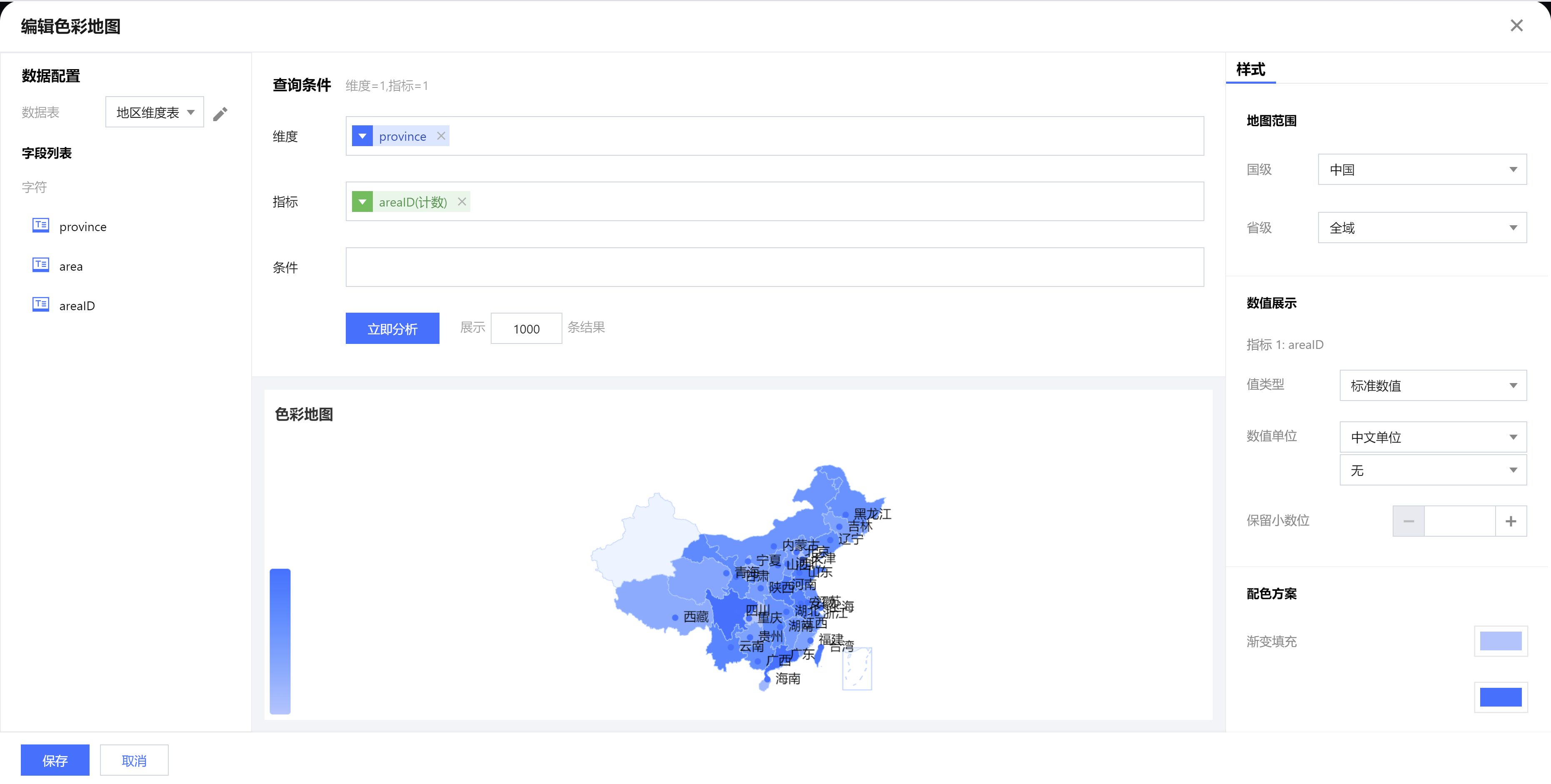
The color map is mainly used to display data size and distribution range through color shades. The following figure shows the number of cities in each province.


Query Condition Settings

Dimensionality & metric count requirement: dimension=1, metric=1. Conditional filtering can be performed by dragging and dropping time, character, or numeric value fields in the condition section. The immediate analysis button triggers the chart's data update display, and the maximum display of XX results (0-10000) can be set on the right.

Component Style Settings

Color maps support the following style settings:
Set Classification
Setting Item
Setup Instructions
Map range
National Level
Select the national-level region on the map.
provincial
1. Select global and set the map range to the selected country's national regions.
2. Select the provincial region on the map.
municipal
1. Display this field only when "provincial" is selected for a specific provincial region.
2. Select global and set the map range to the selected province's entire region.
3. Select the municipal area on the map.
numeric display
value type
Set the type of numeric display, with three types to select:
1. Standard numerical value: for example, "1211", show as "1211"
2. Percentage: for example, "0.11", show "11%"
3. Thousands separator: for example, "1211", show as "1,211"
value unit
Set the unit of numeric display, with the following units to select:
1. None
2. 10,000: for example, "121112", show as "12.1112", the following units are analogous
3. million
4. tens of million
5. billion
6. one billion
7. billions of
decimal places retained
Set the number of decimal places. For example, "1211.2334" with 2 decimal places retained will show as "1211.23".
color scheme
gradient fill
Set two gradient colors on the map based on value.
Null value padding
Set the fill color for areas with null values on the map
hover color
Set the fill color for each region when hovering on the map
Boundary color
Set the boundary line color for each region on the map
Tag color
Set the font color of tags on the map
Title
Display
Enable/disable chart title display
Main title
Set the main title of the chart
horizontal position
Set the horizontal position of the title display, for example, select "center" if centered.
vertical position
Set the vertical position of the title display, for example, select "bottom" if you want the title to show at the bottom.
Tag
Display
Enable/disable chart tag display
place name
Set tag whether to display place name. Normally, turning on tag display will enable place name display simultaneously.
Numerical value
Set tag whether to display numerical value. Normally, turning on tag display will enable place name display simultaneously.

Point Map

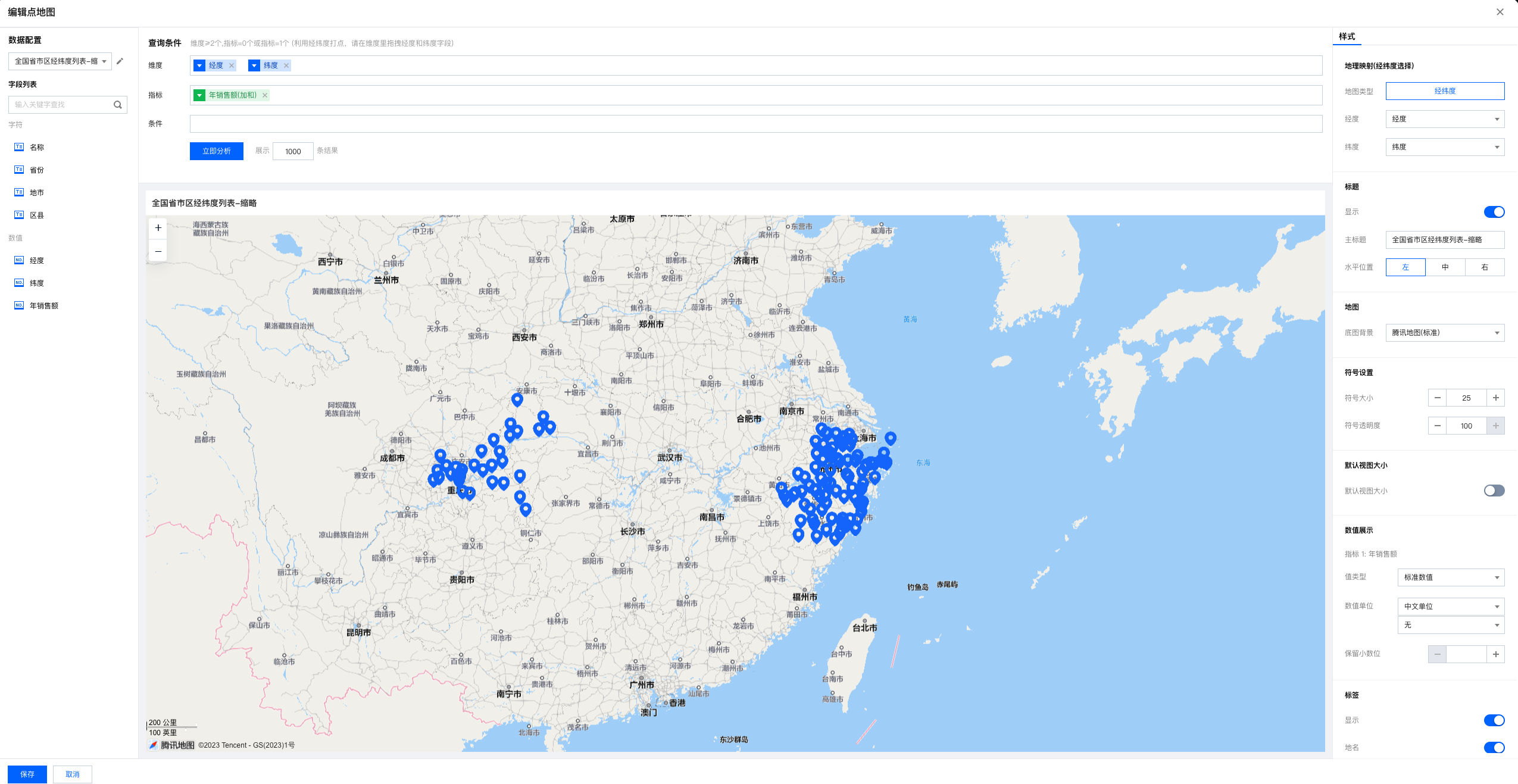
Point Map is mainly used to display location situations by marking points on a GIS map. As shown in the figure below, it displays geographic points based on latitude and longitude.


Data Preparation

Timestamp is required on the map, and coordinates are needed.

Query Condition Settings

Dimensionality & metric count requirements: dimensions ≥ 2, metrics = 0 or metrics = 1. Use latitude and longitude for marking points. Drag and drop the corresponding fields for longitude and latitude into dimensions.
The condition area allows conditional filtering of data by dragging and dropping time, character, or numeric value fields.
The immediate analysis button can trigger the chart's data update display. Meanwhile, you can set the maximum display of XX results (0-10000) on the right.

Component Style Settings

Maps support the following style settings:
Set Classification
Setting Item
Setup Instructions
geographic mapping
Longitude
Select the longitude field from the data table for map marking.
Latitude
Select the dimension field from the data table for map marking.
Title
Display
Enable/disable chart title display
Main title
Set the main title of the chart
horizontal position
Set the horizontal position of the title display, for example, select "center" if centered.
Map
Base Map Background
For switching between three Tencent Maps base map effects: Tencent Maps (Standard), Tencent Maps (Dark), and Tencent Maps (Light).
Symbol settings
Symbol size
Adjust symbol size
Symbol transparency
Adjust symbol transparency
Default view size
Default view size
Turn on/off view corresponding position size
National Level
Select the national-level region on the map, currently only support China
provincial
1. Select global and set the map range to the selected country's national regions.
2. Select the provincial region on the map.
municipal
1. Display this field only when "provincial" is selected for a specific provincial region.
2. Select global and set the map range to the selected province's entire region.
3. Select the municipal area on the map.
numeric display
value type
Set the type of numeric display, with three types to select:
1. Standard numerical value: for example, "1211", show as "1211"
2. Percentage: for example, "0.11", show "11%"
3. Thousands separator: for example, "1211", show as "1,211"
value unit
Set the unit of numeric display, with the following units to select:
1. None
2. 10,000: for example, "121112", show as "12.1112", the following units are analogous
3. million
4. tens of million
5. billion
6. one billion
7. billions of
decimal places retained
Set the number of decimal places. For example, "1211.2334" with 2 decimal places retained will show as "1211.23".
Tag
Display
Enable/disable chart tag display
place name
Set tag whether to display name (consistent with fields in dimensions except latitude and longitude). Normally, turning on tag display will enable place name display simultaneously.
Numerical value
Set tag whether to display numerical value. Normally, turning on tag display will enable place name display simultaneously.


Bantuan dan Dukungan

Apakah halaman ini membantu?

masukan