Through the data table row/column level permission management in Business Intelligence (BI), different users can only view the specified rows or columns when accessing the same data table.
For example, User A is the company's general manager, User B is the regional manager for Beijing, and User C is the regional manager for Shanghai. Through the row/column level permission management, you can configure that User A can view all sales data across the company, including the gross profit data, User B can only view the sales data for the Beijing region, and cannot see the gross profit data, and User C can only view the sales data for the Shanghai region, and cannot see the gross profit data.
Edition limitation of feature usage: This feature is only supported for Professional Edition users.
Data Table Row-Level Permissions
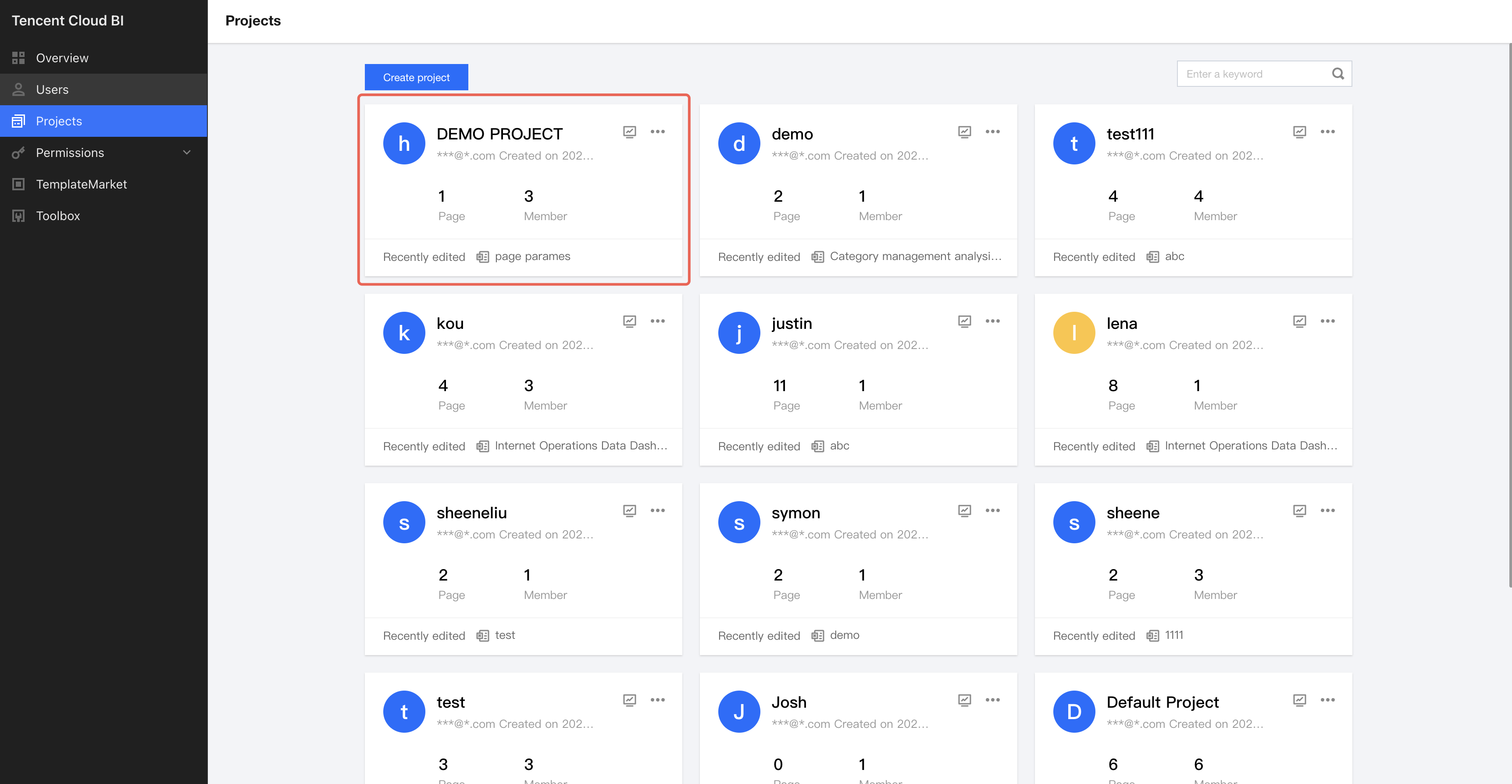
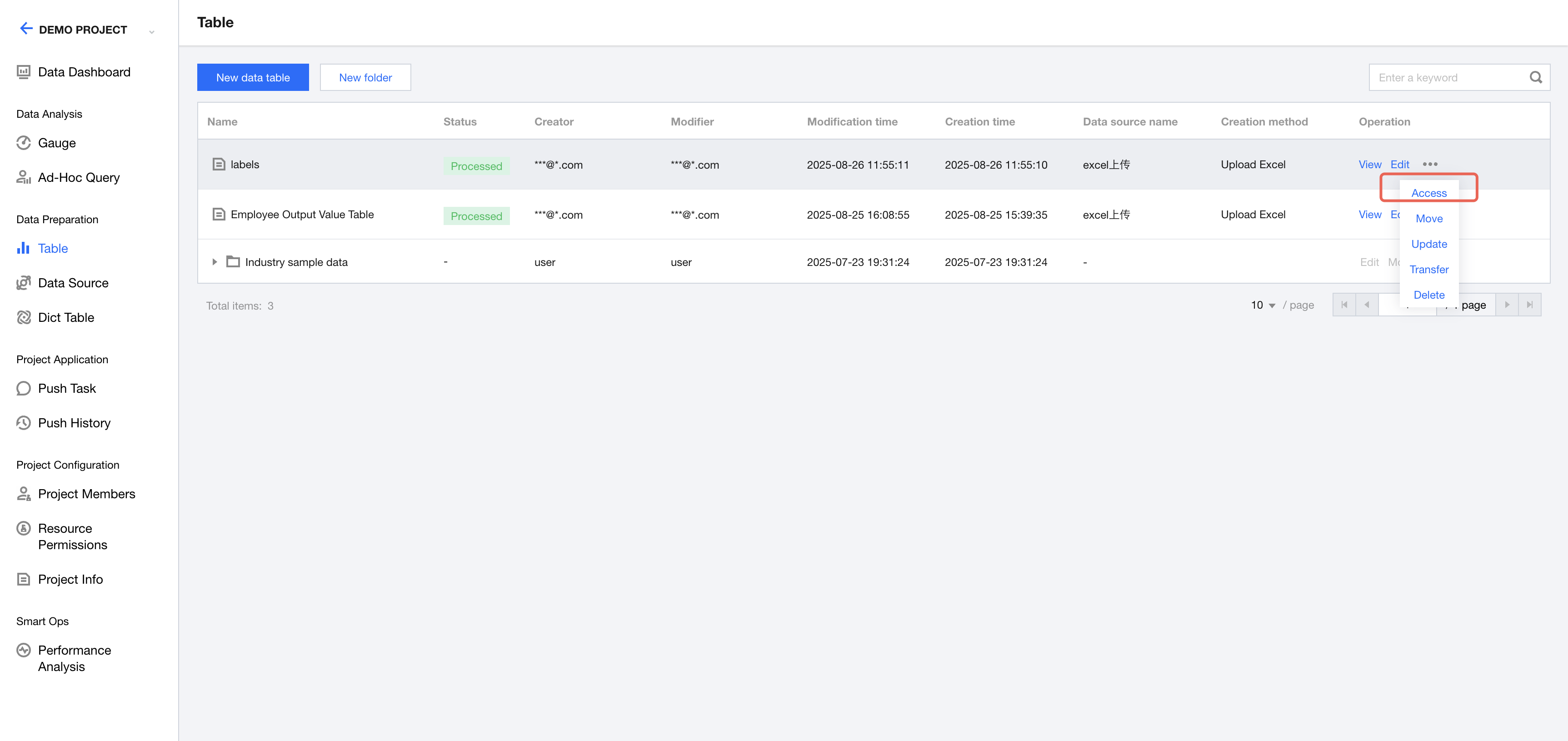
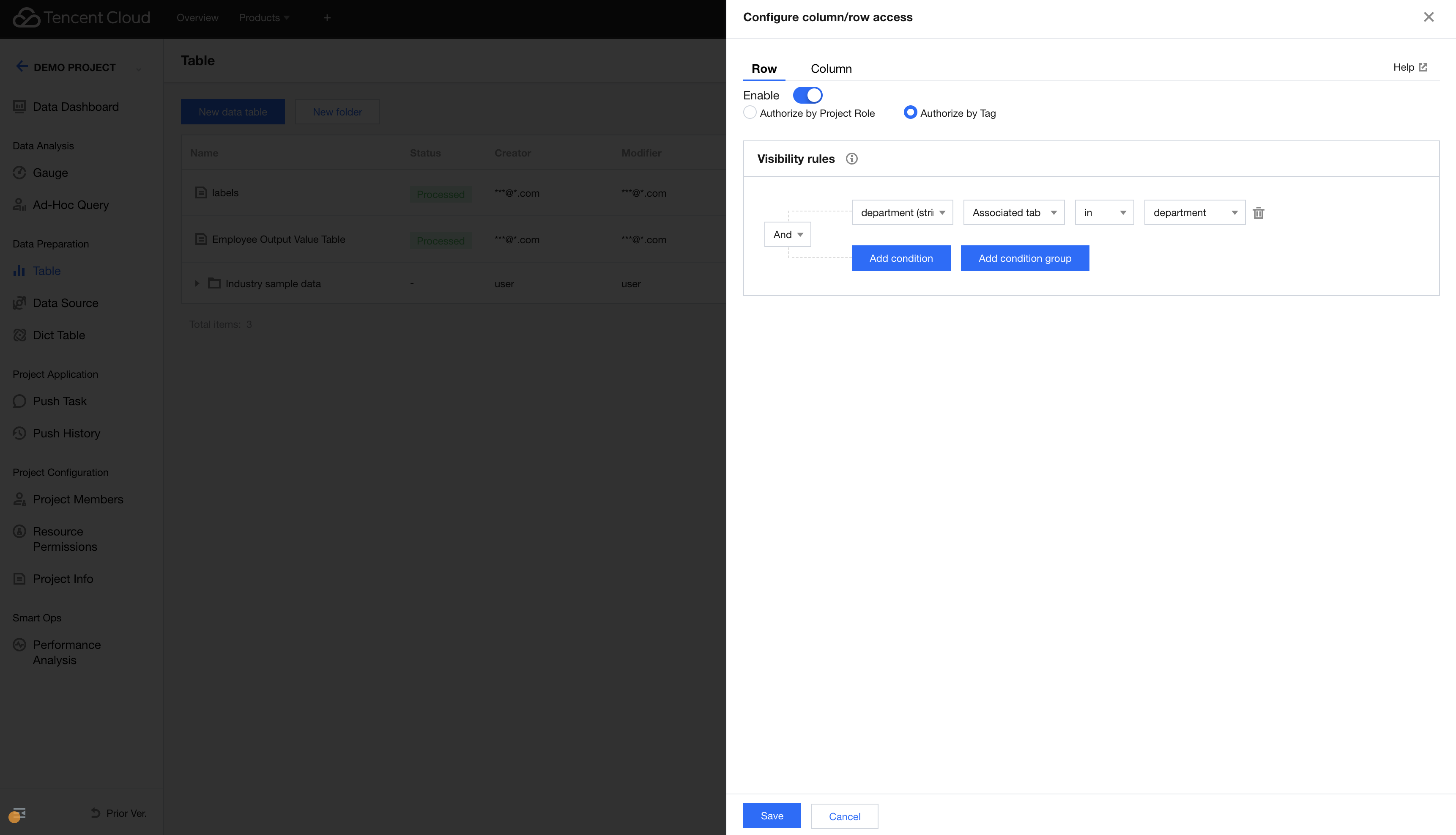
1. Enter the project management module, go to the corresponding project data Tab, and select "Row/Column Permissions" from the right-side operation of the corresponding data table. A drawer will pop up.
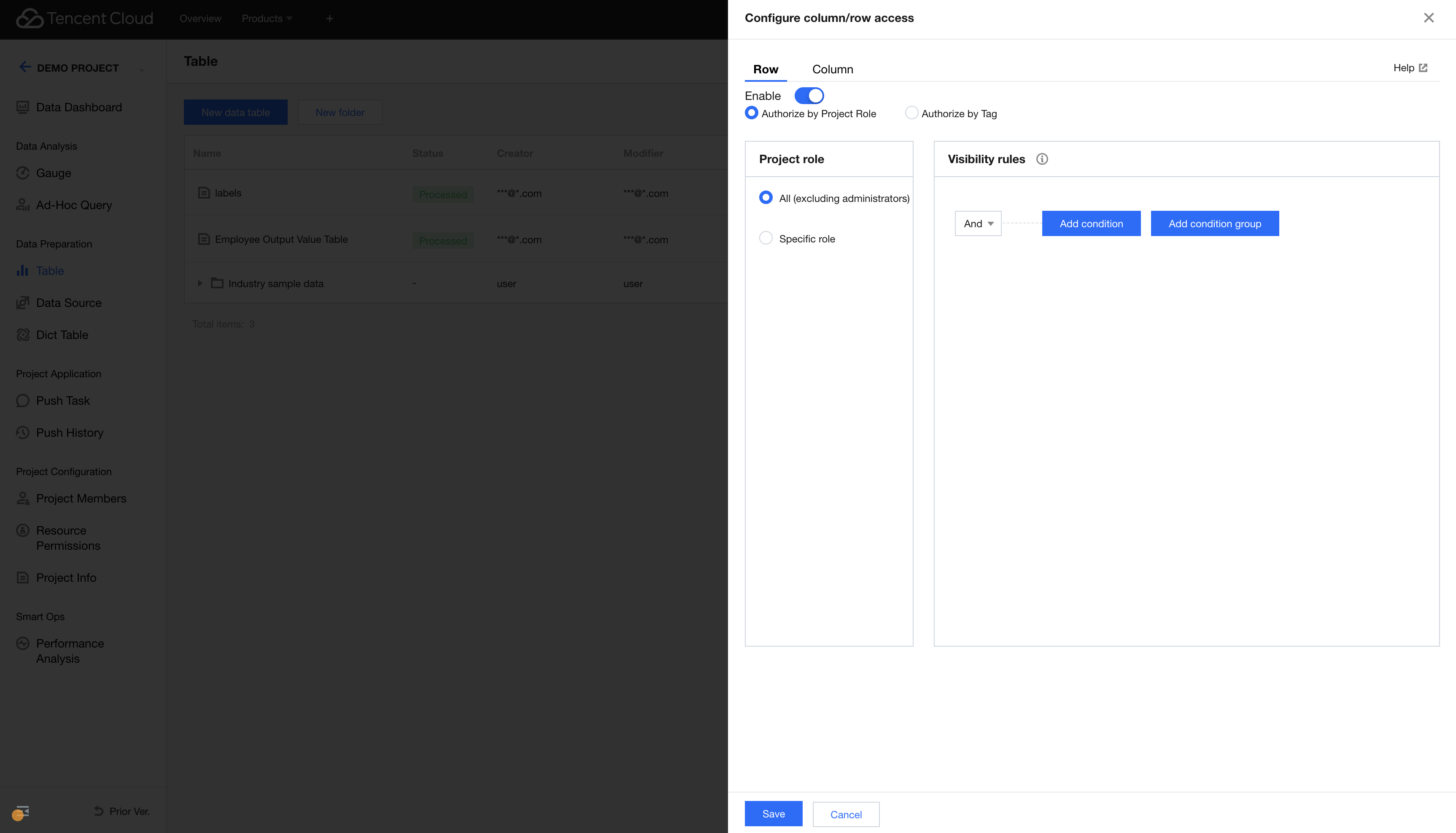
2. In the row and column permission configuration drawer > row-level permissions, you can configure row permissions for the data table.
3. Click the Enable permissions switch to enable or disable the row permissions for the data table.
Project Role-based Authorization
In the project role section, you can either select all roles (enterprise administrators and project administrators are not restricted by row permissions) or specify individual roles to configure the row permission conditions. (“Other roles” cover anonymous users accessing shared pages without logging in.)
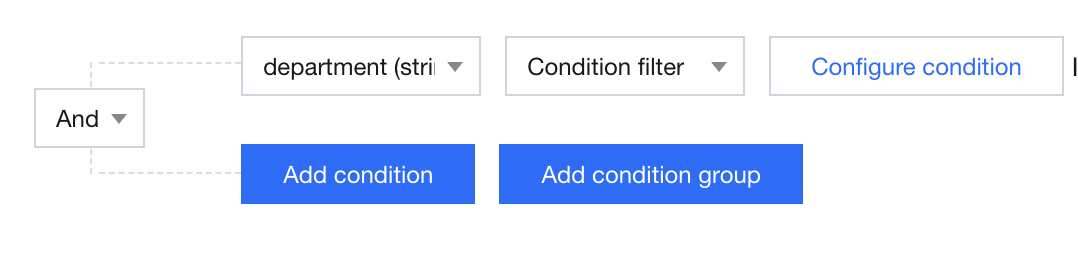
In the visibility rules section, you can configure the row permission conditions, and rule types can be selected according to the data field type.
Rule Type
String
Date
Numerical value
Conditional filtering
√
√
√
Field value enumeration
√
√
Associated tags
√
√
√
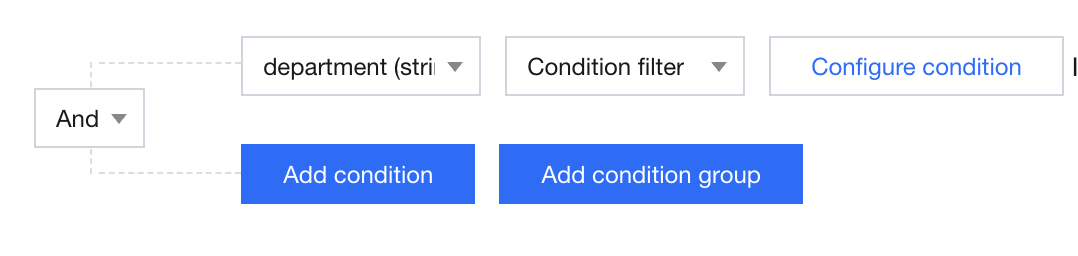
① Conditional filtering.
The data scope viewable to users with the corresponding role includes row data where the field value of the selected field meets the set conditions:
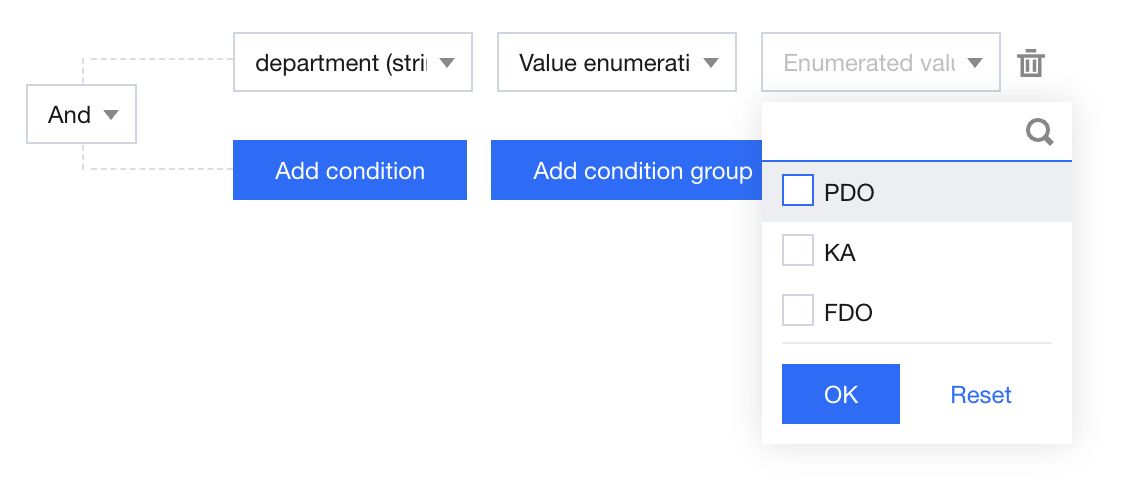
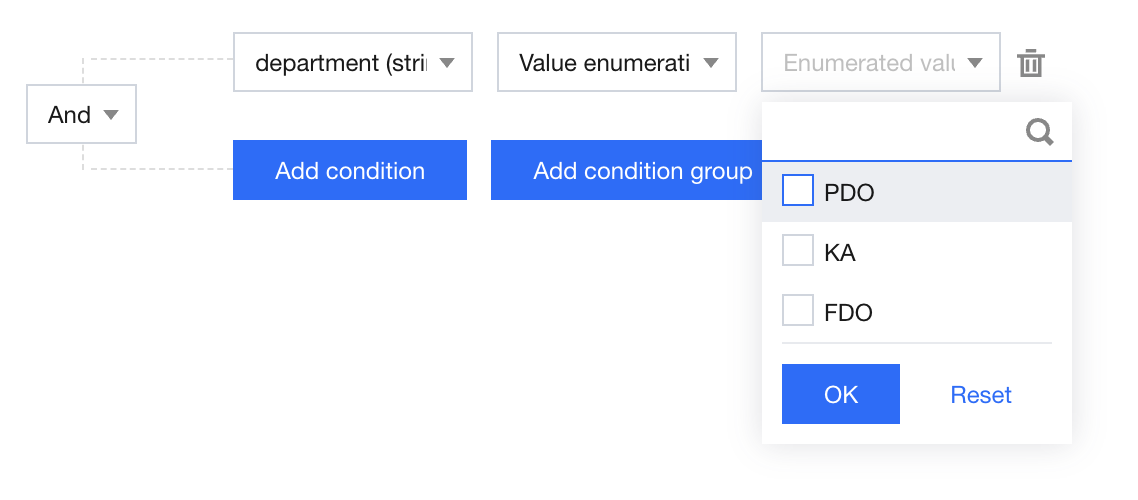
② Field value enumeration.
The data scope viewable to users with the corresponding role includes the corresponding data rows where the field value of the selected field matches the enumeration values selected on the right.
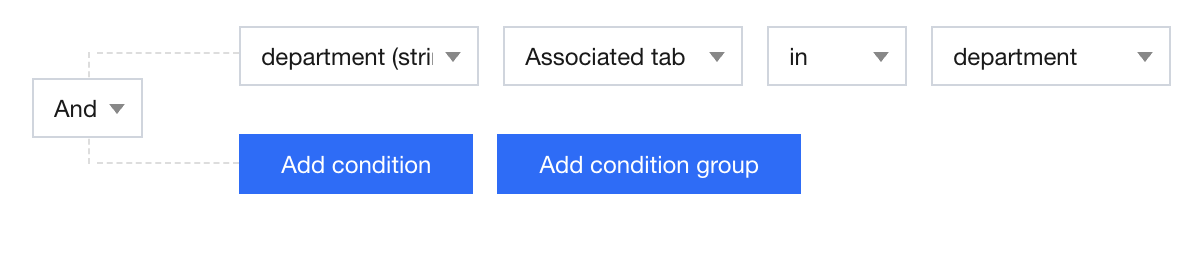
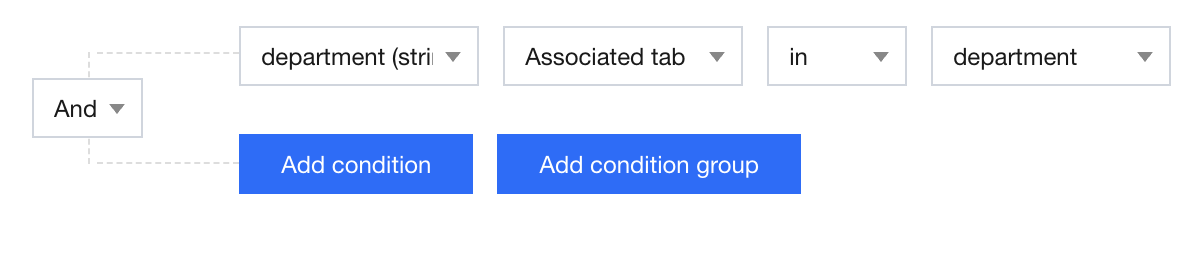
③ Associated tags.
The data scope viewable to users with the corresponding role includes the corresponding data rows where the field value of the selected field matches the tag values of the tags selected on the right by the user.
Tag-based Authorization
After turning on the Enable permissions switch, select Tag-based Authorization.
In the visibility rules section, you can configure the row permission conditions, and rule types can be selected according to the data field type.
Rule Type
String
Date
Numerical value
Conditional filtering
√
√
√
Field value enumeration
√
√
Associated tags
√
√
√
① Conditional filtering.
The data scope viewable to users with the corresponding role includes the corresponding rows where the field value of the selected field meets the set conditions:
② Field value enumeration.
The data scope viewable to users with the corresponding role includes the corresponding data rows where the field value of the selected field matches the enumeration values selected on the right.
③ Associated tags.
The data scope viewable to users with the corresponding role includes the corresponding data rows where the field value of the selected field matches the tag values of the tags selected on the right by the user.
Data Table Column-Level Permissions
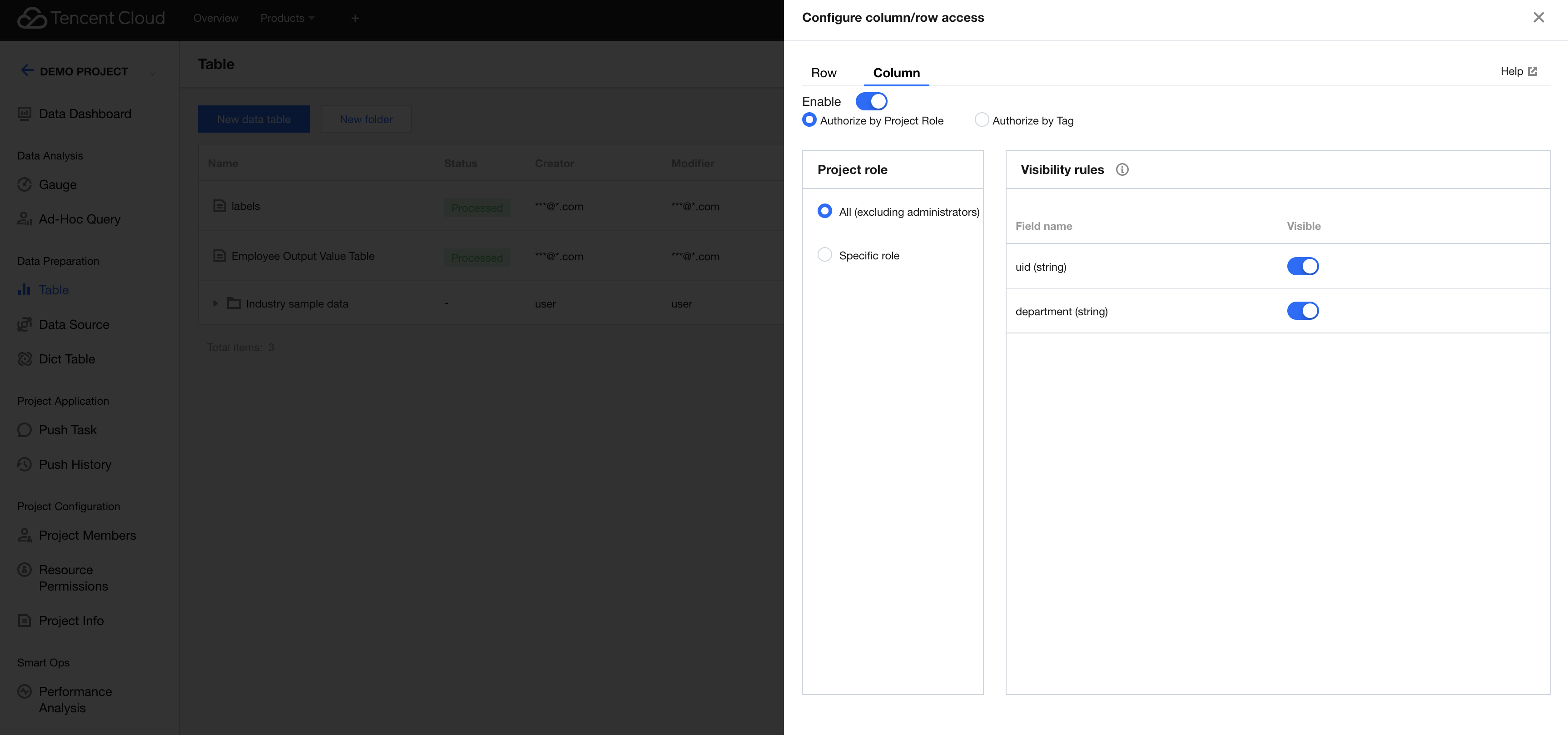
1. In the row and column permission configuration drawer > column-level permissions, you can configure column permissions for the data table.
2. Click the Enable permissions switch to enable or disable the column permissions for the data table.
Project Role-based Authorization
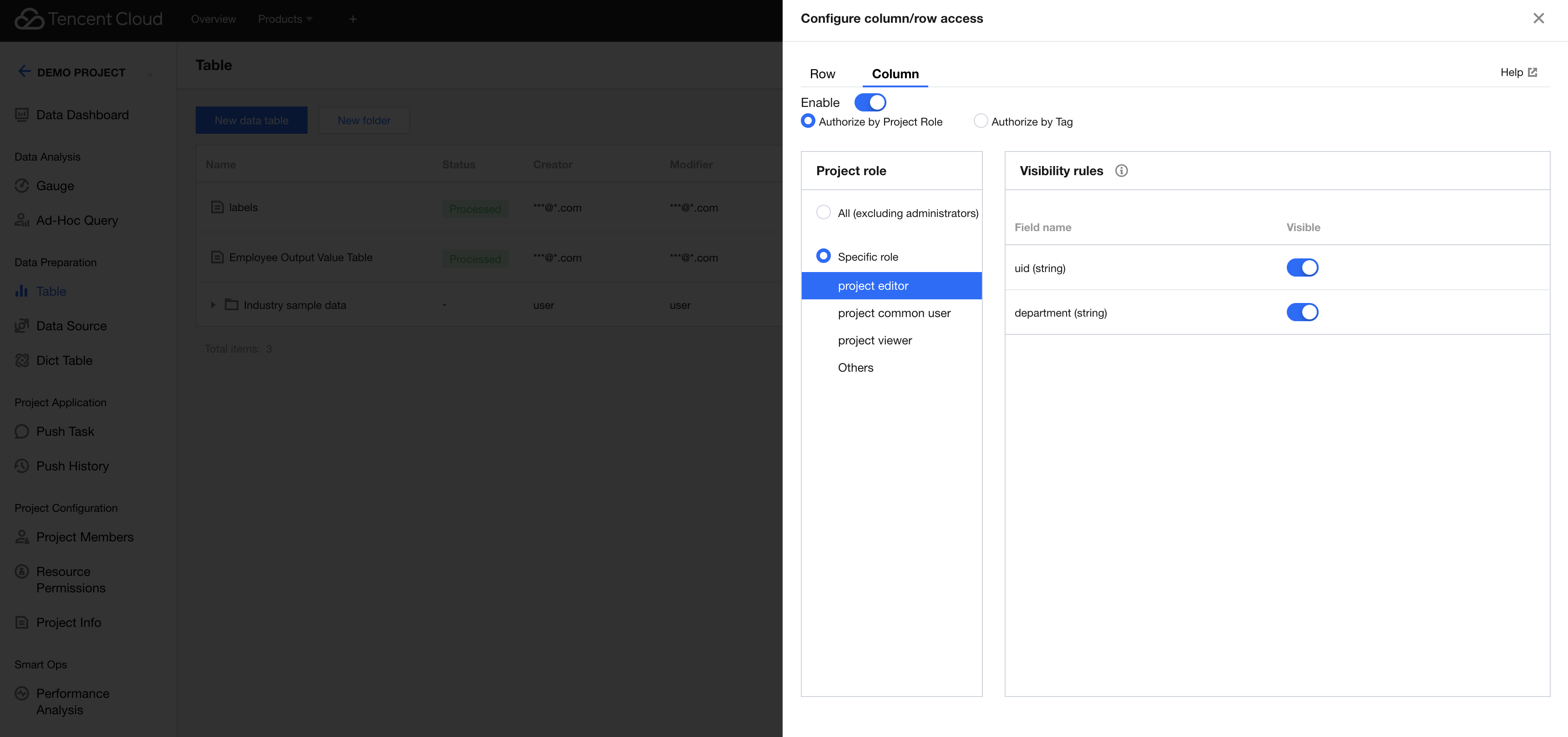
1. In the project role section, you can either select all roles (enterprise administrators and project administrators are not restricted by column permissions) or specify individual roles to configure the row permission conditions. (“Other roles” cover anonymous users accessing shared pages without logging in.)
2. In the visibility rules section, you can configure the data column permission conditions and enable or disable the permissions to view the corresponding fields (enabled by default).
Tag-based Authorization
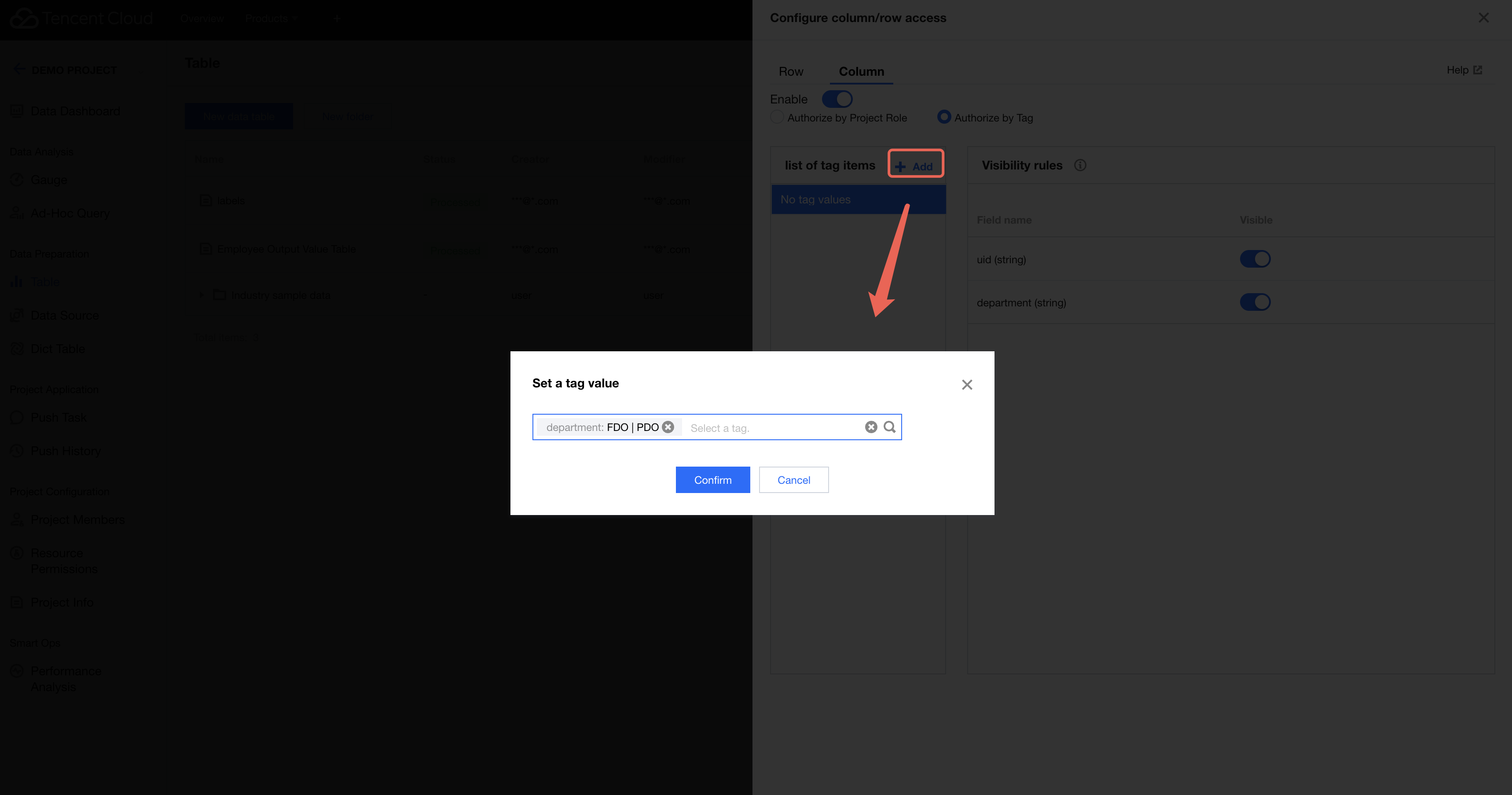
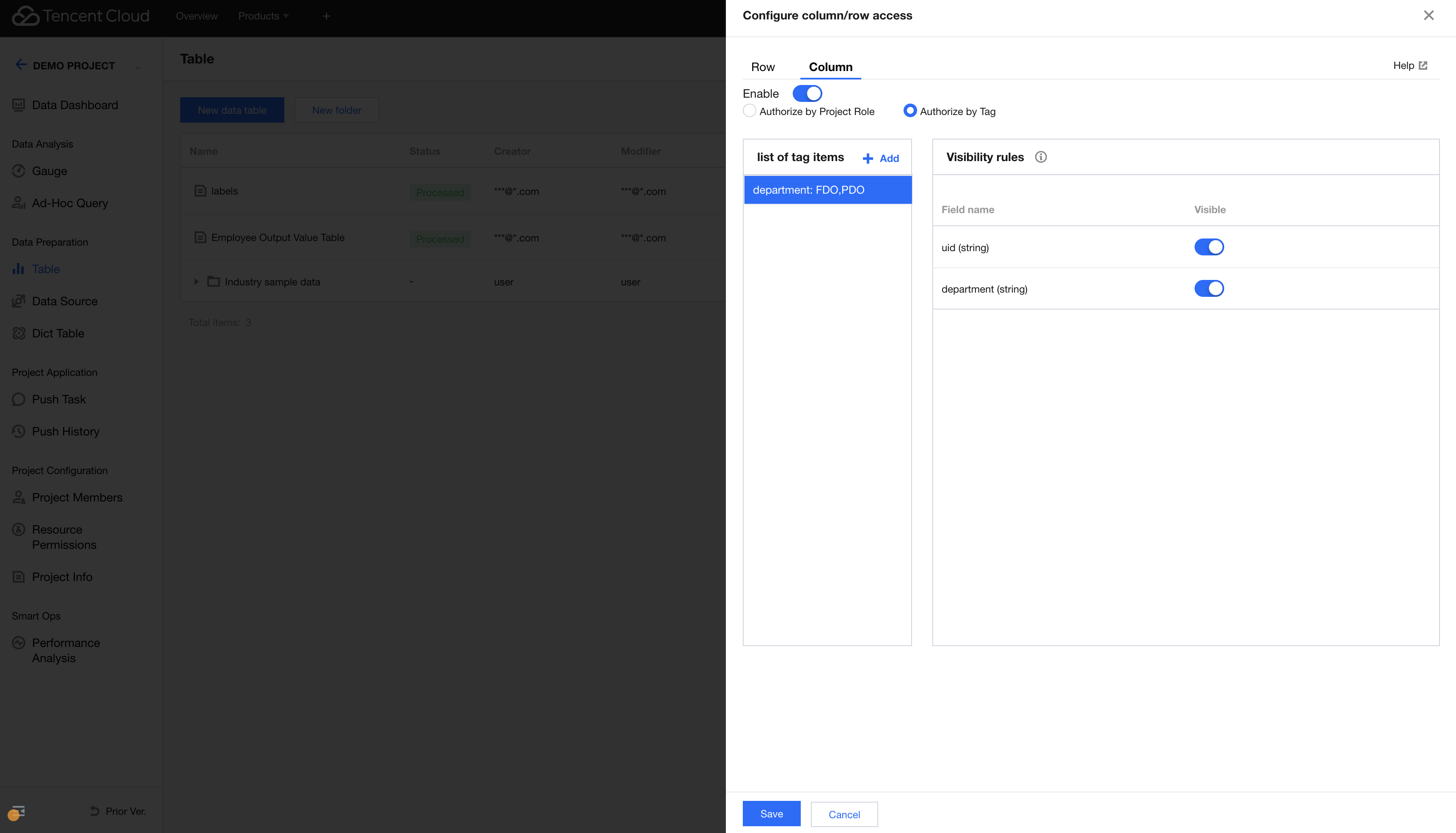
1. Click Add in the tag list. The available tags are created in User Tag Management. You can select multiple values for each tag.
2. In the visibility rules section, you can configure the data column permission conditions and enable or disable the permissions to view the corresponding fields (enabled by default).