tencent cloud

Business Intelligence

Product Introduction
Product Overview
Strengths
Product Features
Use Cases
Purchase Guide
Billing Instructions
Purchase Guide
Upgrade Instructions
Renewal Instructions
Quick Start
Data Access
Creating a VPC Data Source
Creating Cloud Data Sources
Creating Proprietary Data Sources
Data Table Creation and Data Processing
Introduction to Data Analysis Basics
Data Table Creation
Data Processing
Data Analysis
Analysis Settings
Interactive Analysis
Ad-Hoc Analysis
Data Visualization
Public Style Setting Instructions
Filter Components
Chart components
Rich Text Component
Other Components
Mobile Terminal Layout Editor
Theme Settings Introduction
Page Layout Introduction
Dashboard Directory Management
Collaboration and Application
Push Channel Management
Report Push
Sharing
Embedding
Self-Service Data Retrieval
Metric Alarms
Data Security
Parameter Construction
Platform Management
Account and Permission Management
Statistics and Analysis
System Settings
Resource Migration
Practical Tutorial
Collection of Optimization Practices
Performing Trend Analysis
Performing Proportion Analysis
Performing Data Analysis with Excel Files
Creating Tables
API Documentation
History
Introduction
API Category
Making API Requests
Project Management APIs
Role APIs
Database Table APIs
Report Embedding APIs
Page Management APIs
Data Types
Error Codes
FAQs
Relevant Agreements
Service Level Agreement
Privacy Policy
Data Privacy And Security Agreement
Contact Us

Dashboard Embedding

PDF
Focus Mode
Font Size
Last updated: 2025-09-19 15:24:44
The dashboard embedding feature enables users to embed pages or project dashboards into third-party systems, providing easy access for third-party users.

Prerequisites for the embedding feature:
The current edition is the Basic Edition or the Professional Edition.
Pages need to be published first before they can be embedded.
The current user is an Enterprise Administrator or Project Administrator.
To include page parameters, you need to purchase the Professional Edition.

In this document, you will learn:
How to embed the entire dashboard.
How to set the default display page.


Dashboard Embedding Settings

Users can complete the embedding settings through the following steps.
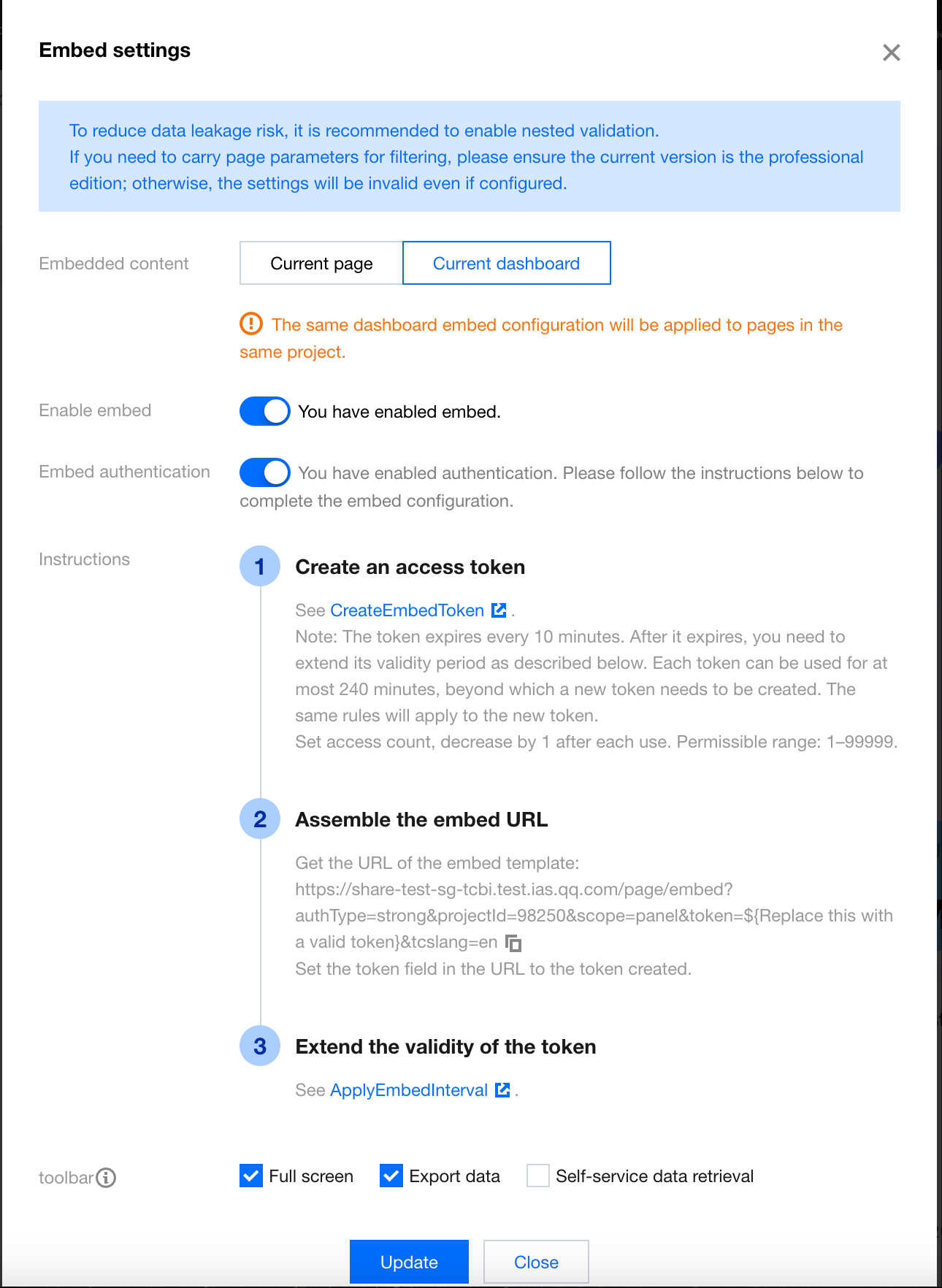
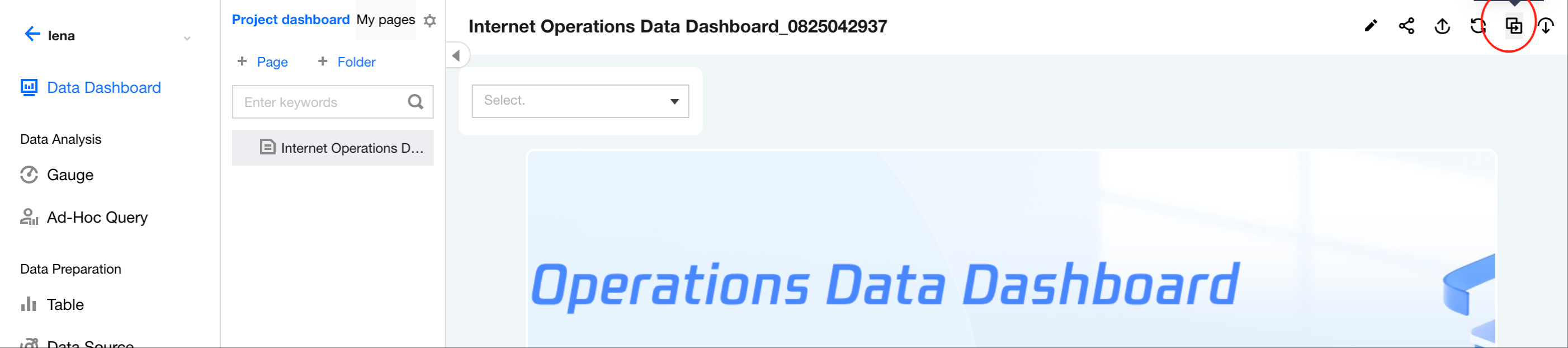
1. Go to the project > Dashboard, and click the Embed icon.


2. In the embedding configurations, select "Current dashboard".


To invalidate the embedded link, you can disable the embedding feature. Once the embedding feature is disabled, users will see a "Page not accessible" message when trying to access the embedded link.
To enable authentication access for the embedded page, you can enable embedding verification. After the verification is enabled, users will need to use a token to gain the corresponding permissions. For details, see Creating an Embedded Report Token and The API for Requesting Token Expiry Time Extension.
If embedding verification is not enabled, the embedded link may be exposed. It is recommended to enable embedding verification for non-public data to ensure security.
If you want the link to be accessible only within a specific validity period, you can set the validity period. Once the validity period is enabled, users attempting to access the link outside the validity period will see a "Out of validity range" error.
Note:
The embedding of the project dashboard applies to the entire dashboard, meaning that any page's settings for the project dashboard will be synchronized. If someone else disables the embedding of the project dashboard on any page within the project, the previous settings will be overwritten.
3. Click Update Settings for the settings to take effect.

Setting the Default Display Page for the Dashboard

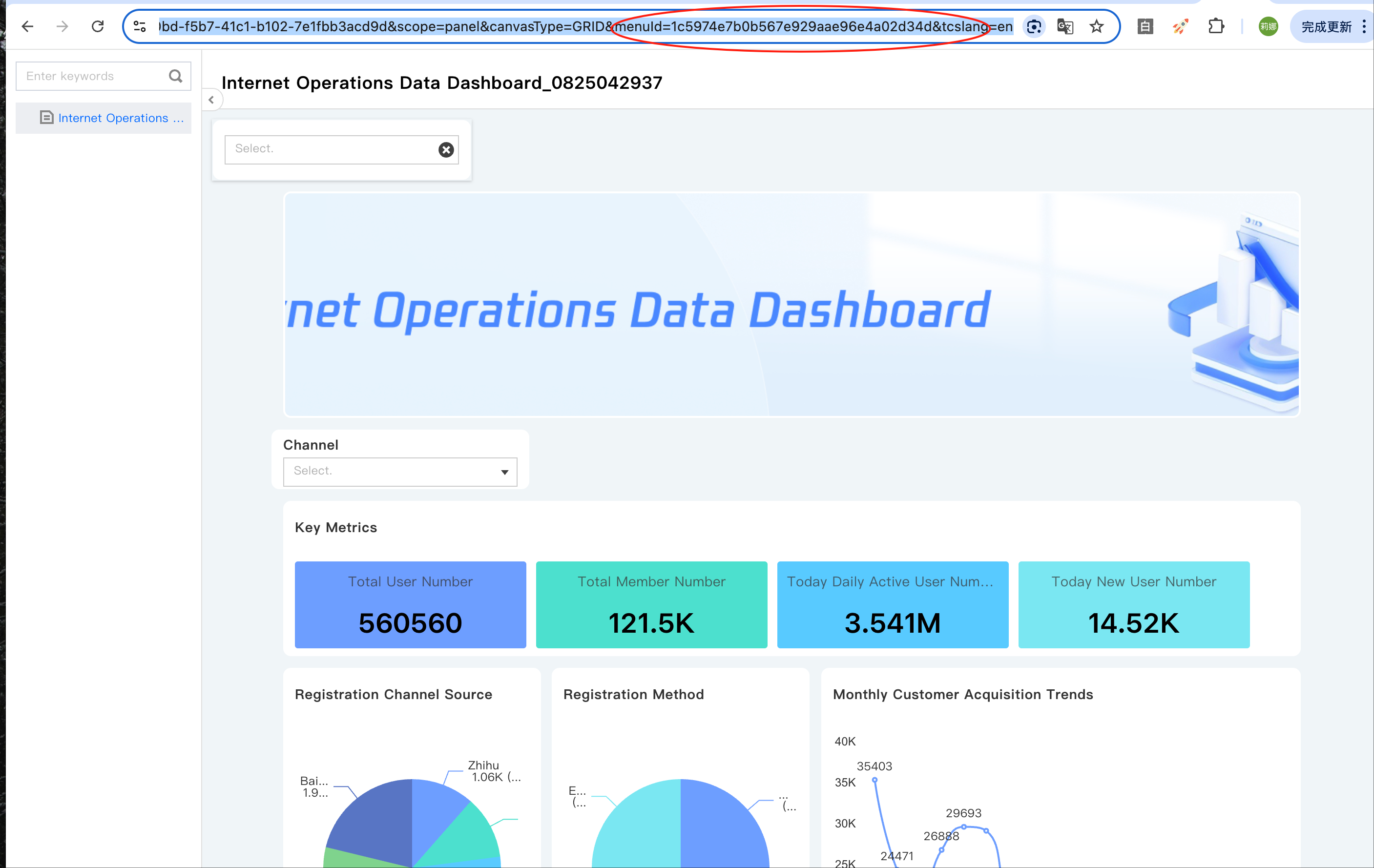
In the embedded dashboard, if you need to set a default page to open upon entry, you can specify the default page using the menuId.
1. Obtain the embedded dashboard link: Follow the configuration steps above to embed the dashboard.
/* In this example, assume the embedded link is obtained as shown below. Remember to modify the projectId, menuId and token values. */
https://tcbi.qq.com/page/embed?authType=weak&menuId=1234455&projectId=111&scope=panel&token=1165dd48-be27-4cbd-97be-e5b5cf5bae25&canvasType=GRID
2. Obtain the menuId: Browse the dashboard, click the page, and obtain the menuId from the URL, as shown in the image below.


3. Modify the embedded link: Replace the original menuId with the obtained menuId.
https://tcbi.qq.com/page/embed?authType=weak&menuId=6a143c9bc1bb1ac190e280f4210c0a07&projectId=111&scope=panel&token=1165dd48-be27-4cbd-97be-e5b5cf5bae25&canvasType=GRID


Help and Support

Was this page helpful?

Help us improve! Rate your documentation experience in 5 mins.

Feedback