tencent cloud

Business Intelligence

Product Introduction
Product Overview
Strengths
Product Features
Use Cases
Purchase Guide
Billing Instructions
Purchase Guide
Upgrade Instructions
Renewal Instructions
Quick Start
Data Access
Creating a VPC Data Source
Creating Cloud Data Sources
Creating Proprietary Data Sources
Data Table Creation and Data Processing
Introduction to Data Analysis Basics
Data Table Creation
Data Processing
Data Analysis
Analysis Settings
Interactive Analysis
Ad-Hoc Analysis
Data Visualization
Public Style Setting Instructions
Filter Components
Chart components
Rich Text Component
Other Components
Mobile Terminal Layout Editor
Theme Settings Introduction
Page Layout Introduction
Dashboard Directory Management
Collaboration and Application
Push Channel Management
Report Push
Sharing
Embedding
Self-Service Data Retrieval
Metric Alarms
Data Security
Parameter Construction
Platform Management
Account and Permission Management
Statistics and Analysis
System Settings
Resource Migration
Practical Tutorial
Collection of Optimization Practices
Performing Trend Analysis
Performing Proportion Analysis
Performing Data Analysis with Excel Files
Creating Tables
API Documentation
History
Introduction
API Category
Making API Requests
Project Management APIs
Role APIs
Database Table APIs
Report Embedding APIs
Page Management APIs
Data Types
Error Codes
FAQs
Relevant Agreements
Service Level Agreement
Privacy Policy
Data Privacy And Security Agreement
Contact Us

DingTalk Robot Management

PDF
Focus Mode
Font Size
Last updated: 2025-09-19 15:24:43
When the user's working environment is DingTalk, the user can easily subscribe to report push notifications through the DingTalk Robot. To use the DingTalk Robot for push notifications, the robot information needs to be registered on the platform beforehand.

This document introduces the following operations:
Obtaining the DingTalk Robot Webhook URL.
Adding the DingTalk Robot in BI
Enabling or disabling the DingTalk Robot
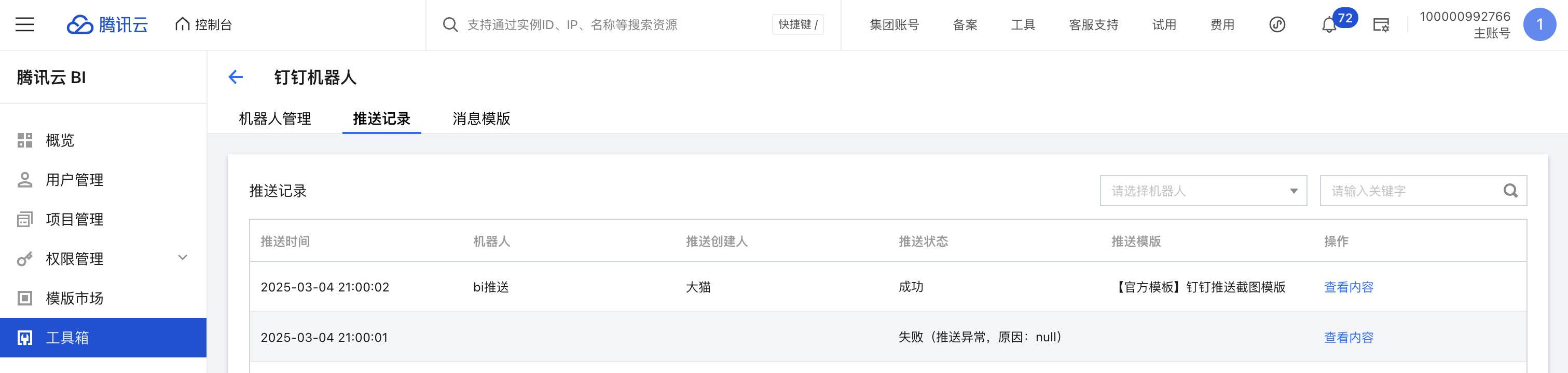
Viewing push records


Obtaining the DingTalk Robot Webhook URL

1. Prerequisite: The DingTalk administrator needs to first register and log in to the DingTalk Open Platform. For detailed instructions, refer to the relevant documentation on the DingTalk Open Platform.
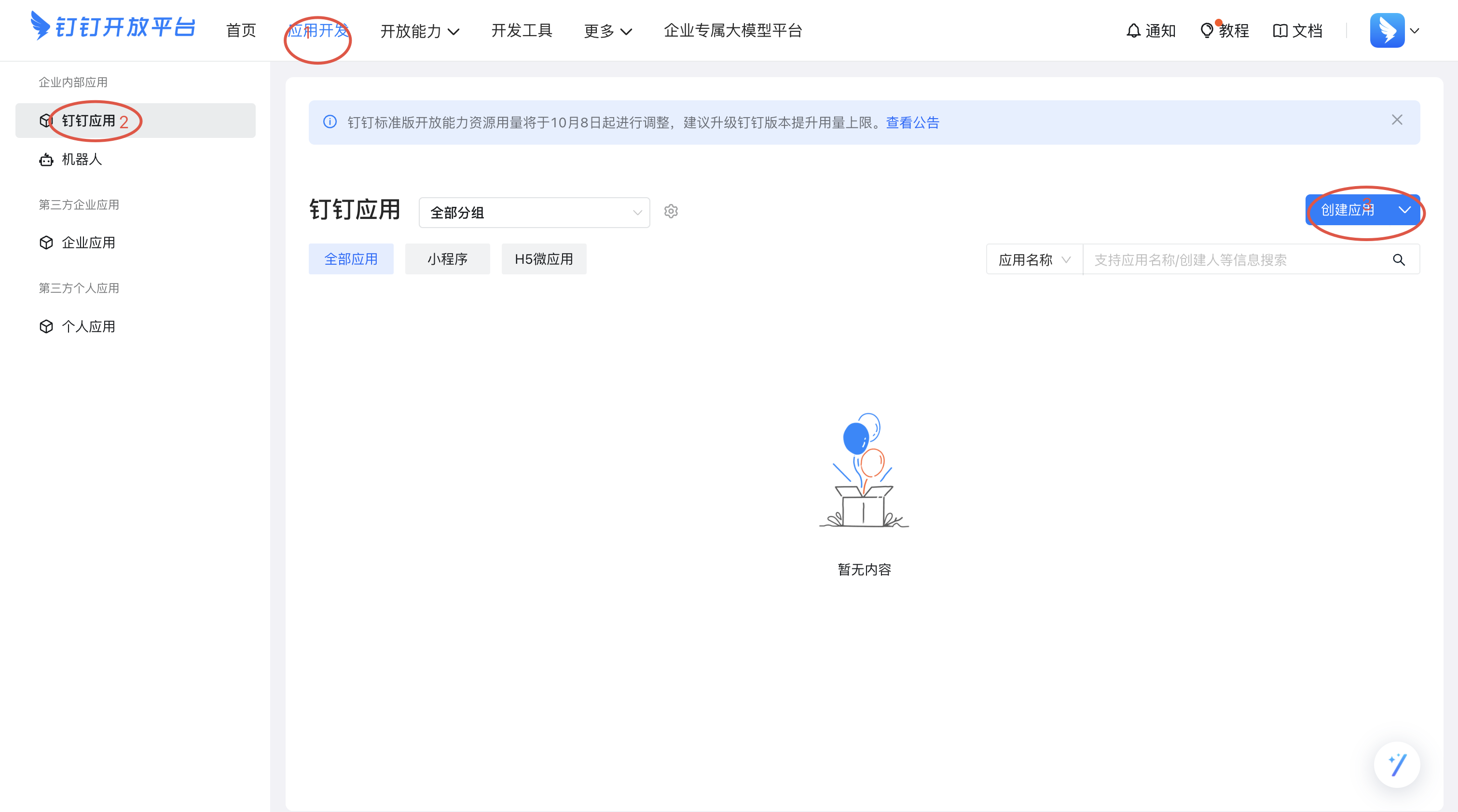
2. Log in to the DingTalk Open Platform > App Development > DingTalk Apps (Internal Enterprise Apps) > Create App.
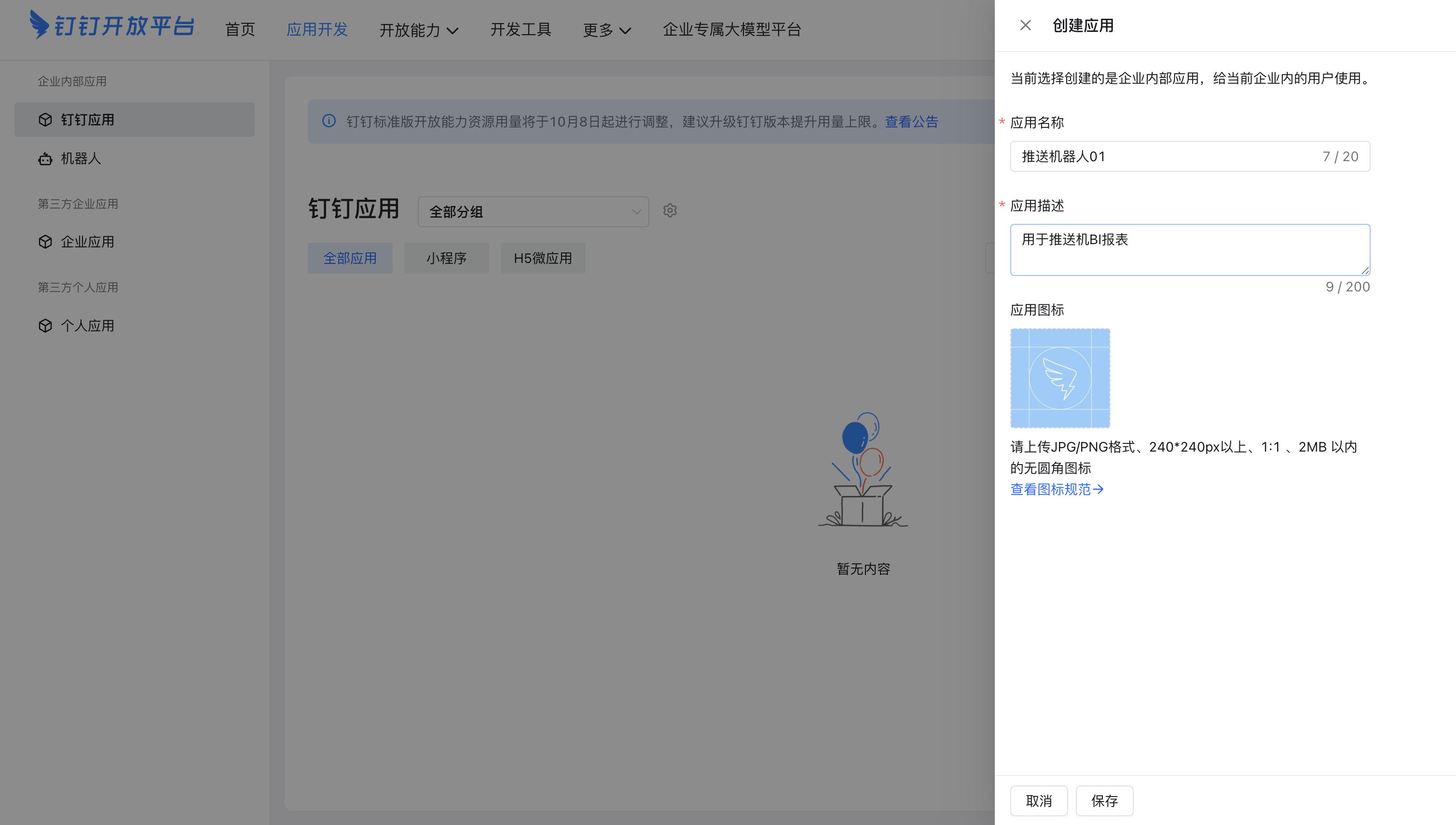
3. Enter the required app information, save the information, and proceed to the next step.
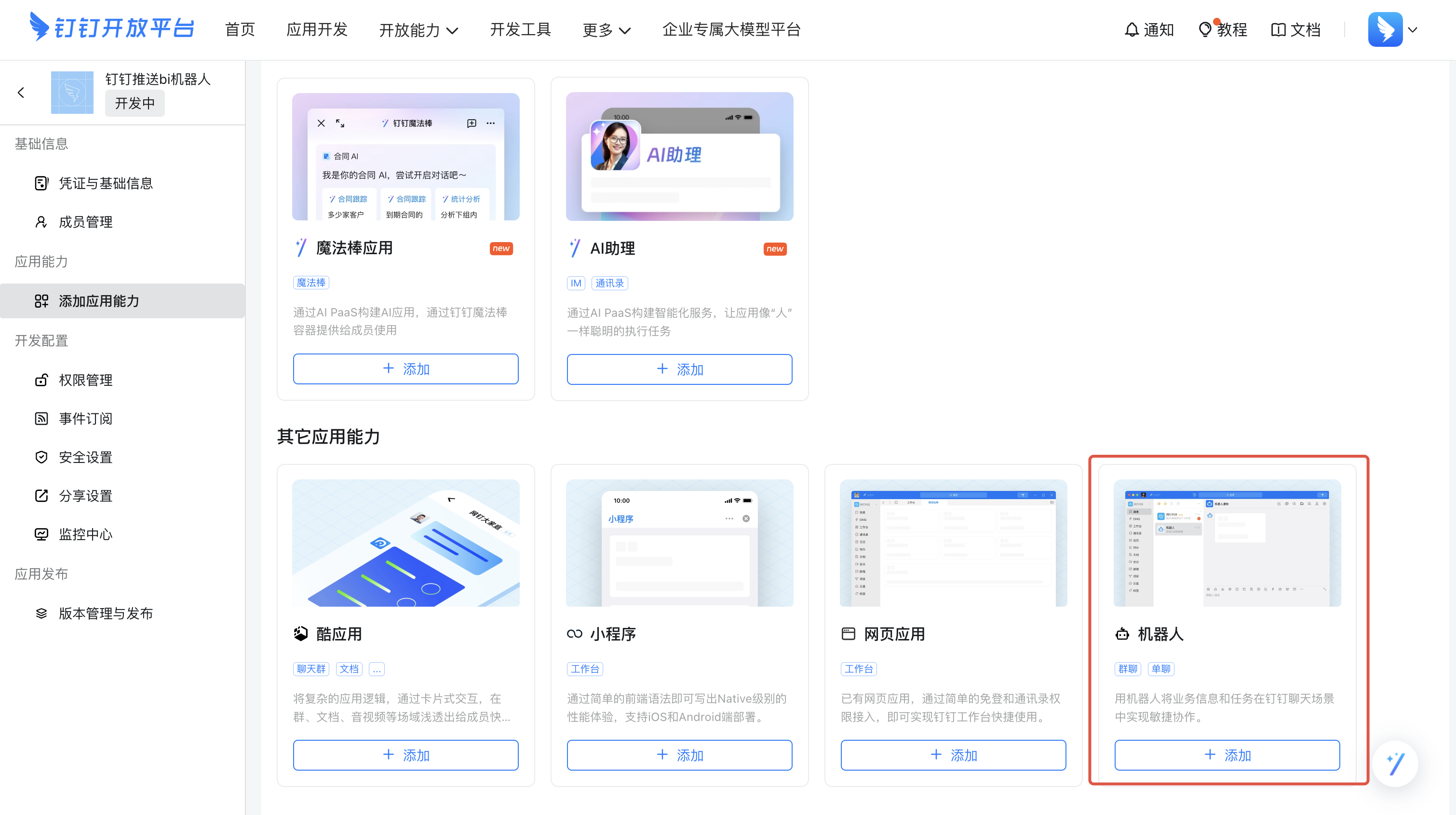
4. Select the app capability type as "Robot".
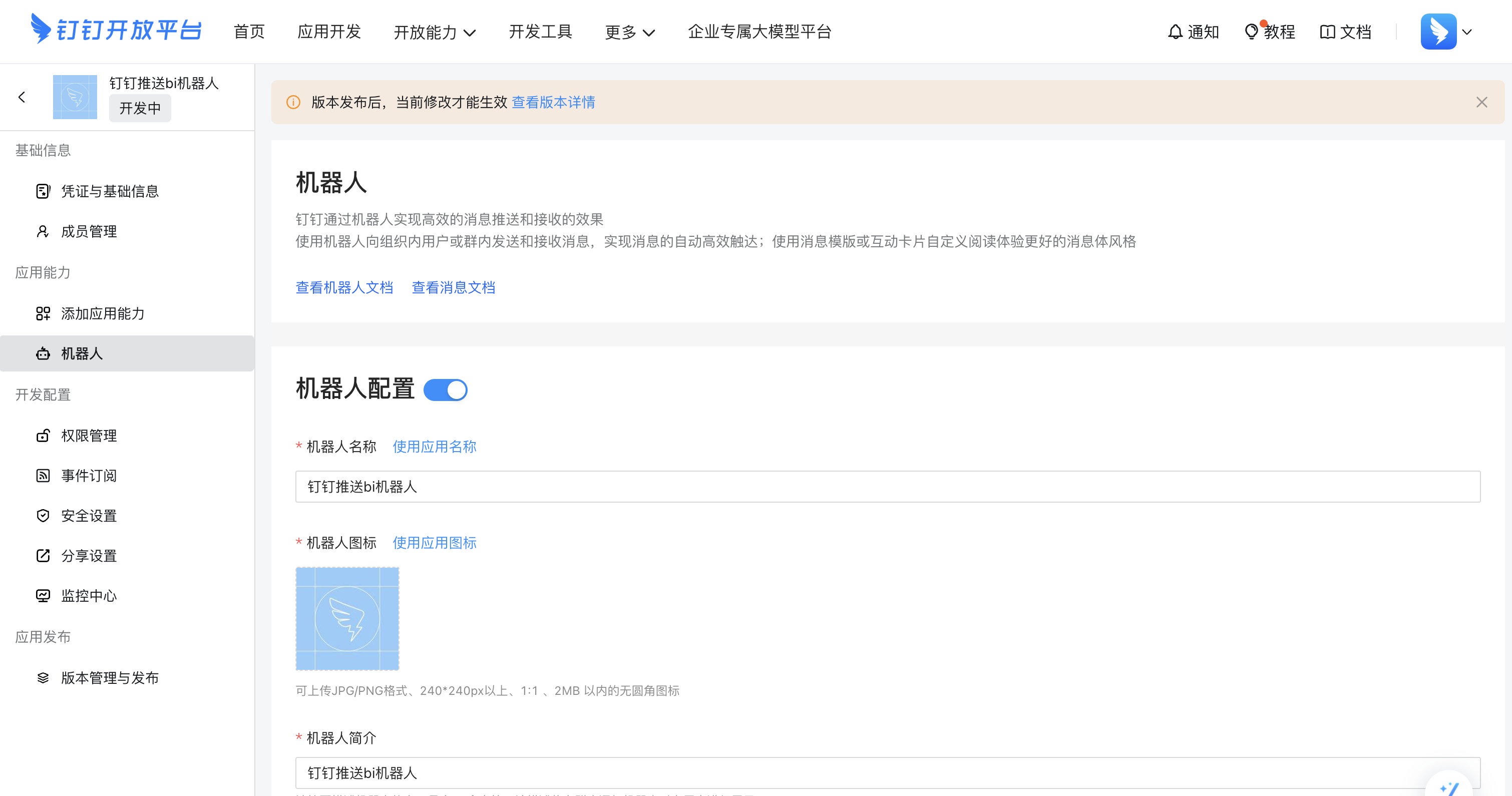
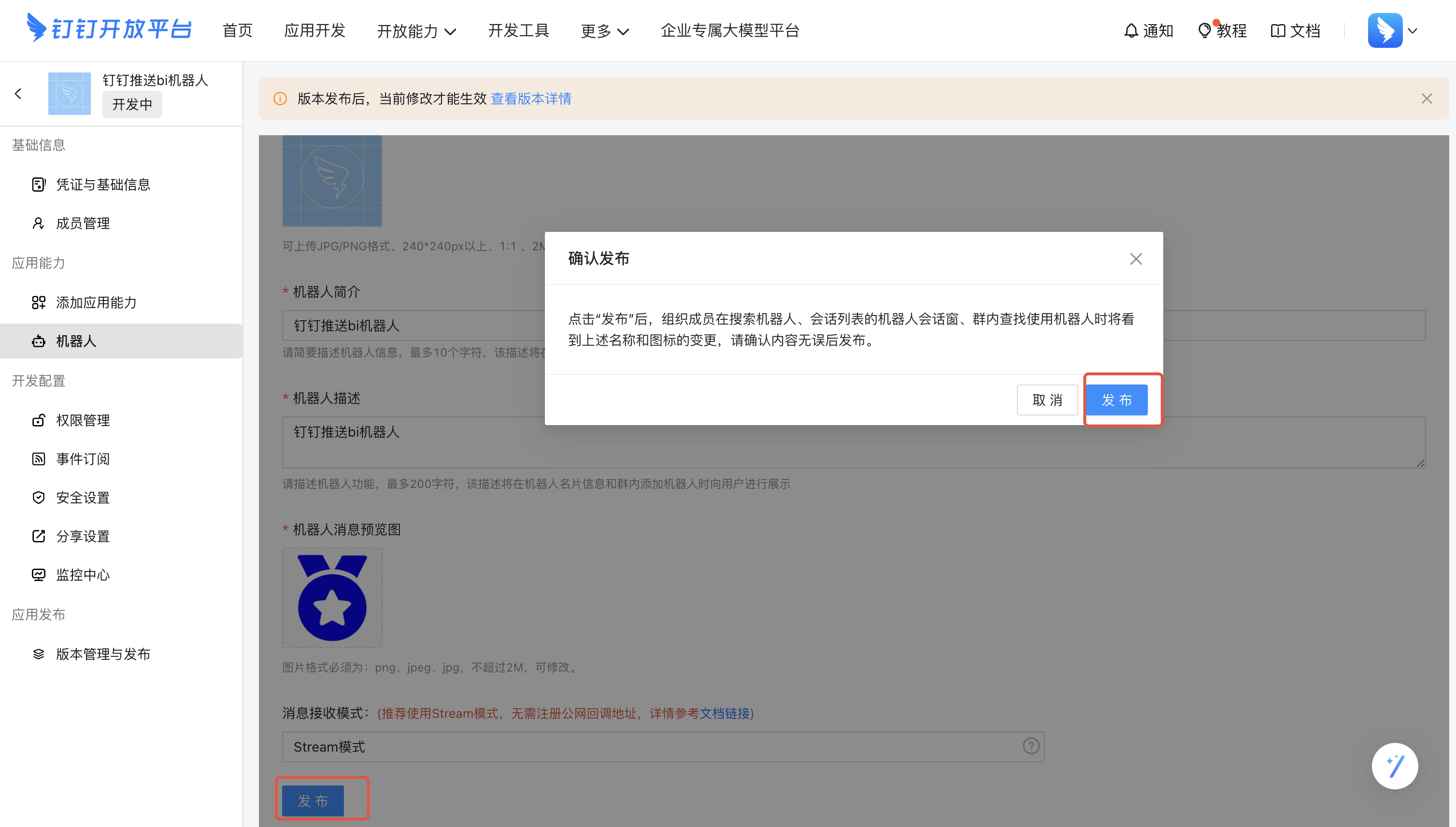
5. Complete the information in the robot configurations.
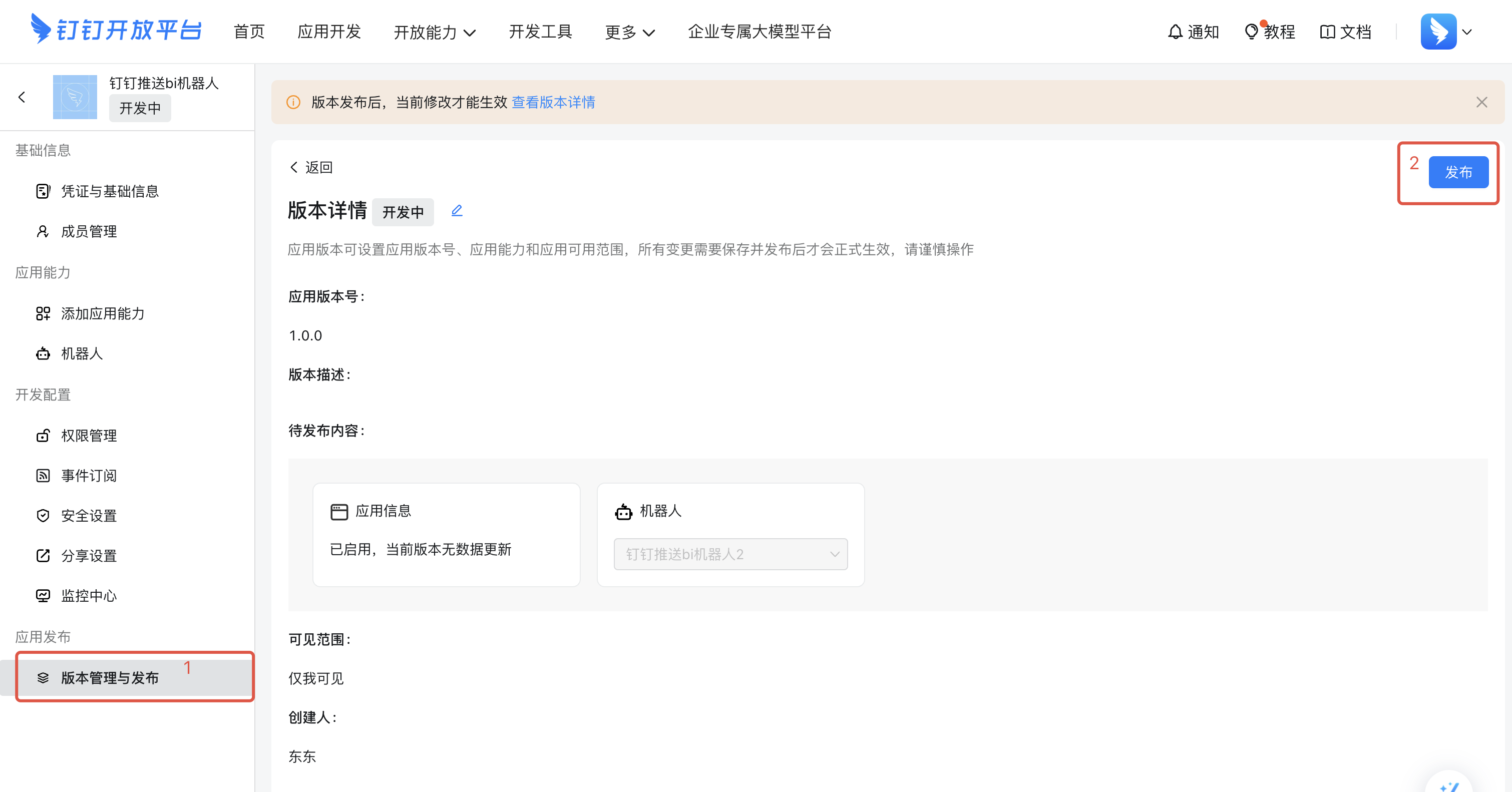
6. Publish the robot.
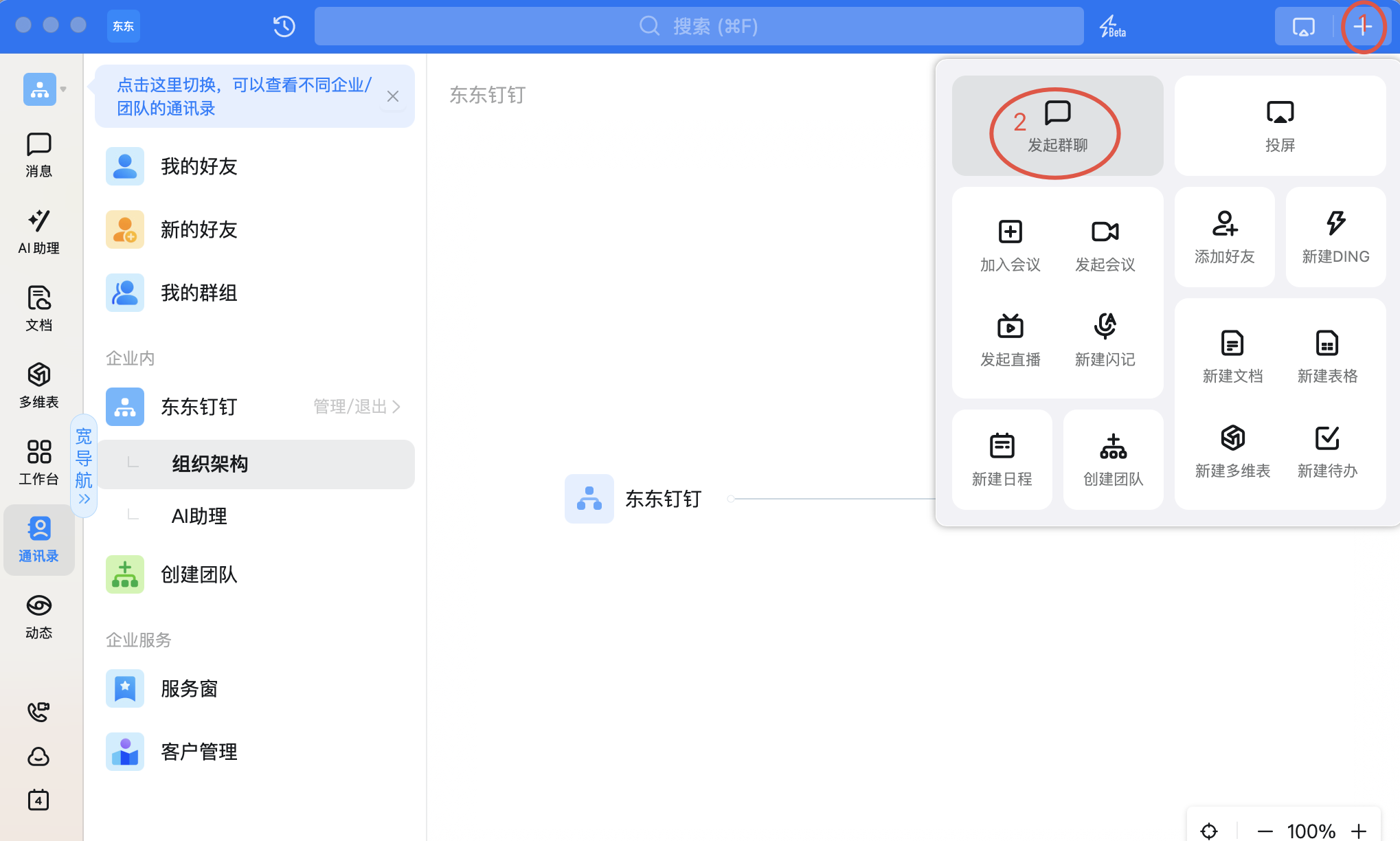
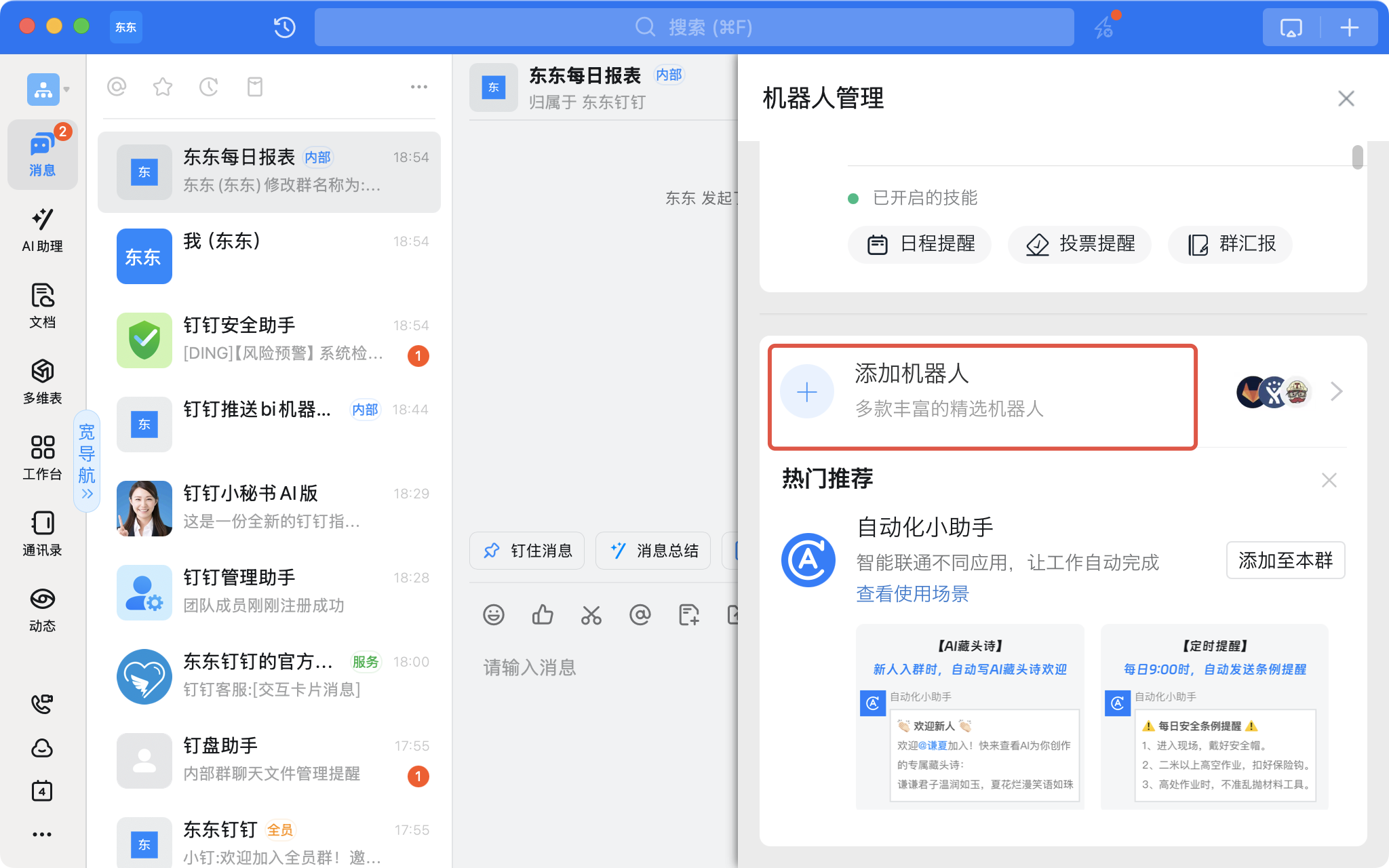
7. Create a group in DingTalk and add the robot to the group.
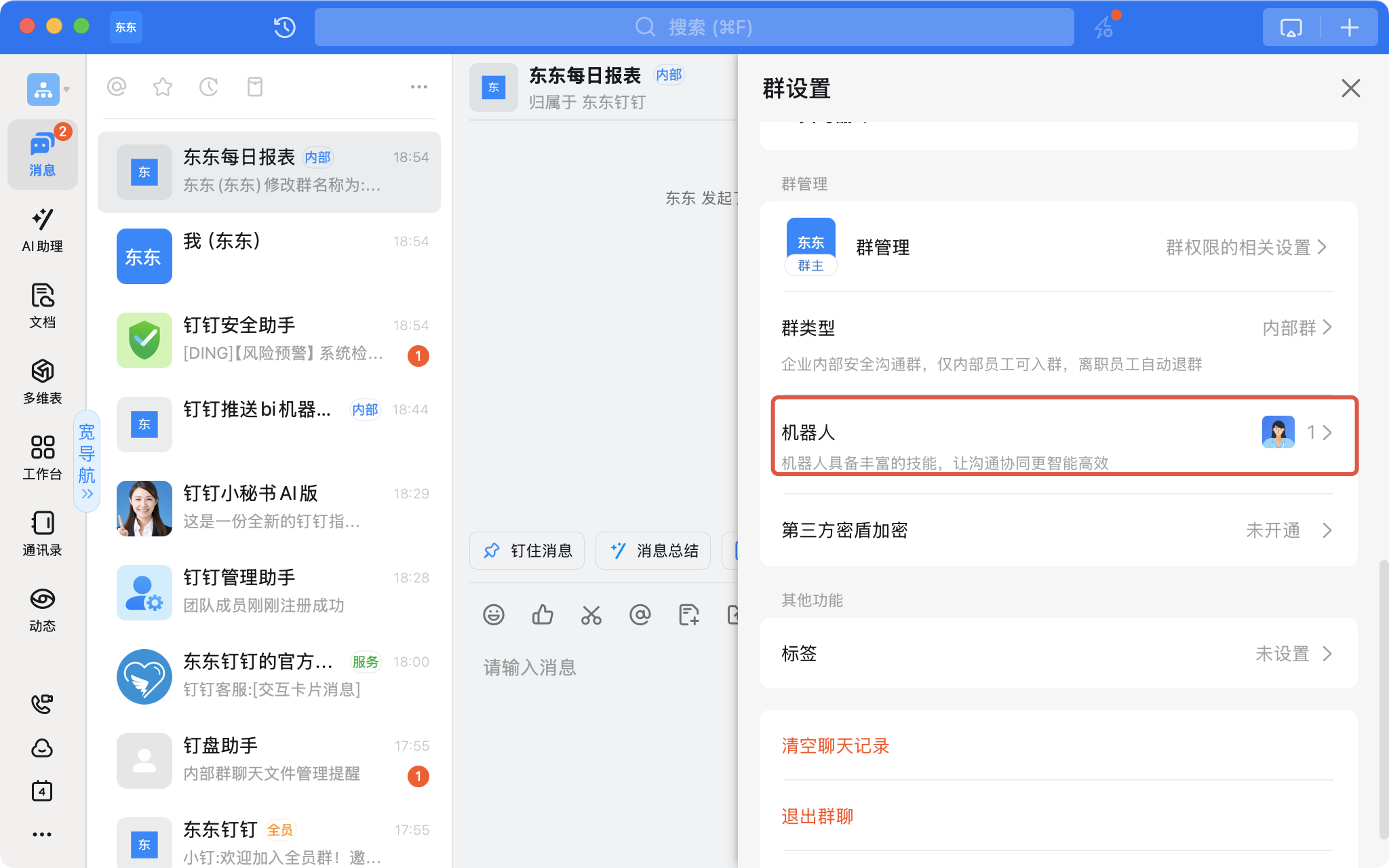
In the group settings, select Robot.
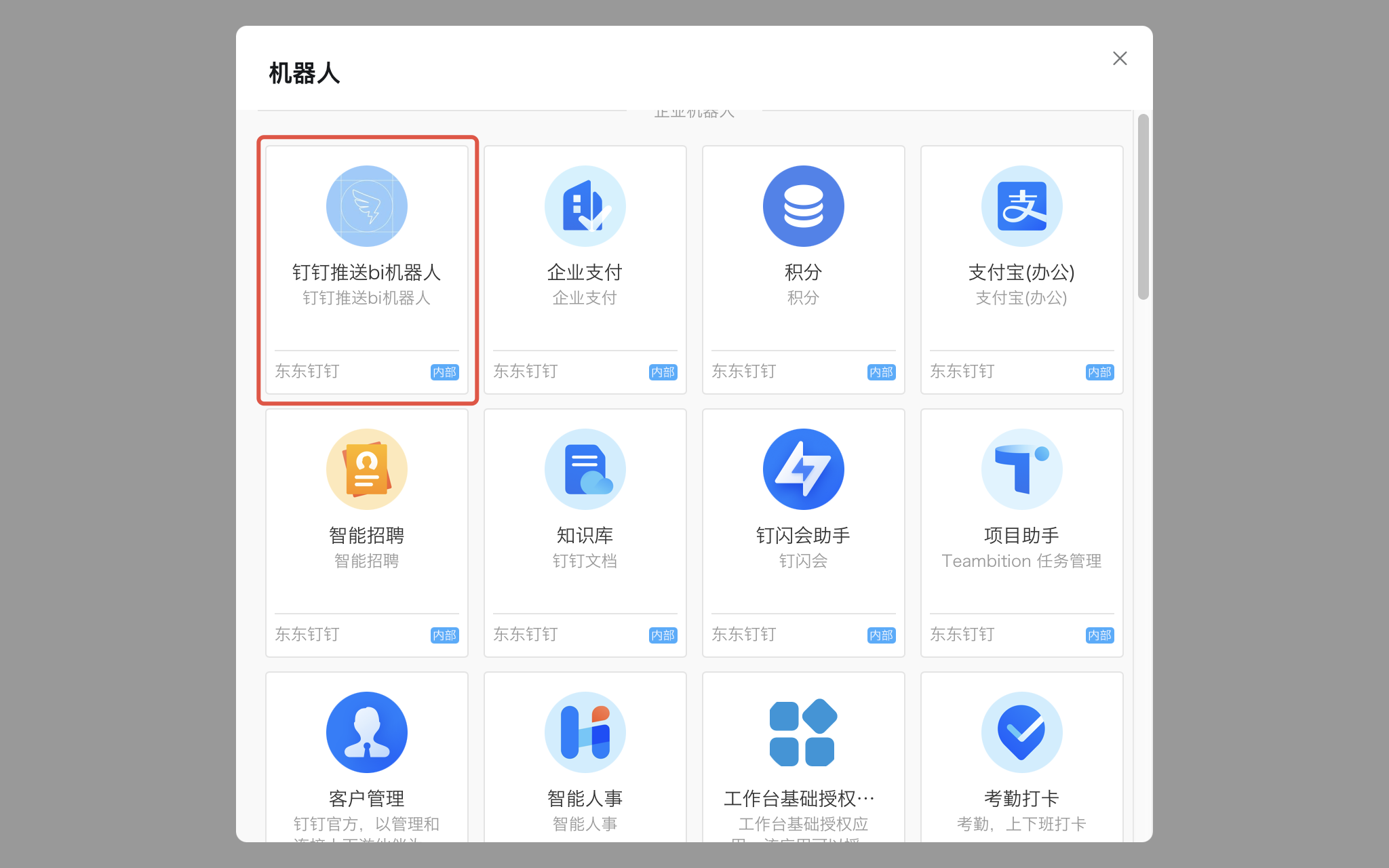
Add the robot.
Select the internal enterprise app robot created earlier.
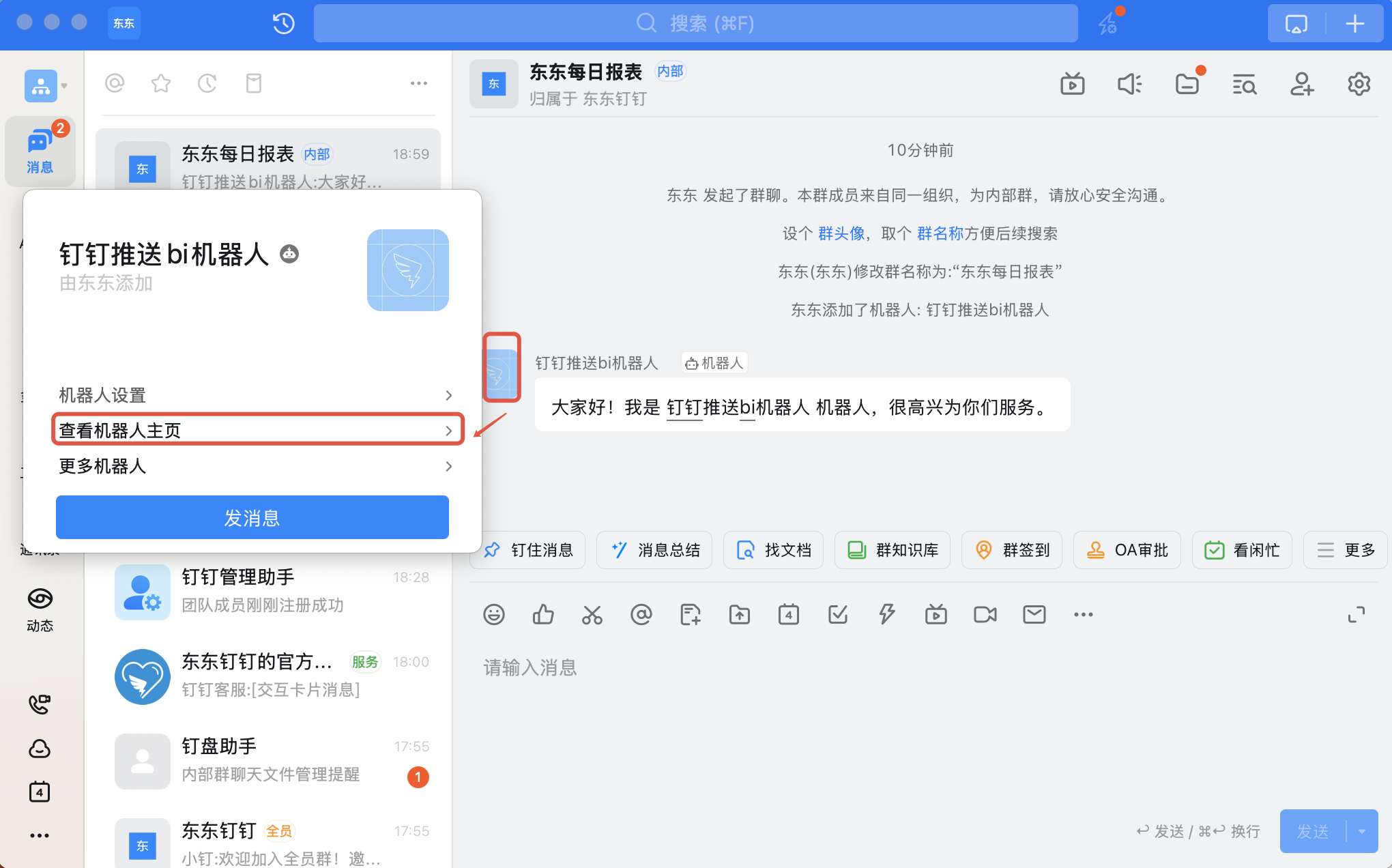
8. Obtain the robot URL.
In the group, open the robot's profile card to access the robot's homepage.
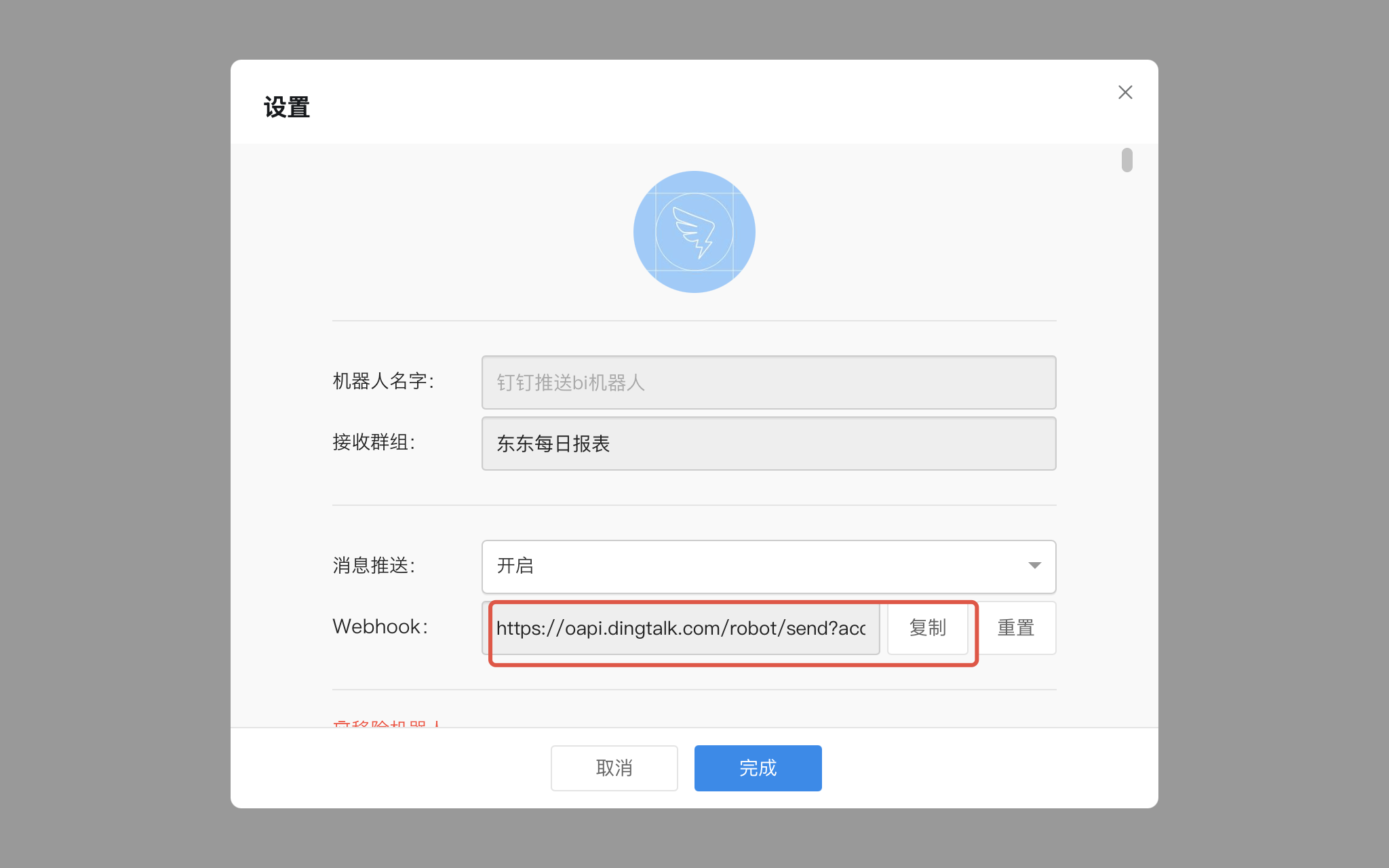
Copy the webhook URL.


Adding the DingTalk Robot in BI

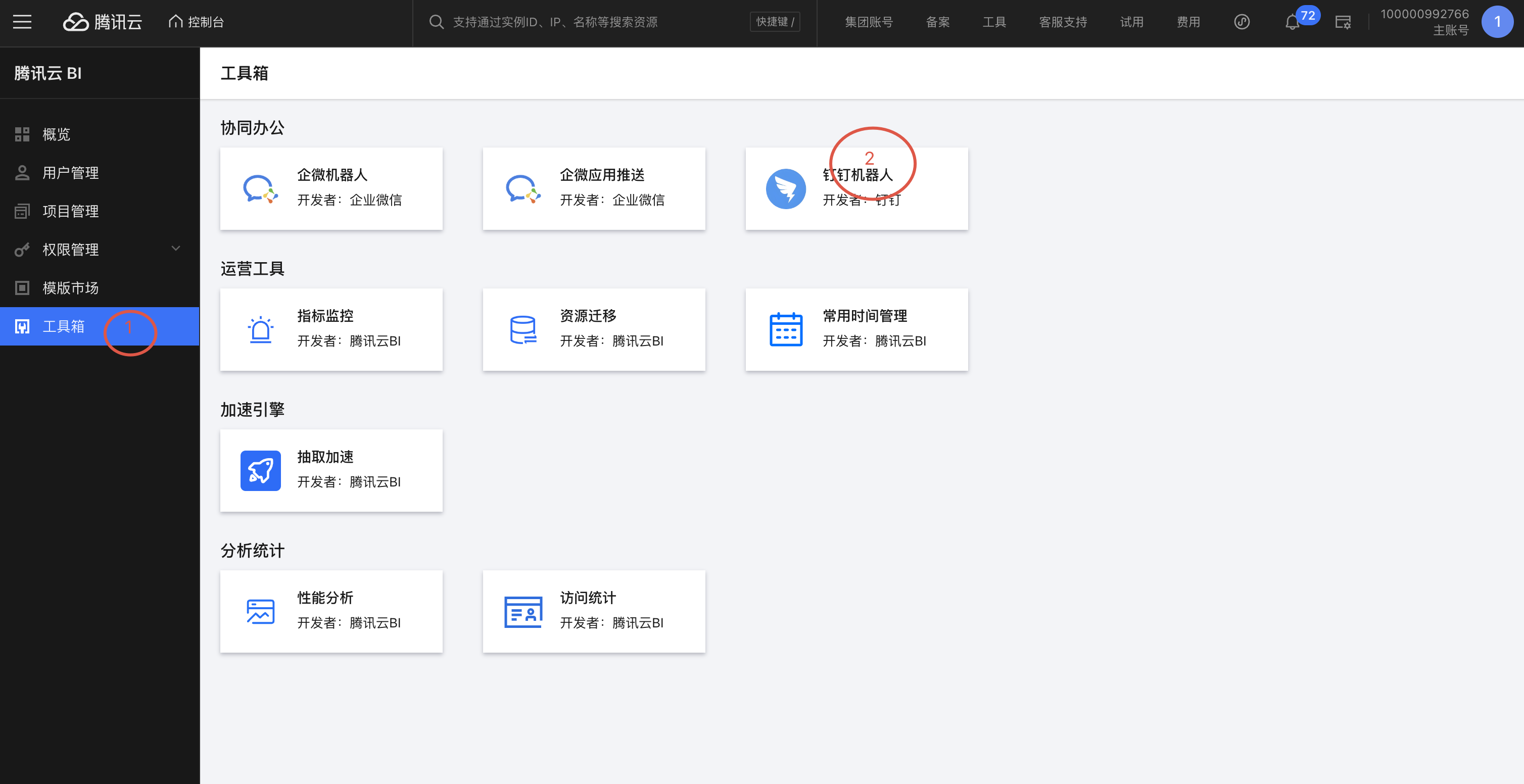
1. Go to the Business Intelligence (BI) console > Toolbox > DingTalk Robot.

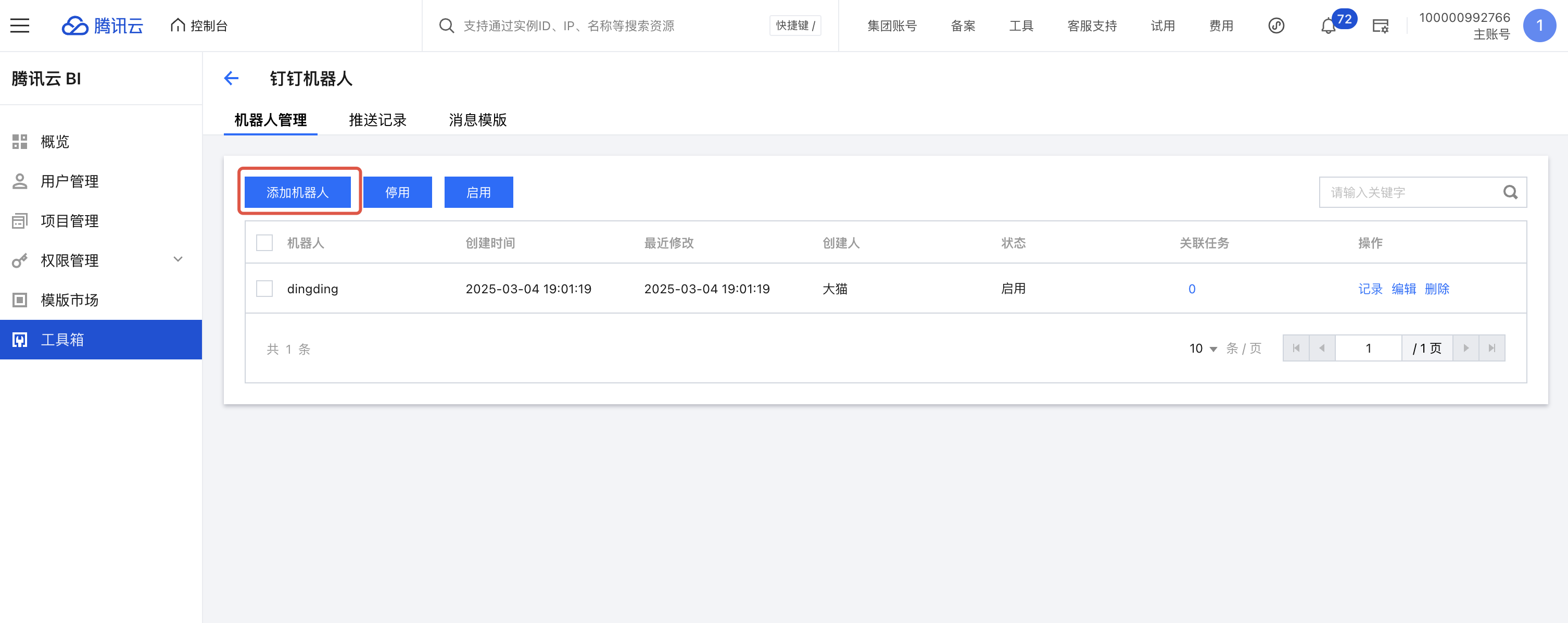
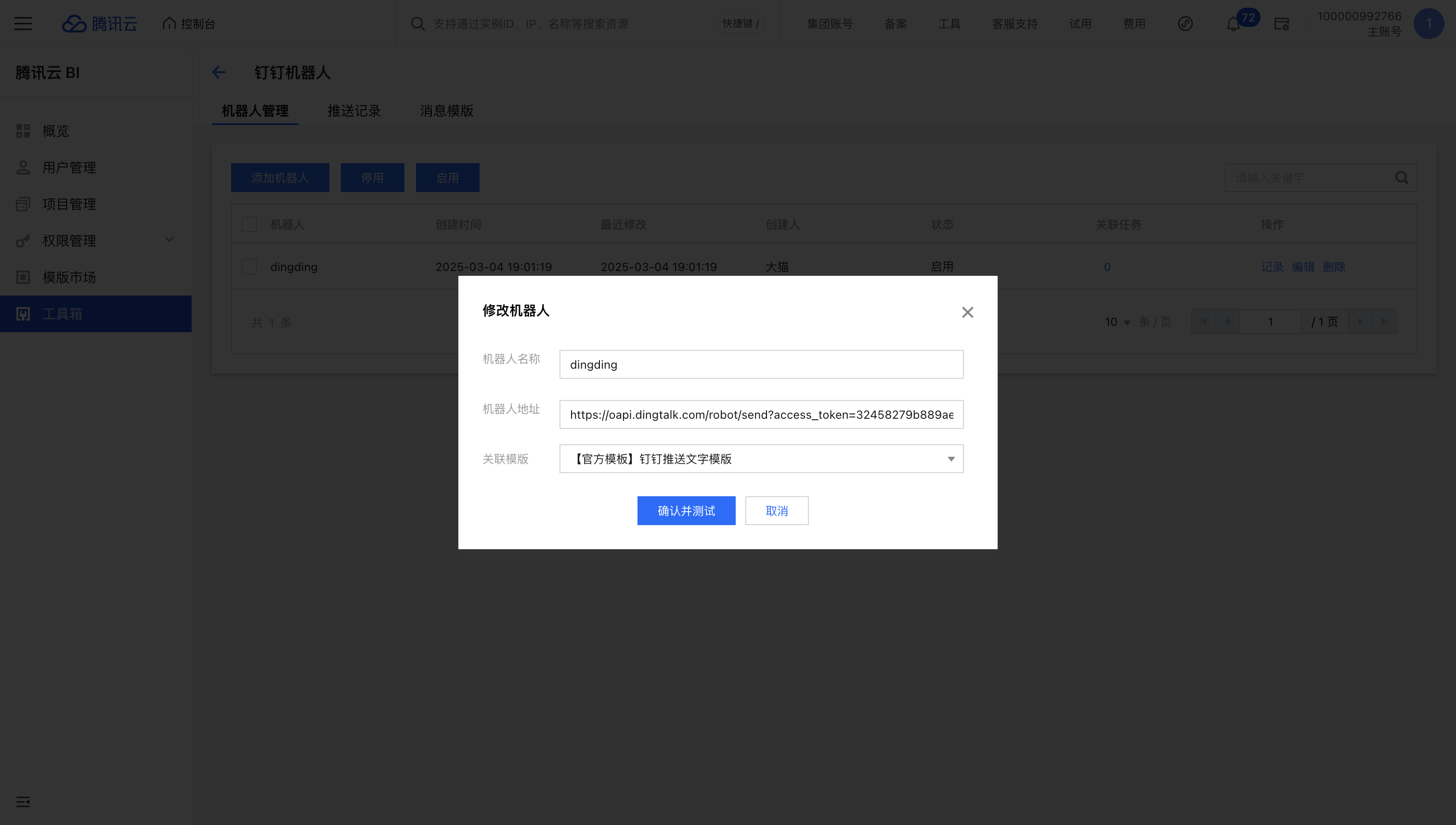
2. Add the robot.

Associate a template with the robot (the template determines the push content) and enter the robot URL obtained earlier.


Enabling or Disabling the DingTalk Robot

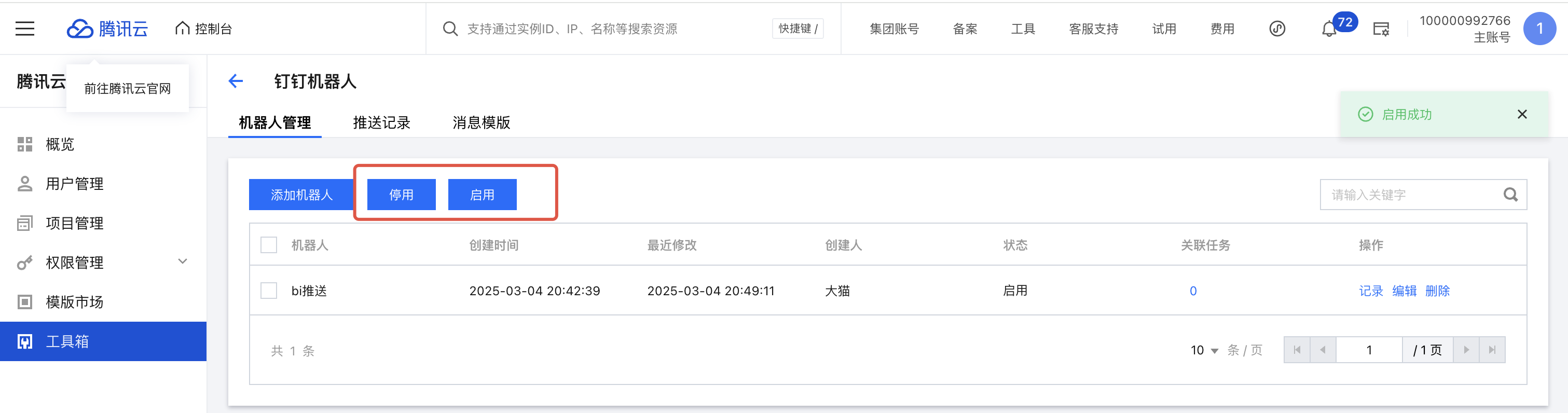
Users can enable or disable the robot as needed. When the robot is disabled, the robot will not send any messages.


Viewing Push Records

Go to Push Records to view the results of all DingTalk Robot pushes. Users can filter the records by keywords, including robot name and template name.

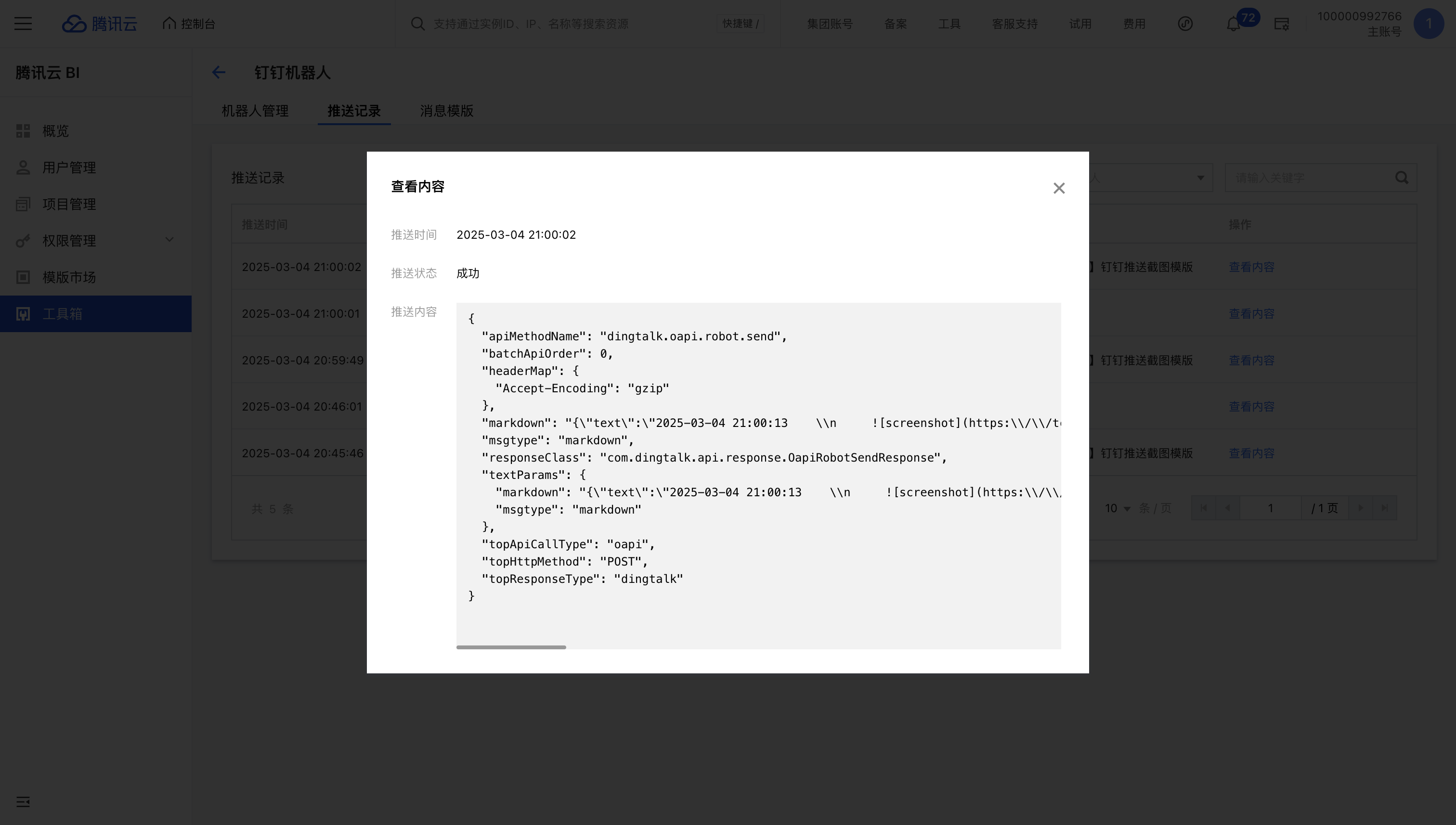
Click View Content to check the content sent this time (including the template content).


Help and Support

Was this page helpful?

Help us improve! Rate your documentation experience in 5 mins.

Feedback