Ad-hoc analysis provides convenient self-service analysis capabilities for non-fixed analysis scenarios. You can create an ad-hoc analysis to explore data.
Through this document, you will learn the following:
Creating an Ad-Hoc Analysis
Editing an Ad-Hoc Analysis
Deleting an Ad-Hoc Analysis
Viewing an Ad-Hoc Analysis
Sharing an Ad-Hoc Analysis
Decommissioning an Ad-Hoc Analysis
Creating an Ad-Hoc Analysis
1. Ad-Hoc Analysis Entry
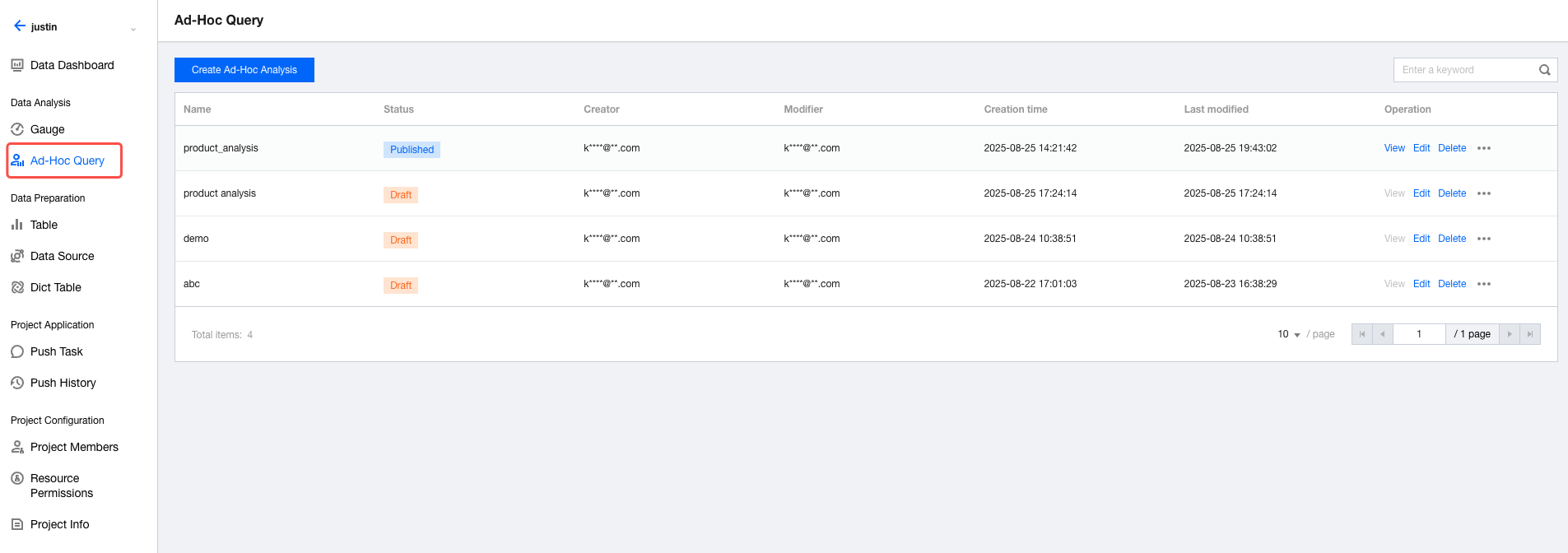
1.1 Go to a project: Select "Console", "Project", and then "Select project".
1.2 Click Ad hoc Analysis to go to the ad-hoc analysis list page.
2. Creating an Ad-Hoc Analysis Page
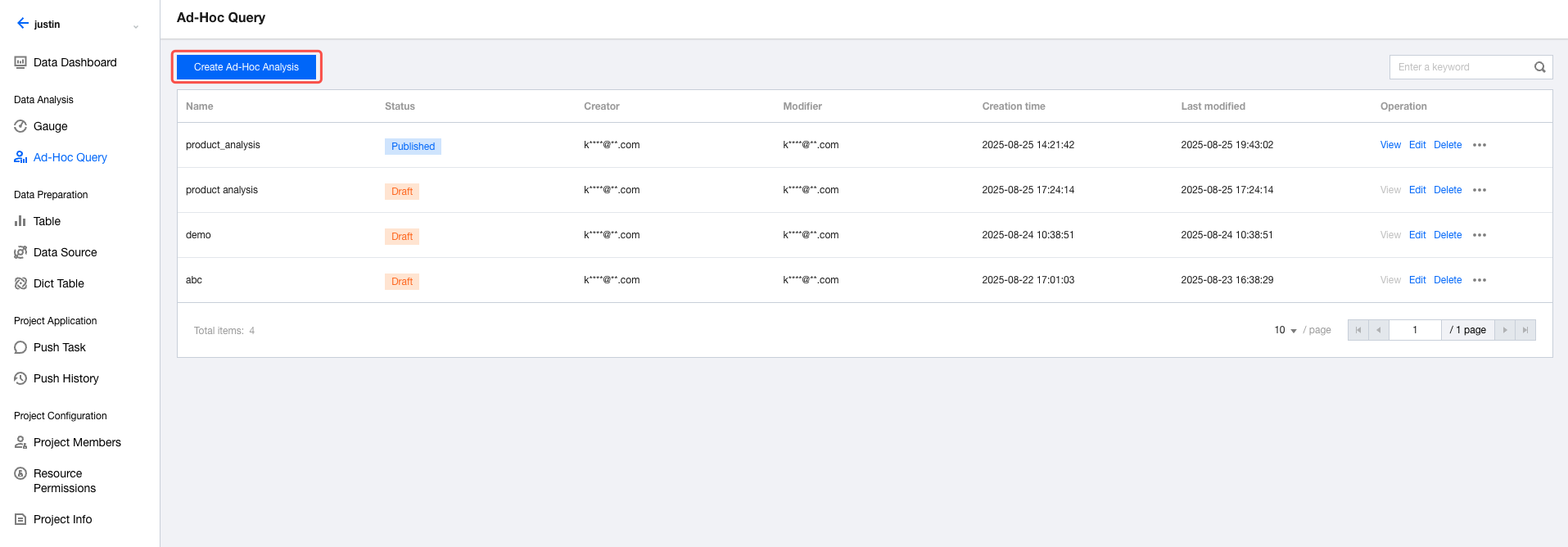
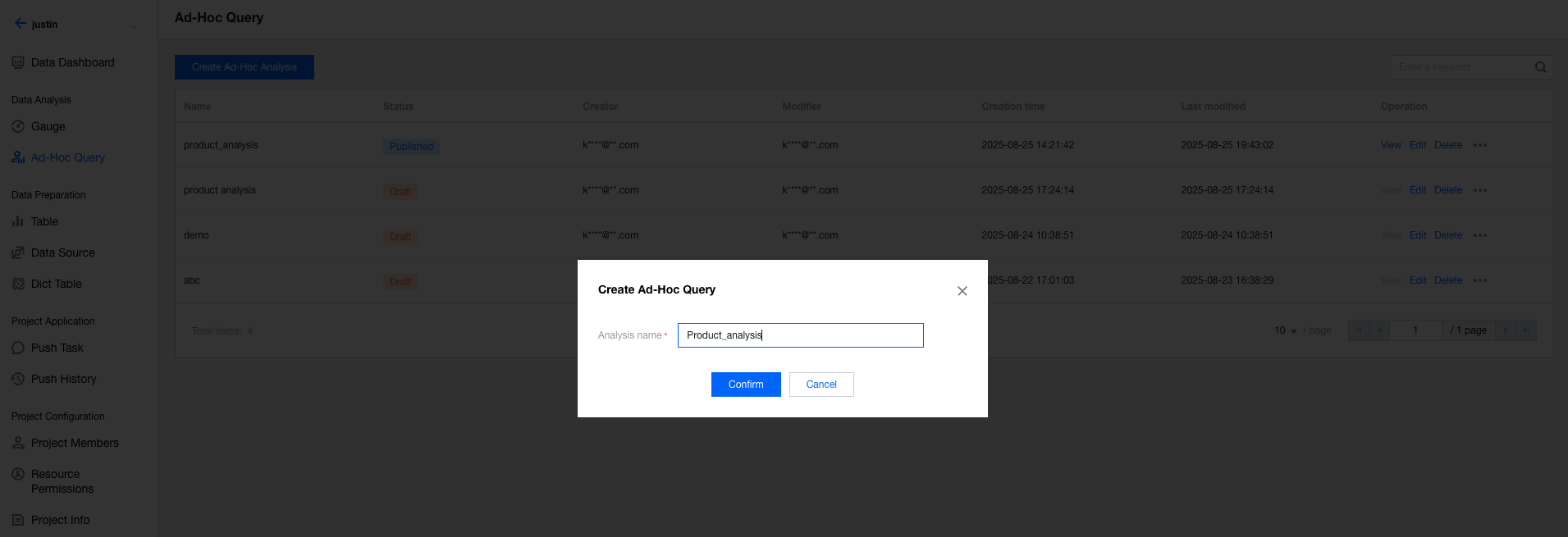
On the ad-hoc analysis list page, click Create Ad hoc Analysis to add an ad-hoc analysis page.
Editing an Ad-Hoc Analysis
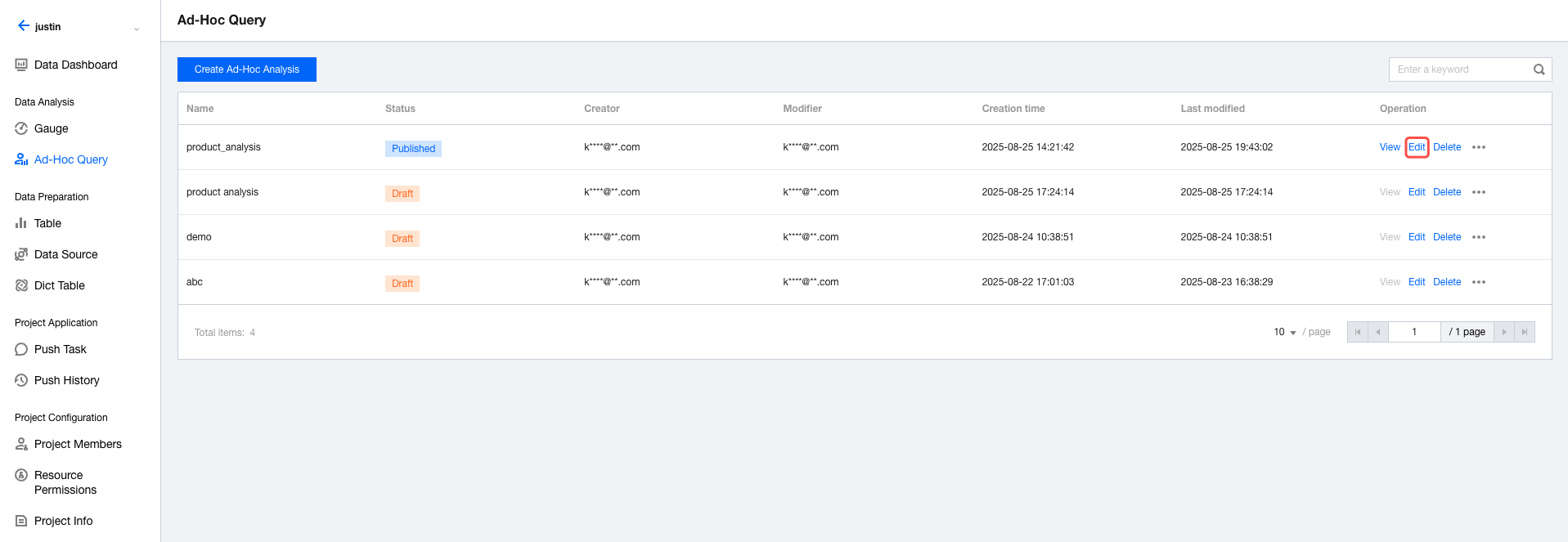
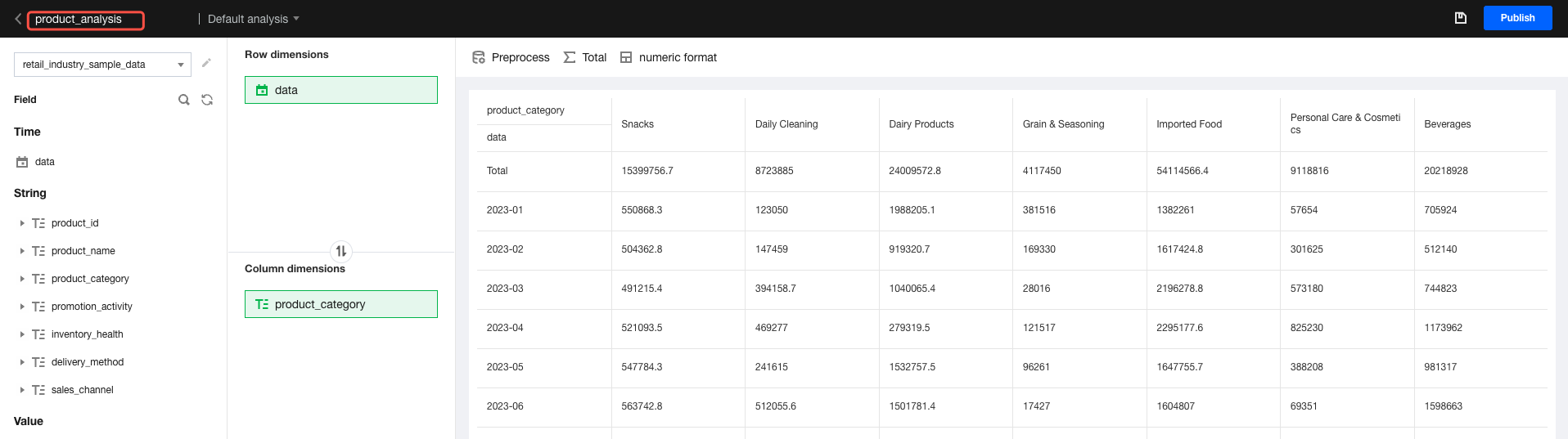
Log in to the console, select "Project management", go to the target project, then click "Ad hoc analysis". On the ad-hoc analysis list page, click Edit to go to the editing page.
To change the name of the ad-hoc analysis, hover the mouse over the upper-left corner of the editing interface. An input box will appear. Enter the new name in the input box, then move the mouse away. This way, the ad-hoc analysis is renamed.
Deleting an Ad-Hoc Analysis
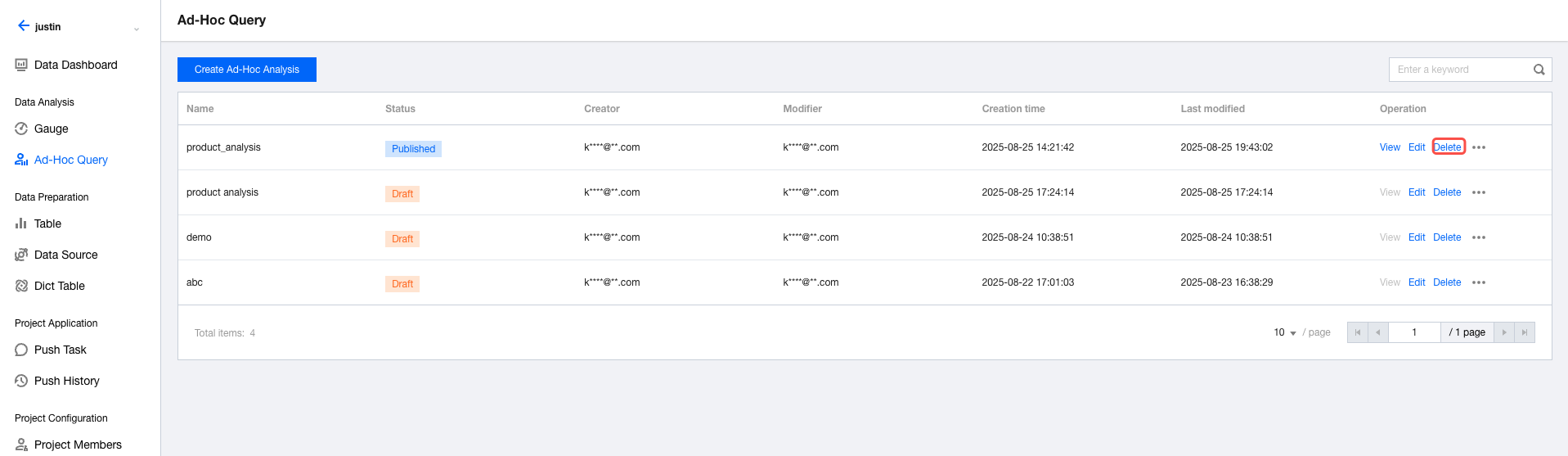
Log in to the console, select "Project management", go to the target project, then click "Ad hoc analysis". On the ad-hoc analysis list page, click Delete.
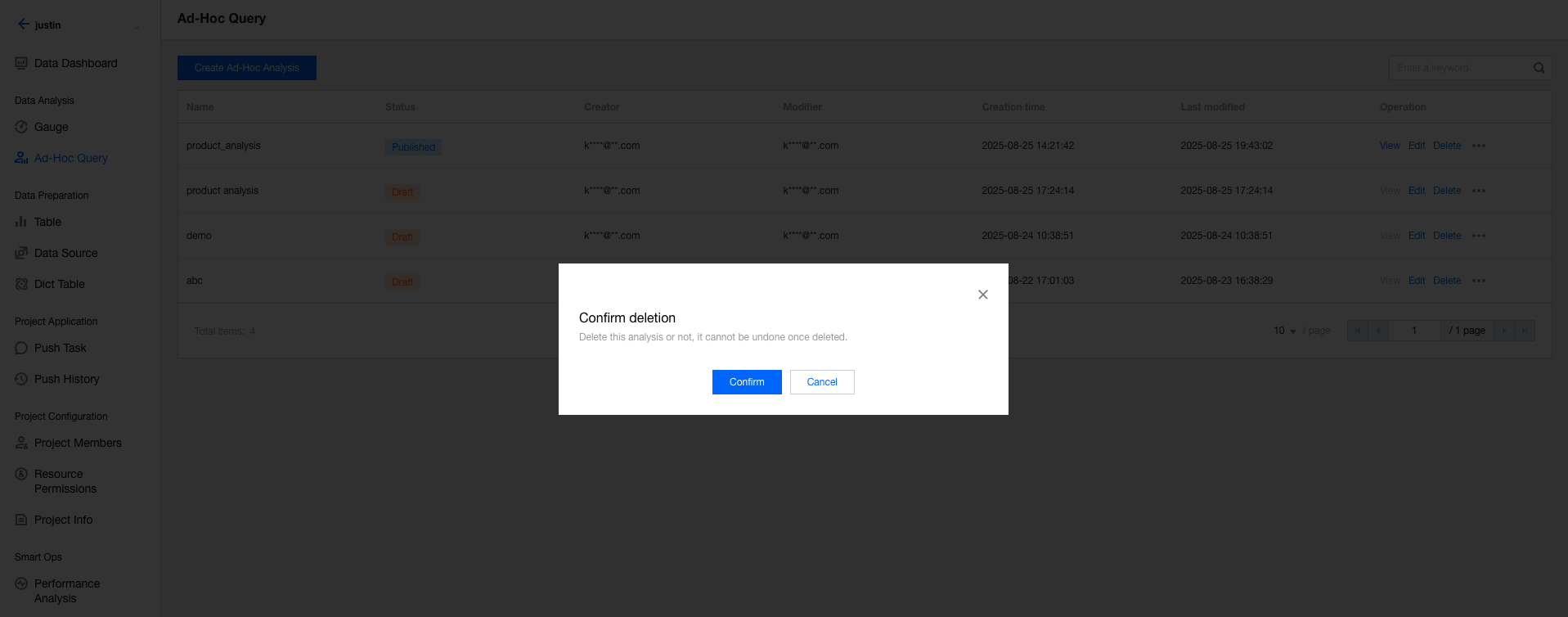
Select "Confirm" in the secondary confirmation pop-up layer to delete the ad-hoc analysis page.
Viewing an Ad-Hoc Analysis
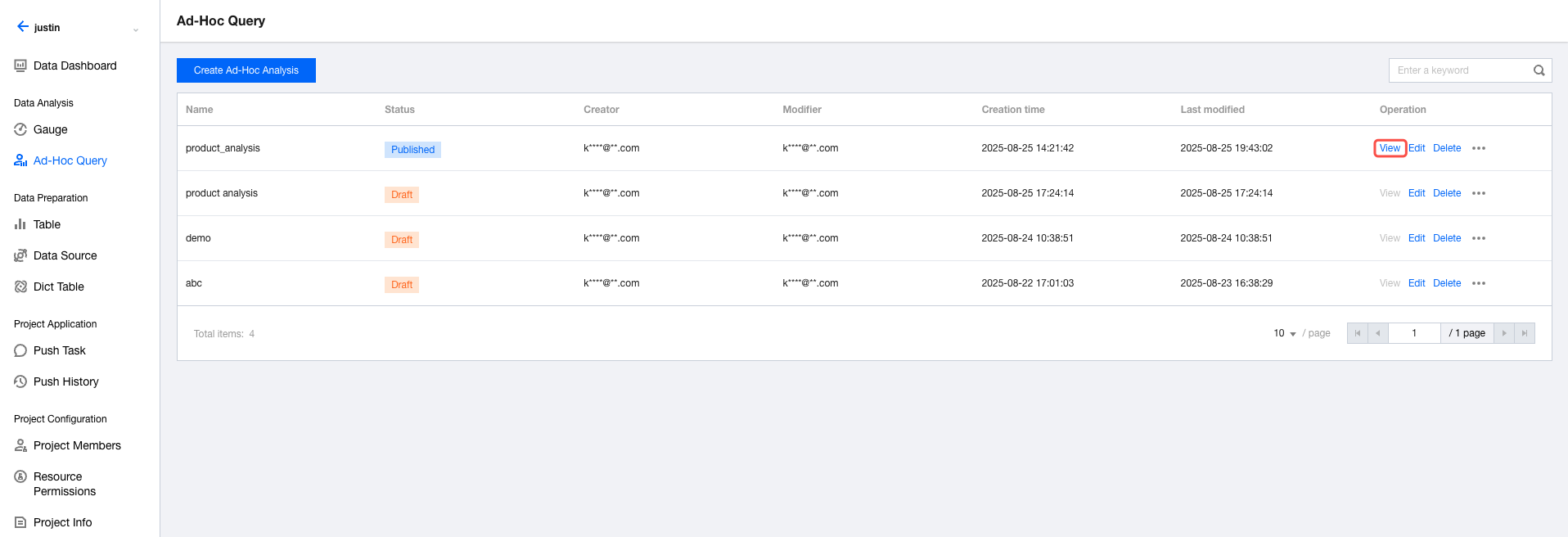
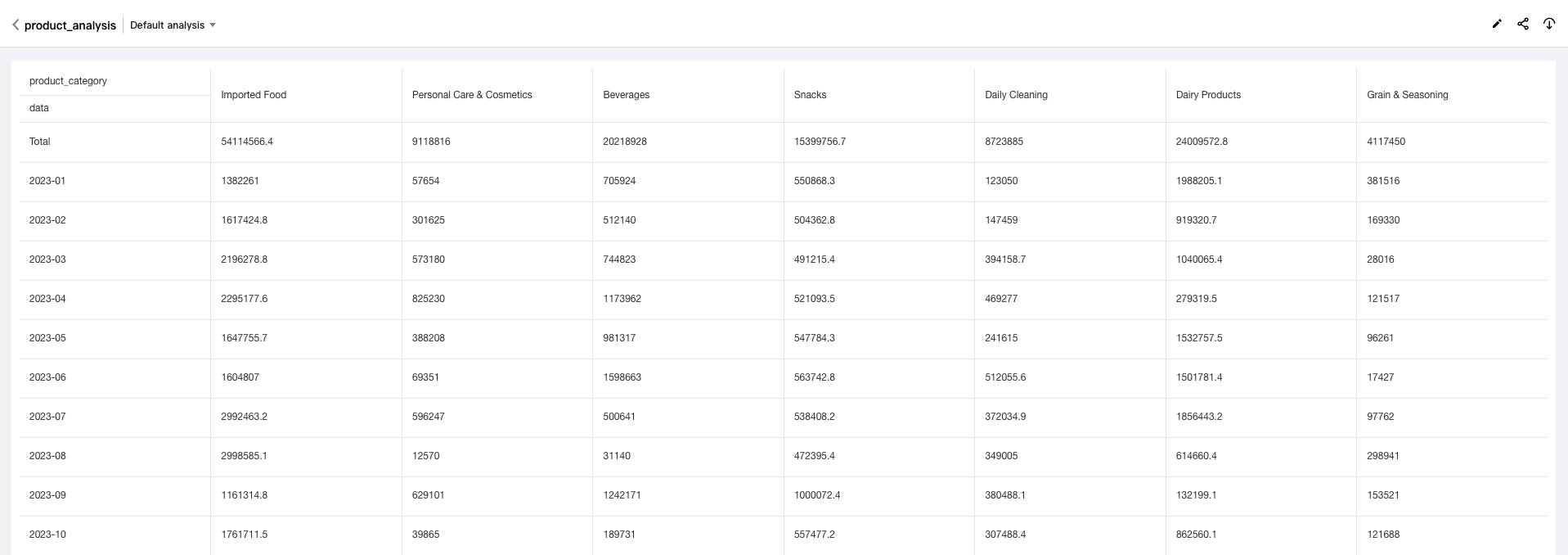
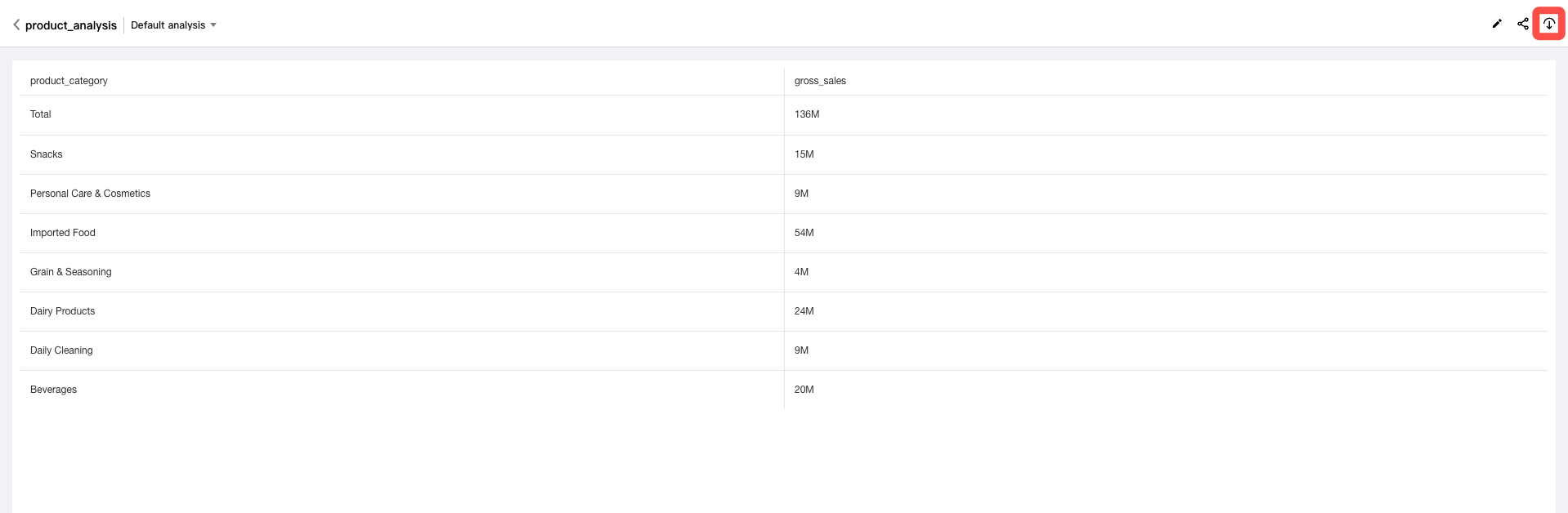
Log in to the console, select "Project management", go to the target project, then click "Ad hoc analysis". On the ad-hoc analysis list page, click View to view the released ad-hoc page.
The viewed ad-hoc page is displayed as follows:
Note:
1. If the current ad-hoc analysis page is not released or offline, the "View" option is unclickable.
2. When you view the page, the latest released version is displayed. If Page A is modified after its release and is saved without being released again, content inconsistencies may occur between the viewed and edited versions.
Searching for an Ad-Hoc Analysis
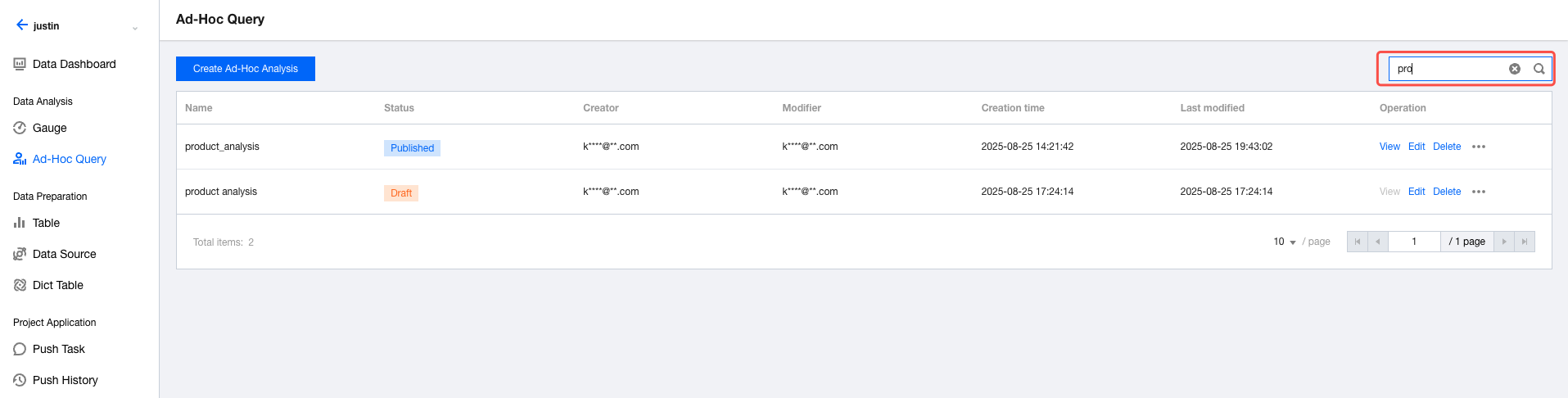
Log in to the console, select "Project management", go to the target project, then click "Ad hoc analysis". On the ad-hoc analysis list page, enter keywords to search for the ad-hoc pages that contain the keywords.
Sharing an Ad-Hoc Analysis
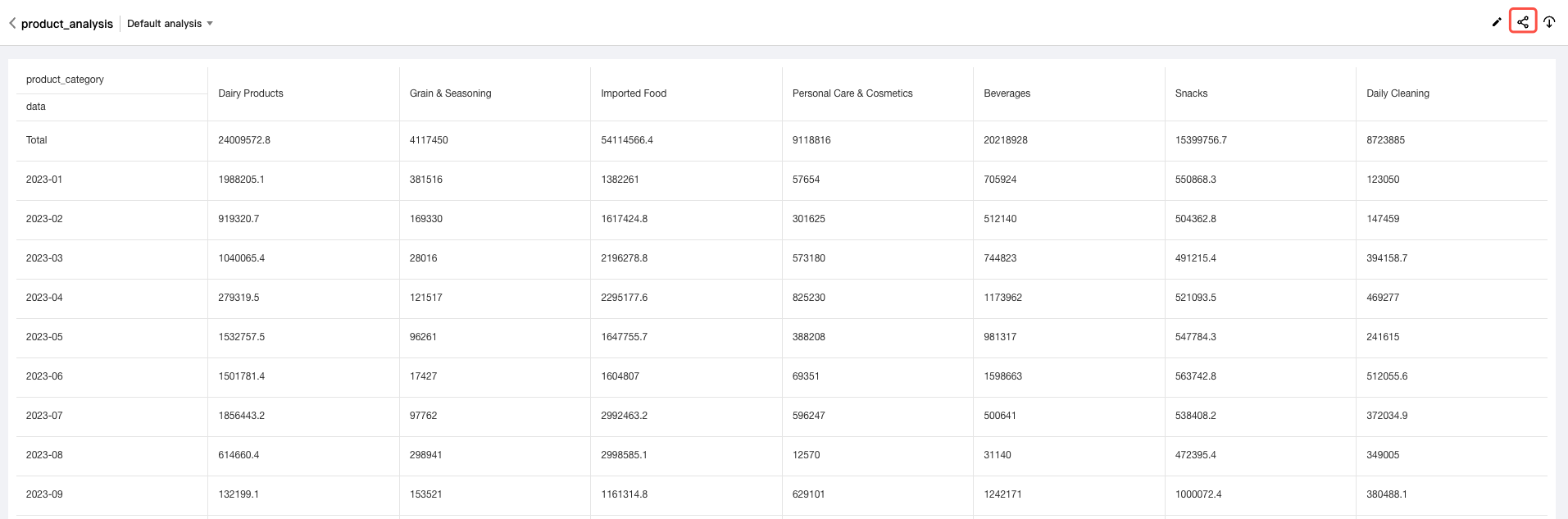
Log in to the console, select Project management, then go to the target project. Click Ad hoc analysis and then View to go to the ad-hoc analysis details page. Click the "Share" icon in the upper-right corner of the details page.
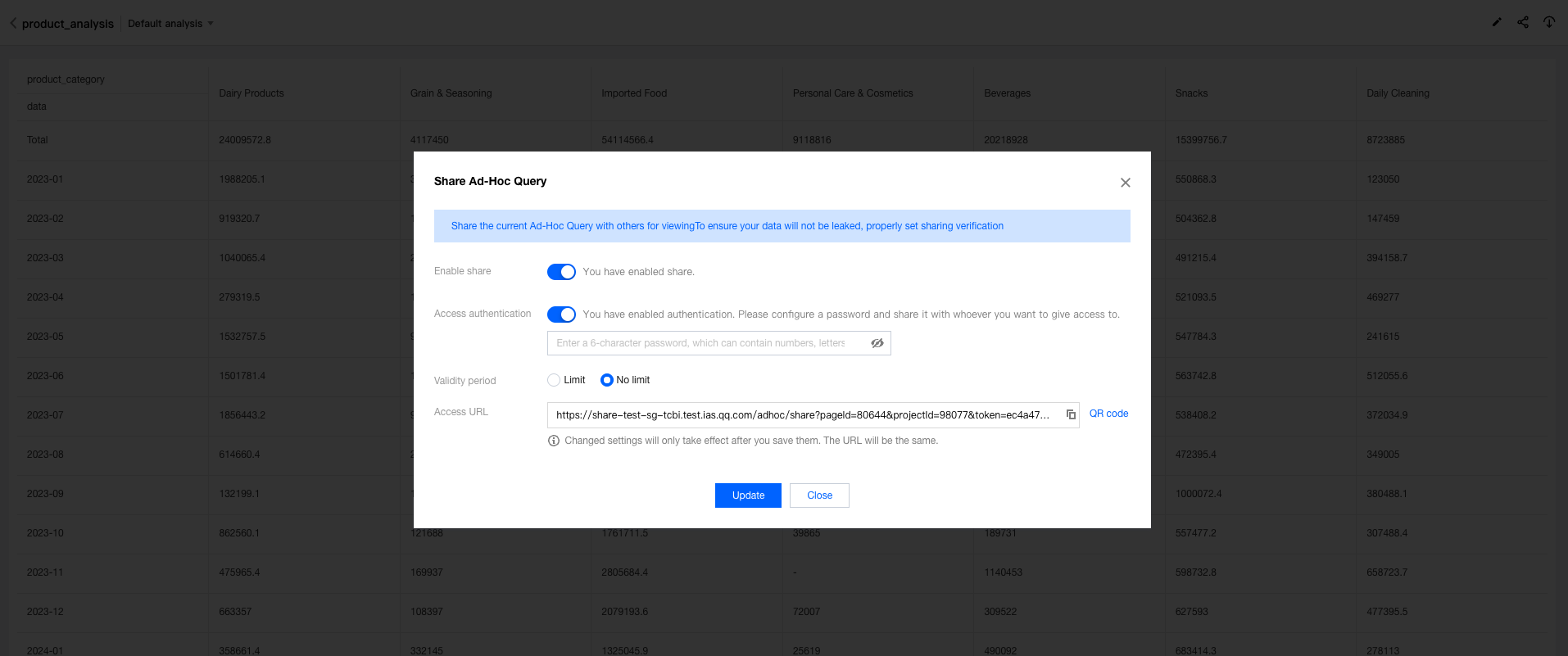
In the pop-up window for sharing settings, set the following configuration items:
Configuration Item
Use Case
Description
Enable sharing
You need to share the current ad-hoc page.
If this item is disabled, any previously shared links will also become invalid.
Validate access
The report has security requirements. You need to enter the access password for validation when accessing the report.
Once this item is enabled, access password settings are required.
Validity time
You need to limit the validity period of this sharing.
The available options are "time limit" and "unlimited":
Unlimited: This sharing is permanently valid.
Time limit: Select a time period. Normal access is available only within the selected time period.
Access link
You need to obtain the access link.
Click the "Copy" icon to copy the link. If the configurations change (for example, the viewing password is updated), the link remains unchanged.
Note:
1. Unreleased pages cannot be shared.
2. Shared pages do not require identity validation. Therefore, ensure the validity time for viewing permissions and the access validation code are set properly.
Decommissioning an Ad-Hoc Analysis
Released ad-hoc analysis pages can be decommissioned.
Log in to the console, select "Project management", then go to the target project. Click "Ad hoc analysis" and then "View" to go to the ad-hoc analysis details page. Click the "Take offline" icon in the upper-right corner of the details page.
After a page is decommissioned:
1. The page is inaccessible.
2. You can go to the editing interface and release the page online again.