tencent cloud

Business Intelligence

Product Introduction
Product Overview
Strengths
Product Features
Use Cases
Purchase Guide
Billing Instructions
Purchase Guide
Upgrade Instructions
Renewal Instructions
Quick Start
Data Access
Creating a VPC Data Source
Creating Cloud Data Sources
Creating Proprietary Data Sources
Data Table Creation and Data Processing
Introduction to Data Analysis Basics
Data Table Creation
Data Processing
Data Analysis
Analysis Settings
Interactive Analysis
Ad-Hoc Analysis
Data Visualization
Public Style Setting Instructions
Filter Components
Chart components
Rich Text Component
Other Components
Mobile Terminal Layout Editor
Theme Settings Introduction
Page Layout Introduction
Dashboard Directory Management
Collaboration and Application
Push Channel Management
Report Push
Sharing
Embedding
Self-Service Data Retrieval
Metric Alarms
Data Security
Parameter Construction
Platform Management
Account and Permission Management
Statistics and Analysis
System Settings
Resource Migration
Practical Tutorial
Collection of Optimization Practices
Performing Trend Analysis
Performing Proportion Analysis
Performing Data Analysis with Excel Files
Creating Tables
API Documentation
History
Introduction
API Category
Making API Requests
Project Management APIs
Role APIs
Database Table APIs
Report Embedding APIs
Page Management APIs
Data Types
Error Codes
FAQs
Relevant Agreements
Service Level Agreement
Privacy Policy
Data Privacy And Security Agreement
Contact Us

Query Condition Settings

PDF
Focus Mode
Font Size
Last updated: 2025-09-19 15:14:20
In data analysis scenarios, you can set query conditions as needed. For example, if you want to count records where a certain metric equals a certain condition, you can set the query conditions. The specific operations are as follows:
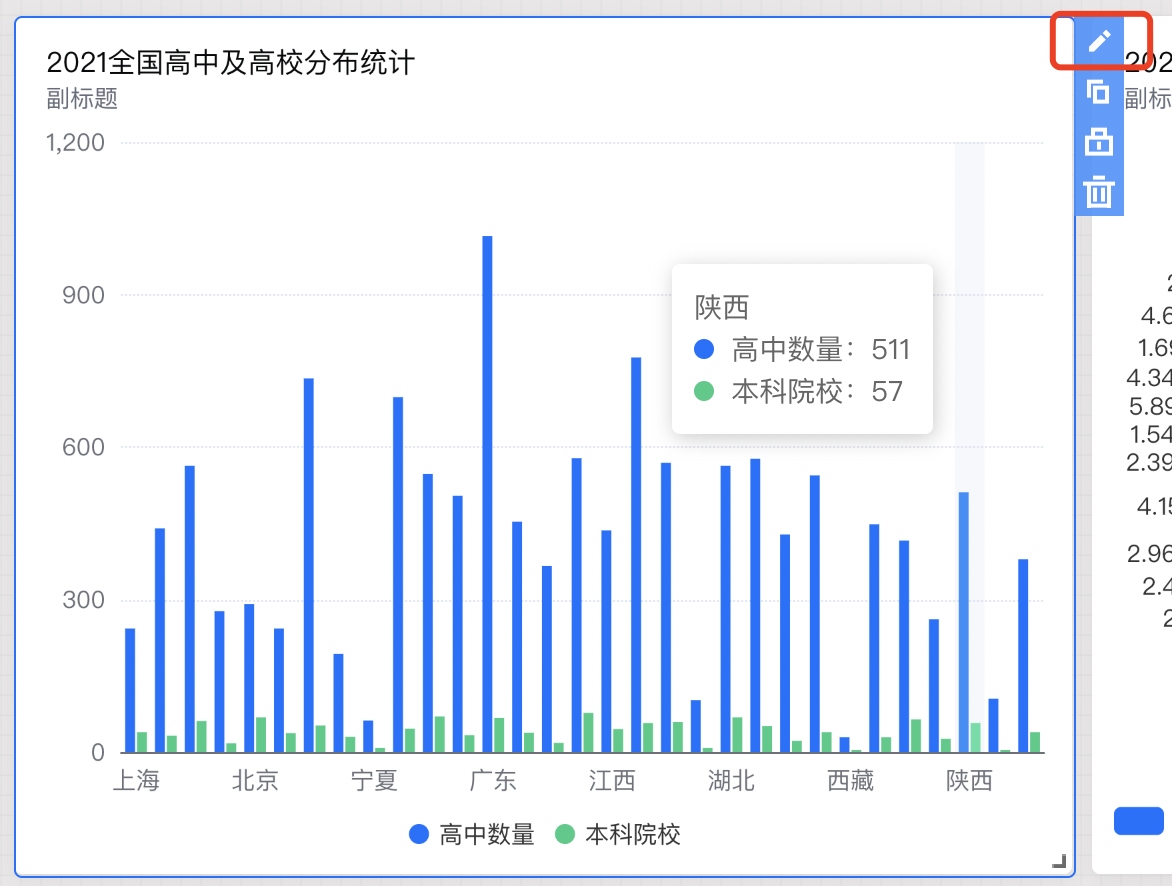
1. Click the editing icon on the chart component to go to the editing page.


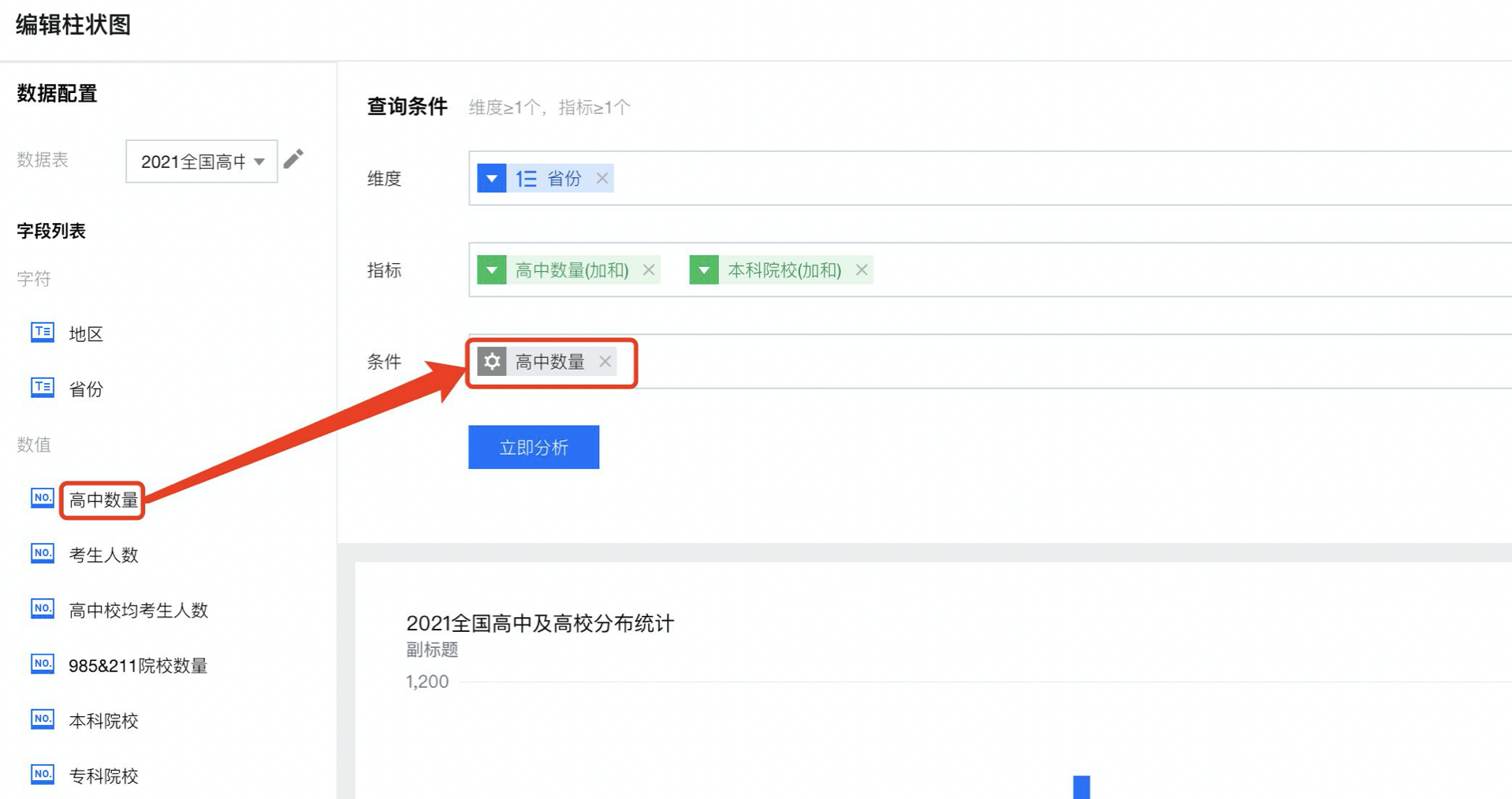
2. On the editing page, drag the condition field into the condition configuration box:
3. 


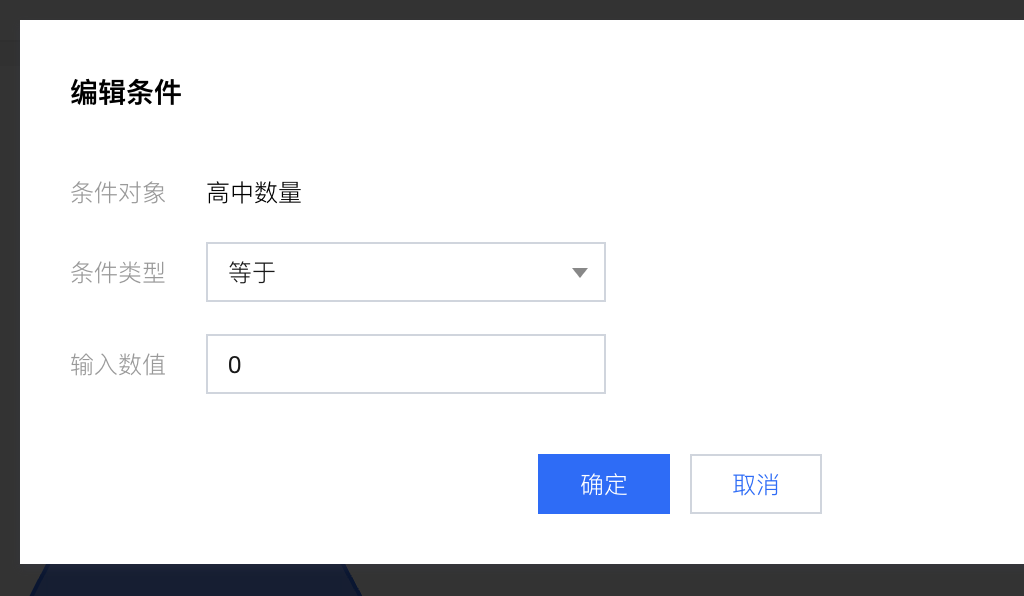
4. Set the condition: Hover the mouse over the selected condition field, click Set Condition, and set the condition in the pop-up layer.


Select the condition type, enter the value, then click "Analyze" after submission to view the conditional results.
5. In the following, a data table fragment, as shown in Table 1, is used to demonstrate the judgment logic for different types of fields.
Table 1: Example Data Fragment
id
Product Name
Unit Price
Sales
Time
1
Towel
8.09
390
2022/09/22 13:54:34
2
Hand cream
81.32
1,870
2022/12/22 18:34:21
3
Tissue
1.92
91,028
2022/07/22 13:54:34
4
Beer
5.00
15,609

5
Diaper
139.34
919
2023/07/16 19:54:34
6
Towel
8.09
761
2023/07/27 16:54:37
(current time)
7
Tissue
1.92
1,245
2023/07/29 13:54:34 (prediction)
Table 2: Field Judgment Logic
Field Type
Condition Type
Example
Result description
Numerical value
Equal
Unit price = 5.00
Beer
Greater than
Unit price > 81.32
Diaper
Greater than or equal to
Unit price >= 81.32
Hand cream and diaper
Less than or equal to
Unit price <= 8.09
Towel, beer, and tissue
Less than
Unit price < 8.09
Beer and tissue
Not equal to
Unit price != 5.00
Towel, hand cream, diaper, and tissue
Interval
3 <= unit price < 13
Beer and towel
Exclude
The unit price excludes 3–13
Tissue, hand cream, and diaper
Empty
The unit price is empty
None
Not empty
The unit price is not empty
Towel, hand cream, diaper, tissue, and beer
Character
Include
The product name includes "towel" or "tissue"
Towel and tissue
Not include
The product name does not include "towel", "tissue", and "beer"
Hand cream and diaper
Yes
The product name is "cloth"
None
No
The product name is not "cloth"
Towel, hand cream, diaper, tissue, and beer
Empty
The product name is empty
None
Not empty
The product name is not empty
Towel, hand cream, diaper, tissue, and beer
Time
(Unfold the example data with relative time in "day" granularity. For other granularities, see the interface display.)
Today
The time is today
Towel (ID: 6)
Yesterday
The time is yesterday
Diaper (ID: 5)
Last 1 day
The time is last 1 day
Towel (ID: 6) and diaper (ID: 5)
Last 7 days
The time is last 7 days
Towel (ID: 6)
Last 30 days
The time is last 30 days
Towel (ID: 6) and diaper (ID: 5)
Last 90 days
The time is last 90 days
Towel (ID: 6) and diaper (ID: 5)
Last 1 year
The time is last 1 year
Towel (ID: 6), diaper (ID: 5), and hand cream (ID: 2)
So far this year
The time is so far this year
Towel (ID: 6) and diaper (ID: 5)
So far this quarter
The time is so far this quarter
Towel (ID: 6), diaper (ID: 5), and hand cream (ID: 2)
So far this month
The time is so far this month
Towel (ID: 6) and diaper (ID: 5)
So far this week
The time is so far this week
Towel (ID: 6)
Custom
Set manually 2023/07/12–2023/07/18
Diaper (ID: 5)
Empty
The time is empty
Beer (ID: 4)
Not empty
The time is not empty
All records except beer (ID: 4)
6. Delete the condition: Click "X" in the condition box to delete the condition.
Note
If dual conditions are applied to a field, execute the data intersection. For example, if you set A > 100 and A < 200, then execute 100 < A < 200.
When filtering, linkage, or other components or features involving filtering exist on a page, the case where data exists but the statistical result is 0 may occur. In this case, you need to check whether multiple conditions are set. For example, consider a data table with 10,000 data entries. After a condition (A > 800) is set for the field A, 1,000 data entries are available. However, after an additional filter component is applied to the field A (A < 800), the matching records become 0. This occurs because the filter condition and field condition automatically perform an "a and b" logical operation.

Help and Support

Was this page helpful?

Help us improve! Rate your documentation experience in 5 mins.

Feedback