tencent cloud

Business Intelligence

Product Introduction
Product Overview
Strengths
Product Features
Use Cases
Purchase Guide
Billing Instructions
Purchase Guide
Upgrade Instructions
Renewal Instructions
Quick Start
Data Access
Creating a VPC Data Source
Creating Cloud Data Sources
Creating Proprietary Data Sources
Data Table Creation and Data Processing
Introduction to Data Analysis Basics
Data Table Creation
Data Processing
Data Analysis
Analysis Settings
Interactive Analysis
Ad-Hoc Analysis
Data Visualization
Public Style Setting Instructions
Filter Components
Chart components
Rich Text Component
Other Components
Mobile Terminal Layout Editor
Theme Settings Introduction
Page Layout Introduction
Dashboard Directory Management
Collaboration and Application
Push Channel Management
Report Push
Sharing
Embedding
Self-Service Data Retrieval
Metric Alarms
Data Security
Parameter Construction
Platform Management
Account and Permission Management
Statistics and Analysis
System Settings
Resource Migration
Practical Tutorial
Collection of Optimization Practices
Performing Trend Analysis
Performing Proportion Analysis
Performing Data Analysis with Excel Files
Creating Tables
API Documentation
History
Introduction
API Category
Making API Requests
Project Management APIs
Role APIs
Database Table APIs
Report Embedding APIs
Page Management APIs
Data Types
Error Codes
FAQs
Relevant Agreements
Service Level Agreement
Privacy Policy
Data Privacy And Security Agreement
Contact Us

Connecting to MongoDB

PDF
Focus Mode
Font Size
Last updated: 2025-09-19 14:51:18
This document describes how to connect to the proprietary data source MongoDB. Connecting to MongoDB mainly involves 2 steps. The first step is to install the MongoDB Connector for Business Intelligence (BI), and the second step is to add a MongoDB data source in the BI console.

Installing the MongoDB Connector

MongoDB needs to install the official MongoDB Connector for BI before connecting to BI for analysis. The following takes the Linux operating system as an example to explain how to install the MongoDB Connector for BI.

Downloading the MongoDB Connector for BI

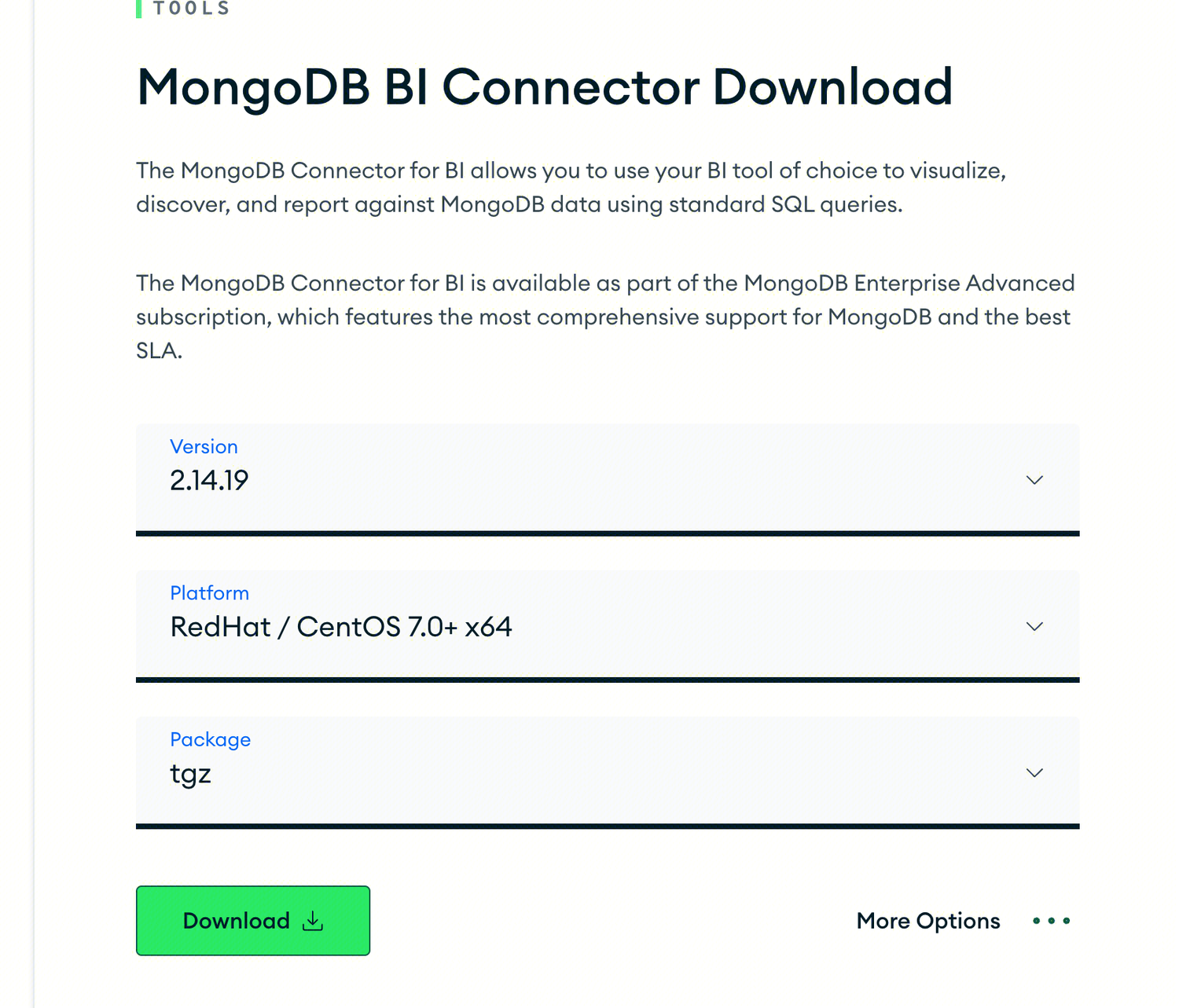
Go to the official MongoDB BI Connector download link and select the platform that matches your local operating system.

Unzip the downloaded file.


Starting the Mongosqld Service

Note: You need to add the IP address of the ECS used to start the Mongosqld service to the MongoDB database allowlist.
To start the Mongosqld service, execute the following operations in order:
1. Creating a Configuration File
net:
bindIp: "xxx" # The externally exposed connection IP address
port: 3307 # The external port
ssl:
mode: "disabled"
mongodb:
net:
uri: "mongodb://xxxx:27017" # mongodb-uri
ssl:
enabled: false
auth:
username: xxxx # The username
password: xxxx # The password
source: admin # The authentication database
mechanism: SCRAM-SHA-1
security:
enabled: true
defaultMechanism: "SCRAM-SHA-1"
defaultSource: "admin" # The default authentication database
systemLog:
path: '/var/log/mongodb/mongosqld.log' # The log file path
quiet: false
## 0|1|2 - Verbosity of the log output, this is overridden if `quiet` is true.
verbosity: 1
# logAppend: false
logRotate: "rename" # "rename"|"reopen"
schema:
refreshIntervalSecs: 86400 # The interval time for synchronizing MongoDB databases and collections information into memory. Unit: seconds
stored:
mode: "auto"
source: "mongosqld_data" # The storage location of database structure information
name: "test" # the named schema to read/write to in stored-schema modes
processManagement:
service:
name: "mongosql"
displayName: "MongoSQL Service"
description: "MongoSQL accesses MongoDB data with SQL"
2. Loading the Configuration File
sudo mongosqld install --config <pathToConfigFile>/mongosqld.conf
3. Starting the Service
sudo systemctl start mongosql.service
4. Enabling This Service for Automatic Startup of This Service During Startup
systemctl enable mongosql.service

Creating a MongoDB Data Source

After the MongoDB Connector is installed, you can create a MongoDB data source in the BI console. The specific process is as follows:
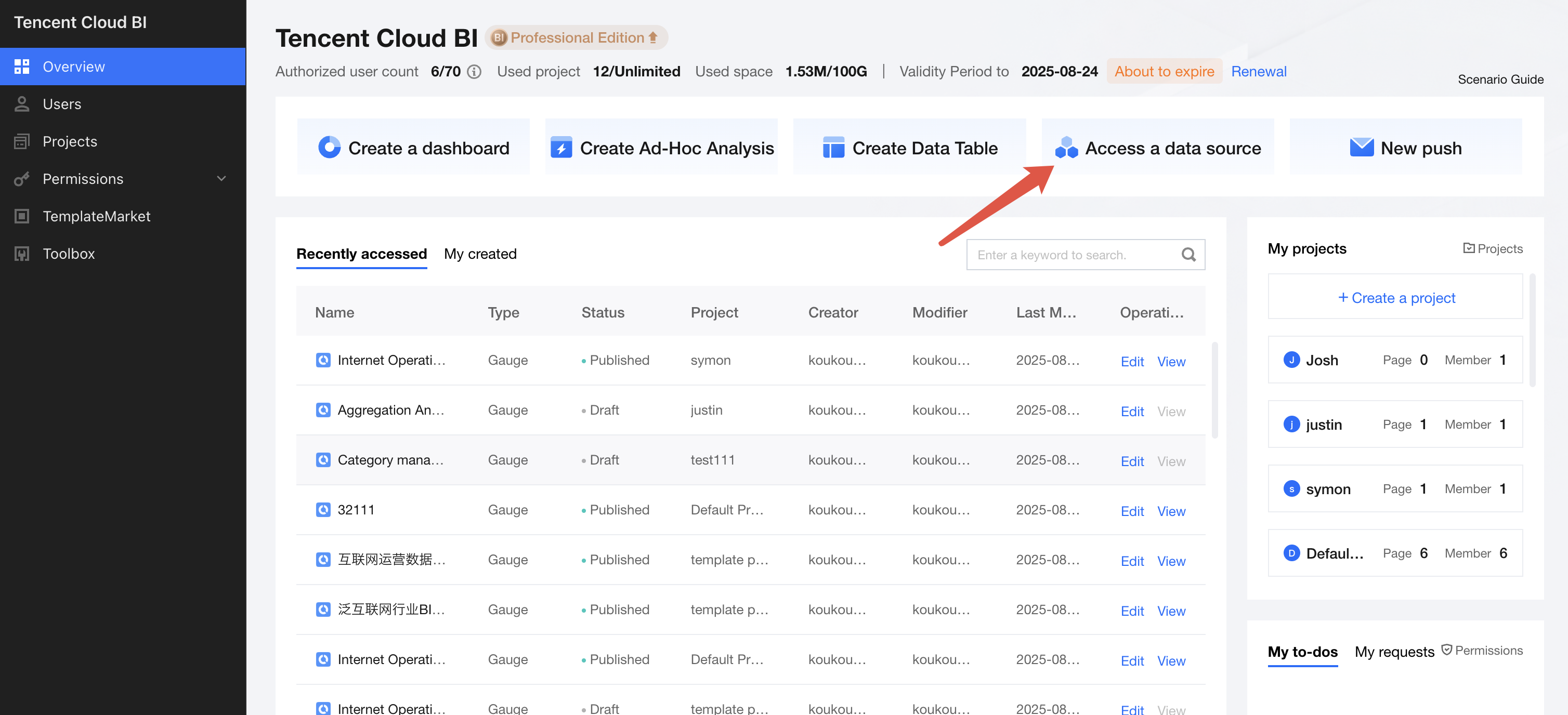
Log in to the BI Console and select "Access Data Source".

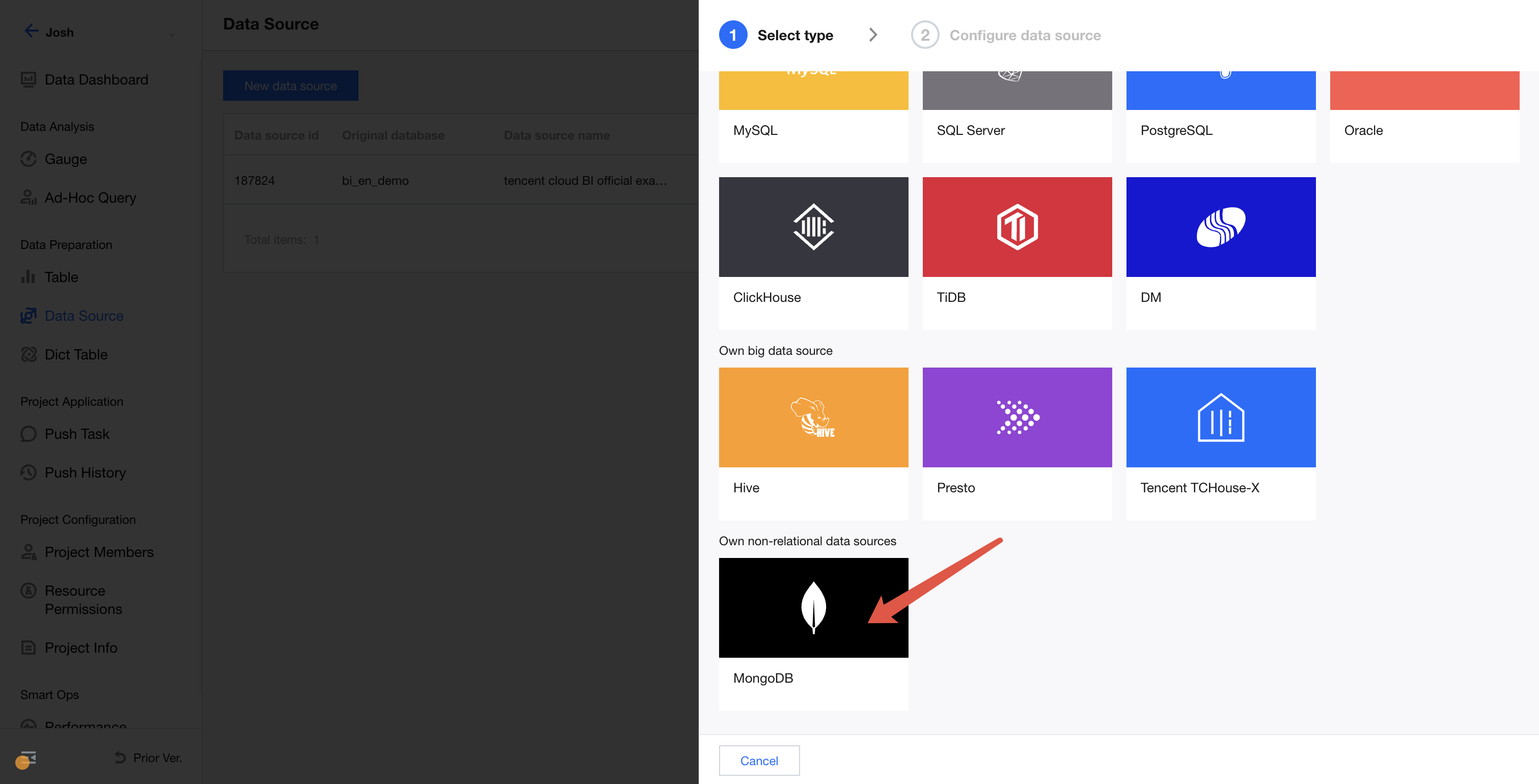
After selecting the corresponding project, select "MongoDB" under proprietary data sources.

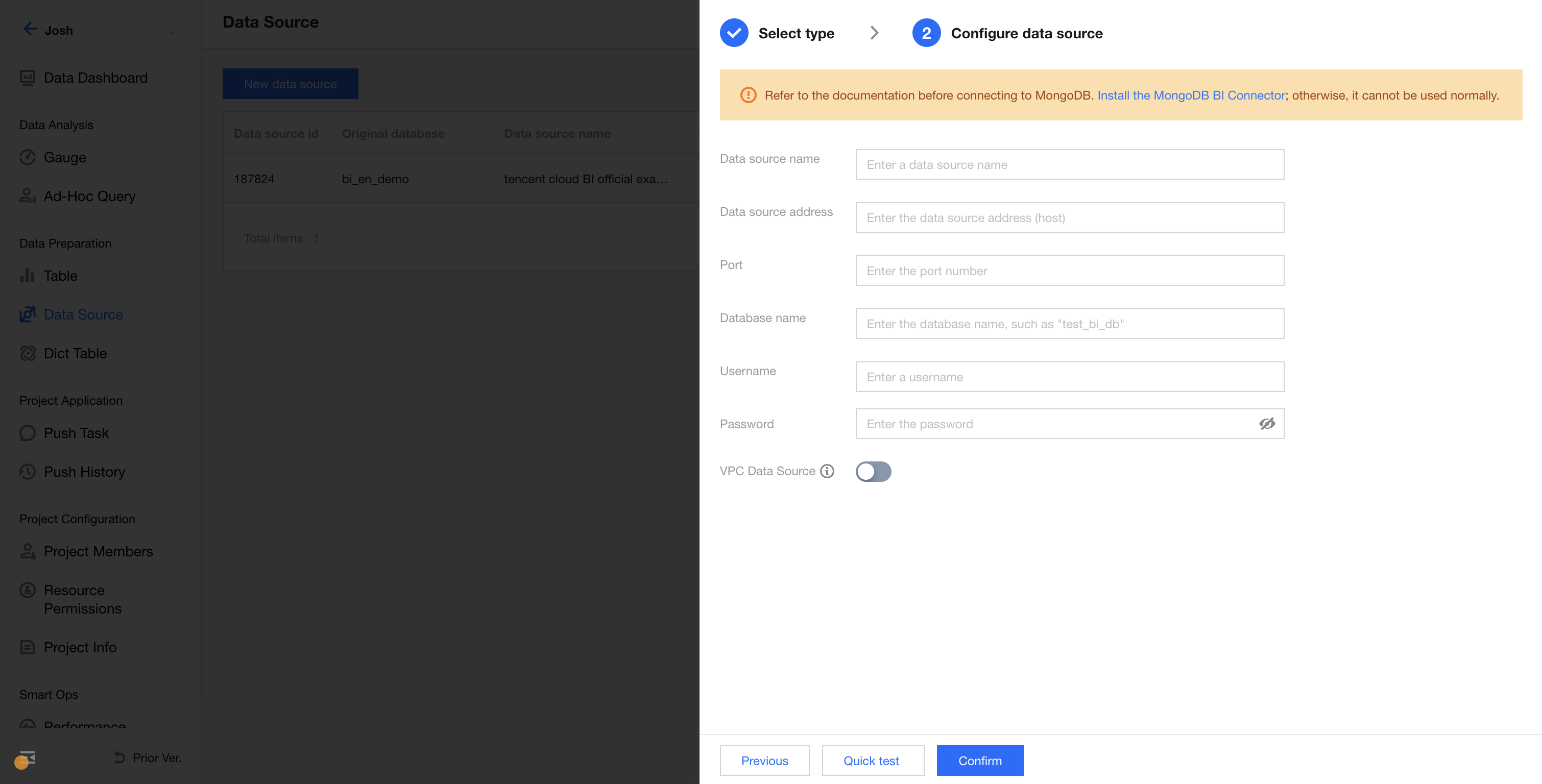
After selecting, enter the parameters shown below. The parameter descriptions are as follows:

Data source display name: The name displayed in BI.
Data source IP address: The IP address of the database, such as a public network IP address in the format of cdb-2dhmvx6s.bj.tencentcdb.com. Private network IP addresses such as 49.232.129.87 are not supported.
Port: The port number of the database, such as 3306.
Database name: The name of the database.
Username & Password: The username and password for the database.

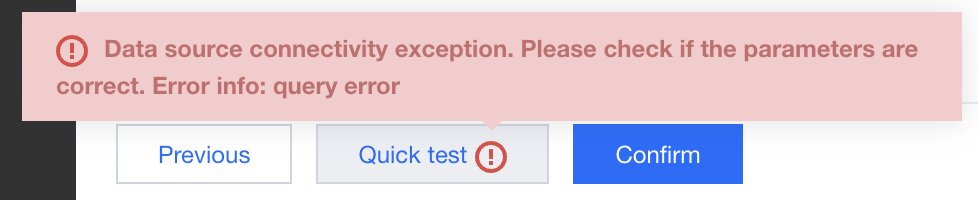
After entering the information, you can click one-click testing at the bottom to perform a connectivity test. If the prompt "Data source connectivity exception" appears as shown below, the connection fails. At this point, check whether the username, password, or other connection information is entered correctly.


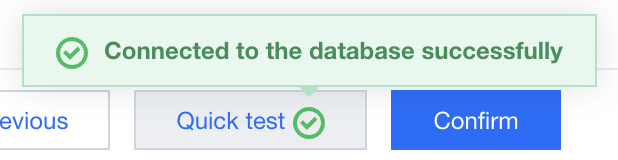
If the connection is successful, a prompt will appear as shown below. You can then OK for creation.


After the creation, a new row of records will be added to the list, indicating that the creation is complete. If any information needs to be modified, click Edit to make changes. Once the creation is complete, you can proceed with creating a data table. For more details, see Data Table Creation and Data Processing.

Help and Support

Was this page helpful?

Help us improve! Rate your documentation experience in 5 mins.

Feedback