This document describes how to connect to the cloud data source Elastic MapReduce (EMR).
Connection Process
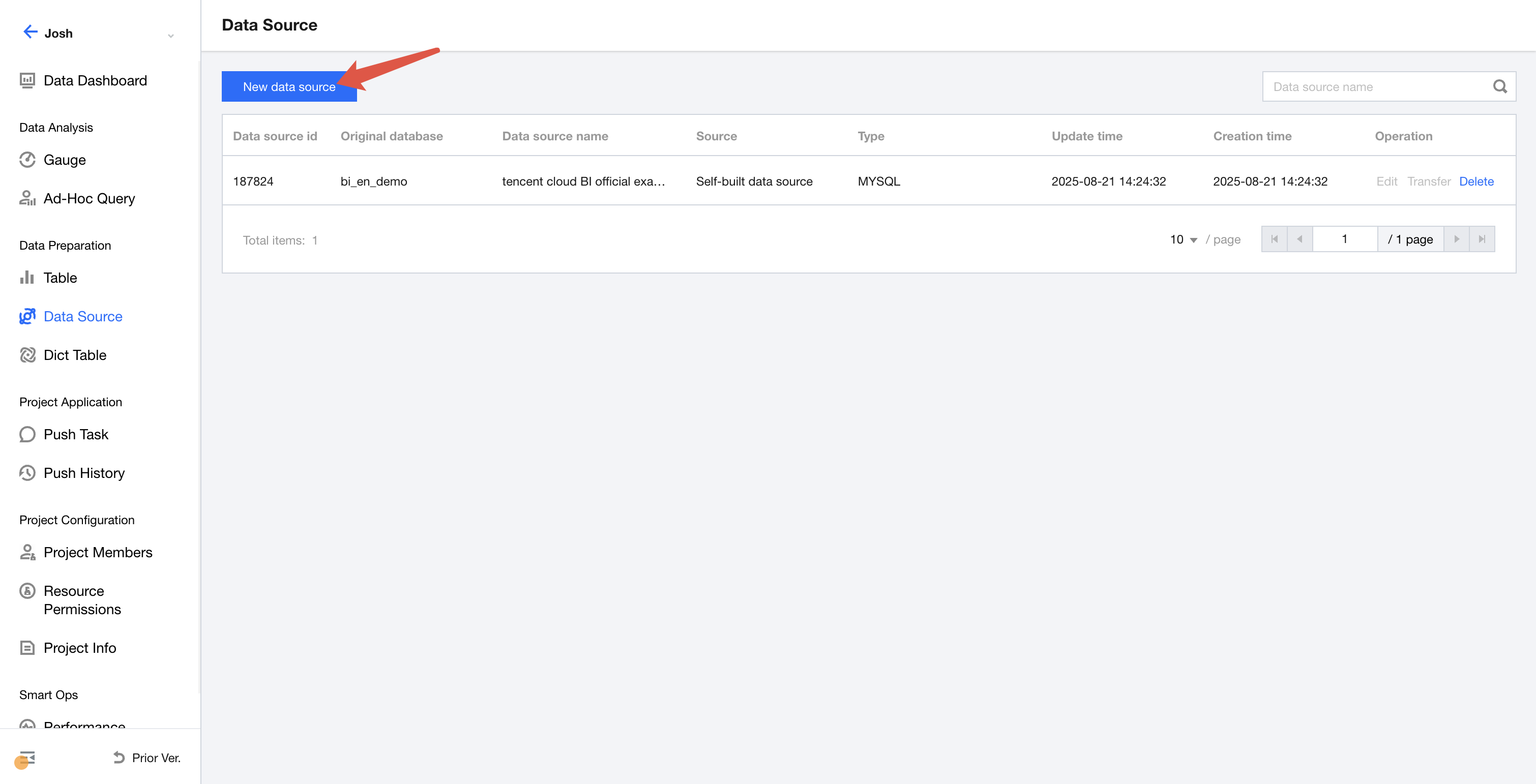
After creating a project, select Data, Data Source, and then "Create Data Source".
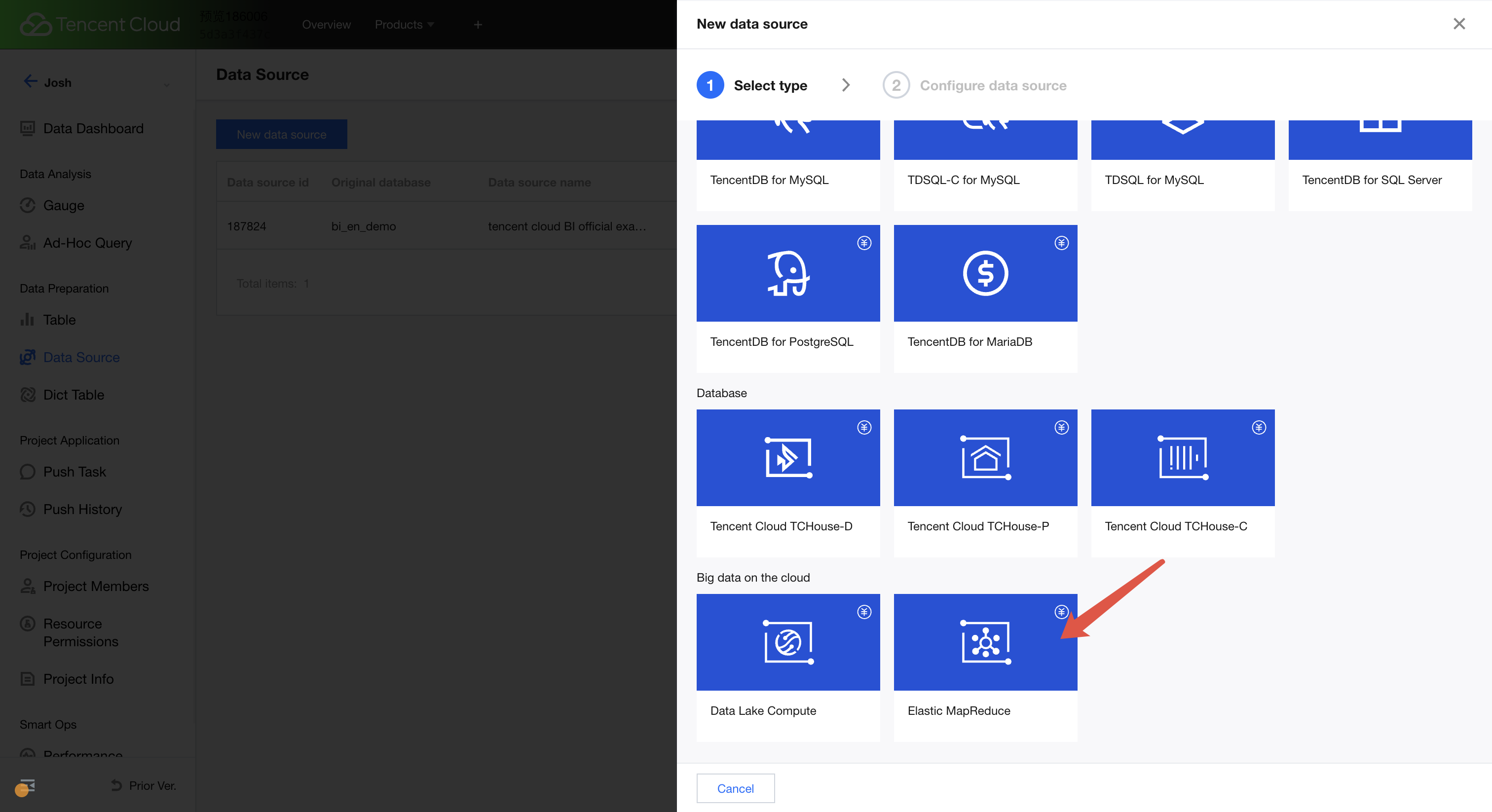
On the Cloud Data Source page, select "EMR" under Cloud Big Data.
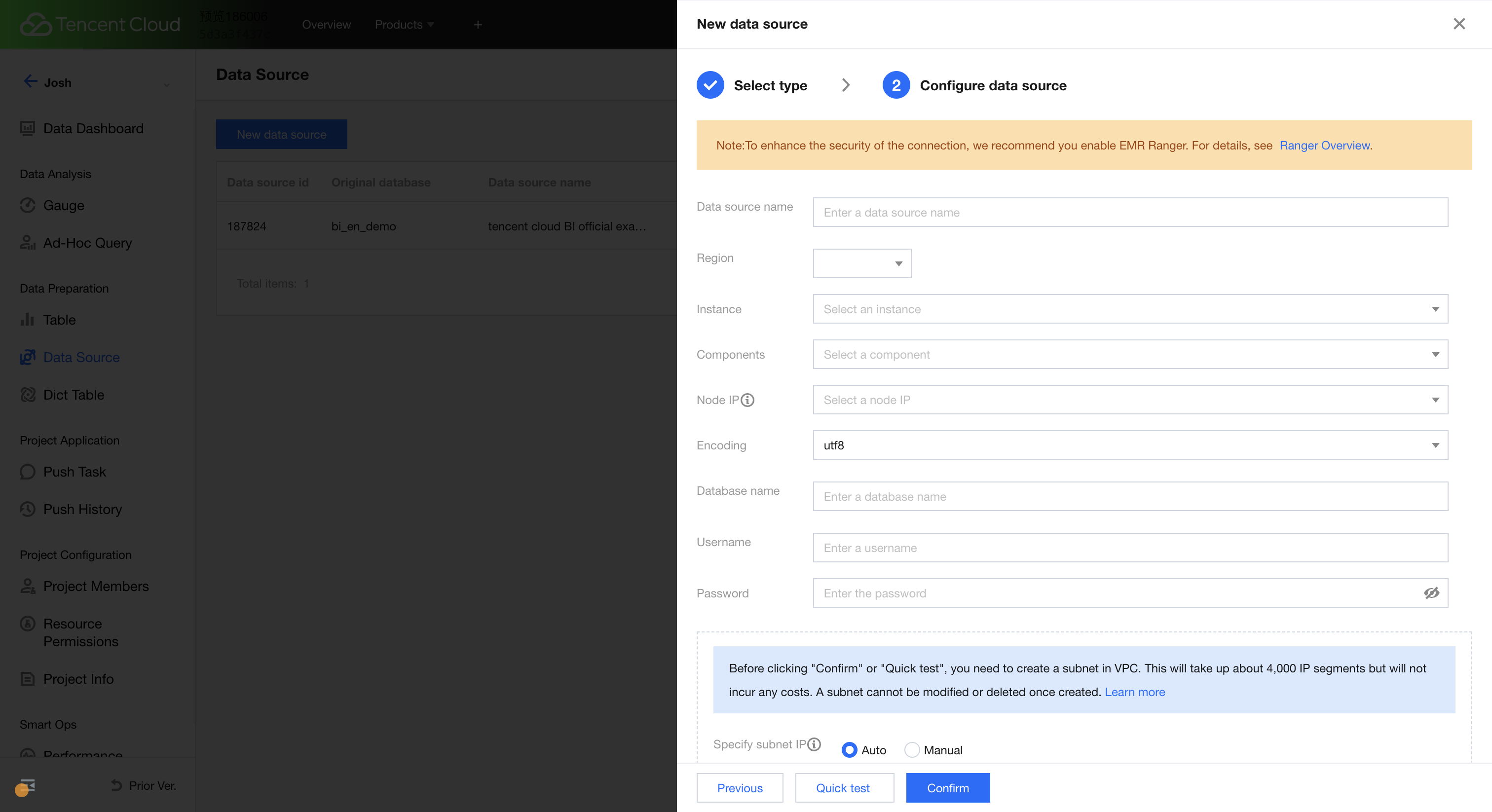
After selecting, enter the parameters shown below. The parameter descriptions are as follows:
Data source display name: The name displayed in Business Intelligence (BI). A maximum of 45 characters is supported.
Region: The region to which the data source belongs. Be sure to select the correct region, as subsequent instance selection will only retrieve instances in the specified region. If you cannot find the required instance when selecting instances, check whether the region selection is correct.
Instance: Based on the selected region, the purchased instances in that region will be retrieved for selection. The instances will be displayed in the format of "instance name (instance ID)". Fuzzy search is supported for instance names, and exact search is supported for instance IDs, enabling quick instance selection.
Components: Based on the selected EMR instance, the EMR components that the instance edition supports will be retrieved. Currently, only the Hive component is supported.
Node IP: The IP address of the node server accessing the database. You can segment database access traffic by specifying a node IP address. If segmenting database access traffic by specifying a node IP address is not required, just select any one.
Encoding: The database encoding format. Currently, 3 formats are supported, that is, "utf8", "gbk", and "latin1".
Database name: The name of the database.
Username & Password: The username and password for the database.
EMR needs to securely connect to the Tencent Cloud private network through Private Link. Private Link can effectively mitigate potential risks caused by public network access and significantly enhance data security. For details, see Private Link.
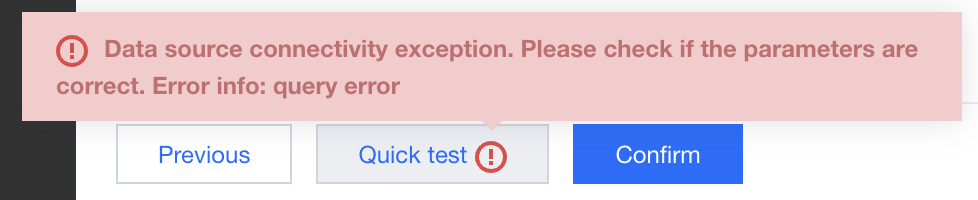
After entering the information, you can click one-click testing at the bottom to perform a connectivity test. If the prompt "data source connectivity anomaly" appears as shown below, the connection fails. At this point, first check whether the username, password, or other connection information is entered correctly.
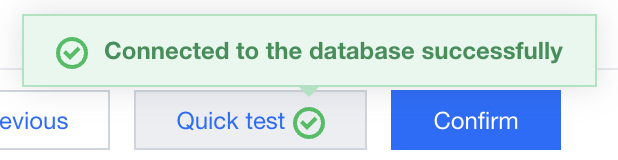
If the connection is successful, a prompt will appear as shown below. You can then click OK for creation.
After the creation, a new row of records will be added to the list, indicating the creation is complete. If any information needs to be modified, click Edit to make changes. Once the creation is complete, you can proceed with creating a data table. For more details, see Creating Data Tables.
EMR Ranger Overview
Since EMR provides the Ranger service that allows users to securely access data in a cluster, we recommend that you enable the EMR Ranger service before connecting to EMR to enhance connection security. This capability is provided by EMR. For details, see the EMR product documentation Ranger Overview.