This document describes how to connect to a cloud data source. If you purchase a data source on Tencent Cloud, we recommend that you use this method for connecting.
Connection Process
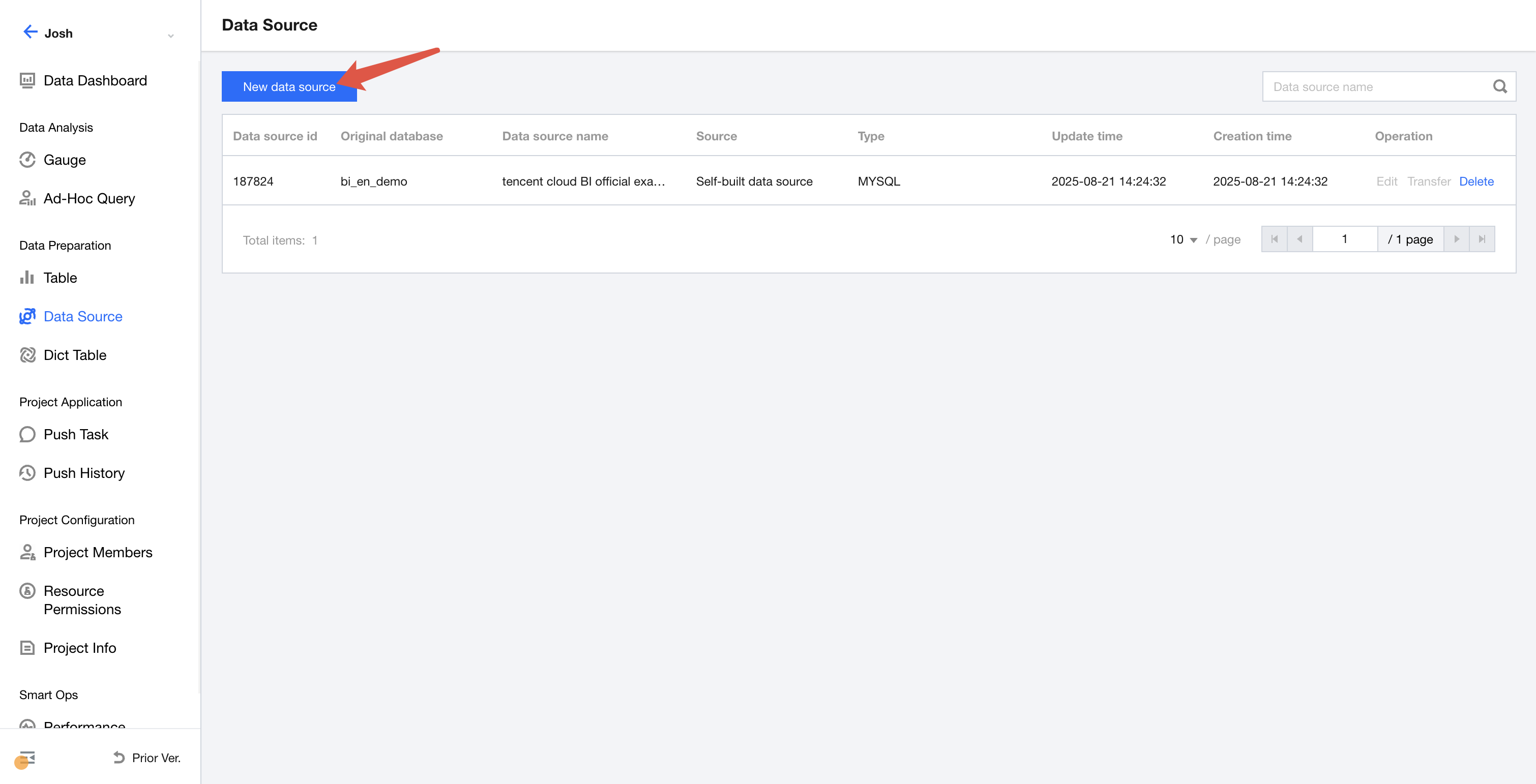
After creating a project, select Data, Data Source, and then "Create Data Source".
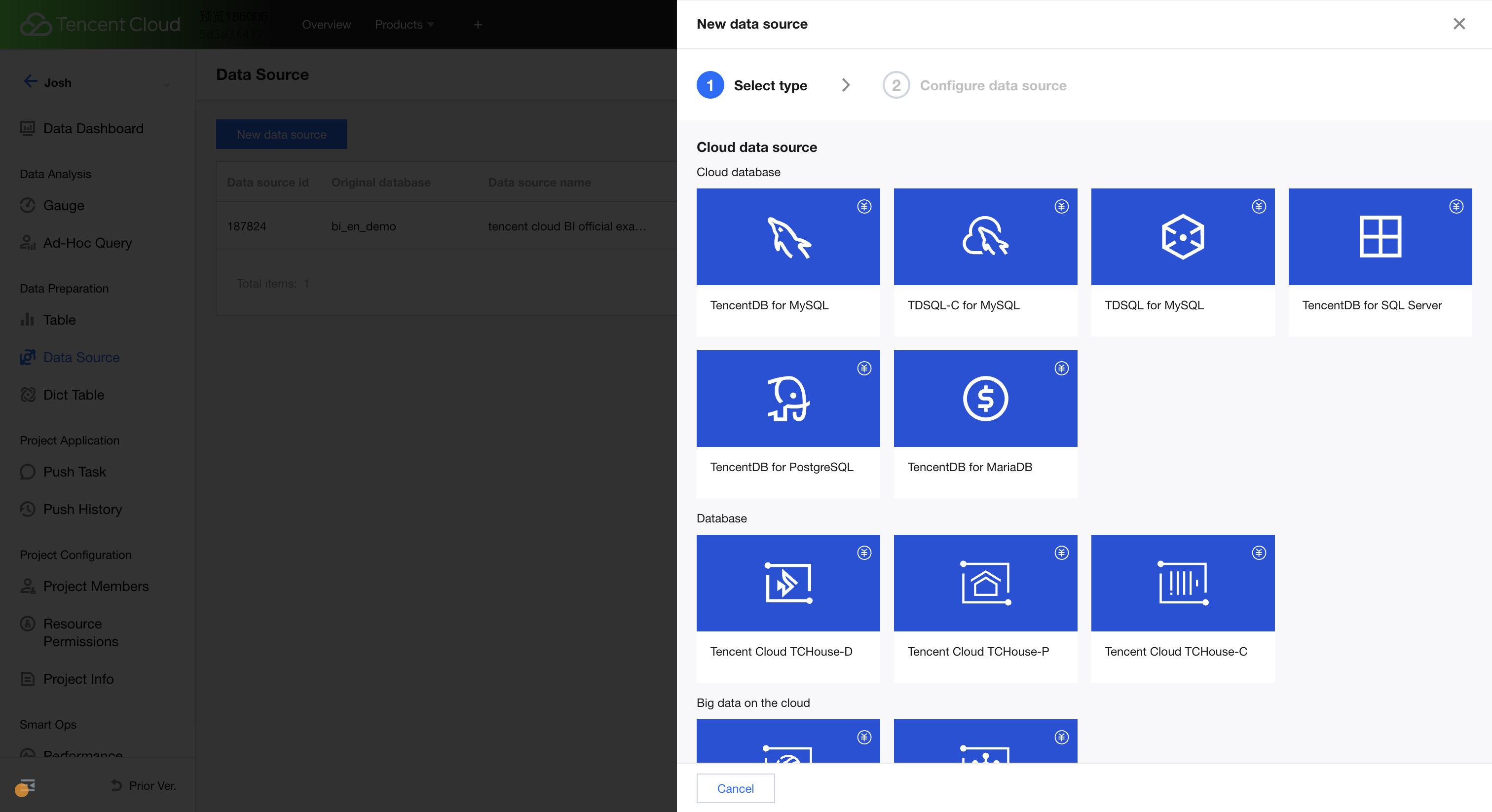
Select the type of data source to be connected. Currently, supported database types include:
TencentDB for MySQL
TencentDB for TDSQL-C for MySQL
Tencent Distributed SQL for MySQL
TencentDB for MariaDB
TencentDB for PostgreSQL
TencentDB for SQL Server
Data Lake Compute (DLC)
Cloud Data Warehouse Apache Doris
Cloud Data Warehouse PostgreSQL
Cloud Data Warehouse ClickHouse
Due to network isolation issues in the deployment environment, the Basic Edition of TencentDB for SQL Server is temporarily not accessible. Currently, only the "dual-Server high-availability edition" and "cluster version" can be connected. Additionally, the cloud data warehouses Doris, PostgreSQL, and ClickHouse can securely access the Tencent Cloud private network through Private Link. Private Link can effectively avoid potential risks caused by public network access and significantly enhance data security. For details, see Private Link.
After selecting the type, enter the parameters shown below. The required parameters vary slightly for different types of databases. With TencentDB for MySQL as an example, the parameter descriptions are as follows:
Data source display name: The name displayed in Business Intelligence (BI) shall not exceed 45 characters.
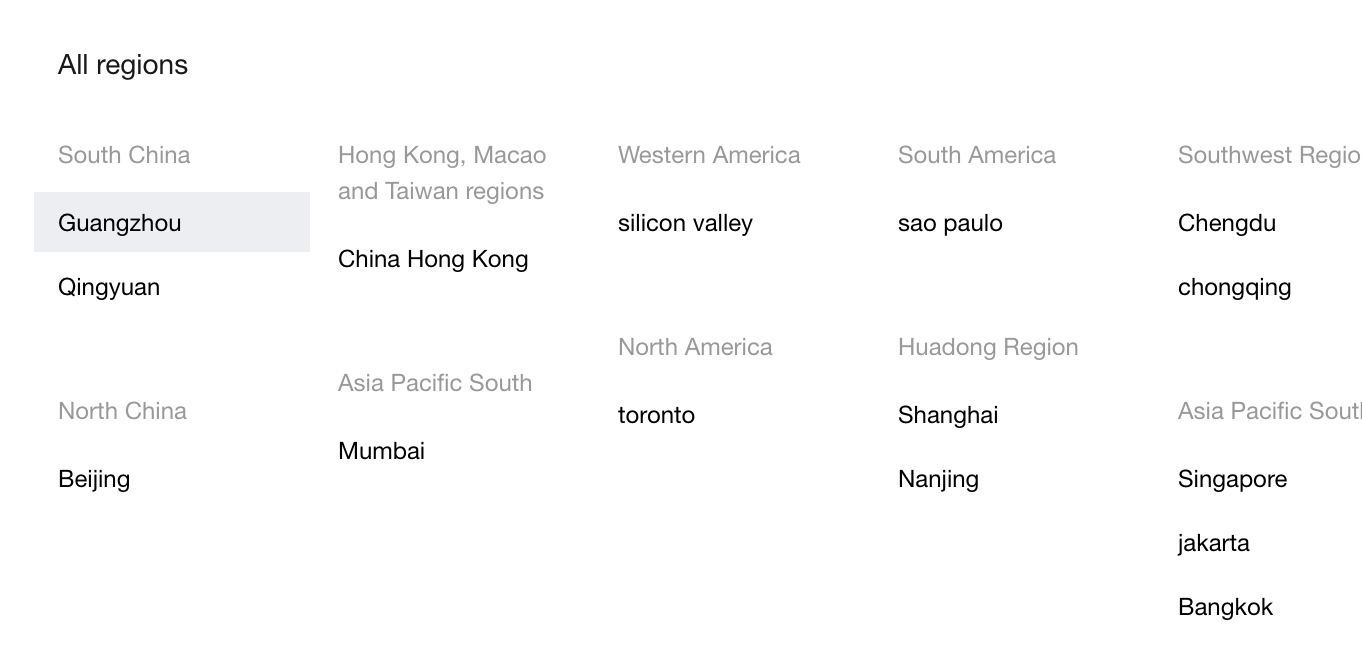
Region: The region to which the data source belongs. Be sure to select the correct region, as subsequent instance selection will only retrieve instances in the selected region. If you cannot find the instances needed, check whether the region selection is correct.
Instance: Based on the selected region, the purchased instances in that region will be retrieved for selection. The instances will be displayed in the format of "instance name (instance ID)", such as "cdb198984 (cdb-rpmw2hvq)". Fuzzy search is supported for instance names, and exact search is supported for instance IDs, enabling quick instance selection.
Encoding: The database encoding format. Currently, 3 formats are supported, that is, "utf8", "gbk", and "latin1".
Database name: The name of the database.
Username & Password: The username and password for the database.
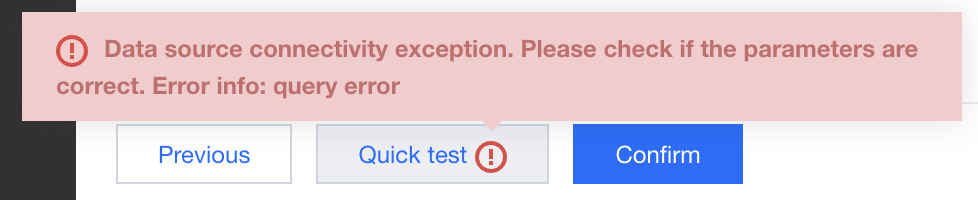
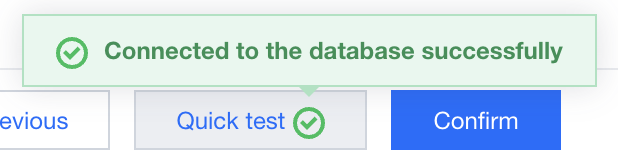
After entering the information, you can click One-click Testing at the bottom to perform a connectivity test. If the prompt "Data source connectivity anomaly" appears, the connection fails. At this point, first check whether the username, password, or other connection information is entered correctly.
If the connection is successful, you will be prompted that the database is successfully connected. Then you can click OK for creation.
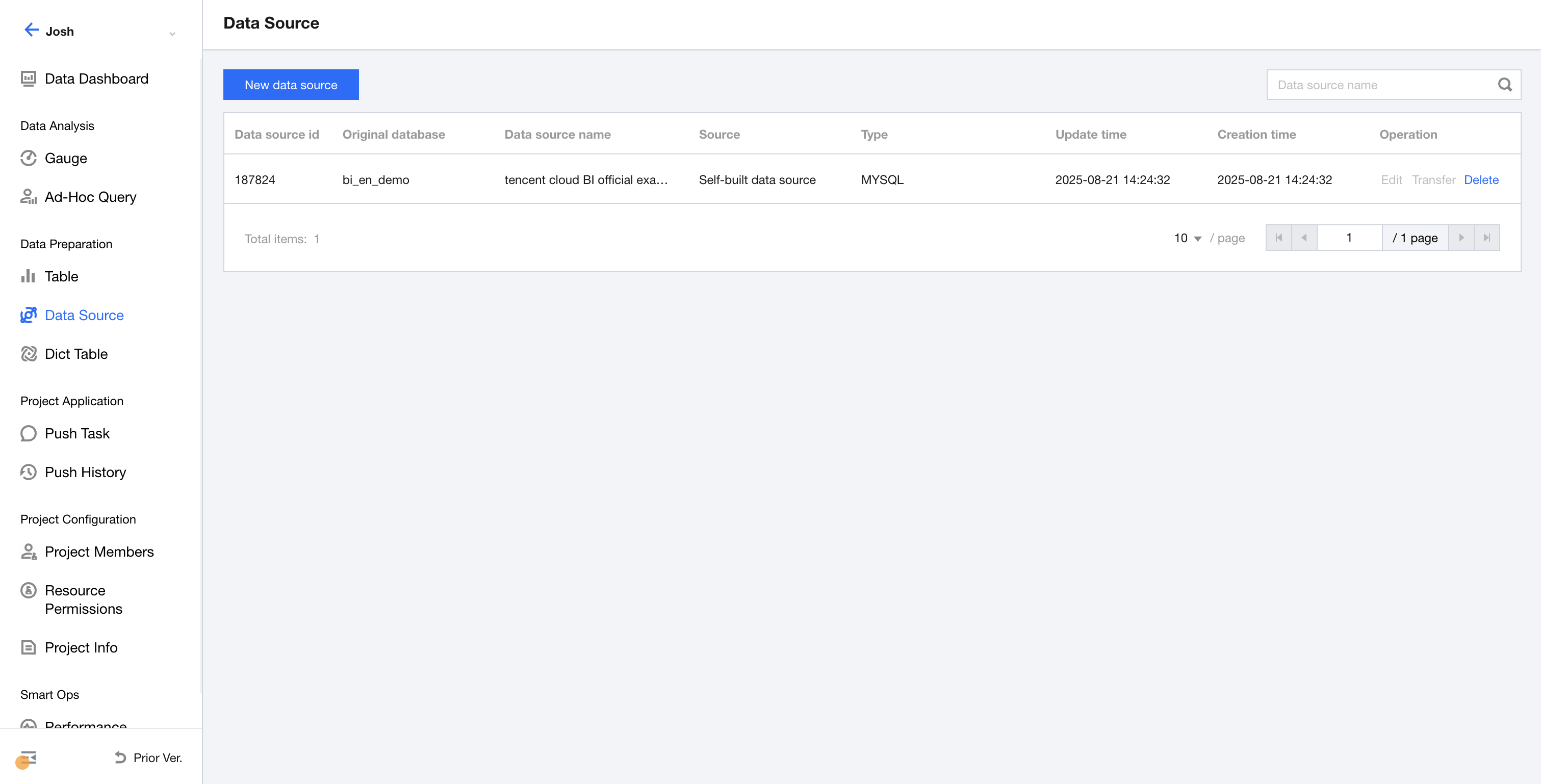
After the creation, a new row of records will be added to the list, as shown below, indicating that the creation is complete. If any information needs to be modified, click Edit to make changes.
Once the creation is complete, you can proceed with creating a data table. For more details, see Creating Data Tables.
Common Errors and Solutions
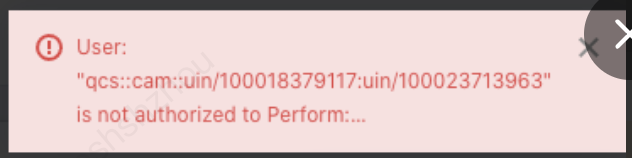
If you encounter the error shown below when creating a cloud data source, the possible reason is that you are logged in as a sub-account, and the root account has not granted the sub-account permission to query the instance list of the cloud data source in the Cloud Access Management (CAM) permission management system. As a result, BI fails to retrieve the instance list of the cloud data source.
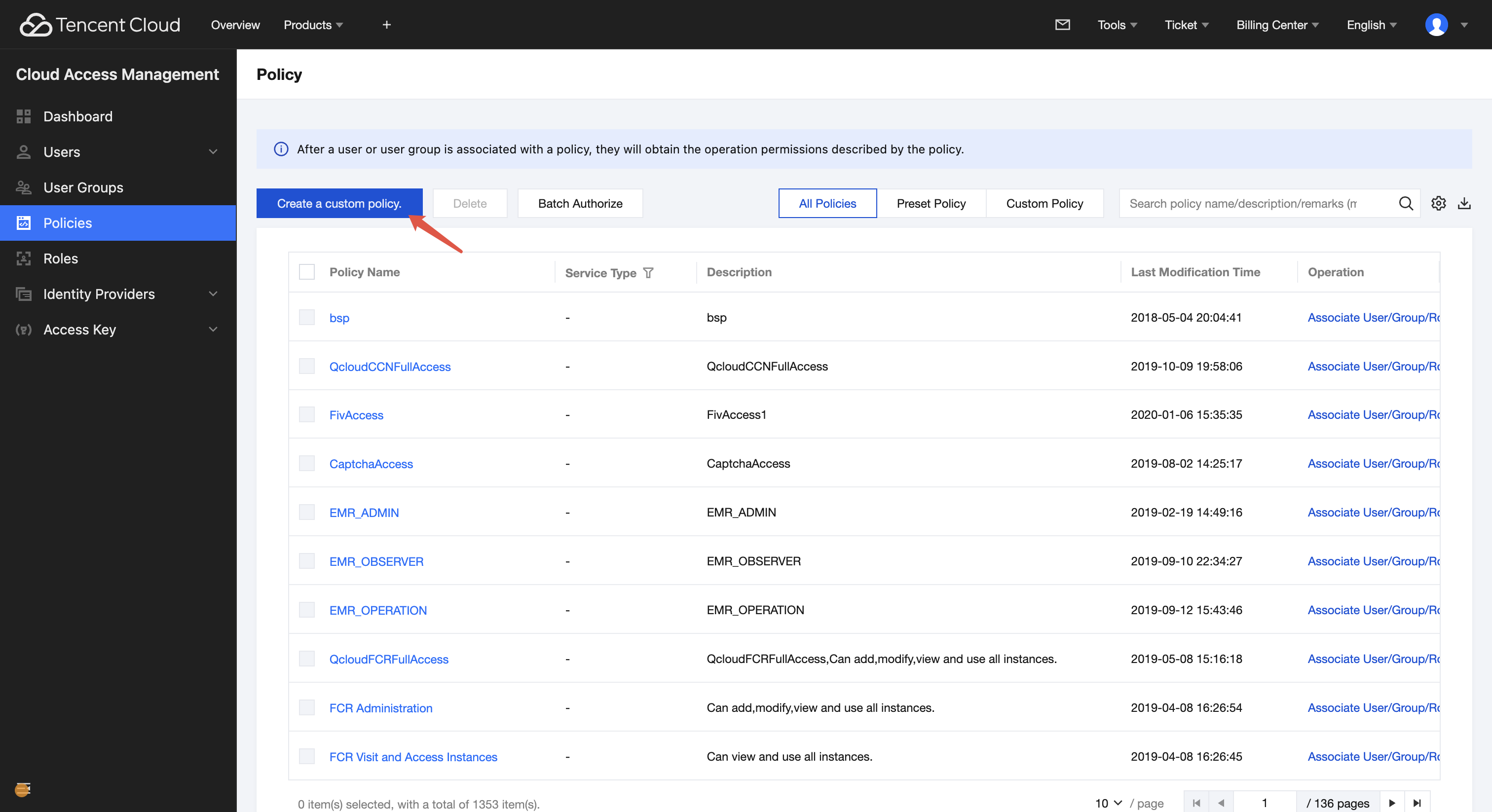
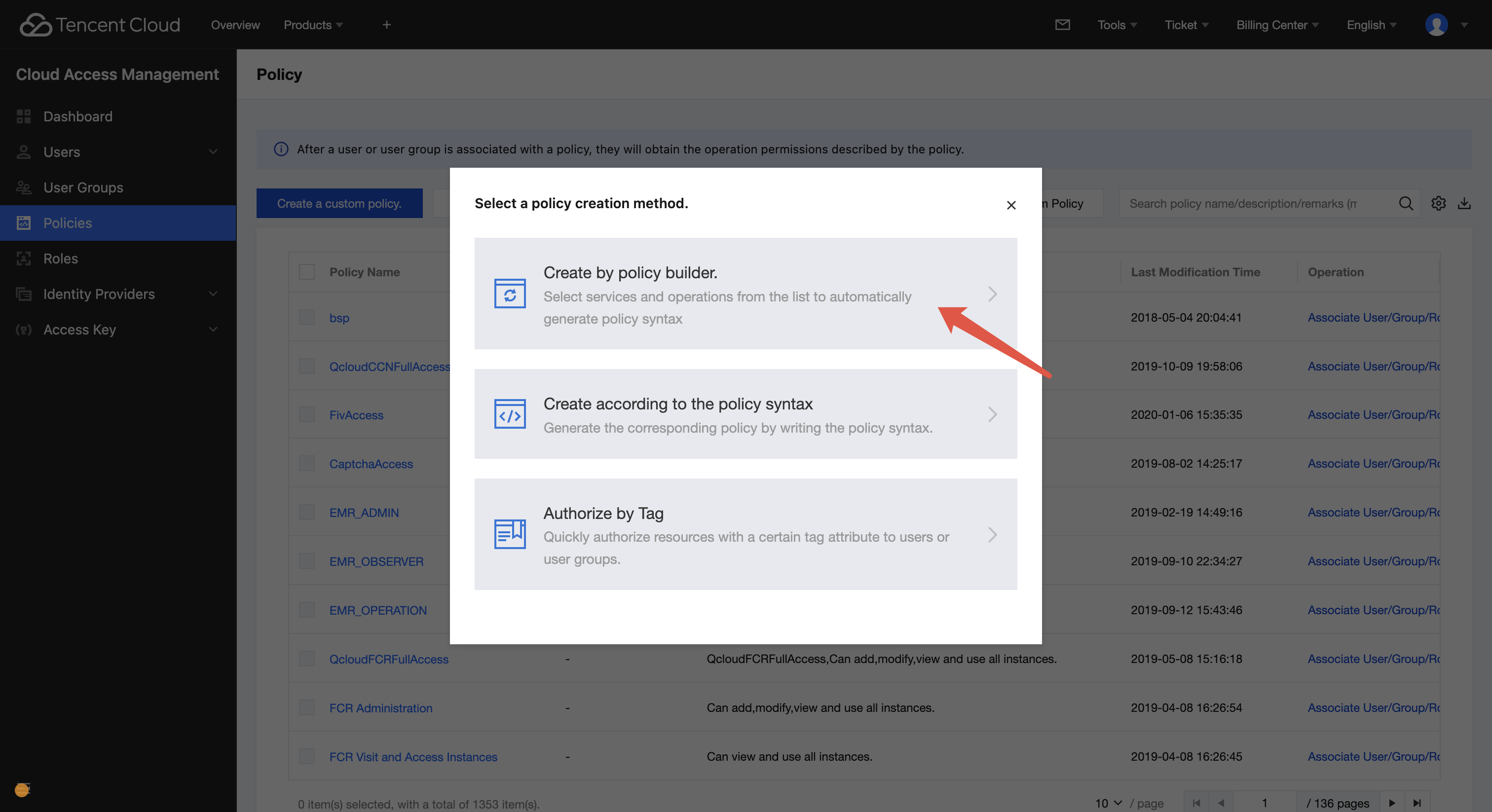
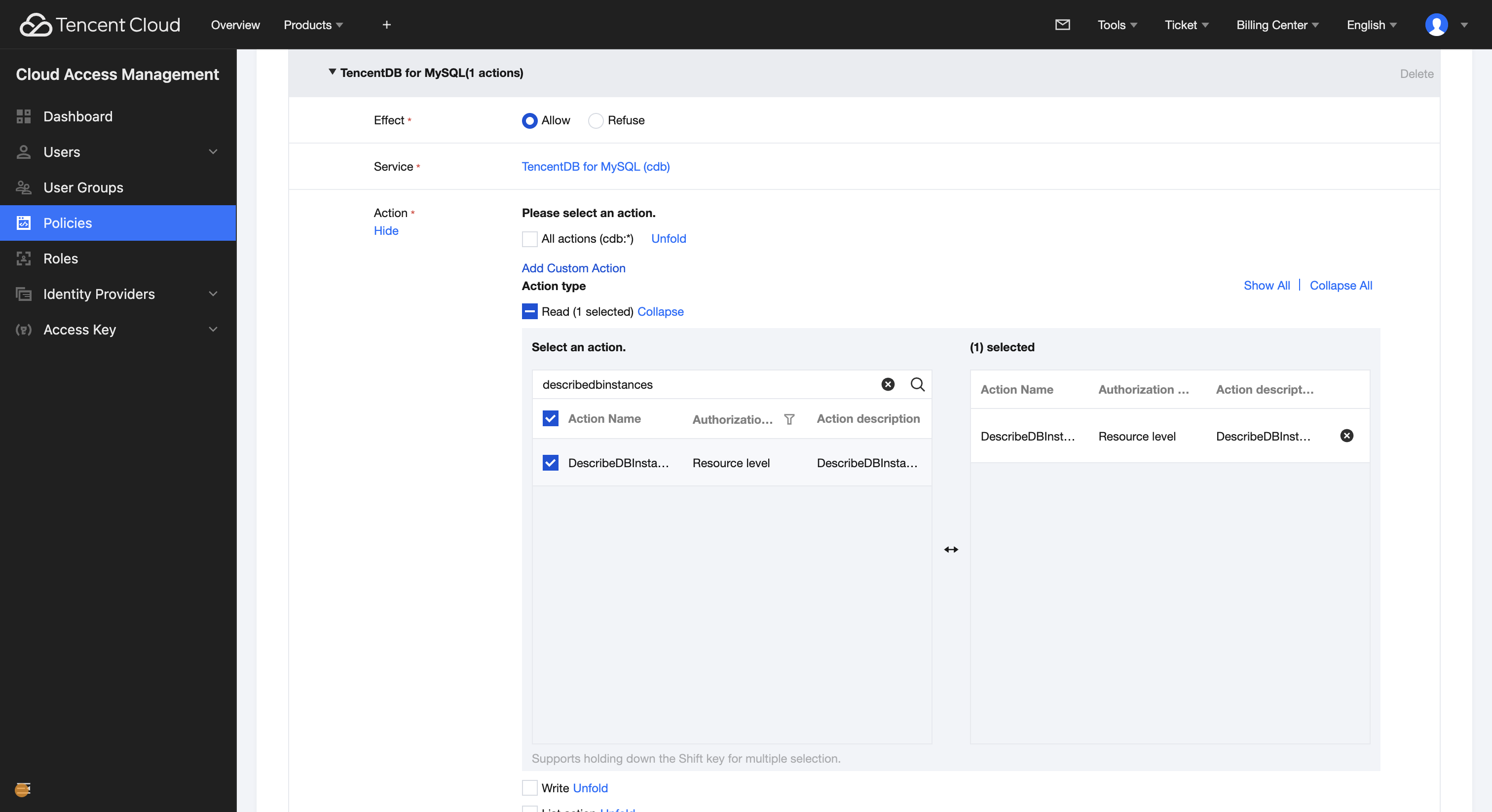
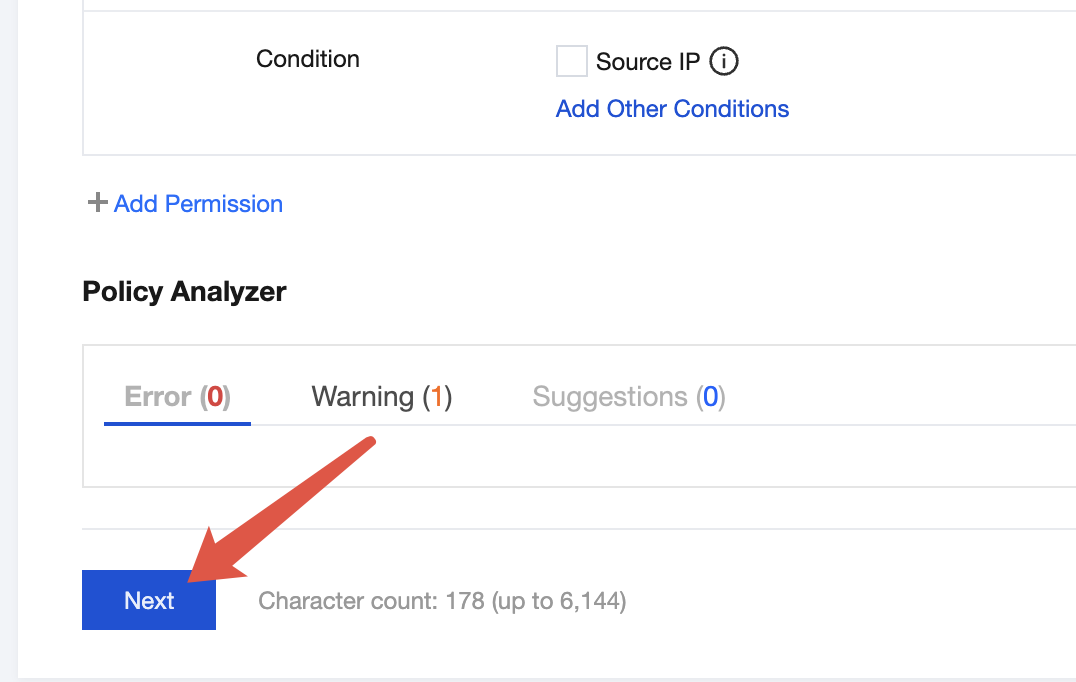
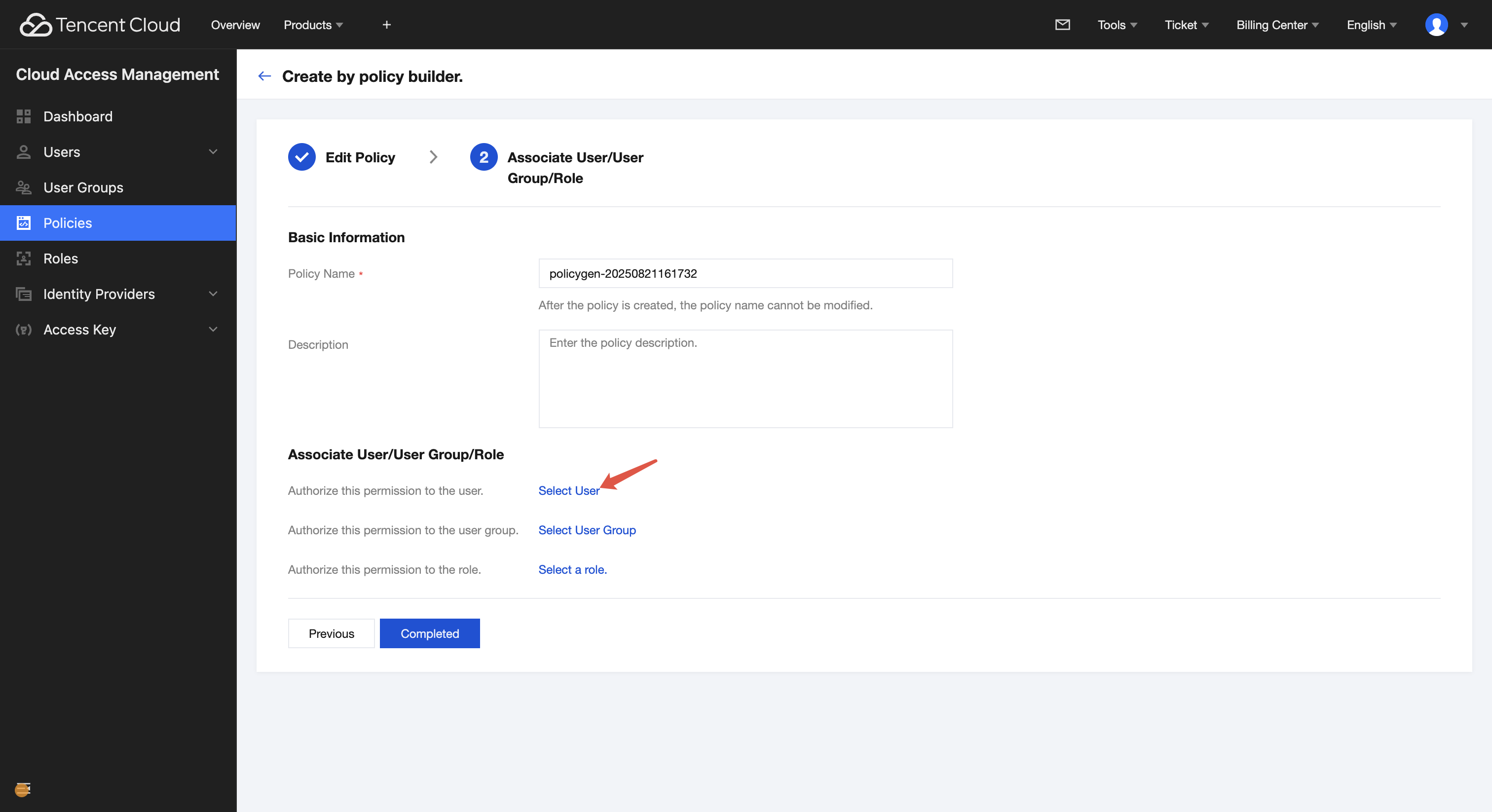
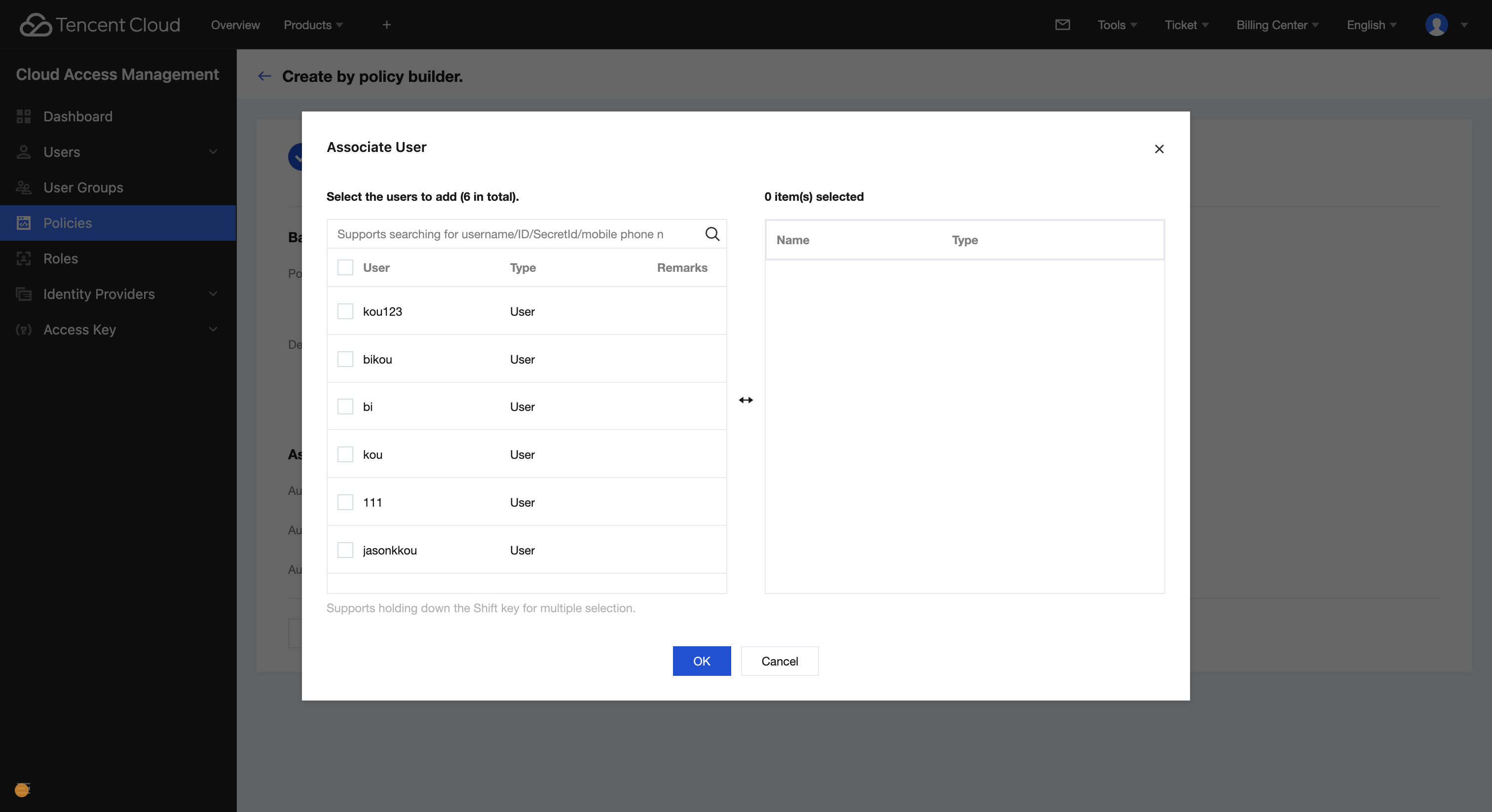
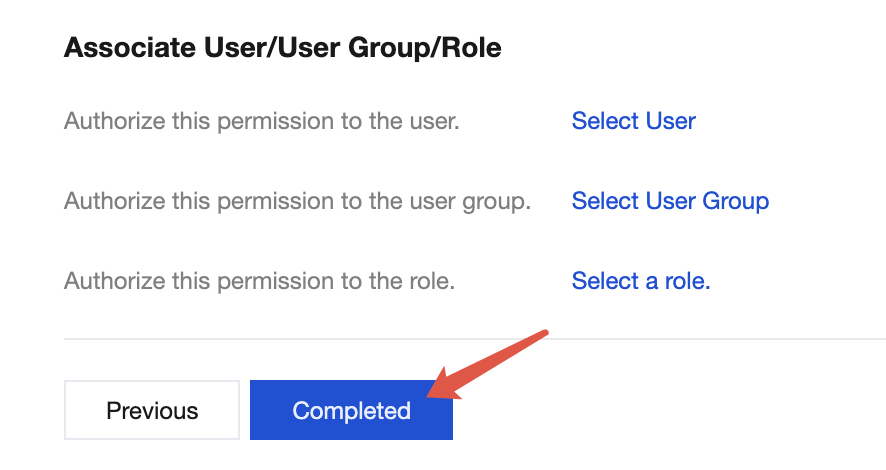
The solution is to log in with the root account and grant the sub-account permission to query the instance list of the corresponding cloud data source (DescribeDBInstances) to the sub-account in the strategy module of CAM (This is the most basic permission. Generally, assigning a read-type permission with a broader scope of authority is also possible). In the following figure, TencentDB for MySQL is taken as an example.
After the permission is granted as described above, use the sub-account to retrieve the instance list again, and the error will disappear.