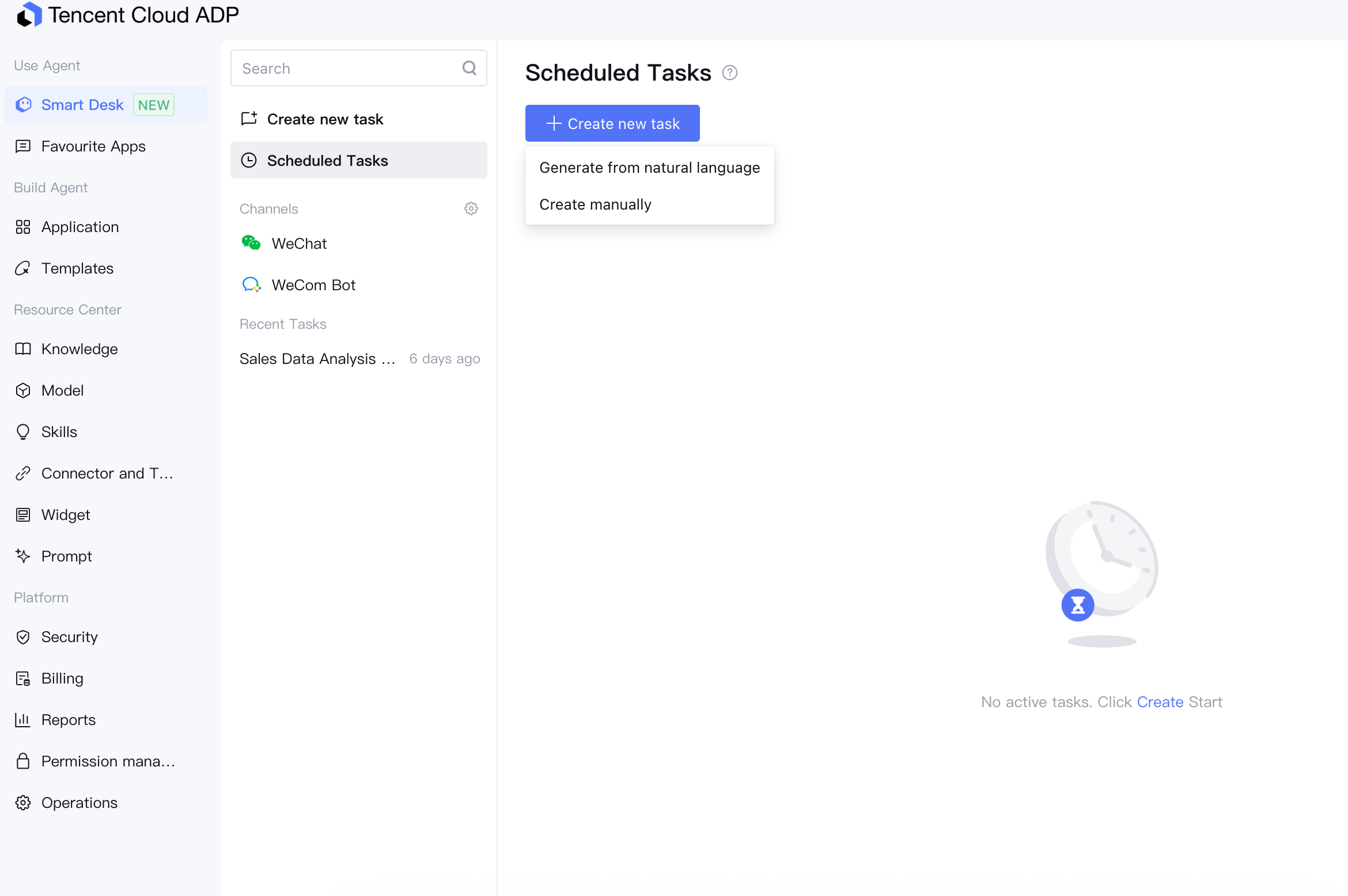
Scheduled Tasks enable your Smart Desk to automatically execute tasks without manual intervention, supporting scenarios such as routine report generation, inspection reminders, and periodic data processing. You can create scheduled tasks either by Creating manually or through Generate from natural languages, and push the execution results to a WeChat or WeCom bot.
Typical Use Cases
Routine Task Automation: automatically organizes to-dos and aggregates data daily.
Reminders and Inspections: periodically check system status and send alert messages.
Automatic Report Generation: generates and pushes data reports on a scheduled weekly basis.
Application Trigger: schedules calls to an existing application.
Prerequisites and Limitations
Before you begin, understand the following rules:
During scheduled task execution, skills, connectors, and tools use the global configuration of the current user's workspace, while models and folders can be configured individually for each scheduled task.
The minimum execution interval for scheduled tasks is 1 hour.
Creating a Scheduled Task
Scheduled tasks support two creation methods: Generate from natural language and Create manually.
Method 1: Natural Language Generation
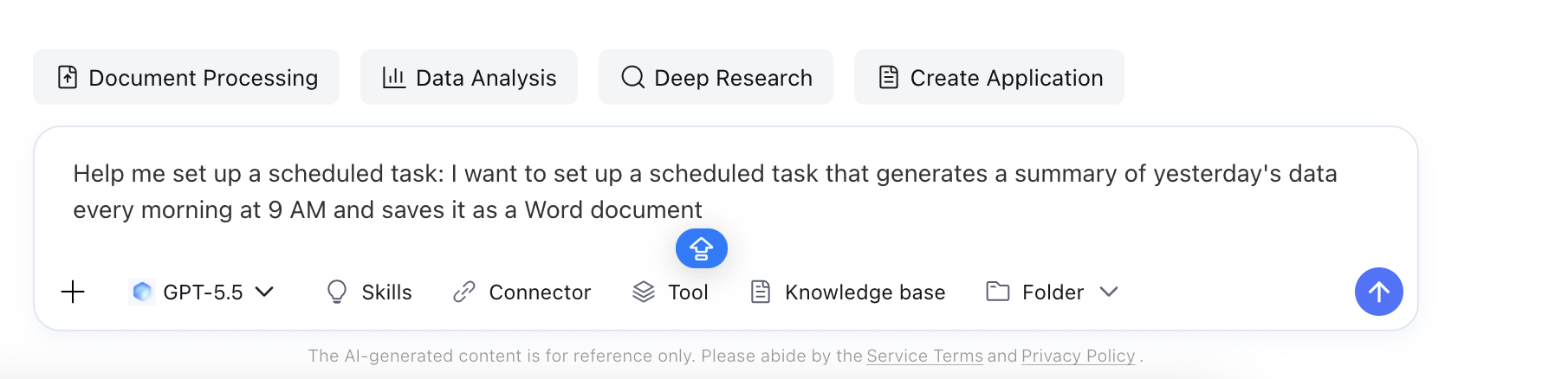
You can describe your requirements in natural language within any conversation in the Smart Desk, and the AI will automatically create a scheduled task for you.
Example Instruction:
I want to set up a scheduled task that generates a summary of yesterday's data every morning at 9 AM and saves it as a Word document.
The AI will automatically populate the following content based on your description:
Task Name
Prompt
Scheduled Execution Frequency
After creation is complete, the AI will fully confirm all configuration details with you. You can then view and manage the task in the scheduled task list.
Note:
For scheduled tasks created in a remote terminal, the task execution results are automatically pushed to the terminal session where the task was created.
For scheduled tasks created in a Smart Desk session, the execution results are only pushed to the Smart Desk.
Other Natural Language Operations:
Query the scheduled task list: View my scheduled tasks
Pause a task: Pause the XXX scheduled task
Method 2: Manual Creation
1. Click Create new task, and then select Create Manually.
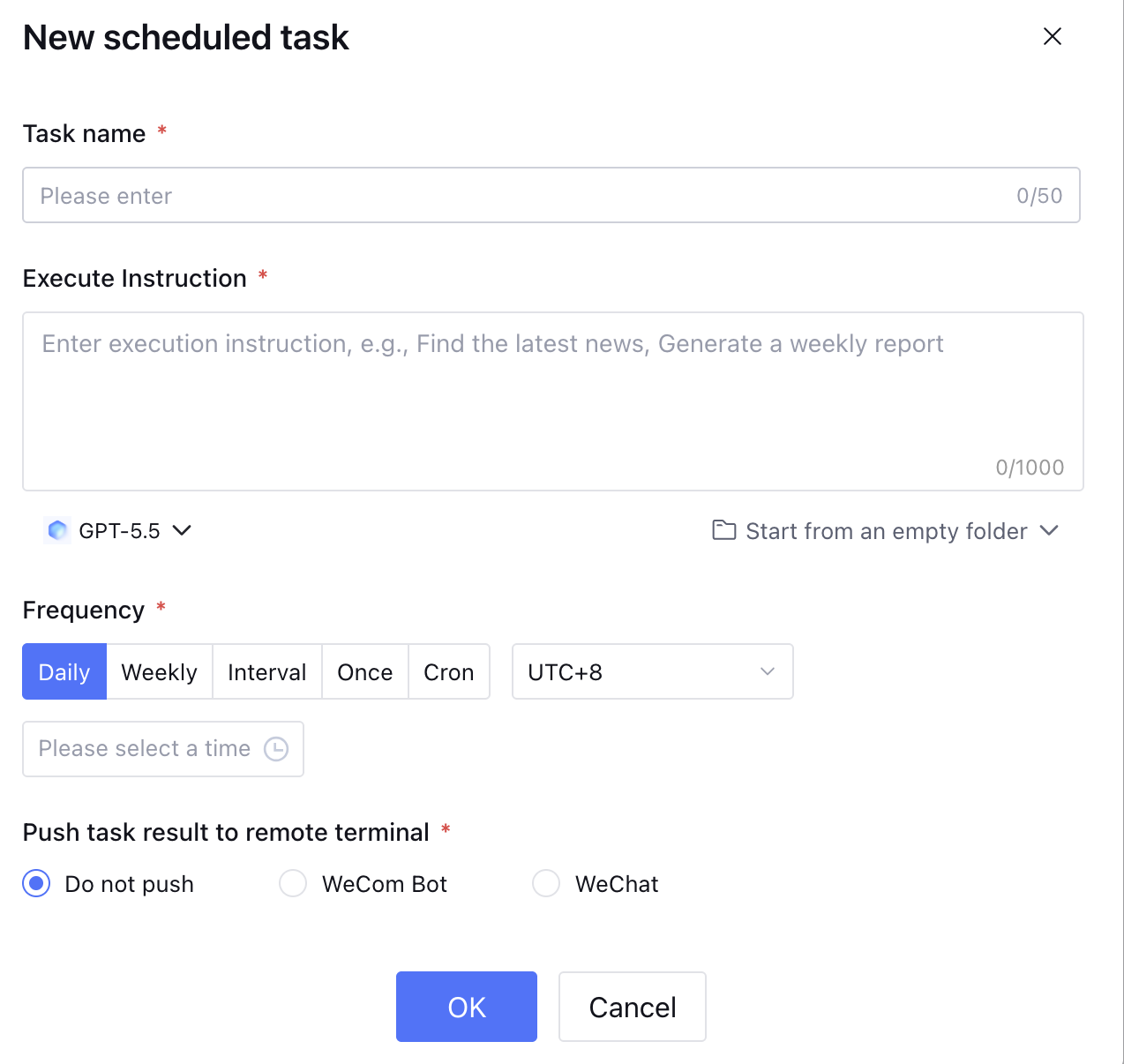
2. In the pop-up form, fill in the following information:
Configuration Item
Description
Task Name
Assign an easily identifiable name for this scheduled task.
Execute Instruction
The instruction content sent to the AI when the task runs, supporting @ of installed Skills and tools.
Model
Select the AI model to be used for this scheduled task.
Start from empty folder
When you select a specific folder, the agent can read the existing files within it and refine or modify them based on that content.
Frequency
Daily: Specify a time (hh:mm).
Weekly: Select one or more days of the week and specify a time (hh:mm).
Interval: Starting from a specified time, execute once every x hours (minimum 1 hour).
Once: Specify a specific date and time to execute only once.
Cron: Enter a standard Cron expression to flexibly customize the execution schedule. It is recommended to generate it using natural language.
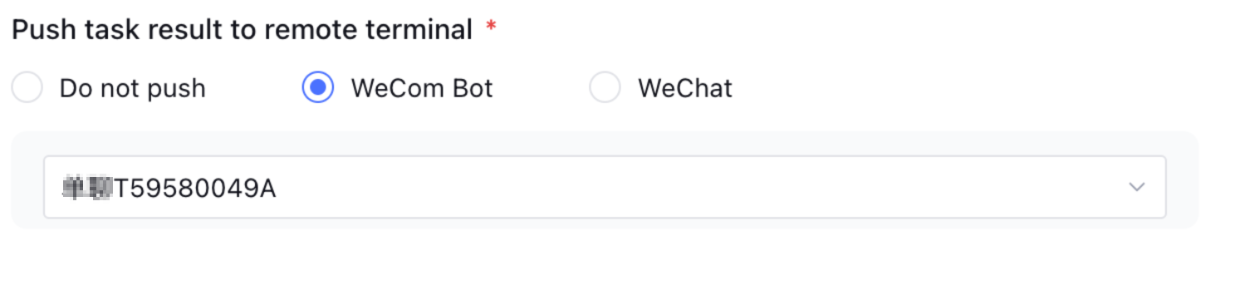
Push task result to remote terminal
Task run results can be pushed to designated conversations in the bound WeChat or WeCom bot channels.
If you have not bound the corresponding channel, this option will be grayed out and disabled. Please complete the channel binding first.
If no push notification is configured, the task results are displayed only on the Smart Desk page.
WeChat / WeCom is used only for receiving scheduled task results and does not support continuing a conversation based on that message.
A WeCom bot can be present in multiple private chats / group chats simultaneously. Each scheduled task can only push notifications to one specified conversation. To push notifications to multiple locations, create multiple scheduled tasks separately.
3. After completing the configuration, click Save. The task will then be automatically added to the scheduled task list and run as planned.
Viewing and Managing Scheduled Tasks
Scheduled Task List
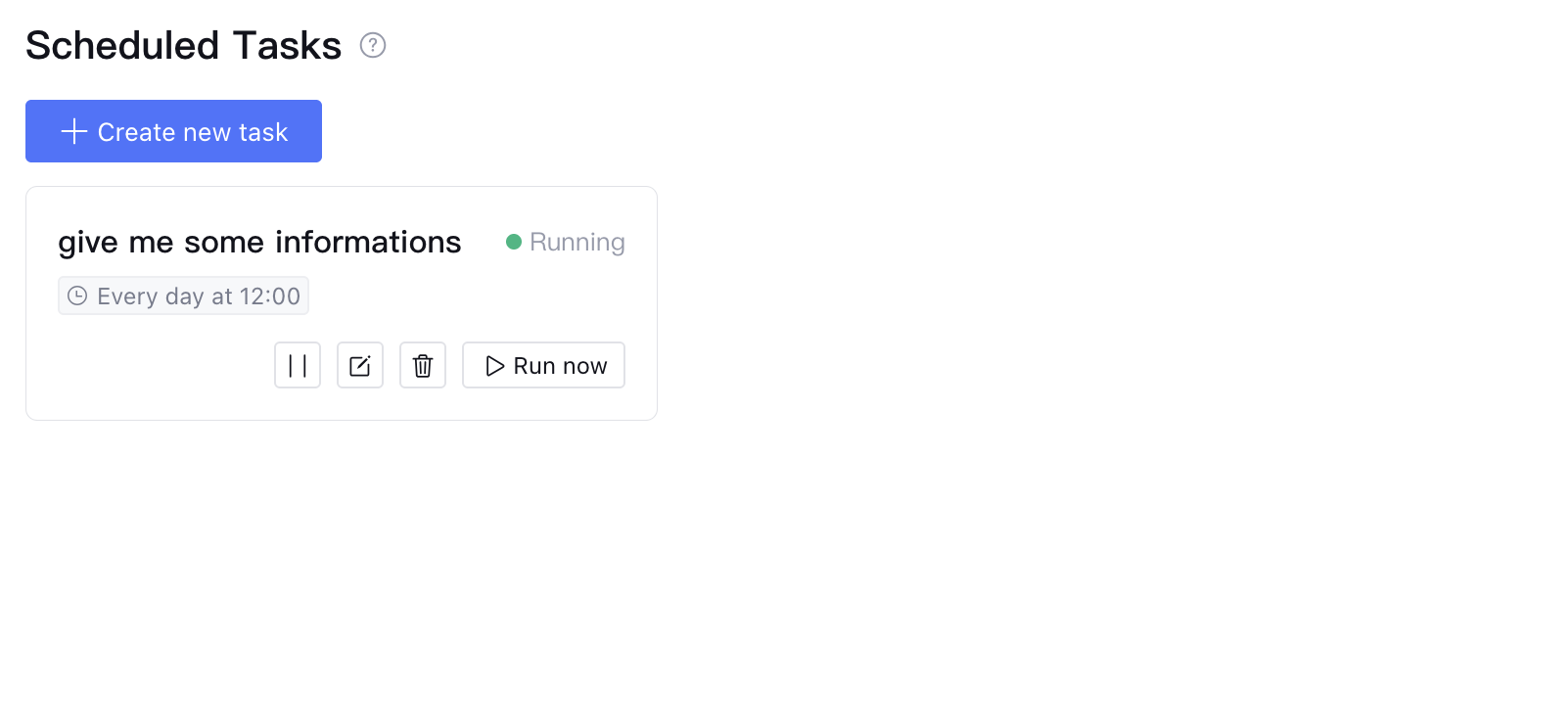
At the scheduled tasks entry point, the right panel displays a list of all tasks.
The following operation buttons are provided for each task:
Operation
Description
Execute Immediately
Manually triggers the task once immediately, without affecting the original scheduled plan.
Pause Task
Suspends scheduled execution while retaining task configurations.
Edit Task
Modifies configurations such as task name, prompt, frequency, and push channel.
Delete Task
The delete operation will permanently remove the scheduled task, all historical conversation records, and stop all subsequent runs. Proceed with caution.
Viewing Historical Run Logs
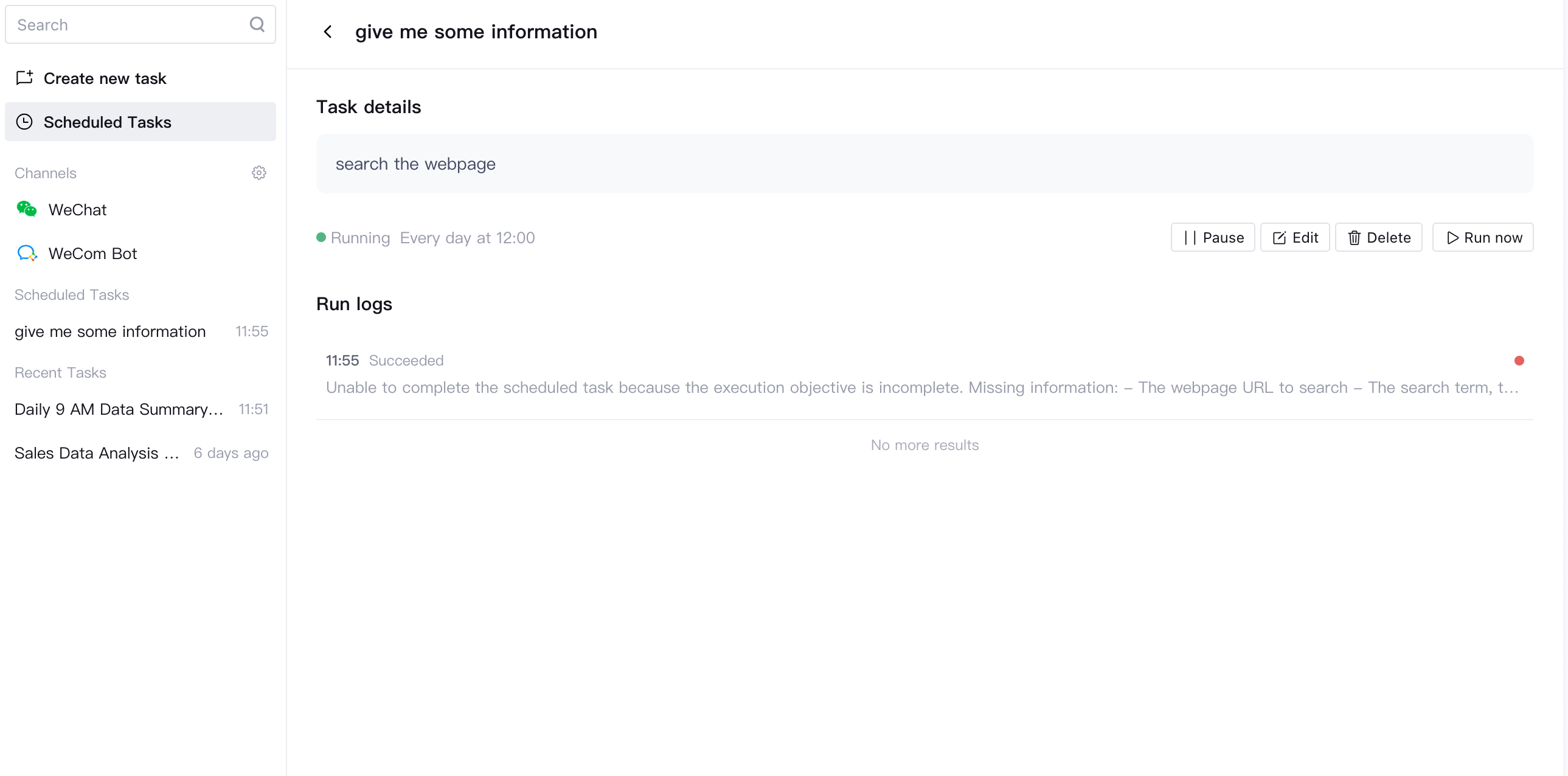
Click any scheduled task to go to its details page, where the Run logs for that task are displayed.
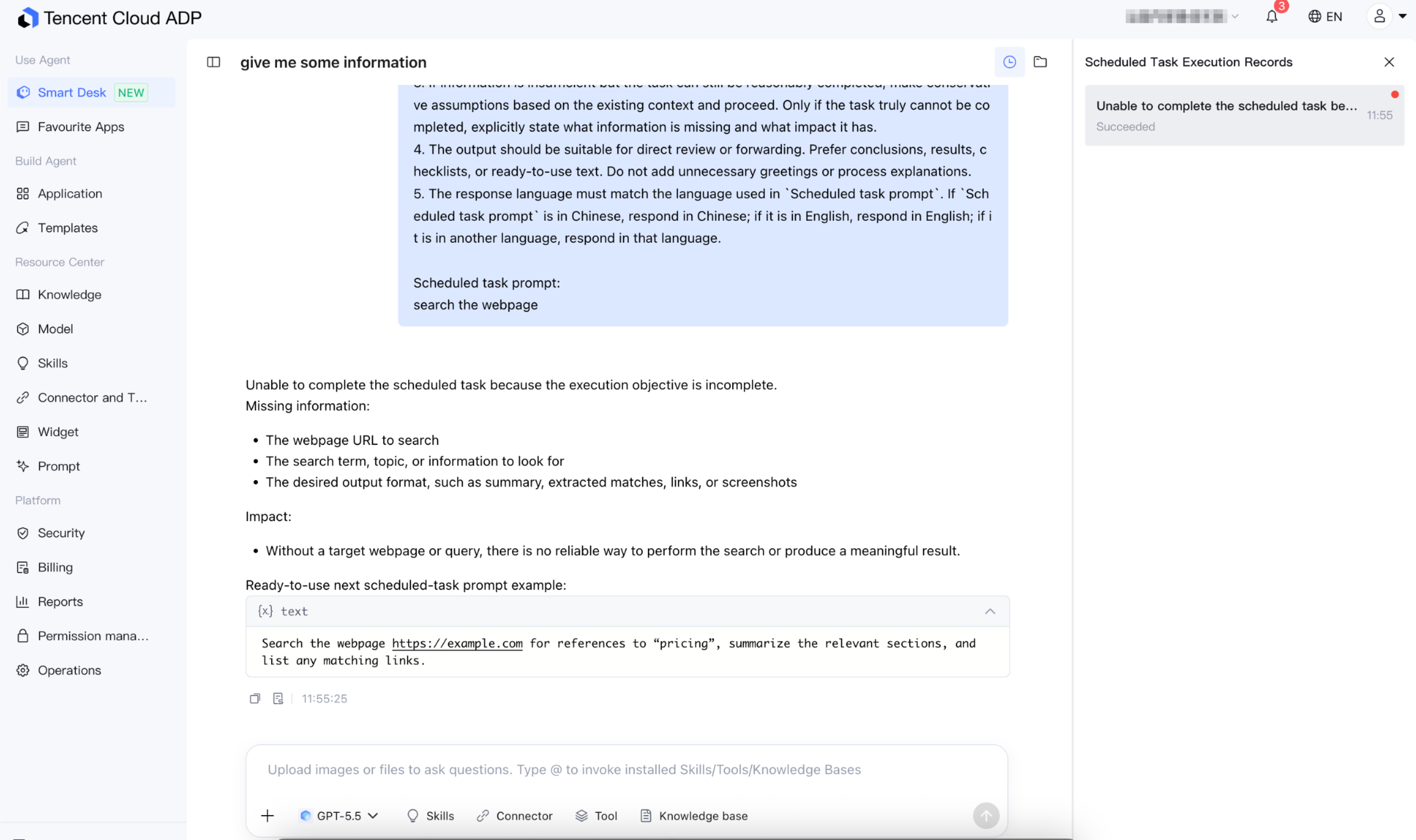
Click a historical log to switch to the corresponding conversation record and view the AI's complete output. Each historical record is independent, and you can continue the conversation based on that record.
Running scheduled tasks that have been triggered at least once are pinned in the Scheduled Tasks Execution Records section of the left sidebar in the workbench, with each row corresponding to one scheduled task.